Dual-boot Windows on a secondary SSD 30 min
For competitive gaming or Windows-exclusive software, you can add a secondary NVMe SSD to create a dual-boot system.
This dual-drive configuration physically isolates the systems. This ensures Olares OS remains stable and secure while providing full native performance for your Windows applications.
Learning objectives
By the end of this guide, you will learn how to:
- Install Windows on a secondary SSD alongside Olares OS.
- Configure BIOS boot settings for dual-boot.
- Set up GRUB to detect and boot both operating systems.
- Switch between Olares OS and Windows at startup.
Prerequisites
Hardware
- A secondary NVMe M.2 SSD physically installed in Olares One.
- A USB flash drive containing a bootable Windows installation media.
- A wired keyboard and mouse.
- A monitor connected to Olares One.
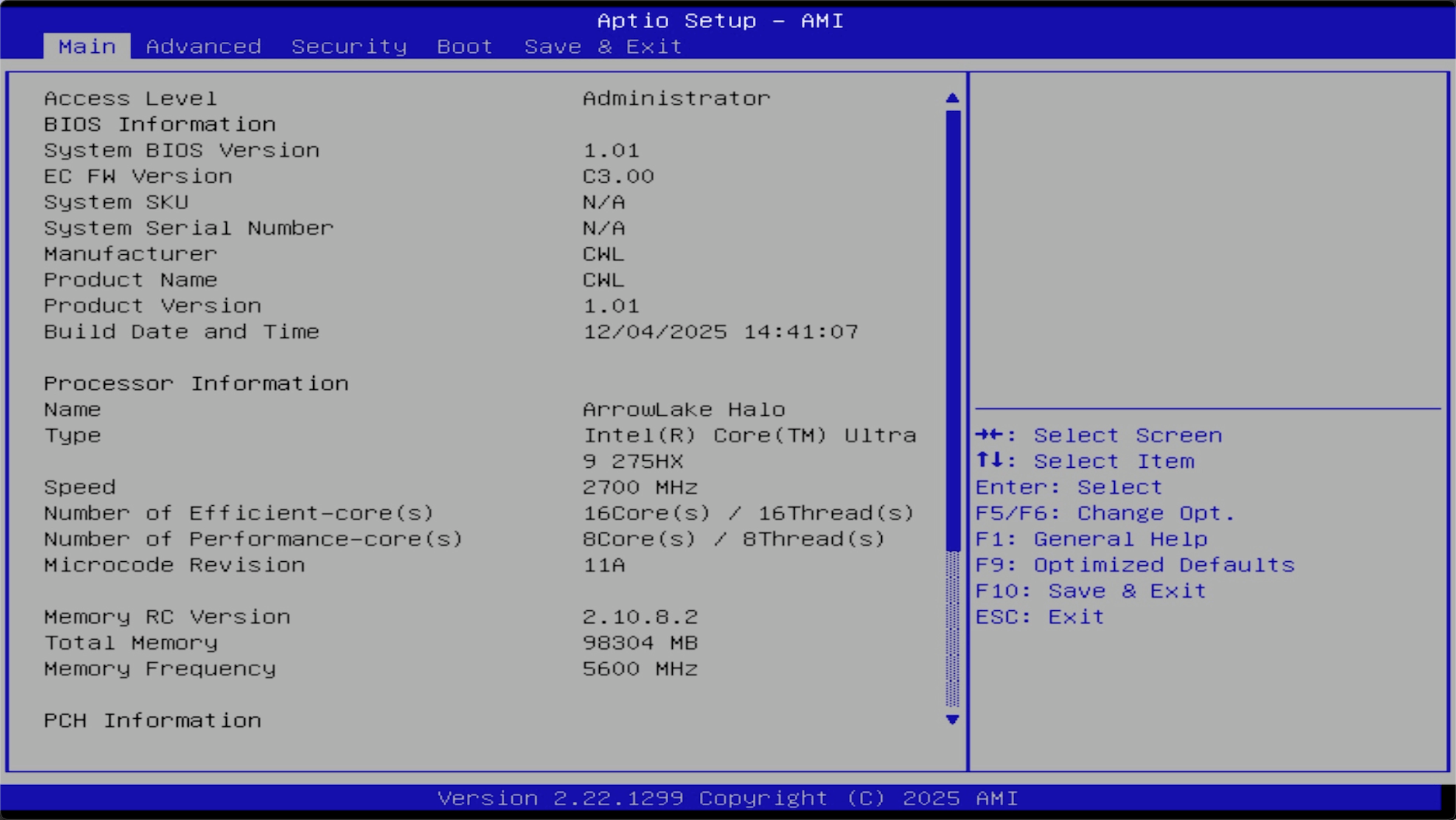
Step 1: Boot into BIOS
- Insert the Windows USB boot drive into a USB port on Olares One.
- Power on Olares One or restart it if it is already running.
- When the Olares logo appears, immediately press the Delete key repeatedly to enter BIOS setup.
Step 2: Boot from USB
- Navigate to the Boot tab using the arrow keys on your keyboard.
- Set Boot Option #1 to your Windows USB flash drive, and press Enter.
- Press F10, then select Yes to save and exit BIOS.
- The system restarts and boots from the USB drive into the Windows installation interface.
Step 3: Install Windows
Follow the on-screen prompts to begin the Windows installation.
Select the correct drive
You must carefully identify the secondary SSD.
Selecting the wrong drive will permanently erase your Olares data.
When the installation finishes and the system restarts, unplug the Windows USB drive.
Step 4: Boot back into Olares OS
- Restart Olares One.
- When the Olares logo appears, press the Delete key repeatedly to enter BIOS setup.
- Go to the Boot tab and set Boot Option #1 to the SSD that contains Olares OS.
- Press F10, then select Yes to save and exit BIOS.
Olares One will boot into Olares OS.
Step 5: Detect Windows and update GRUB
Log in using the default credentials:
- Username:
olares - Password:
olares

- Username:
Run the following command:
bashsudo os-proberIf Windows has been installed successfully, you should see an entry similar to:
bash/dev/nvme0n1p1@/efi/Microsoft/Boot/bootmgfw.efi:Windows Boot Manager:Windows:efiEnable GRUB to probe other operating systems and regenerate the boot menu:
a. Create a symbolic link for GRUB configuration:
bashsudo ln -s /boot/efi/grub /boot/grubb. Enable OS prober to detect Windows:
bashsudo sed -i 's|GRUB_DISABLE_OS_PROBER=true|GRUB_DISABLE_OS_PROBER=false|' /etc/default/grubc. Regenerate the GRUB boot menu:
bashsudo update-grubExample output:
bashSourcing file '/etc/default/grub' Generating grub configuration file ... Warning: os-prober will be executed to detect other bootable partitions. Its output will be used to detect bootable binaries on them and create new boot entries. Found Windows Boot Manager on /dev/nvme0n1p1@/efi/Microsoft/Boot/bootmgfw.efi Adding boot menu entry for UEFI Firmware Settings ... done
Step 6: Switch between operating systems
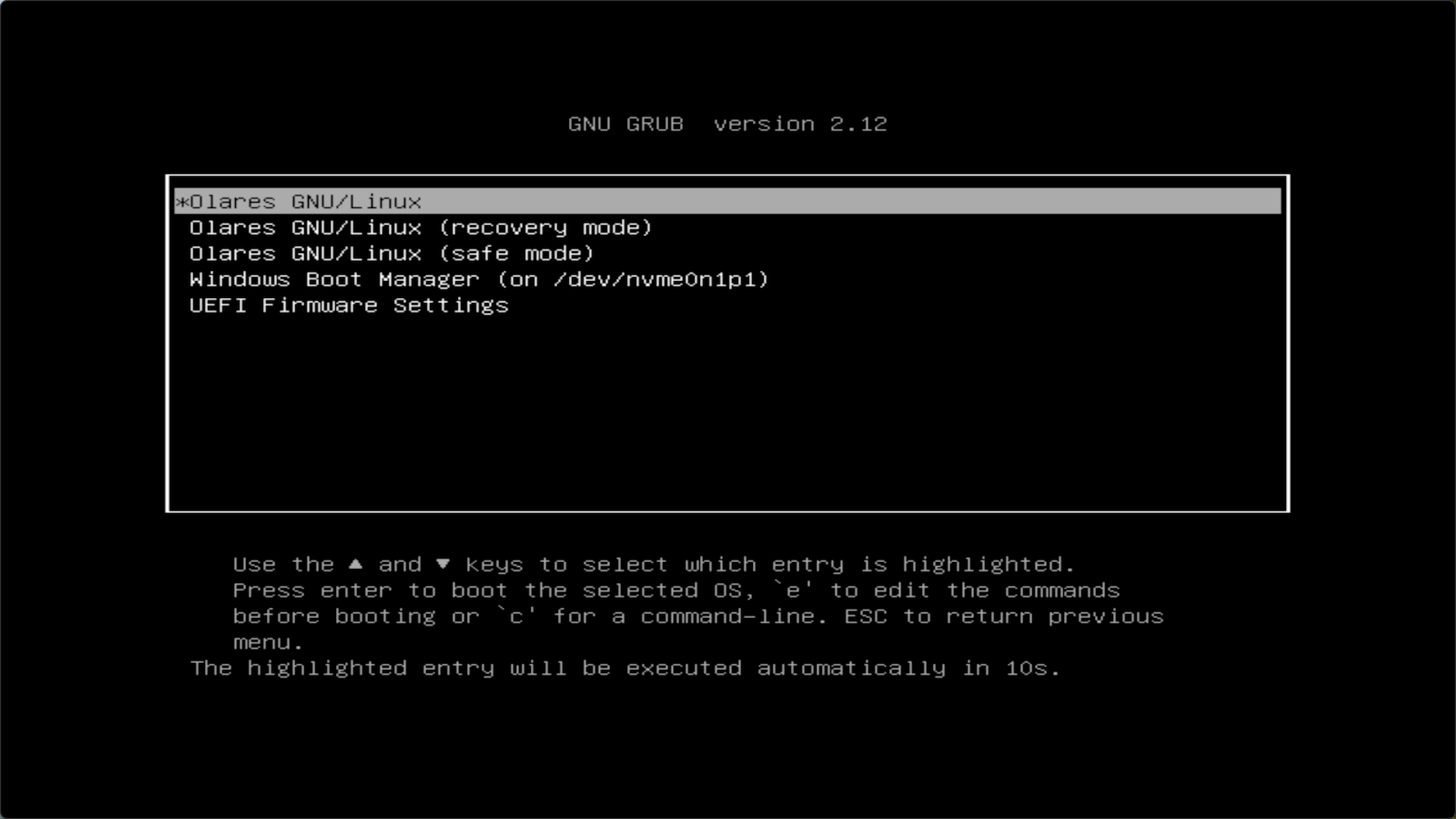
Shut down Olares One, wait a few seconds, and then power it on again. You should now see a GRUB menu with both Olares and Windows entries.
TIP
The highlighted entry (Olares GNU/Linux) will be executed automatically in 10 seconds.
At the GRUB menu:
- Boot Olares OS: Select Olares GNU/Linux.
- Boot Windows: Select Windows Boot Manager.