Manage PDF documents with Stirling PDF
Stirling PDF is a robust, locally hosted tool designed to manage PDF documents securely and efficiently.
Learning objectives
By the end of this tutorial, you are able to:
- Redact (black out) sensitive information securely.
- Organize documents by merging, rotating, splitting, and re-ordering pages.
- Convert documents between PDF and other formats.
- Create automated workflows to batch process PDF documents.
Install Stirling PDF
Open the Olares Market and search for "Stirling-PDF".
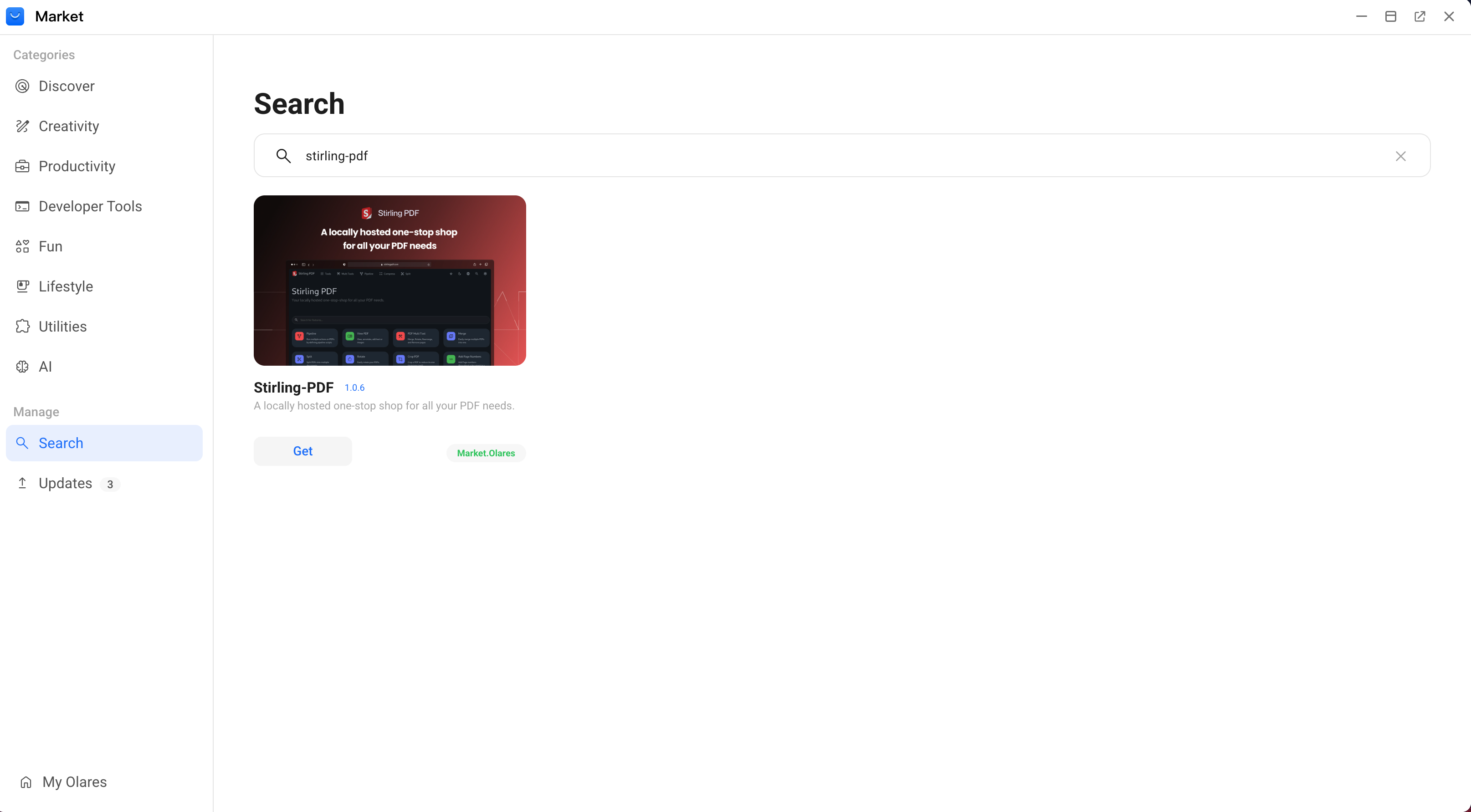
Click Get, and then click Install.
After the installation is completed, open Stirling-PDF from Launchpad. The Stirling PDF homepage automatically launches in your default web browser.
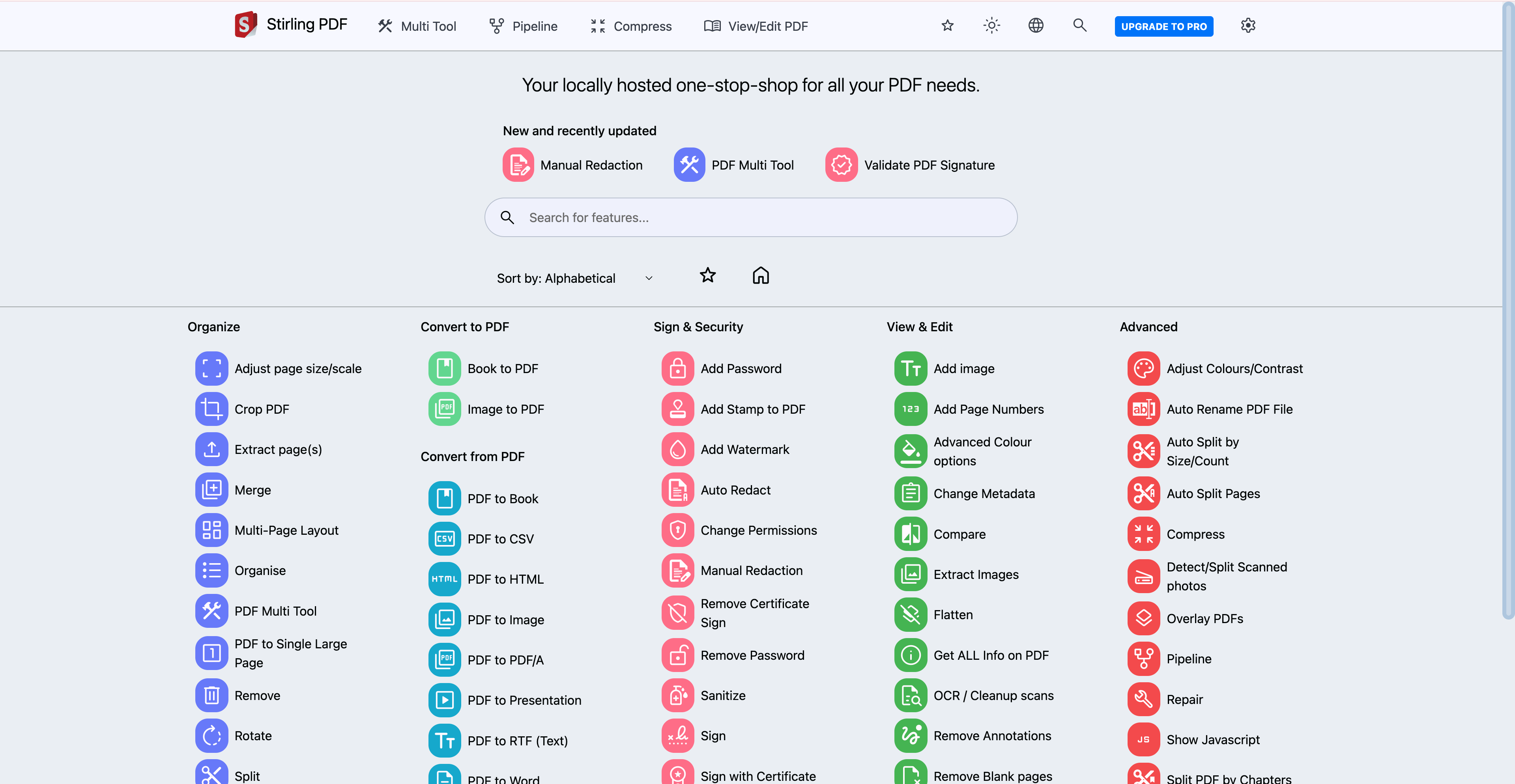
Redact sensitive information
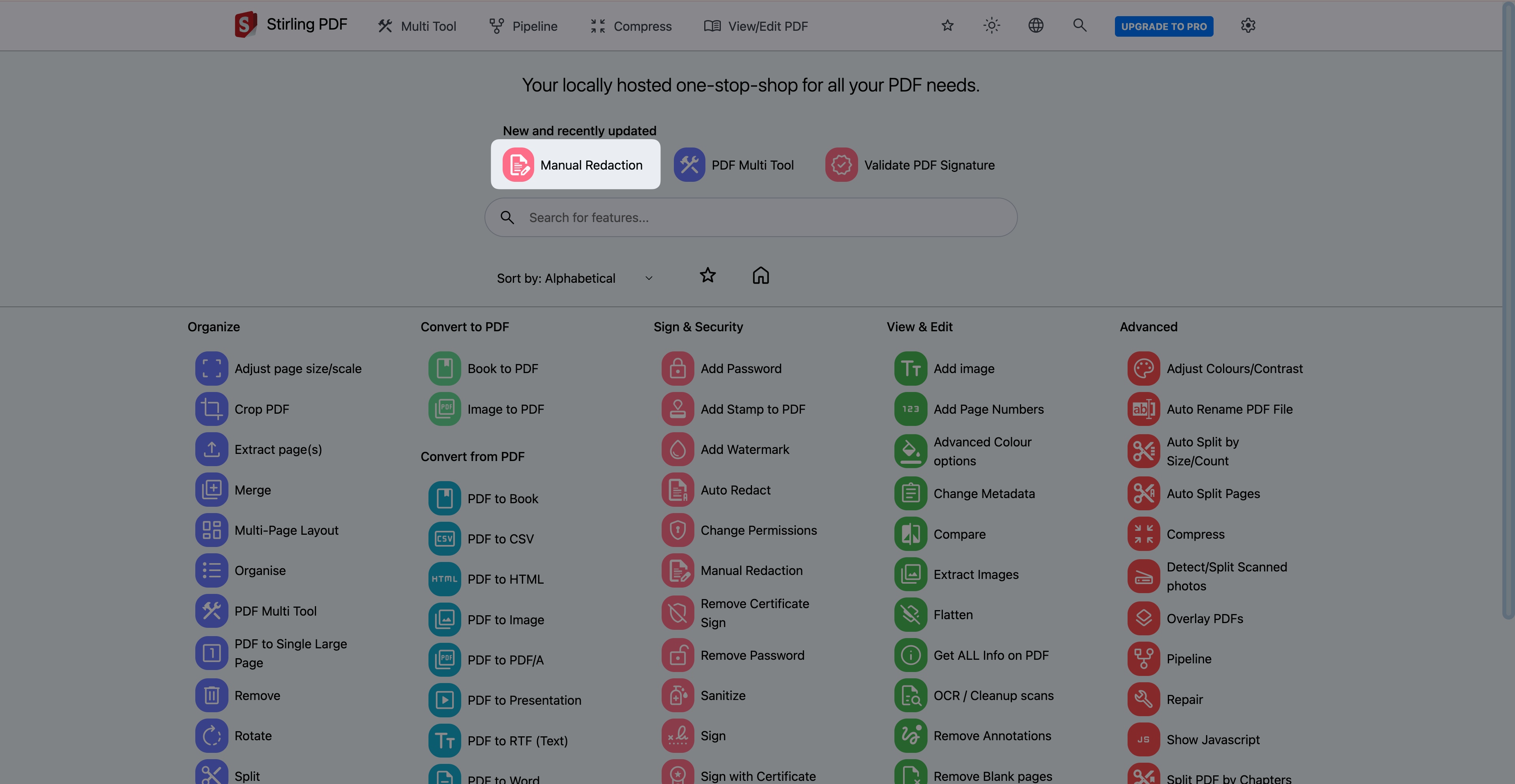
The Manual Redaction tool allows you to hide or black out sensitive information from your documents. You can scrub specific text, visual areas, or entire pages.
From the homepage, click Manual Redaction.
Upload your PDF file.
To redact specific text:
a. Click the Text-based Redaction icon on the toolbar.

b. Select the text you want to hide.
c. (Optional) Click the Colour Picker icon to change the redaction color. By default, it is black.

d. Click the Apply changes icon to confirm your selection.

To redact images or areas:
a. Click the Box draw redaction icon on the toolbar.

b. Drag to draw a box around the sensitive area. When you release your mouse, the box turns from red to green, which indicates the area is selected successfully.
c. (Optional) Click the Colour Picker icon to change the redaction color. By default, it is black.
To redact entire pages:
a. Click the Page-based Redaction icon on the toolbar.

b. Enter the specific page numbers or ranges.
c. Select the redaction color.
d. Click Apply.
Export the redacted file.
a. Click the Export icon to download the sanitized PDF.

b. Review your file to ensure that the redaction is correctly implemented.
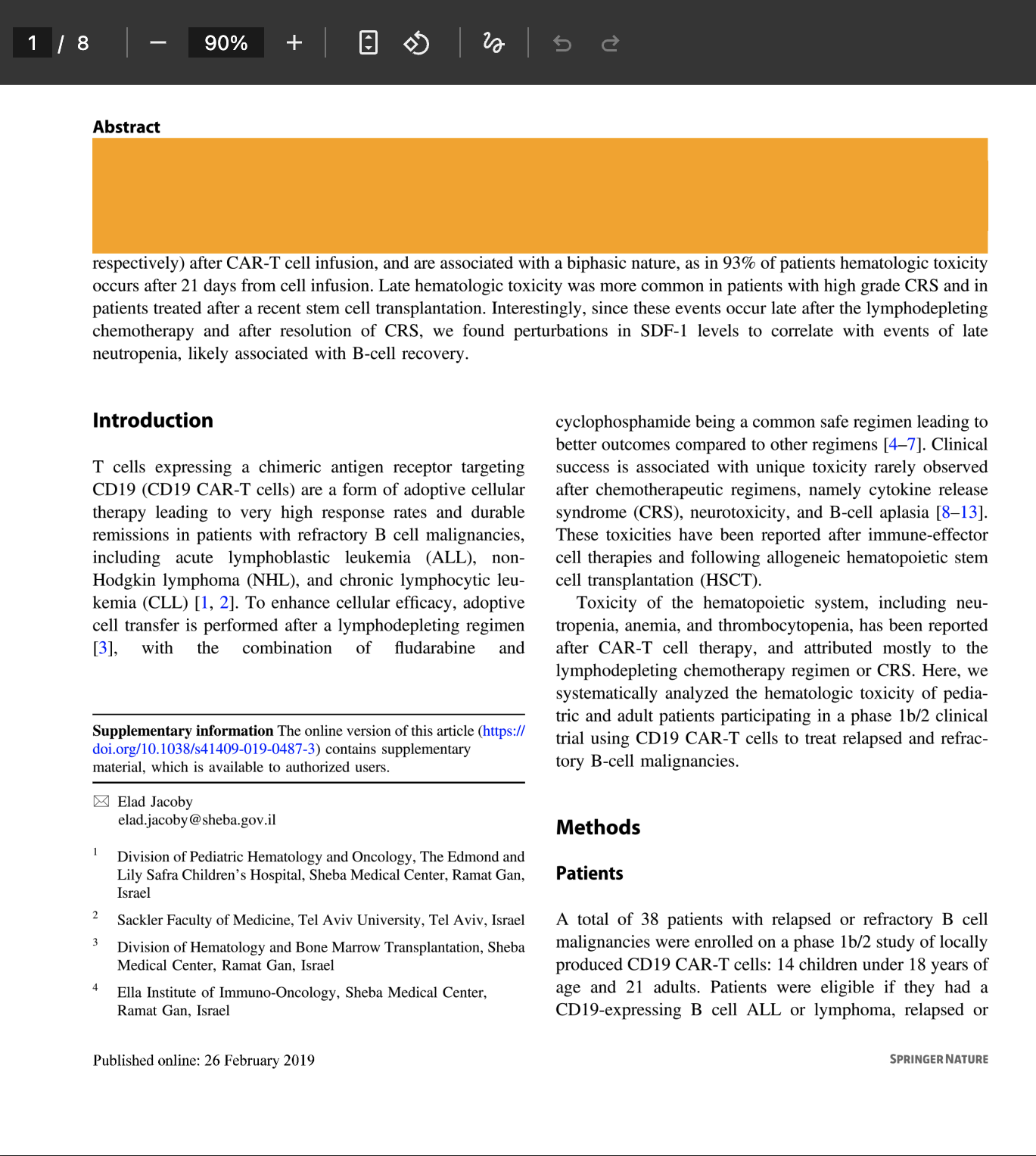
The following image shows an example of a paragraph redacted in orange:
Organize pages
The Multi Tool allows you to adjust the structure of the PDF documents, including merging, splitting, rotating, and re-ordering pages.
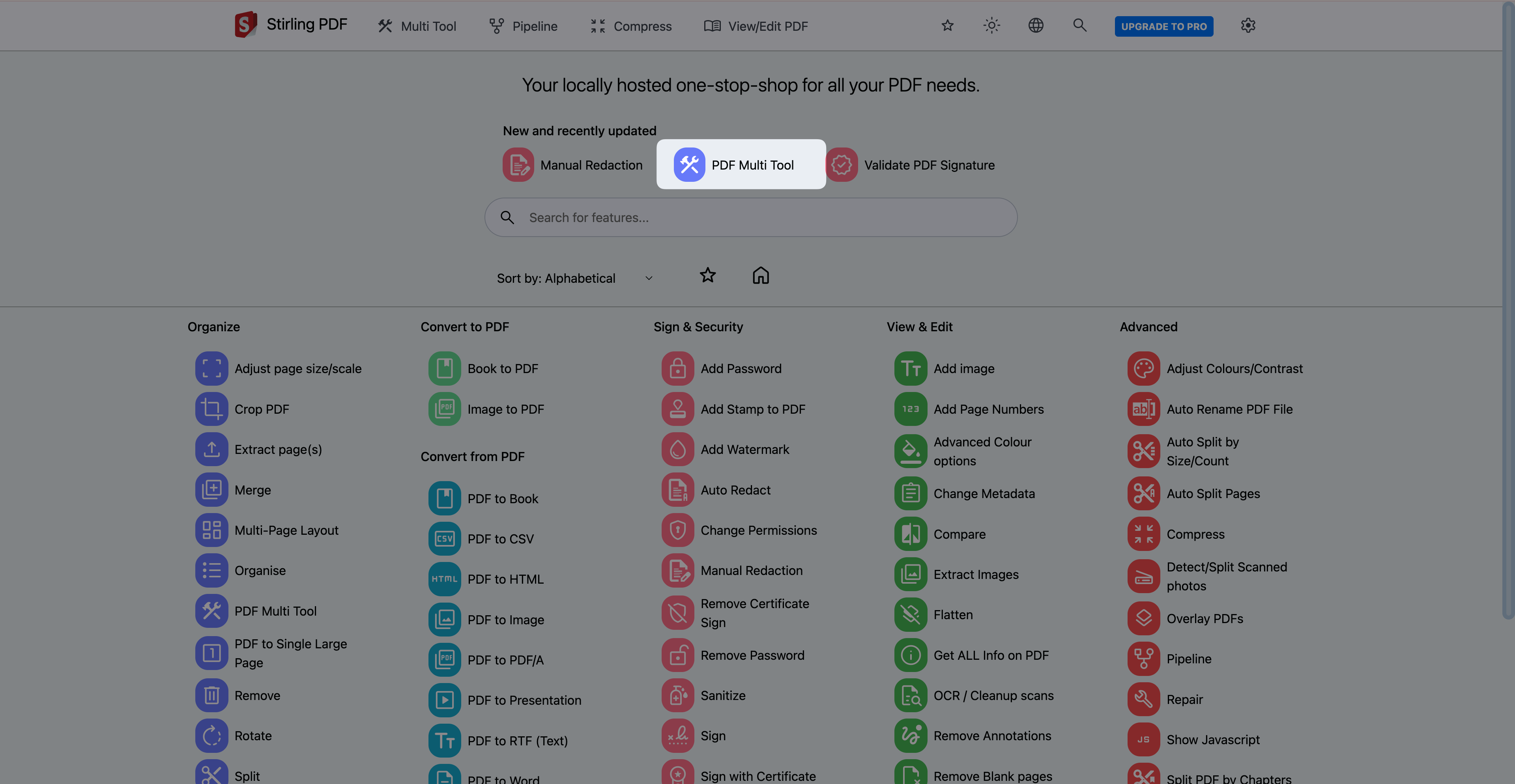
From the homepage, click PDF Multi Tool.
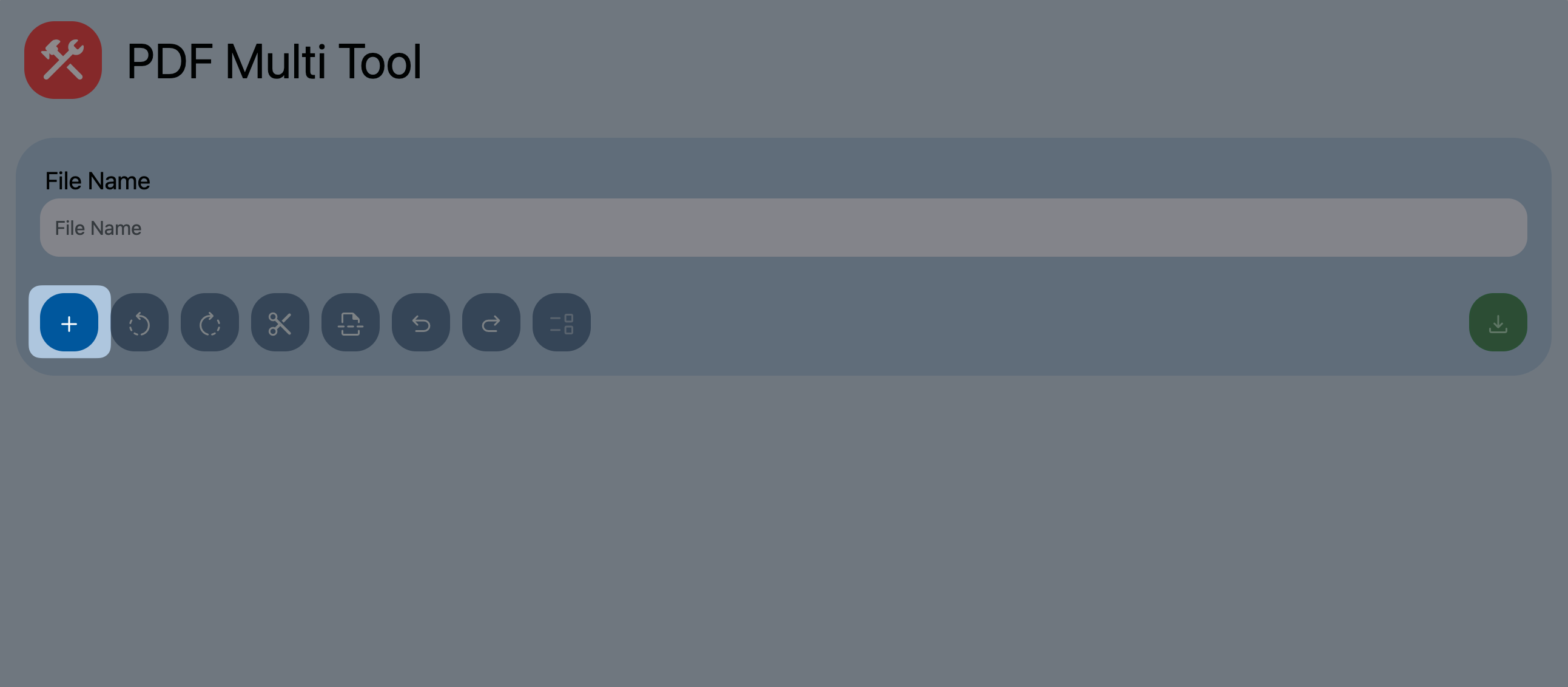
Click the Add File icon to add one or multiple PDF files.
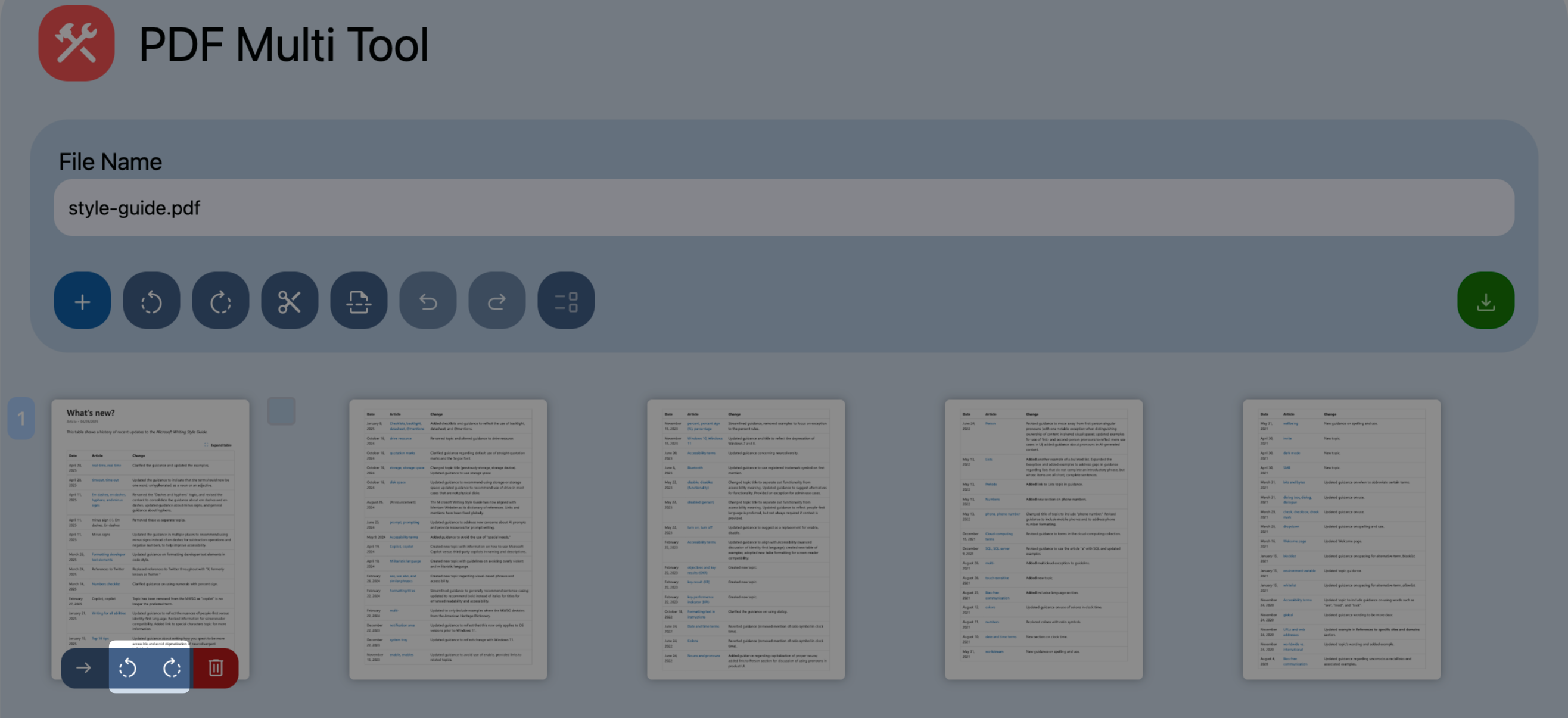
To rotate pages:
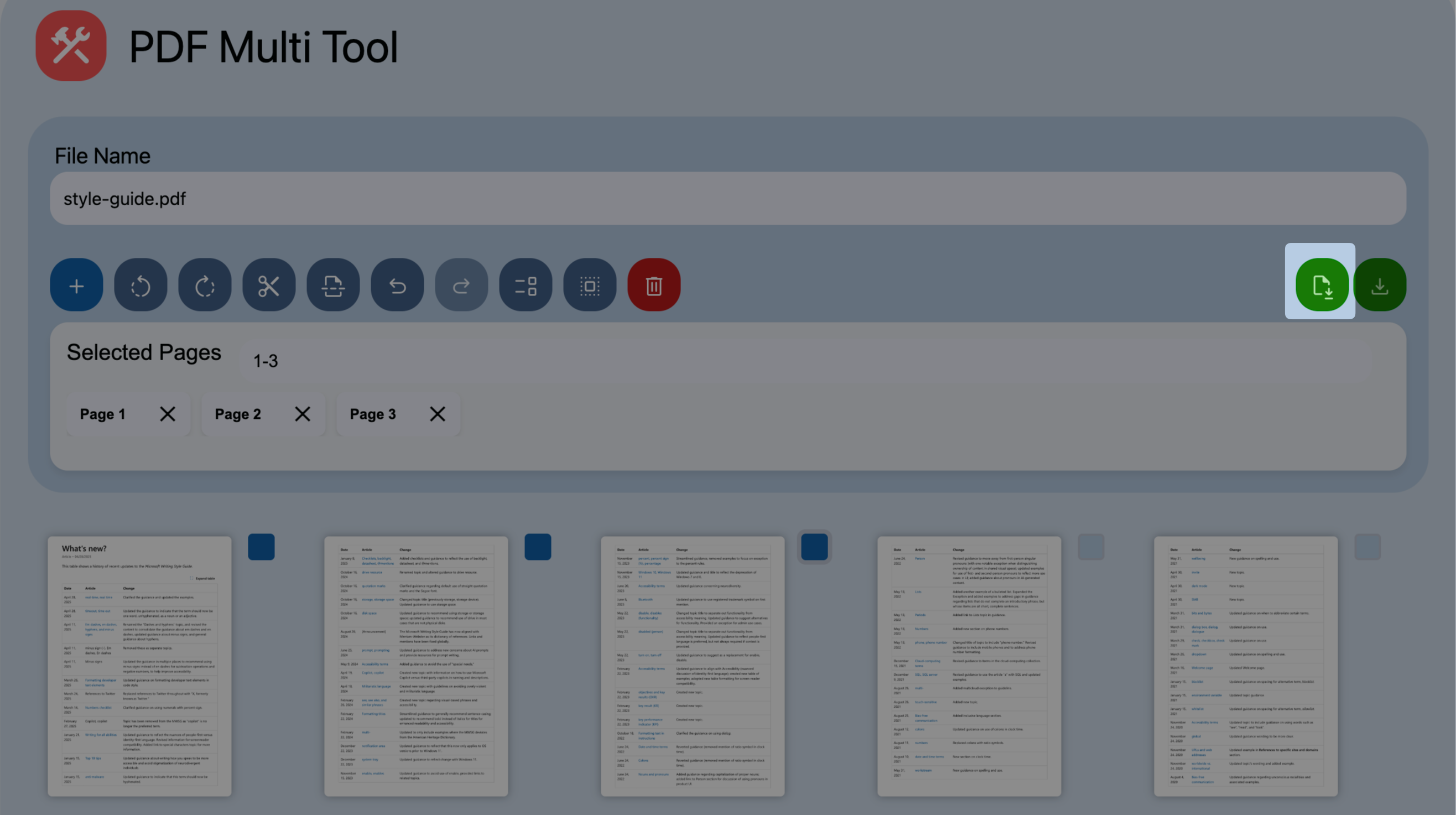
- To rotate a single page, hover over the specific page thumbnail and click the Rotate Left icon or the Rotate Right icon.
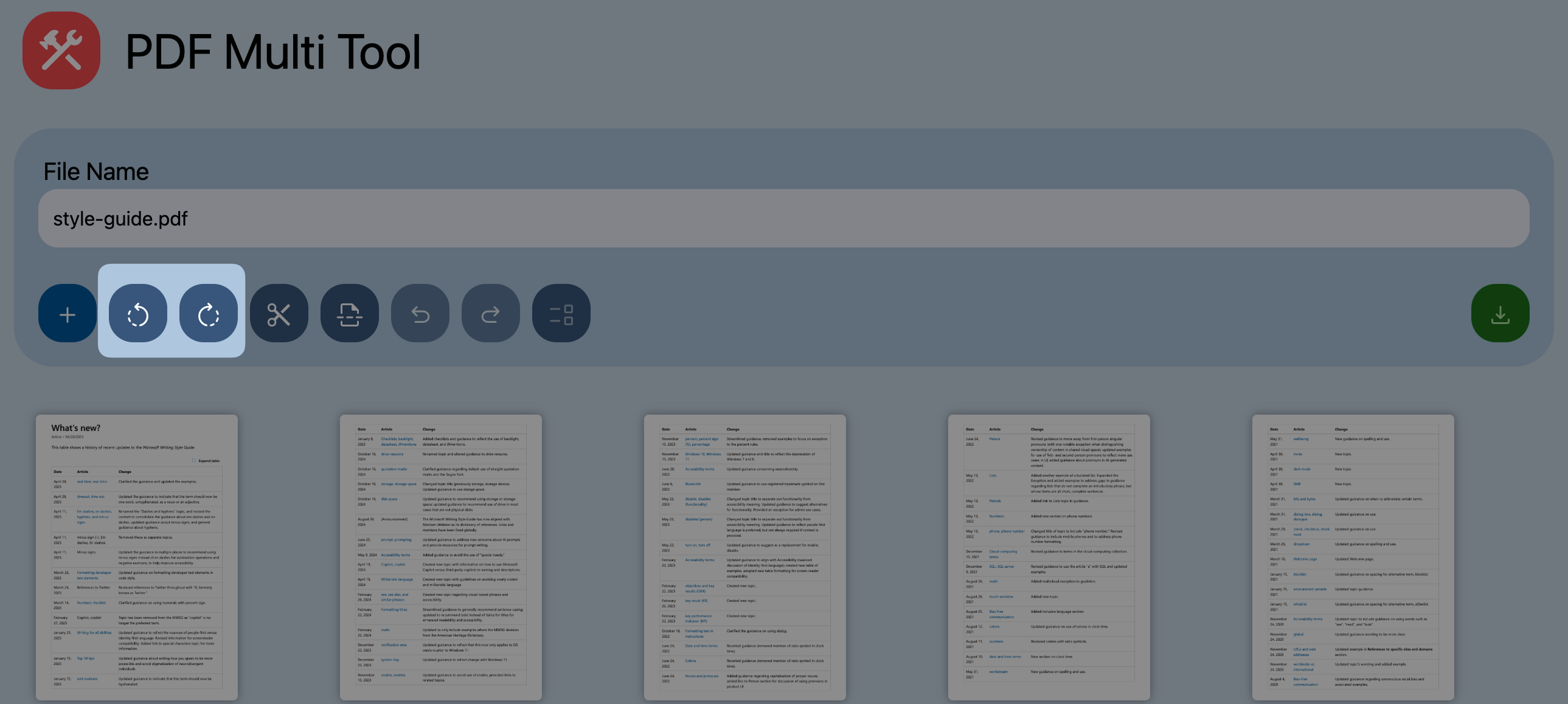
- To rotate all pages at once, click the Rotate Left icon or the Rotate Right icon in the File Name area.
To re-order pages, drag the page to its new position in the grid.
To delete pages:
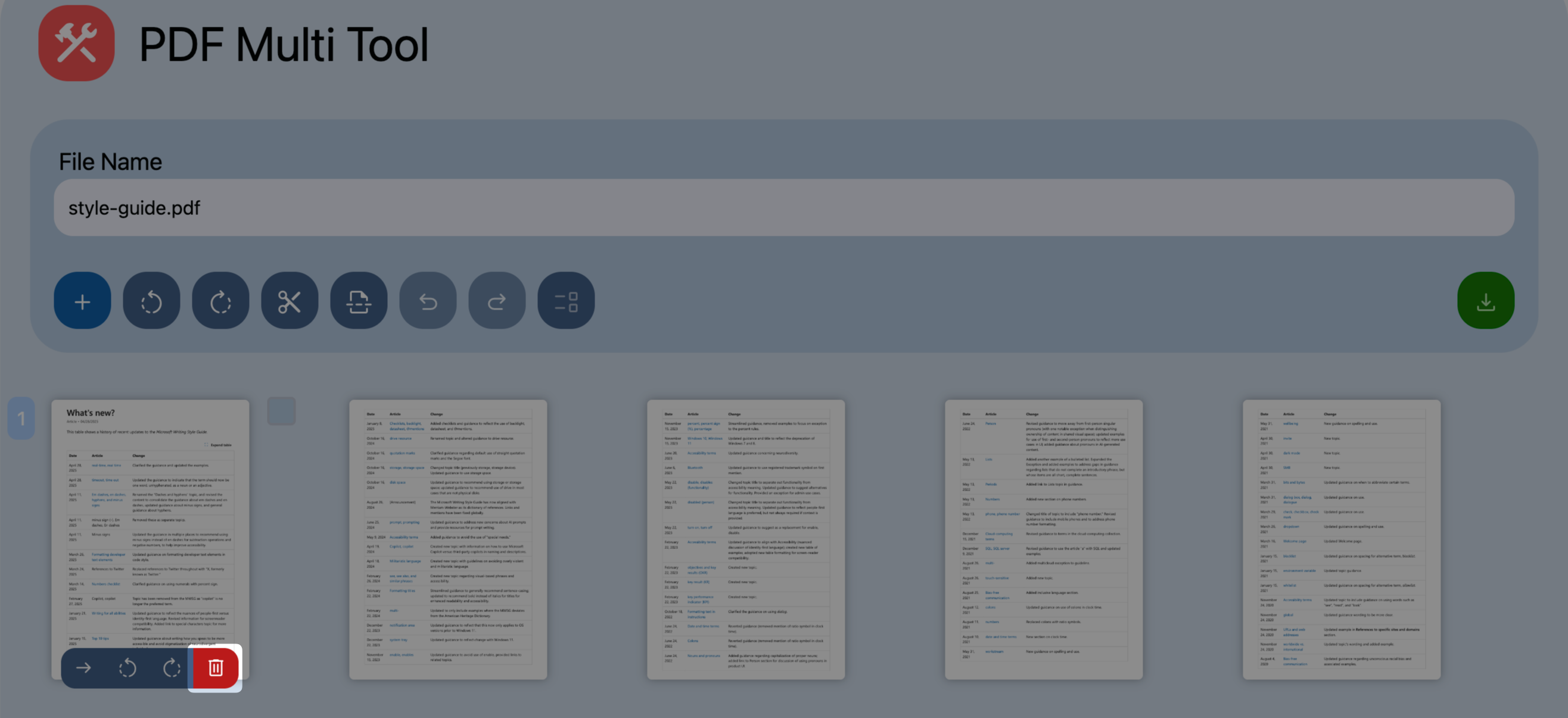
- To delete a single page, hover over the page, and then click the Delete icon on the thumbnail.
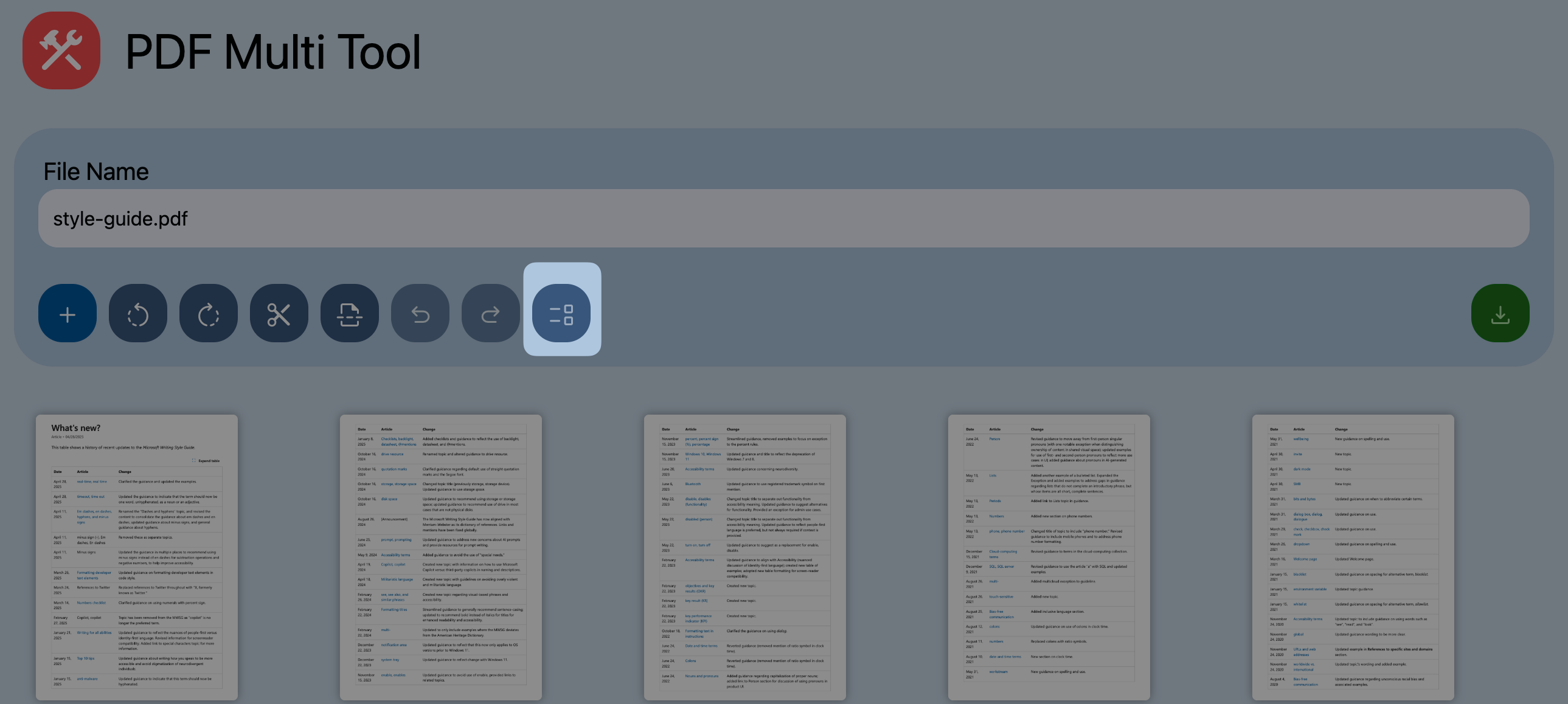
- To delete multiple pages, click the Page Select icon in the File Name area, select the checkboxes for all target pages, and then click Delete Selected.
To split pages:
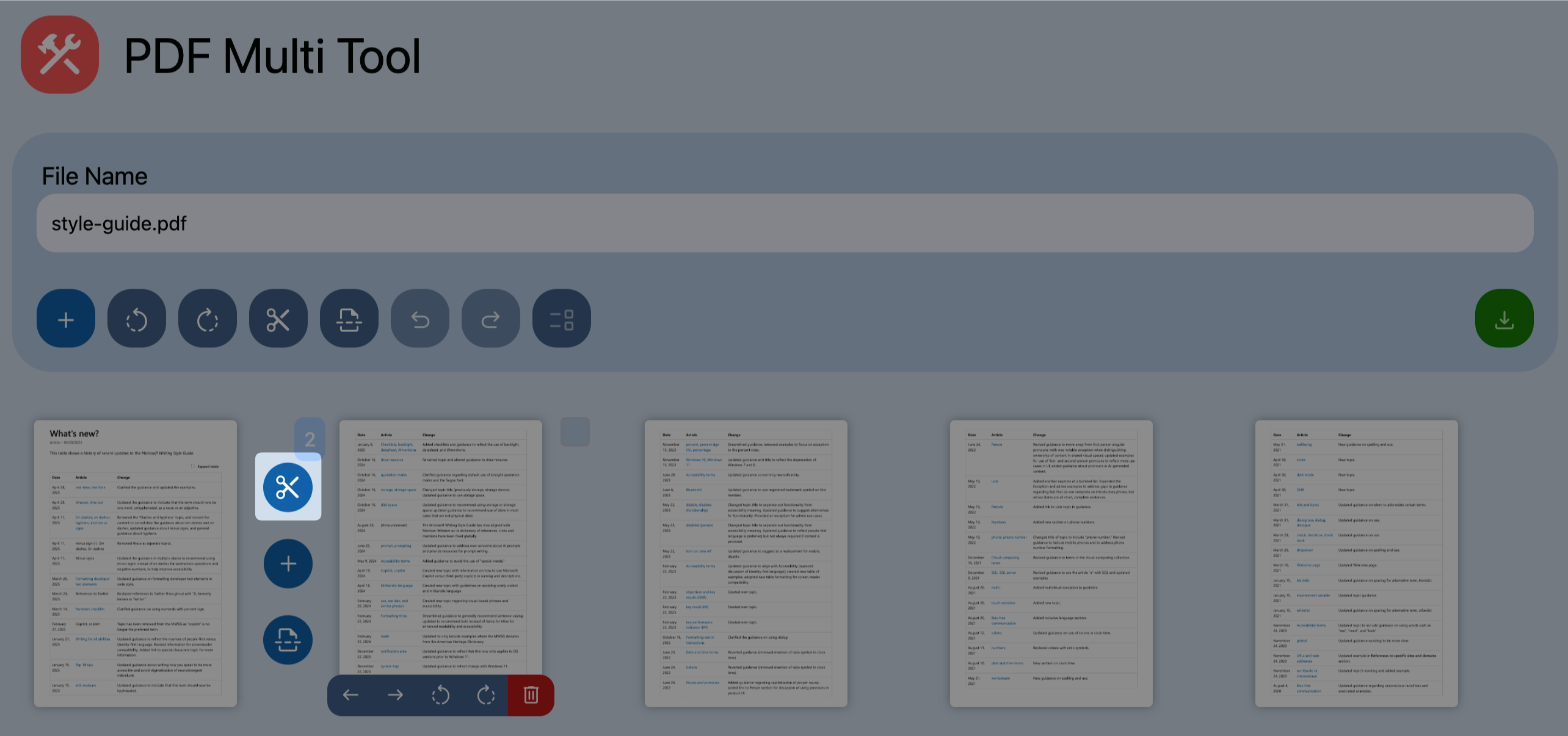
- To split a specific page into a new file, click the Scissors icon on the left of that page's thumbnail.
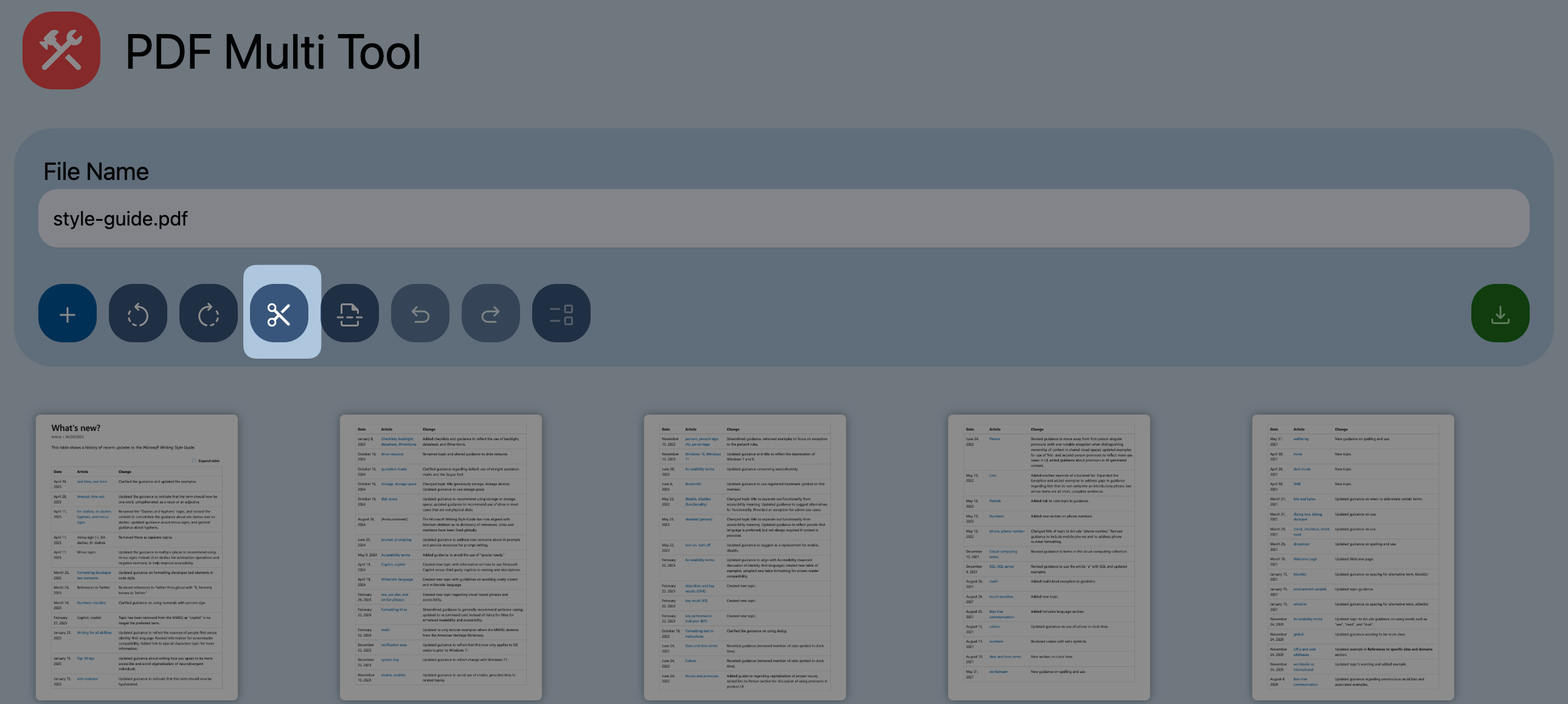
- To split every page into its own separate file, click the Scissors icon in the File Name area.
To export pages:
- To download the re-organized file as a single PDF, click Export.
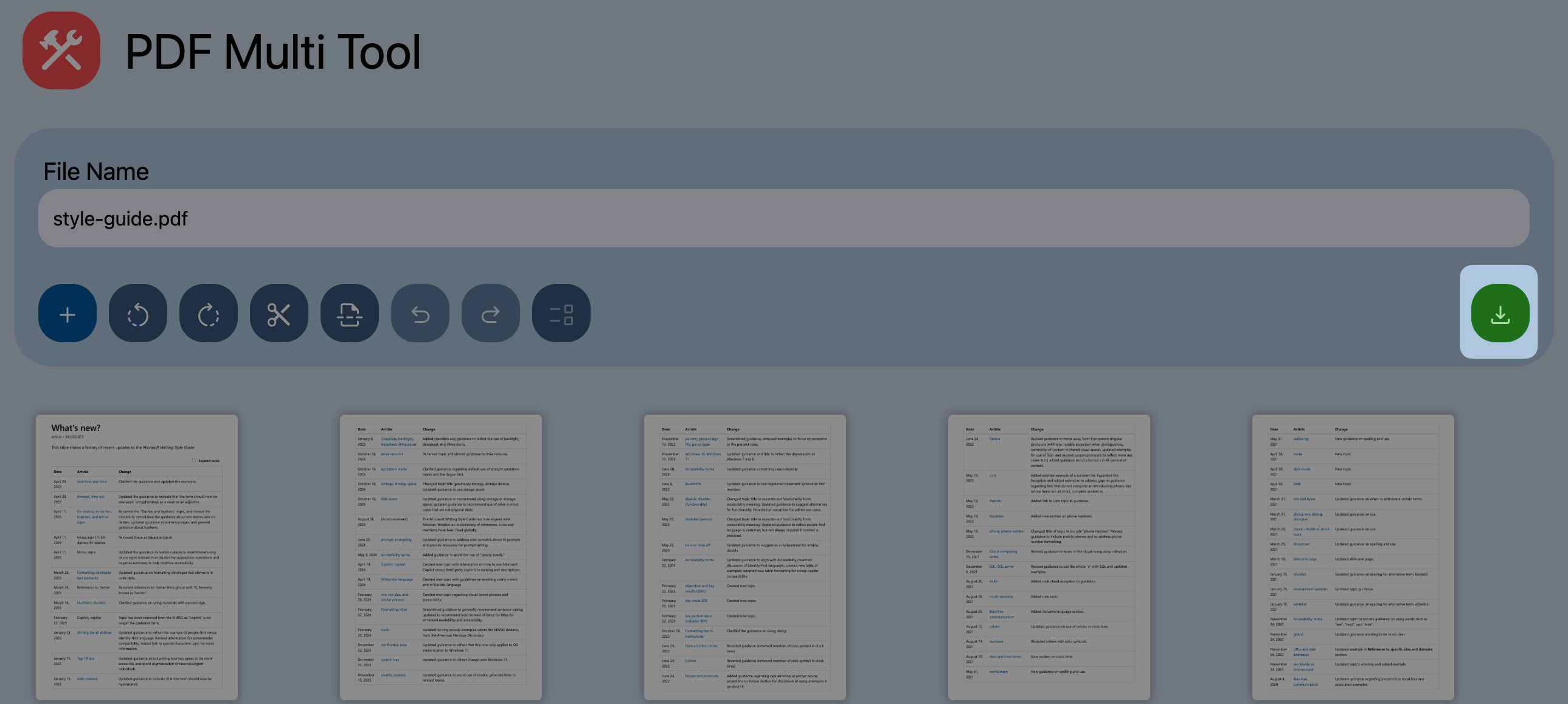
- To export specific pages, select the pages, and then click Export Selected.
Convert file formats
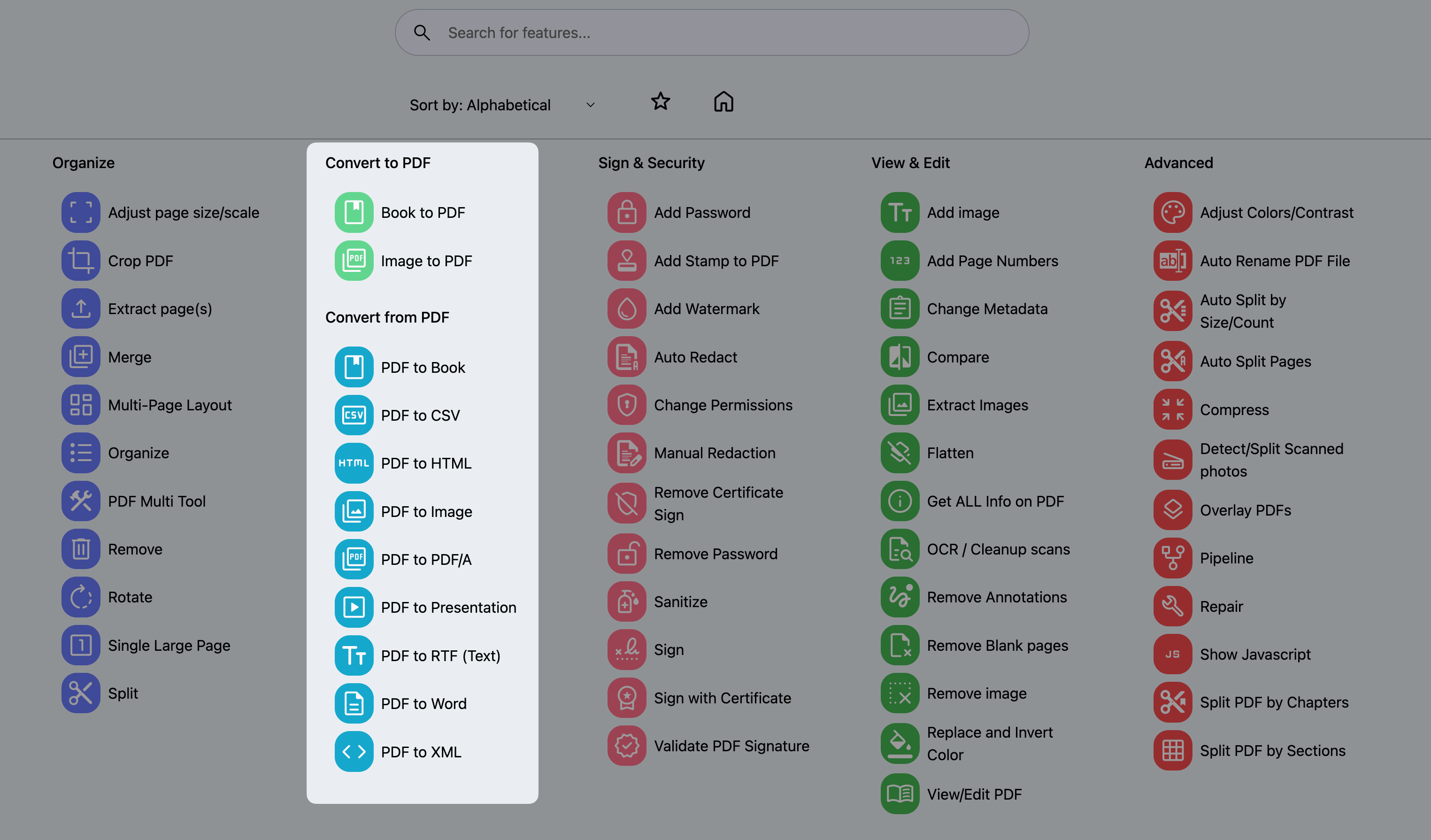
Stirling PDF supports conversion for over 50 file types, which allows you to turn images into PDFs or PDFs into other formats.
Find the convert section on the homepage, and click your specific convertion task.
Upload your source file.
Configure the available settings, such as color mode or layout preferences. The settings might vary by file type.
Click Convert. Wait for the process to finish. The converted file is downloaded automatically.
Read and annotate
Use this feature to review documents and add notes or highlights.
From the homepage, click View/Edit PDF.
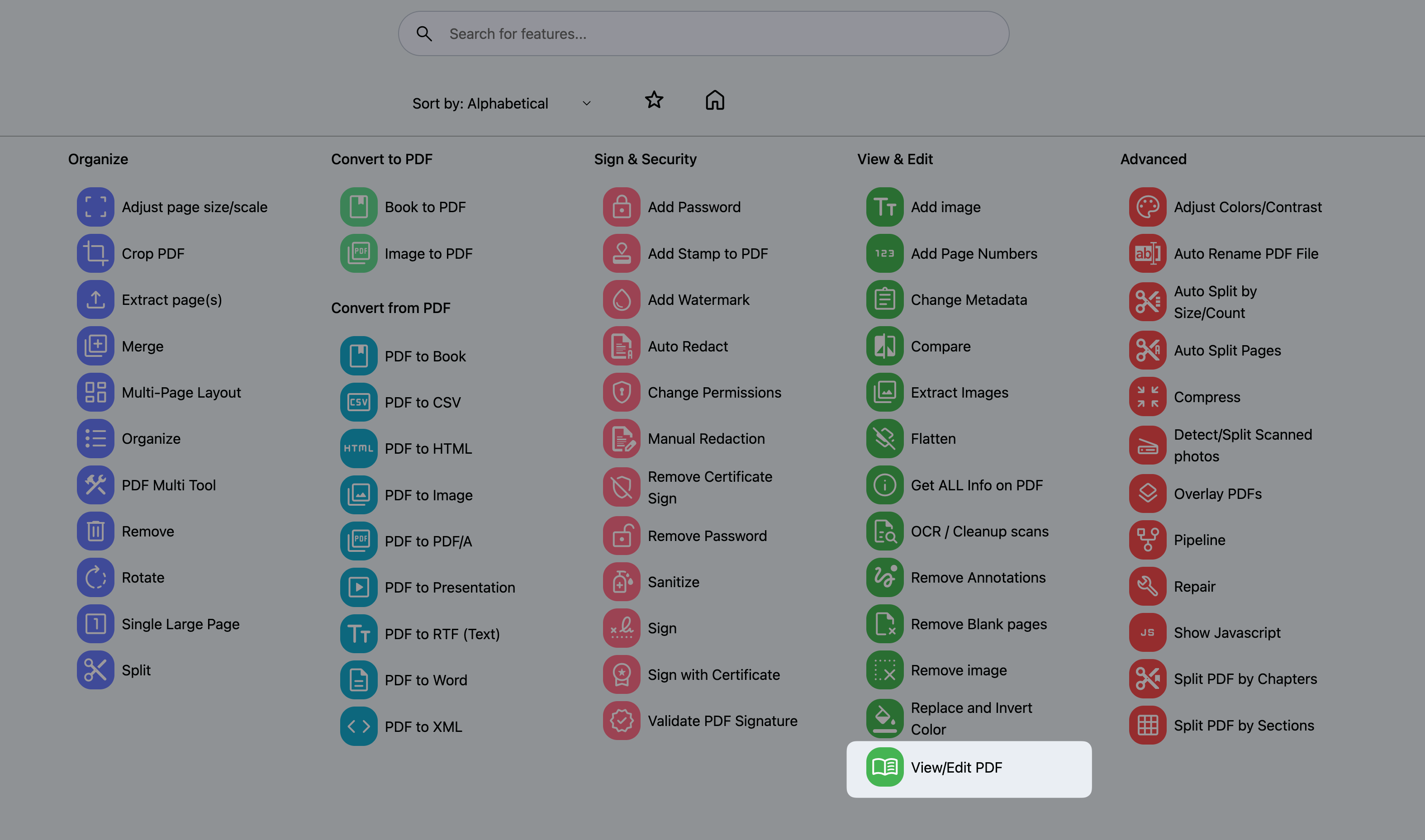
Click the Open File icon in the top right corner to load your document.

To add text annotations:
a. Click the Text icon and select your preferred font color and size.

b. Click on the document where you want the note to appear, and then type your comment.
c. To delete a note, click the text box and click delete.
To highlight or draw freehand:
a. Click Draw and adjust the brush color, thickness, and opacity.

b. Click and drag on the document to apply your markings.
To finalize your edits, click the Save icon. The document containing your annotations is automatically downloaded.

Automate multi-step workflows
The Pipeline feature functions like a batch processing workflow for PDFs. Instead of performing tasks one by one, you can create a custom pipeline to execute multiple actions in a single sequence. This scenario demonstrates the feature by merging documents and adding a password.
INFO
The Pipeline feature is currently in Beta. You might encounter occasional instability or interface changes. It is recommended to verify the final output when processing critical documents.
Create a pipeline
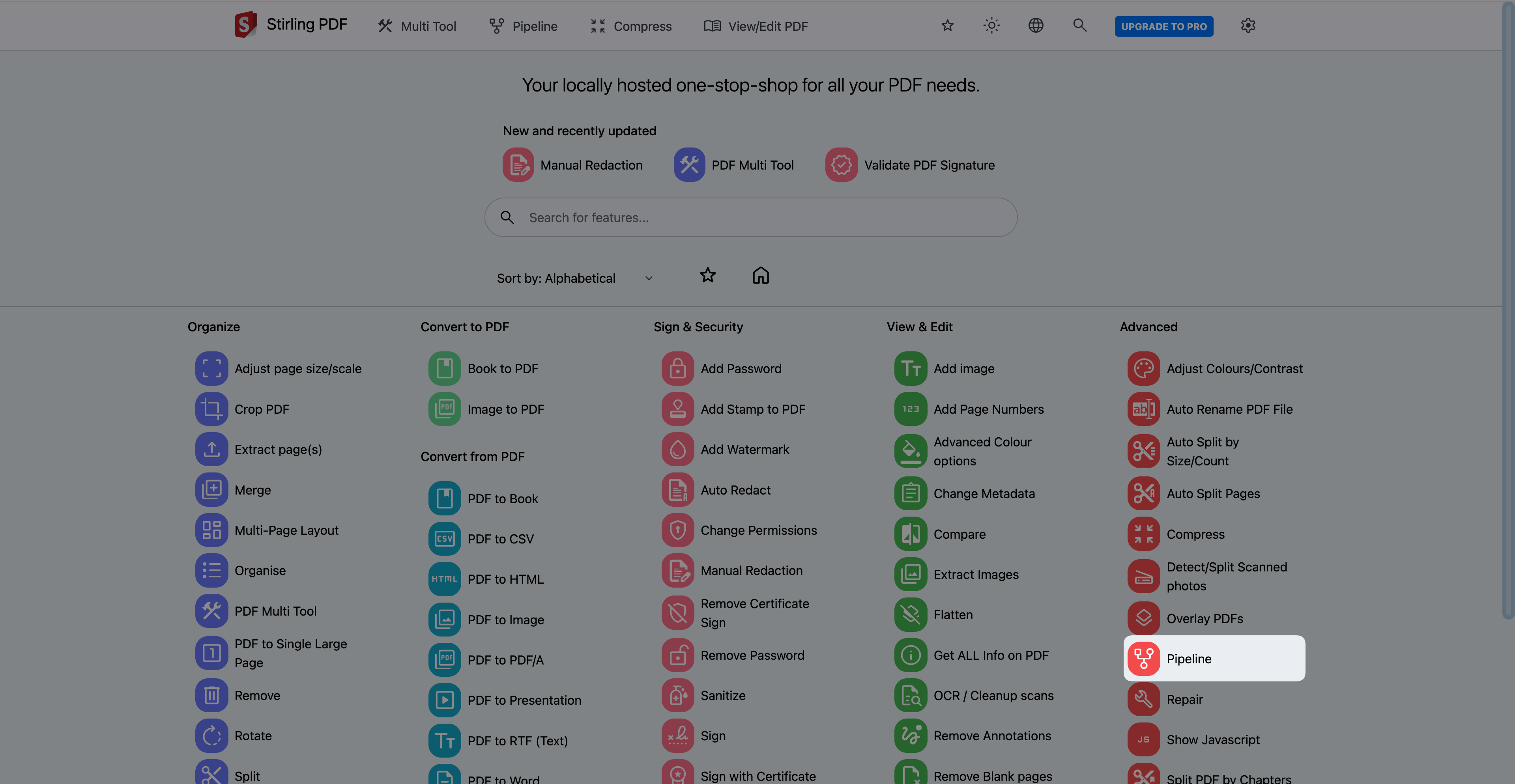
From the homepage, in the Advanced section, click Pipeline.
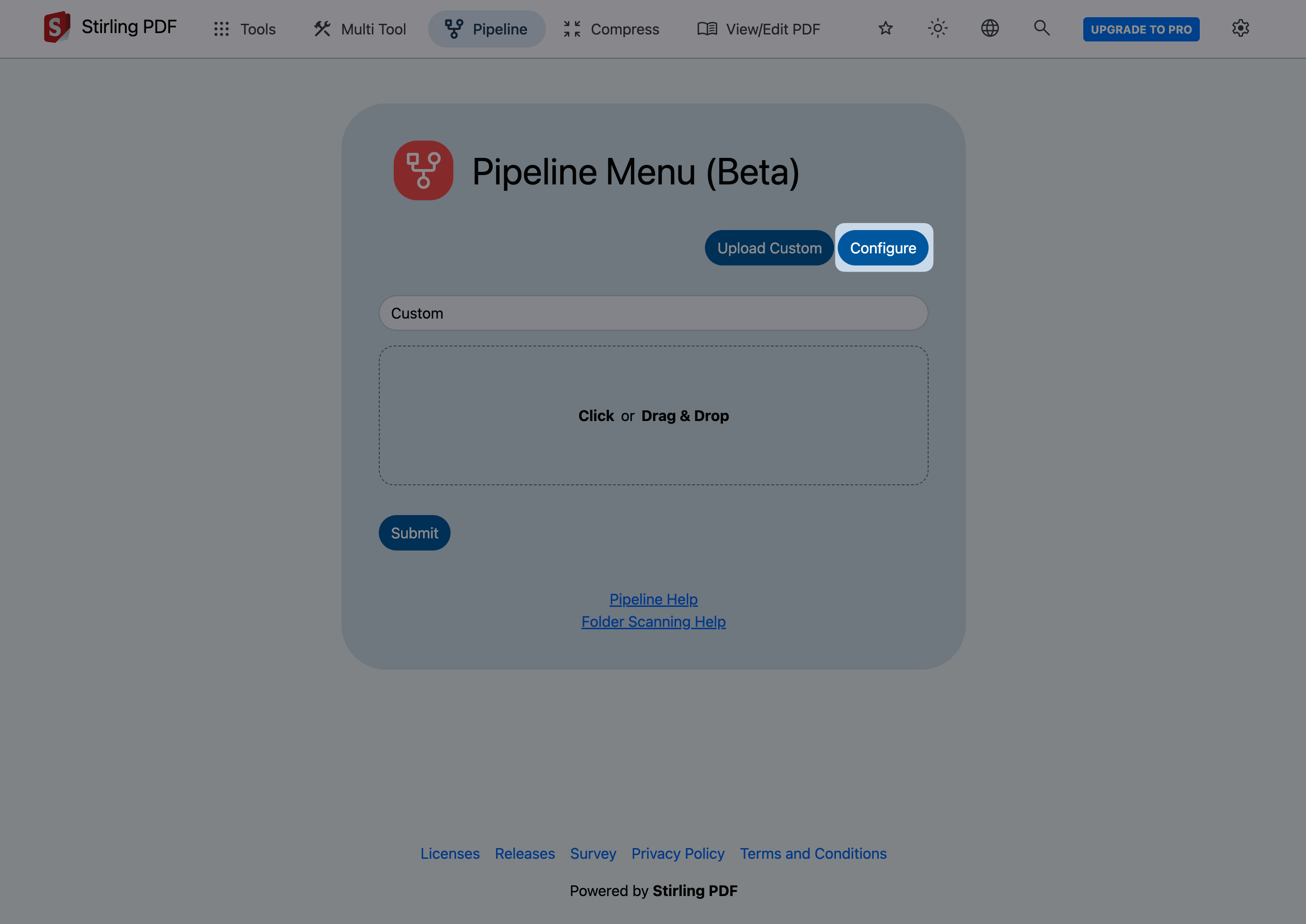
Click Configure.
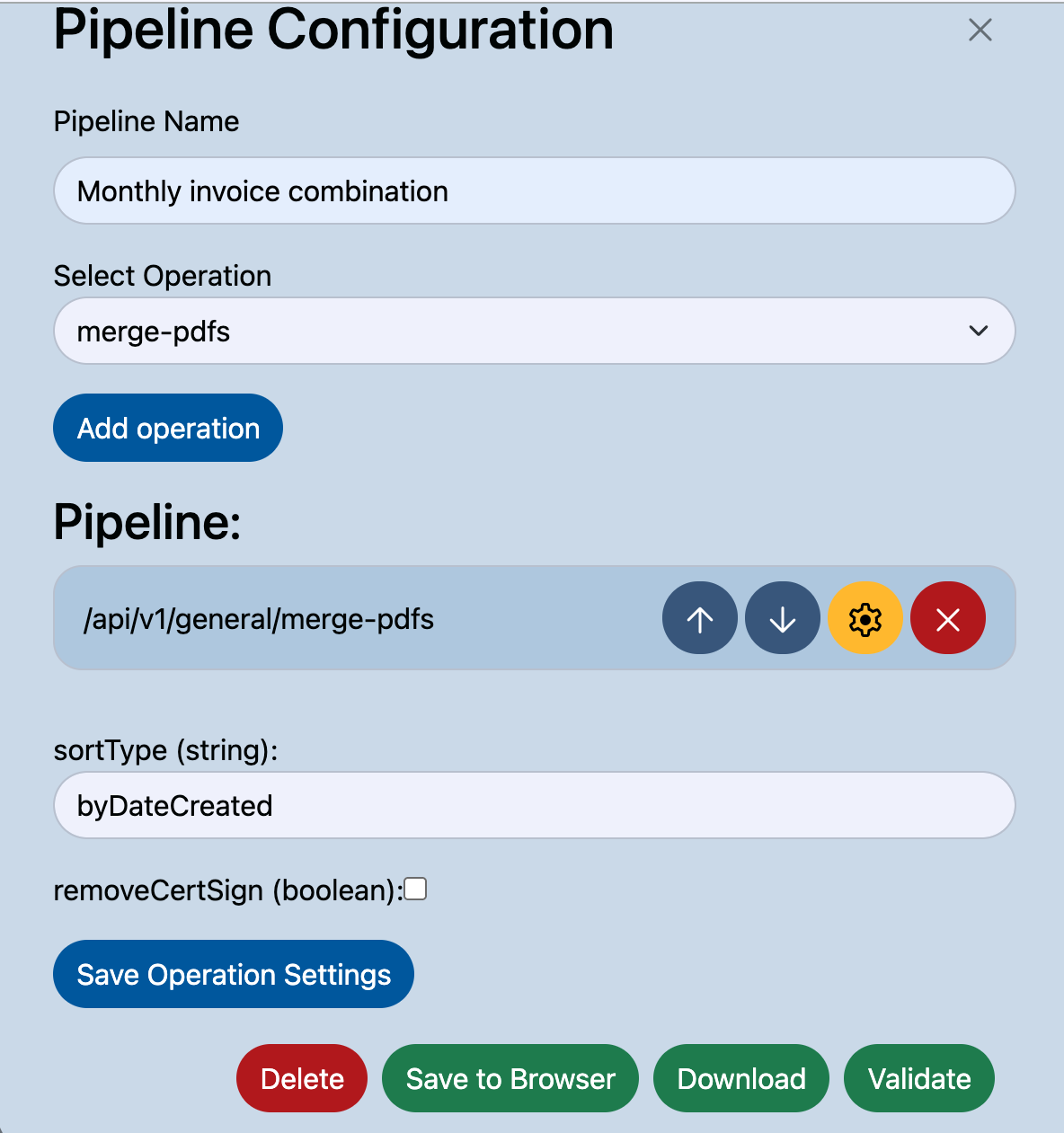
In the Pipeline Name box, enter a unique name for your workflow. For example,
Monthly invoice combination.Add and configure the merge operation:
a. From the Select Operation list, select merge-pdfs, and then click Add operation. The operation is added in the Pipeline area and related settings are displayed under it.
b. Define the specific parameters for the merge-pdfs operation, and then click Save Operation Settings.
Add and configure the adding password operation:
a. From the Select Operation list, select add-password, and then click Add operation.
b. Define the specific parameters for the add-password operation, and then click Save Operation Settings.
Click Save to Browser to save your pipeline.
Close the Pipeline Configuration window, and then refresh the Pipeline Menu page.
Run the pipeline
On the Pipeline Menu page, select the newly created pipeline "Monthly invoice combination".
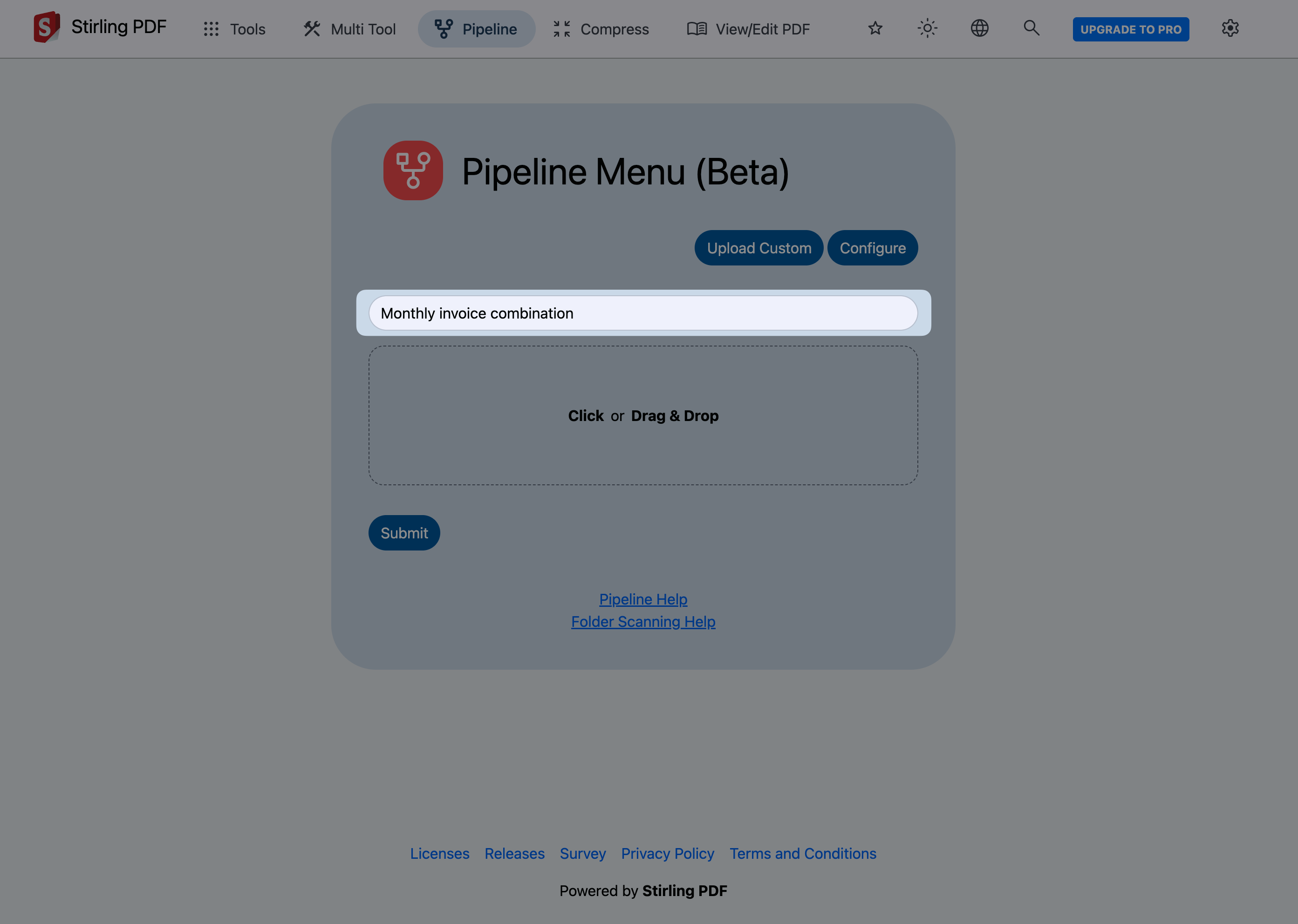
Upload your PDF files, and then click Submit.
Stirling PDF automatically merges the files and secures the final document in one step. When the batch processing is completed, the file is downloaded automatically.
Double-click the downloaded file and enter the password you specified during the pipeline configuration to open it.
Verify that the files are merged and secured as expected.