Wise basics
Wise helps you build a focused reading workflow on top of your personal information hub. This page walks you through the core actions you'll use every day: collecting content, organizing what to read next, and capturing your own insights.
This page focuses on saving and working with individual items. For a deeper look at feeds and subscriptions, see Subscribe and manage feeds.
Before you begin
To unlock the full potential of Wise, it is recommended to install the following apps from Olares Market:
- Rss Subscribe: Use it to subscribe to RSS feeds directly while browsing web pages.
- YT-DLP: Use it to download audio and video from supported web pages into Wise.
TIP
Wise works without these apps, but in-browser subscription and media download will be unavailable until you install them.
Build your library
Wise pulls content into your library in two ways:
- Saved items: Individual web pages, files, audio, and video that you capture manually. These items appear in your main Inbox and are automatically sorted into categories such as Articles.
- Feeds: Subscriptions to dynamic sources like websites, blogs, and podcasts. New updates appear under Feeds, where you can select specific entries to save to your library.
Save items
You can save individual items to Wise in three ways:
- Upload files
- Add items via link
- Save from browser with LarePass extension
Upload files
Import files directly from your computer, including PDFs, EPUBs, audio, video, and other document types. Wise automatically places each supported format into the right content folder in your library.
- Click add_circle in the bottom-left menu bar, and select Upload.
- Select one or more files from your local computer.
Add items via link
Paste a URL to save articles, videos, or subscribe to feeds.
Handle restricted content
If a link requires login or other access control, Wise may need cookies to fetch it correctly. To configure cookies for protected sites, see Manage cookies for Wise.
Click add_circle in the bottom-left menu bar, and select Add Link.
Paste or type a URL.
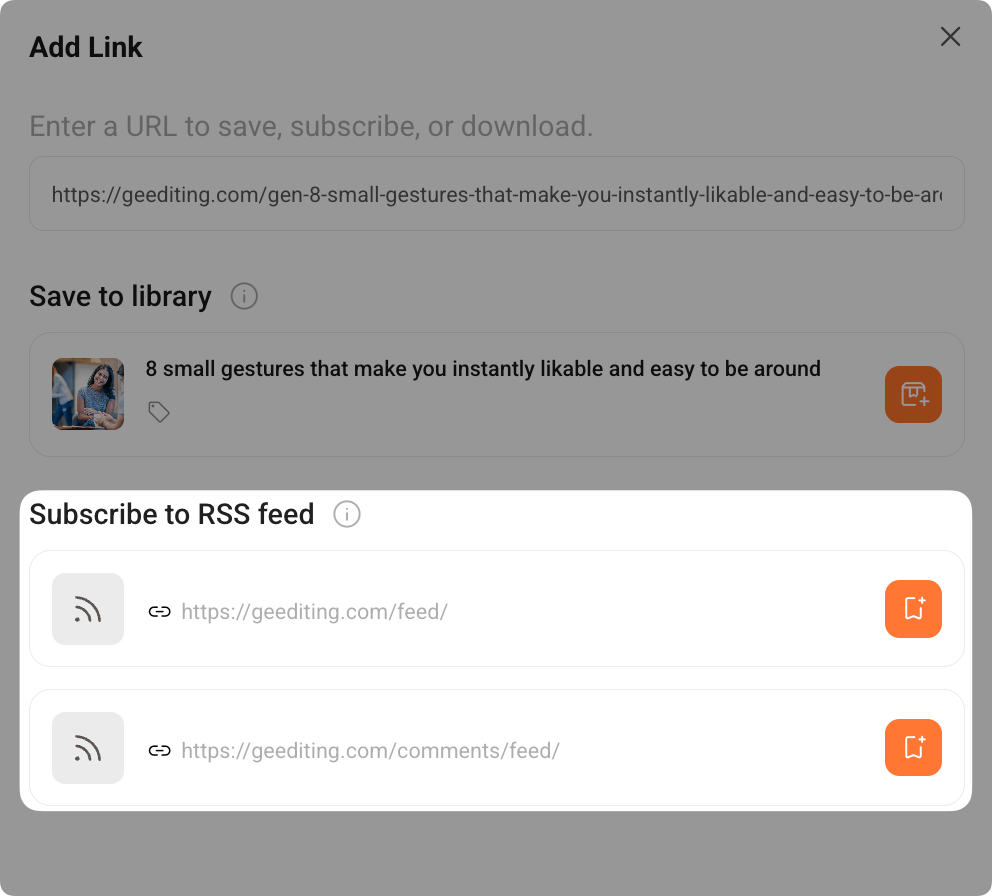
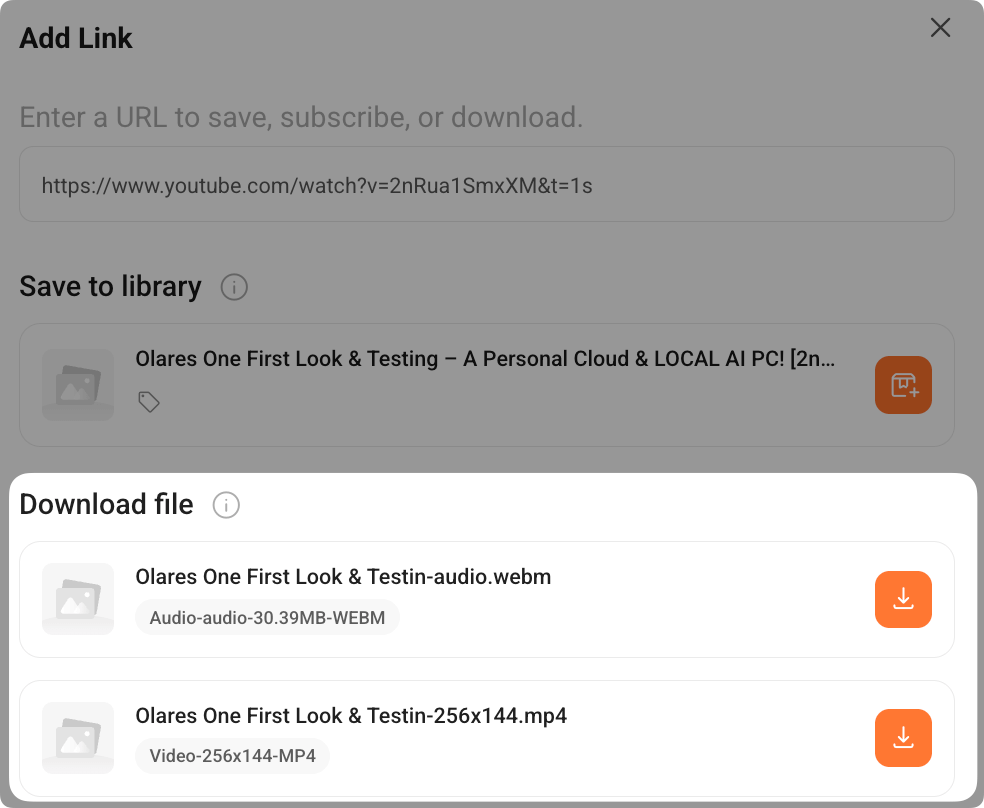
Wise analyzes the link and lists all actions available:
- Save to library: The content will be saved as an item in your library and added to Inbox.
- Subscribe to RSS feed: If Wise detects one or more RSS feeds for the site, they will be listed here. Select the feed you want to follow, and new items from that feed will be automatically added to Feeds.
- Download file: If Wise detects videos or other downloadable files on the page, this option will appear. Select the file you want to download to save it for offline access. YT-DLP is required.
Newly saved items will appear under their content type.
Save from browser with LarePass extension
You can also save content to Wise directly from your browser using the LarePass extension, without opening Wise first.
- Open the LarePass browser extension and select the "Collect" icon.
- Under Save to library, review the content detected on the current page.
- Click box_add next to the item you want to save.
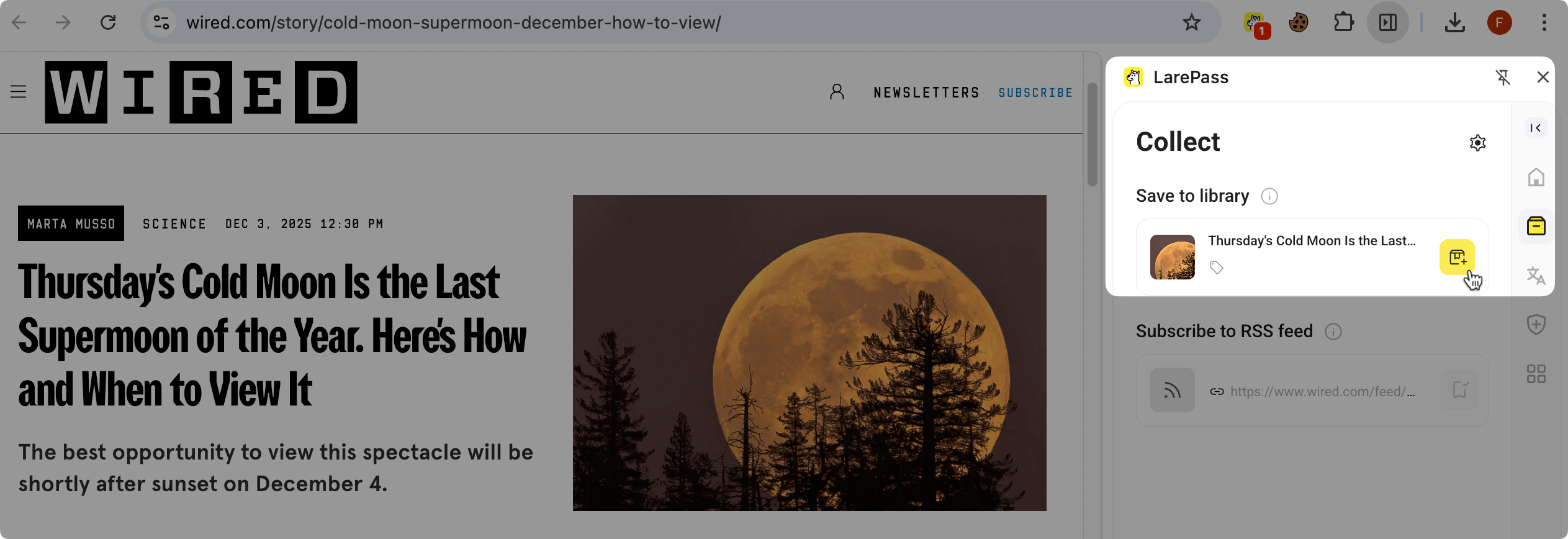
Items saved via LarePass are added to your Wise library and appear in the main Inbox folder and under the appropriate content type.
Monitor and manage media downloads
When you add new audio or video content, Wise automatically creates download tasks and save media files to Olares. This:
- Ensures your media is available offline.
- Protects your library if the original source is removed.
- Makes it faster to open and play items.
To manage all download tasks:
Go to settings Settings > Transmission > Download.
Review the list of media downloads and their status.
You can:
- Click folder_open to locate a downloaded file in Files.
- Click do_not_disturb_on to remove it from the list.
Use reading tools
Wise provides several tools to enhance your reading experience and help you keep track of what matters.

Track reading progress
Wise uses green dot indicators on article covers to help you track unread content. When you open an article, it's automatically marked as read. 
In the reader toolbar, you can manually toggle between playlist_add_checkSeen or playlist_removeUnseen to maintain your reading progress.
Capture notes
You can add private notes to any content in your library:
- While browsing, click right_panel_open to open the Info panel.
- Type your thoughts in the Note section.
- Click Save.
You can edit or delete notes from the same panel at any time.
Use tags
Tags allow you to add flexible labels to your content for easy retrieval later.
- On the list page, click sell on the content card to add tags to it.
- Select an existing tag, or type a new name to create one.
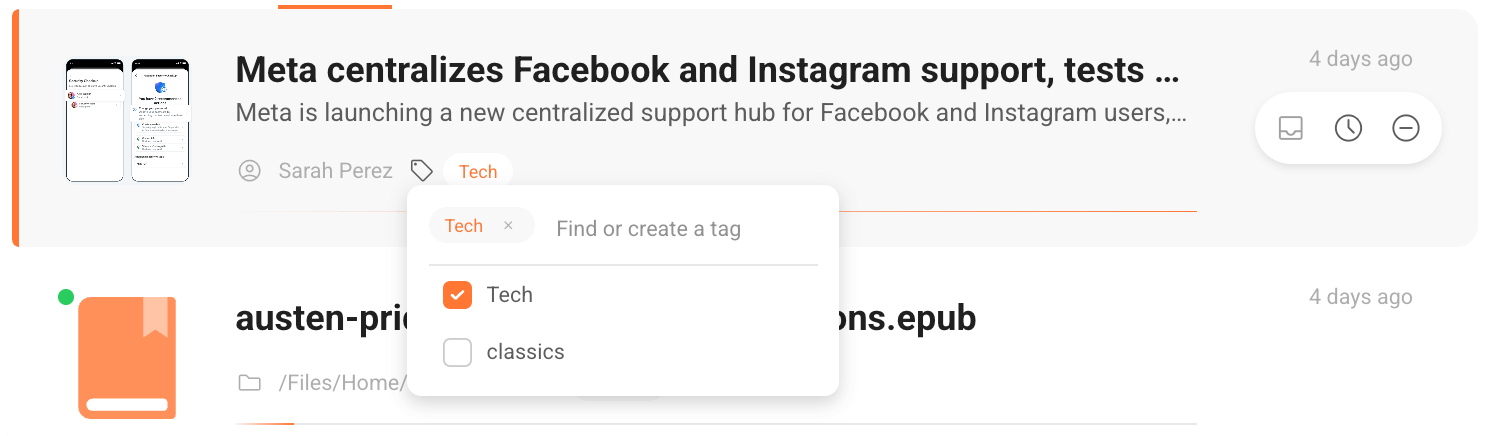
You can manage all your tags in settings Settings > Tags.
TIP
Tags become even more powerful when combined with filtered views. See Organize your knowledge with filters to build tag-based views such as "AI articles" or "Design inspiration".
Search your library
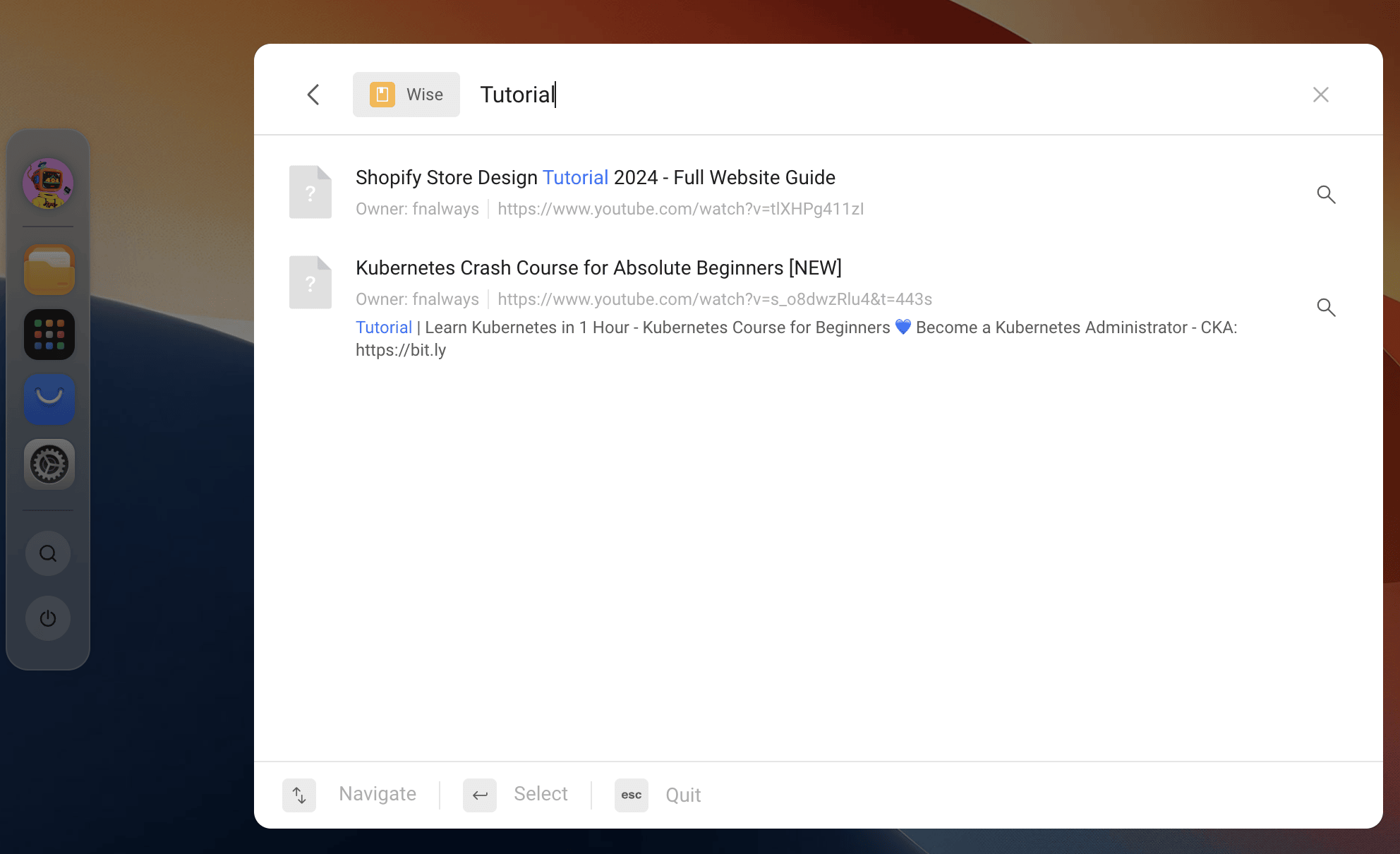
Once you've collected your content in Wise, you can search for particular content themes or entries using aggregated search in Olares.
- Click search in the Dock to open the search window.
- Specify the search scope to Wise, and enter the keywords to search.
Customize appearance
By default, Wise follows your system's light/dark theme settings. You can override this to set your preferred appearance:
- Click the settings in the bottom left corner and select Preferences.
- Under Theme, choose your preferred system theme:
- Light mode
- Dark mode
Your choice applies to the Wise interface and reader.