Manage GPU usage
INFO
Only Olares admins can change GPU modes. This helps avoid conflicts and keeps GPU performance predictable for everyone.
Olares lets you manage your graphics cards, or GPUs, to speed up tasks like AI, image and video generation, and gaming. You can control how your applications use these resources from Olares Settings page.
This guide explains:
- How to choose the right GPU mode.
- How to configure GPU modes step by step.
Choose the right GPU mode
Use the table below to pick a mode based on your workload.
| GPU mode | Definition | Use scenario |
|---|---|---|
| Time slicing (Default) | Multiple apps share one GPU by taking turns using compute and VRAM. | General workloads that run several lightweight apps. |
| App exclusive | One app gets full, uninterrupted access to the compute and VRAM of a single GPU. | Heavy workloads that require maximum stability, such as LLMs and high‑end gaming. |
| Memory slicing | The GPU's VRAM is divided into fixed quotas, and apps run concurrently within their limits. | Running specific apps simultaneously while strictly limiting their memory usage. |
View GPU status
To see your GPUs and their current configuration:
- Go to Settings > GPU.
- Review the list to see each GPU's model, node, total VRAM, and current mode.
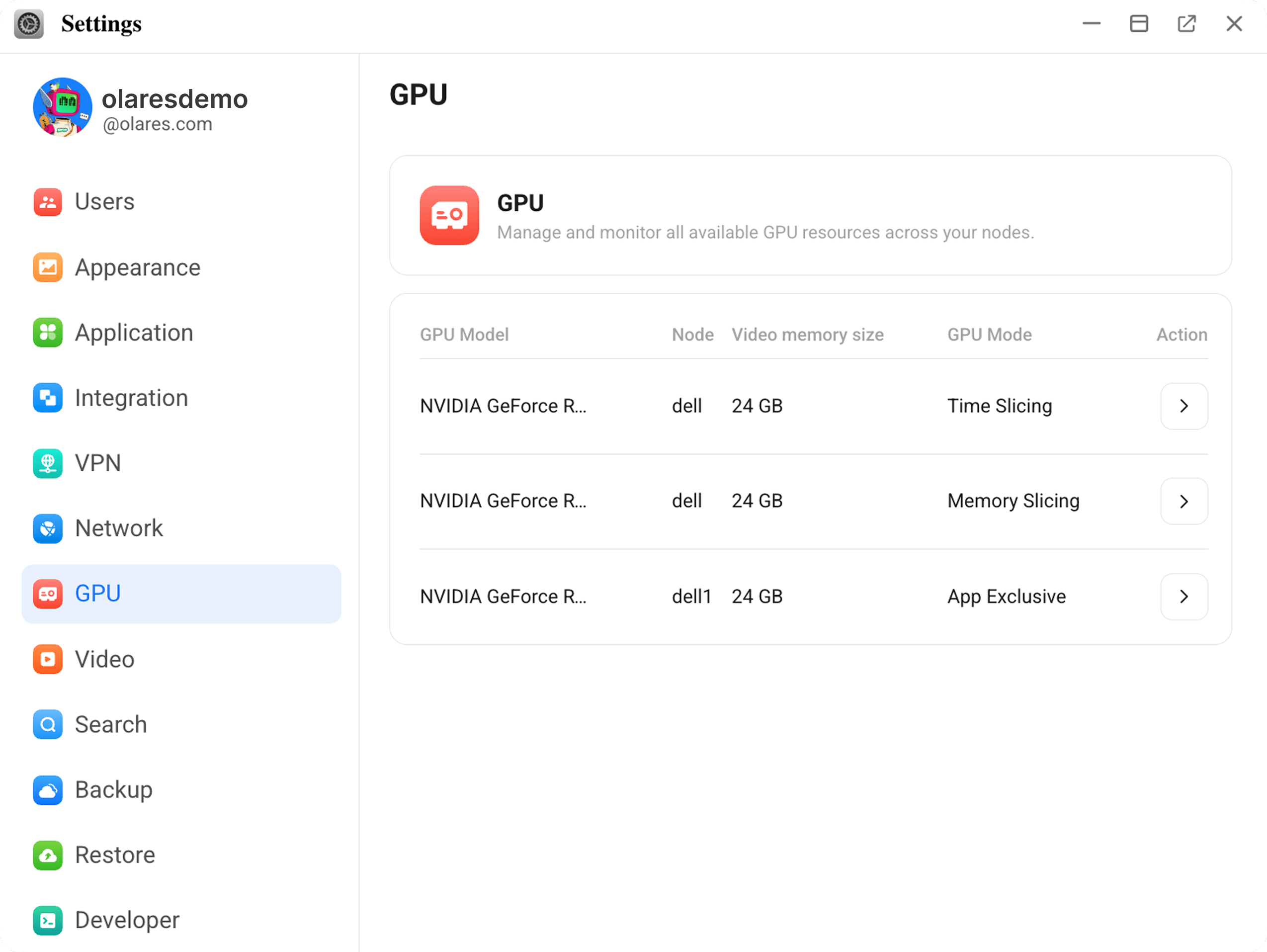
- Click a GPU to open its details page.
TIP
If you have only one GPU, Olares may open the GPU details page directly.
Configure GPU mode
Follow these steps to change how a GPU is used:
- Go to Settings > GPU.
- Click the GPU you want to configure.
- Choose a mode from the GPU mode dropdown.
Restart notice
Changing a GPU's mode will unbind apps from that GPU and restart their containers.
After restart, apps without specific GPU bindings are automatically scheduled to any available GPU in Time slicing mode.
Time slicing
Time slicing is the default mode in Olares. Use this mode to allow multiple applications to share resources.
Apps without a specific GPU binding are automatically scheduled onto GPUs in Time slicing mode.
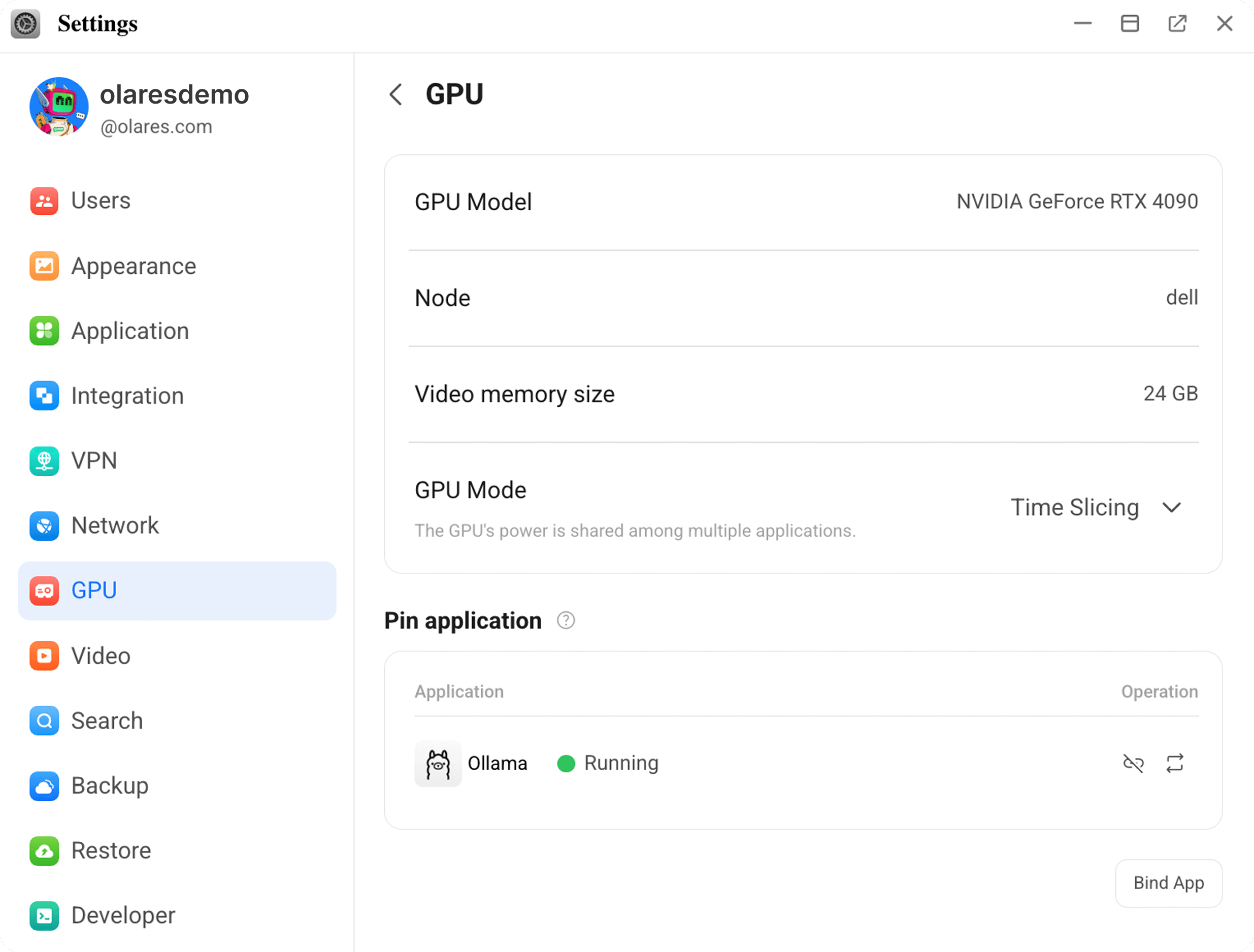
Bind app
To assign an app to this GPU:
- In Pin application section, click Bind App.
- Choose your target application and click Confirm.
Switch GPU
Same-node limitation
An application can use multiple GPUs only if they are located on the same node. If you switch an app to a GPU on a different node, the app is moved and bound only to the target GPU.
If your system has more than one GPU, you can move an assigned app to a different GPU:
- In Pin application section, find the app you want to move.
- Click repeat, then choose the target GPU and click Confirm.
Unbind app
To remove an app from this GPU:
- In Pin application section, find the app you want to remove.
- Click link_off, then Confirm.
App exclusive
Use App exclusive mode to dedicate a GPU entirely to one high-demand application.
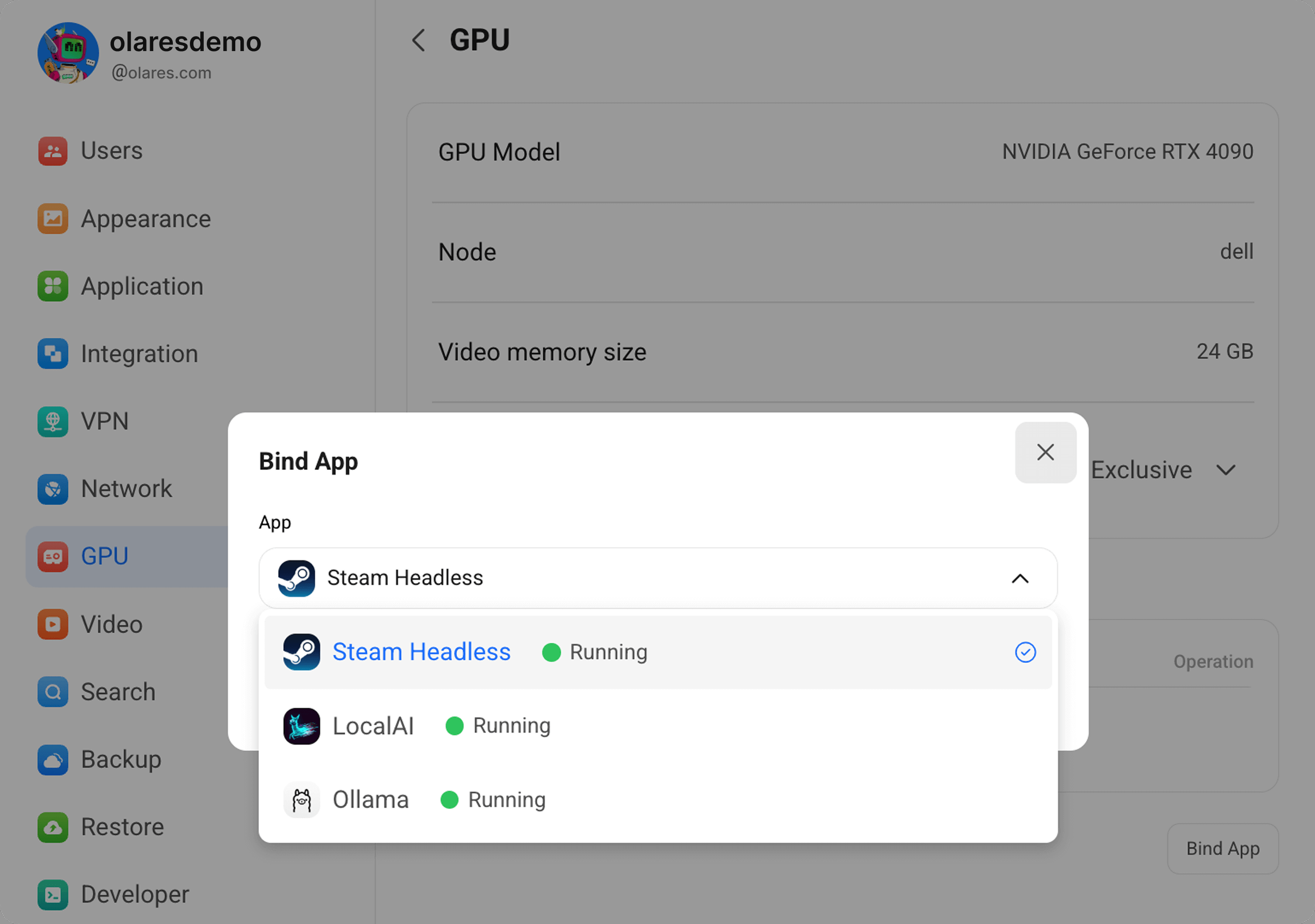
Bind app
To give an app exclusive access:
- In Select exclusive app section, click Bind App.
- Select your target application and click Confirm.
Switch app
To replace the current exclusive app with a new one:
- In Select exclusive app section, click Switch App.
- Choose the new application and confirm.
The previous app is unbound, and the new app takes over exclusive access.
Switch GPU
If your system has more than one GPU, you can move the exclusive app to a different GPU:
- In Select exclusive app section, click repeat.
- Choose the target GPU and confirm.
Same-node limitation
An application can use multiple GPUs only if they are located on the same node. If you switch an app to a GPU on a different node, the app is moved and bound only to the target GPU.
Unbind app
To remove the exclusive binding:
- In Select exclusive app section, click link_off.
- Click Confirm.
Memory slicing
Use Memory slicing to run apps concurrently with strict VRAM limits.
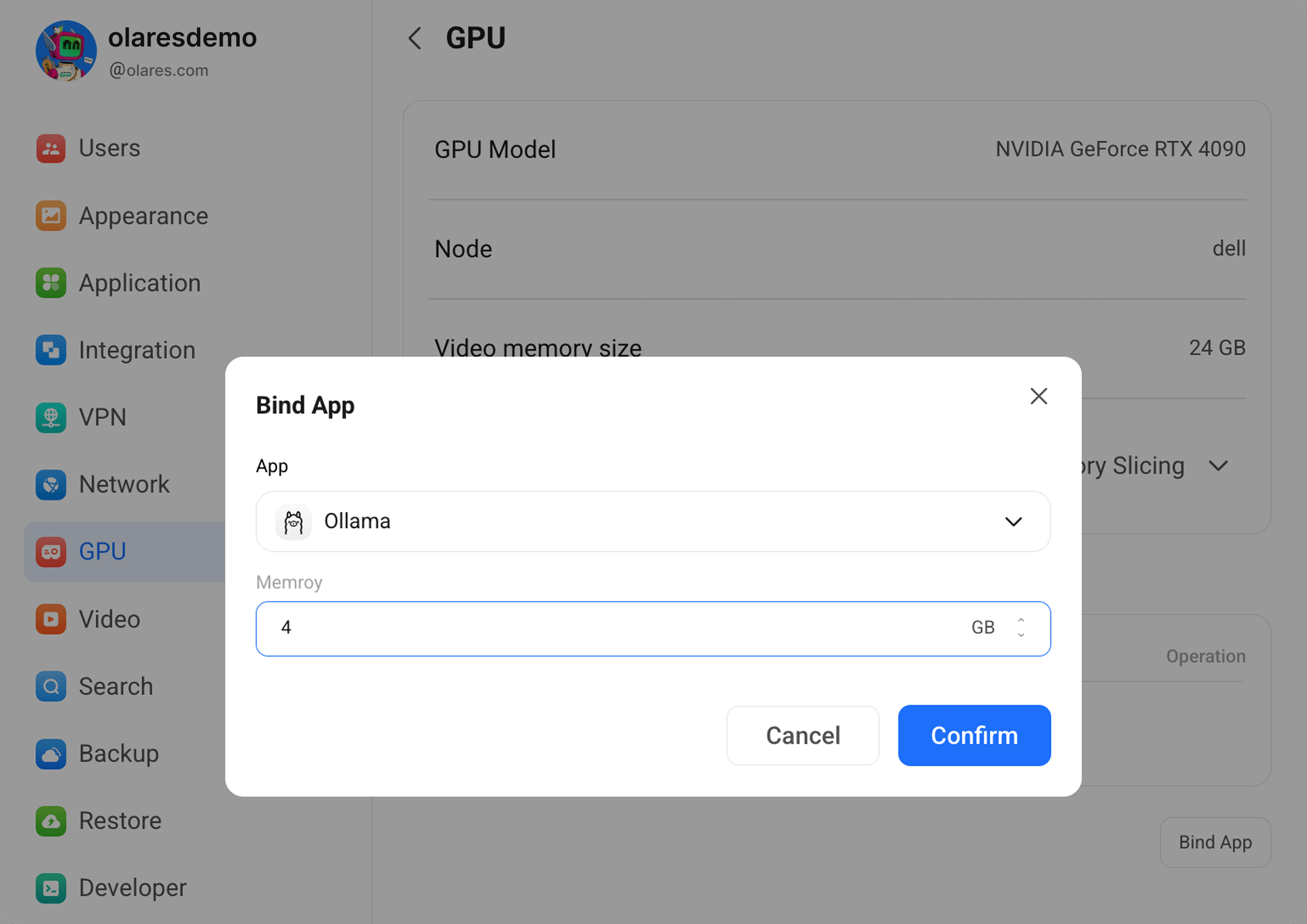
Bind app and allocate VRAM
- In Allocate VRAM section, click Bind App.
- Select your target application, assign it a specific amount of VRAM in GB, and click Confirm.
WARNING
The total of all VRAM limits must not exceed the GPU total VRAM.
- Repeat for other apps as needed.