Activate Olares
Use the Wizard URL and initial one-time password to activate. This process connects the Olares device with your Olares ID using LarePass.
Enter the Wizard URL in your browser. You will be directed to the welcome page. Press any key to continue.

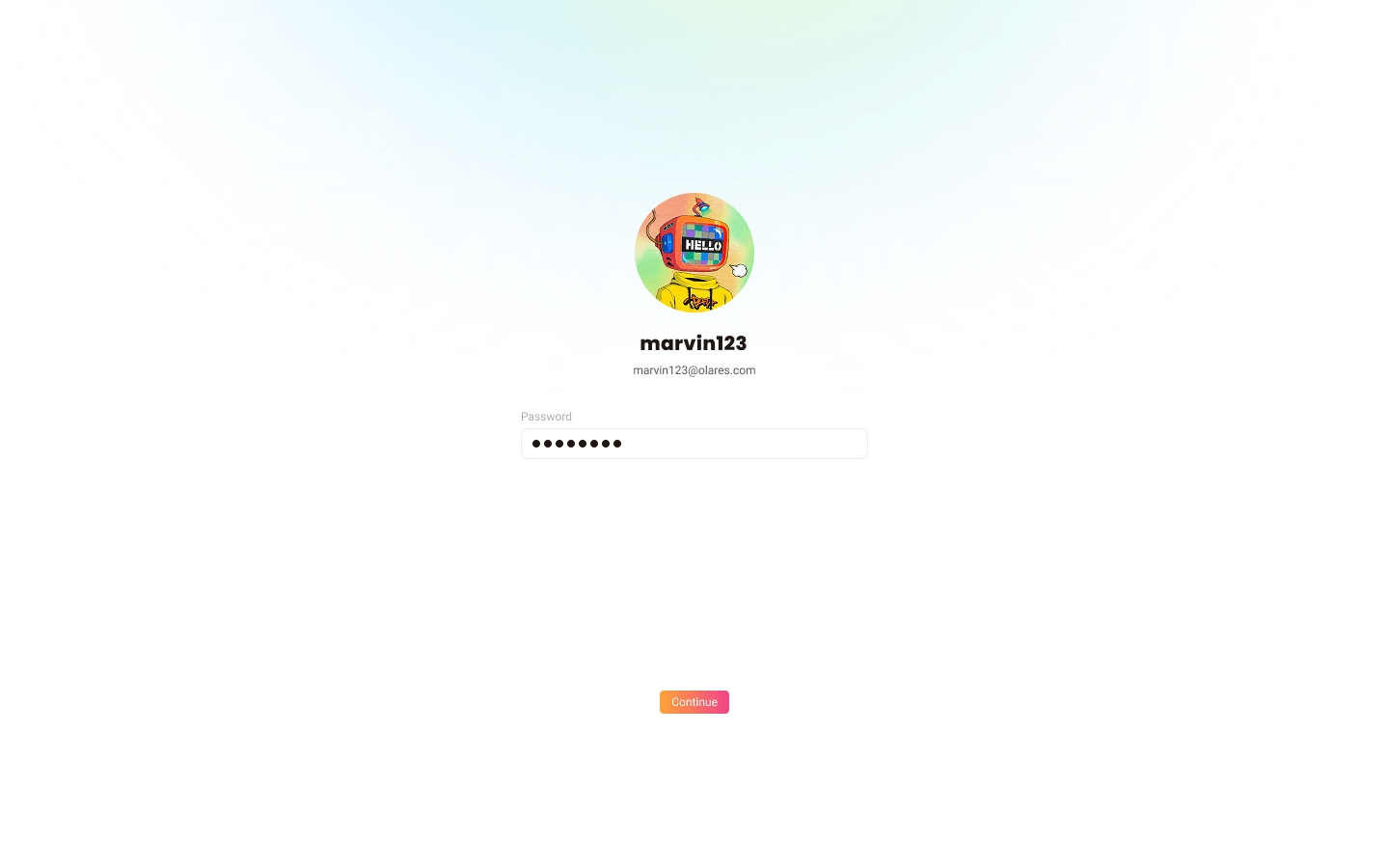
Enter the one-time password and click Continue.
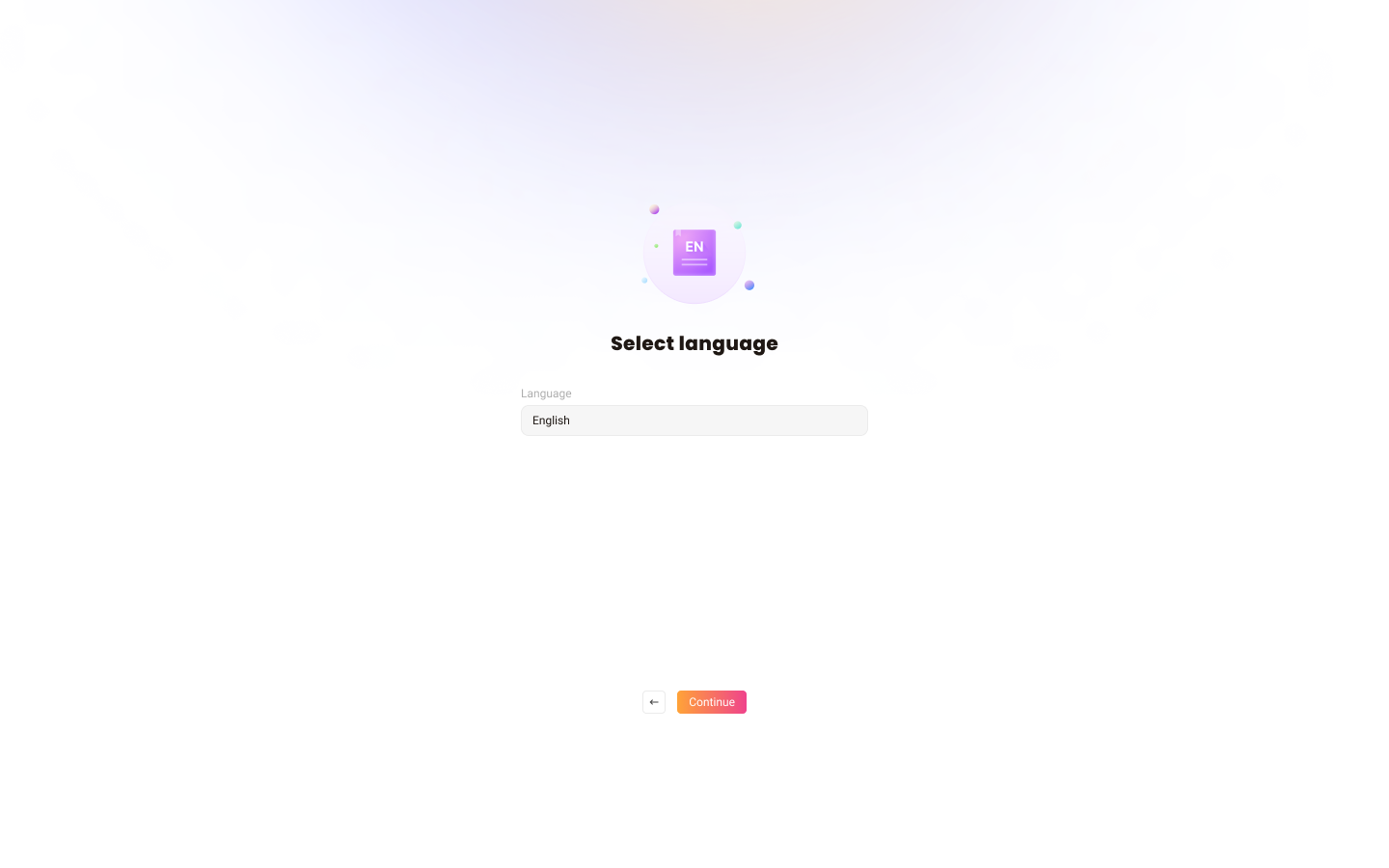
Select the system language.
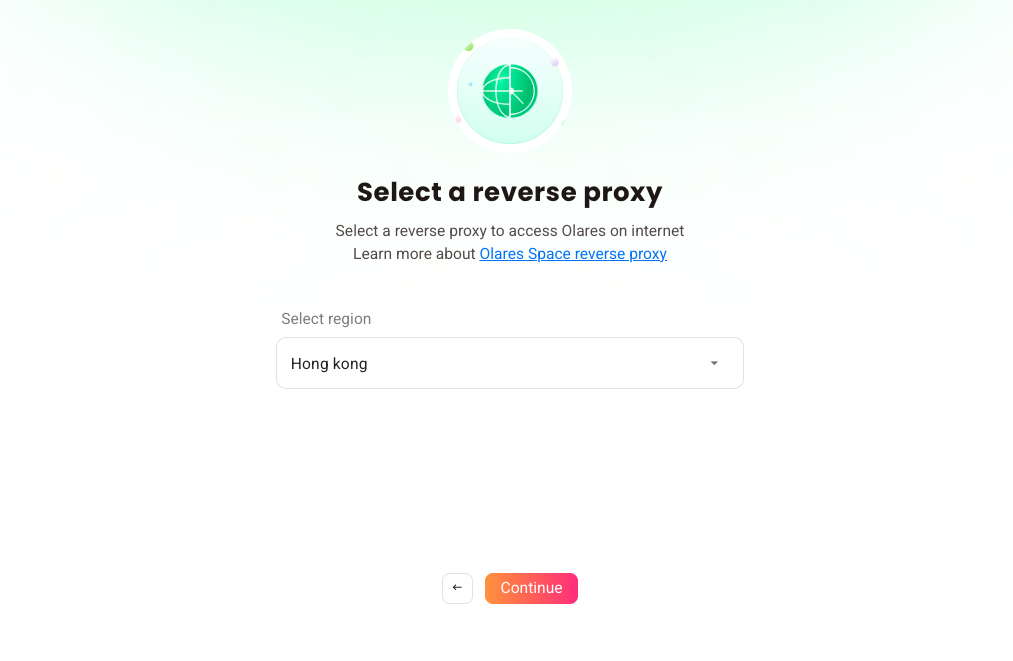
Select a reverse proxy node that is geographically closest to your location. You can adjust this later on the Change reverse proxy page.
Note
If your Olares device is connected to a public IP network, this step will be skipped automatically.
Activate Olares using LarePass app.
Same network required for admin users
To avoid activation failures, ensure that both your phone and the Olares device are connected to the same network.
a. Open LarePass app, and tap Scan QR code to scan the QR code on the Wizard page and complete the activation.
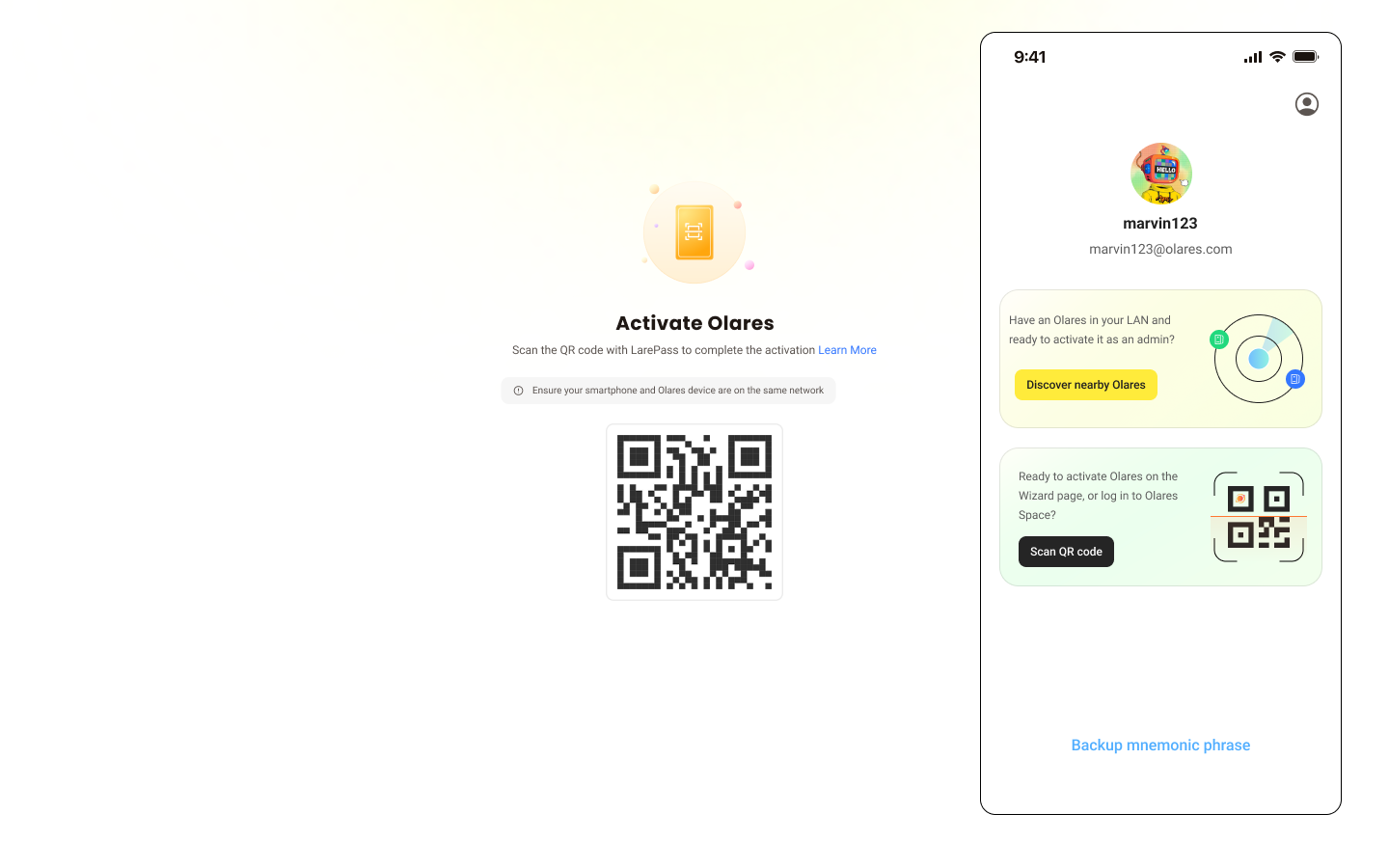
b. Reset the login password for Olares by following the on-screen instructions on LarePass.
TIP
If you reinstall Olares, the original instance becomes unavailable. To continue using the same Olares ID, you need to reactivate Olares.
After setup is complete, the LarePass app returns to the home screen, and the Wizard redirects you to the Olares login page.