Organize your knowledge with filtered views
As your Wise library grows, finding specific content by browsing folders can become difficult. Filtered views allow you to group related content into dynamic "smart folders" based on rules you define, such as specific tags, content types, or dates.
Unlike standard folders, these views update automatically. Once created, any new item that matches your criteria will instantly appear in the view without you having to move it manually.
INFO
Only entries from feeds or entries saved to inbox Inbox or schedule Read Later can be queried.
This guide explains how to:
- Build filtered views from existing tags and feeds.
- Create custom views using query language.
- Pin your favorite views to the sidebar.
- Discover advanced filter options.
Create quick views from tags or feeds
The quickest way to create a view is to base it on a tag or feed you already use.
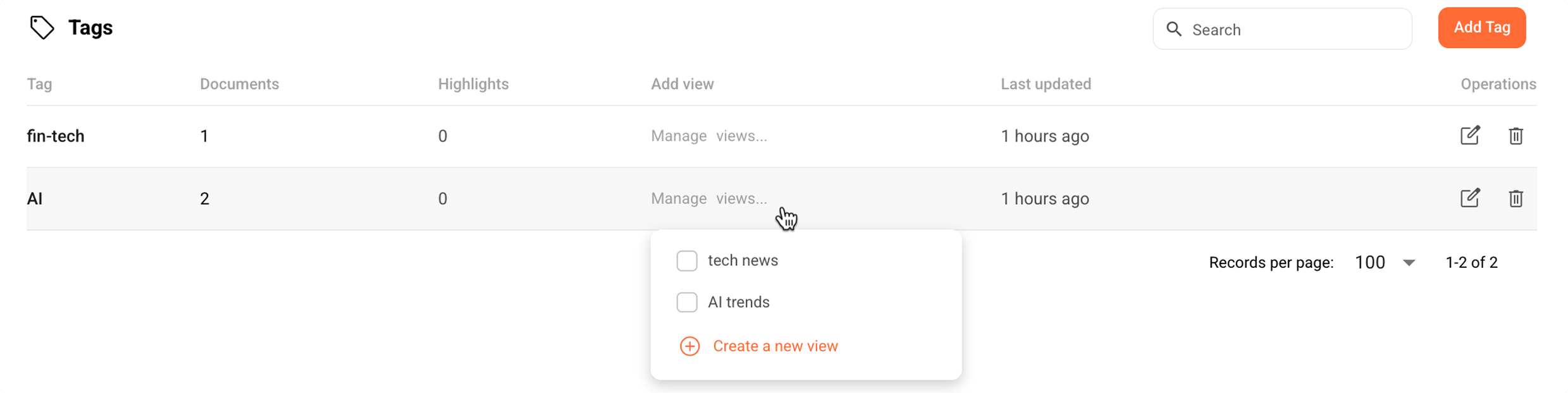
- In Wise, click settings in the bottom left corner.
- Select either Tags (for topics) or RSS feeds (for sources).
- Locate the item you want to use and click Manage views....
- Choose an action:
Add to an existing view: Group this tag/feed into a view you already created.
Create a new view: Create a standalone view that groups all related entries.
a. Enter a name for the view.
b. Click Confirm to save the view.
Create custom filtered views
For more flexibility, you can create views using query language. This lets you define precise conditions for grouping content.
To create a custom filtered view:
In Wise, click settings in the bottom left corner.
Select Filtered views.
In the top-right corner, click Add view.
Enter a name for the view (for example,
AI trends).In the Query field, enter your filter expression. For example:
tag:AI– entries tagged withAI.
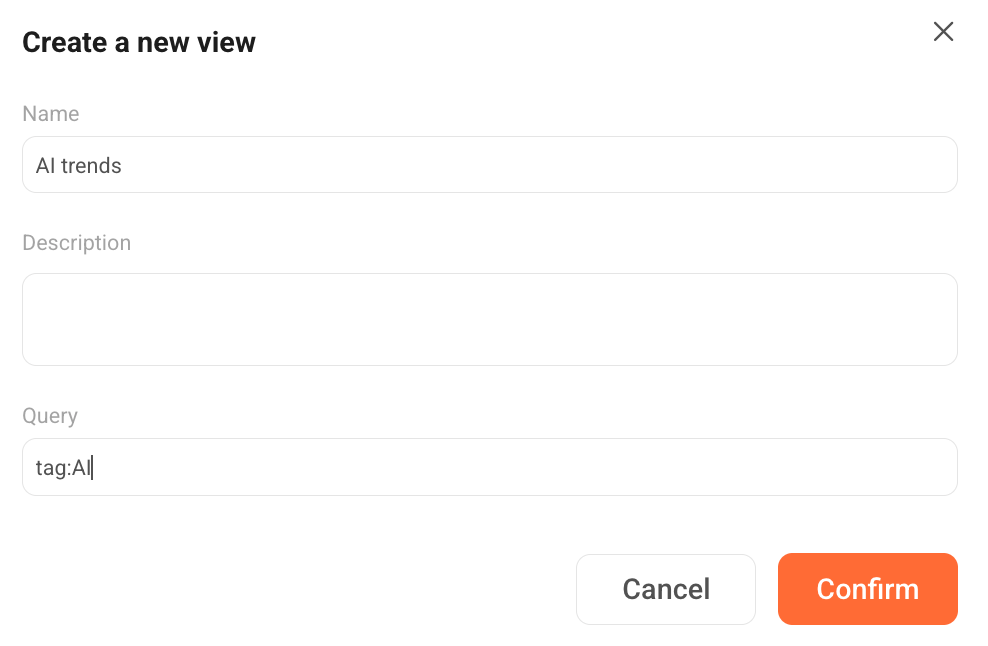
Click Confirm to save the view.
The view will run immediately and include all entries that match the query.
Pin views to sidebar
You can pin your filtered views to the sidebar so they are always one click away.
- In Wise, click settings in the bottom left corner.
- Select Filtered views.
- Choose the ways to pin your target view:
- Click keep in the Operations column.
- Click the filtered view to open it, click keyboard_arrow_down in the header, and select Pin to sidebar.
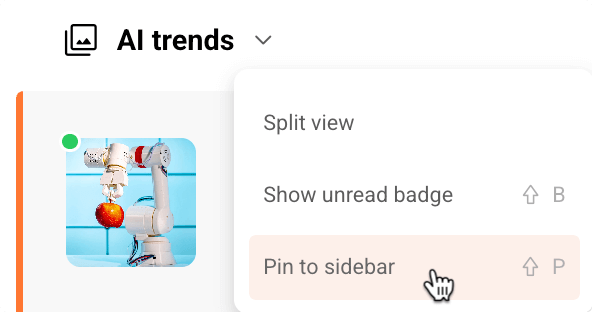
Pinned views appear in the sidebar alongside your other navigation items.
Common filters and syntax
To explore all available filtering options and learn how to use them, refer to the following: