Subscribe and manage feeds
Wise offers flexible subscription options to help you follow your favorite content sources, including articles, blogs, podcasts, and video channels. This guide explains how to add and manage your subscriptions.
Understand feeds
Subscribing to a feed creates a direct link to a content source. New entries will appear in the Feeds list automatically as they are published.
Please note the difference between viewing and keeping:
- Feeds are for discovery: You can open and read any entry from the feed list, but these items are temporary. If the feed changes or you unsubscribe, they may no longer be available.
- Your library is for ownership: If you find an entry you want to keep or read later, you must Save to library. Only saved items become part of your library and can be managed with status, tags, notes, and filters.
Add subscriptions
You can subscribe to feeds from within Wise or directly from your browser.
Handle restricted content
If a link requires login or other access control, Wise may need cookies to fetch it correctly. To configure cookies for protected sites, see Manage cookies for Wise.
Add feeds via link
If you have a website or feed URL, you can subscribe using Add Link.
- Click add_circle in the bottom-left menu bar and choose Add Link.
- Paste a website or feed URL. If one or more feeds are detected, they will be listed under the Subscribe to RSS feed section.
- Click bookmark_add next to the feed you want to subscribe to.
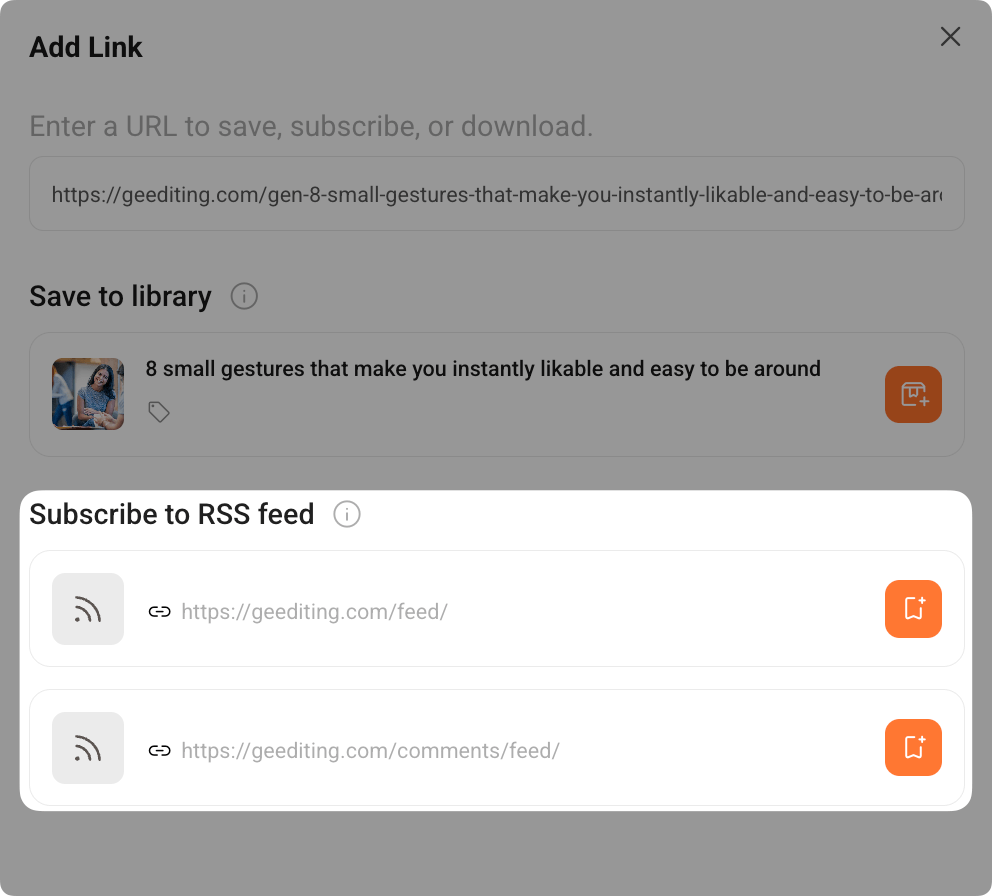
The selected feed will be added to Feeds, and new entries from it will be fetched automatically.
Import feeds from OPML files
INFO
The OPML file imports your subscription list only, not the articles themselves.
Wise will fetch the latest available content from these sources immediately after import, but it cannot transfer your reading history or archived articles from your previous reader.
If you already use another RSS reader, or someone shares a curated feed list, you can import those subscriptions using an OPML file.
- Click settings in the bottom left corner and select Preferences.
- Under Import/Export, click Import feeds from OPML.
- Select your OPML file and open it.
After import, the feeds will appear under settings > RSS feeds.
Use LarePass browser extension
The LarePass browser extension lets you subscribe to feeds while you browse, without switching back to Wise.
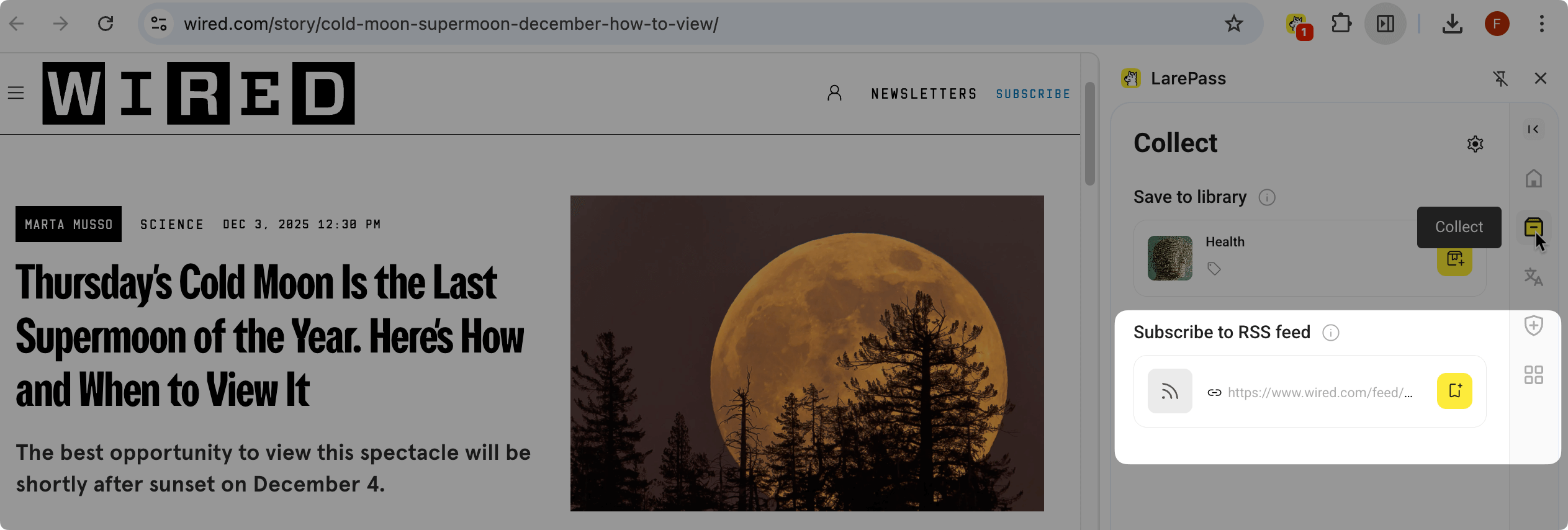
- Open the LarePass browser extension and click the "Collect" icon.
- If one or more feeds are detected, they will be listed under the Subscribe to RSS feed section.
- Click bookmark_add next to the feed you want to subscribe to.
Manage subscriptions
You can view, rename, organize, or remove feeds from the central management page or directly within the reader interface.
View and edit details
- Click settings in the bottom left corner.
- Select RSS feeds.
- Perform the following operations as needed:
- View feed details and descriptions.
- Search for specific feeds.
- Copy RSS links.
- Edit feed names and descriptions.
- Remove RSS links.
Changes here are reflected in the Feeds section of the Wise sidebar.
Unsubscribe
If you no longer want to follow a source, you can unsubscribe from its feed.
WARNING
When you unsubscribe from a feed, all entries from that feed are removed from Wise unless they have been explicitly saved to your library. This action cannot be undone.
You can remove a feed subscription in several places:
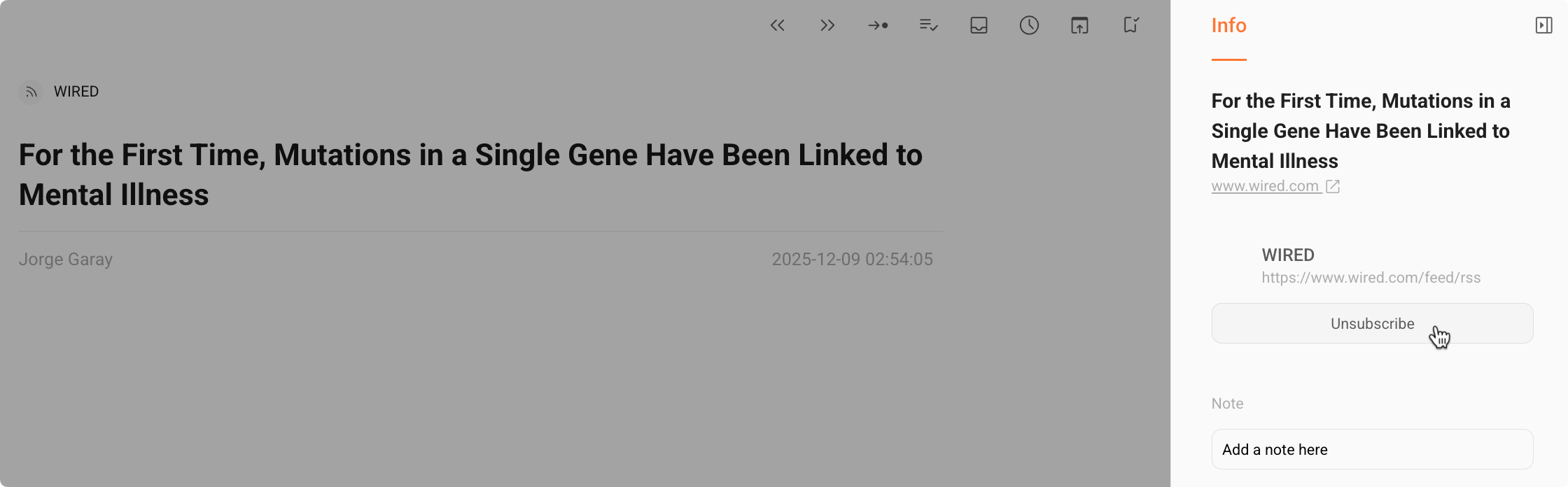
- From the Info panel of an entry belonging to that feed.
- From the reader toolbar while viewing an entry.

- From settings > RSS feeds in Wise.
