OpenClaw
OpenClaw is a personal AI assistant that is designed to run on your local device. It connects directly to the messaging apps like Discord and Slack, and allows you to interact with it right in the app.
It acts as an "always-on" operator that can execute real tasks, such as searching and sending documents, managing calendars, or browsing webpages.
Learning objectives
By the end of this guide, you are able to:
- Install and initialize the OpenClaw environment.
- Integrate OpenClaw with Discord.
- Optional: Enable the web search capability using Brave Search.
- Manage skills and plug-ins.
Prerequisites
Local model: Ensure Ollama is installed and running.
Discord account: Required to create the bot application.
Discord server: A server where you have permissions to add bots.
(Optional) Brave search API key: Required for the agent to search the web for real-time information.
TIP
You can obtain a free API key from the Brave Search API. The free tier of the "Data for Search" plan is usually sufficient for personal use.
Upgrade notes
If you are upgrading an existing OpenClaw installation, review the version-specific changes and troubleshooting steps before proceeding. For more information, see Upgrade OpenClaw.
Install OpenClaw
From the Olares Market, search for "OpenClaw".
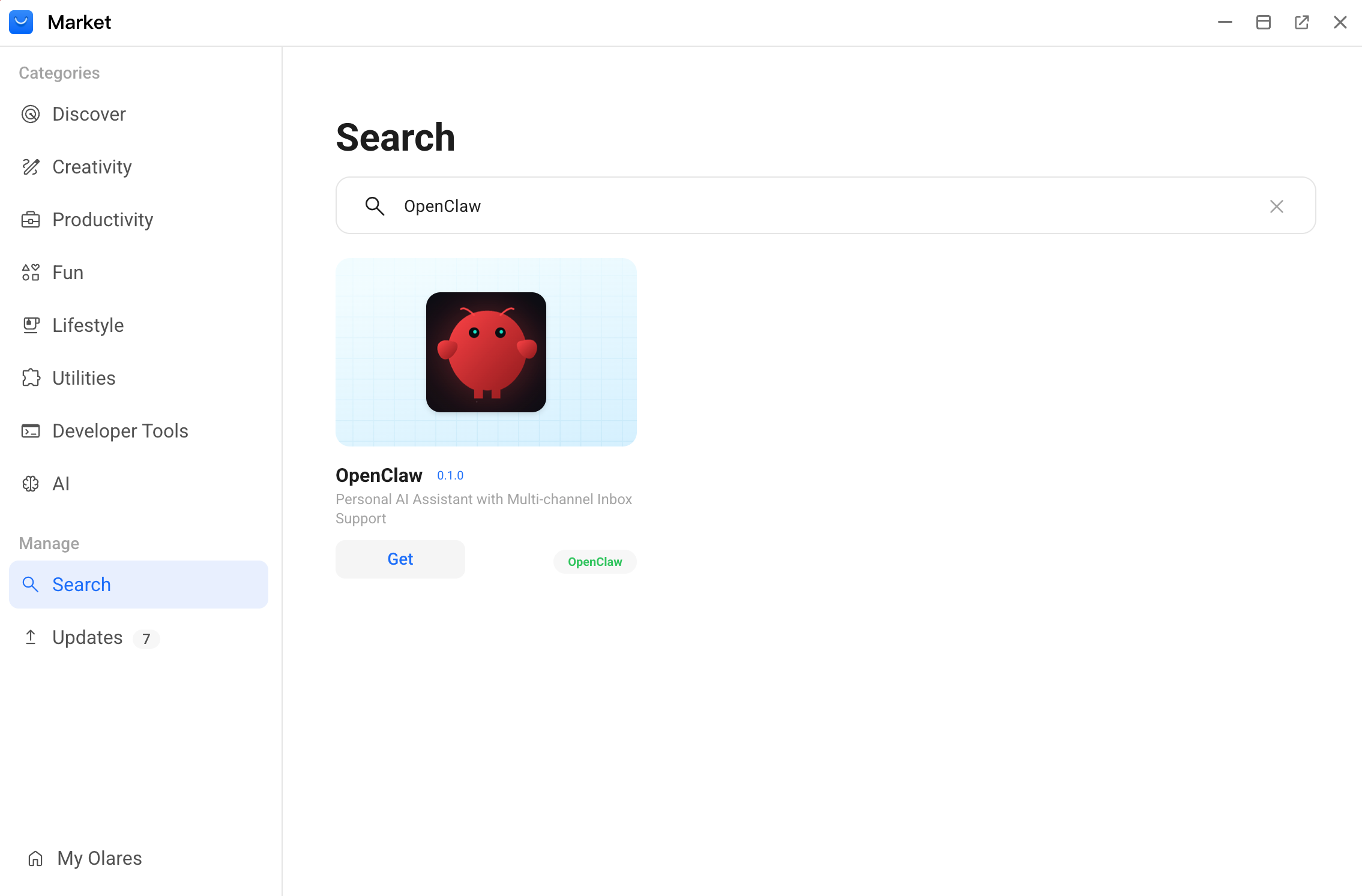
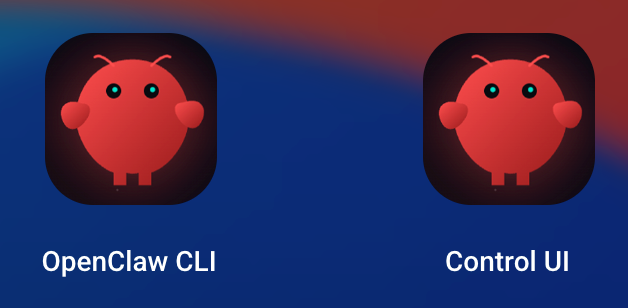
Click Get, and then click Install. When the installation finishes, two shortcuts appear in the Launchpad:
- OpenClaw CLI: The command line interface
- Control UI: The graphical dashboard
Run multiple OpenClaw agents
Olares supports app cloning. If you want to run multiple independent AI agents for different tasks, you can clone the OpenClaw app. For more information, see Clone applications.
Initialize OpenClaw
Run a quick setup for the agent.
Step 1: Prepare your model
Install a tool-capable model, such as glm-4.7-flash, qwen3.5:27b, and gpt-oss:20b. This tutorial uses qwen3.5:27b.
TIP
OpenClaw requires a large "context window" (that is the AI's short-term memory) to handle complex tasks without forgetting your previous instructions. If you are using local models, it is recommended to select a model that natively supports a context window of at least 64K tokens.
Step 2: Run onboarding wizard
Open the OpenClaw CLI app from the Launchpad.
Enter the following command to start the onboarding wizard:
bashopenclaw onboardThe wizard guides you through a series of steps. Use the arrow keys to navigate and press Enter to confirm.
Note on configurations
To get you started quickly, this tutorial skips several advanced settings in the wizard. You can configure or modify them later.
Settings Option I understand this is personal-by-default and shared/multi-user use requires lock-down. Continue? Yes Onboarding mode QuickStart Config handling Use existing values Model/auth provider Custom Provider API Base URL The API address appended with /v1from Step 1,
such ashttps://37e62186.demo0002.olares.com/v1How do you want to provide this API key? Paste API key now API Key (leave blank if not required) Leave it blank or enter any value Endpoint compatibility OpenAI-compatible Model ID The exact model name from Step 1,
such asqwen3.5:27b-q4_K_MEndpoint ID A name for this configuration,
such asollama-qwen3.5Model alias (optional) A short alias such as qwen3.5Select channel Skip for now
(You can configure channels later)Configure skills now No
(You can install skills later)Enable hooks Select all How do you want to hatch your bot Do this later After you complete the onboarding wizard, scroll up to the Control UI section.
Find the Web UI (with token), and then copy the token at the end of the URL (the text immediately following
#token=). This is your Gateway Token.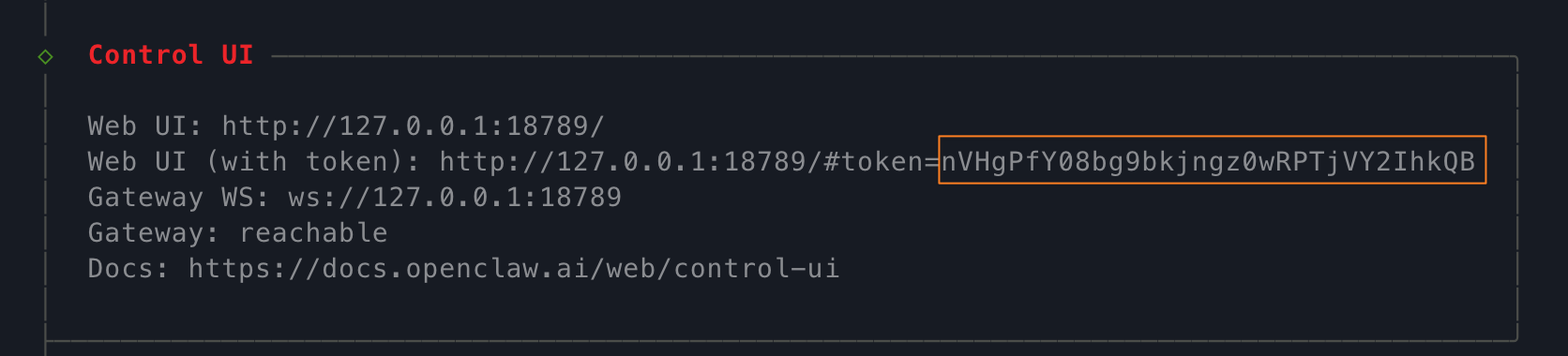
Step 3: Pair device
Connect the Control UI to the OpenClaw CLI to use the graphical dashboard.
Step 4: Configure context window
OpenClaw requires a large "context window" (that is the AI's short-term memory) to handle complex tasks without forgetting your previous instructions.
In the Control UI, select Config from the left sidebar, and then switch to the Raw tab.
Find the
modelssection and locate the configuration block for your model.Add or update the
contextWindowvalue. Set it to at least 64000 (64K). If your hardware VRAM permits, it is highly recommended to increase it to 200000 (200K).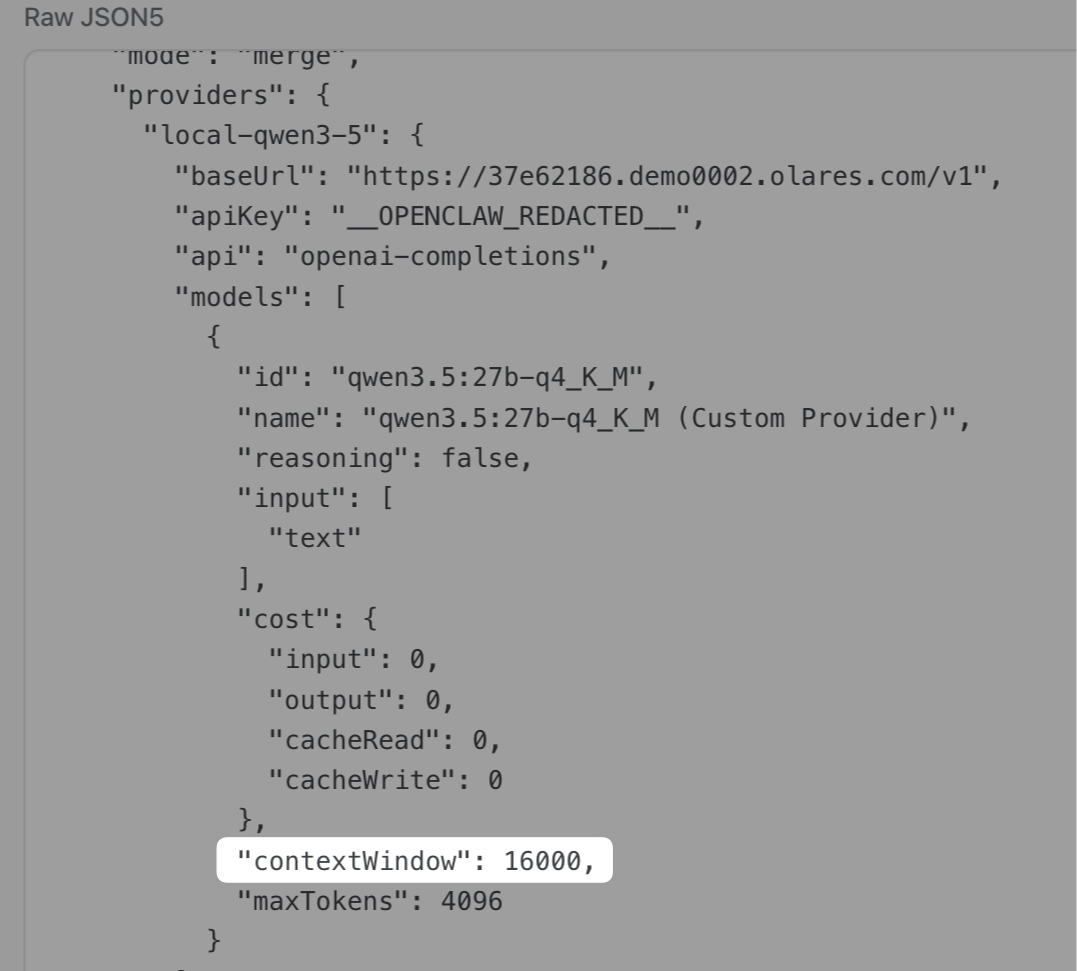
Click Save in the upper-right corner. The system validates the configuration and restarts automatically.
Step 5: Personalize OpenClaw
To make your OpenClaw bot more personalized, it is highly recommended to complete the persona setup process.
This process establishes the agent's identity, behavioral boundaries, and long-term memory through persona files. These files keep your agent's behavior consistent across all platforms and channels.
In the Control UI, select Chat from the left sidebar.
Ensure neurology at the upper-right corner is enabled. This allows you to watch the agent think and edit persona files in real time.
Enter and send the following message to start:
textWake up please!The agent responds and starts interviewing you. You can establish rules, personality traits, and preferences. For example,
text- Call me Bella. I like simple language without technical jargon and concise bulleted answers. - You are John, a witty assistant who uses emojis. - Never access my calendar without asking first, and never execute any financial operations.As you chat with the agent, look for the Edit messages. These indicate the agent is successfully writing your preferences to its core persona files, such as
IDENTITY.md,USER.md, andSOUL.md.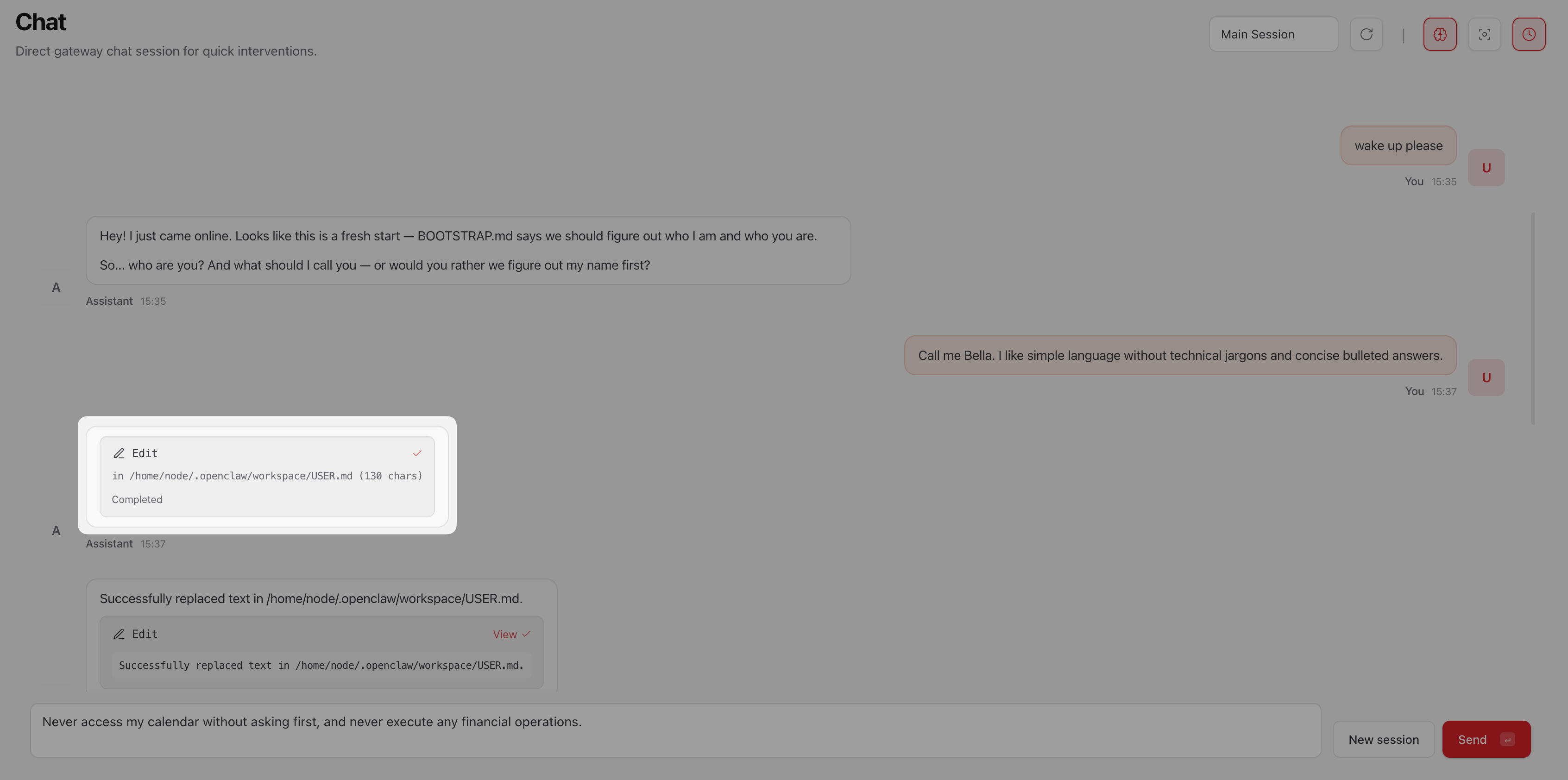
TIP
If you do not see the intermediate persona file operations, refresh the page by clicking refresh at the upper-right corner or by pressing F5.
Continue the conversation until the agent gathers enough information. Then, it automatically deletes the temporary
BOOTSTRAP.mdfile to finish the personalization process.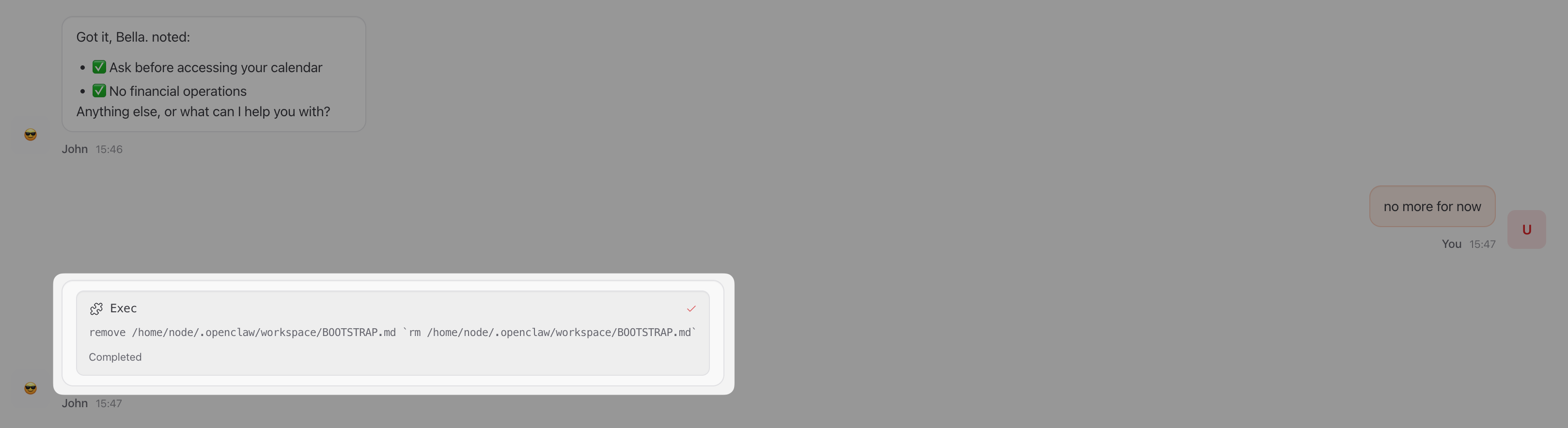
(Optional) If the agent fails to update the persona files or delete
BOOTSTRAP.md, explicitly instruct it to do so in the chat.If the issue persists, resolve it using one of the following methods:
Increase the context window: Select Config from the left sidebar, switch to the Raw tab, find the
modelssection, and then increase thecontextWindowvalue to at least 64K (200K is recommended).TIP
Note that a larger context window consumes more VRAM, so choose a value that your hardware can support.
Change the model: Switch to a model with better tool-calling and instruction‑following capabilities.
Verify your agent's persona files are updated:
a. Open Files from the Launchpad.
b. Go to Application > Data > clawdbot > config > workspace.
c. Check the modified time of the
.mdfiles to identify which ones were recently updated, such asUSER.mdandIDENTITY.md.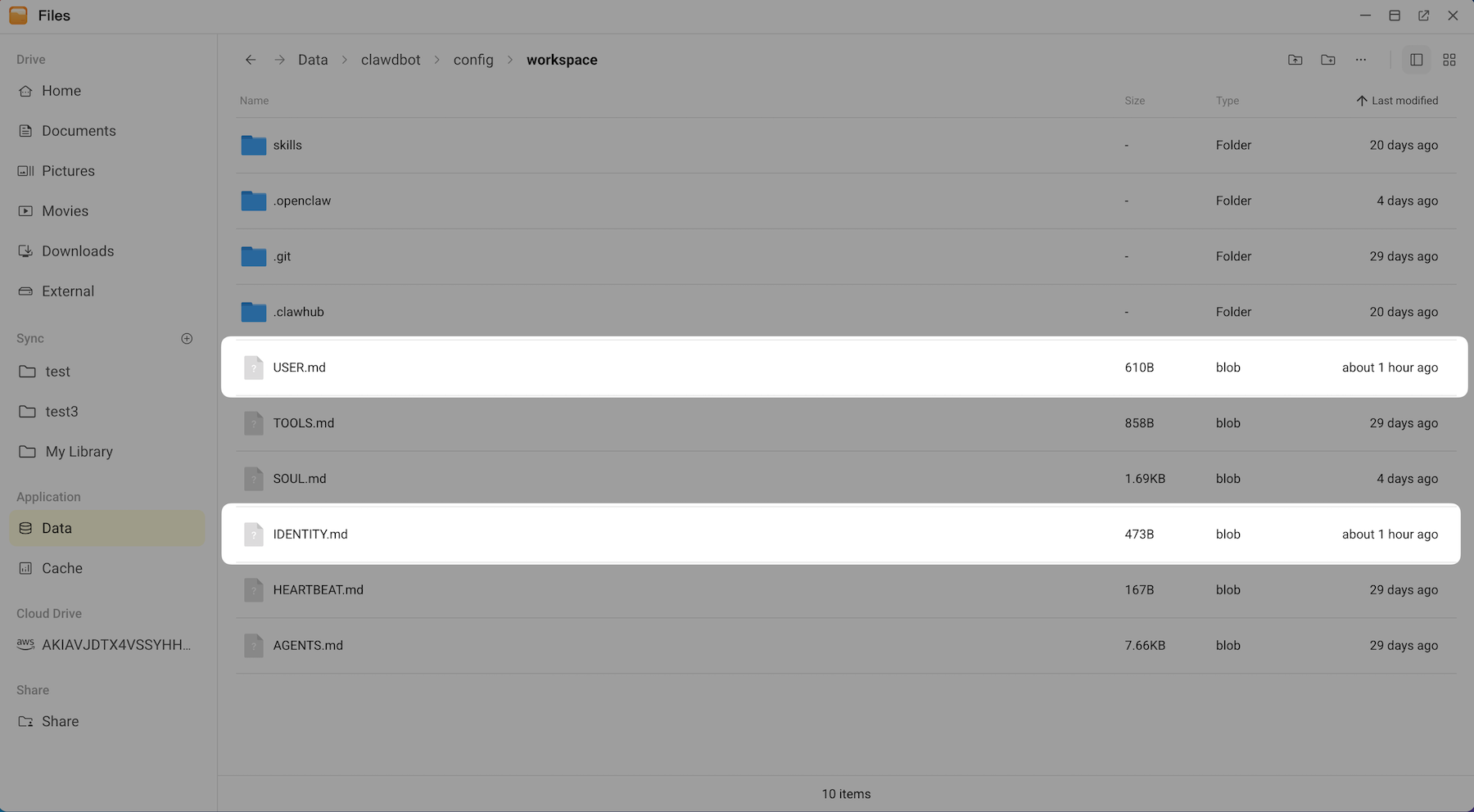
d. (Optional) Double-click a file to verify that it contains your newly established rules such as name, language style, and restrictions.
Modify persona settings
To change these settings in the future, use one of the following methods:
- Ask the agent in the chat to update its rules.
- Download the
.mdfiles from this folder, edit them in a text editor, and re-upload them to overwrite the old ones.
Next steps
- Integrate with Discord to chat with your agent remotely.
- Optional: Enable web search to give your agent access to the live internet information.
- Install skills and plugins to enhance your agent's capabilities.
FAQ
Cannot restart OpenClaw in CLI
If you attempt to manually start, stop, or restart OpenClaw using commands like openclaw gateway or openclaw gateway stop in the OpenClaw CLI, you receive the following error messages:
Gateway failed to start: gateway already running (pid 1); lock timeout after 5000msGateway service check failed: Error: systemctl --user unavailable: spawn systemctl ENOENT
Cause
OpenClaw is deployed as a containerized app in Olares, where the gateway runs as the primary container process pid 1 and is always active. This environment does not use standard Linux system and service management tools such as systemd and systemctl, so these commands do not work.
Solution
Do not use the OpenClaw CLI to manage the gateway service. Instead, restart OpenClaw using one of the following methods:
- Restart OpenClaw from Settings or Market:
- Open Settings, go to Applications > OpenClaw, click Stop, and then click Resume.
- Open Market, go to My Olares, find OpenClaw, click keyboard_arrow_down next to the operation button, select Stop, and then select Resume.
- Restart the container: Open Control Hub, click
clawdbotunder Deployments, and then click Restart.
Why does my OpenClaw automatically stop during long tasks?
When you ask the OpenClaw agent to perform tasks that take a long time to process like massive web scrapes or deep analysis, the task is abruptly terminated before returning the result.
Cause
By default, OpenClaw sets a maximum runtime limit of 10 minutes per task. If a task exceeds this limit, the system forcefully terminates it to save resources.
Solution
Extend this timeout limit by modifying the configuration file as follows:
Open the Control UI, go to Config > Raw, and then find the
agentssection.In the
defaultsblock, add thetimeoutSecondsfield or modify the existing one in it.To set it to 1 hour, specify
3600for the value:json"agents": { "defaults": { "timeoutSeconds": 3600 } }Click Save to restart the gateway and apply the changes.