Chat with Local LLMs Using Open WebUI
Open WebUI provides a user-friendly chat interface for local models on your Olares device. It does not include any models by default, so you need to install a dedicated model app that acts as the backend. This guide walks you through the setup process using the Qwen3.5 27B Q4_K_M model app as an example.
Alternative method
If you prefer to manage multiple models through the Ollama app, see Set up Open WebUI with Ollama.
Learning objectives
In this guide, you will learn how to:
- Run a model app from the Market with Open WebUI on Olares.
- Use the shared endpoint URL to connect the model to Open WebUI.
- Start a chat using the connected local model.
Prerequisites
- An Olares device with sufficient disk space and memory
- Admin privileges to install shared apps from Market
Install the model app and Open WebUI
- Open Market and search for your desired model.
- Click Get, then click Install.
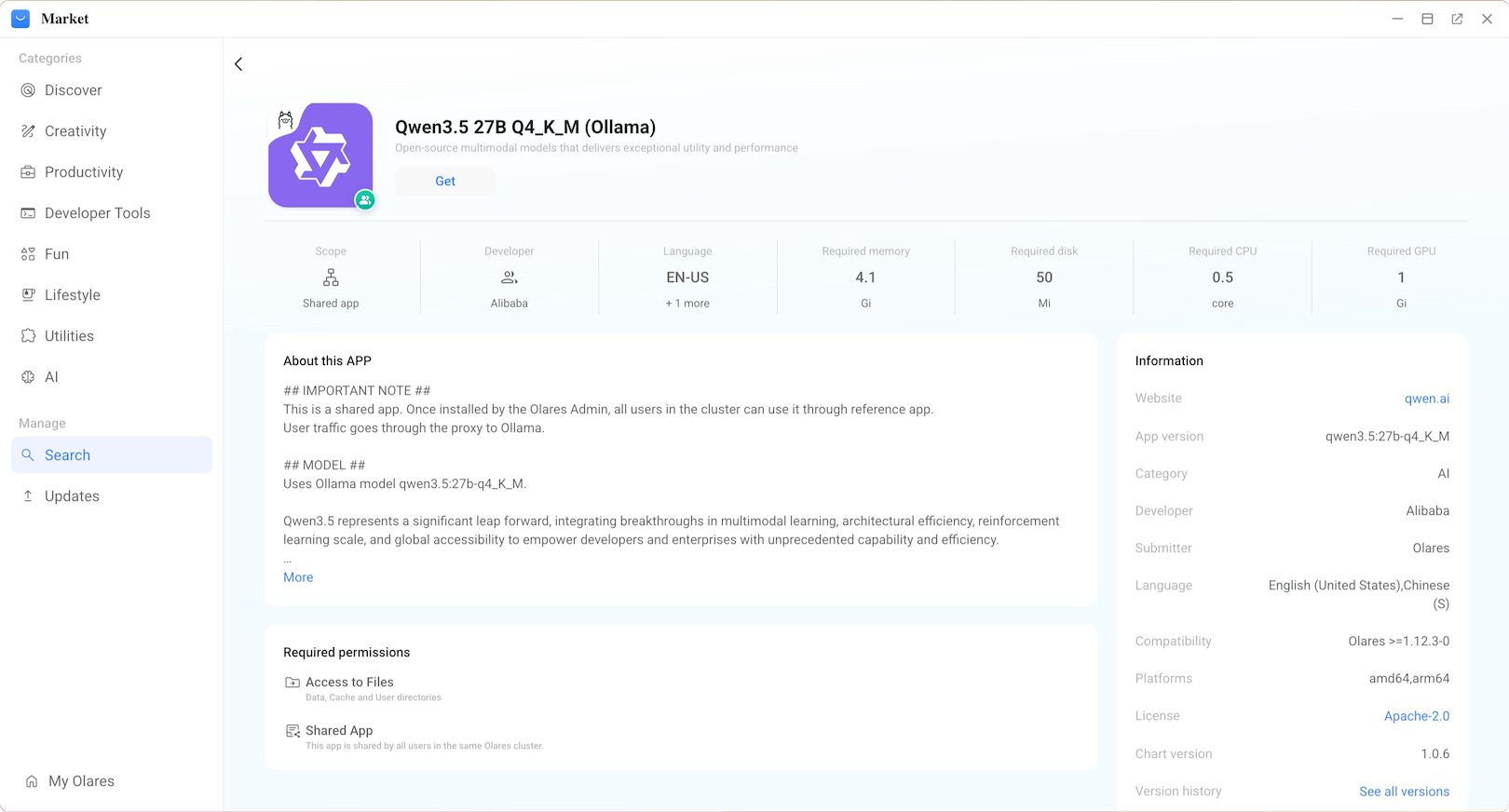
- Search for "Open WebUI" and install it as well.
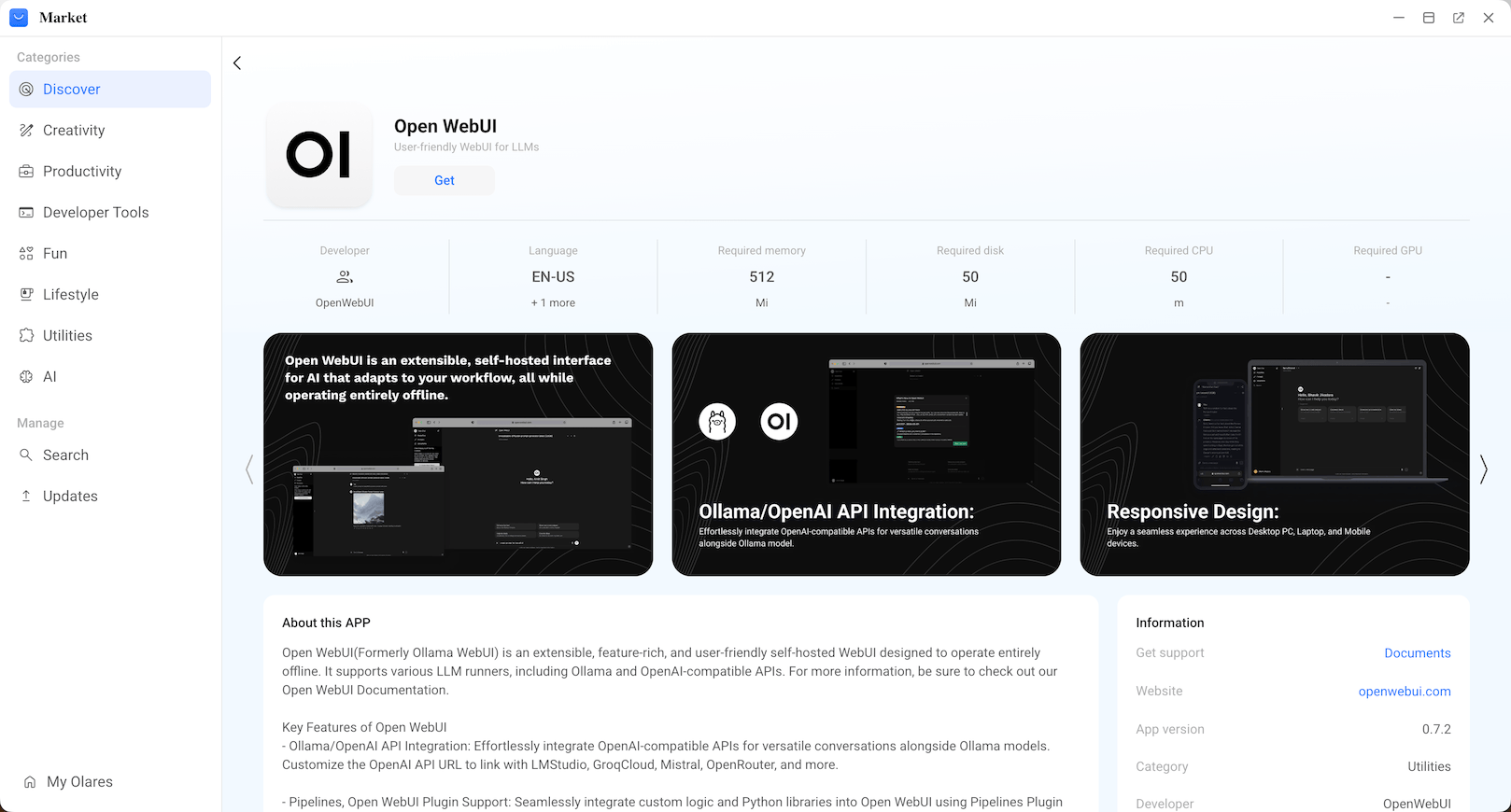
- Wait for both installations to complete.
Download the model
Open the model app you just installed.
View the model downloading progress.
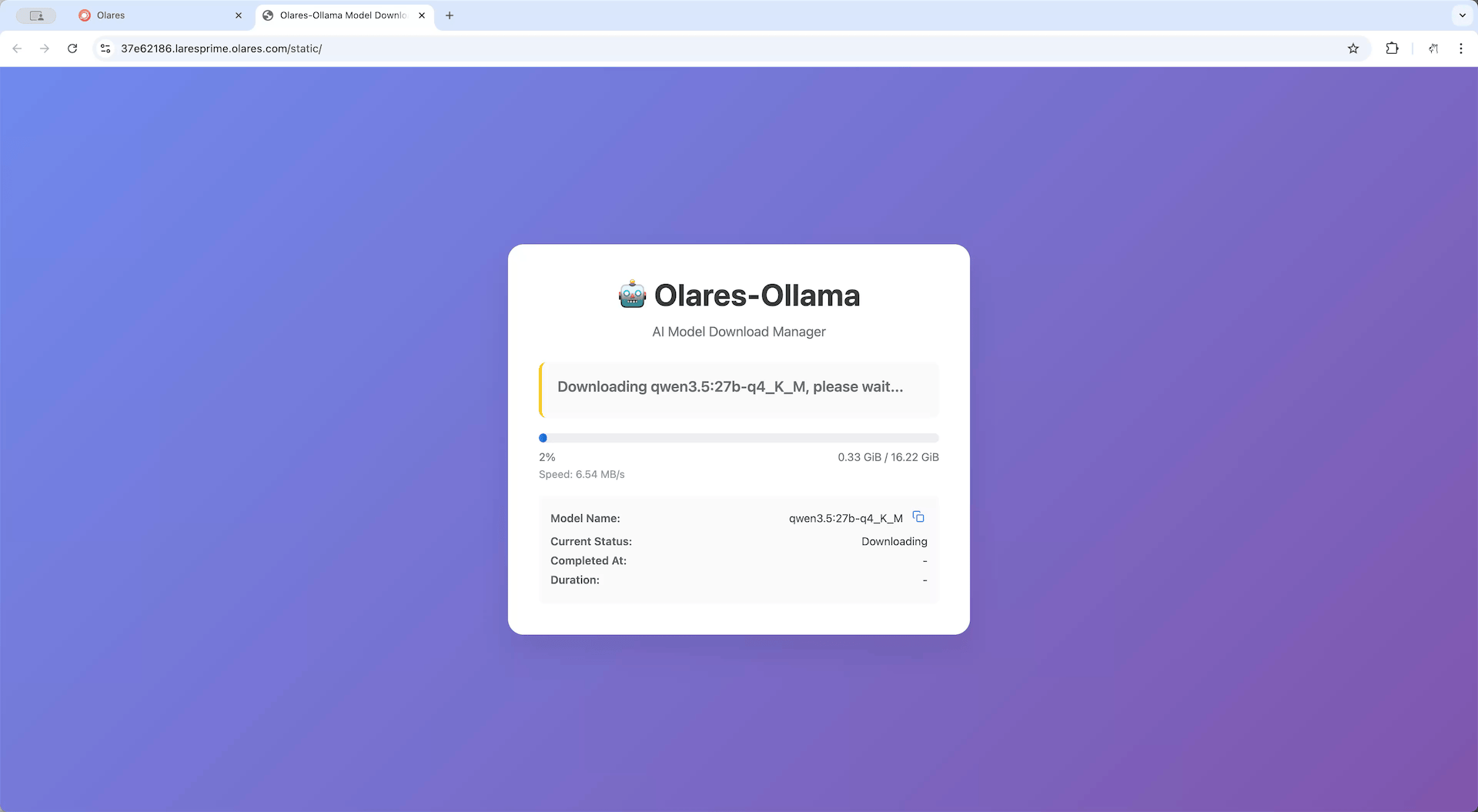
Once you see the completion screen, the model is ready.
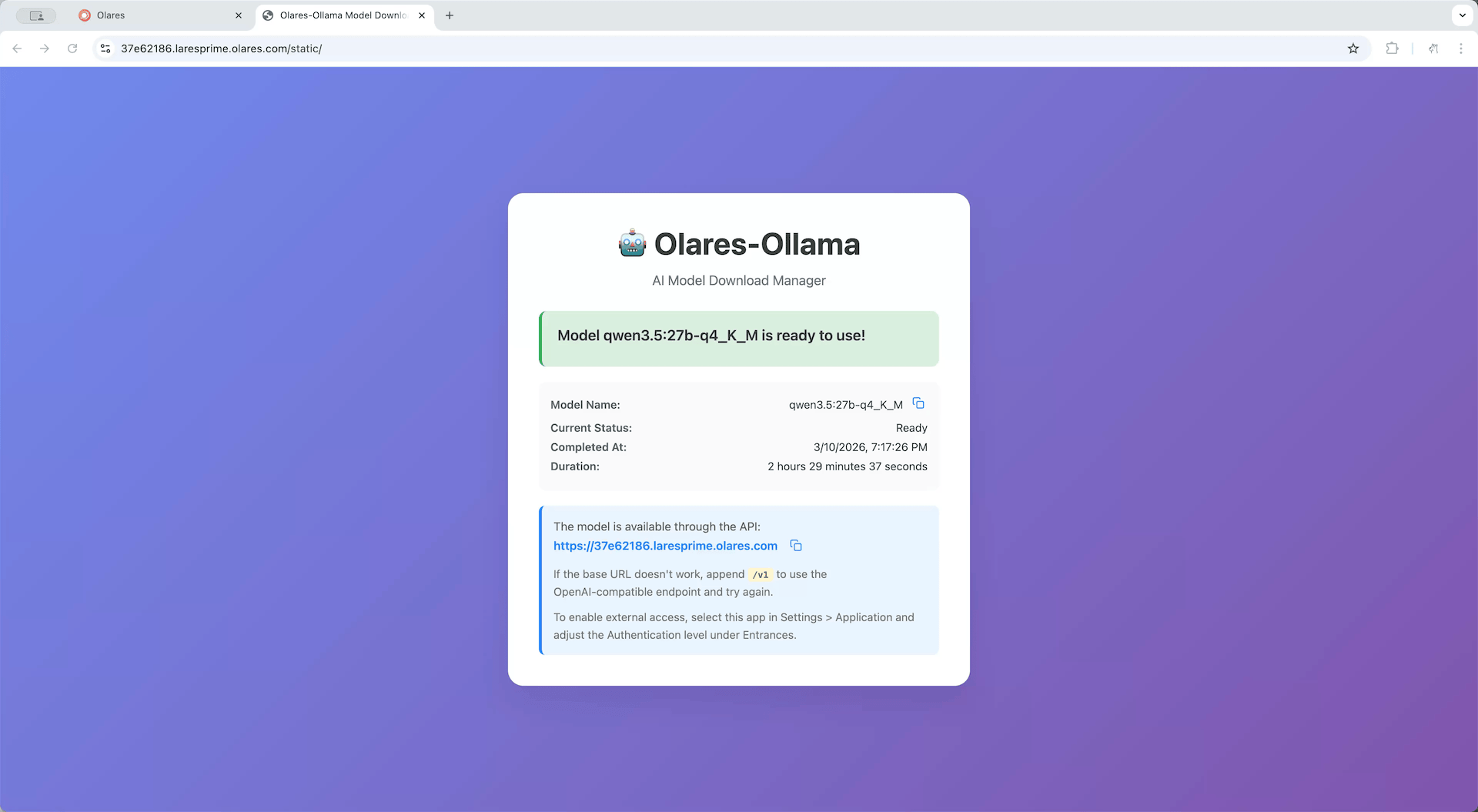
To let Open WebUI access this model, you need to get its shared endpoint URL.
a. Open Olares Settings, then navigate to Application > Qwen3.5 27B Q4_K_M (Ollama).
b. In Shared entrances, select Qwen3.5 27B Q4_K_M to view the endpoint URL.
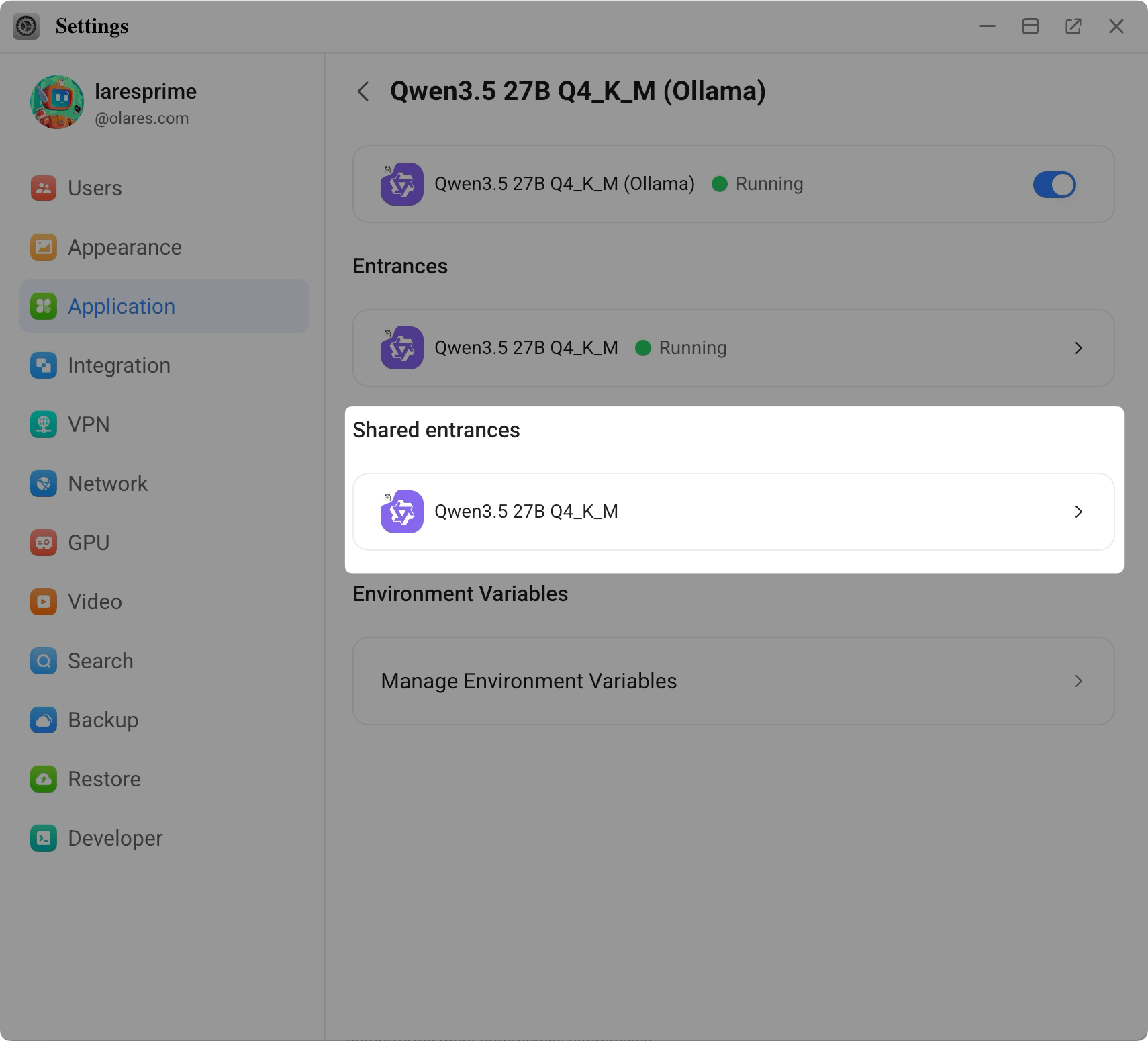
c. Copy the shared endpoint. For example:
plainhttp://94a553e00.shared.olares.comYou will need this URL in a later step.
Why not use the URL shown on the model page?
The URL shown on the model app page is user-specific and relies on browser-based frontend calls. If your device and Olares are not on the same local network, those calls may trigger Olares sign-in and you may encounter cross-origin restrictions (CORS). To avoid these issues, use the shared endpoint URL.
Create an admin account
Open the Open WebUI app.
On the welcome page, click Get started.
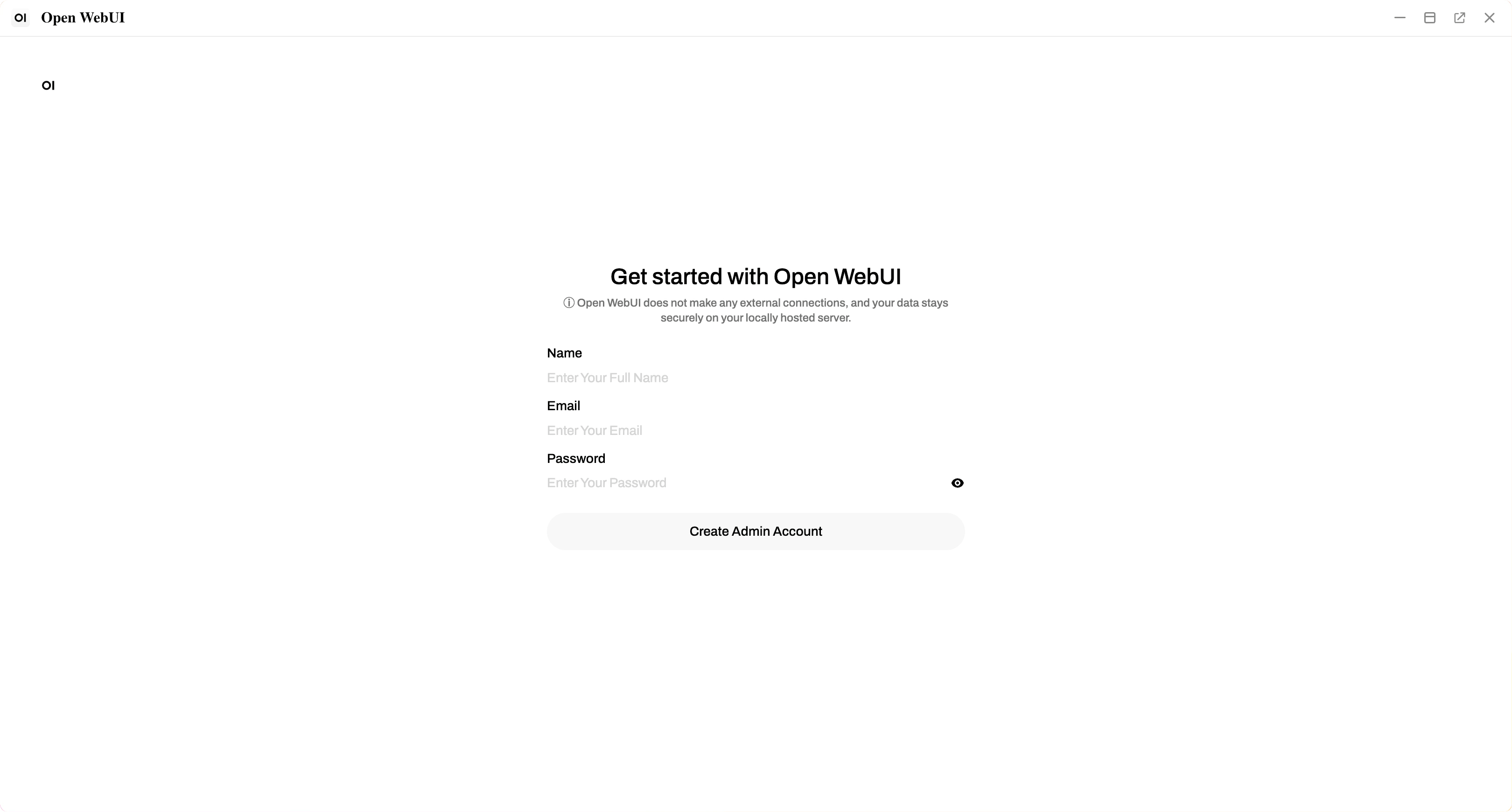
Enter your name, email, and password to create the account.
First account is admin
The first account created has full administrator privileges for managing models and settings.
Local account only
This account is stored locally on your Olares device and does not connect to external services.
Configure the connection
- Click your profile icon in the bottom-left corner and select Admin Panel.
- Navigate to Settings > Connections.
- Click add to add a new connection.
- In the URL field, paste the shared endpoint URL you copied earlier.
- Click Save. Open WebUI verifies the connection automatically.
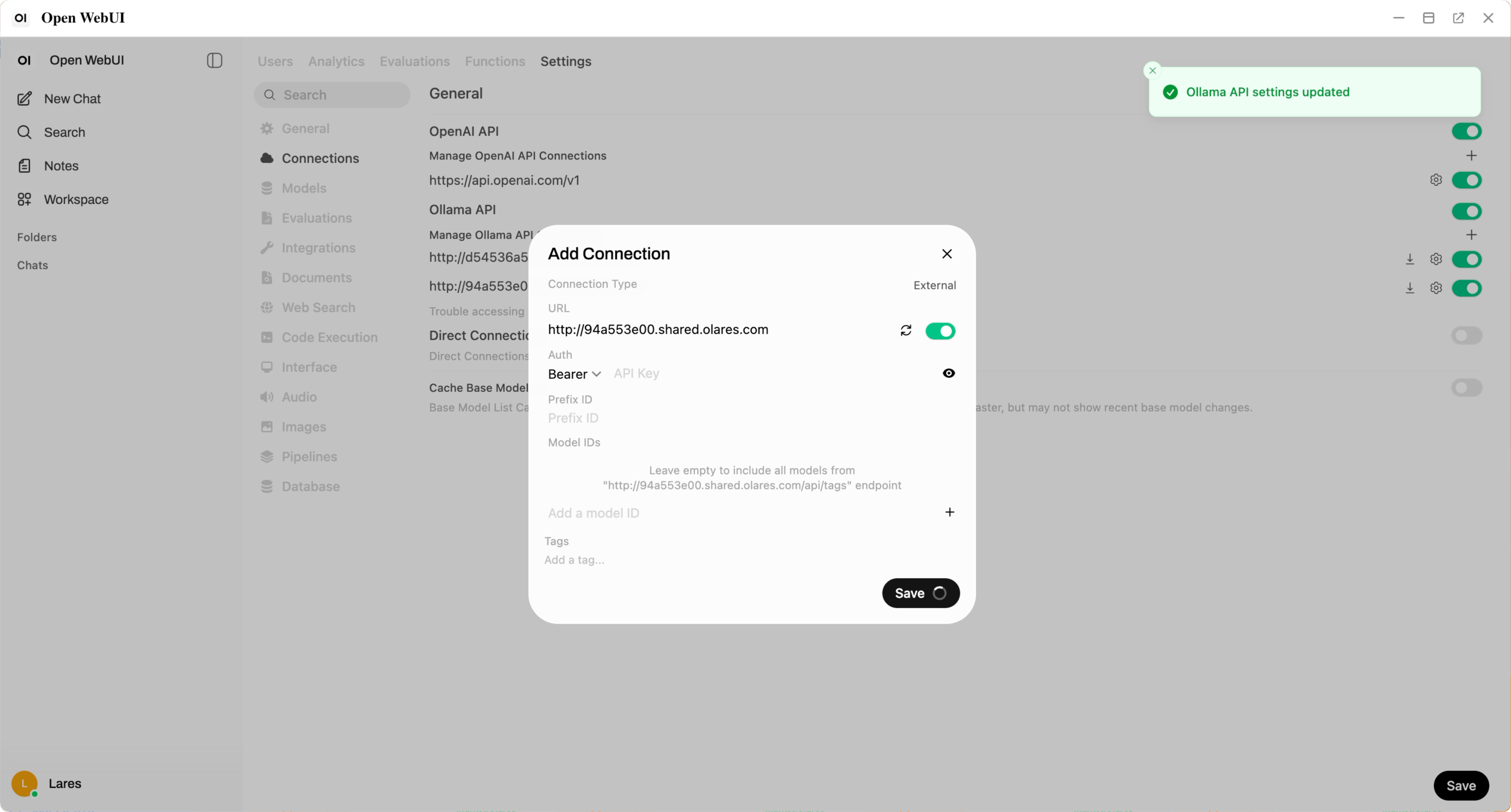
When you see "Ollama API settings updated", the connection is established.
Start chatting
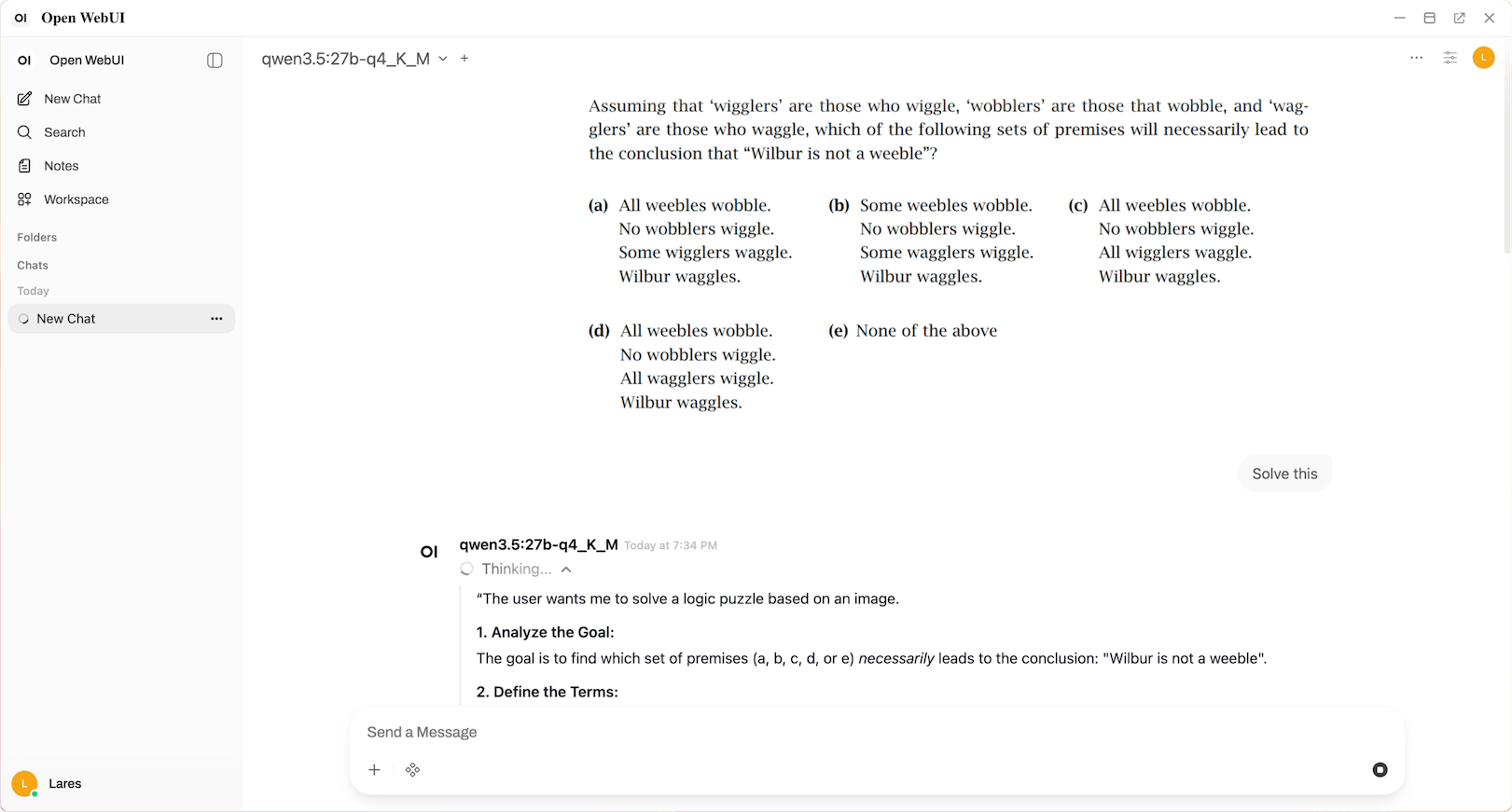
- On the main chat page, confirm that your model is selected in the dropdown.
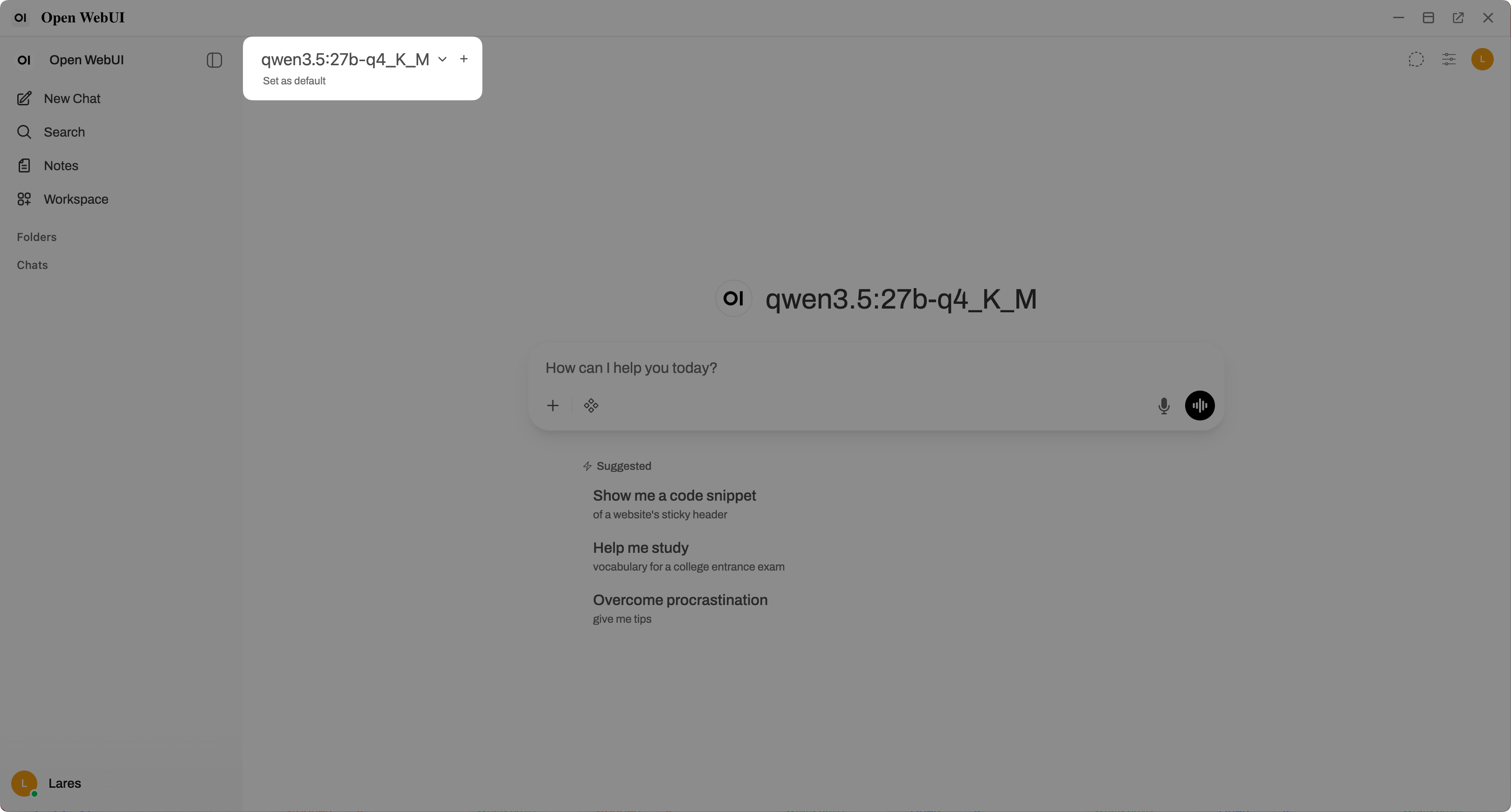
- Enter your prompt in the text box and press Enter to start chatting.
Troubleshooting
Model app is stuck at "Waiting for Ollama" or "Needs attention"
If the model app stays in these states for more than a few minutes:
- Go to Settings > GPU.
- If you are using Memory slicing, make sure the model app is bound to the GPU and has enough VRAM allocated.
- If you are using App exclusive, make sure the exclusive app is set to your model app.
Then restart the model app from Launchpad and check the status again.