Create a digital avatar with Duix.Avatar
Duix.Avatar (formerly HeyGem) is an open-source AI toolkit for generating digital avatars, specializing in offline video creation and digital cloning.
This guide walks you through deploying and using Duix.Avatar on Olares, covering the complete process from model training to video synthesis to generate a text-driven digital avatar video.
Learning objectives
In this guide, you will learn how to:
- Prepare and process video and audio assets for digital avatar cloning.
- Use Hoppscotch on Olares to call the Duix.Avatar API collection to train a model, synthesize audio, and create a video.
Prerequisites
Before you begin, ensure the following:
- Olares 1.11 or later.
- Olares running on a machine equipped with an NVIDIA GPU.
Install Duix.Avatar
In Market, search for "Duix.Avatar".
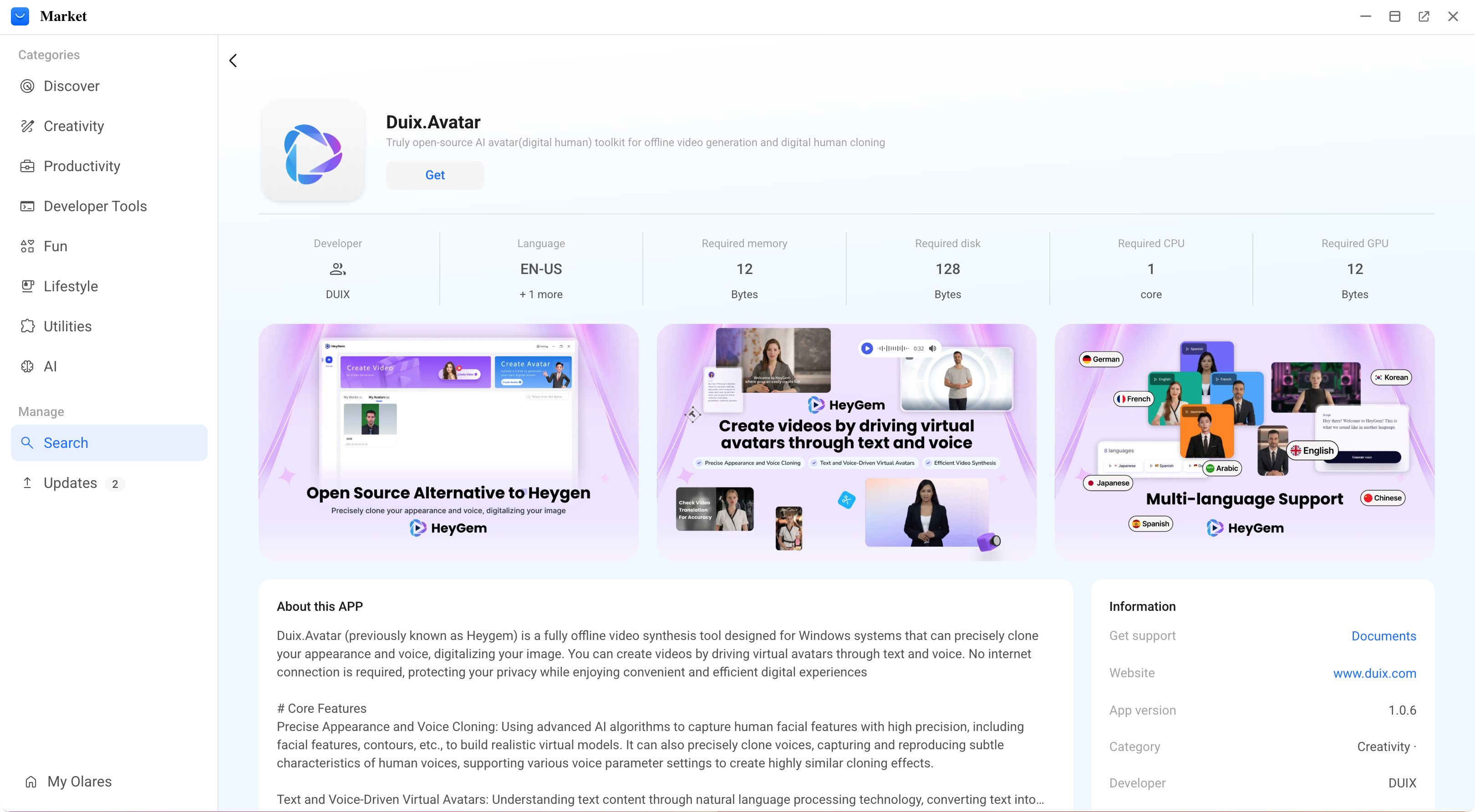
Click Get, then Install, and wait for installation to complete.
Install Hoppscotch
In addition to Duix.Avatar, you also need Hoppscotch, an open-source API development environment to interact with the Duix.Avatar service.
In Market, search for "Hoppscotch".
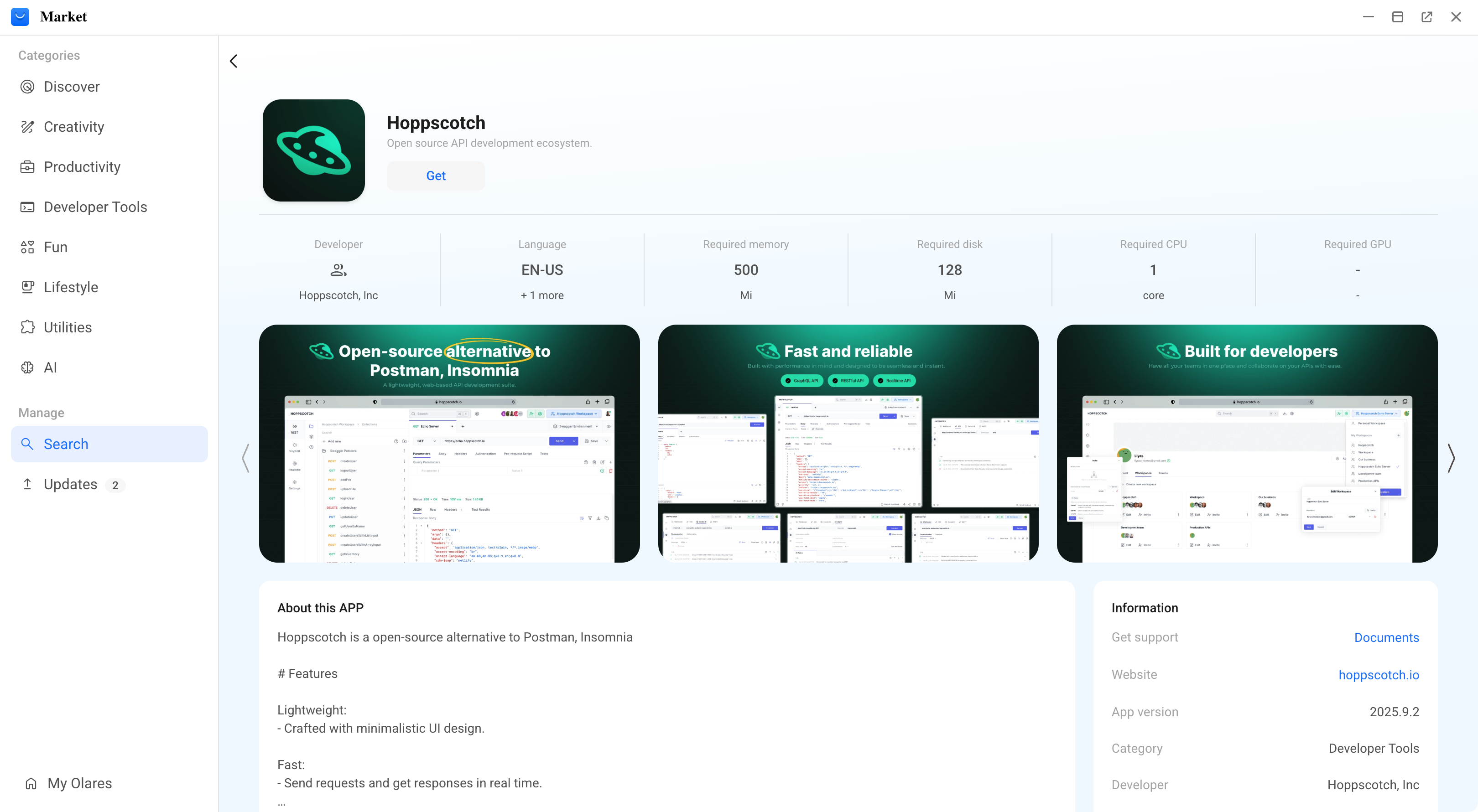
Click Get, then Install, and wait for installation to complete.
Prepare media files
Generating a digital avatar requires a source video to use as a template for the face and voice. You will need a 10-20 second video clip of a person speaking clearly while facing the camera.
You must then separate this source video into two files: a silent video and an audio-only file. This guide uses ffmpeg for this step.
Ensure ffmpeg is installed
To follow this guide using the ffmpeg command, ensure it is installed on your local computer. See https://www.ffmpeg.org/download.html.
Open your terminal,
cdinto the folder containing your video, and run the following command:bash# Replace input.mp4 with your actual filename ffmpeg -i input.mp4 -c:v copy -an output_video.mp4 -c:a pcm_s16le -f wav output_audio.wavThis creates two new files in the same folder:
output_video.mp4(silent video)output_audio.wav(audio)
The Duix.Avatar service reads files from specific directories. Upload the two files you just generated to their designated locations in the Olares Files app.
- Upload
output_audio.wavto:
plain/Data/heygem/voice/data/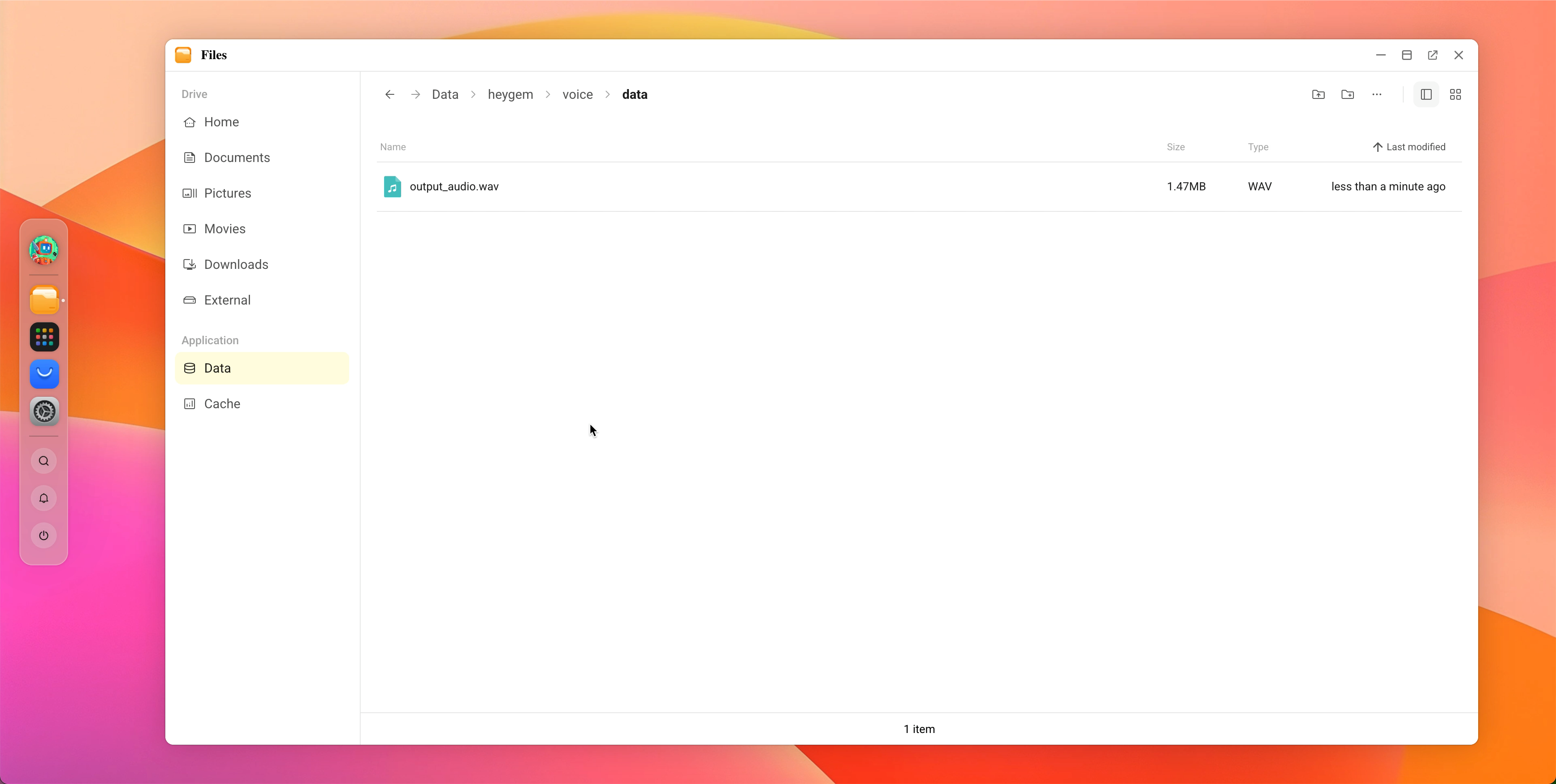
- Upload
Upload
output_video.mp4to:plain/Data/heygem/face2face-data/temp/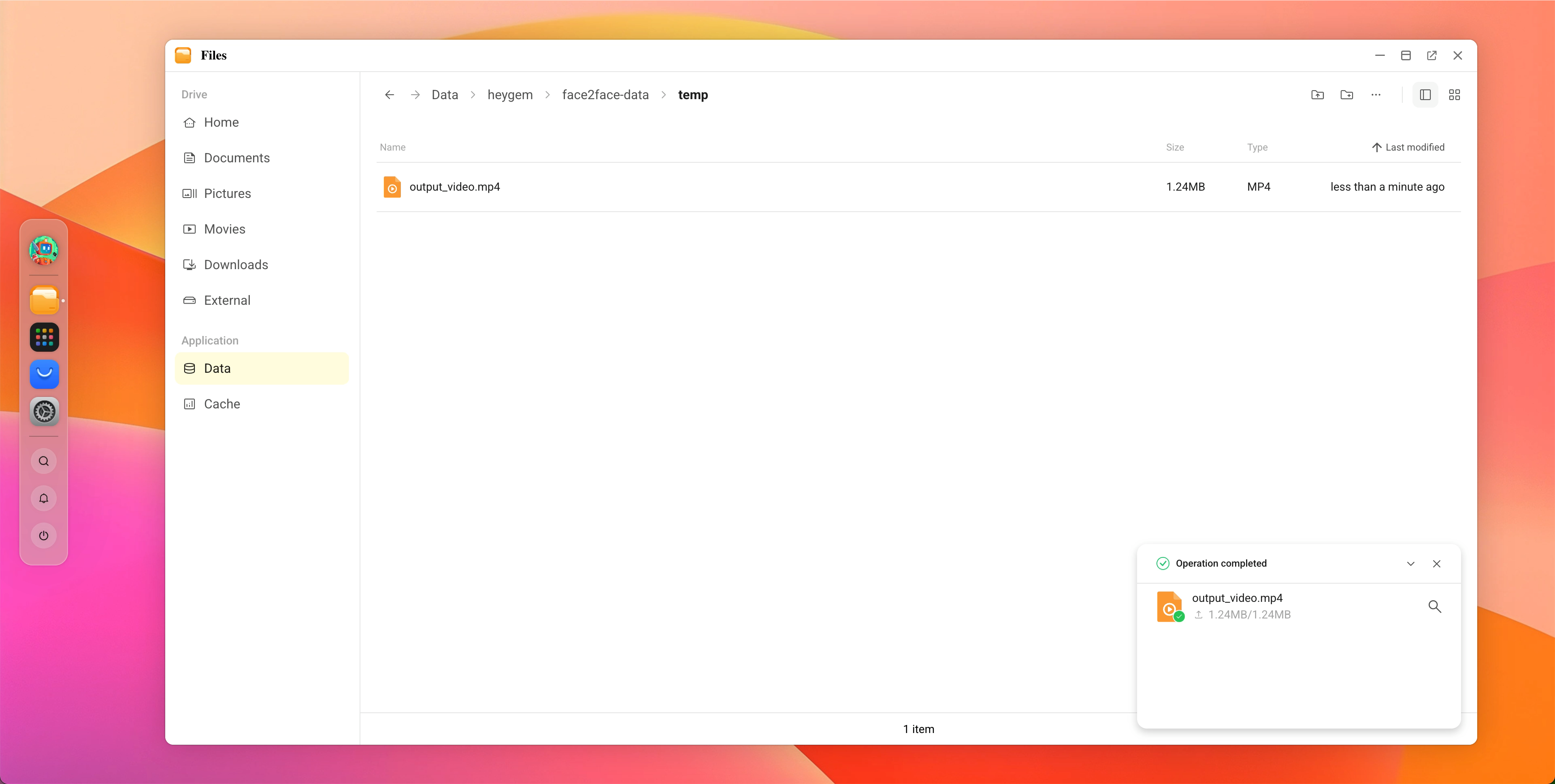
Import the API collection to Hoppscotch
A pre-configured Hoppscotch collection is available to simplify the API calls.
- Run the following command in your terminal to download the API collection file:bash
curl -o duix.avatar.json https://cdn.olares.com/app/demos/en/duix/duix.avatar.json - Open the Hoppscotch app in Olares.
- In the collections panel on the right, click Import > Import from Hoppscotch, and select the
duix.avatar.jsonfile you just downloaded.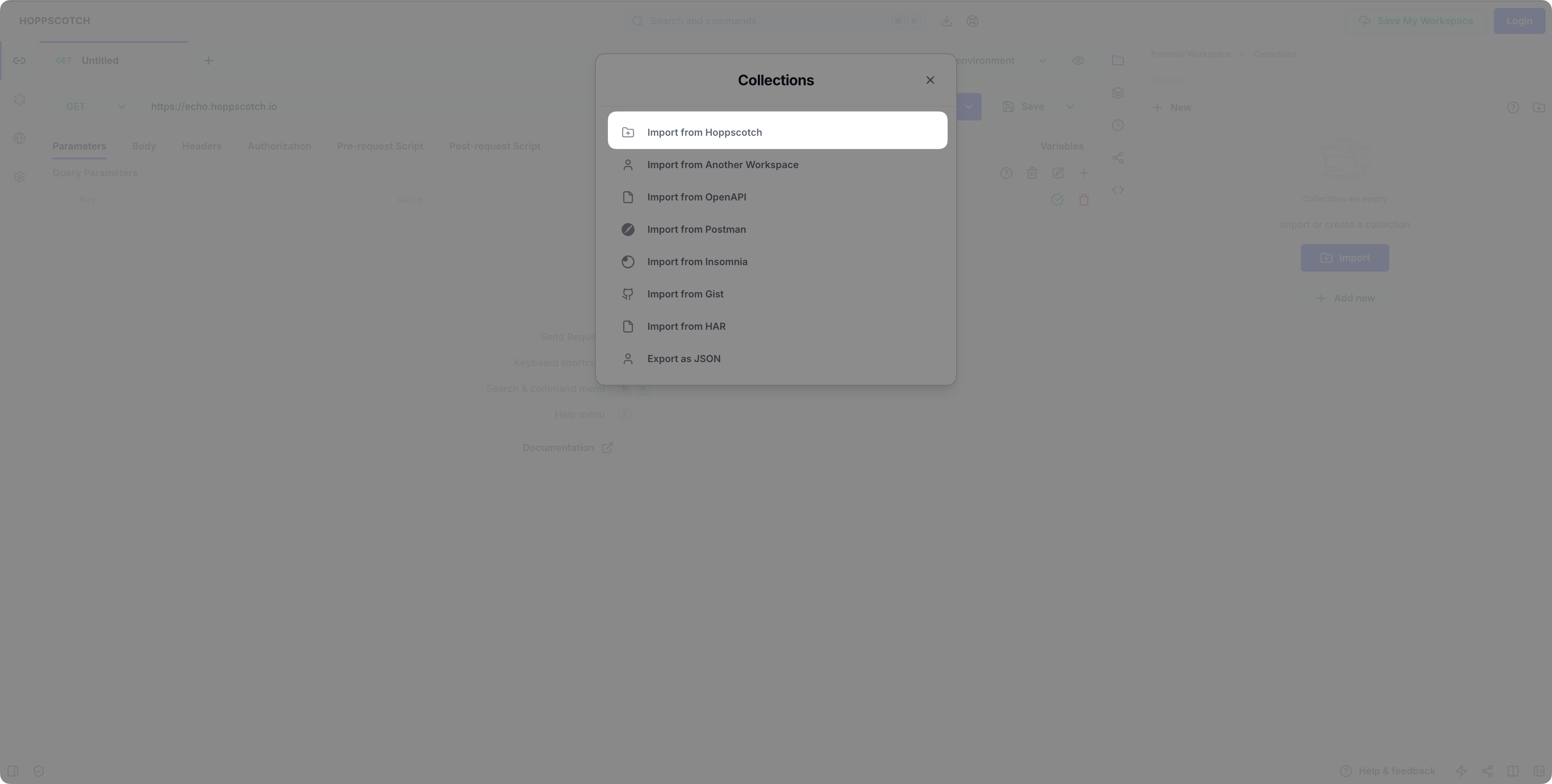
After importing, you will see a new collection named duix.avatar containing four pre-configured requests. 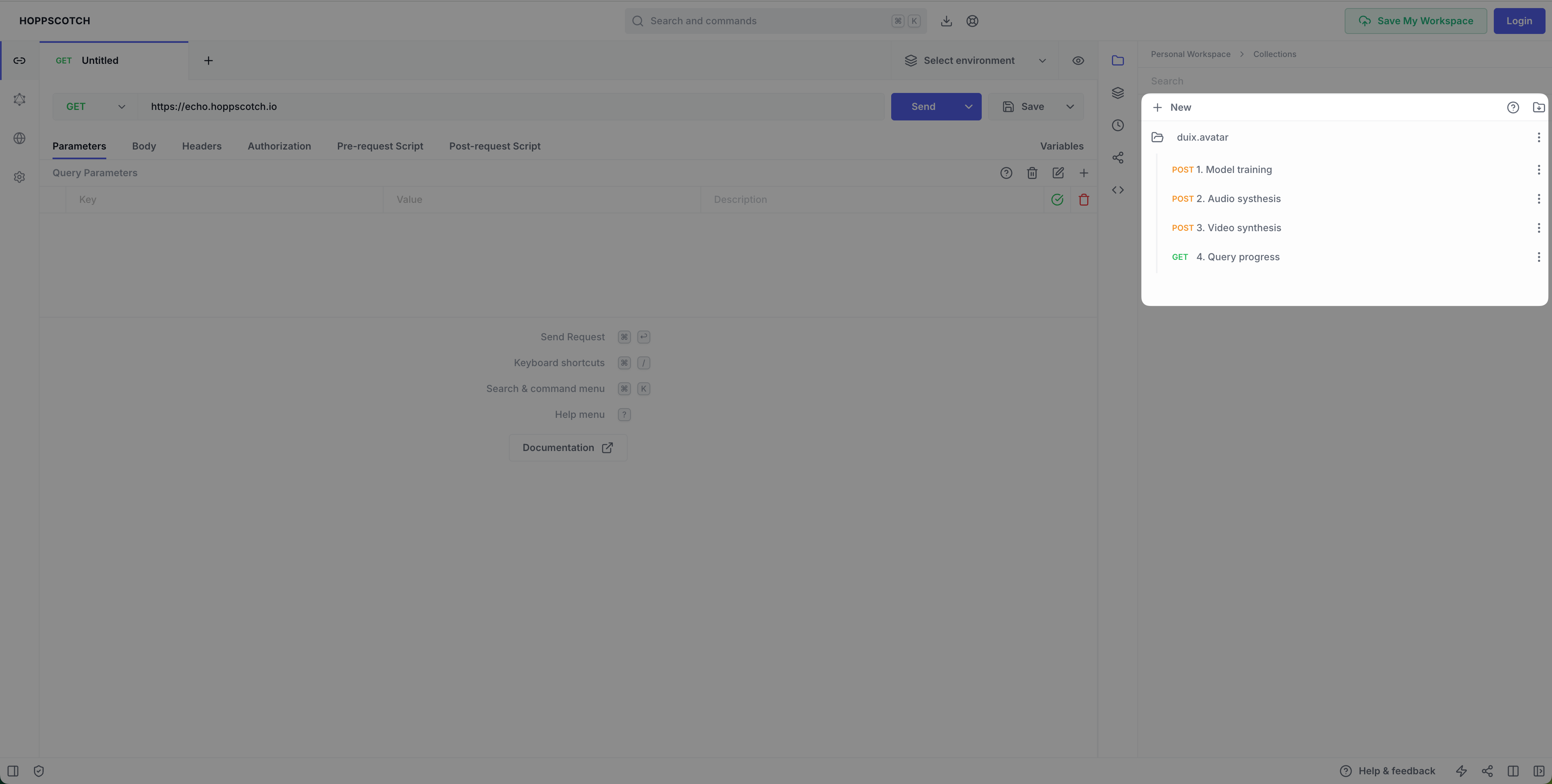
Train data via API
Now you will call the four APIs in sequence to generate the digital avatar.
TIP
The Duix.Avatar API address is tied to your Olares ID. In all of the following API requests, you must replace <OLARES_ID_PREFIX> in the URL with your own Olares ID prefix. For example, if your Olares access URL is https://app.alice123.olares.com, your prefix is alice123.
Step 1: Model training
This step preprocesses your uploaded audio, extracting features to prepare for voice cloning.
- In Hoppscotch, expand the
duix.avatarcollection and select 1. Model training. - Modify the request URL, replacing
<OLARES_ID_PREFIX>with your Olares ID's prefix.INFO
The request body is pre-set to point to the
output_audio.wavfile you uploaded, so you don't need to change it. - Click Send to begin pre-training. A successful request returns a JSON response. Copy the values for
reference_audio_textandasr_format_audio_urlfor later use.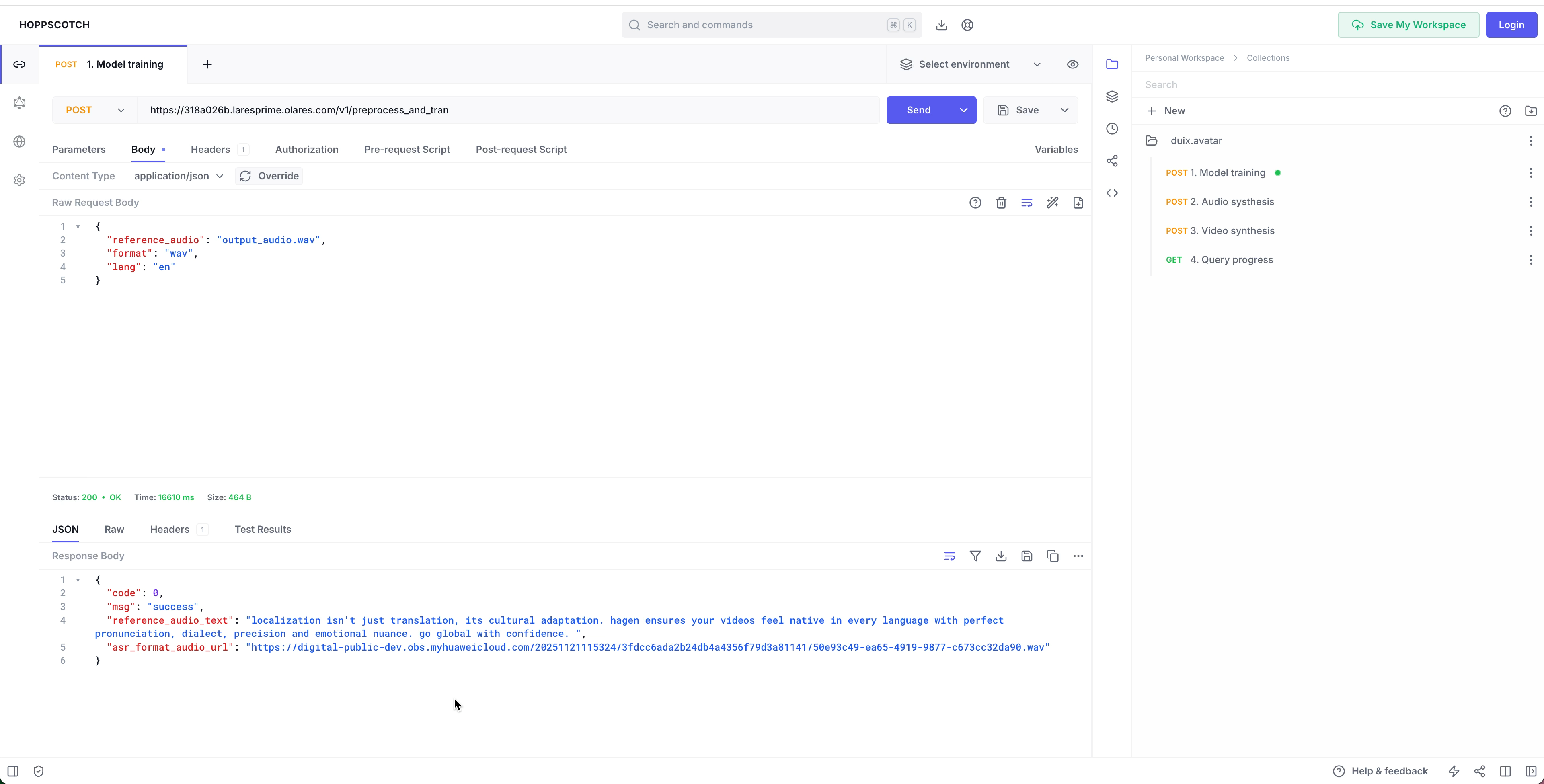
Step 2: Audio synthesis
This step uses the voice model you trained in Step 1 to synthesize new audio from a text prompt.
Click 2. Audio synthesis.
Modify the Olares ID in the request URL.
In the request body, modify the following fields:
text: Enter the text you want the digital avatar to speak.reference_audio: Paste theasr_format_audio_urlvalue from Step 1.reference_text: Paste thereference_audio_textvalue from Step 1.- Other parameters can be left as their defaults.
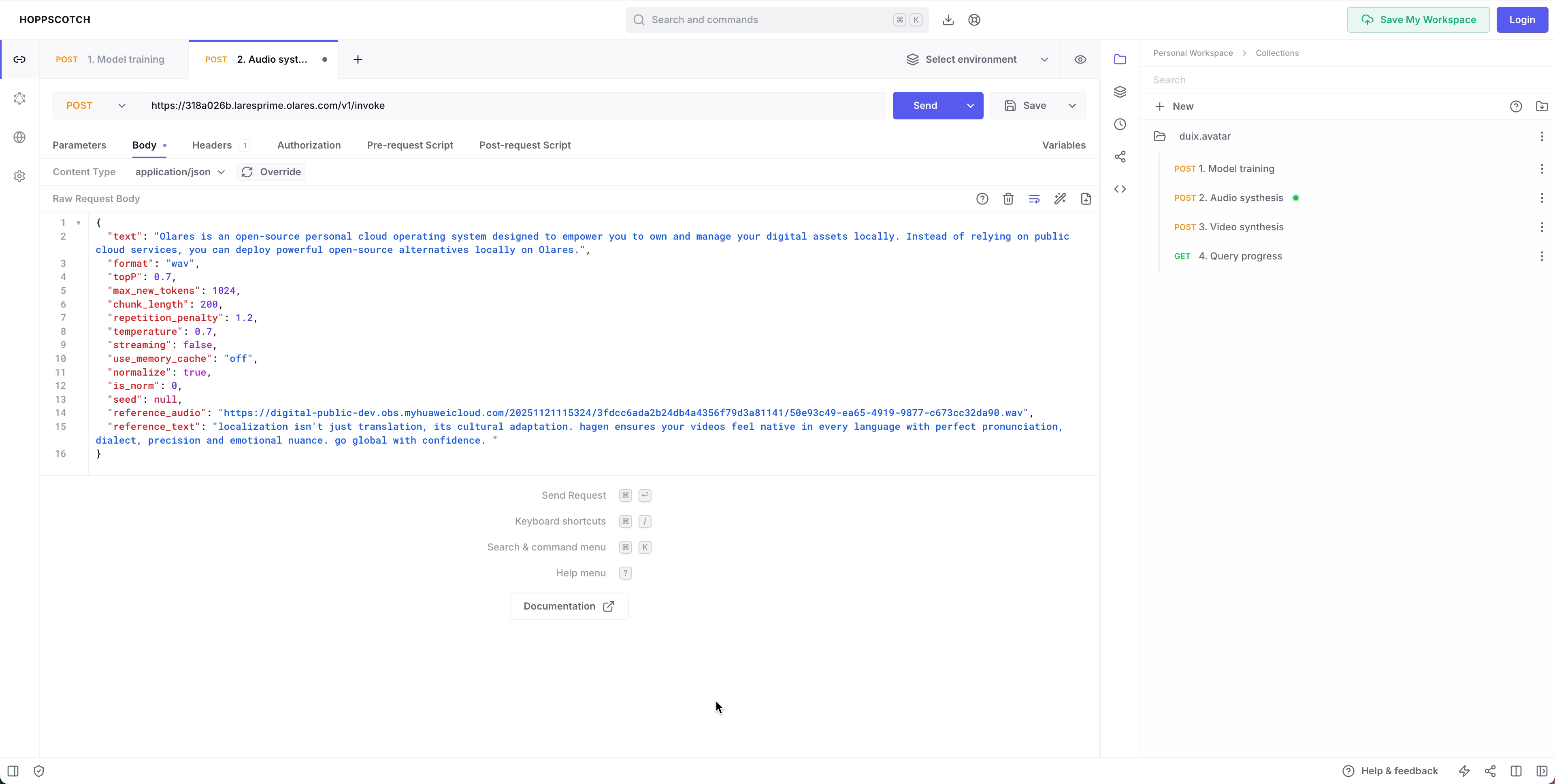
Click Send to synthesize the audio. A successful request will return an audio file.
In the response area, click more_vert to download the audio in MP3 format.
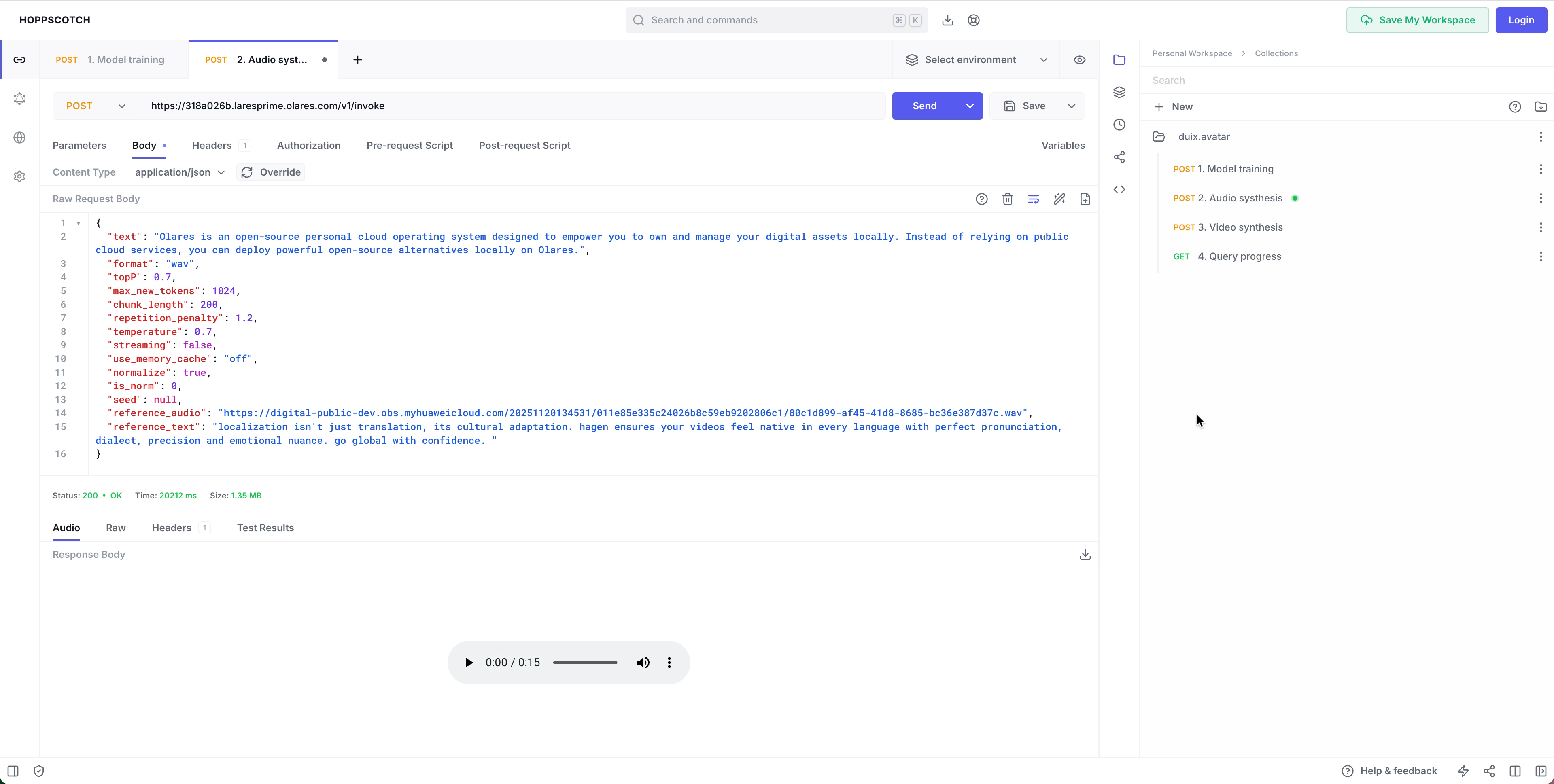
Rename the downloaded file to
new.mp3. In the same folder, convert it to.wavwithffmpeg:bashffmpeg -i new.mp3 new.wavUpload the new
new.wavfile to:plain/Data/heygem/face2face-data/temp/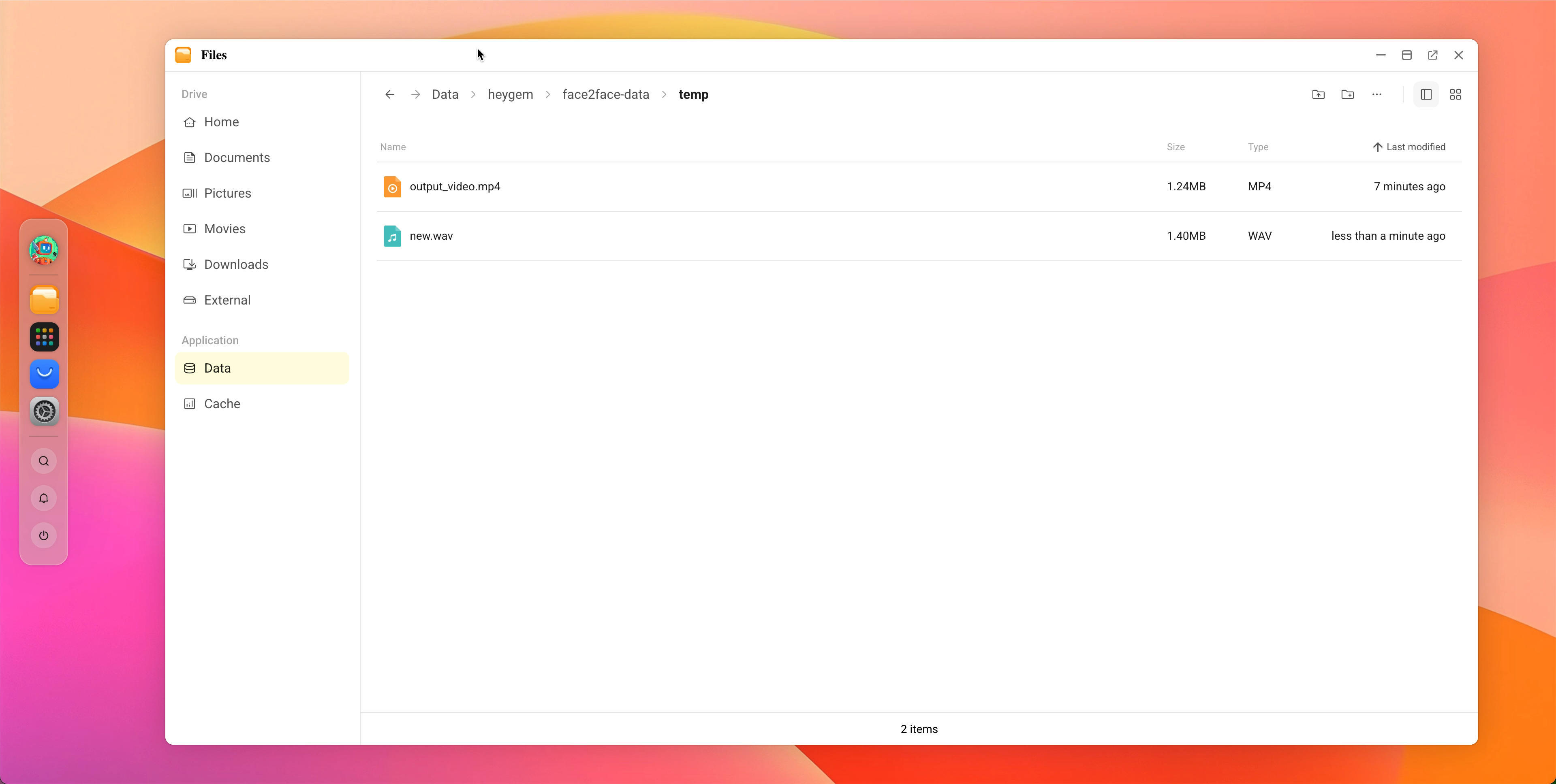
Step 3: Video synthesis
Now you will use your synthesized audio (new.wav) together with your original silent video (output_video.mp4) to synthesize the final avatar.
- Click 3. Video synthesis.
- Modify the Olares ID in the request URL.
- In the request body, change the
codefield to a new, unique task identifier. You will use this ID to check the synthesis progress.INFO
The
audio_urlandvideo_urlin the request body are pre-set tonew.wavandoutput_video.mp4, which match the files you uploaded. They do not need to be changed. - Confirm the settings and click Send. A successful response will return
"success": true, indicating the task has been submitted.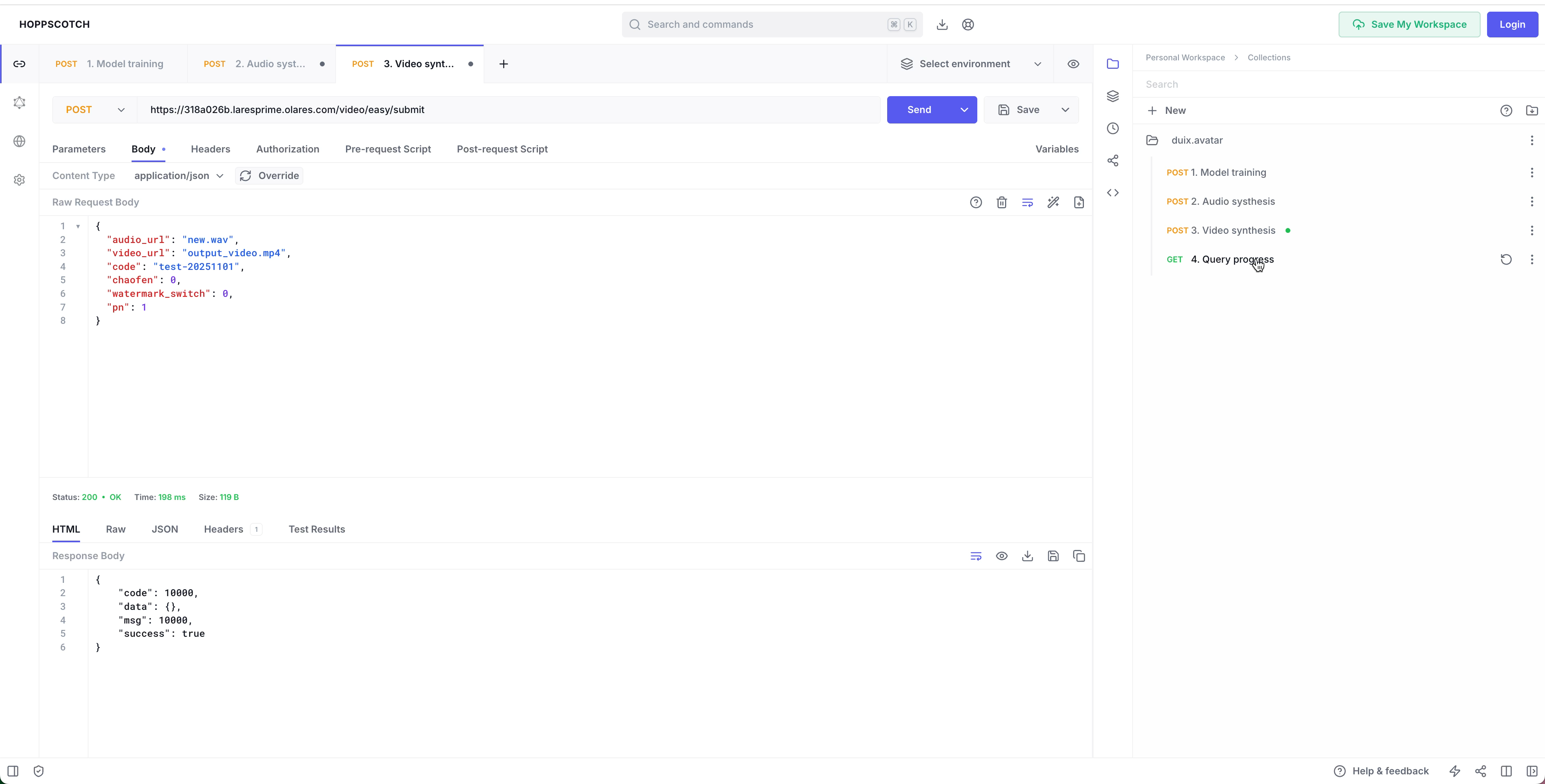
Step 4: Query video synthesis progress
Video synthesis is a time-consuming task. Use this to query its processing status.
- Click 4. Query progress.
- Modify the Olares ID in the request URL.
- In the Params section, change the
codevalue to the unique identifier you set in Step 3. - Click Send to check the current progress.
- Repeat this query until the
progressfield in the response reaches100, which indicates the video synthesis is complete.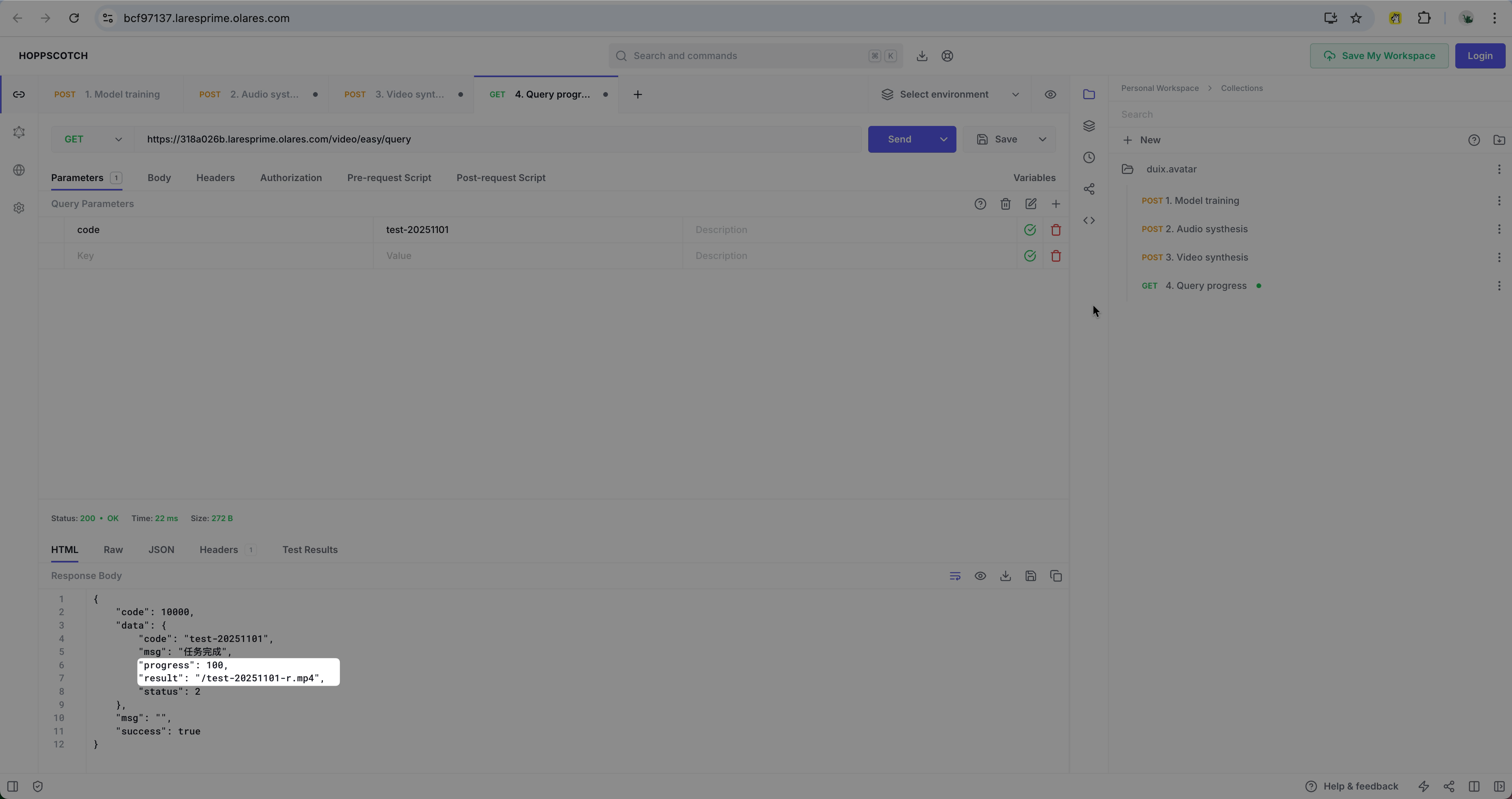
TIP
The time required for video synthesis depends on your GPU performance and video length. It may take several minutes or longer.
- When successful, the
resultfield in the response will contain the output video's filename. You can find the final generated video in the Olares Files app at:plain/Data/heygem/face2face-data/temp/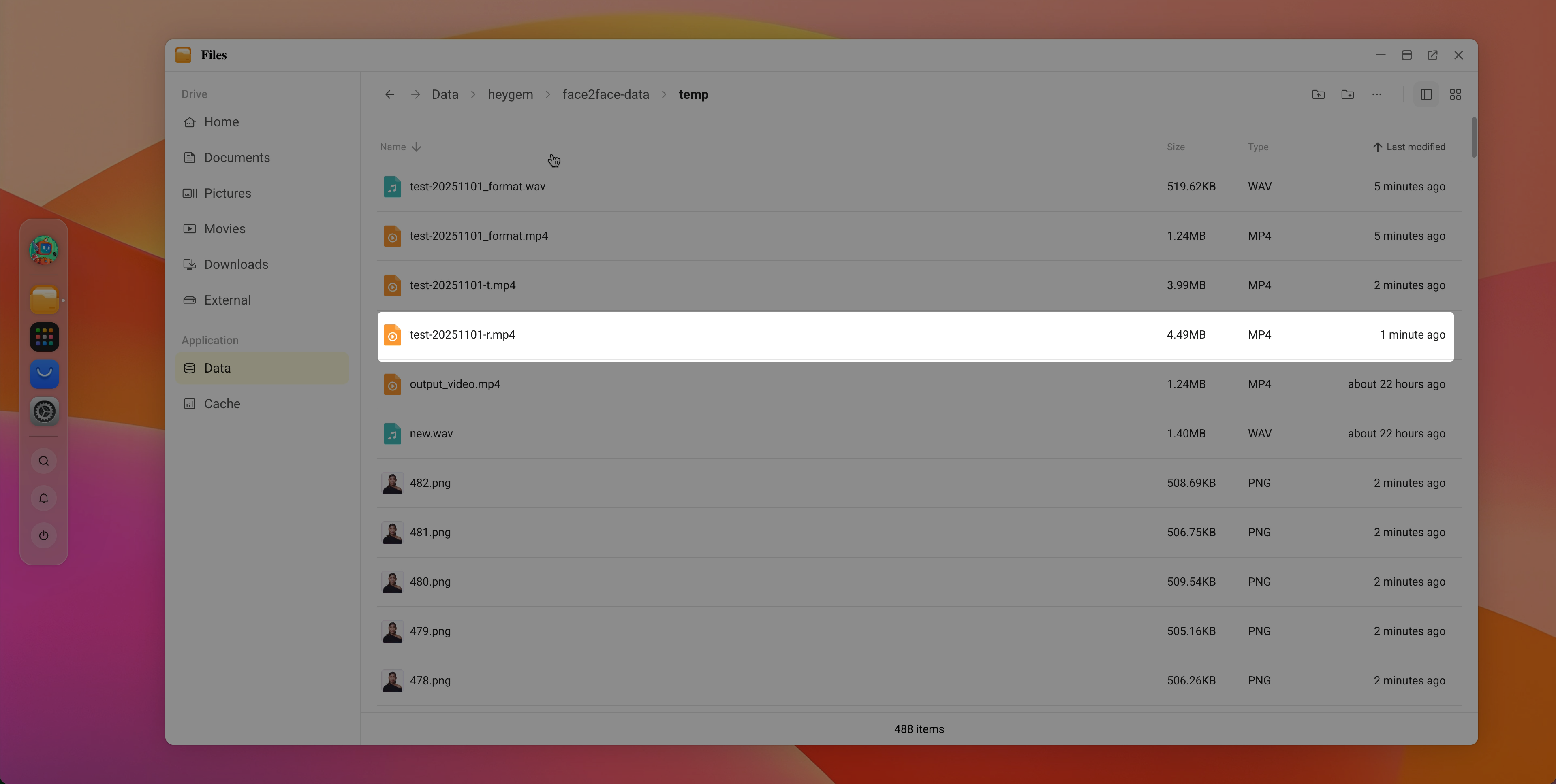
FAQ
Progress is stuck or synthesis fails
If the progress query stalls for a long time or an API returns an error, go to Control Hub, find the container named heygemgenvideo, and check its logs for detailed error messages. 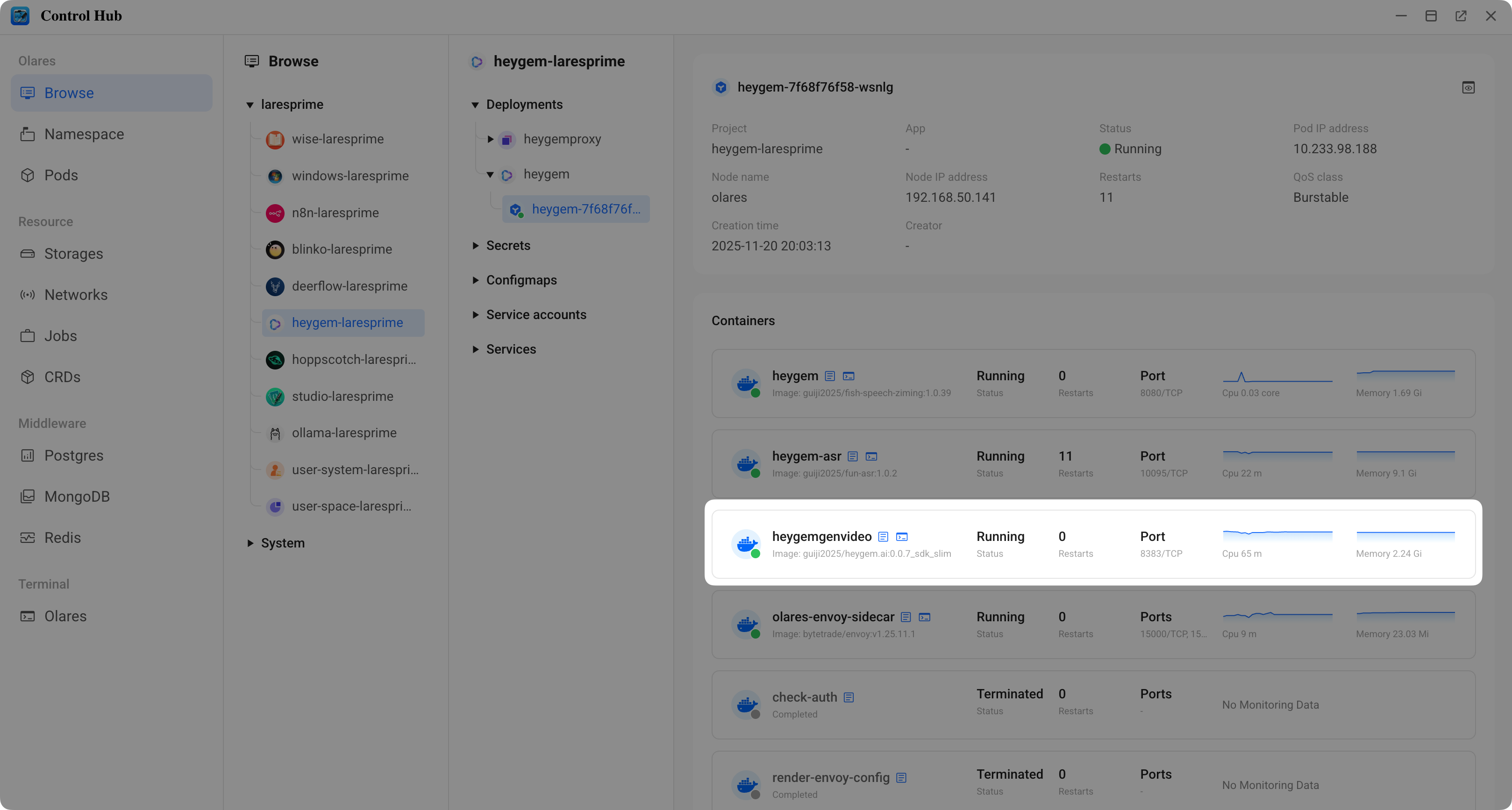
API request fails
Confirm the following:
- You have correctly replaced the default Olares ID (
<OLARES_ID_PREFIX>) with your own ID in the request URL. - All media files (
output_audio.wav,output_video.mp4,new.wav) are uploaded to the correct directories with the exact filenames.
Media is updated, but the old video is still generated
Ensure you are using a new, unique code parameter for the video synthesis. The system caches results, so reusing a code will return the previously cached video.