Download and run local AI models via Ollama
Ollama is a lightweight platform that allows you to run open-source AI models like gemma3 and deepseek-r1 directly on your machine. Within Olares, you can integrate Ollama with graphical interfaces like Open WebUI or other agents to add more features and simplify interactions.
Learning objectives
In this guide, you will learn how to:
- Use the Ollama CLI on Olares to manage local LLMs.
- Configure Ollama as an API service for internal and external apps.
Before you begin
Before you start, ensure that you have Olares admin privileges.
Install Ollama
- Open Market, and search for "Ollama".
- Click Get, then Install, and wait for installation to complete.
Manage models with the Ollama CLI
Ollama CLI allows you to manage and interact with AI models directly from the Olares terminal. Below are the key commands.
Download a model
Check Ollama library
If you are unsure which model to download, check the Ollama Library to explore available models.
To download a model, use the following command:
ollama pull [model]Run a model
TIP
If the specified model has not been downloaded yet, the ollama run command will automatically download it before running.
To run a model, use the following command:
ollama run [model]After running the command, you can enter queries directly into the CLI, and the model will generate responses.
When you're finished interacting with the model, type:
/byeThis will exit the session and return you to the standard terminal interface.
Stop model
To stop a model that is currently running, use the following command:
ollama stop [model]List models
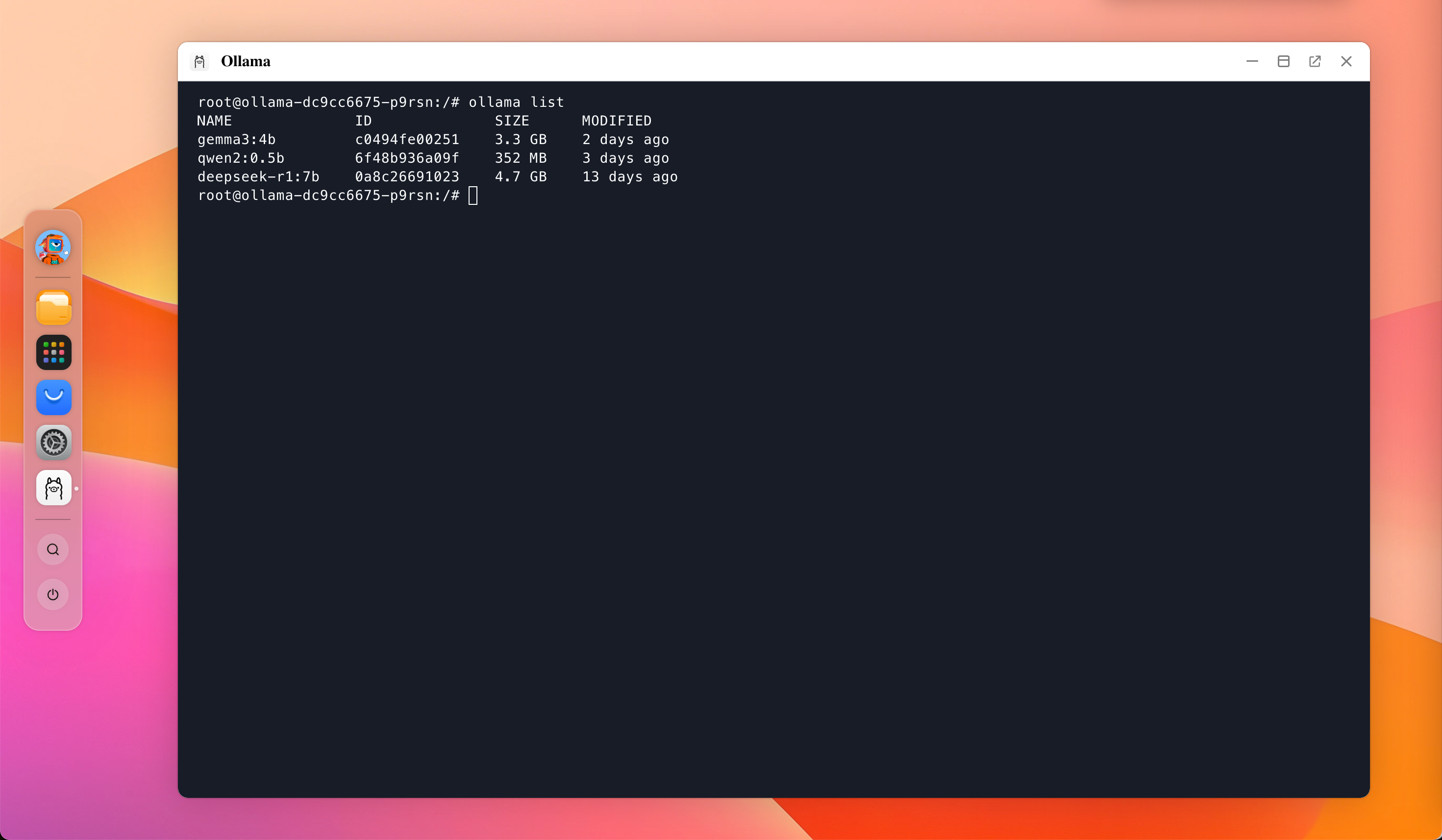
To view all models you have downloaded, use:
ollama listRemove a model
If you need to delete a model, you can use the following command:
ollama rm [model]Show information for a model
To display detailed information about a model, use:
ollama show [model]List running models
To see all currently running models, use:
ollama psConfigure Ollama API Access
To use Ollama as the backend for other applications on the same local network, make sure the API uses the correct access setting and copy the endpoint from the Ollama API page.
On Olares, open Settings, then go to Application > Ollama.
Under Entrances, click Ollama API.
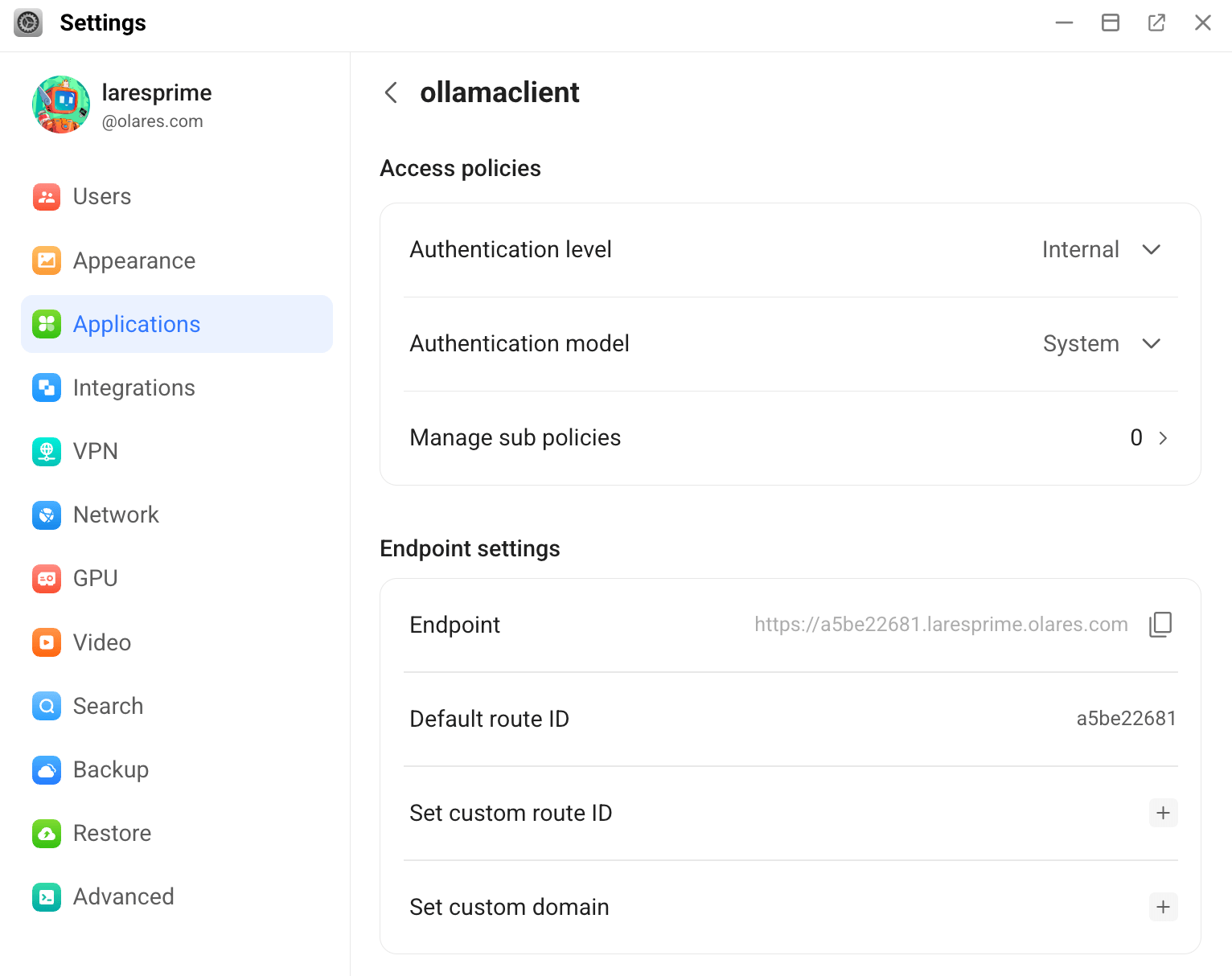
Make sure that Authentication level is set to Internal. If you change the setting, click Submit.
Under Endpoint settings, copy the URL displayed in Endpoint. Use this address as the Base URL or Host in your application's settings.
For OpenAI-compatible endpoint
Some apps expect an OpenAI-compatible API. If the standard endpoint fails, try appending /v1 to your address. For example:
https://a5be22681.{YOURUSERNAME}.olares.com/v1If the application forces you to enter an API Key, you can usually enter any string (e.g., ollama).
Ensure network connectivity
Because you set the authentication to "Internal", your application must be on the same local network as Olares to connect.
- Local network: If your device (or the app running on Olares) is on the same Wi-Fi or LAN, you can connect directly using the frontend address.
- Remote access: If you are accessing Olares remotely, you must enable LarePass VPN on your client device. This creates a secure tunnel that effectively places your device on the same network as Olares.