Build your private media server with Jellyfin
Jellyfin is a powerful, open-source software media server that puts you in full control of your media. By installing it on Olares, you can turn your device into a personal streaming platform, organizing movies, shows, and music into a beautiful library accessible securely from anywhere.
Learning objectives
In this guide, you will learn how to:
- Install and set up Jellyfin on your Olares device.
- Add and organize your media libraries.
- Optimize playback using hardware acceleration.
- Install community plugins.
- Access and stream your media securely from client devices.
Prerequisites
Before you begin, make sure:
- LarePass app installed on your client devices (desktop or mobile).
- Olares ID imported into the LarePass client.
Add media to Olares
Before setting up Jellyfin, you need to make sure your media is already available on Olares. You can add it in several ways:
- Upload files directly
Upload your media to the/home/Movies/folder in Files. For better speed and progress visibility, use the LarePass desktop client to upload. - Mount an external drive
After you insert a USB drive to your Olares device, it will be automatically mounted and accessible. Files in it are under the/external/directory. - Mount a network share
If your media is on a NAS or other network server, you can connect it to Olares. For detailed instructions, see Mount SMB shares.
Naming conventions
Correct file naming is the key to accurate metadata and beautiful posters in Jellyfin. Follow Jellyfin's official guidelines for accurate metadata:
Folder organization
Keep movies and TV shows in separate folders for easier management and correct metadata retrieval.
Install and configure Jellyfin
With your media ready, install Jellyfin and complete its setup wizard.
Install Jellyfin
- Open the Market app in your Olares web interface.
- Find Jellyfin in the Fun category or use the search bar.
- Click Get, then Install.
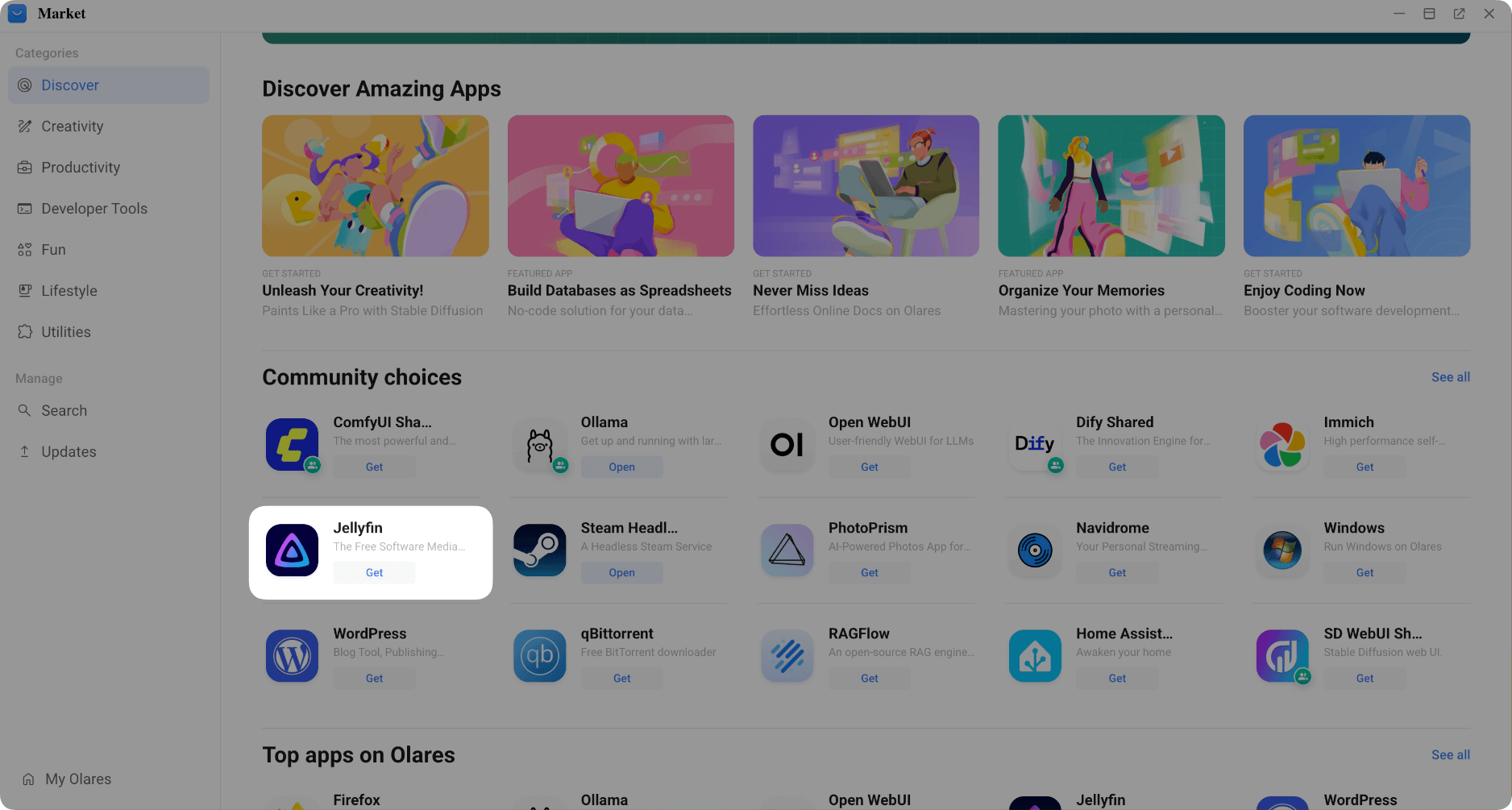
- Once the installation is finished, click Open to launch the setup wizard.
Complete the initial setup
Follow the wizard prompts to finish configuring Jellyfin.
Select your preferred display language and click Next.
Create a username and password for your Jellyfin admin account, and click Next.
When prompted to set up your media libraries, you can skip this step for now.
For metadata, select your preferred language and country and click Next.
For remote access, keep the default settings (unchecked) and click Next. Olares VPN will handle secure remote access.
Click Finish to complete the setup wizard.
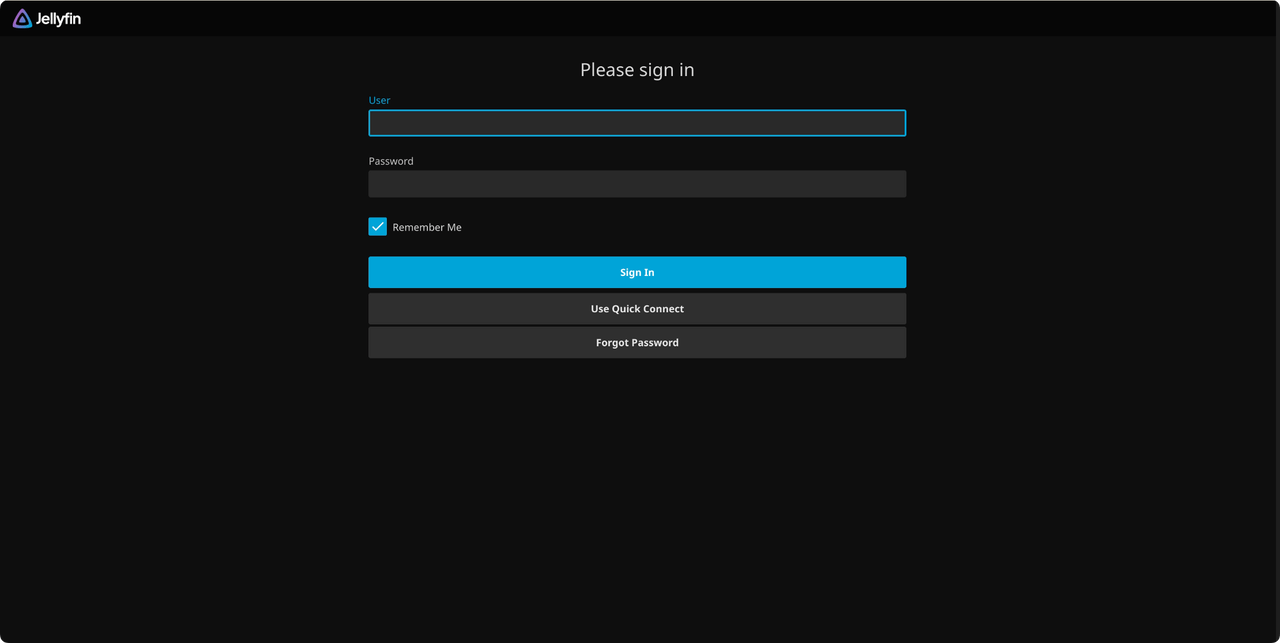
You will be taken to the login page. Sign in with the admin credentials you just created.
Add media libraries
With Jellyfin installed and running, the next step is to tell it where your media is stored.
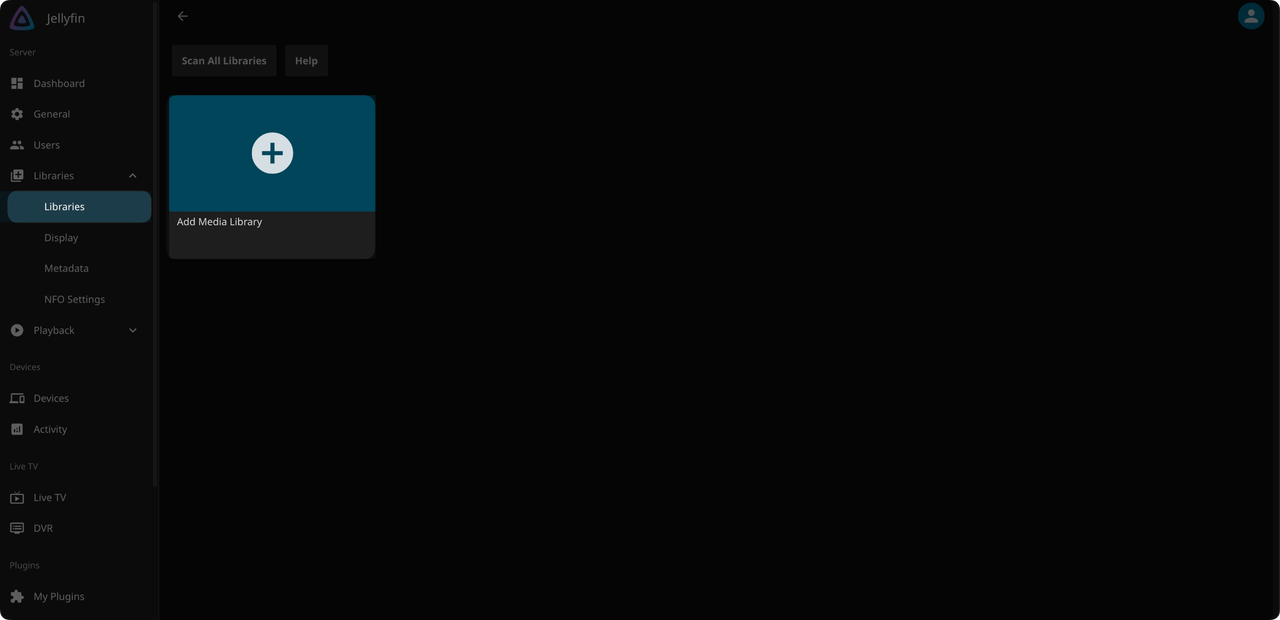
In Jellyfin's sidebar, go to Dashboard > Libraries > Libraries.
Click Add Media Library.
Configure media library settings:
- Content type: Choose the type of media (e.g., Movies, Shows, Music). For folders containing both movies and TV shows, choose Mixed Movies and Shows.
- Display name: Enter the name to display for the library.
- Folders: Click + to add the path to your media.
- Olares Files:
/home/movies/<YourMediaFolder> - External storage:
/external/<YourMediaFolder>
- Olares Files:
Click Ok to save, and repeat for other media types (e.g., one for "Movies", one for "TV Shows").
Once saved, Jellyfin will automatically scan your folders and begin building your library. This process may take several minutes, depending on the size of your collection.
Enable transcoding
To ensure smooth playback for high-resolution videos, enable hardware acceleration. This allows Jellyfin to use your device's hardware for faster, more efficient transcoding.
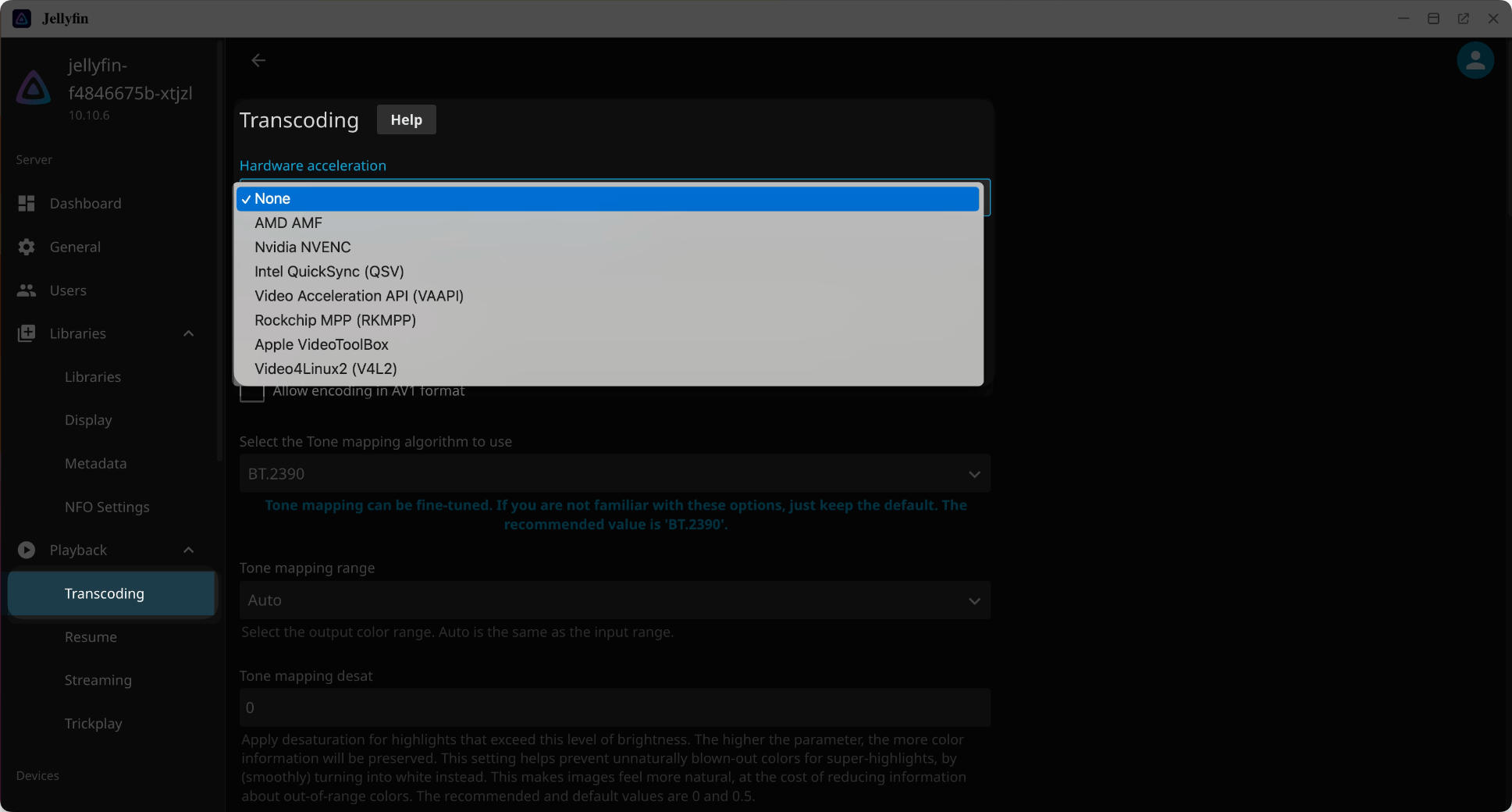
In the Jellyfin Dashboard (click the ≡ icon > Dashboard), go to Playback > Transcoding.
Under Hardware acceleration, choose your preferred method based on your Olares device's hardware.
Enhance experience with community plugins
You can install plugins to improve metadata, fetch better artwork, and add new features.
The process for installing plugins is the same for all. Here's an example using Skin Manager:
In the Dashboard, go to Plugins > Catalog.
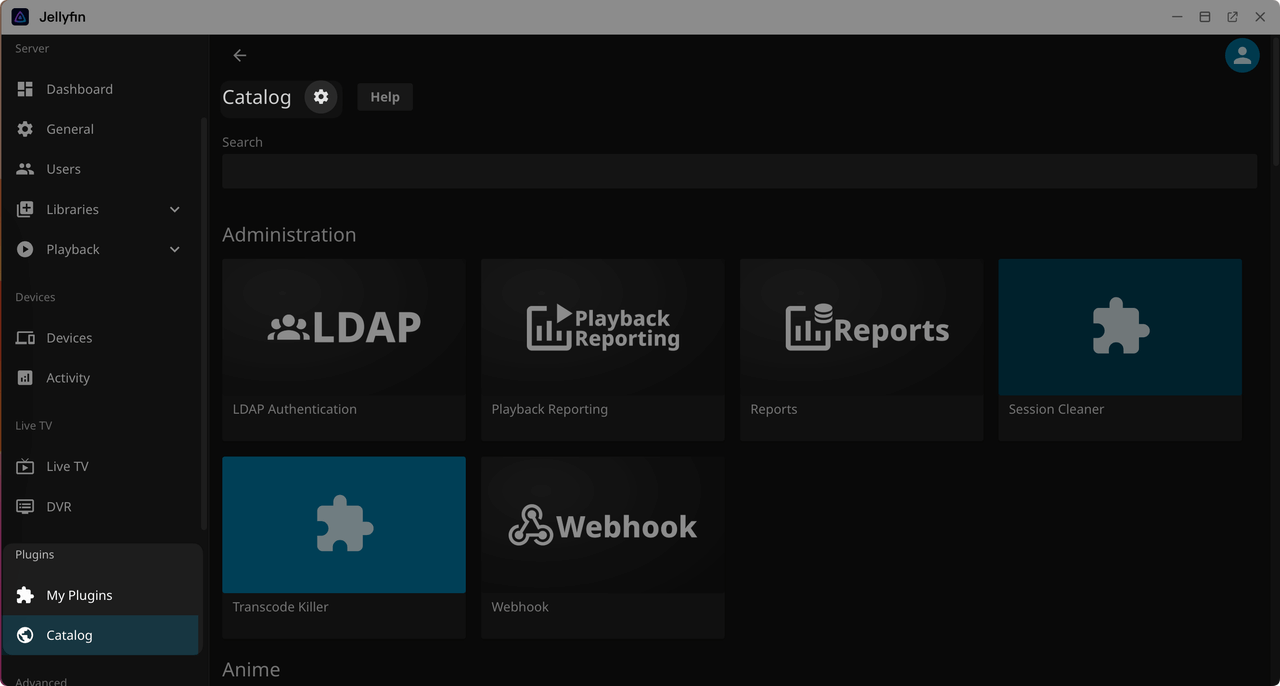
Click the ⚙ icon to go to Repositories page, then click + to add a new repository.
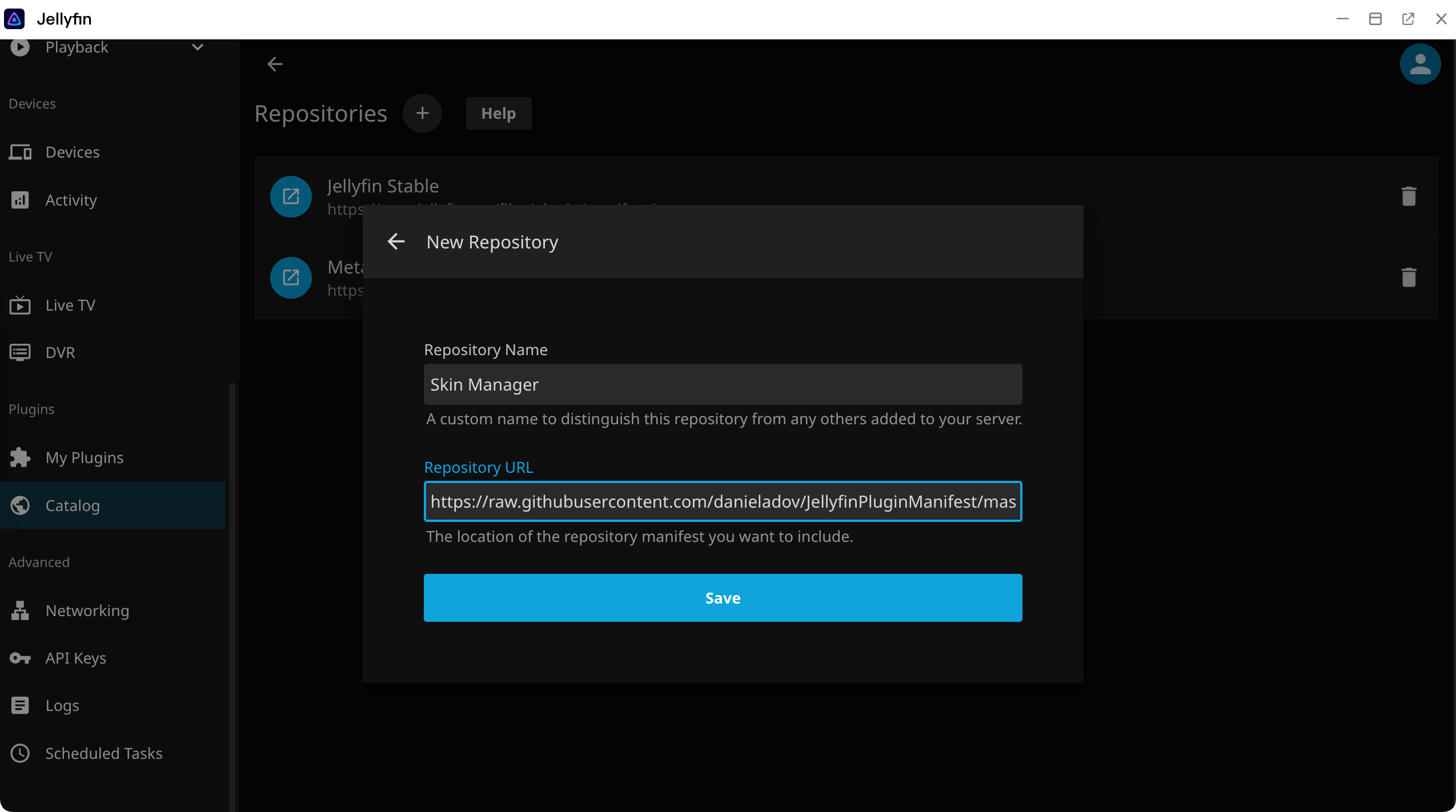
Enter the Repository Name and Repository URL of the plugin, and click Save.
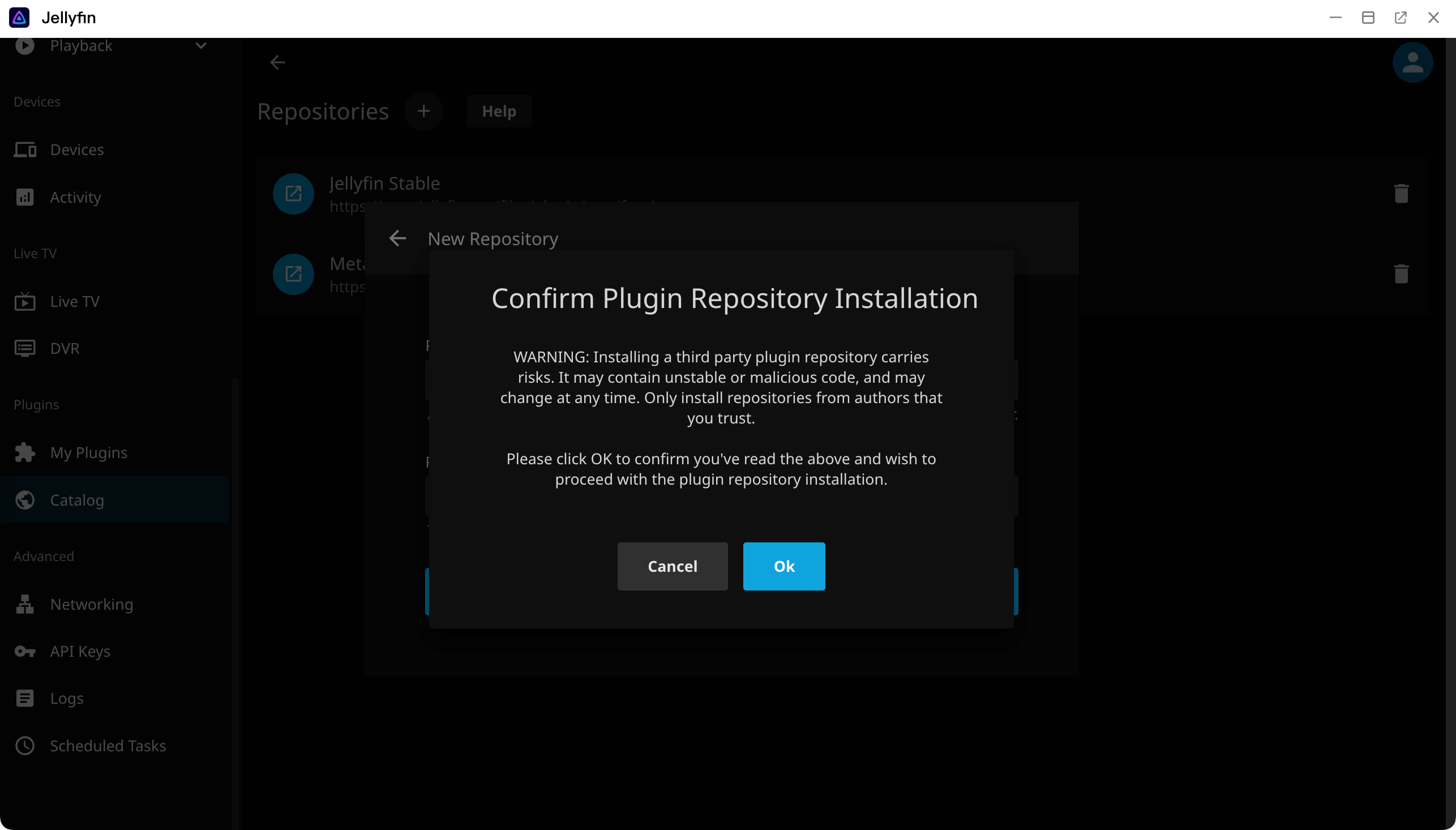
Click Ok to confirm the installation.
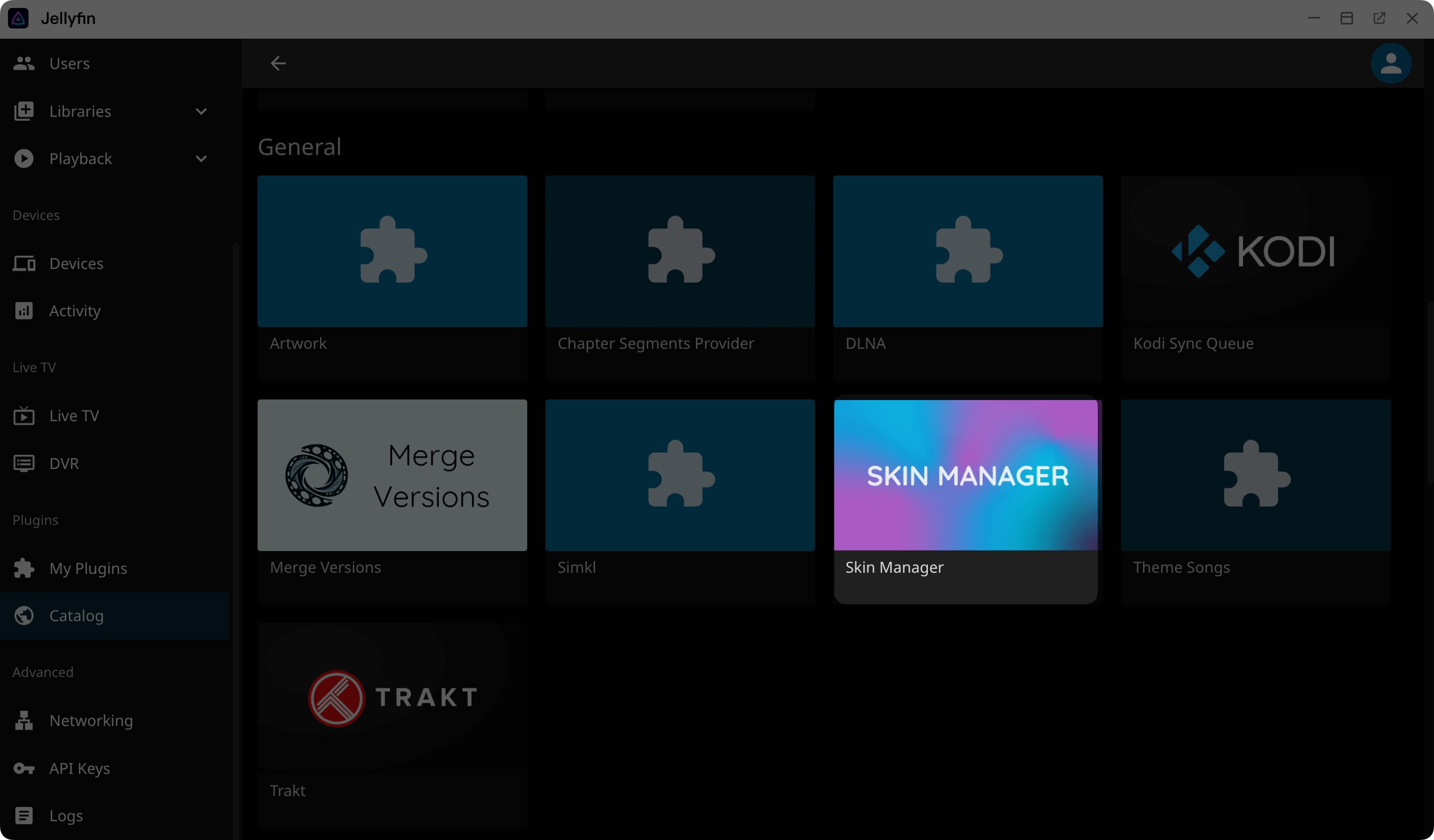
Return to the Catalog tab, find your desired plugin (you may need to refresh) and click Install.
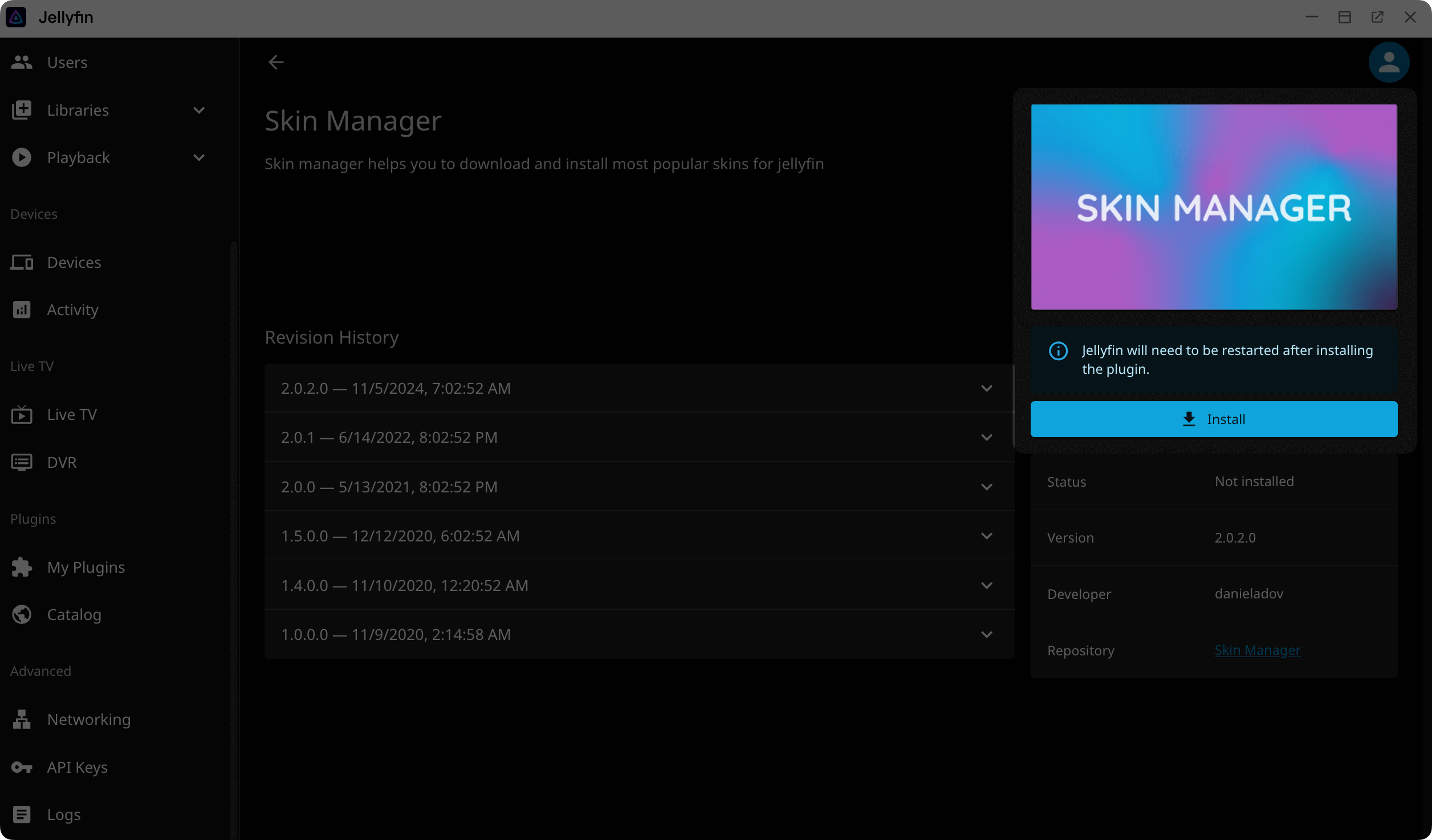
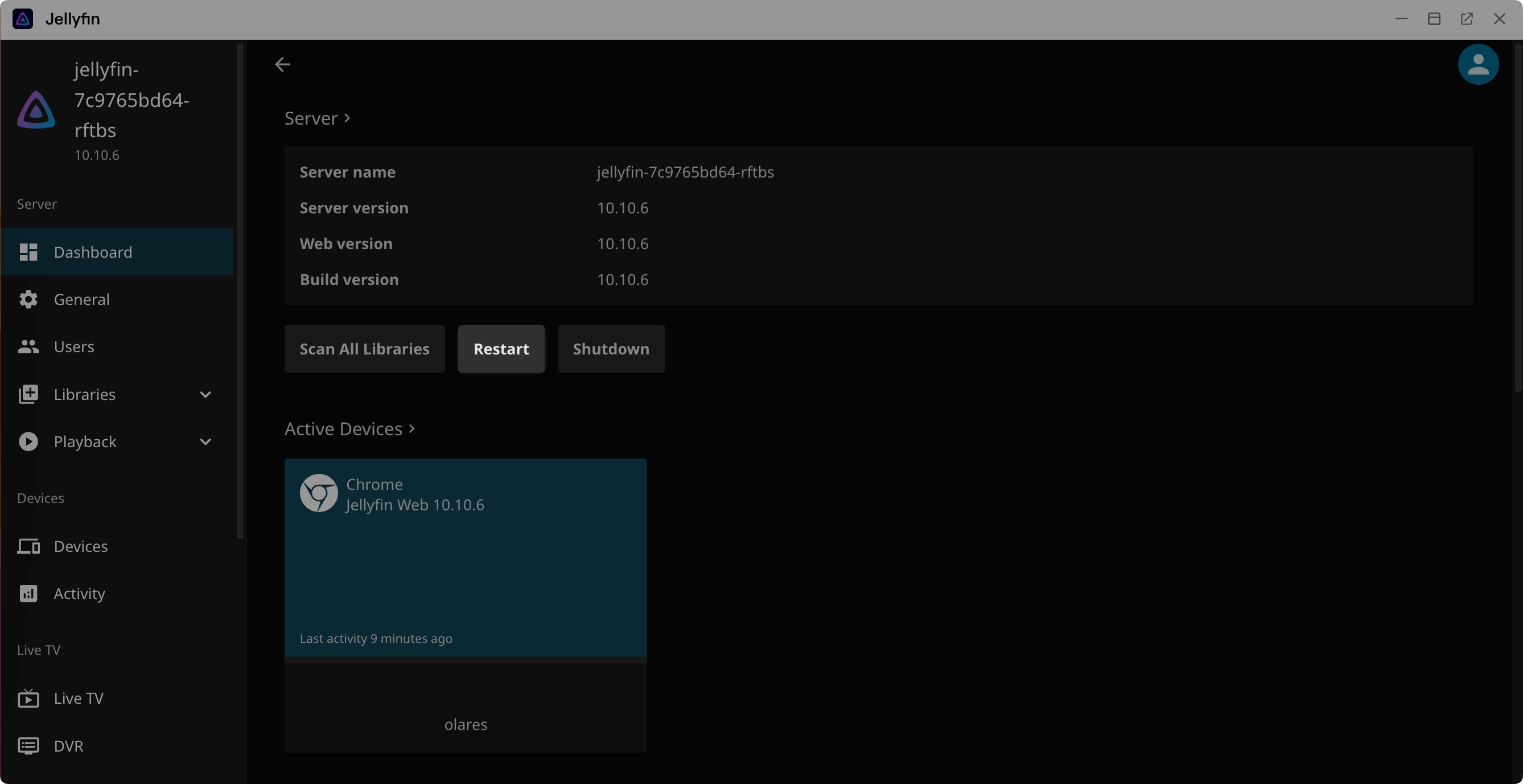
After installation, a prompt will appear to restart Jellyfin. Go to the Dashboard page and click Restart.
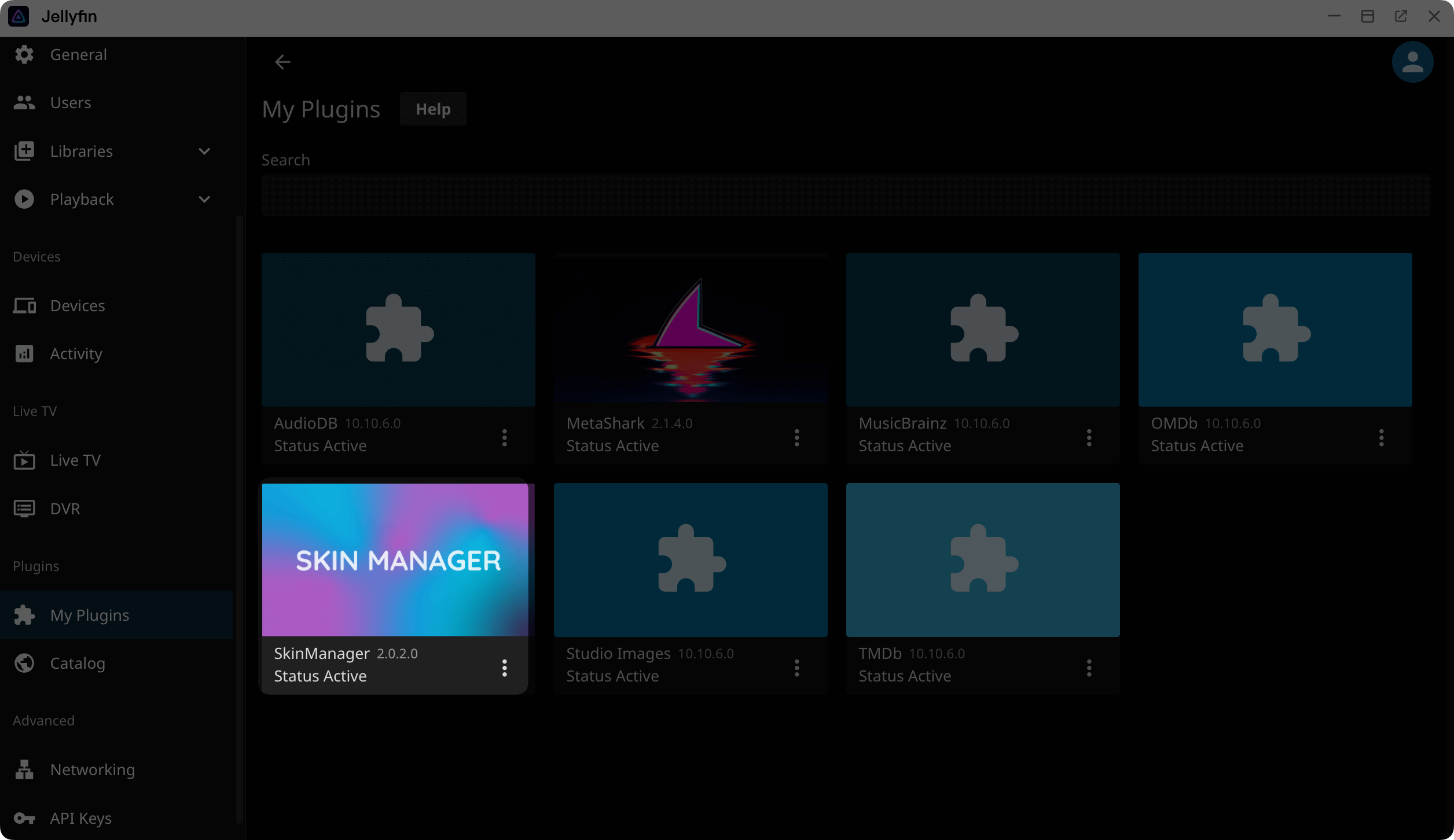
After it restarts, return to Dashboard > Plugins > My Plugins to confirm the plugin you installed is listed and has an Active status.
After installing plugins, you may need to enable or configure them before they take effect. Since each plugin behaves differently, check the plugin's GitHub repository or README for setup details.
Access your media library through Jellyfin clients
Get the endpoint for Jellyfin
After Jellyfin is set up and your libraries are ready, you can connect from your client devices and start streaming your media.
Enable LarePass VPN
Before you begin, make sure LarePass VPN is enabled.
If not, see Enable VPN on LarePass.
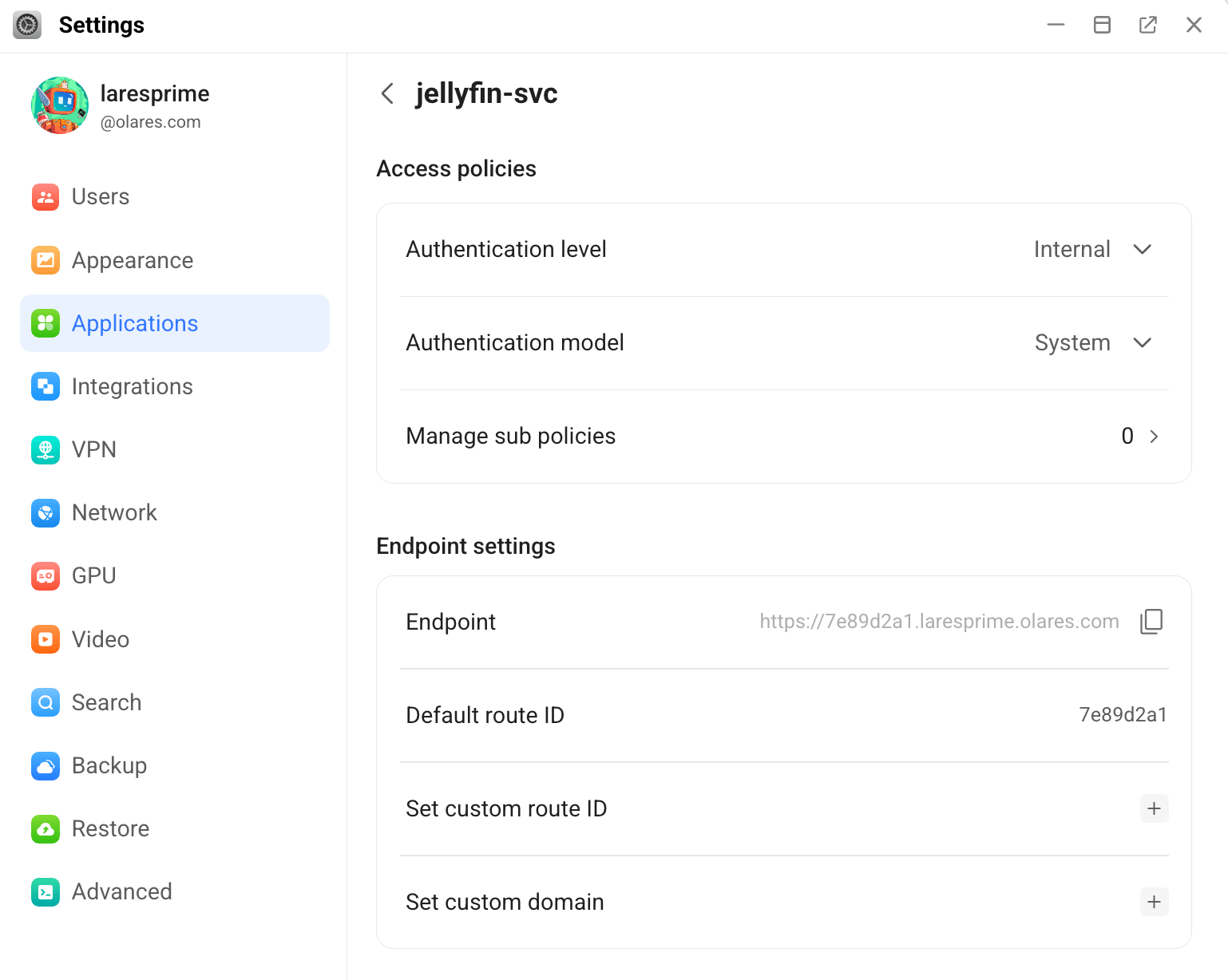
On Olares, open Settings, then go to Application > Jellyfin.
Under Entrances, click Jellyfin.
Make sure that Authentication level is set to Internal. If you change the setting, click Submit.
Under Endpoint settings, copy the URL displayed in Endpoint. Use this address as the server URL in your Jellyfin client.
Connect your Jellyfin client
Assume you've already installed the official Jellyfin client app on your device.
Open the Jellyfin client app on your device.
Click Add Server.
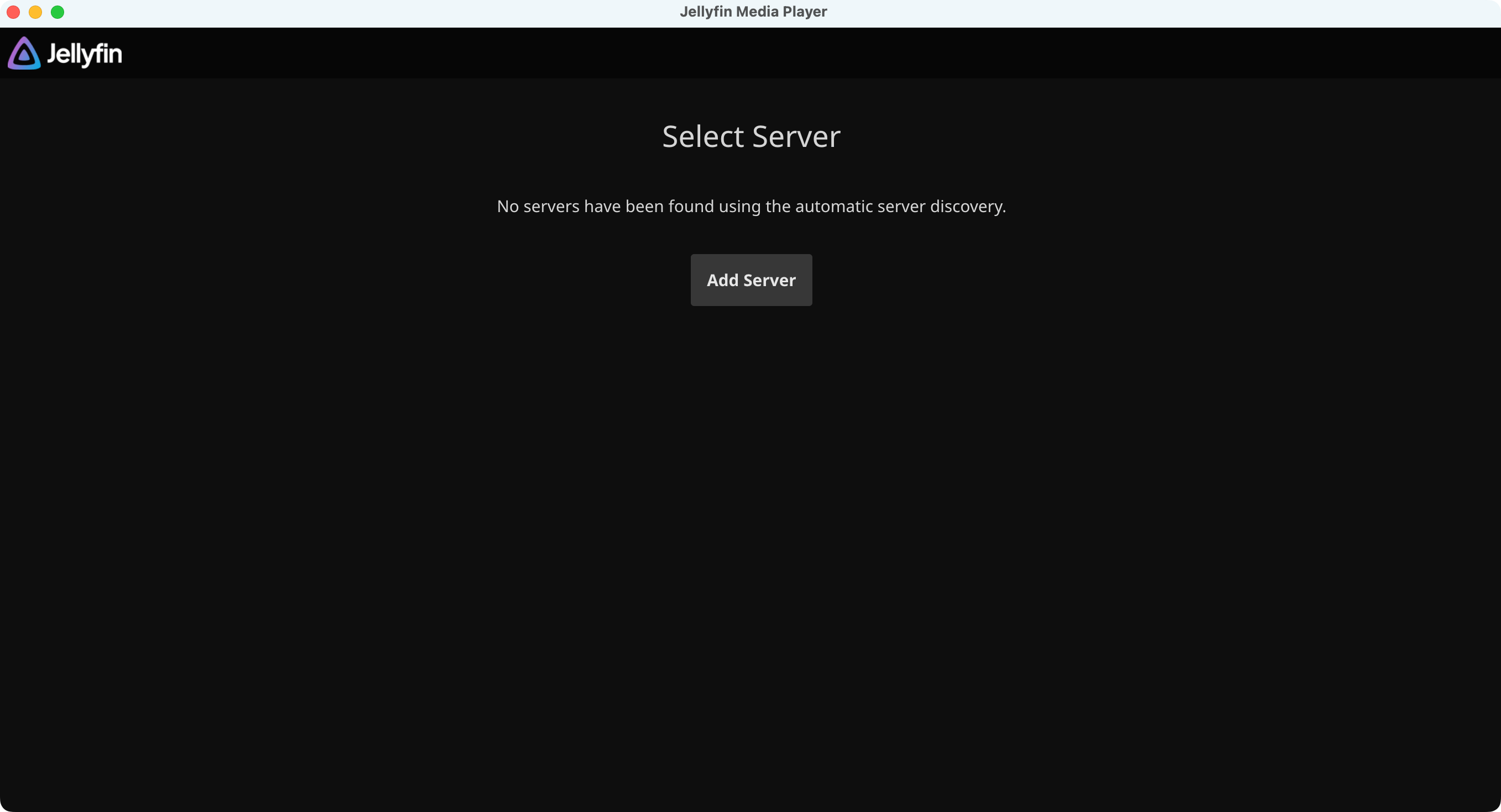
Paste your Jellyfin URL you just copied into the client and click Connect.
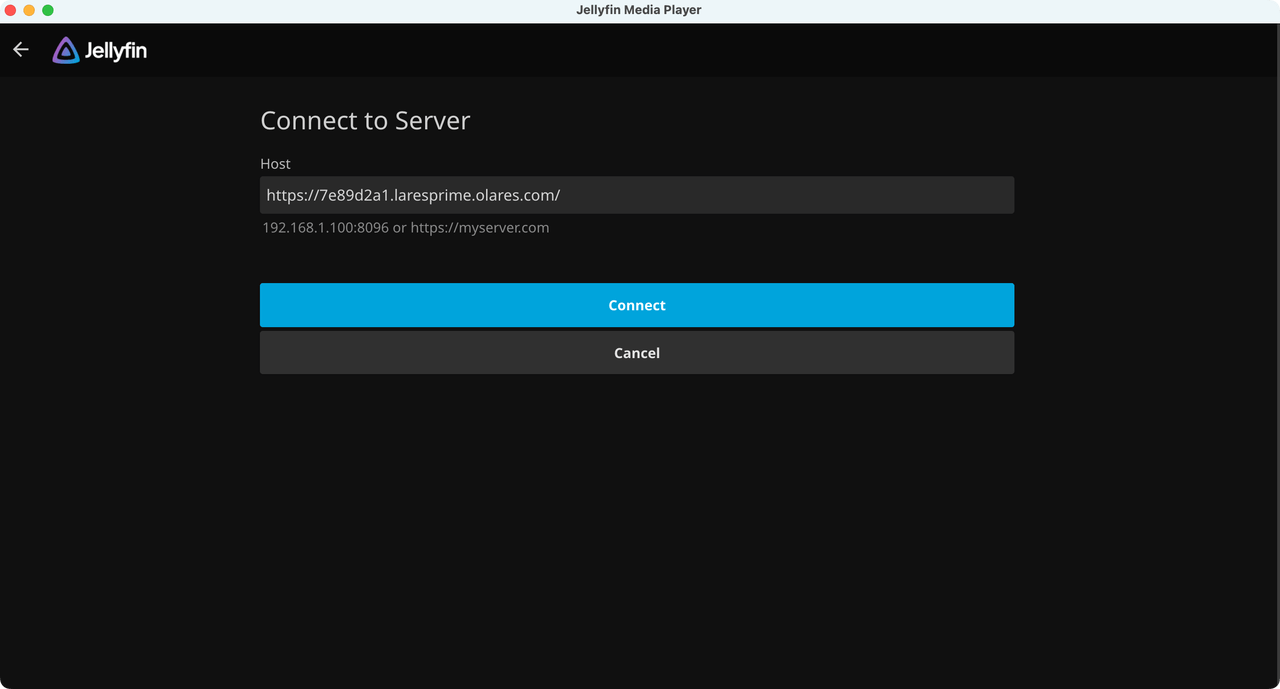
Sign in with your Jellyfin admin account.
You should now see your media libraries displayed in the app.
TIP
For the best experience, keep your LarePass VPN connection active when accessing Jellyfin remotely. This ensures you can always connect to your Jellyfin server securely.