Stream your games with Steam Headless
Want to enjoy gaming powered by Olares? You're all set. With the Steam Headless app, Olares easily transforms into a powerful game streaming server. You can now play your favorite games on any compatible device via Moonlight.
This guide walks you through installing Steam Headless on Olares, configuring the Steam client, pairing the streaming service, and connecting with the Moonlight client to play.
Learning objectives
By the end of this tutorial, you will learn how to:
- Install and set up Steam Headless on your Olares device.
- Configure the Sunshine streaming service.
- Pair your device via Moonlight and stream games locally or remotely.
Prerequisites
Before you begin, make sure:
- Olares running on a machine equipped with an NVIDIA GPU.
- Moonlight installed on your streaming device. Visit the Moonlight website to download and install the appropriate version.
- A valid Steam account to access your games.
- LarePass VPN enabled on your client devices (desktop or mobile) if you plan to stream outside your home network.
TIP
For local streaming, LarePass VPN is not required.
Install and configure Steam Headless
Install the app from the Olares Market and then complete the initial setup within the Steam client itself.
Install Steam Headless
Follow these steps to install and configure Steam Headless:
Open the Market, and search for "Steam".
Click Get, then Install.
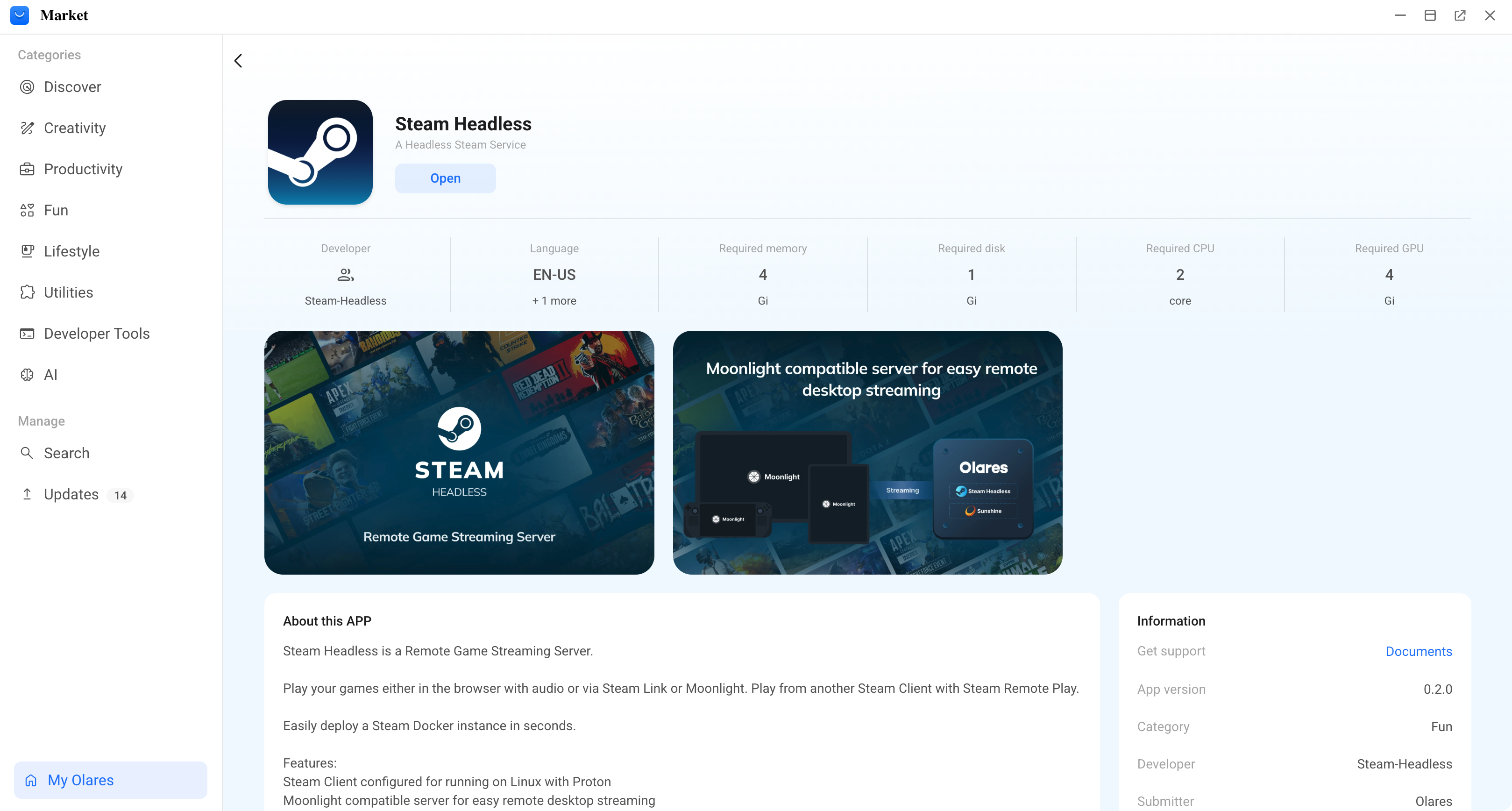
A prompt will appear asking you to configure environment variables. This creates your login credentials for the Sunshine Web UI:
SUNSHINE_USER: Set the username for Sunshine access.SUNSHINE_PASS: Set a secure password.Remember your login credentials
These are your initial login credentials for Sunshine. You must use them to log in to Sunshine the first time.
Wait for the installation to complete.
Complete the initial Steam setup
Once the headless app is running, you need to initialize the Steam client inside it.
Open Steam Headless and click Connect.
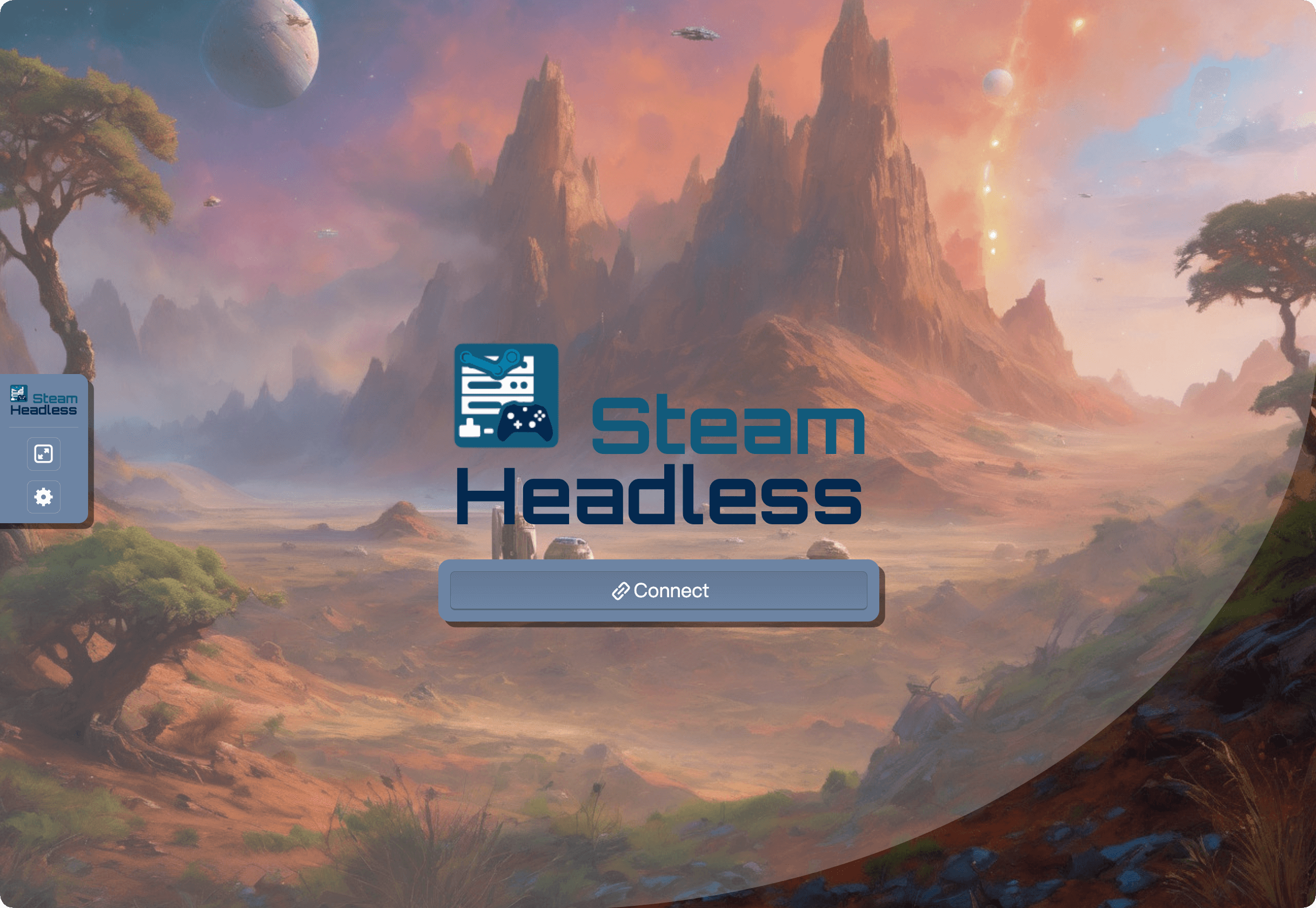
The Steam client will automatically begin downloading and installing.
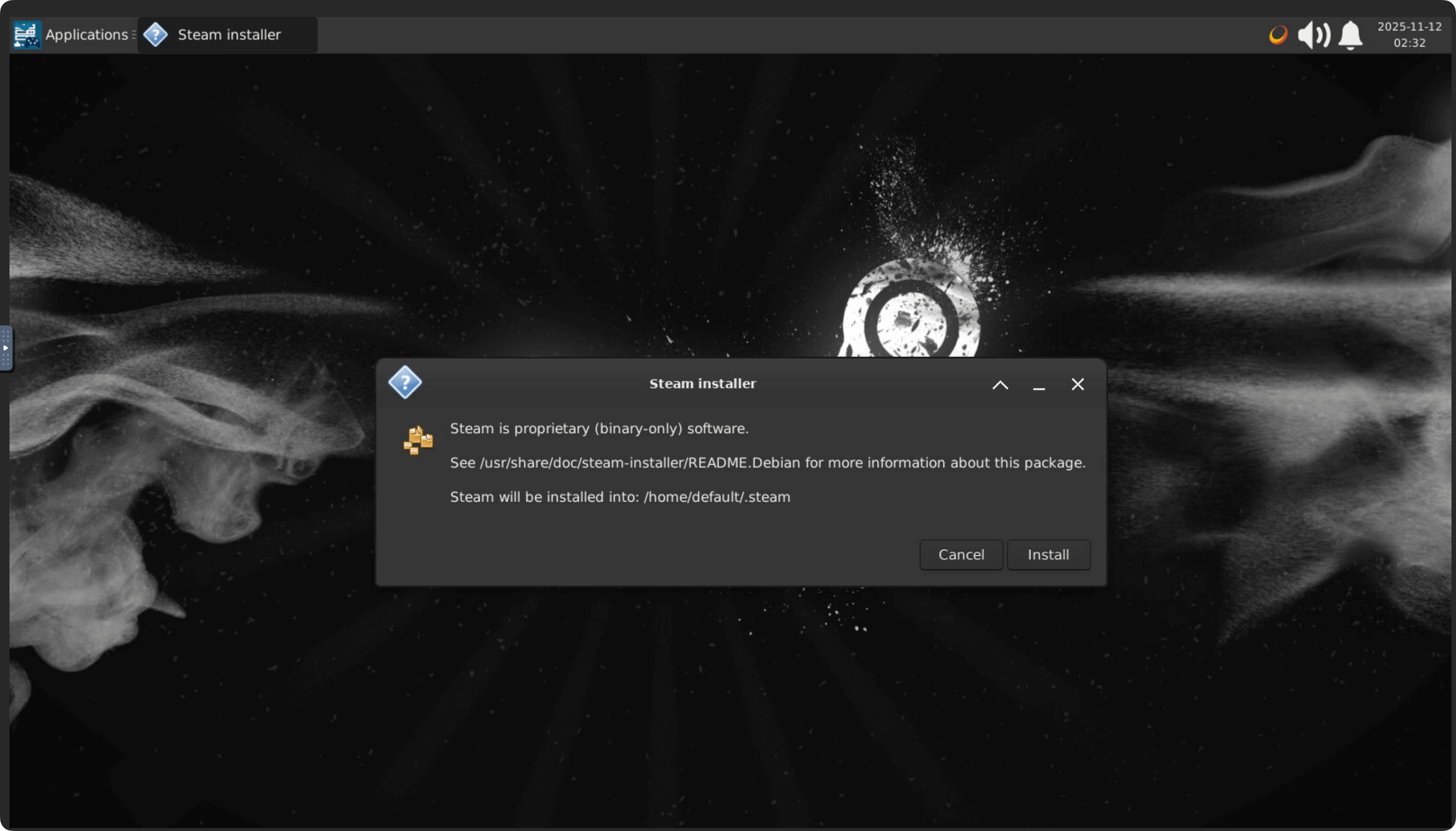
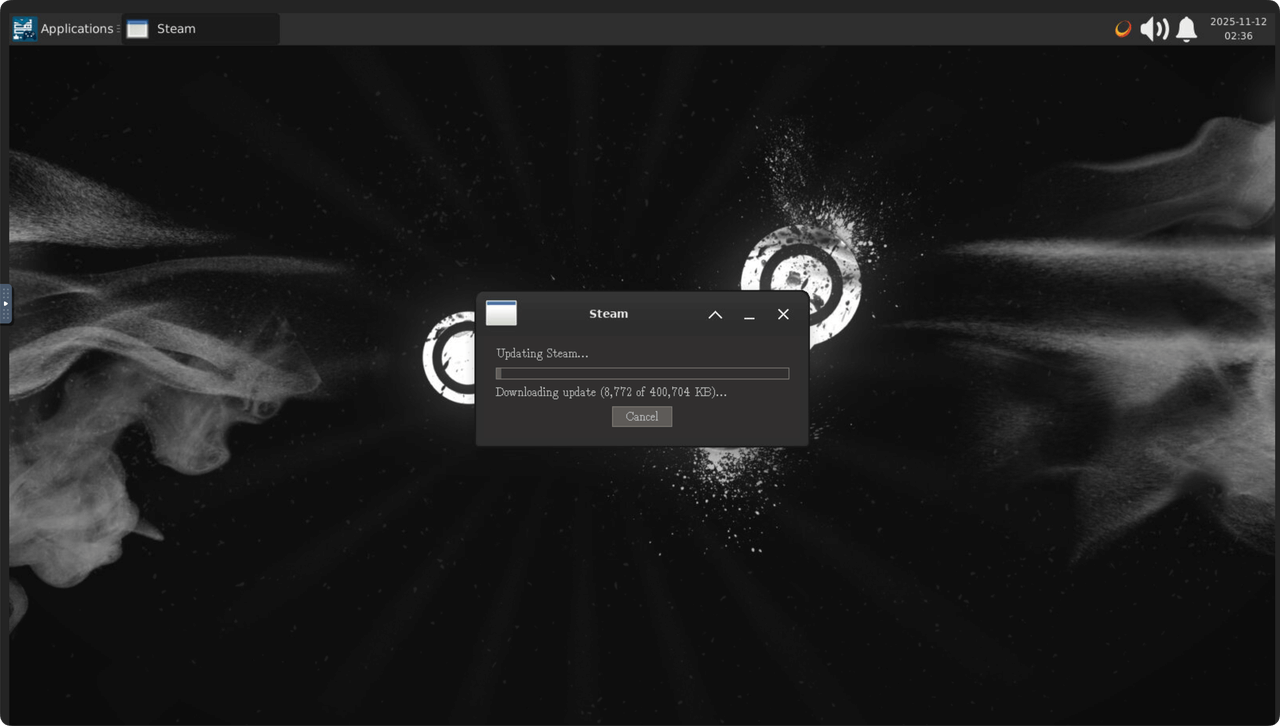
When installation completes, the Steam login screen appears. Sign in with your Steam account.
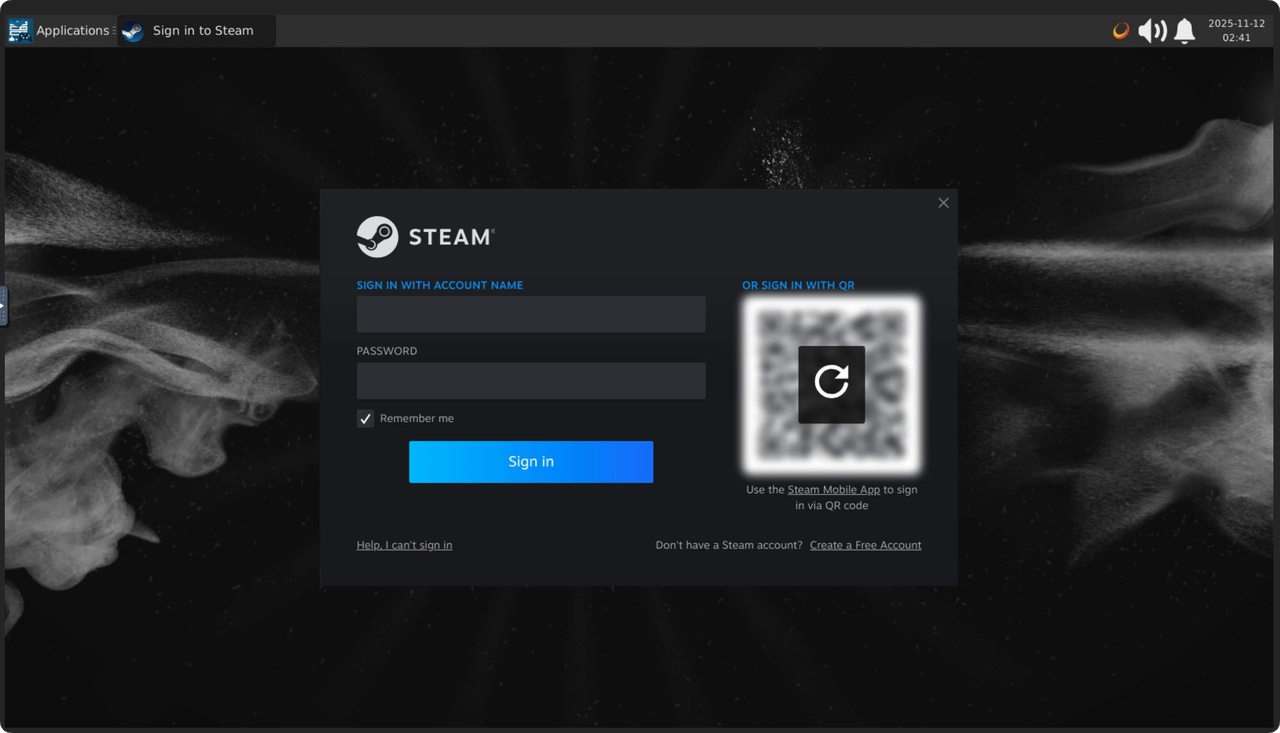
Retry installation upon failures
If Steam installation or update fails due to network issues, go to the top-left menu in the Steam Headless console and navigate to Applications > Internet > Steam to restart the installation.
Once Steam is ready, you can connect it to Moonlight through Sunshine.
Pair Sunshine with Moonlight
Steam Headless uses Sunshine to stream video. You must pair it with the Moonlight app on your playing device.
Access the Sunshine console
Access the Sunshine console to pair your Moonlight client with Olares.
Copy the URL of your current Steam Headless browser tab.
Open a new browser tab and modify the URL to access port
47990. The address varies depending on your network.- Same network: Use HTTPS with your
.localaddress. Either format works (dots or hyphens in the hostname):
Access Sunshine with HTTPS
Most Olares services can be accessed through
.localaddresses over HTTP.
However, the Sunshine Web UI requires HTTPS for secure local communication.plainhttps://139ebc4f0.<your Olares ID>.olares.local:47990 https://139ebc4f0-<your Olares ID>-olares.local:47990- Different network (via VPN): Enable LarePass VPN on your device, then append
:47990. For example:
plainhttps://139ebc4f0.<your Olares ID>.olares.com:47990- Same network: Use HTTPS with your
Press Enter to open the Sunshine console page.
Sign in using the
SUNSHINE_USERandSUNSHINE_PASScredentials you created earlier.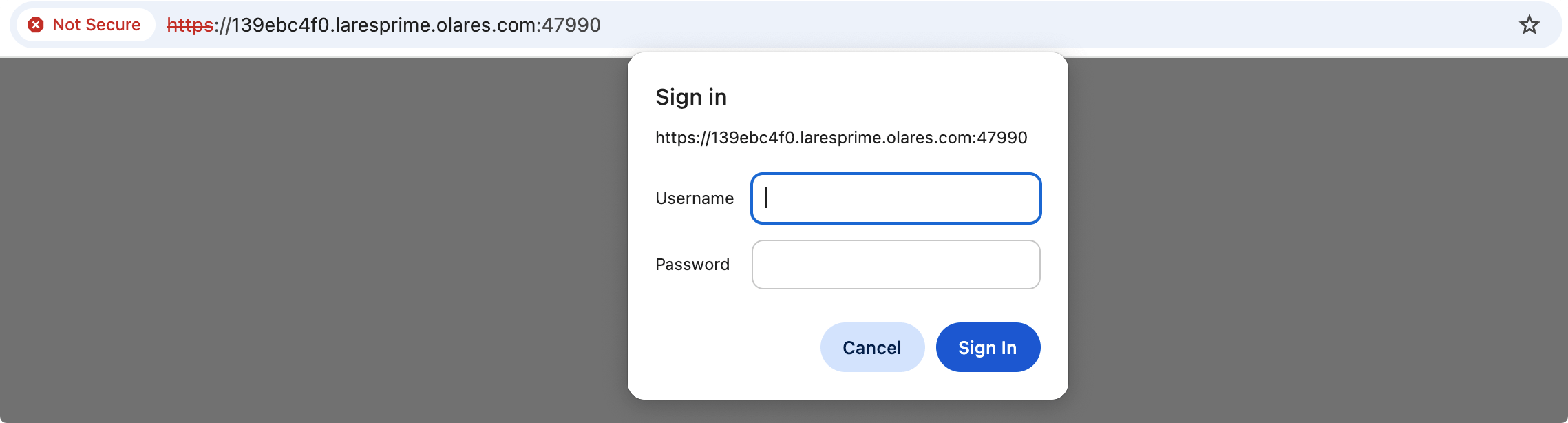
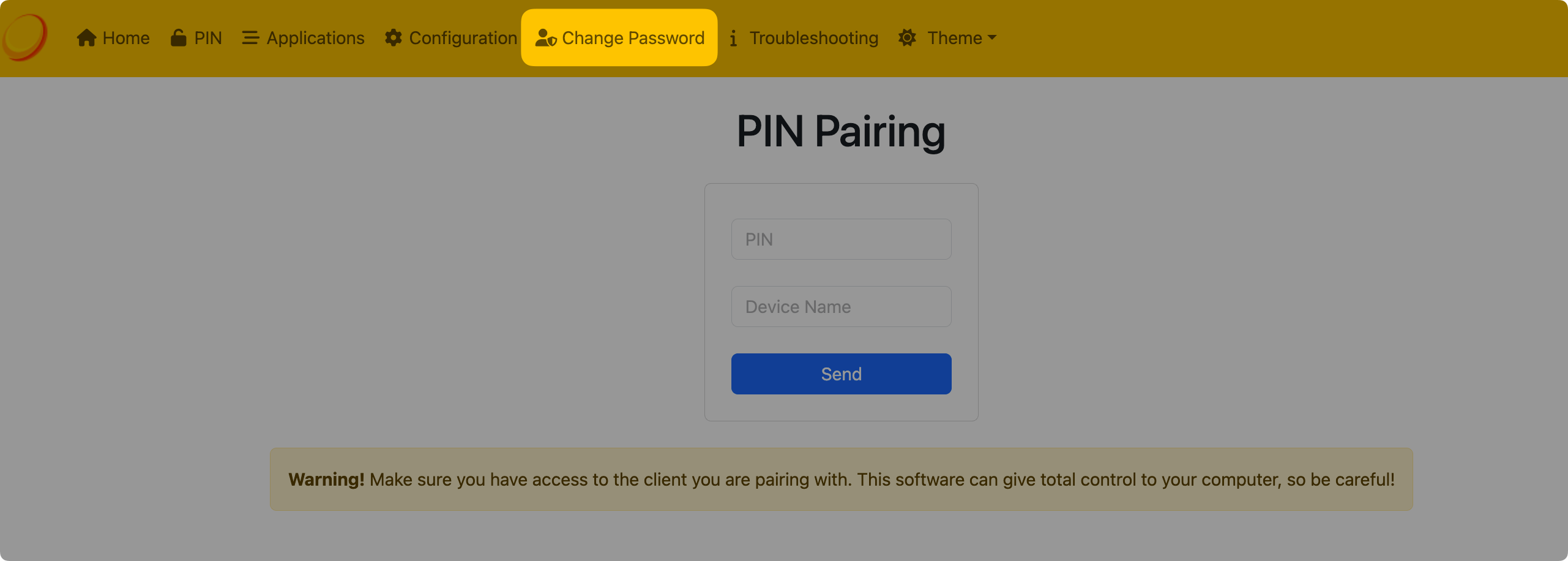
Click the PIN tab. The page will now wait for a pairing PIN.
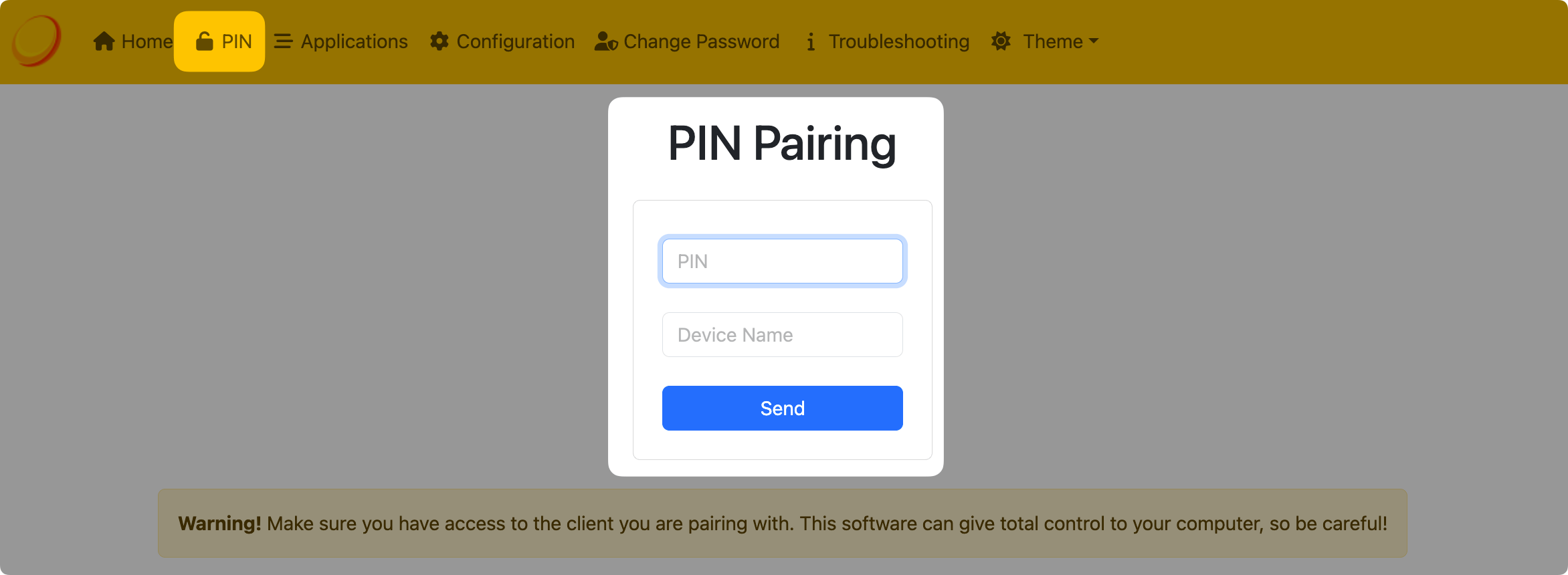
Add the host in Moonlight
Moonlight usually detects your Olares host automatically when it is on the same local network as your Olares device.
If it doesn't appear, or if you are connecting over different networks, follow these steps to add the host manually. The process shown below uses the macOS Moonlight client.
Connecting from a different network?
If your Moonlight client and Olares device are on different networks, you must first enable LarePass VPN on the device running Moonlight.
Open Moonlight on your streaming device.
Click the Add Host button, which looks like a computer with a plus icon.
Enter your Olares domain without the
https://prefix. For example:plain139ebc4f0.<your Olares ID>.olares.comClick OK. A new locked host icon appears.
Click the locked icon. Moonlight will display a 4-digit pairing PIN.
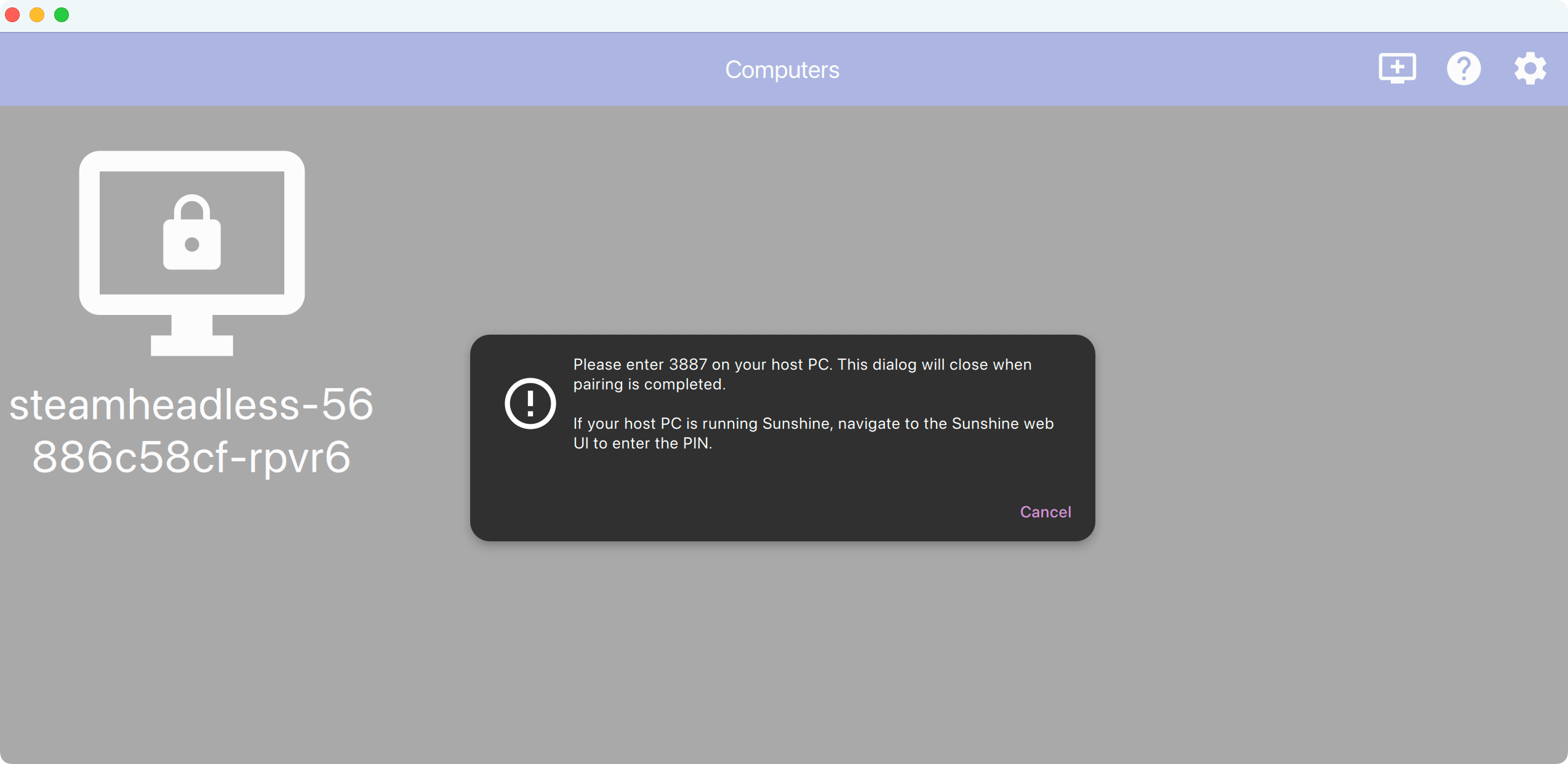
Complete pairing
Return to the Sunshine PIN page in your browser.
Enter the PIN displayed in Moonlight and give your device a name.
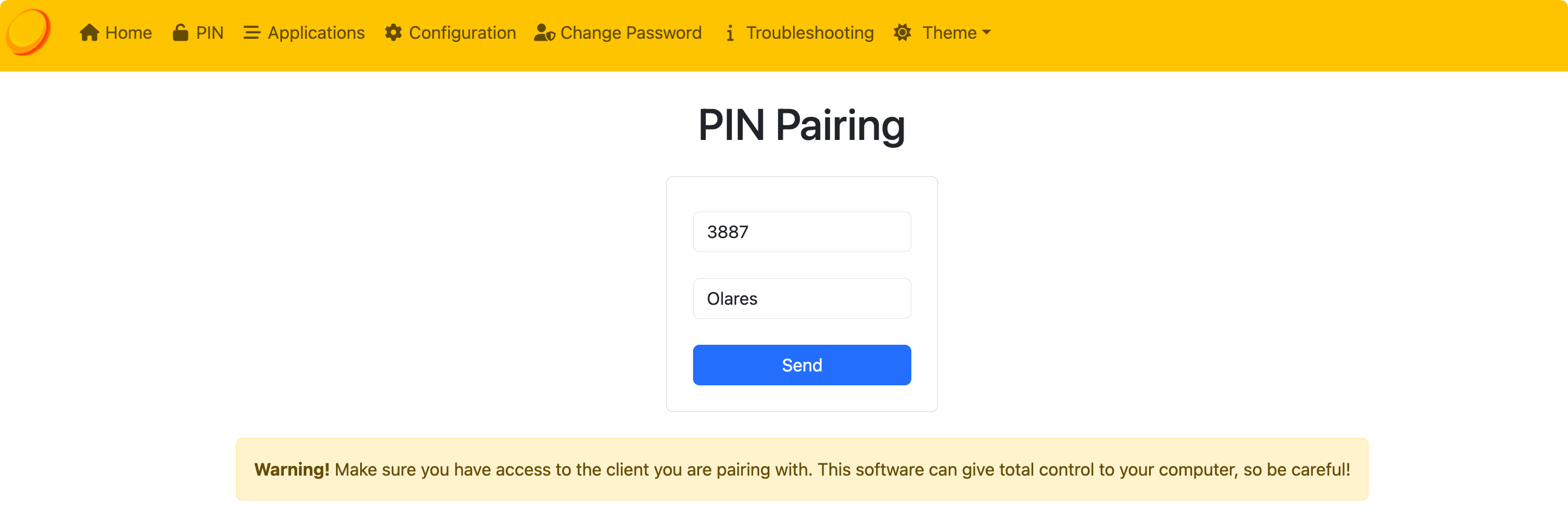
Click Send.
Upon success, you will see a confirmation message, and the lock icon in Moonlight will disappear.
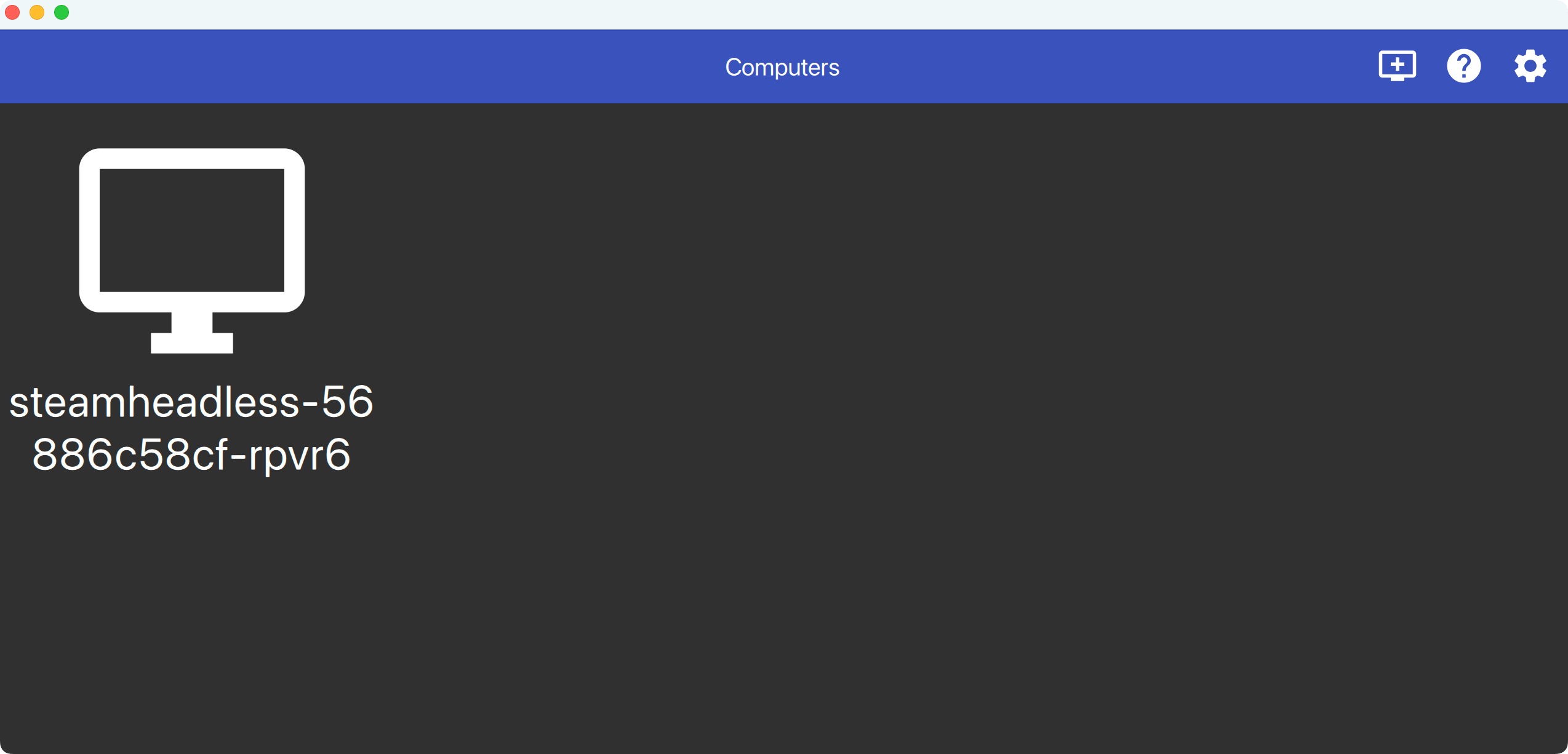
Once paired, you're ready to start streaming.
Stream your games
Optimizing remote play
For the best experience when streaming remotely:
- Connect your client device to 5GHz Wi-Fi or Ethernet.
- Ensure LarePass VPN is active.
You can stream your games through Moonlight either locally or remotely, depending on your network setup.
The following steps demonstrate local streaming.
- Open Moonlight on your client device.
- Select your unlocked host and click the Steam icon.
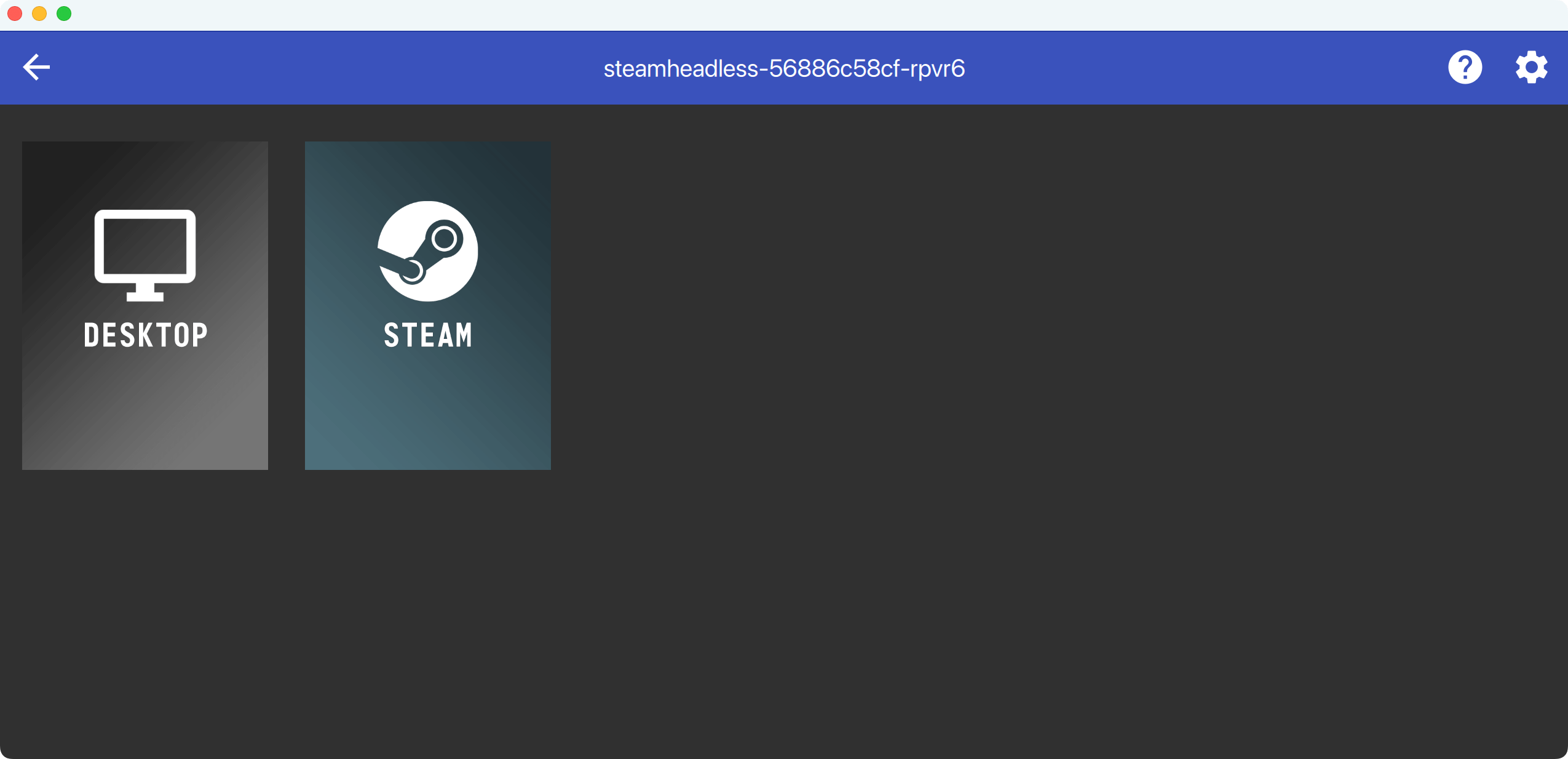
- Steam Big Picture Mode will launch. Select a game from your library and start playing.
FAQs
Why can't I access the Sunshine Web UI using the .local address?
Olares supports .local addresses with the HTTP protocol for most services. The Sunshine Web UI is different because it requires HTTPS to secure local communication. If you use http:// with your .local URL, the Sunshine page will not load.
To fix this, use https:// instead of http:// in your browser's address bar (for example, https://139ebc4f0.<your Olares ID>.olares.local:47990).
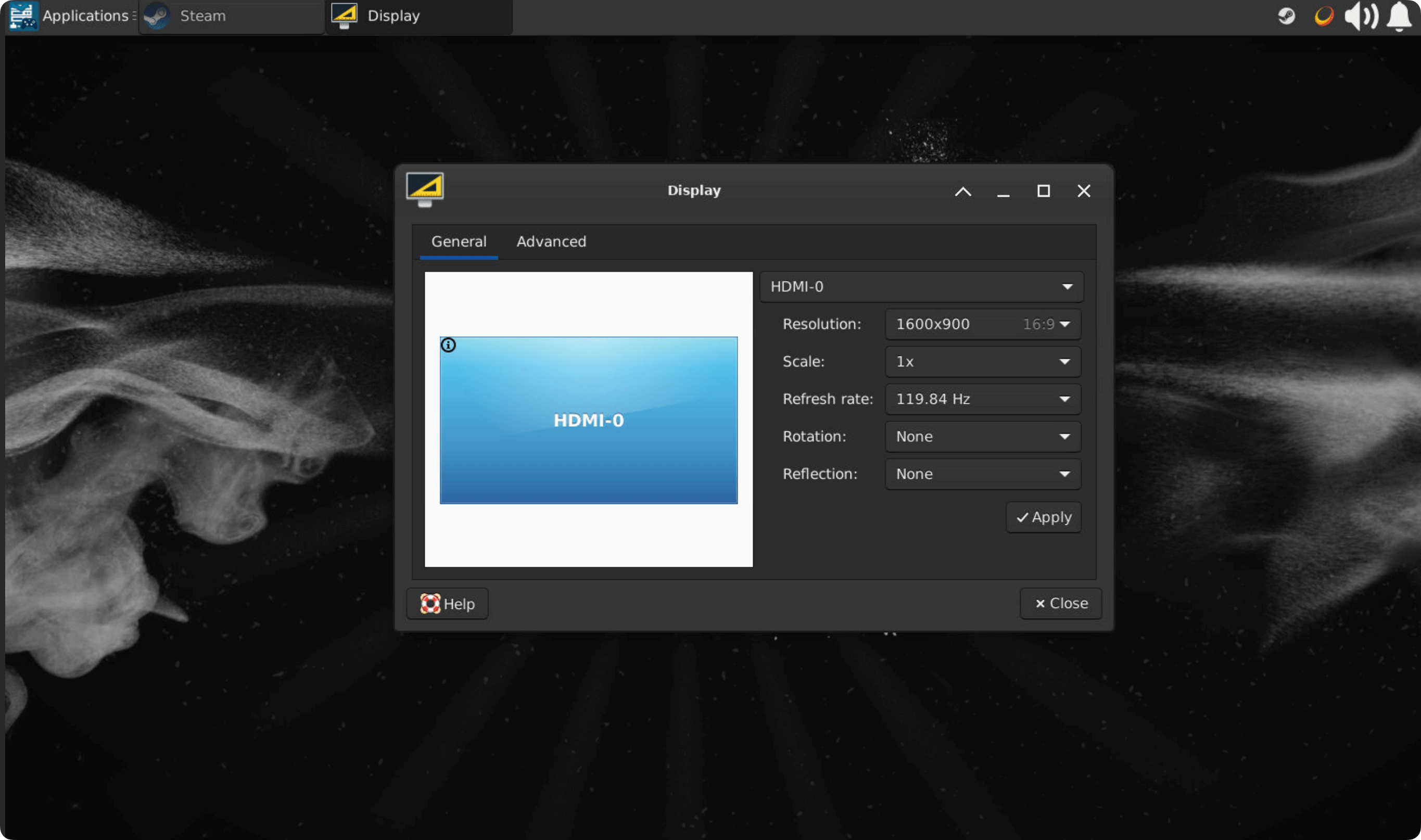
Why isn't the game displaying in full screen?
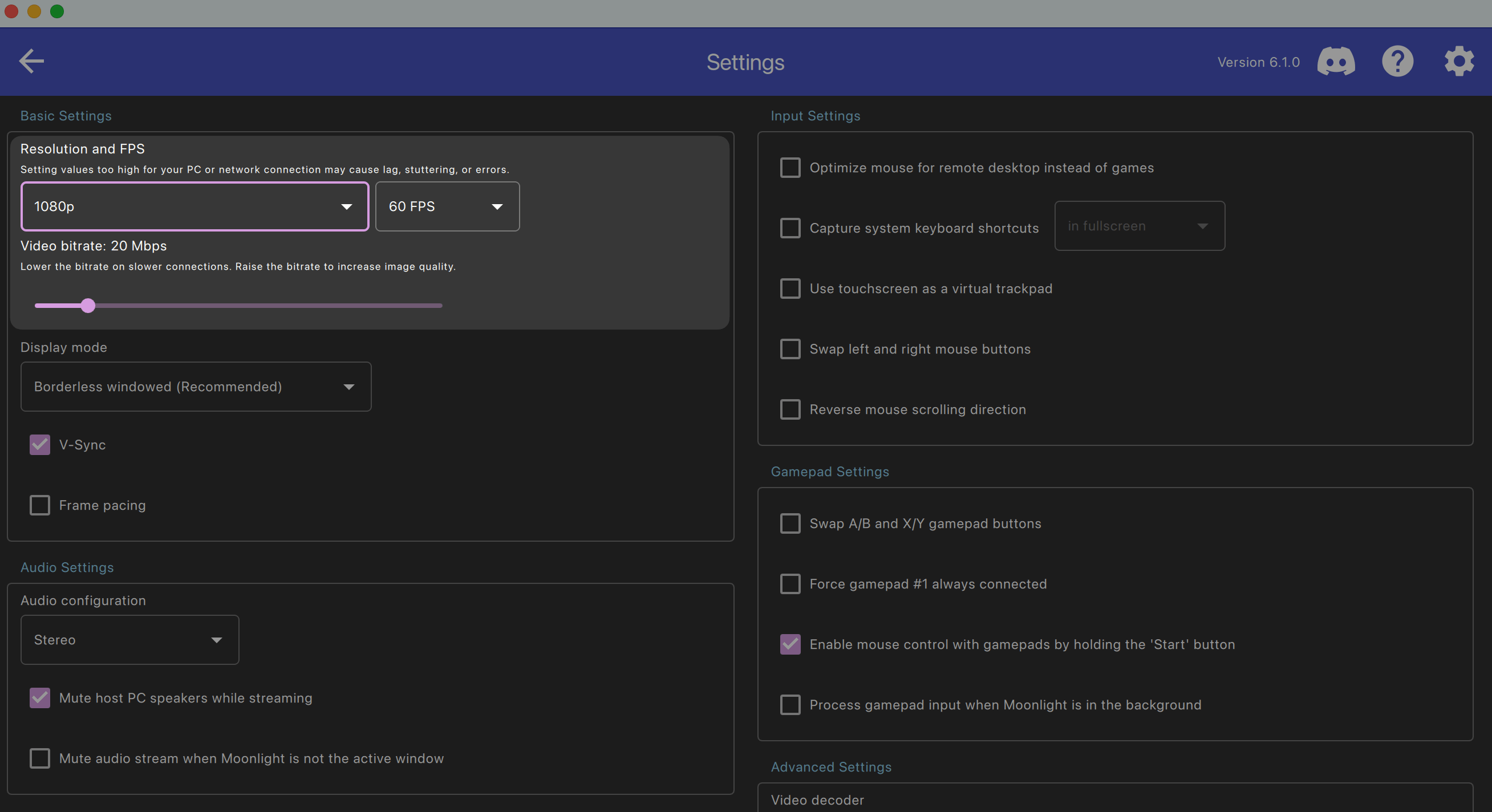
This may be caused by resolution settings. Try adjusting the resolution:
- In Moonlight: Go to Settings > Basic Settings > Resolution and FPS.
- On the Steam console page: Go to Applications > Settings > Display.
How do I exit full-screen streaming?
Use the following shortcuts:
- Windows:
Ctrl + Alt + Shift + Q - Mac:
Control (^) + Option (⌥) + Shift + Q - Mobile:
Start + Select + L1 + R1
After finishing, exit Steam Big Picture mode to release system resources on Olares. 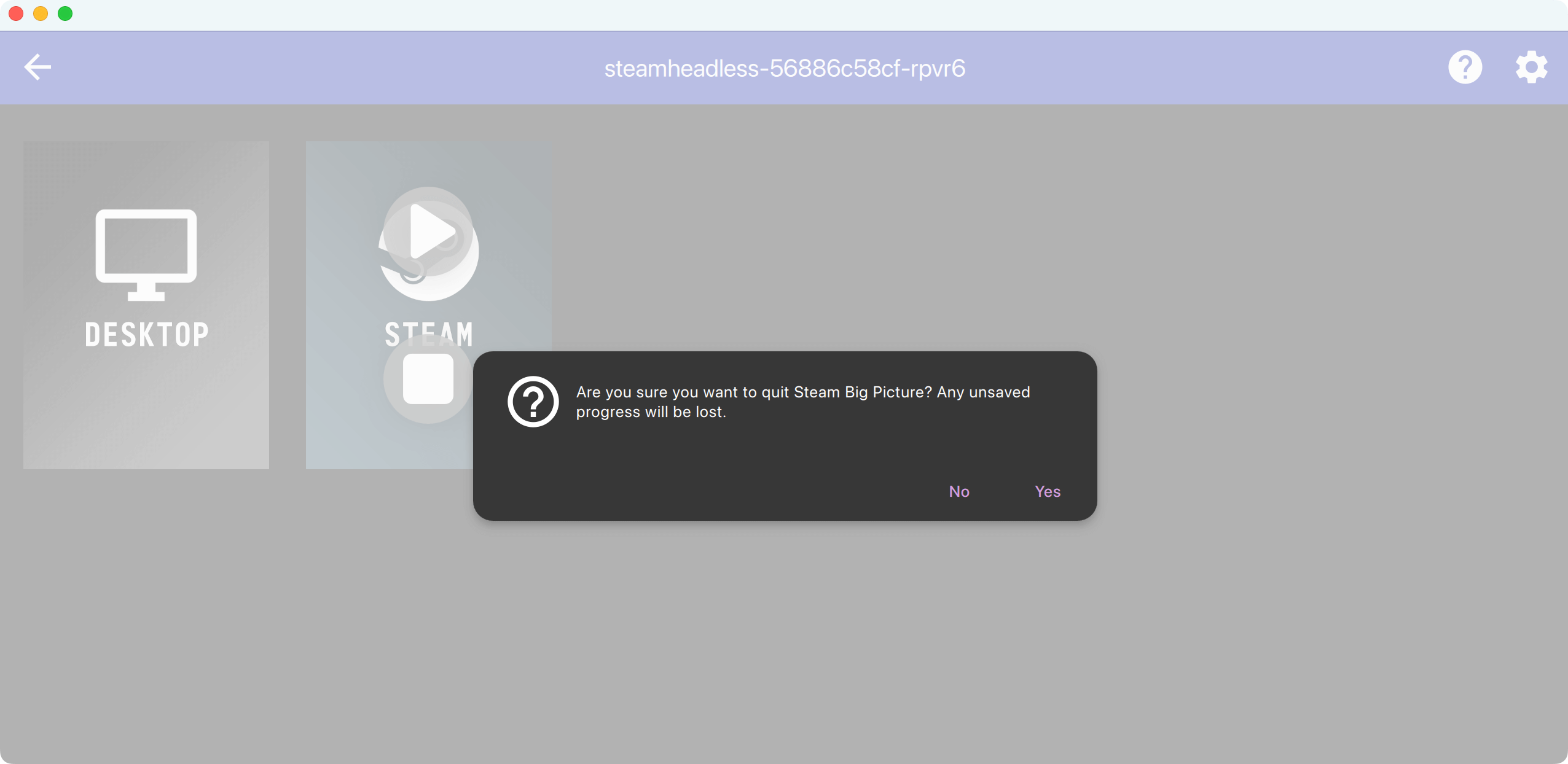
Where are my downloaded games stored?
You can check the downloaded games in the Files app. By default, games are saved in:
/Cache/olares/steam-headless/c0/.steam/steam/steamapps/commonWe recommend not changing this default directory.
Why do I get an error when re-pairing the host in Moonlight?
If you delete your Olares host in Moonlight and try to pair again, you may encounter the following errors:
- The PIN from the PC didn't match. Please try again.
- Request timed out (Error 4)
- Connection closed (Error 2)
This usually happens when the Sunshine service is not responding. To fix it, simply restart Steam Headless in Olares and try pairing again:
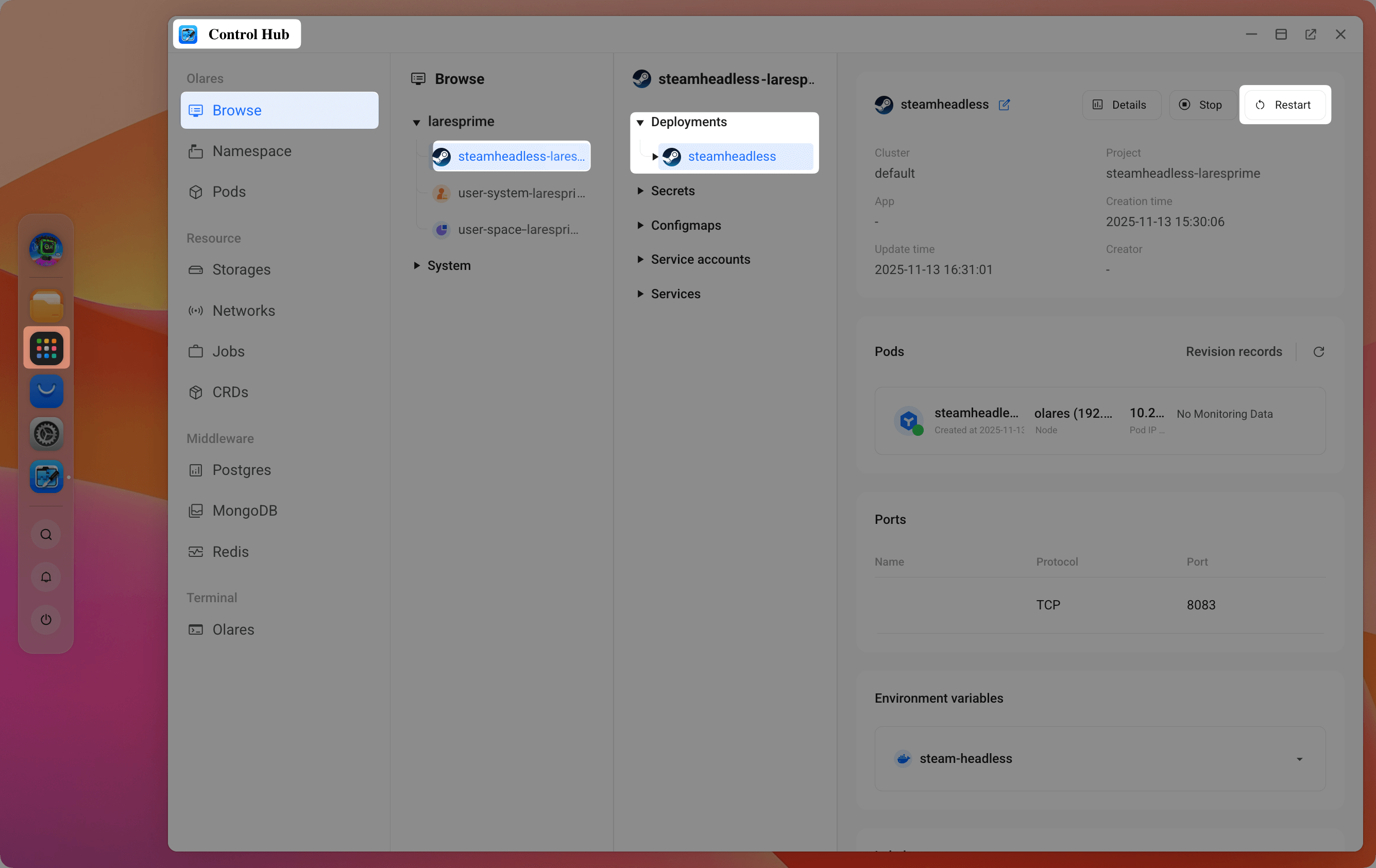
Open Control Hub from Launchpad.
Navigate to Browser > steamheadless > Deployments > steamheadless > Restart.
In the confirmation prompt, enter
steamheadlessand click Confirm.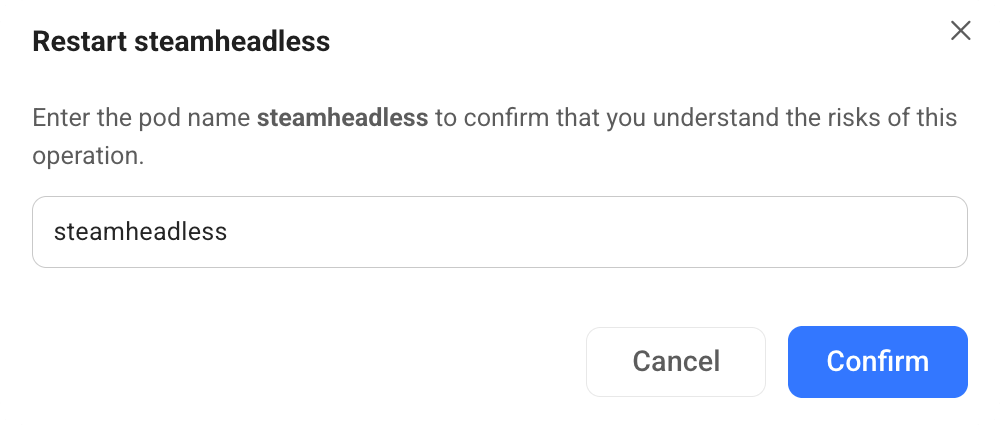
Once restarted, pair with Sunshine again in Moonlight.
How do I change my Sunshine username or password?
You can change your Sunshine credentials directly from the Sunshine web console.
Open Sunshine in your browser using your local address, for example:
https://139ebc4f0.<your Olares ID>.olares.local:47990.Log in with your current username and password.
Go to the Change Password tab.
Enter a new password (and username if desired), then click Save.