Develop in a dev container
Olares Studio allows you to spin up a pre-configured dev container to write and debug code (such as Node.js scripts or CUDA programs) without managing local infrastructure. This provides an isolated environment identical to the production runtime.
The following guide shows the setup workflow using a Node.js project as an example.
INFO
This workflow is optimized for iterative coding and testing. If you intend to publish the application to the Olares Market, you must create your own image and follow the developer documentation for final configuration.
Prerequisite
- Olares version 1.12.2 or later.
1. Initialize the container
To start coding, you must provision the container resources and select your runtime environment.
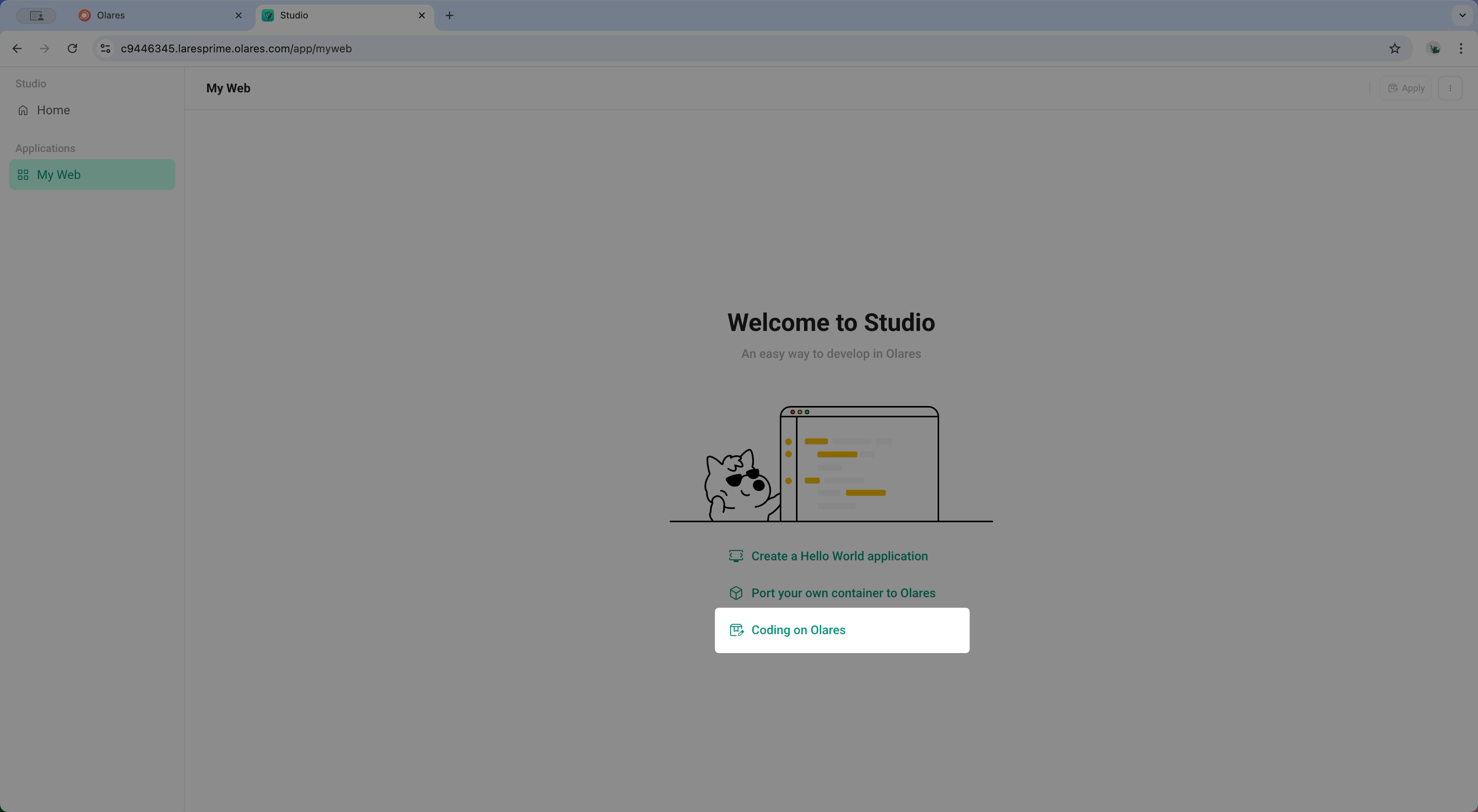
Open Studio and select Create a new application.
Enter an App name, for example:
My Web, and click Confirm.Select Coding on Olares as the creation method.
Configure the Dev Env:
a. From the drop-down list, select
beclab/node20-ts-dev:1.0.0.b. Allocate the resources for the container. For example:
- CPU:
2 core - Memory:
4 Gi - Volume Size:
500 Mi
- CPU:
In the Expose Ports field, enter the ports you intend to use for debugging (e.g.,
8080).Expose multiple ports
Port
80is exposed by default. Separate multiple additional ports with commas.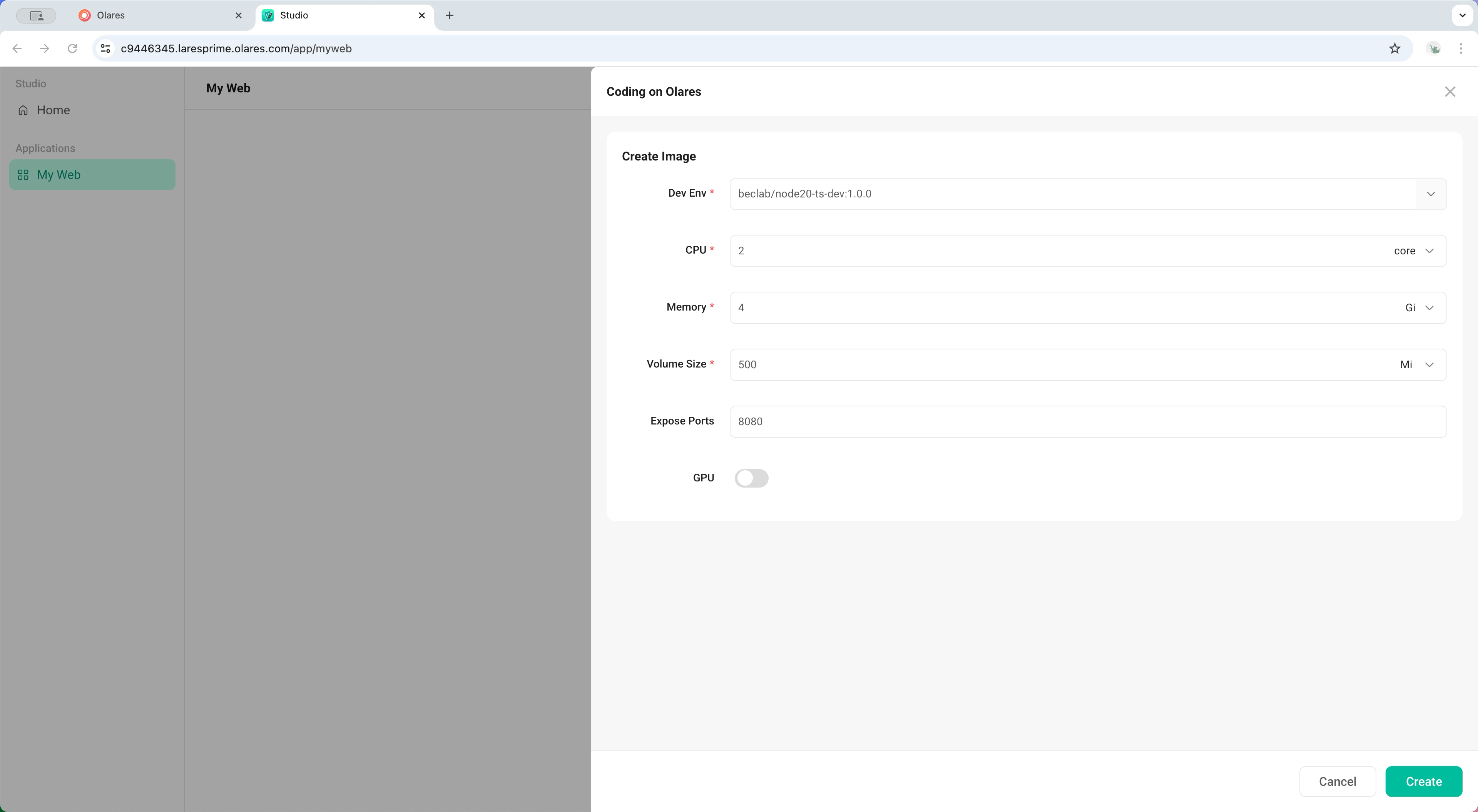
Click Create. Wait for the status in the bottom-left corner to change to
Running.
2. Access the workspace
You can access your dev container via the browser or your local IDE.
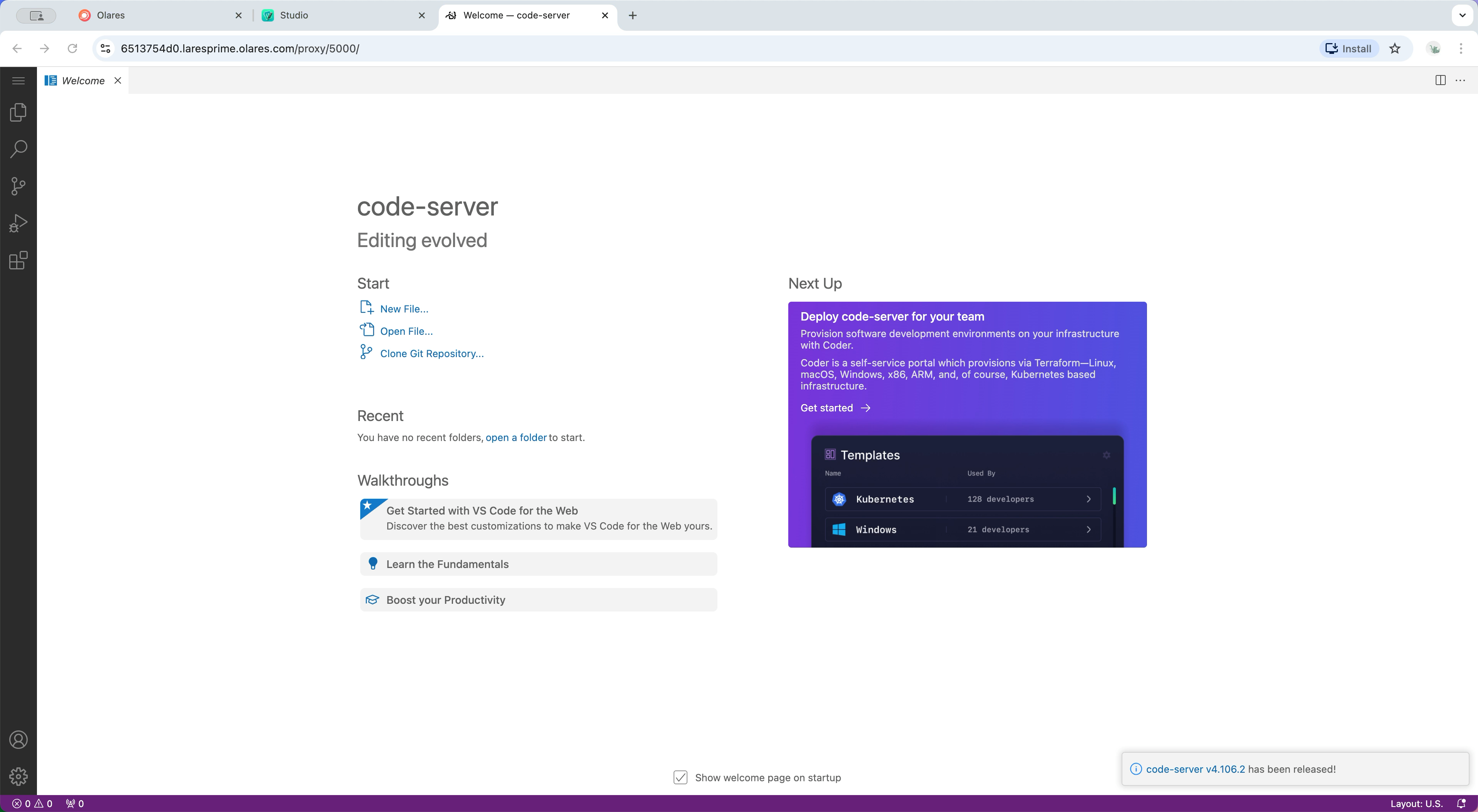
Option A: Browser-based VS Code
Click code-server in Studio. This launches a fully functional VS Code instance inside your browser.
Option B: Local VS Code (Remote Tunnel)
If you prefer your local settings and extensions, you can tunnel into the container.
Click code-server in Studio to open the browser-based VS code.
Click menu in the top left, and select Terminal > New Terminal to open the terminal.
Install the VS Code Tunnel CLI:
bashcurl -SsfL https://vscode.download.prss.microsoft.com/dbazure/download/stable/17baf841131aa23349f217ca7c570c76ee87b957/vscode_cli_alpine_x64_cli.tar.gz | tar zxv -C /usr/local/binCreate a secure tunnel:
bashcode tunnelFollow the terminal prompts to authenticate using a Microsoft or GitHub account via the provided URL.
Assign a name to the tunnel when prompted (e.g.,
myapp-demo). This will output a vscode.dev URL tied to this remote workspace.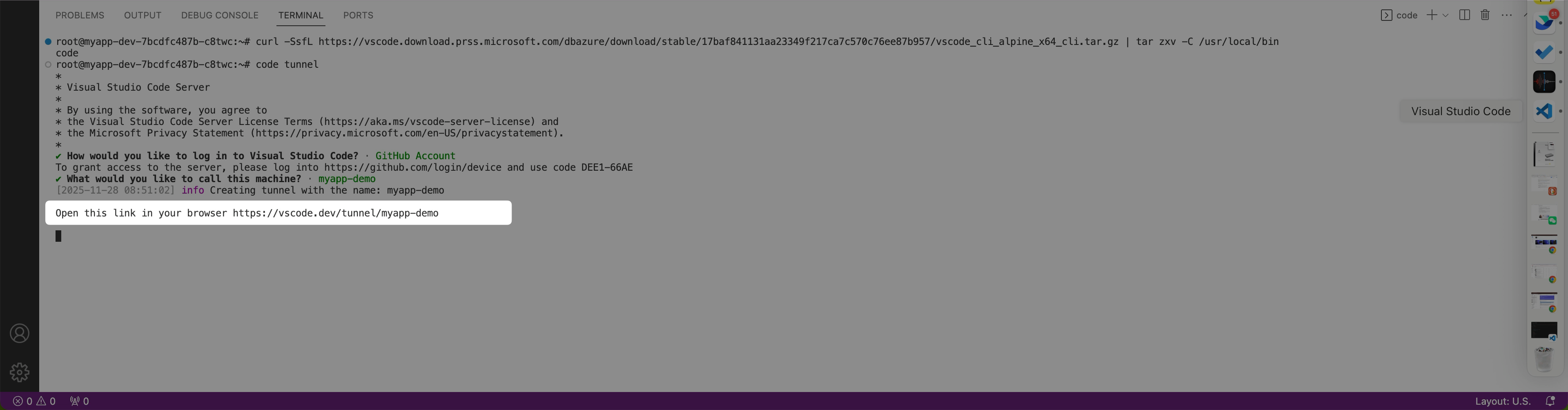
Open VS Code on your local machine, click the >< icon in the bottom-left, and select Tunnel.
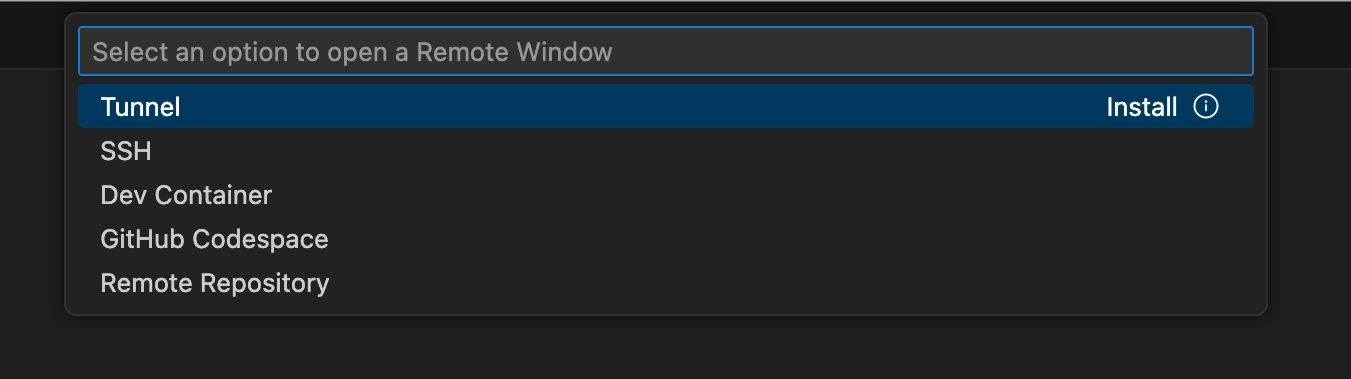
Log in with the same account used in the previous step.
Select the tunnel name you defined (e.g.,
myapp-demo). It may take a few minutes for VS Code to establish the connection. Once successful, the remote indicator in the bottom-left will display your tunnel name.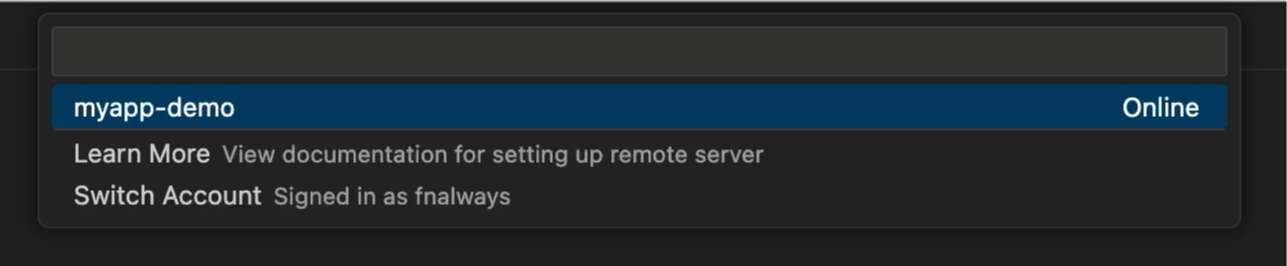
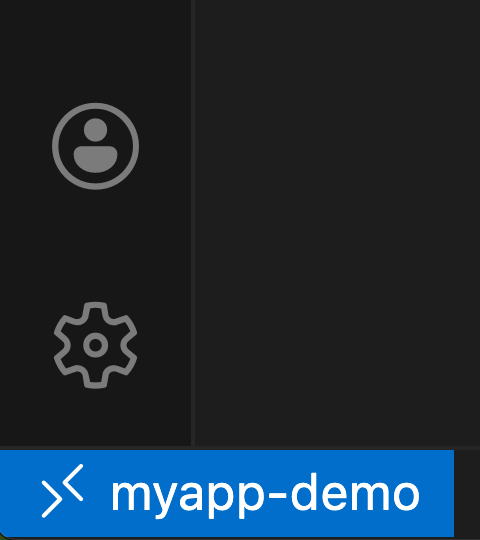
Once connected, you have full remote access to the container's file system and terminal, mirroring a local development experience.
3. Write and run code
Once inside the workspace, either via browser or local tunnel, the workflow mirrors standard local development. You can populate your workspace by:
- Uploading files
- Cloning a Git repository, or
- Creating files manually
This example demonstrates creating a basic web page manually.
Open the Explorer sidebar and navigate to
/root/.INFO
Studio persists project data at
Data/studio/<app_name>/.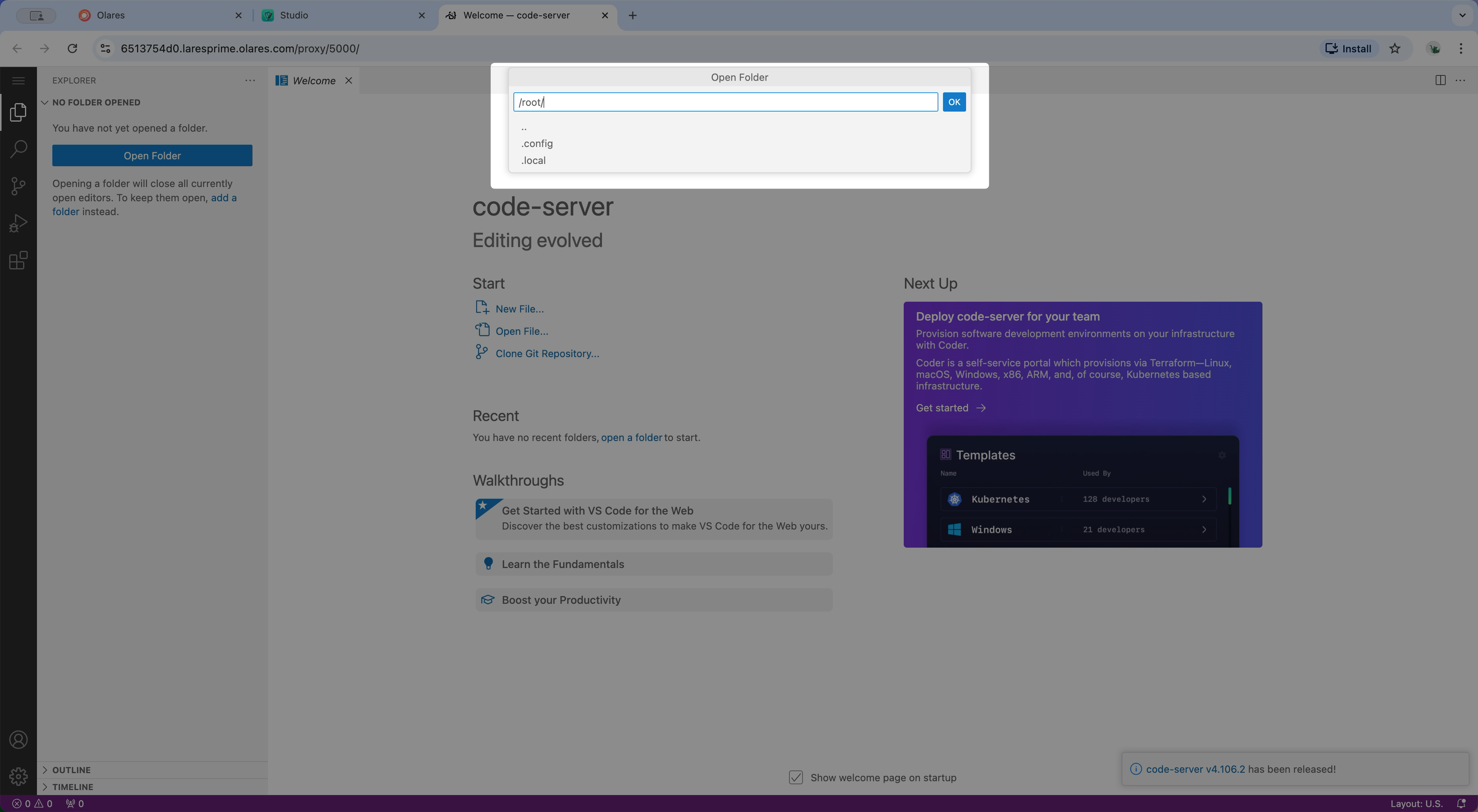
Click menu in the top left, and select Terminal > New Terminal to open the terminal.
Run the following command to initialize the project:
bashnpm init -yInstall the Express framework:
bashnpm install express --saveCreate a file named
index.jsin/root/with the following content:js// Ensure the port matches what you defined const express = require('express'); const app = express(); app.use(express.static('public/')); app.listen(8080), function() { console.log('Server is running on port 8080'); };Create a
publicdirectory in/root/and add anindex.htmlfile:html<!DOCTYPE html> <html> <head> <meta charset="UTF-8"> <title>My Web Page</title> </head> <body> <h1>Hello World</h1> <h1>Hello Olares</h1> </body> </html>Start the server:
bashnode index.jsOpen the Ports tab in VS Code and click the forwarded address to view the result.
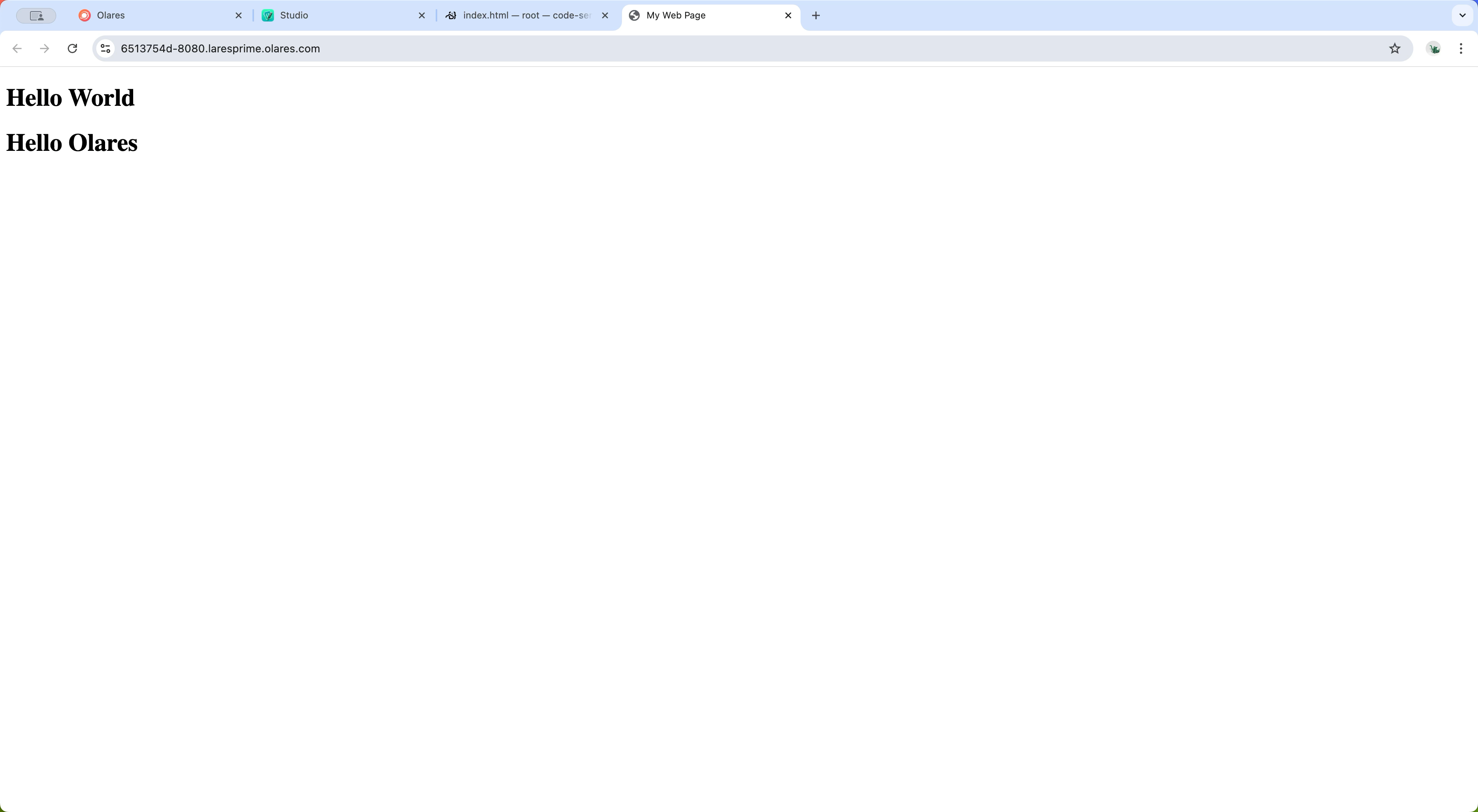
4. Configure port forwarding
If you need to expose additional ports after the container is created (e.g., adding port 8081), you must manually edit the container configuration manifests.
TIP
You can follow the same steps to modify OlaresManifest.yaml and deployment.yaml to change the port number.
Modify configuration manifests
In Studio, click box_editEdit in the top-right to open the editor.
Edit
OlaresManifest.yaml.a. Append the new port to the
entranceslist:yamlentrances: - authLevel: private host: myweb icon: https://app.cdn.olares.com/appstore/default/defaulticon.webp invisible: true name: myweb-dev-8080 openMethod: "" port: 8080 skip: true title: myweb-dev-8080 # Add the following - authLevel: private host: myweb # Must match Service metadata name icon: https://app.cdn.olares.com/appstore/default/defaulticon.webp invisible: true name: myweb-dev-8081 # Unique identifier openMethod: "" port: 8081 # The new port number skip: true title: myweb-dev-8081b. Click save in the top-right to save changes.
Edit
deployment.yaml.a. Add the port mapping to
default-thirdlevel-domainsunderDeployment>metadata:yamlannotations: applications.app.bytetrade.io/default-thirdlevel-domains: '[{"appName":"myweb","entranceName":"myweb-dev-8080"},{"appName":"myweb","entranceName":"myweb-dev-8081"}]' # entranceName must match the name used in OlaresManifest.yamlb. Update the
studio-expose-portsannotation underspec>template>metadata:yamltemplate: metadata: annotations: applications.app.bytetrade.io/studio-expose-ports: "8080,8081"c. Add the port definition under
Service>spec>ports:yamlkind: Service spec: ports: - name: "80" port: 80 targetPort: 80 # Add the following - name: myweb-dev-8081 # Must match entrance name port: 8081 targetPort: 8081 selector: io.kompose.service: mywebd. Click save in the top-right to save changes.
Click Apply to redeploy the container.
You can verify the active ports in Services > Ports. 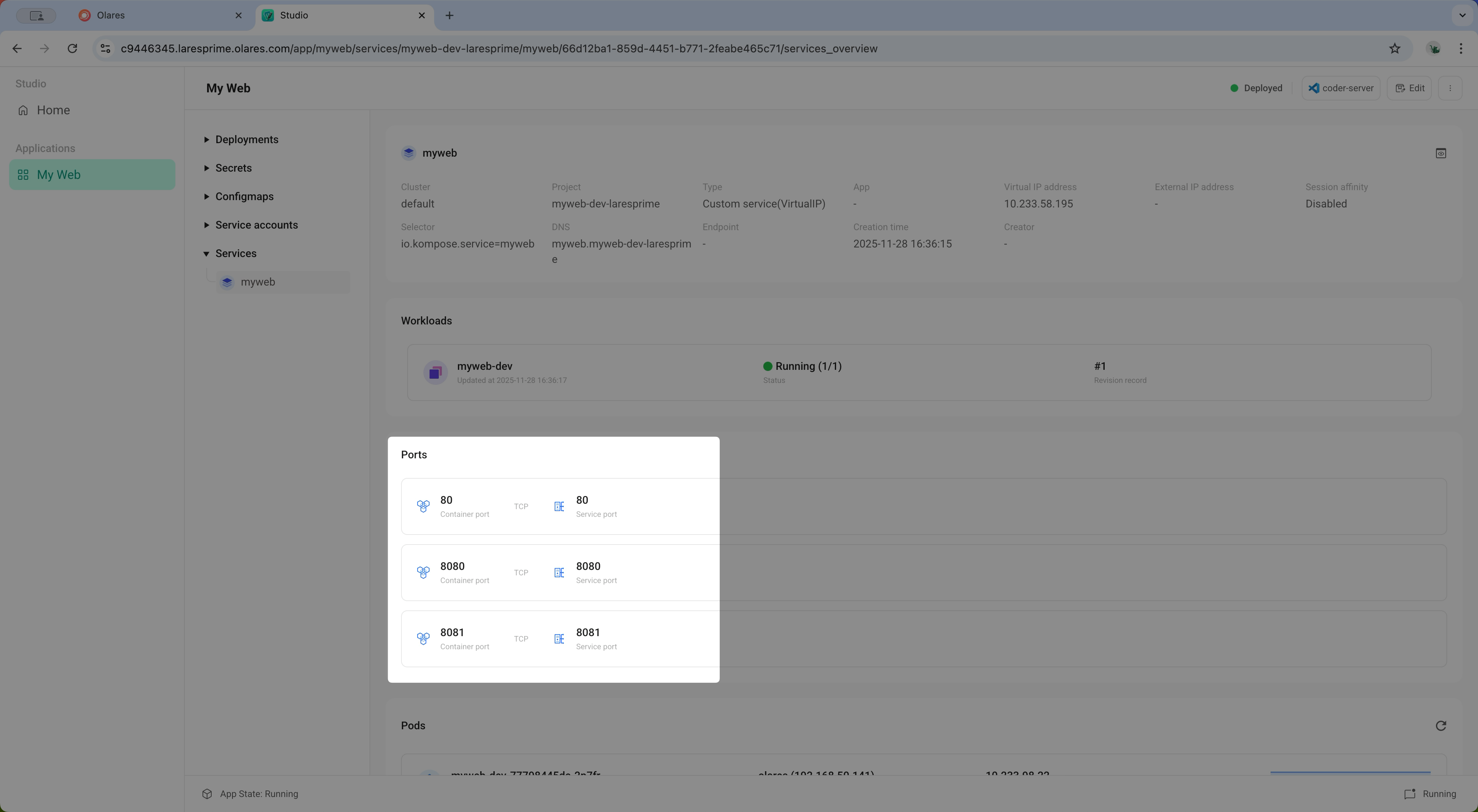
Verify the new port
Update
index.jsto listen on the new port:jsconst express = require('express'); const app = express(); app.use(express.static('public/')); app.listen(8080), function() { console.log('Server is running on port 8080'); }; // Add the following const app_new = express(); app_new.use(express.static('new/')); app_new.listen(8081), function() { console.log('Server is running on port 8081'); };Create a
newdirectory in/root/and add anindex.htmlfile:html<!DOCTYPE html> <html> <head> <meta charset="UTF-8"> <title>My Web Page</title> </head> <body> <h1>This is a new page</h1> </body> </html>Restart the server:
bashnode index.jsCheck the Ports tab to confirm port
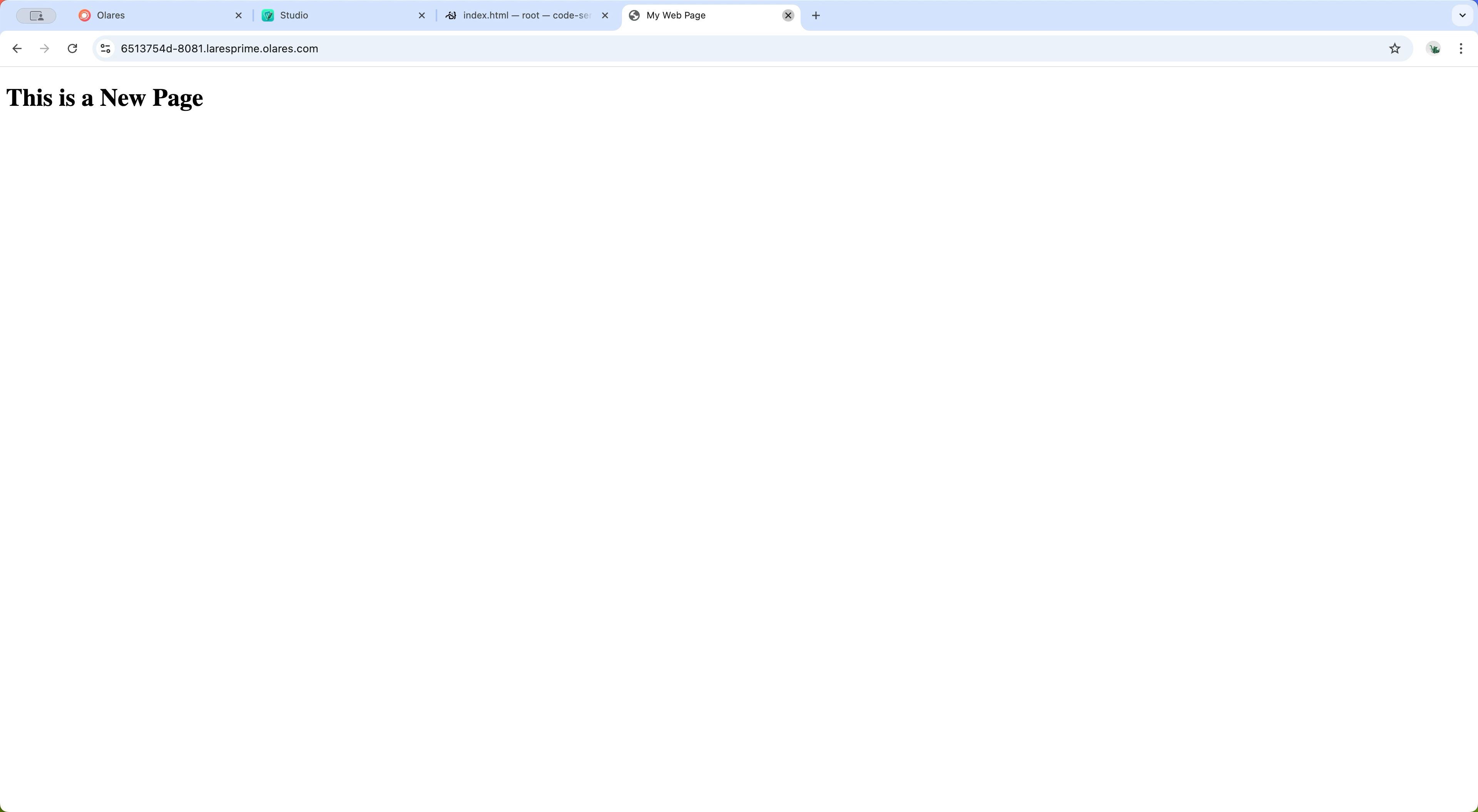
8081is active and accessible.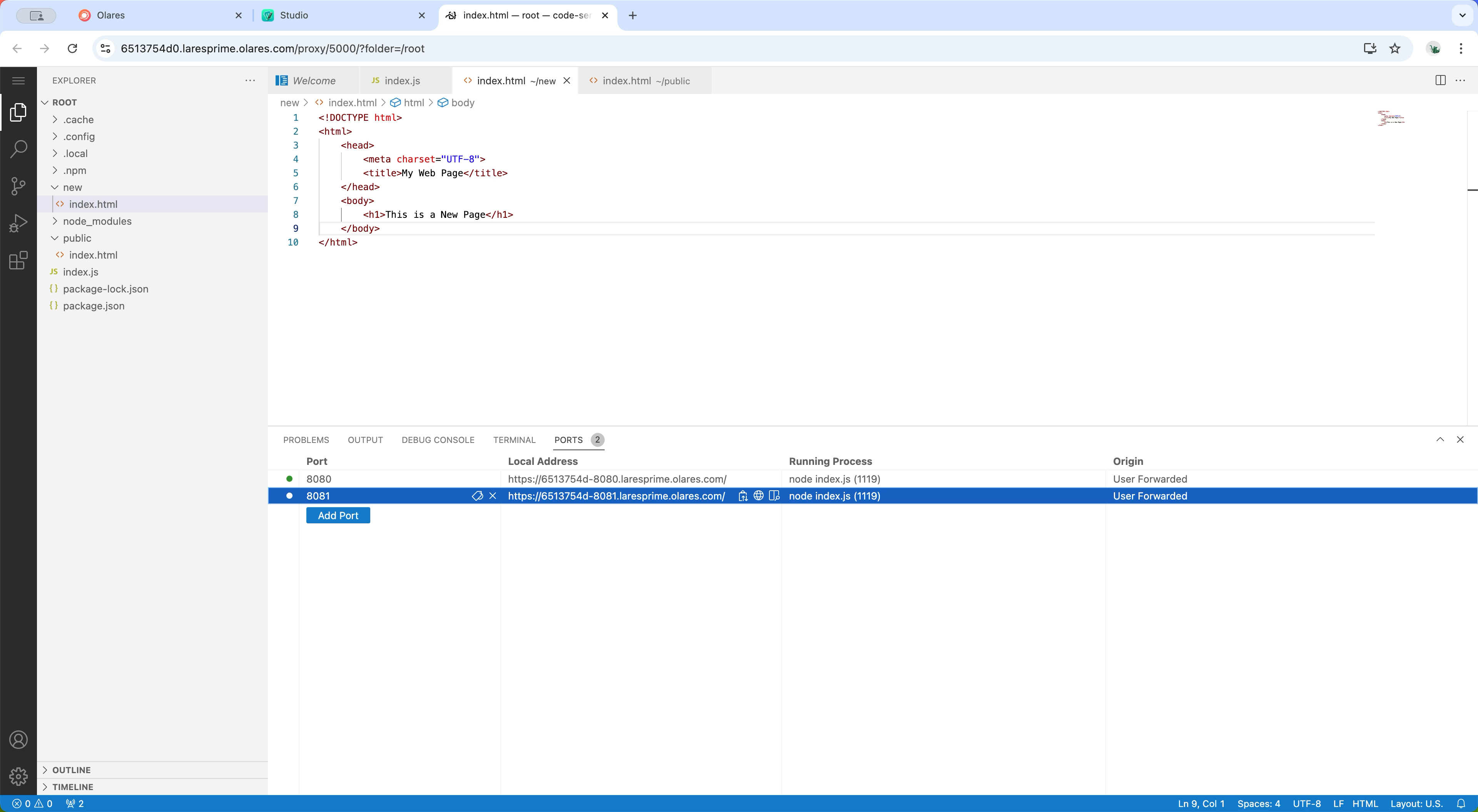
Click the forwarded address to view the result.