Reinstall Olares OS using bootable USB 15 min
Reinstalling Olares OS returns your Olares One to a clean initial state. You can do this using the bootable USB drive included with Olares One.
Data loss
This will permanently delete all accounts, settings, and data on the device. This action cannot be undone.
Prerequisites
Hardware
- The bootable USB drive that came with Olares One.
Don't have the USB drive?
Download the Olares One ISO, which is device-specific and different from the standard Olares ISO, and flash it to a USB drive (8 GB or larger) using a tool such as Balena Etcher.
- A monitor and keyboard connected to Olares One.
Step 1: Boot from the USB drive
Insert the bootable USB drive into Olares One.
Power on Olares One or restart it if it is already running.
When the Olares logo appears, immediately press the Delete key repeatedly to enter BIOS setup.
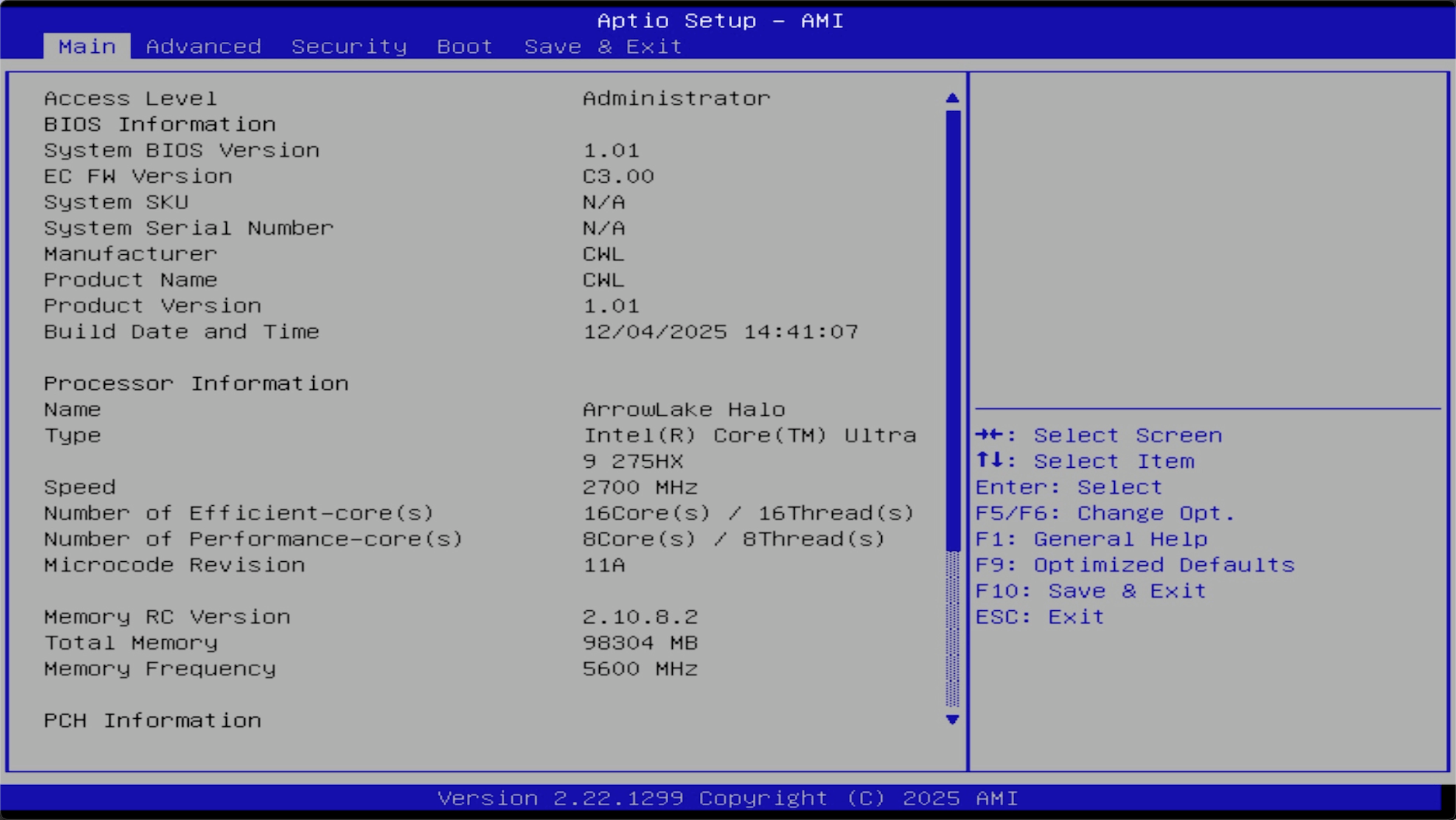
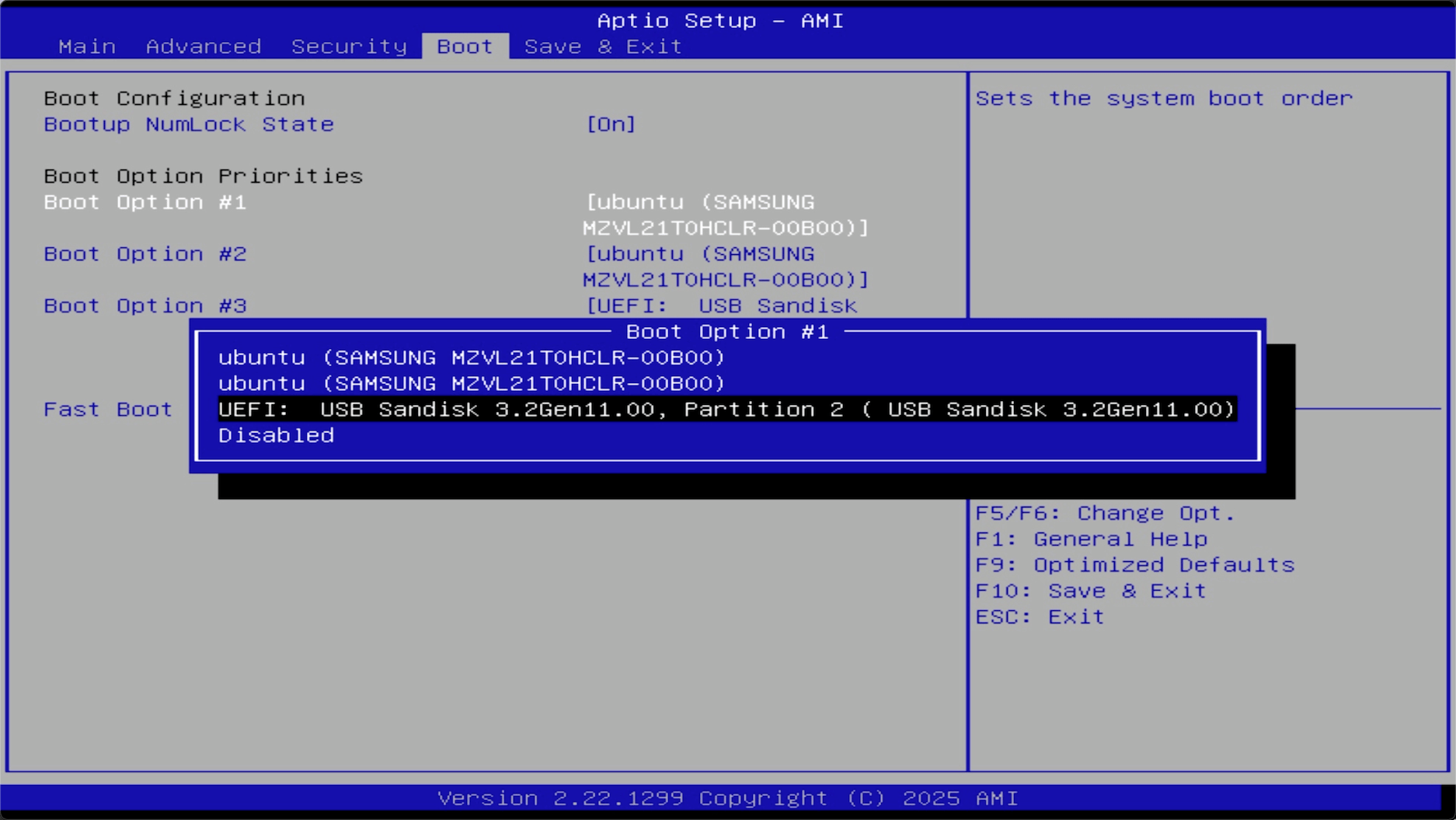
Navigate to the Boot tab, set Boot Option #1 to the USB drive, and then press Enter.
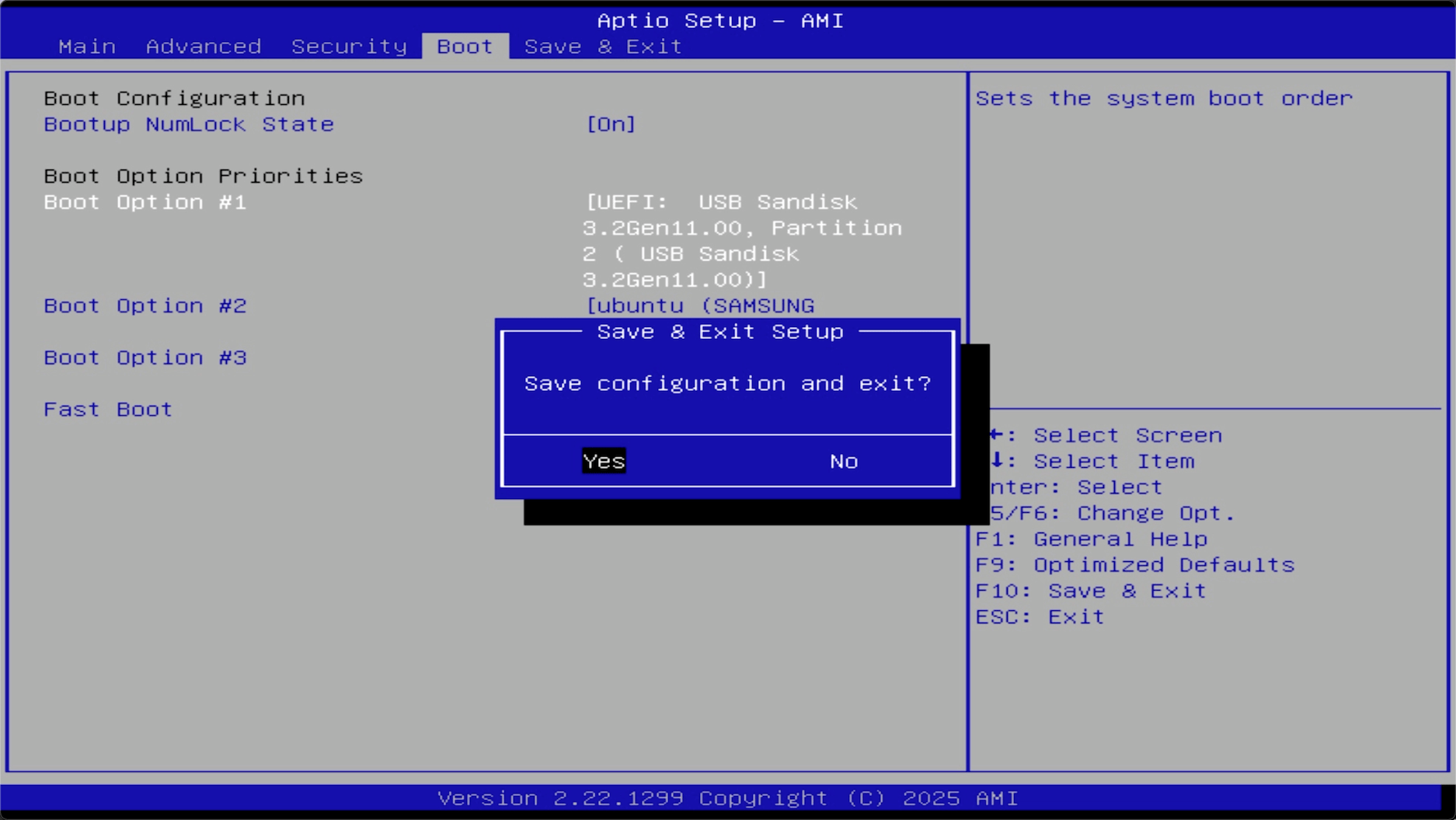
Press F10, then select Yes to save and exit.
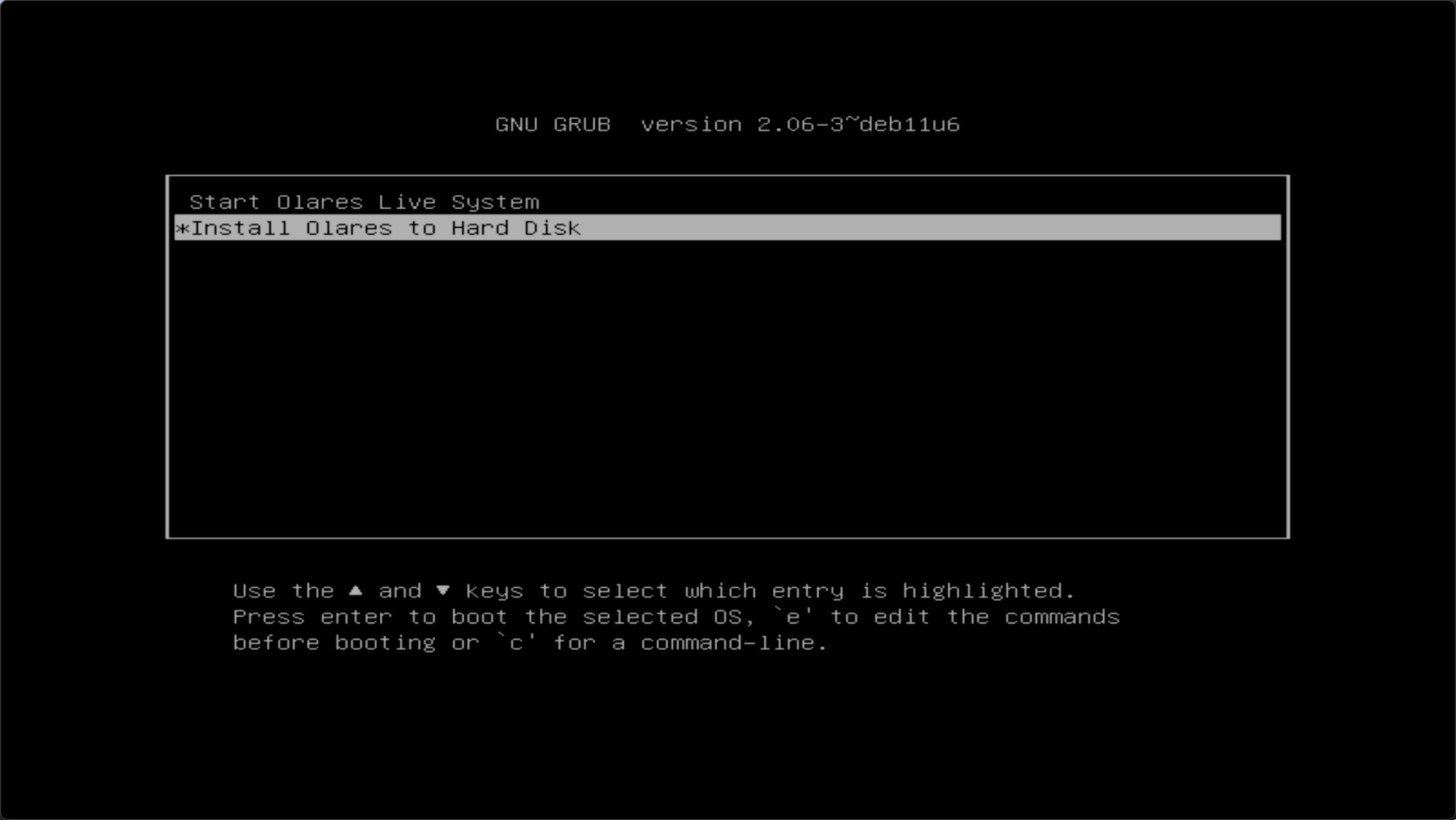
Olares One will restart and boot into the Olares installer interface.
Step 2: Install Olares to disk
From the installer interface, select Install Olares to Hard Disk and press Enter.
When prompted for the installation target, the installer shows a list of available disks. Type
/dev/followed by the disk name (e.g.nvme0n1) from that list and press Enter.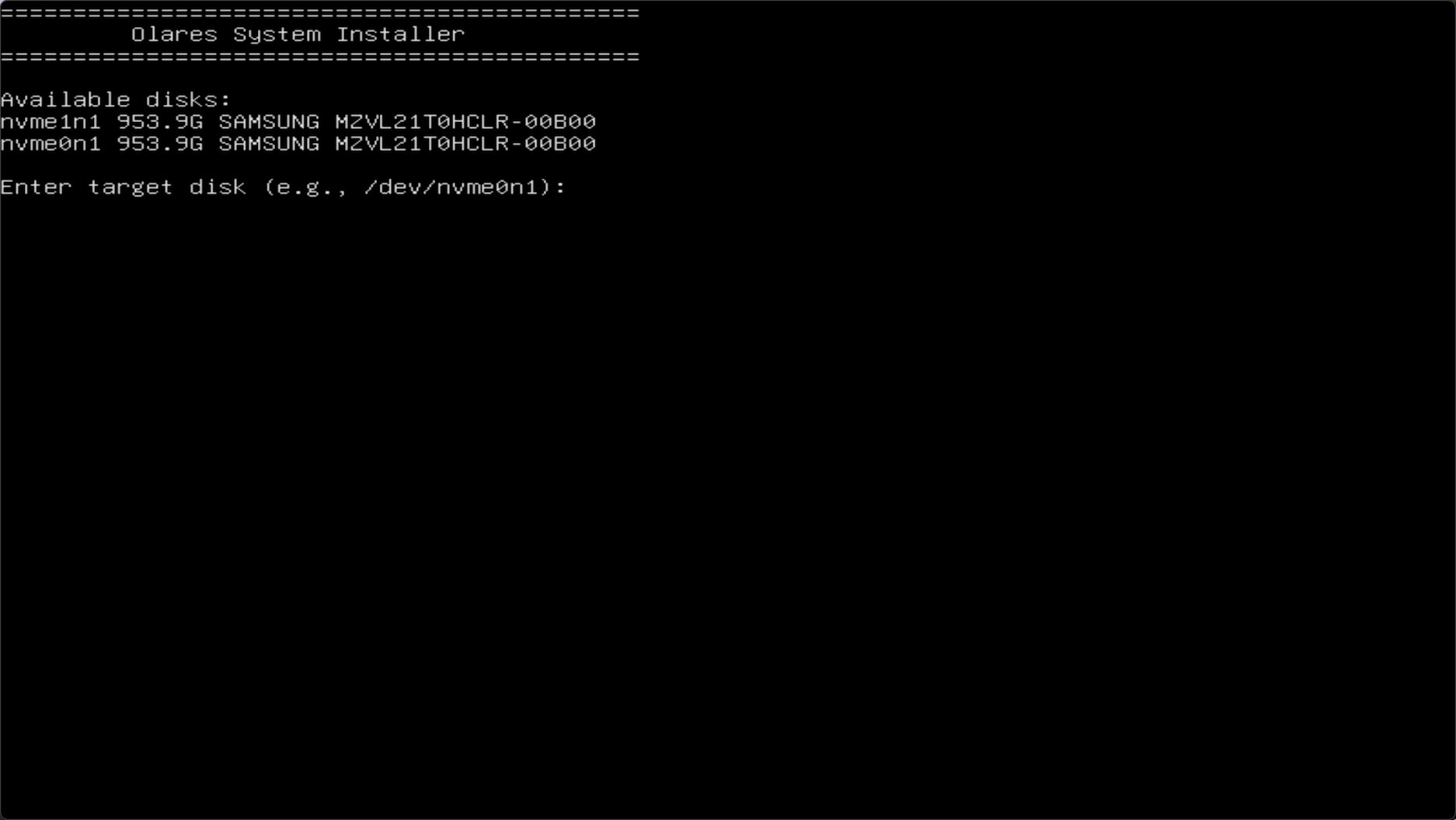
For example, to install to
nvme0n1, enter:bash/dev/nvme0n1When you see prompts about NVIDIA GPU drivers, press Enter to accept the default.
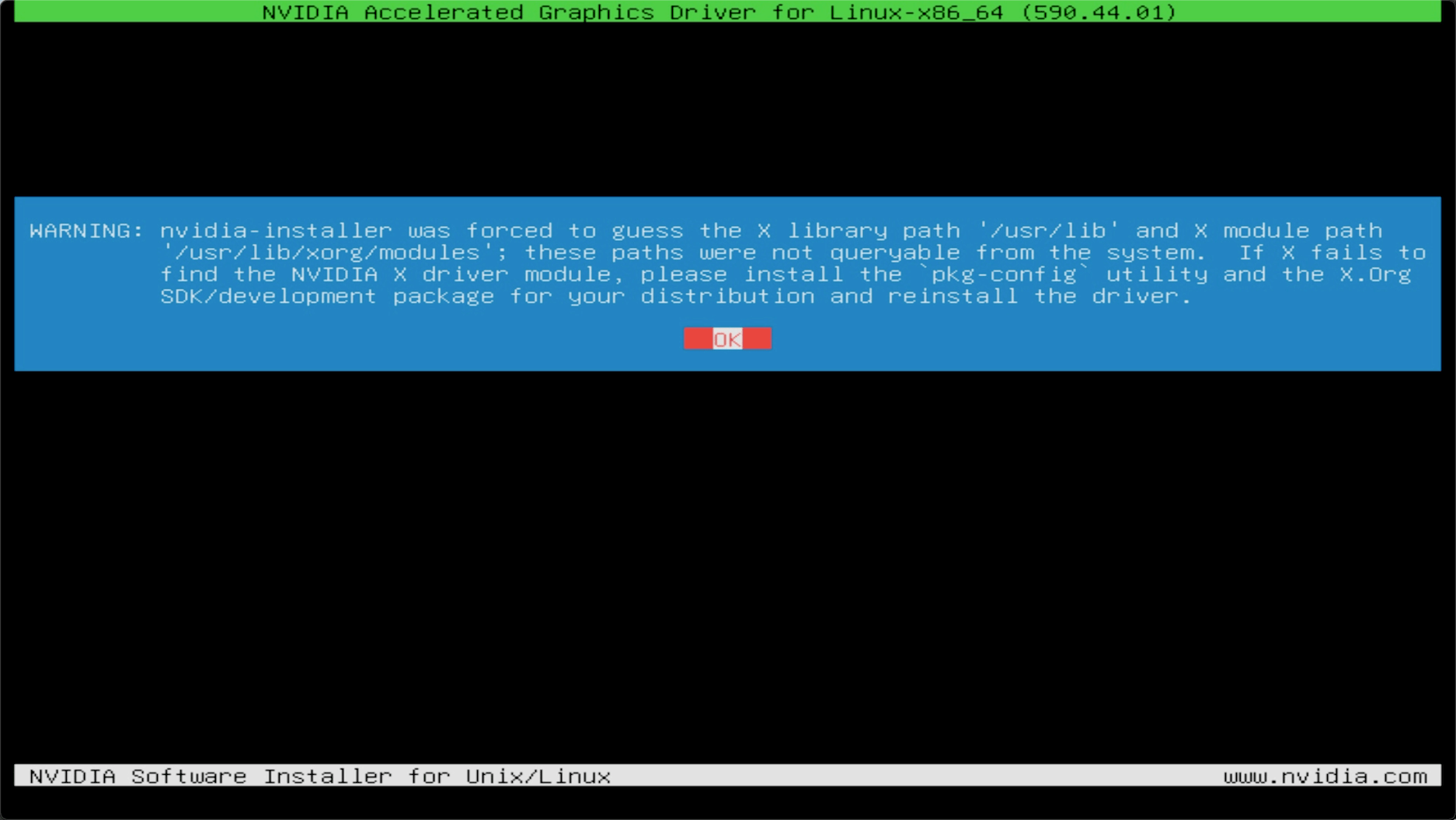
When you see the message below, the reinstallation is complete:
bashInstallation completed successfully!Remove the USB drive, then press Ctrl + Alt + Delete to restart.
Step 3: Verify the installation
After the reboot, the system starts in a clean factory state and shows a text-based Ubuntu login prompt.
Log in with the default credentials:
- Username:
olares - Password:
olares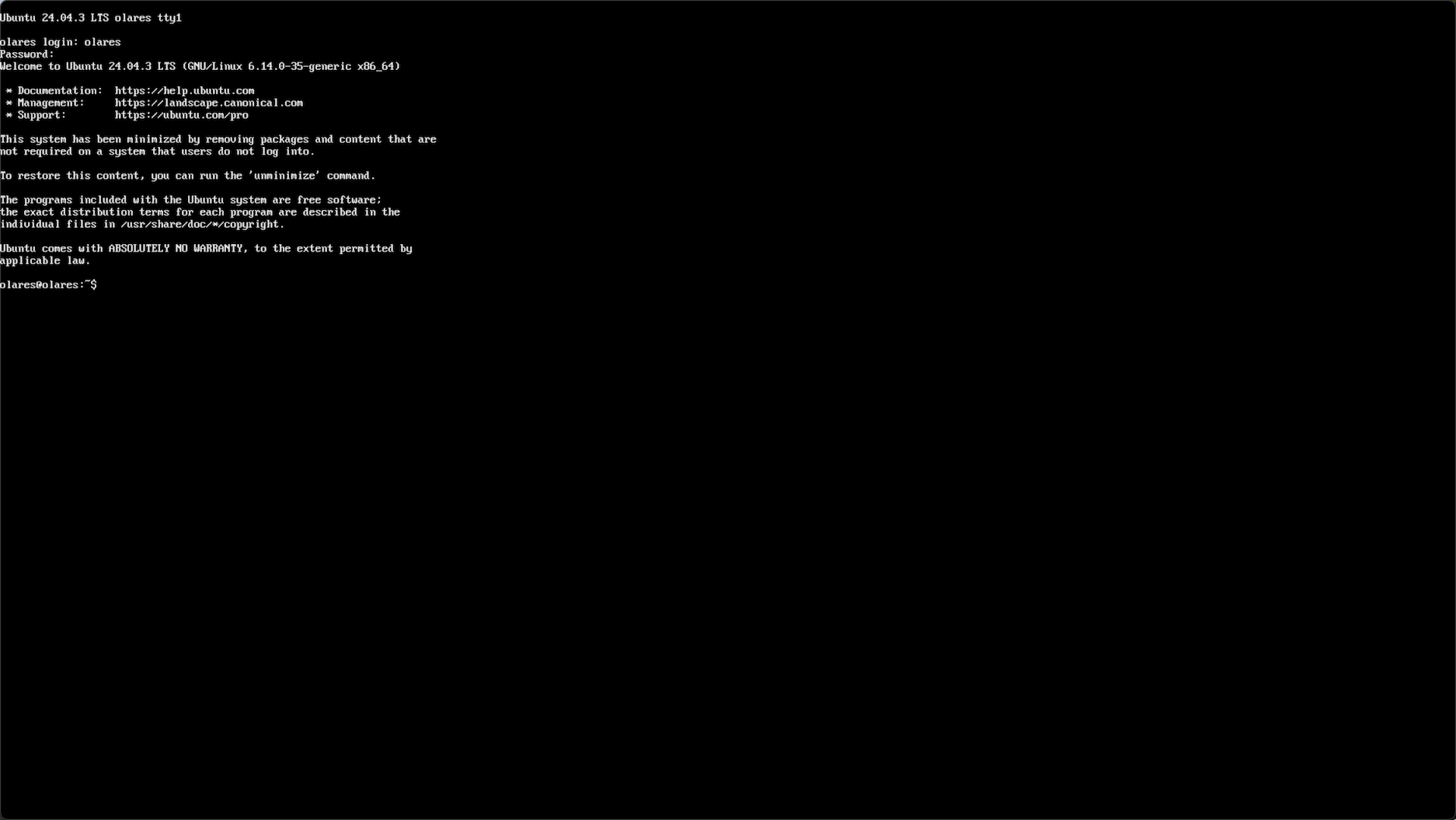
- Username:
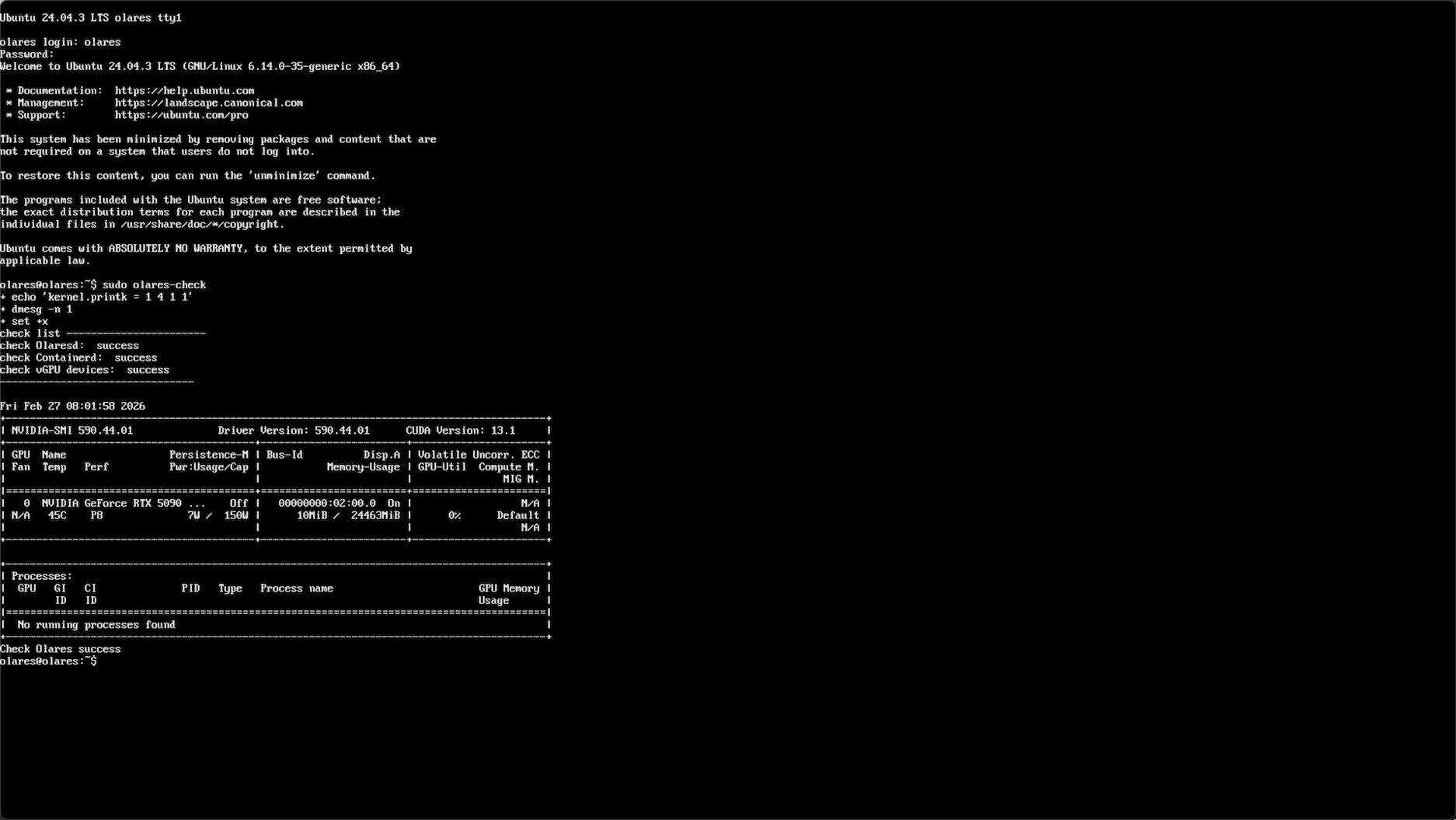
(Optional) Run the following command to verify the installation:
bashsudo olares-checkExample output:
Step 4: Complete activation via LarePass
You can then activate Olares One again via LarePass. For detailed instructions, see First boot.