Play Steam games locally on Olares One 15 min
Connect a monitor, keyboard, and mouse to your Olares One to play Steam games directly on the device.
Prerequisites
Hardware
- Olares One connected to a stable network (Ethernet recommended).
- Monitor, keyboard, and mouse connected to the Olares One.
- Sufficient disk space to download games.
Software
- A valid Steam account.
Step 1: Install Steam Headless
Open Market, and search for "Steam".
Click Get, then Install.
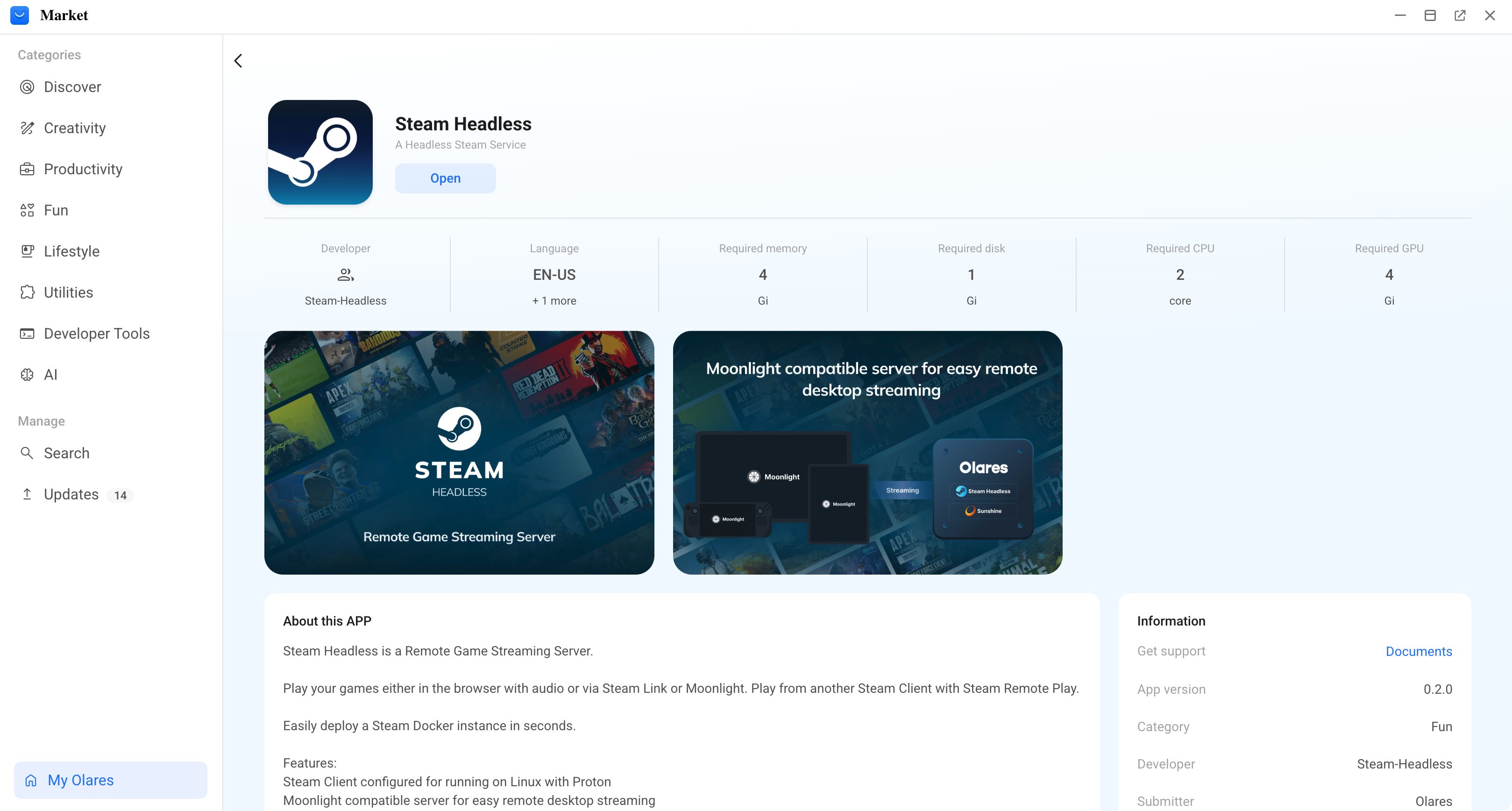
A prompt will appear asking you to set environment variables:
SUNSHINE_USER: Set the username for Sunshine access.SUNSHINE_PASS: Set a secure password.
Wait for the installation to complete.
Step 2: Install the Steam client
Open Steam Headless and click Connect.
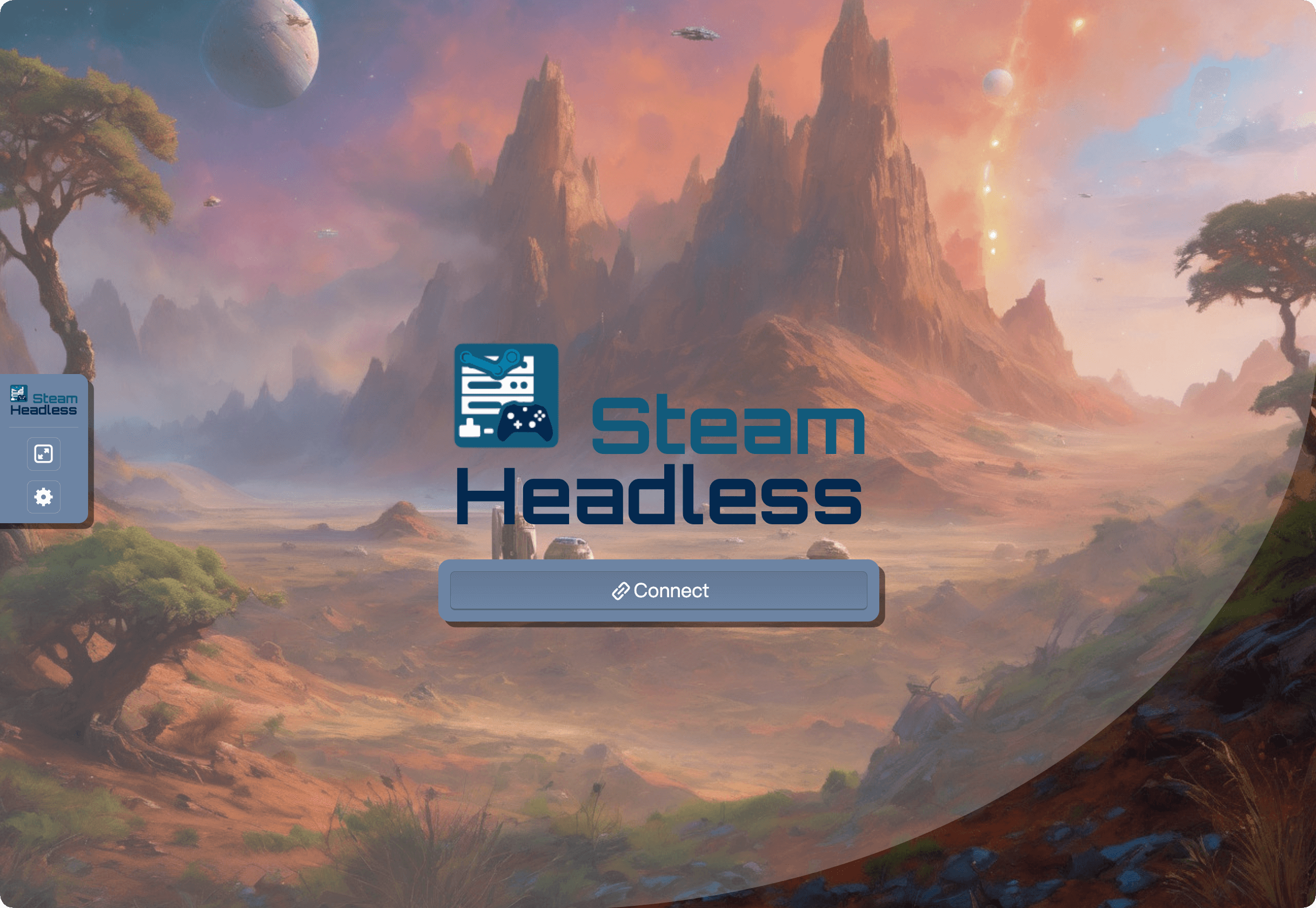
The Steam client will automatically begin downloading and installing.
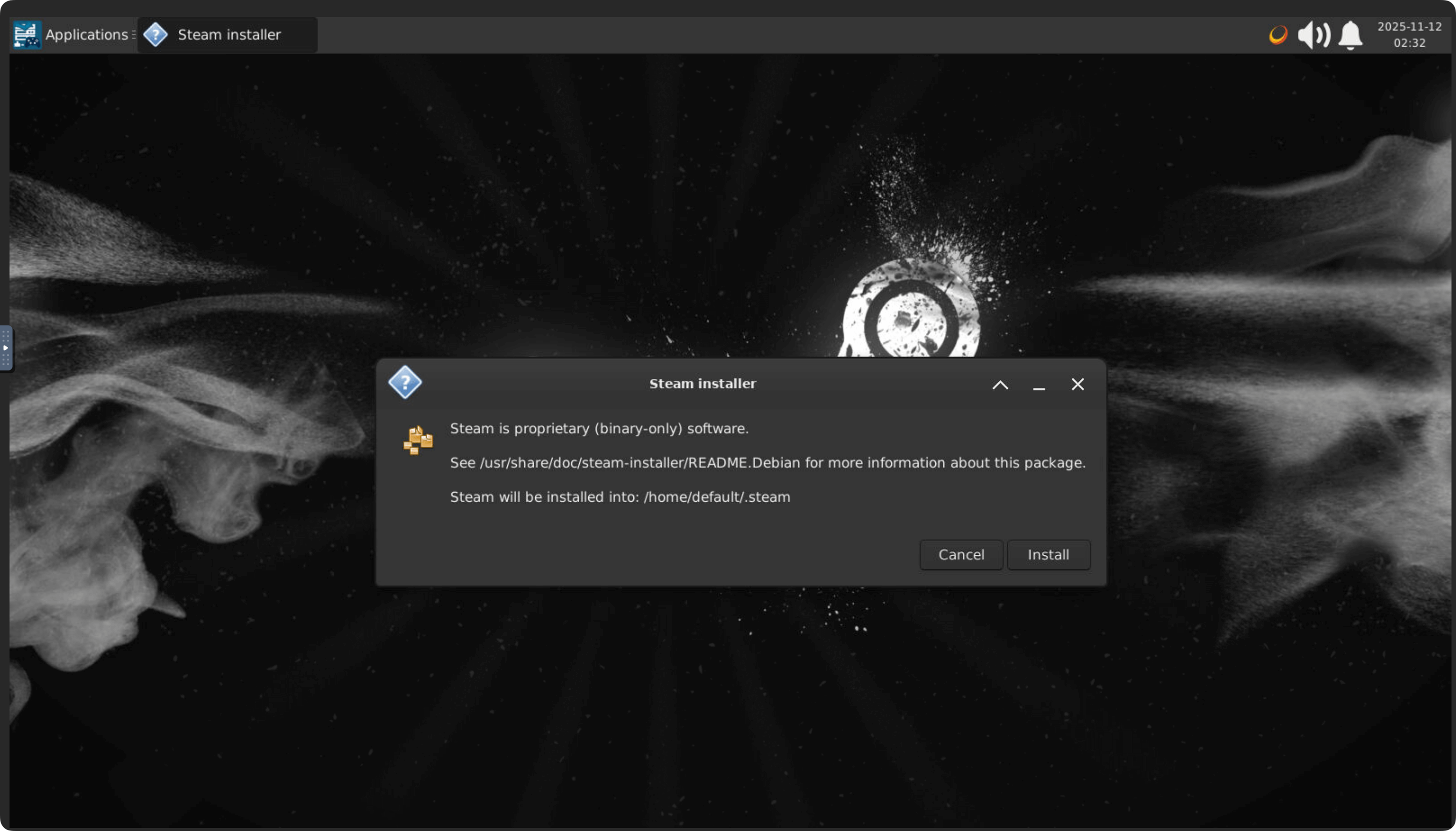
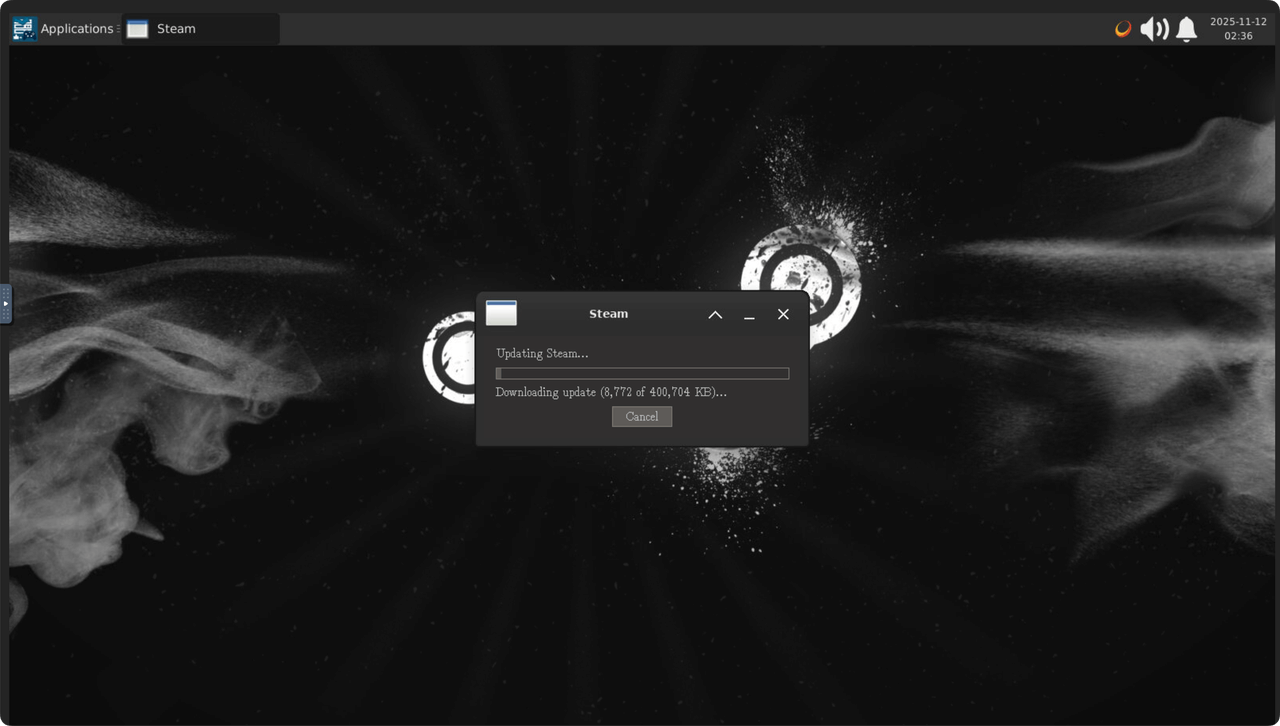
When installation completes, sign in with your Steam account.
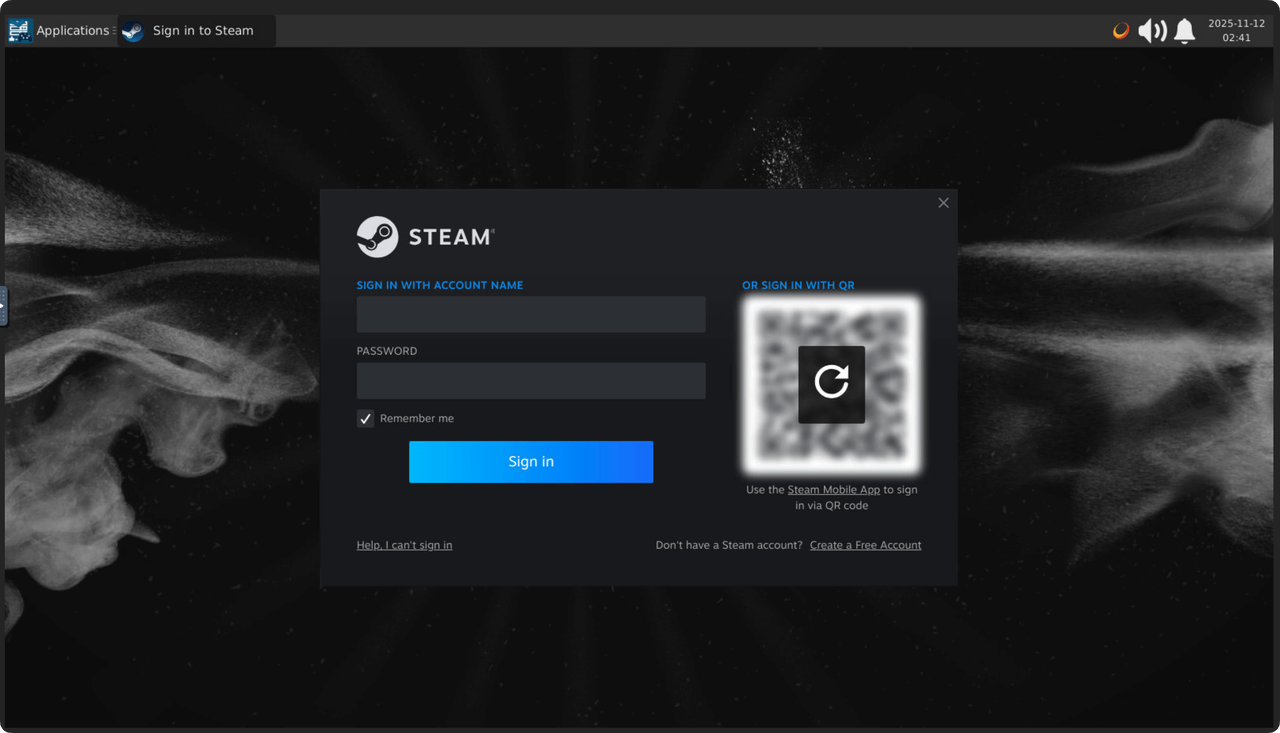
Step 3: Download and play games
- In Steam, go to Library to view your purchased games.
- Select a game you want to play and click Install.
- Wait for the download to complete, then click Play.
FAQs
Mouse not responding on first connection
If your mouse doesn't respond when first connected, try unplugging it and plugging it back in. This is a common occurrence with USB peripherals on initial connection.
Why does my monitor show the Steam interface even when I'm not playing?
Olares One usually displays a terminal prompt when connected to a monitor. However, running the Steam application activates a graphical interface that takes over the display.
To return the monitor to the standard terminal view, stop the Steam application via Market or Settings.