Connect AI apps
Many AI applications on Olares follow the same pattern: one app provides AI capabilities over an API, and another app provides the interface you use every day. Once you understand this pattern, you can apply the same steps to connect almost any compatible combination of apps.
This tutorial explains the core concepts and walks you through practical examples using Ollama as the AI service app.
Objectives
By the end of this tutorial, you will be able to:
- Distinguish between AI service apps and client apps.
- Configure authentication levels to allow seamless app-to-app communication.
- Understand when to use shared endpoint or user endpoint.
- Connect common client apps such as LobeHub (previously LobeChat), n8n, and Continue.dev to Ollama.
How it works
Connecting a client app to an AI service app usually involves three steps:
- In Olares Settings, find the API entrance of the AI service app, and set its Authentication level to Internal.
- Copy the endpoint shown for that entrance.
- In the client app, paste this endpoint into the model or API configuration page. If the connection fails, adjust the endpoint according to the rules in Which endpoint to use.
Core concepts
AI service apps vs. Client apps
- AI service apps: These act as the backend engine. They provide AI capabilities over an API, and they often run as services without a chat interface of their own. For example, Ollama and ComfyUI Shared.
- Client apps: These act as the user-facing app. They provide the chat interface you interact with directly, but they rely on an AI service app to generate responses. For example, LobeHub, Open WebUI, and n8n.
Authentication levels
Olares provides the following access levels for application entrance:
- Internal (recommmended): Allows apps to communicate without login prompts. It also allows access via your local network or via LarePass VPN.
- Public: Open to anyone on the internet. Not recommended for private services.
Frontend calls vs. Backend calls
Client apps send API requests to AI service apps in one of the following ways:
- Backend calls (highly recommended): The client app's server process makes the request directly to the AI service app. By setting the service app's API to "Internal", these calls bypass authentication, making this the most stable connection method.
- Frontend calls: The request is sent directly from your browser. This avoid server-side forwarding, making it generally faster. However, even with "Internal" permissions, these calls might trigger Olares login prompts or be blocked by Cross-Origin (CORS) restrictions, causing the connection to fail.
Endpoints
An endpoint is the URL through which an application's entrance can be reached. When an AI service app exposes an API entrance, you will usually see two types of endpoint:
| Type | Format | Description |
|---|---|---|
| User endpoint | https://{route-ID}.{OlaresID}.olares.com | Frontend calls or external access via VPN. |
| Shared endpoint | http://{route-ID}.shared.olares.com | Backend calls. System-wide access, highly reliable for app-to-app communication. |
Which endpoint to use
TIP
This tutorial covers connections using the olares.com domain. If your client device is on the same local network as Olares, the same approach applies using the .local address.
Try the shared endpoint first (
http://{route-ID}.shared.olares.com).Shared endpoints are designed for direct app-to-app API access. They do not require user credentials and are generally the most reliable option.
Fall back to the user endpoint (
https://{route-ID}.{OlaresID}.olares.com).If the shared endpoint is unavailable, or the client app sends requests from the browser rather than its own server, use the user endpoint. Set its Authentication level to Internal (recommended) so it can be accessed without a login prompt but is not exposed publicly.
Add suffixes if needed.
Many client apps expect the base URL to end with
/v1for OpenAI-compatible APIs, or/apifor other formats. If the connection fails, try appending the appropriate suffix. For example:http://{route-ID}.shared.olares.com/v1. This applies to both endpoint types.Use a placeholder API key.
If a client app requires an API key but the service does not use one, enter any placeholder text such as
ollamato satisfy the required field.
Examples
Connect Ollama to LobeHub
In this example, Ollama acts as the AI service app, and LobeHub is the client app.
This example uses qwen2.5:1.5b as the model. Make sure you have downloaded it before starting.
On Olares, open Settings, then go to Applications > Ollama.
In Shared entrances, select Ollama API.
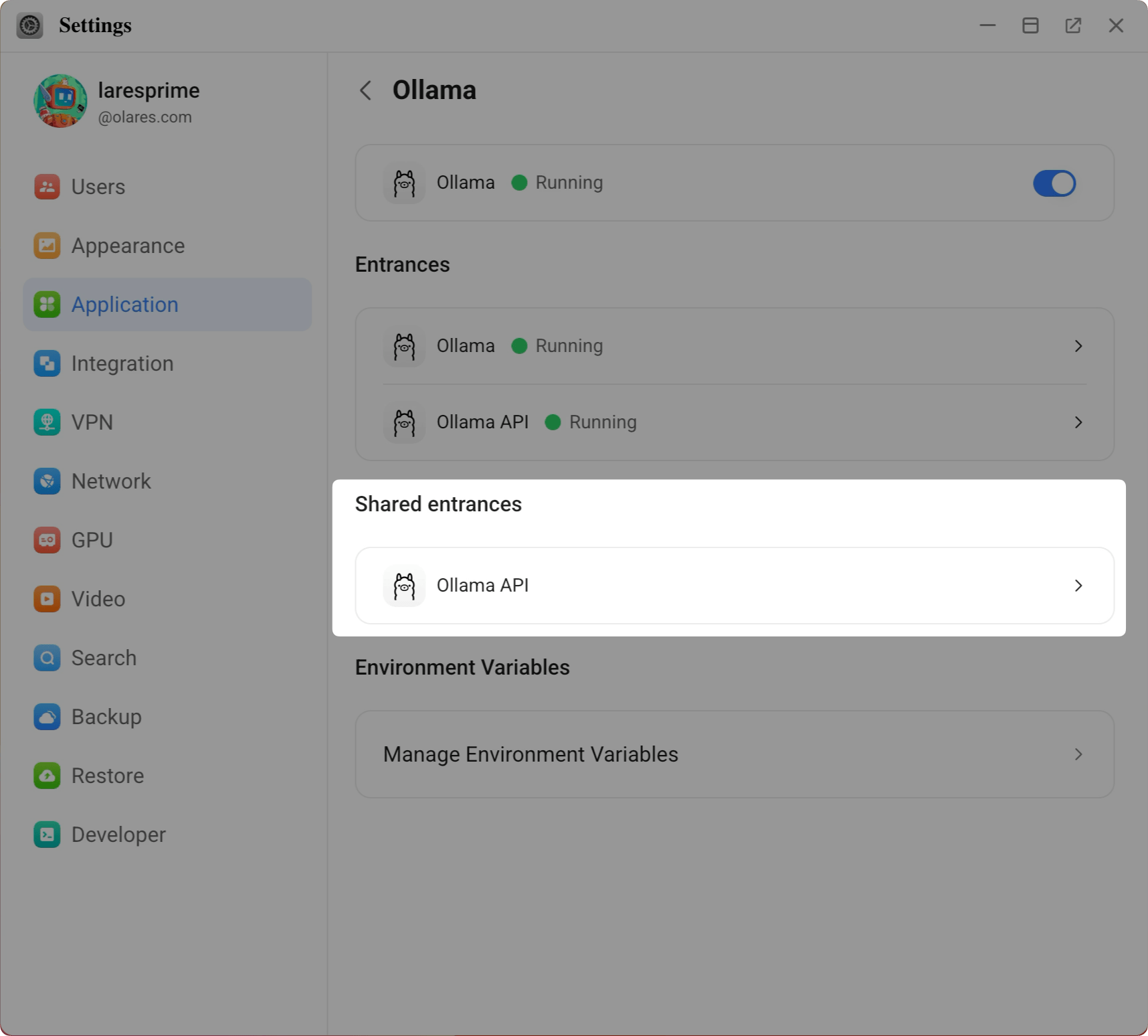
Copy the shared endpoint URL.
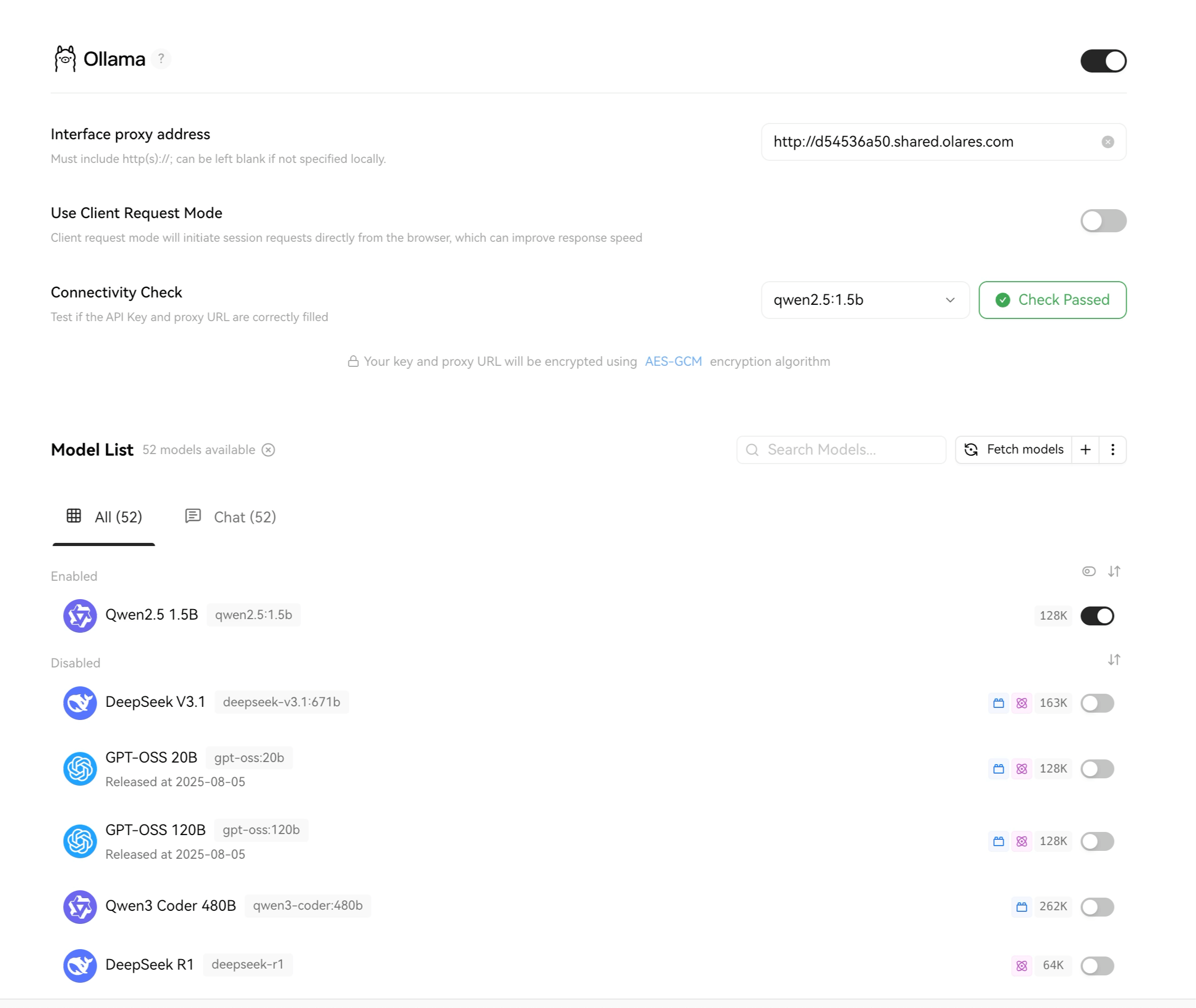
Open LobeHub, then go to Settings > AI Service Provider > Ollama.
In the Interface proxy address field, paste the shared endpoint you copied.
WARNING
If you are using local Ollama models, do not enable Use Client Request Mode. This setting switches the app to use frontend calls, which often triggers login prompts or connection failures when using local AI service apps.
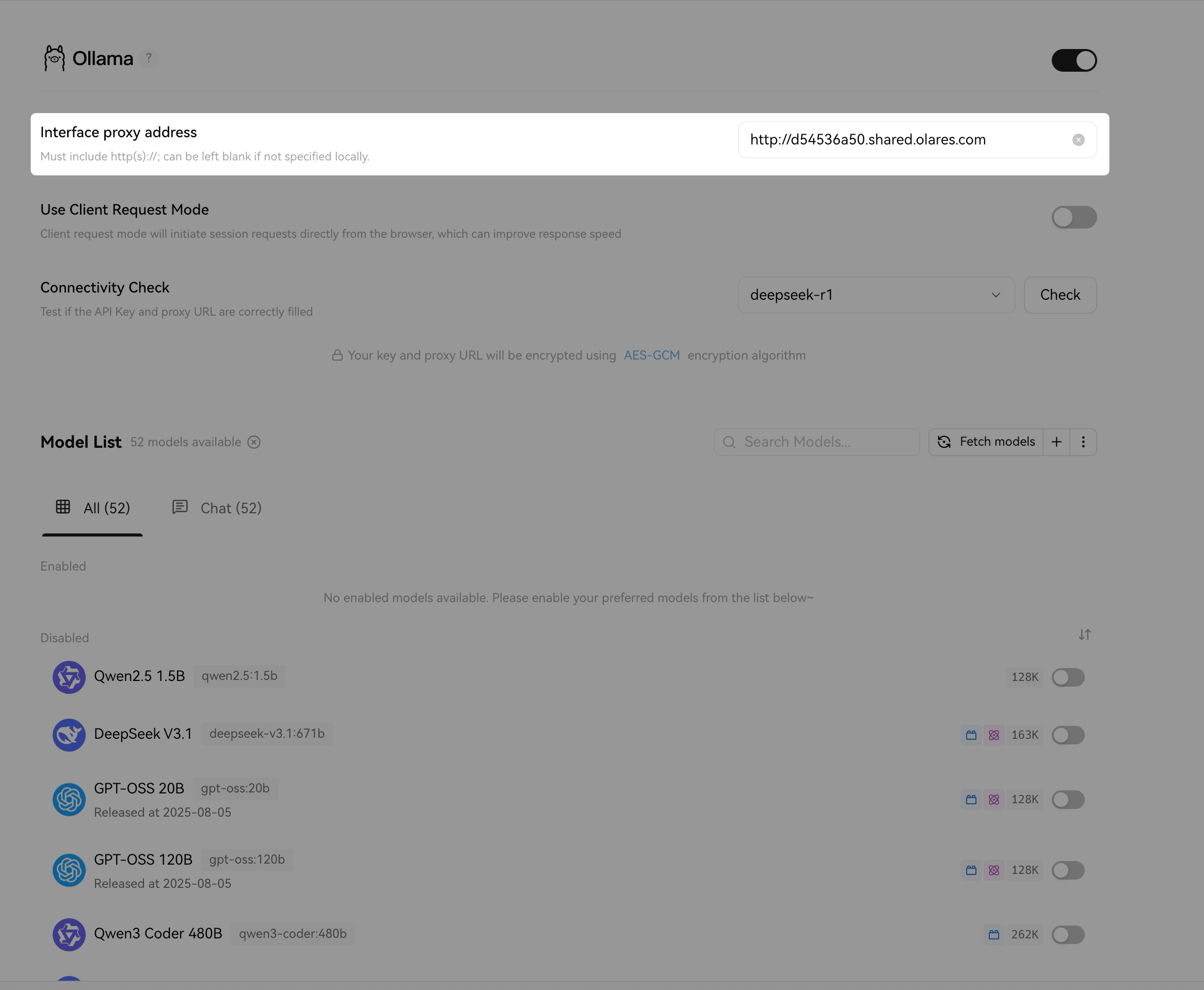
Verify the connection:
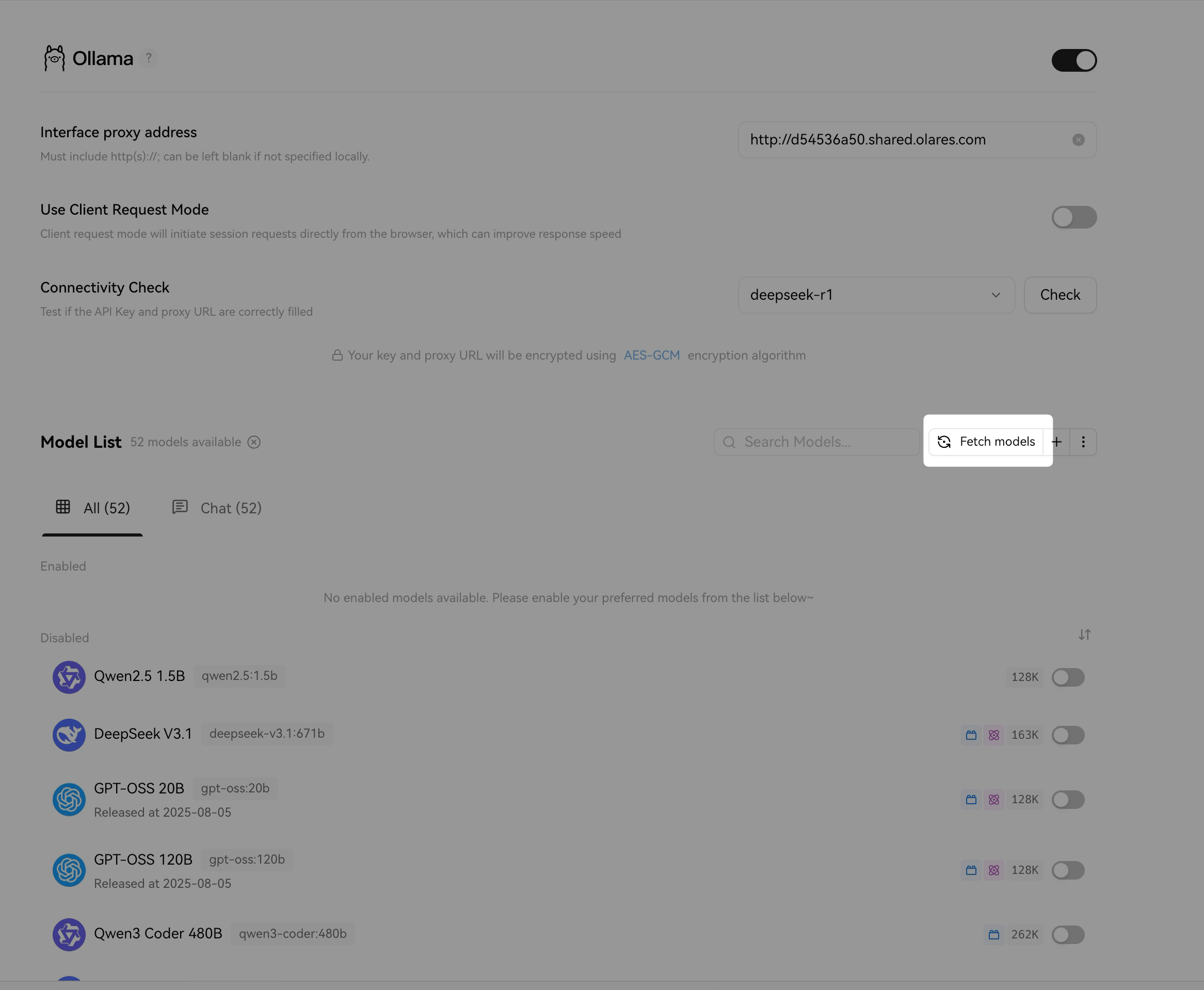
a. Click Fetch models. Models you have downloaded in Ollama will appear in the list.
b. Enable the models you want to use. For example, enable Qwen2.5 1.5B.
c. For Connectivity Check, select qwen2.5:1.5b from the dropdown, then click Check.
When Check Passed appears, the connection is established.
Connect Ollama to n8n
n8n makes requests from the browser rather than its server, so it requires a user endpoint. Configure the authentication level to Internal so it can be accessed without a login prompt.
Network requirement
Ensure that your device is on the same local network as Olares or has the VPN enabled in LarePass for the connection to work.
On Olares, open Settings, then go to Application > Ollama.
In Entrances, click Ollama API.
Set the Authentication level to Internal.
Click Set up endpoint, then copy the endpoint URL displayed.
Create a new Ollama credential in n8n:
a. In n8n, select + > Credential from the left navigation bar.
b. In the Add new credential dialog, select Ollama from the dropdown, then click Continue.
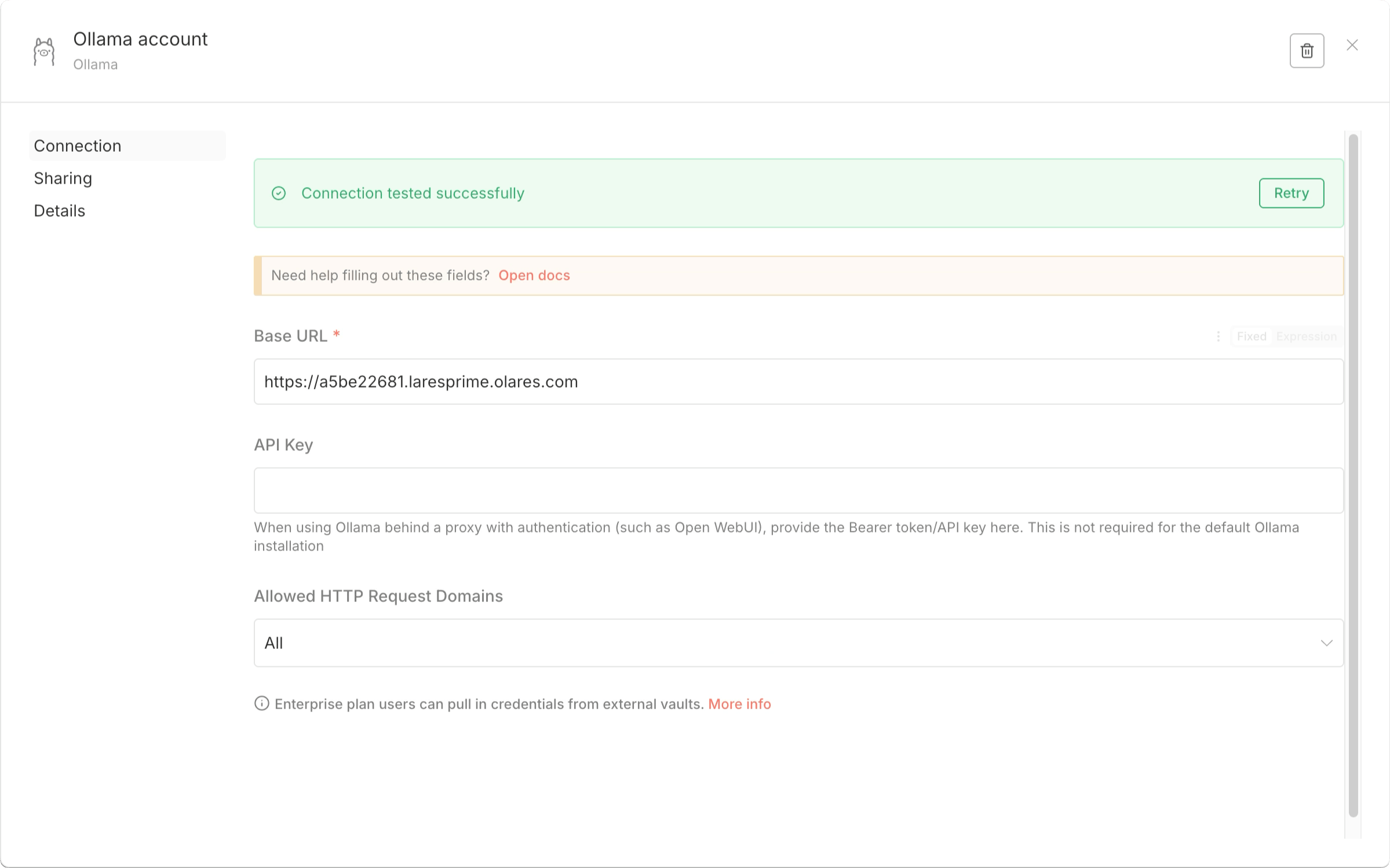
c. Paste the Ollama endpoint URL you copied.
d. Click Save. n8n will automatically test the connection.
When Connection tested successfully appears, the connection is established.
Connect Ollama to Continue.dev (outside Olares)
You can connect your local IDE to Ollama running on your Olares system, so that AI assistance and code completion are powered by your own hardware rather than a third-party cloud.
This example uses llama3.1:8b, qwen2.5-coder:7b, and qwen2.5-coder:1.5b. Make sure you have downloaded these models before starting.
On Olares, open Settings, then go to Application > Ollama.
In Entrances, click Ollama API.
Set the Authentication level to Internal.
Click Set up endpoint, then copy the endpoint URL displayed.
In your local IDE (for example, IntelliJ IDEA), open the Continue panel.
Configure models in Continue to use Ollama:
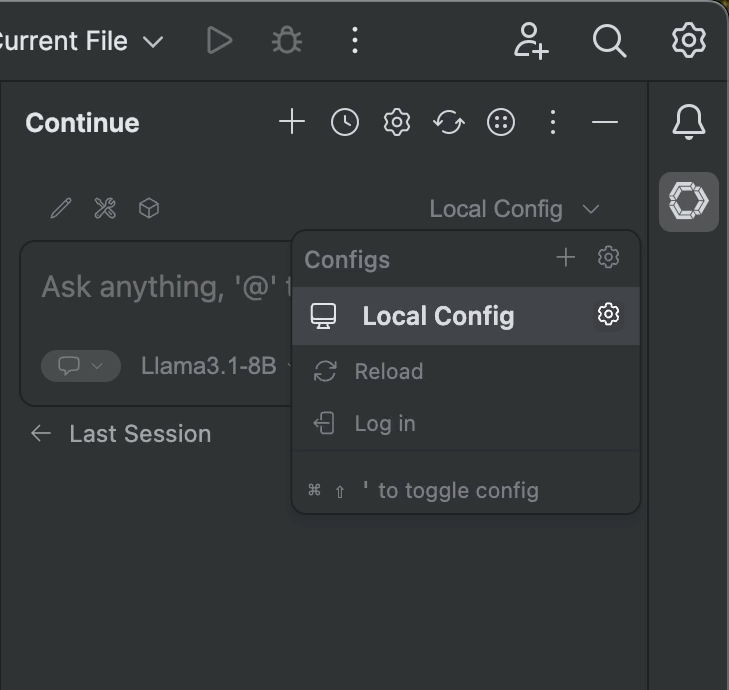
a. Click Local Config to open the Configs menu, then click the Settings icon next to Local Config.
b. In the
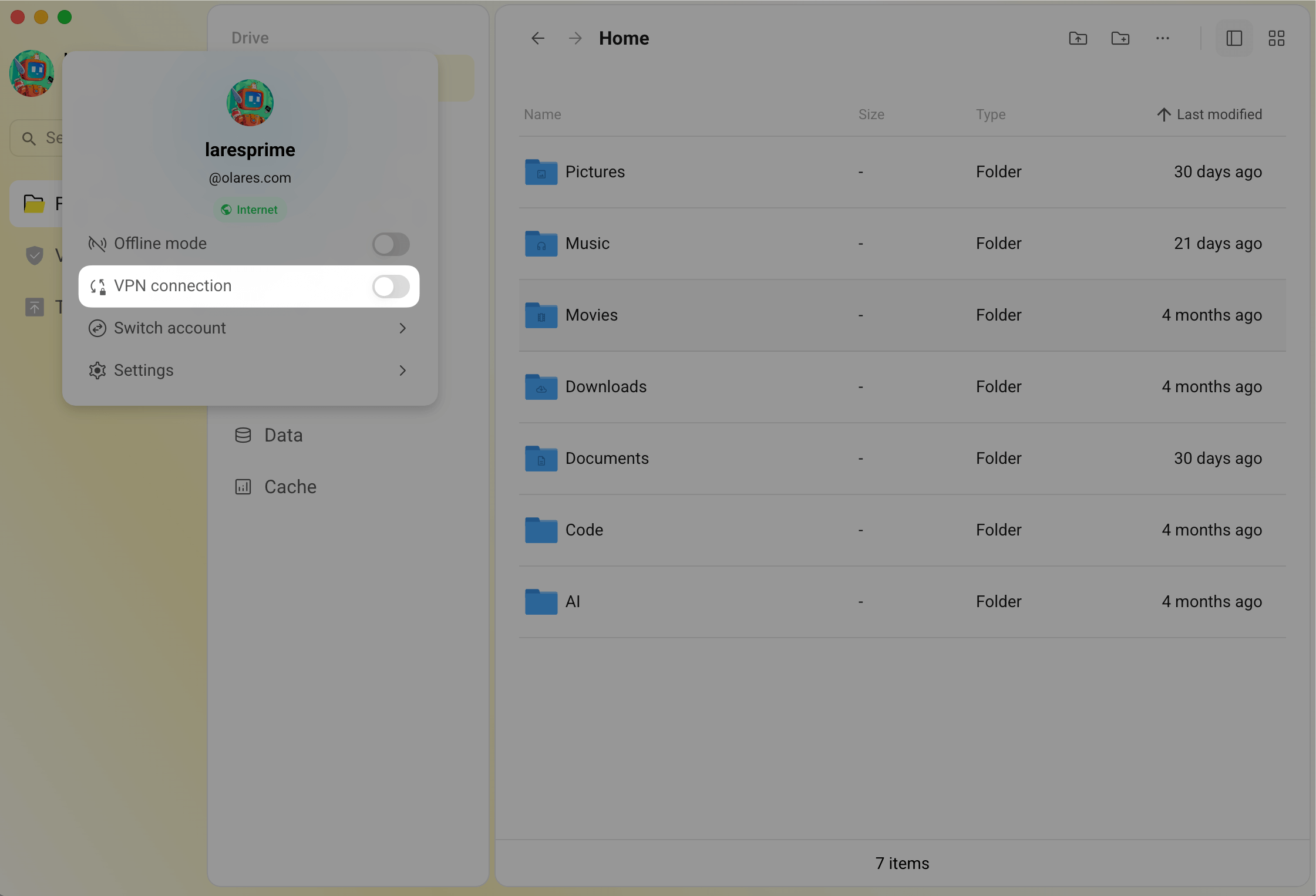
config.yamlthat opens, update the model entries with the Ollama endpoint you copied:yamlname: Local Config version: 1.0.0 schema: v1 models: - name: Llama3.1-8B provider: ollama model: llama3.1:8b apiBase: https://<your-ollama-endpoint> roles: - chat - name: Qwen2.5-Coder 7B provider: ollama model: qwen2.5-coder:7b apiBase: https://<your-ollama-endpoint> roles: - edit - embed - rerank - name: Qwen2.5-Coder 1.5B provider: ollama model: qwen2.5-coder:1.5b apiBase: https://<your-ollama-endpoint> roles: - autocomplete - applyEnable the VPN on your LarePass desktop client.
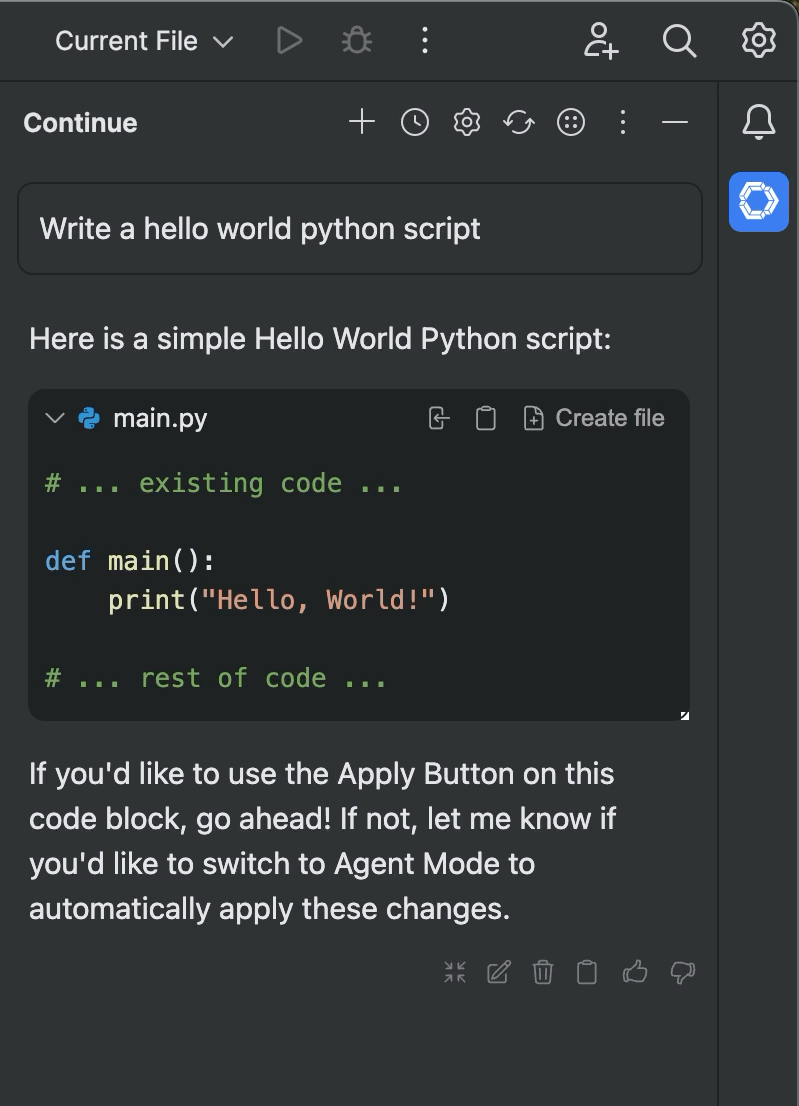
In the Continue chat panel, enter a prompt to test the connection. For example:
plainWrite a hello world python script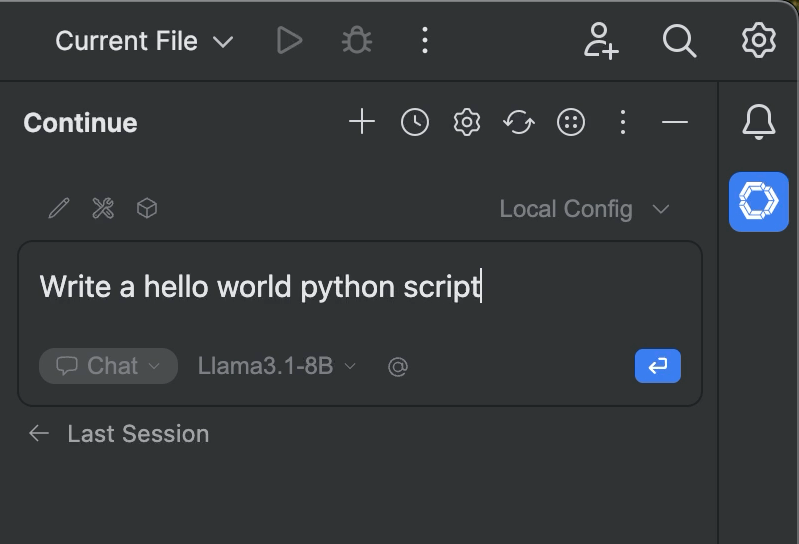
Continue will route the request to Ollama on your Olares system and return the result. With LarePass VPN enabled, your IDE can reach the Ollama endpoint as if it were on the same private network.