Manage GPU resources for a single GPU
This guide explains how to manage GPU modes and app access when Olares has one GPU.
Open GPU settings
This page shows GPU details and lets you change the GPU mode.
Go to Settings > GPU.
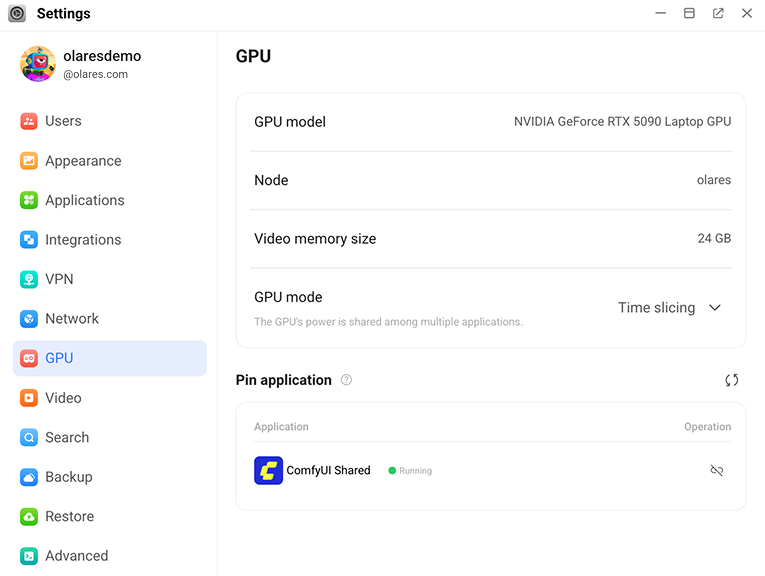
Choose a mode from the GPU mode dropdown.
Time slicing
INFO
Time slicing is not supported on DGX Spark.
Add an app
In most cases, running apps are automatically bound and appear in the list after GPU scheduling is complete.
If the target app does not appear:
- Wait a few seconds.
- In the Pin application section, click sync to refresh the list.
- If the app is still not bound automatically, click Bind app to add it manually.
Remove an app's GPU access
- Stop the app first.
- Go to Market > My Olares, then select Stop from the dropdown list.
- Or go to Settings > Applications, select the app, then click Stop.
- Return to Settings > GPU.
- In the Pin application section, click link_off, then click Confirm.
Memory slicing
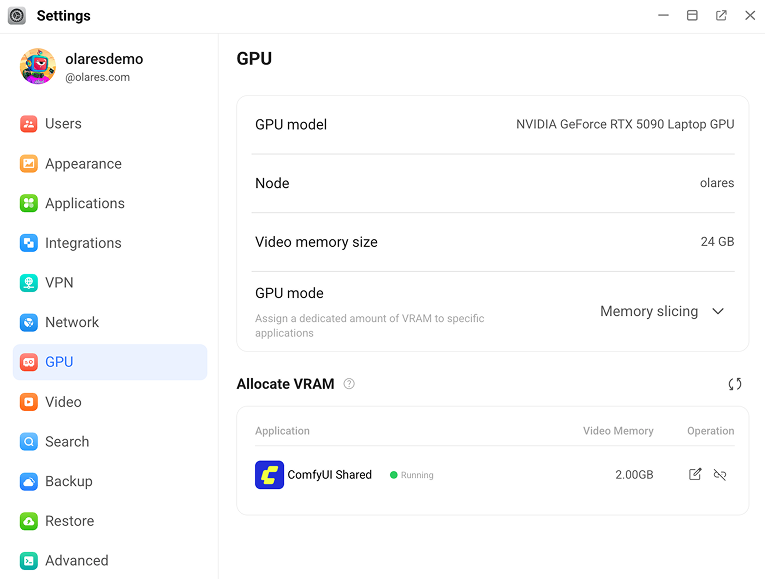
Adjust VRAM allocation
- In the Allocate VRAM section, find the target app.
- Click edit_square next to the VRAM value.
- In the Edit VRAM allocation dialog, enter the desired VRAM amount in GB and click Confirm.
WARNING
The total VRAM allocated to all apps cannot exceed the GPU's total VRAM.
If the value is lower than the app's minimum requirement, Confirm is disabled.
Add an app and assign VRAM
In most cases, running apps are automatically bound and appear in the list after GPU scheduling is complete.
If the target app does not appear:
- Wait a few seconds.
- In the Allocate VRAM section, click sync to refresh the list.
- If the app is still not bound automatically, click Bind app, then select the app and assign VRAM.
Remove an app's VRAM allocation
- Stop the app first.
- Go to Market > My Olares, then select Stop from the dropdown list.
- Or go to Settings > Applications, select the app, then click Stop.
- Return to Settings > GPU.
- In the Allocate VRAM section, click link_off, then click Confirm.
App exclusive
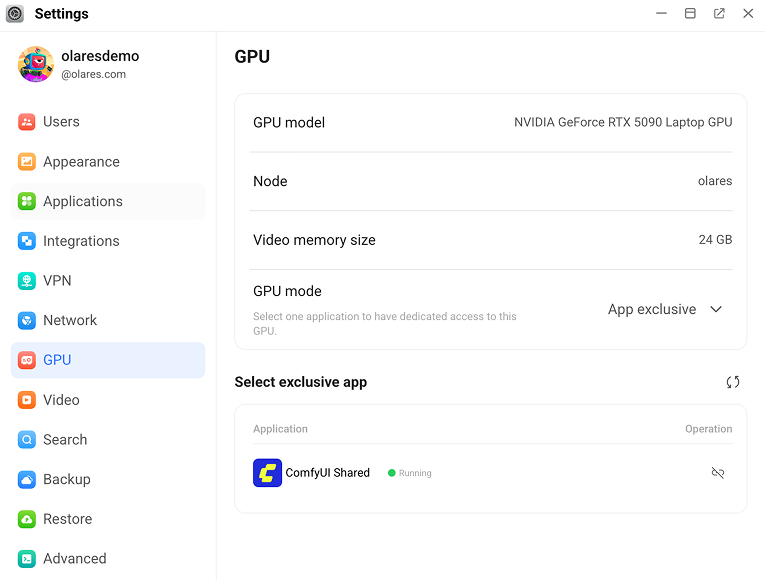
Change the exclusive app
- Stop the current exclusive app.
- Go to Market > My Olares, then select Stop from the dropdown list.
- Or go to Settings > Applications, select the app, then click Stop.
- In the Select exclusive app section, click link_off to unbind the current app.
- Resume the new target app and make sure it is running.
- Go to Market > My Olares, then select Resume from the dropdown list.
- Or go to Settings > Applications, select the app, then click Resume.
- Wait a few seconds.
- In the Select exclusive app section, click sync to refresh the list.
- If the system still does not automatically select the new exclusive app, click Bind app to set it manually.
Set the exclusive app
In most cases, Olares automatically selects one running app for exclusive access after GPU scheduling is complete.
If no app appears:
- Wait a few seconds.
- In the Select exclusive app section, click sync to refresh the list.
- If the system still does not automatically select an app, click Bind app to set it manually.
Remove exclusive access from an app
- Stop the app first.
- Go to Market > My Olares, then select Stop from the dropdown list.
- Or go to Settings > Applications, select the app, then click Stop.
- Return to Settings > GPU.
- In the Select exclusive app section, click link_off, then click Confirm.