Install Olares via ISO
This guide explains how to install Olares on a physical machine using the official ISO image.
Having trouble?
If you run into any issues, submit a GitHub Issue and include your platform, installation method, and error details.
System requirements
Required specifications
- CPU: At least 4 cores. Intel or AMD x86-64 architecture required. ARM is not currently supported.
- RAM: At least 8 GB of available memory.
- Storage: At least 150 GB of available SSD storage.
SSD required
The installation will fail if an HDD (mechanical hard drive) is used instead of an SSD.
- Network: Wired LAN connection required.
- USB flash drive: 8 GB capacity or larger.
Optional hardware
A GPU is not required to install Olares, but is necessary for most AI applications. Only NVIDIA GPUs are supported.
- Architecture: Turing or newer (GTX 16xx, RTX 20xx, 30xx, 40xx, 50xx series, and later).
INFO
GPUs with older architectures are not recognized by Olares. AI applications that require GPU access will not run.
- VRAM: At least 8 GB recommended. Even on a supported GPU, limited VRAM will prevent many AI applications from running.
Not sure if your GPU is supported?
Run the following command and check the code name prefix in the output:
lspci | grep -i nvidiaExample output:
3b:00.0 VGA compatible controller: NVIDIA Corporation AD102 [GeForce RTX 4090] (rev a1)The code name prefix maps to GPU architecture as follows:
| Code name prefix | Architecture | Supported |
|---|---|---|
| GB | Blackwell | ✓ |
| AD | Ada Lovelace | ✓ |
| GA | Ampere | ✓ |
| TU | Turing | ✓ |
| GP | Pascal | ✗ |
| GM | Maxwell | ✗ |
You can also verify against the full compatible GPU list from the NVIDIA open driver repository.
Create a bootable USB drive
Download the latest official Olares ISO image.
Download and install Balena Etcher.
Insert the USB flash drive into your computer.
Launch Etcher and follow these steps:
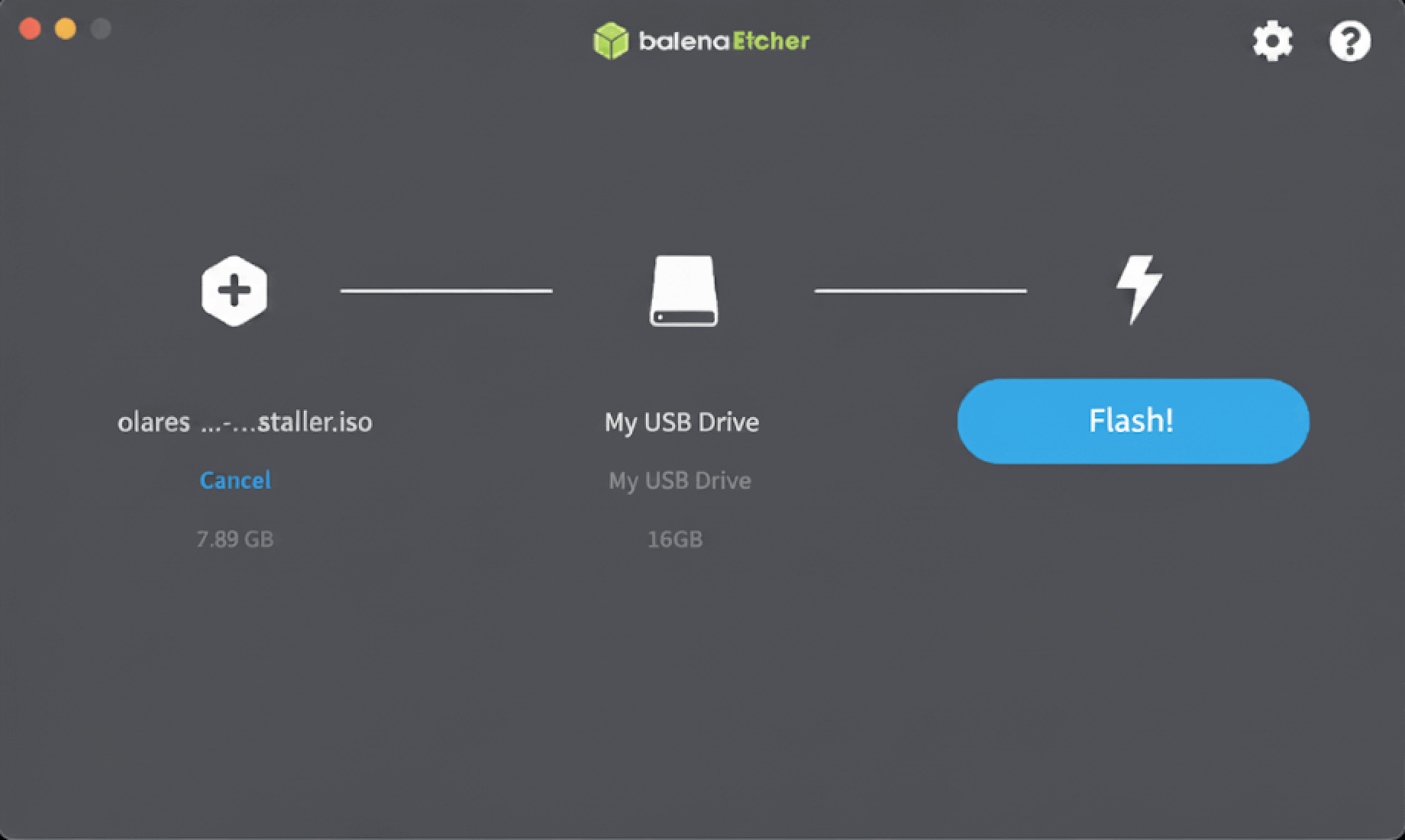 a. Image: Select the Olares ISO.
b. Target disk: Select your USB drive.
c. Click Flash to write the installer to the USB drive.
Boot from USB drive
- Insert the bootable USB drive into the target machine.
- Enter the BIOS setup and set USB Boot as the first boot option.
- Save and restart. The system will automatically boot into the Olares installer interface.
Install Olares
From the Olares installer interface, select Install Olares to Hard Disk and press Enter.
The installer will display a list of available disks (e.g.,
sda 200G HARDDISK).
Type/dev/followed by the disk name (e.g.,/dev/sda) to select the installation target. The installation typically takes 4–5 minutes.Note
During installation, you may see prompts related to NVIDIA GPU drivers.
Simply press Enter to confirm.Once you see the message below, the installation has completed successfully:
shellInstallation completed successfully!
You can now remove the USB drive and press Ctrl + Alt + Del to restart.
Verify installation
After rebooting, the system will enter Ubuntu.
Log in using the default credentials:
- Username:
olares - Password:
olares
- Username:
Run the following command to verify the installation:
bashsudo olares-checkIf the output shows the following, Olares has been installed successfully:
bashcheck list --------- check Olaresd: success check Containerd: success
Finish installation and activate Olares
Same network required
To avoid activation failures, ensure that both your phone and the Olares device are connected to the same network.
Open LarePass app on your phone.
On your account activation page, tap Discover nearby Olares. LarePass will list the detected Olares instances in the same network.
Select the target Olares instance from the list and tap Install now.
When the installation completes, click Activate now.
In the Select a reverse proxy dialog, select a node that is closer to your geographical location. The installer will then configure HTTPs certificate and DNS for Olares.
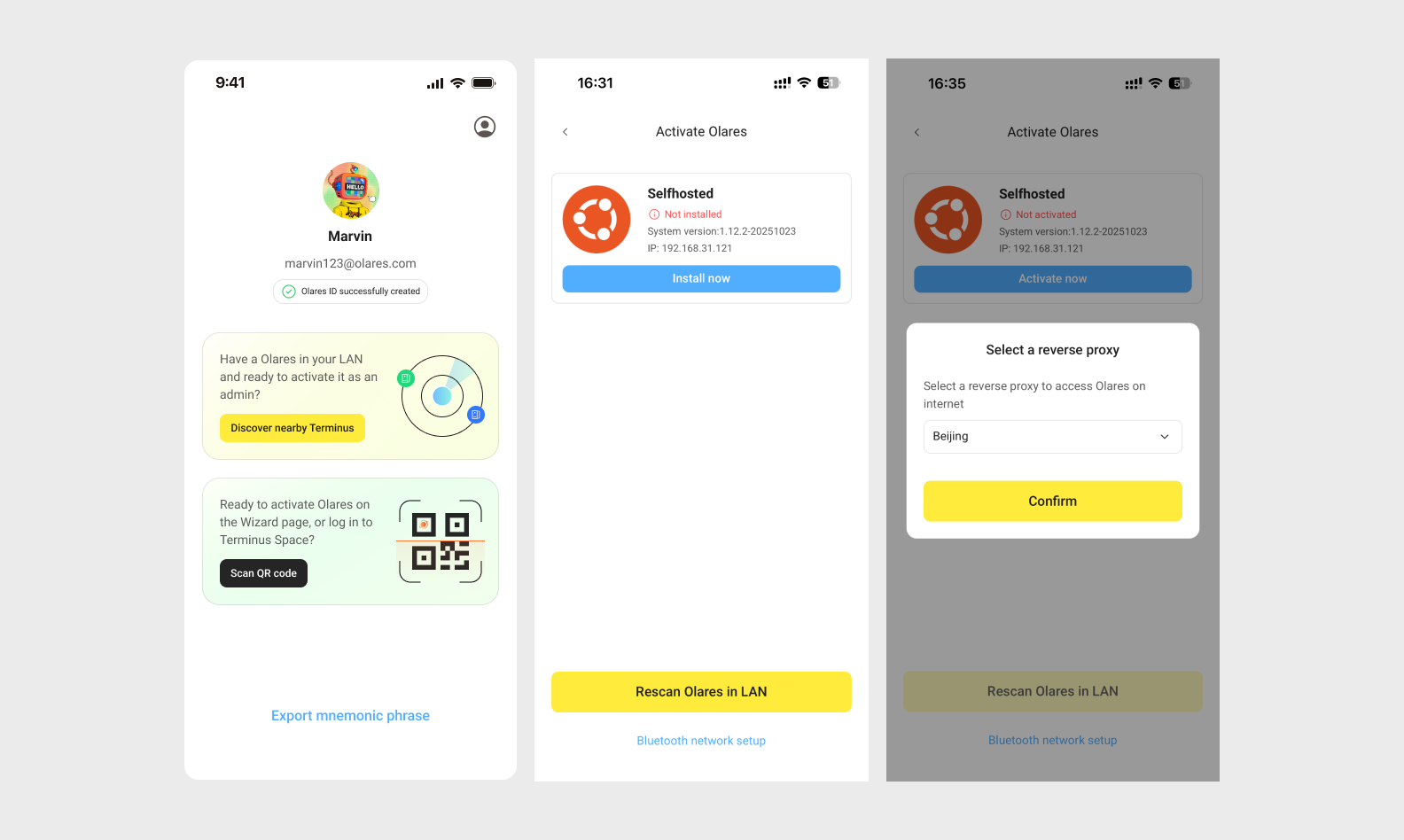
Note
- You can change this setting later on the Change reverse proxy page in Olares.
- If your Olares device is connected to a public IP network, this step will be skipped automatically.
Follow the on-screen instructions to set the login password for Olares, then tap Complete.
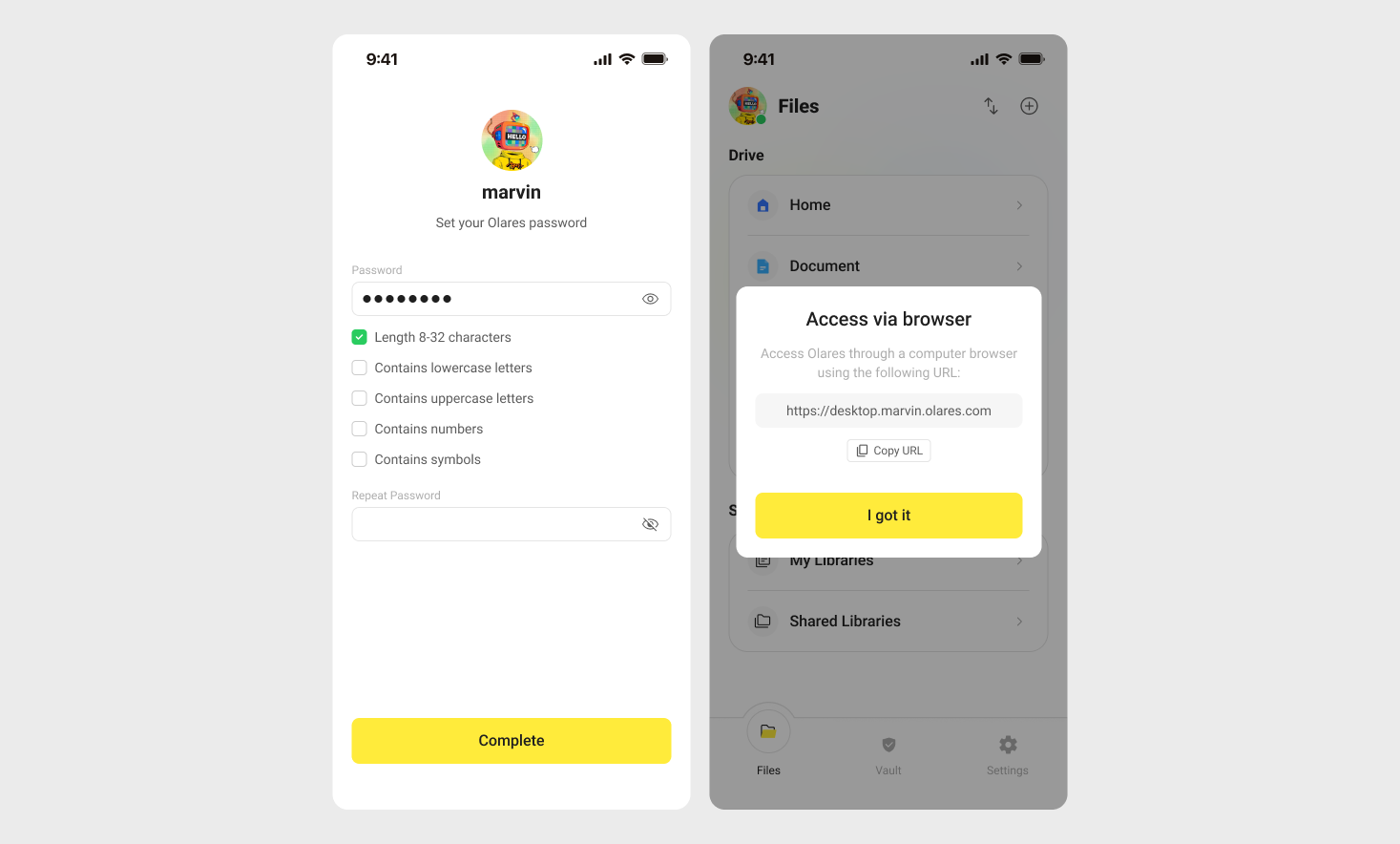
Once activation is complete, LarePass will display the desktop address of your Olares device, such as https://desktop.marvin123.olares.com.
Log in to Olares
Open the Olares desktop address in your browser, and press any key to continue.
On the login page, enter your Olares login password.
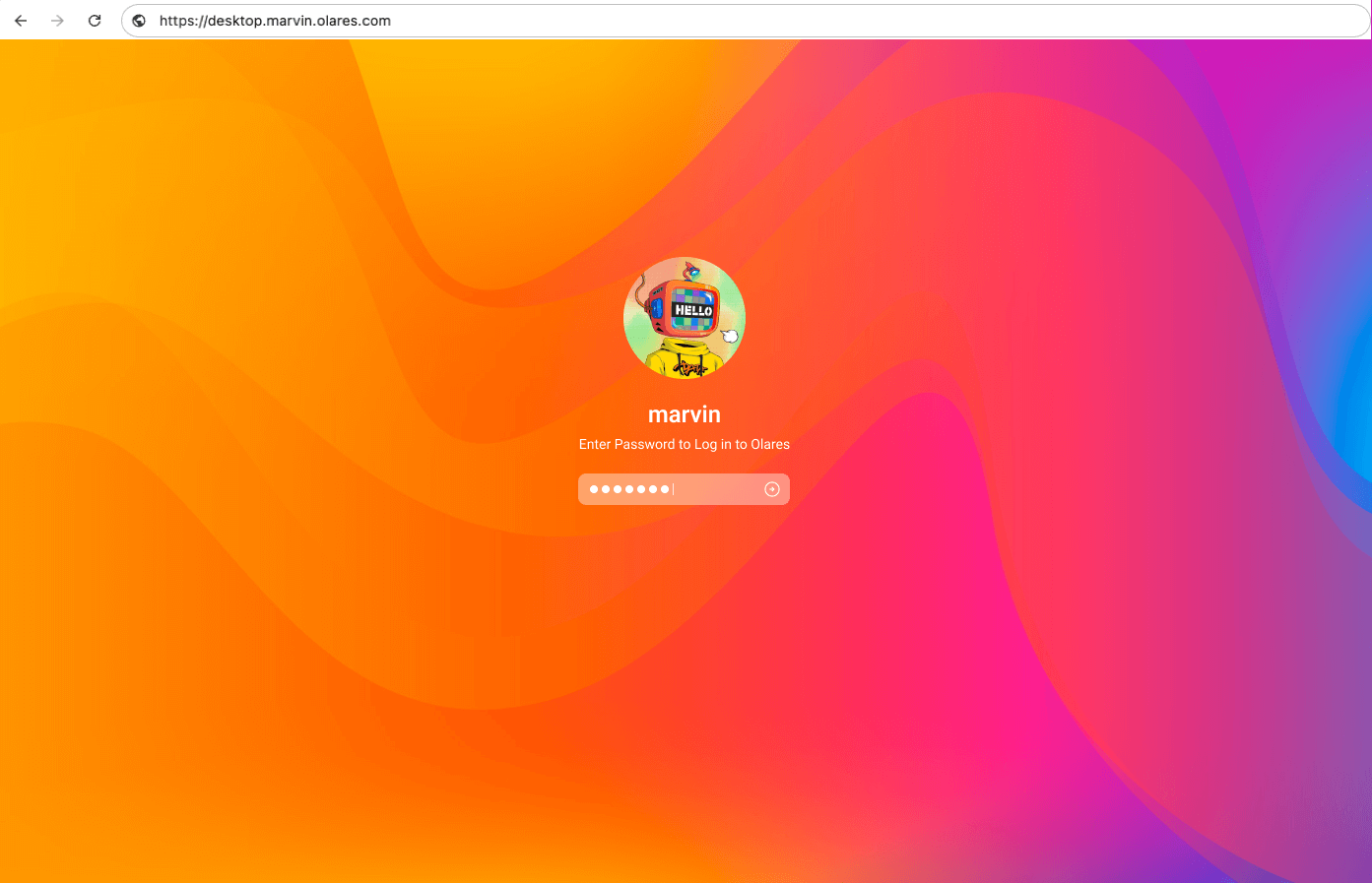
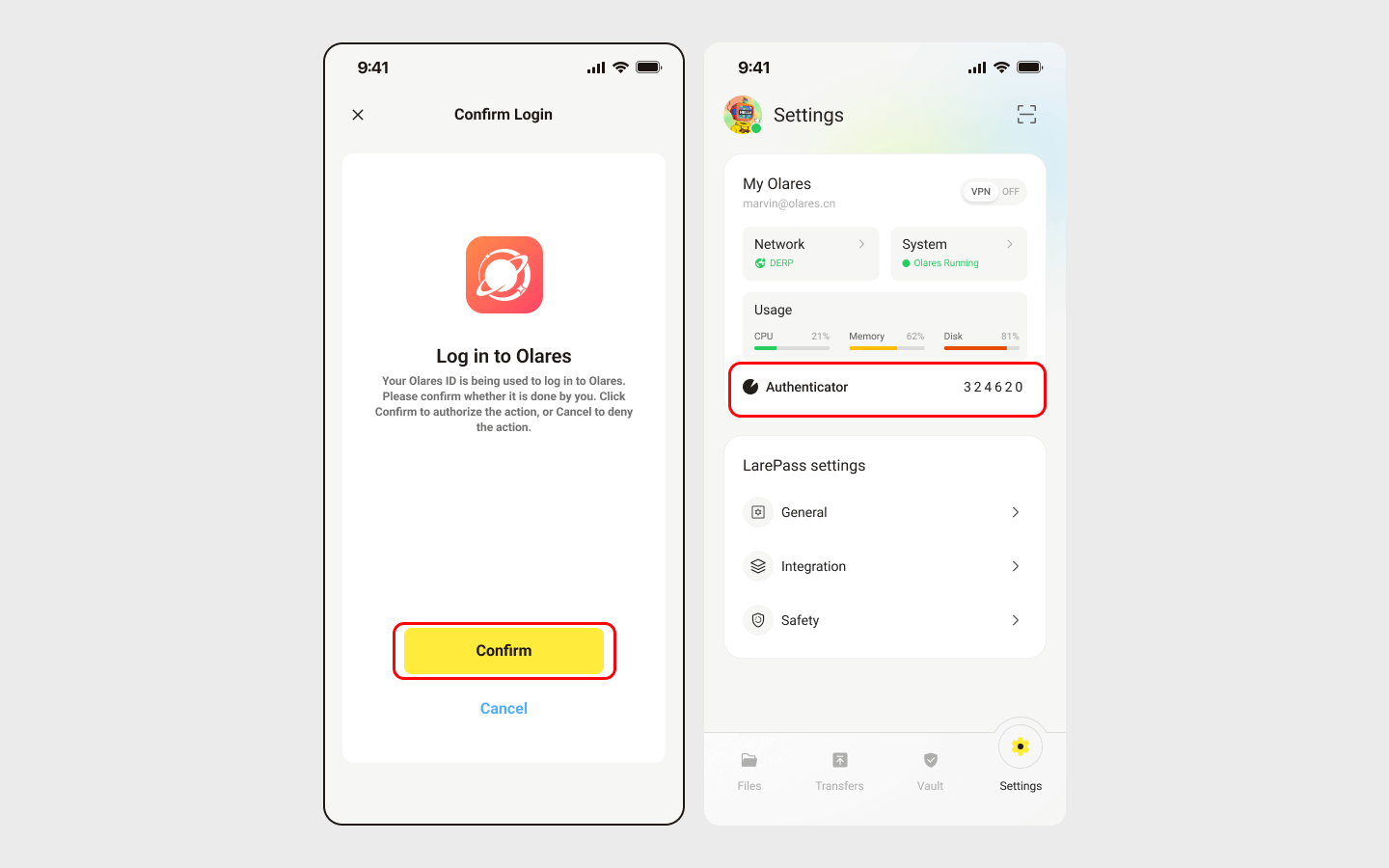
You will be prompted to complete two-factor verification. You can confirm the login on LarePass, or manually enter the 6-digit verification code.
INFO
The verification code is time-sensitive. Ensure you enter it before it expires.
Once you've logged in, you'll be directed to the Olares desktop.🎉
Next step: Protect your Olares ID
You're almost ready to start using Olares! Before diving in, it's crucial to ensure your Olares ID is securely backed up. Without this step, you won't be able to recover Olares ID if needed.