Advanced settings
The Advanced page in Settings is designed for developers and advanced users to manage core system resources and diagnose issues.
Manage repositories
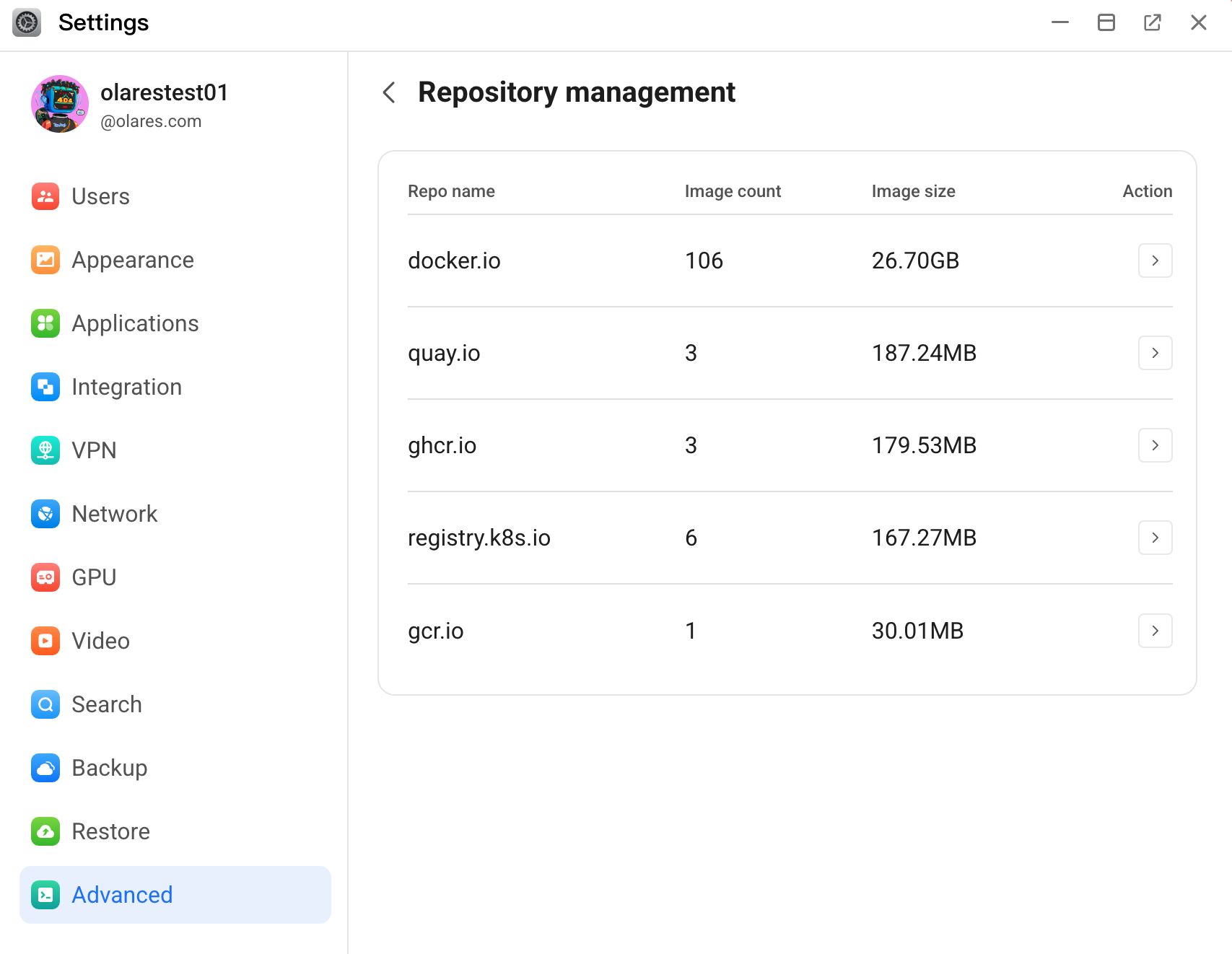
The Repository management page allows you to view the source repositories that Olares uses to download system images and software packages. You can also configure mirror endpoints to optimize download speeds and stability.
View repositories
Go to Settings > Advanced > Repository management.
In the repository list, you can view the name of the repository, number of related images, and image size for each repository.
Manage repository mirrors
Manage mirror endpoints for repositories to improve access speed and stability.
On the Repository management page, find the target repo, and then click chevron_forward in the Action column.
On the Mirror management page, you can perform the following actions:
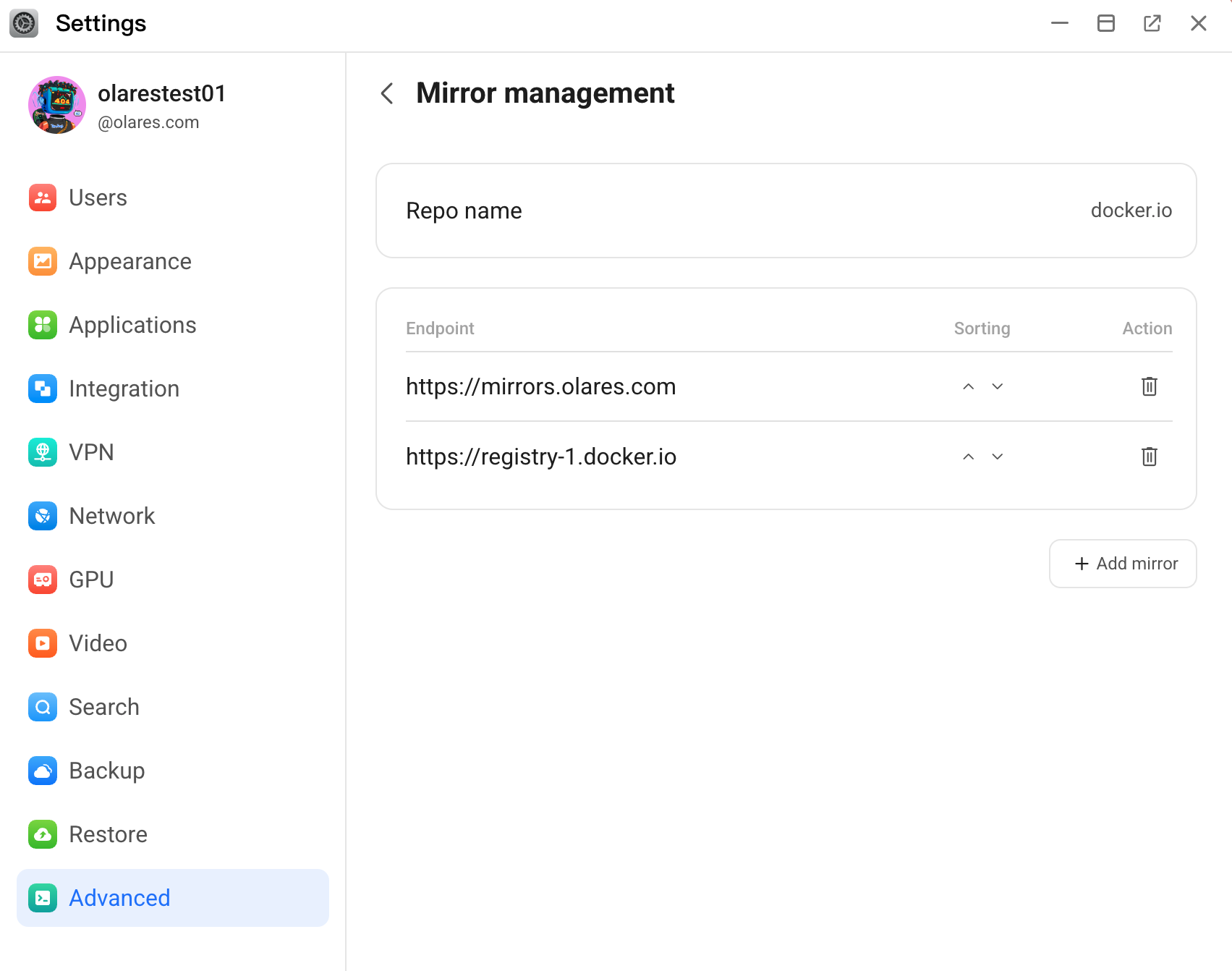
- To re-order the mirror endpoints, click keyboard_control_key or keyboard_arrow_down. Olares prioritizes endpoints higher on the list.
- To delete an endpoint you no longer need, click delete.
- To add a new mirror endpoint, click Add mirror, enter the mirror URL, and then click Confirm.
Manage images
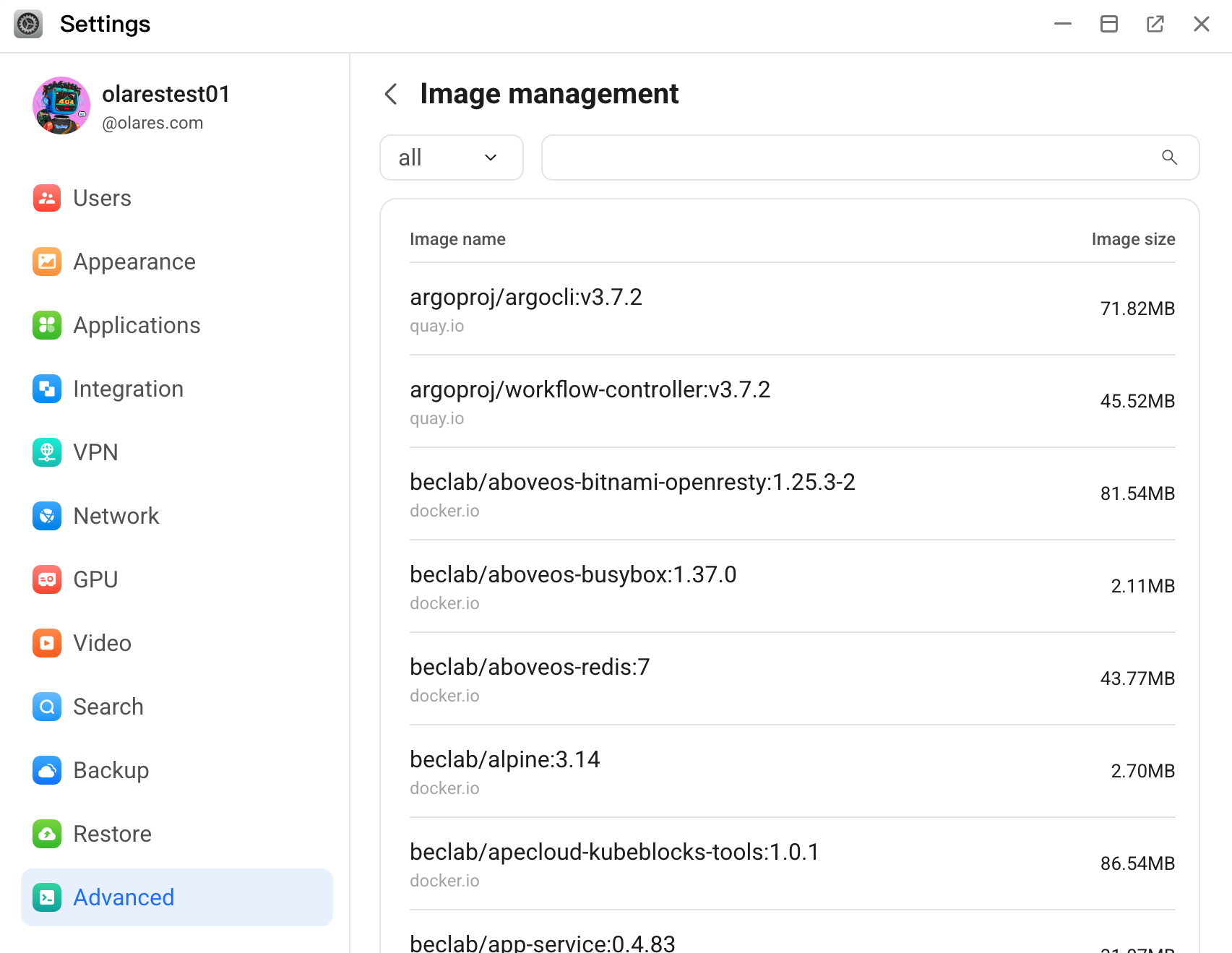
The Image management page provides a comprehensive view of all downloaded and cached application and software package images on your Olares system. You can filter or search to quickly find specific images.
Export system logs
System logs record the operational status of various system components and provide crucial diagnostic information for troubleshooting.
To export system logs:
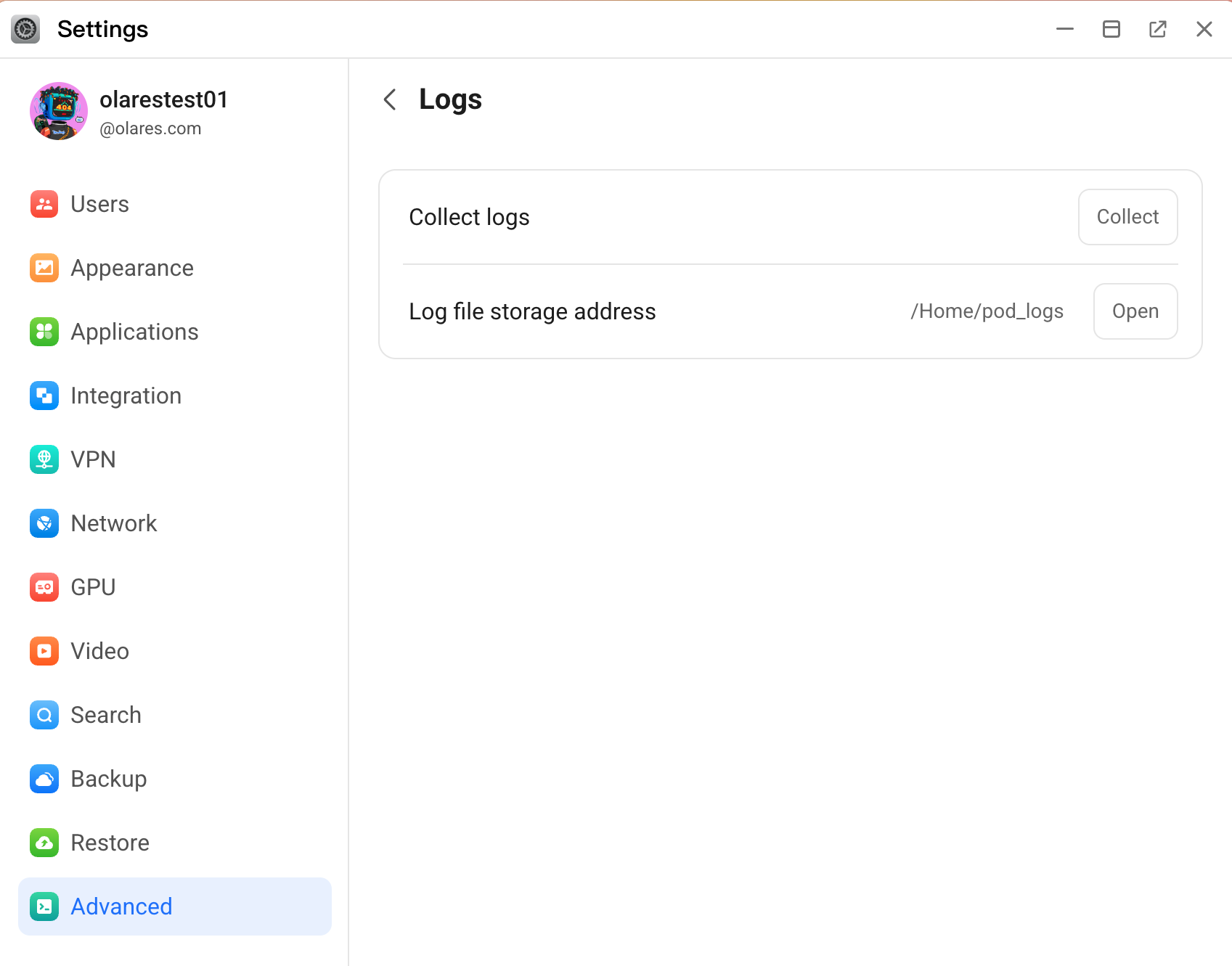
Go to Settings > Advanced > Logs.
Click Collect to generate the log file. The log is automatically saved to the
/Home/pod_logsdirectory.Click Open to open the logs directory in a new window.
Right-click the generated log file and select Download to save it to your local machine.
TIP
You can attach this log file to a GitHub issue to help the Olares team locate and resolve your problem faster.
Set system environment variables
Starting from Olares version 1.12.2, you can configure system-level environment variables for applications. This allows you to apply common settings globally without having to configure them for each application individually.
The variables are divided into two main categories:
| Category | Description | Permissions |
|---|---|---|
| System config | Predefined variables required for core system operations. Example: OLARES_SYSTEM_CDN_SERVICE | You cannot delete them. The system locks and grays out some variables to ensure stability, but you can edit the values of others. |
| User information | Custom or predefined user-level variables, such as third-party API keys. Example: OLARES_USER_CUSTOM_OPENAI_APIKEY | You can add, edit, and delete them. The system automatically applies the OLARES_USER_ prefix to any custom keys you create. |
To manage environment variables:
Go to Settings > Advanced > System environment variables.
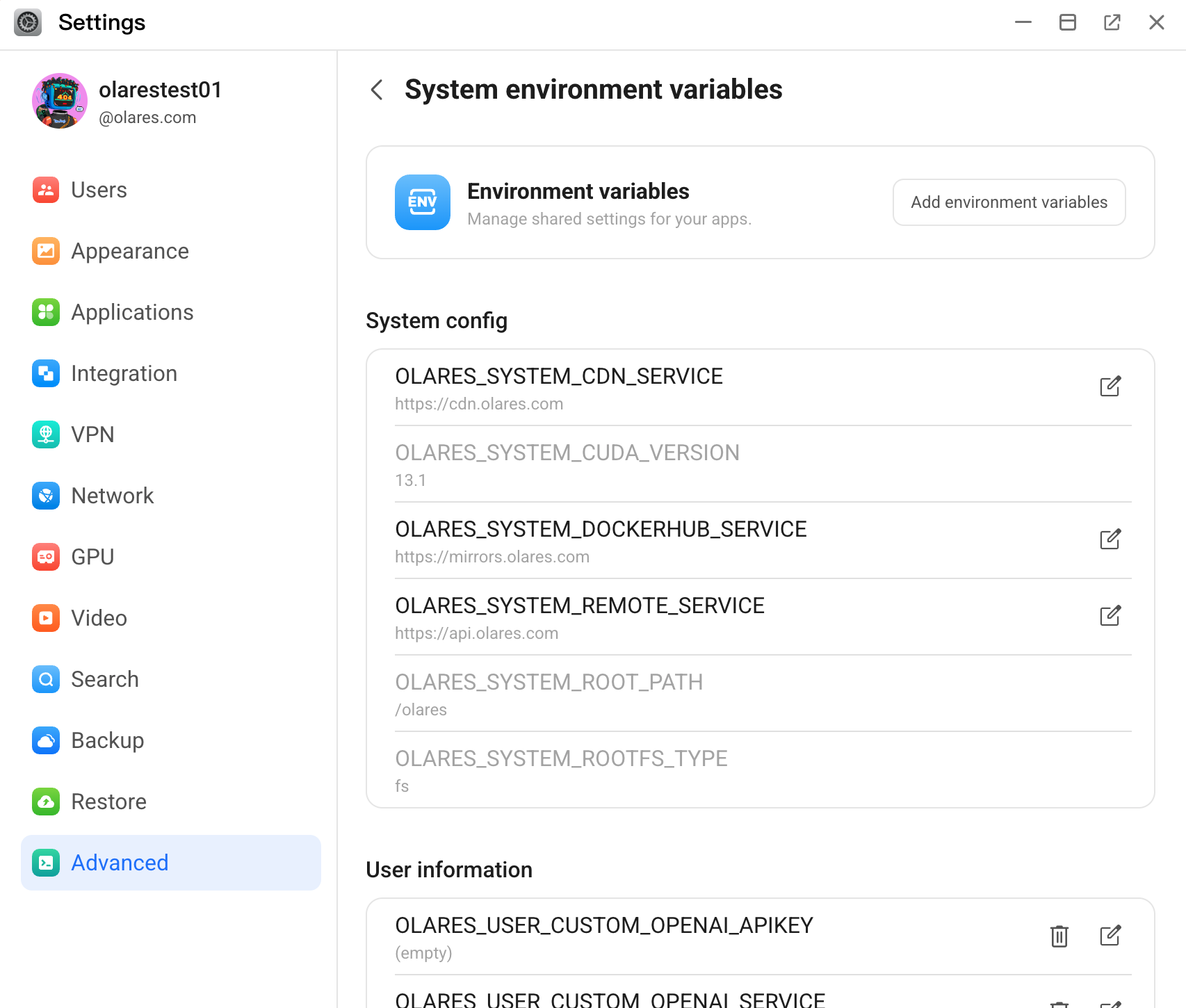
To add a new custom variable:
a. Click Add environment variables.
b. In the Key field, enter your custom key name which is appended to the
OLARES_USER_prefix.c. In the Value field, fill in the value.
d. From the Type list, select the data type.
e. Provide an optional description.
f. Click Save.
g. Click Apply at the bottom of System environment varuables.
To modify a variable:
a. Find the target variable from the list, and then click edit_square. Variables without this icon are locked and cannot be changed.
b. In the Edit environment variable window, update the variable's value.
c. Click Confirm to save your changes.
d. Click Apply at the bottom of System environment varuables.
To delete a variable:
a. Locate a user-level variable and click delete.
b. Click Confirm.
c. Click Apply at the bottom of System environment varuables.