Install Olares on Mac with Docker image
You can use Docker to install and run Olares in a containerized environment. This guide walks you through setting up Olares with Docker, preparing the installation environment, completing the activation process, and managing the container lifecycle.
Not for production use
Currently, Olares on Mac has certain limitations including:
- Lack of distributed storage support.
- Inability to add local nodes.
We recommend using it only for development or testing purposes.
Having trouble?
If you run into any issues, submit a GitHub Issue and include your platform, installation method, and error details.
System requirements
- CPU: At least 4 cores.
- RAM: At least 8 GB of available memory.
- Storage: At least 150 GB of available storage.
Before you begin
Before you begin, ensure the following:
- Docker is installed and running on your system.
- You know the IP address of the current device.
View IP Address
To view the IP address on a Mac, there are two methods:
- Using the graphical interface: Open System Settings (or System Preferences) > Network, and check the details under the currently active network connection.
- Using the command line: Open a terminal window and enter
ipconfig getifaddr en0for Wi-Fi, oripconfig getifaddr en1for wired network.
- You have created an Olares ID via LarePass.
Run olaresd-proxy
Check Mac chip
If you are unsure which chip your Mac is using, go to the Apple menu and select About This Mac to verify.
Pull the Olares image
To pull the image of Olares, execute the following command.
Replace <host ip> with your device's IP address and <olares version> with the desired version of Olares:
docker run -d --privileged -v oic-data:/var \
  -e HOST_IP=<host ip> \
  -p 80:80 \
  -p 443:443 \
  -p 30180:30180 \
  -p 18088:18088 \
  -p 41641:41641/udp \
  --name oic \
  beclab/olares:<olares version>
where:
-d: Starts the container in detached mode to allow it to run in the background.--privileged: Grants the container elevated privileges.-v oic-data:/var: Binds a Docker volume (oic-data) to the/vardirectory inside the container to persist data.-e HOST_IP=<host ip>: Specifies the host device's IP address as an environment variable.-p 80:80: Maps port80on the host to port80in the container.-p 443:443: Maps port443on the host to port443in the container.-p 30180:30180: Maps port30180on the host to port30180in the container.-p 18088:18088: Maps port18088on the host to port18088in the container.-p 41641:41641/udp: Maps UDP port41641on the host to UDP port41641in the container.--name oic: Names the containeroic(Olares in container) for easier reference.beclab/olares:<olares version>: Specifies the Olares Docker image and version. For example:beclab/olares:1.11.5.
When the container is running, you will see a container ID output. :::
Do not add the --rm flag
The --rm flag automatically deletes the container after it stops. If this happens, you will not be able to restart the container and will need to reinstall Olares to run it again. Omitting this flag preserves the container after stoppage, enabling you to resume it with thedocker start command.
Finish installation and activate Olares
Same network required
To avoid activation failures, ensure that both your phone and the Olares device are connected to the same network.
Open LarePass app on your phone.
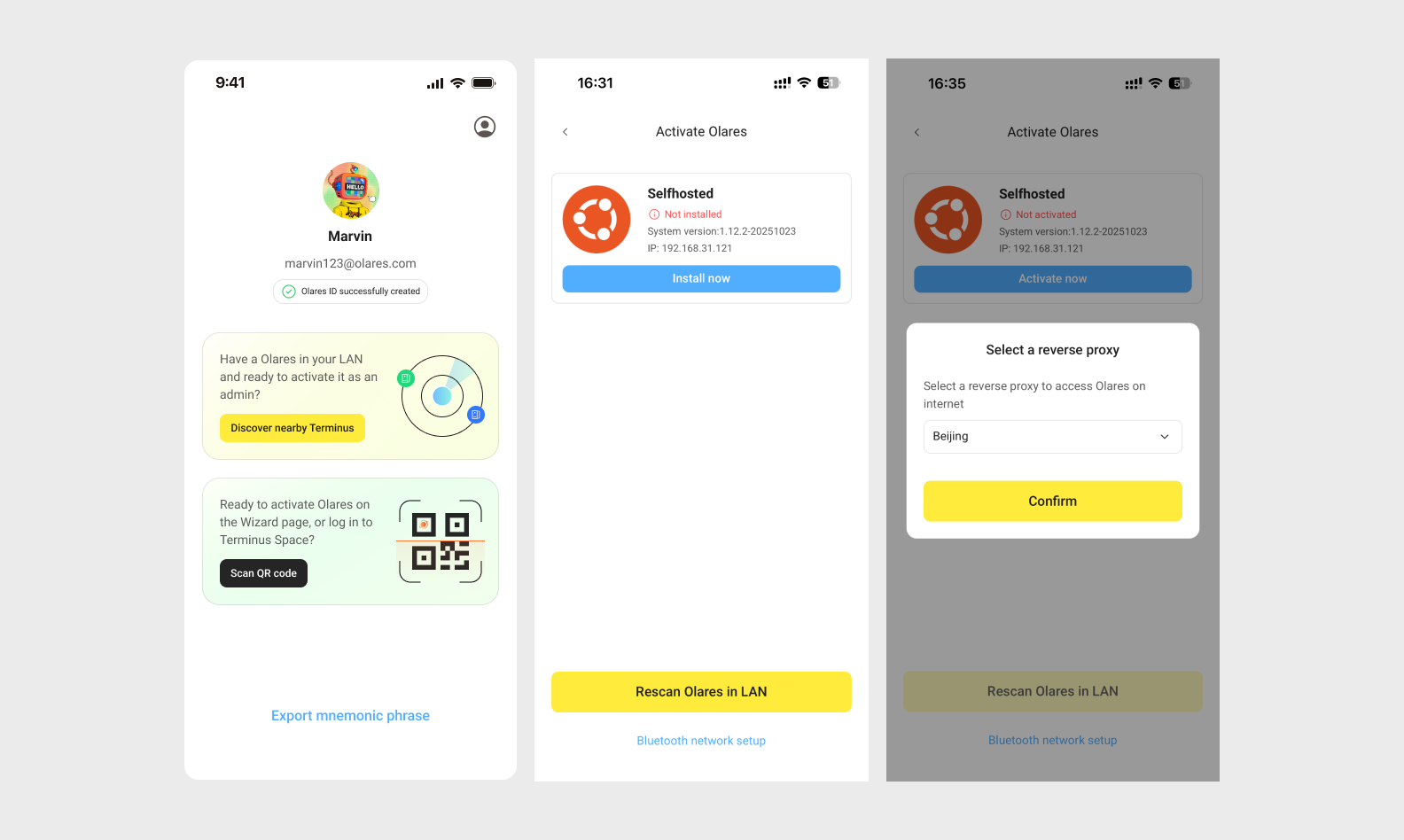
On your account activation page, tap Discover nearby Olares. LarePass will list the detected Olares instances in the same network.
Select the target Olares instance from the list and tap Install now.
When the installation completes, click Activate now.
In the Select a reverse proxy dialog, select a node that is closer to your geographical location. The installer will then configure HTTPs certificate and DNS for Olares.
Note
- You can change this setting later on the Change reverse proxy page in Olares.
- If your Olares device is connected to a public IP network, this step will be skipped automatically.
Follow the on-screen instructions to set the login password for Olares, then tap Complete.
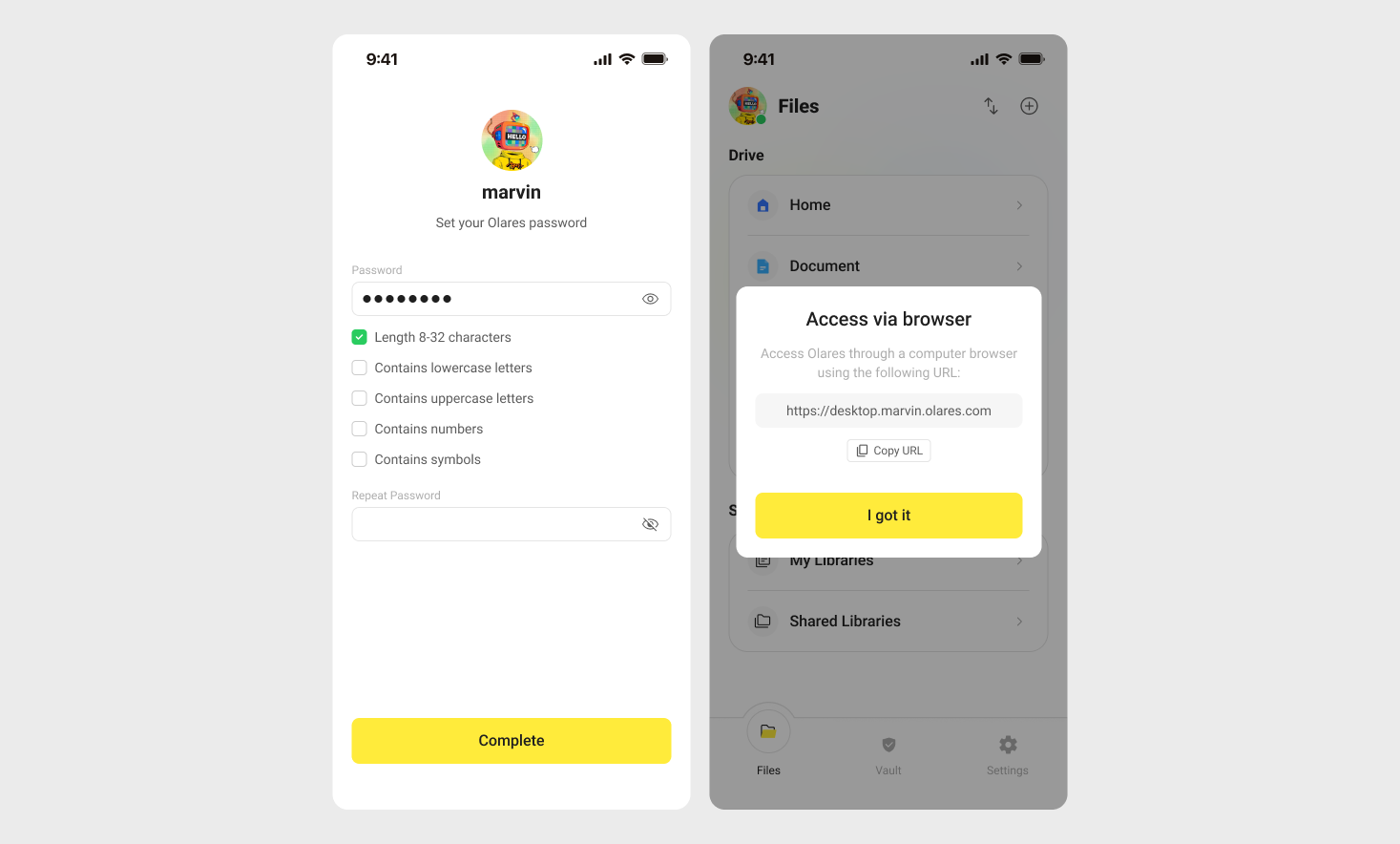
Once activation is complete, LarePass will display the desktop address of your Olares device, such as https://desktop.marvin123.olares.com.
Log in to Olares
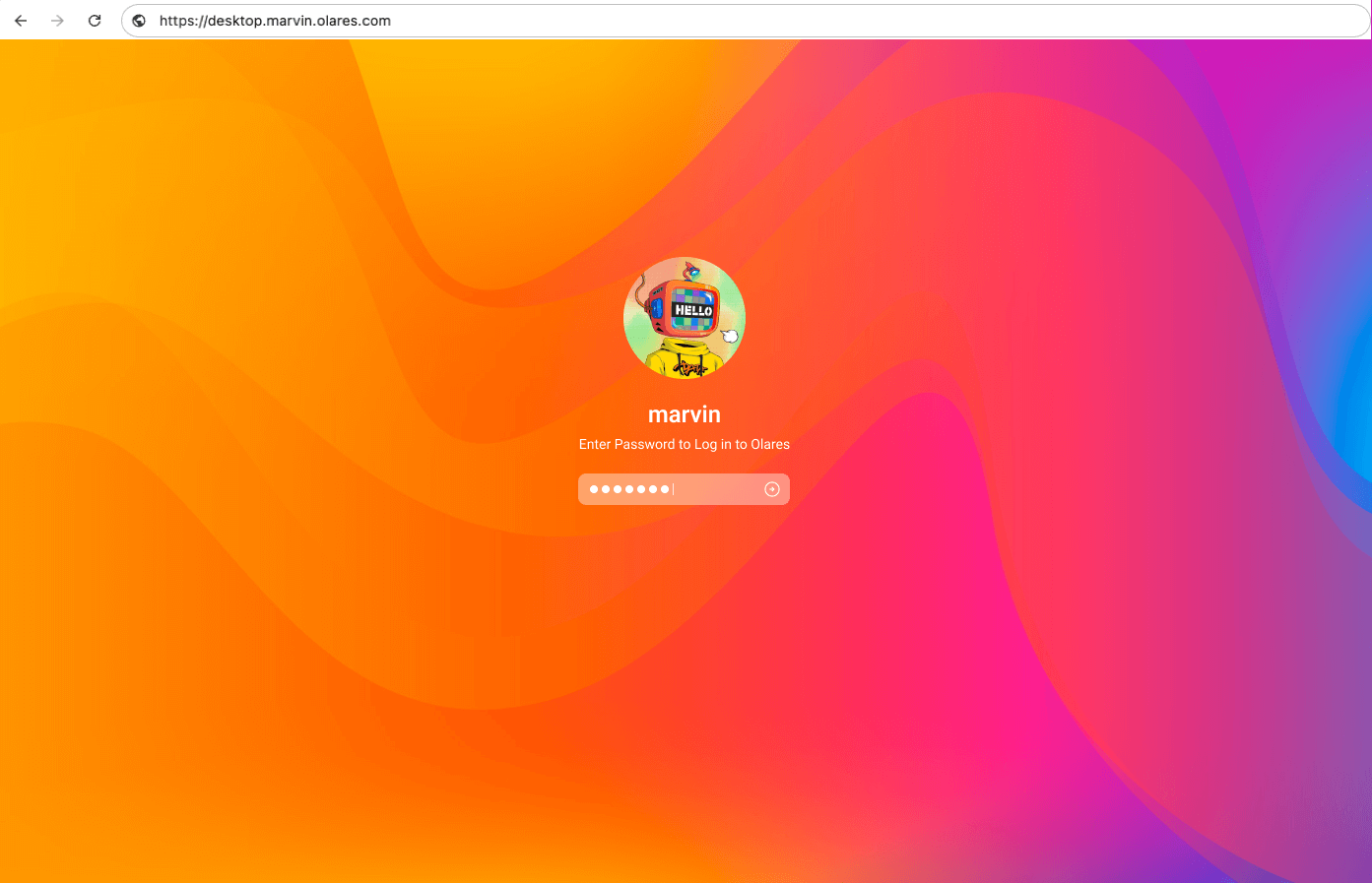
Open the Olares desktop address in your browser, and press any key to continue.
On the login page, enter your Olares login password.
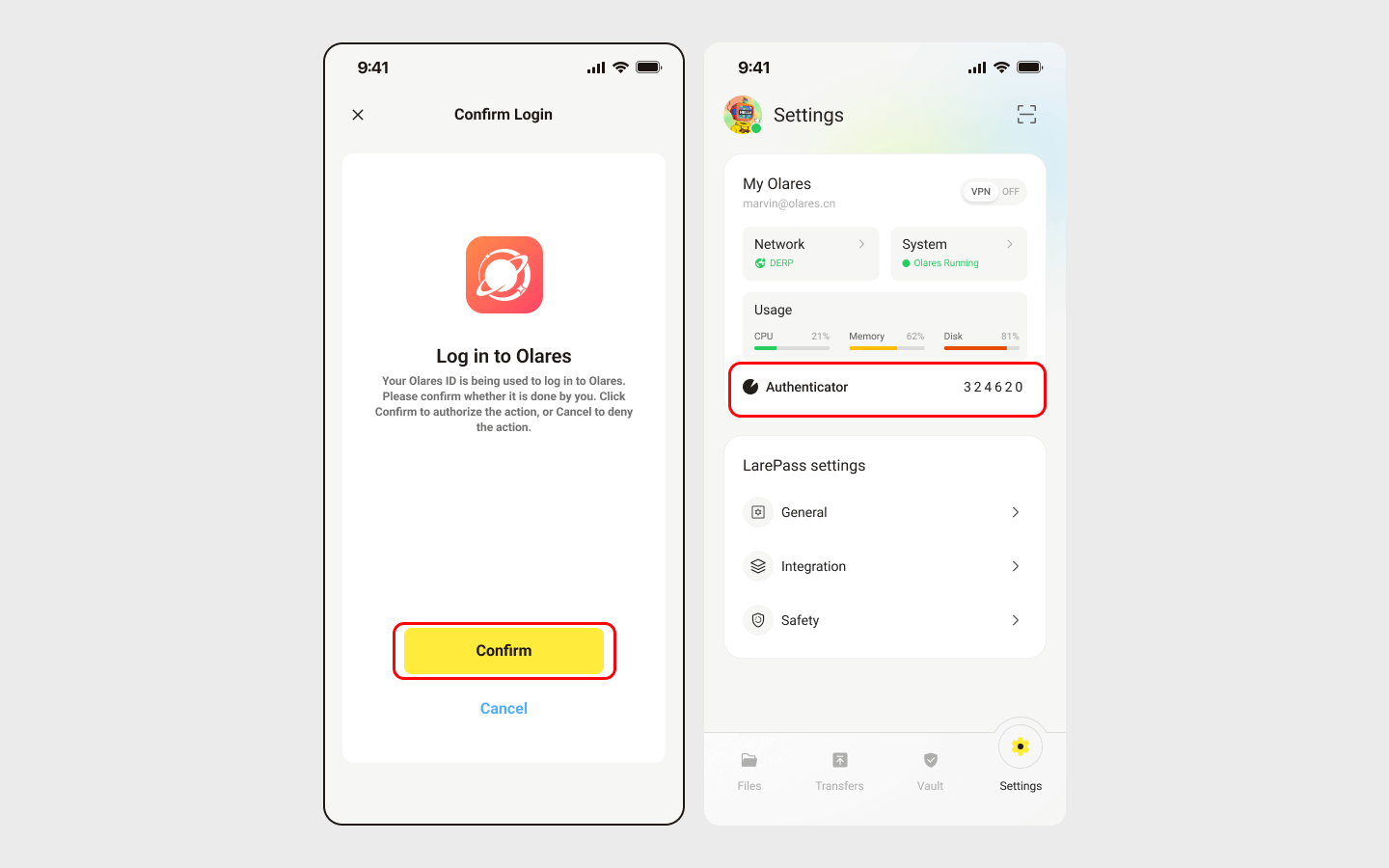
You will be prompted to complete two-factor verification. You can confirm the login on LarePass, or manually enter the 6-digit verification code.
INFO
The verification code is time-sensitive. Ensure you enter it before it expires.
Once you've logged in, you'll be directed to the Olares desktop.🎉
Manage the Olares container
Stop the container
To stop the running container:
docker stop oicRestart the container
To restart the container after it has been stopped:
docker start oicUninstall the container
To completely remove the container and its associated data:
docker stop oic
docker rm oic
docker volume rm oic-data
Next step: Protect your Olares ID
You're almost ready to start using Olares! Before diving in, it's crucial to ensure your Olares ID is securely backed up. Without this step, you won't be able to recover Olares ID if needed.