"System error" in LarePass
Use this guide when the System section in LarePass displays "System error". There can be multiple underlying causes for this message, so follow the steps below to collect diagnostic information and then share the results with the Olares team.
INFO
This guide uses Olares One as an example. If you installed Olares on your own hardware, the diagnostic steps are the same, but the way you access the terminal might differ.
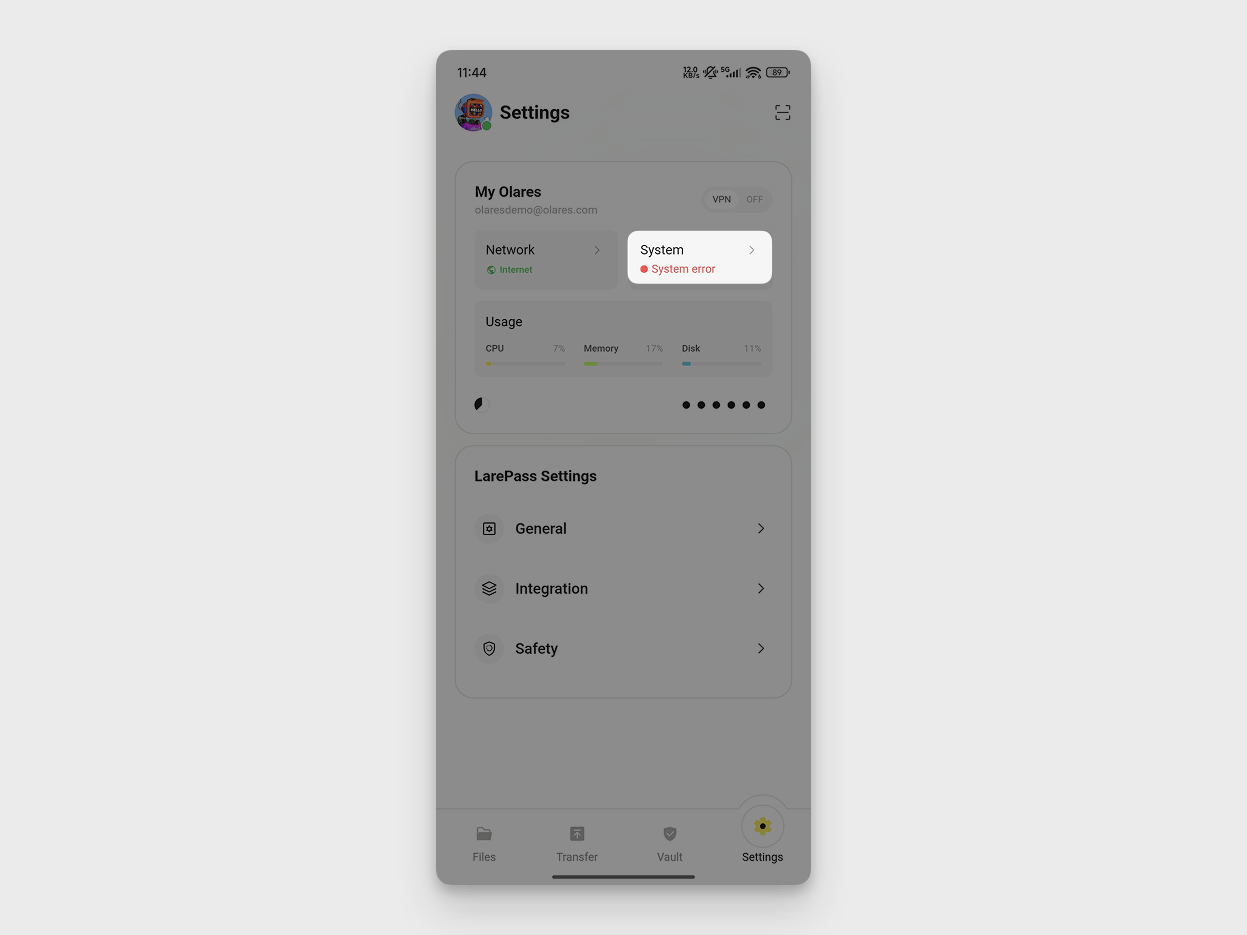
Condition
- The System section in LarePass shows System error instead of Running.
- The Olares desktop might be inaccessible.
Cause
The "System error" message usually means one or more system pods are not running normally. When this happens, LarePass cannot retrieve system status.
Solution
Follow the steps below to access the device terminal, identify any pod that is not running normally, inspect its error details, and share the results with the Olares team. This helps narrow down possible causes and speed up troubleshooting.
Step 1: Try to access Olares desktop
If you can still access the Olares desktop, open Control Hub and use its built-in terminal.
Open a browser and access your Olares Desktop:
texthttps://desktop.<username>.olares.comOpen Control Hub.
In the left sidebar, under the Terminal section, click Olares.
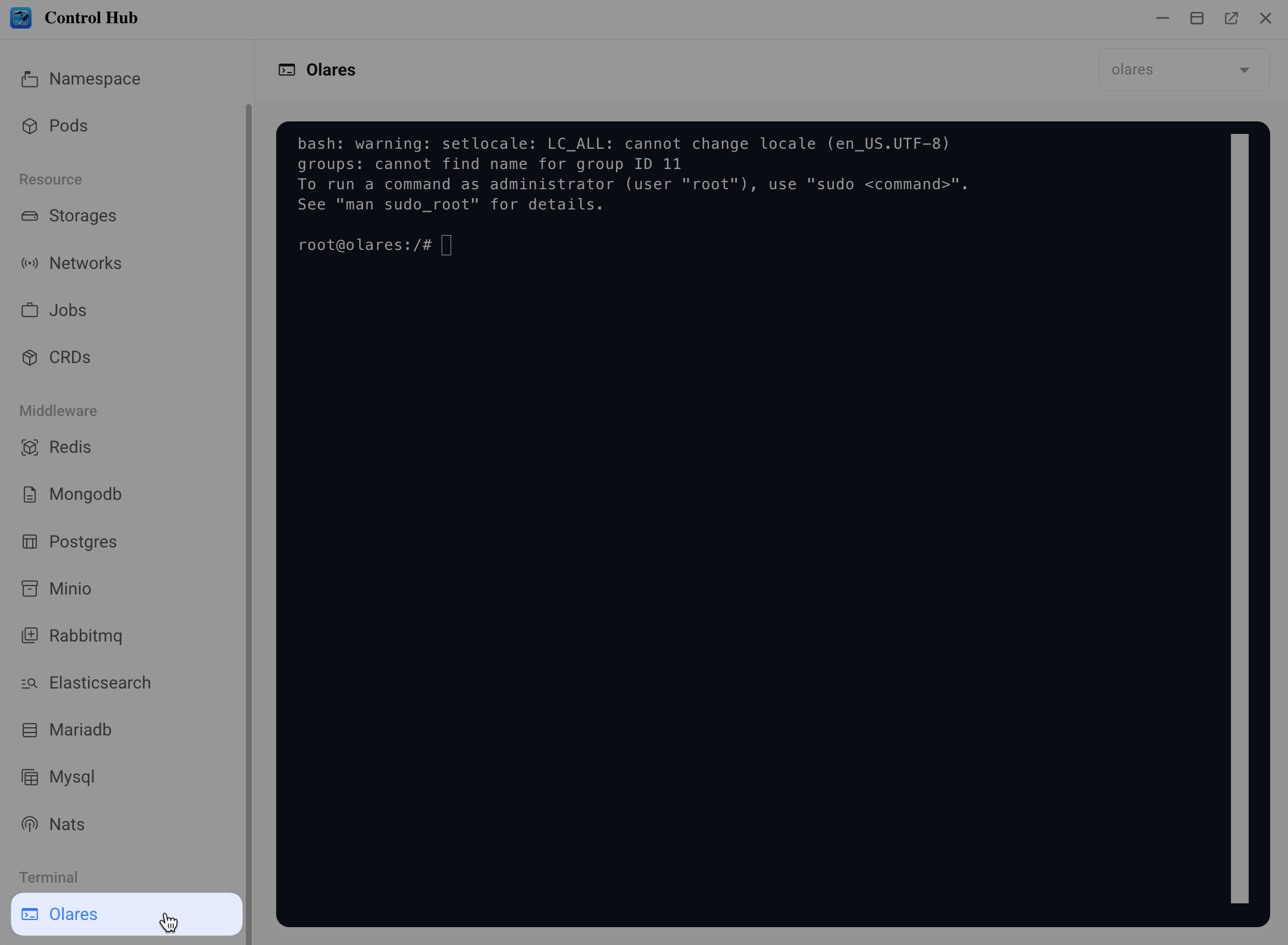
If you can access the terminal successfully, skip to Step 4.
Step 2: Connect via SSH
If you cannot access the Olares desktop, try connecting via SSH.
Same network required
Your computer and Olares One should be on the same local network.
Get the local IP address of your Olares One.
a. Open the LarePass app and go to Settings > System to open the Olares management page.
b. Tap the Olares One device card.
c. Scroll down to Network and note the Intranet IP.
Find your SSH password in Vault.
a. Tap Vault in the LarePass app. When prompted, enter your local password to unlock.
b. In the top-left corner, tap Vault to open the side navigation, then tap All vaults.
c. Find the item with the terminal icon and tap it to reveal the password.
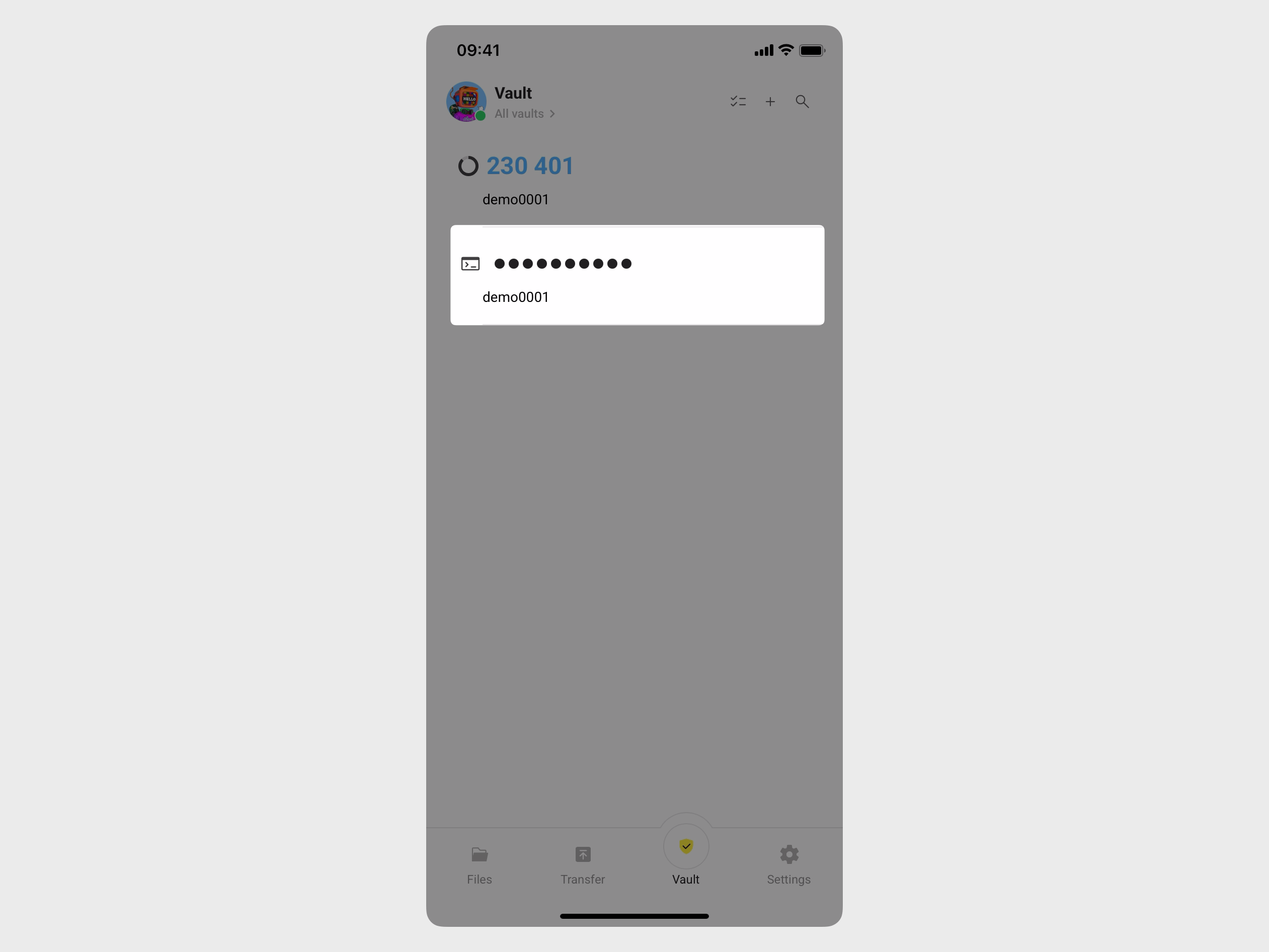
Open a terminal on your computer and connect via SSH.
a. Run the following command, replacing
<local_ip_address>with the Intranet IP you noted earlier:bashssh olares@<local_ip_address>b. When prompted, enter the SSH password.
If the connection is successful, skip to Step 4.
Step 3: Log in locally
If SSH is also unavailable, log in directly on the device using a monitor and keyboard.
Connect a monitor and keyboard to your Olares One. A text-based login prompt appears automatically:
textolares login:Type the username
olaresand press Enter.Enter the SSH password from Step 2 and press Enter.
Step 4: Check system pod status
Run the following command to get the status of all pods across all namespaces:
bashkubectl get pods -ACheck the STATUS column for any pods that are not in the
Runningstate.Note the NAMESPACE and NAME of each problematic pod.
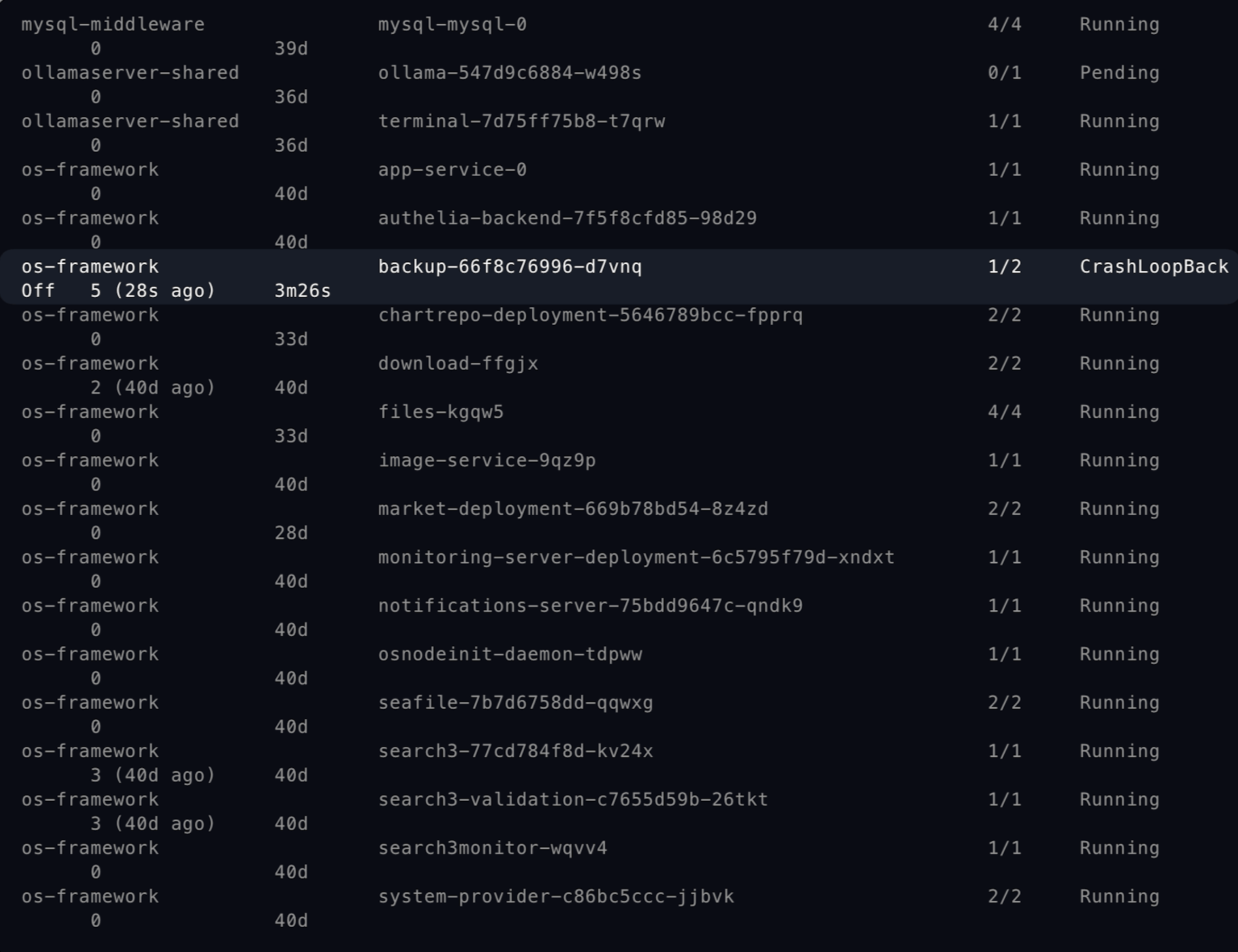
Step 5: Inspect the pod error
Run the following command, replacing
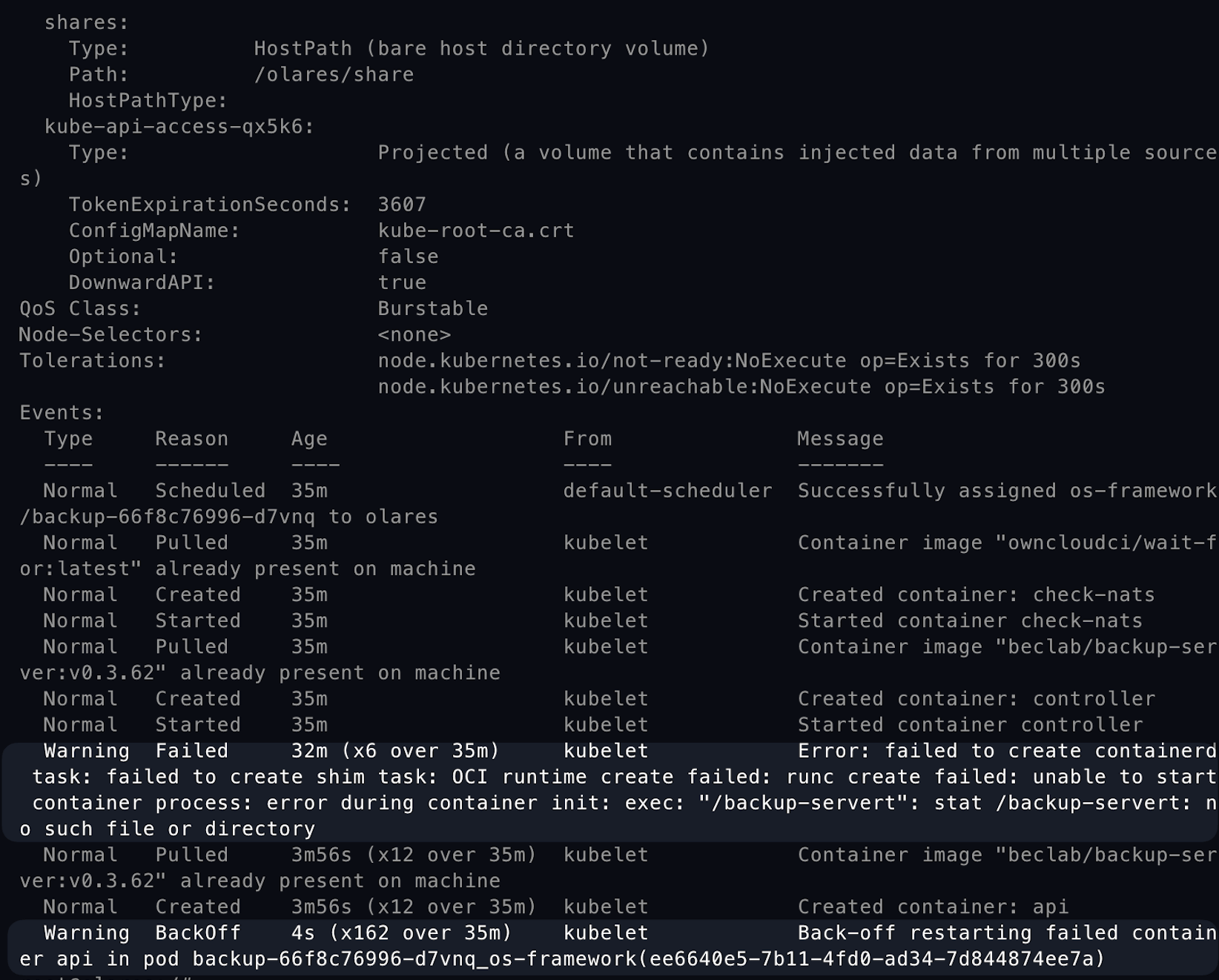
<namespace>and<pod-name>with the values you noted in the previous step:bashkubectl describe pod <pod-name> -n <namespace>For example:
bashkubectl describe pod backup-66f8c76996-d7vnq -n os-frameworkScroll down to the Events section to find the detailed error message.
Step 6: Contact support
Create an issue in the Olares GitHub repository and include the following:
- The full output of
kubectl describe pod <pod-name> -n <namespace>for each problematic pod - A screenshot of the error message, if available
- A brief description of when the error first appeared (for example, after an update or restart)
This information helps the team investigate and resolve the issue faster.