Back up and restore data 15 min
Olares One provides a built-in backup feature to protect important files and app data. You can create full and incremental backups, store them on local or network storage, and restore data from any available snapshot when needed.
Learning objectives
By the end of this tutorial, you will learn how to:
- Create backup tasks for folders and supported applications.
- Configure backup locations, schedules, and password protection.
- Manage existing backup tasks.
- Restore files to a specific directory or recover app data from a snapshot.
Back up your data
A backup task defines what to back up, where to store it, and when it runs.
Create a backup task
Go to Settings > Backup.
Click Add backup task. If prompted, select Back up files or Back up apps to proceed.
On the Add backup task page, configure the following settings:
Field Description Backup location - Local path: Select an external device such as a USB drive, SMB
share, or external hard drive. - Olares Space: Scan the QR code in Settings > your avatar > Olares
Space via LarePass. - AWS S3 or Tencent COS: Click Add account in the dialog, or go to
Settings > Integrations > Link your accounts & data.
Region Cloud only. Select the region of your storage bucket. Backup path File backup only. Browse and select the specific directory to back up. Select application App backup only. Select the app to back up. Currently, only Wise is
supported.Backup name Enter a recognizable task name. We recommend including the
purpose and a timestamp.Snapshot frequency Choose Every day, Every week, or Every month. Run backup at Set the specific time of day for the backup to run. Backup password Set a password to encrypt your snapshots. Confirm password Re-enter the password you set. 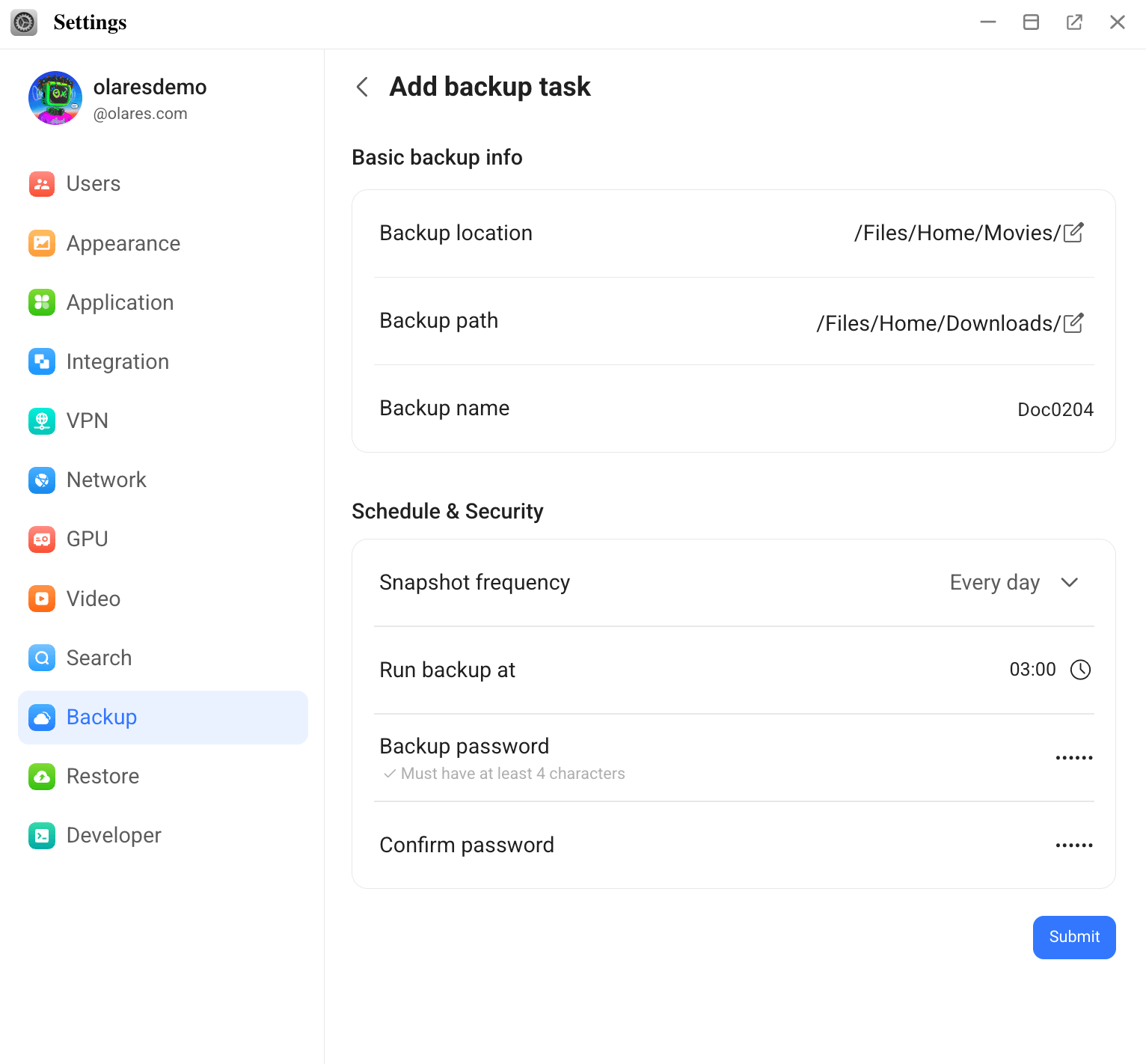
- Local path: Select an external device such as a USB drive, SMB
Click Submit to create and start the task.
- The first run will be a full backup.
- Subsequent runs will be incremental backups (saving only changes).
Manage backup tasks
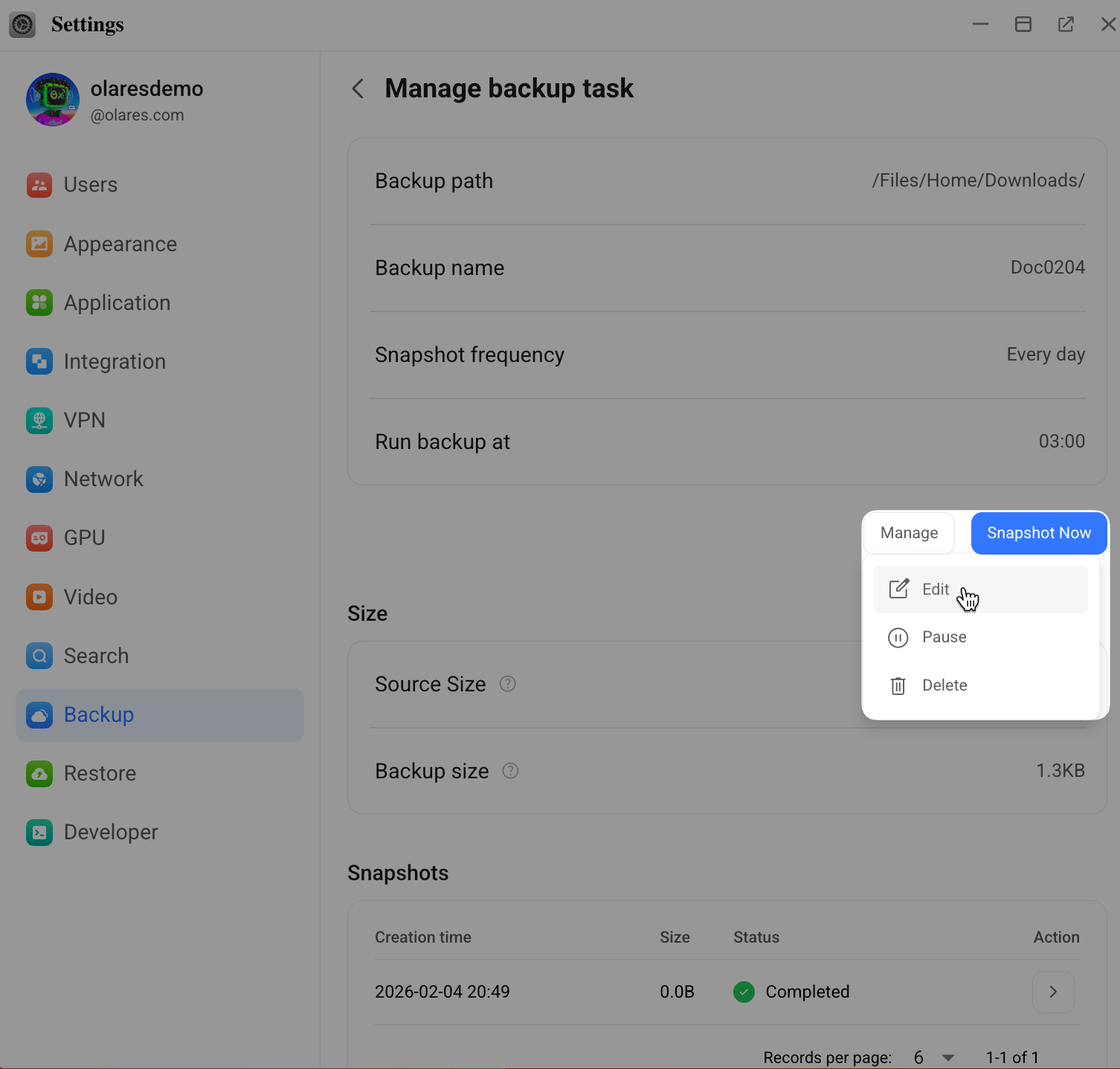
Once created, tasks appear in the list. Click the arrow chevron_right next to a task to view details.
| Action | Description |
|---|---|
| Manage |
|
| Snapshot now | Run a backup immediately. |
View snapshot records
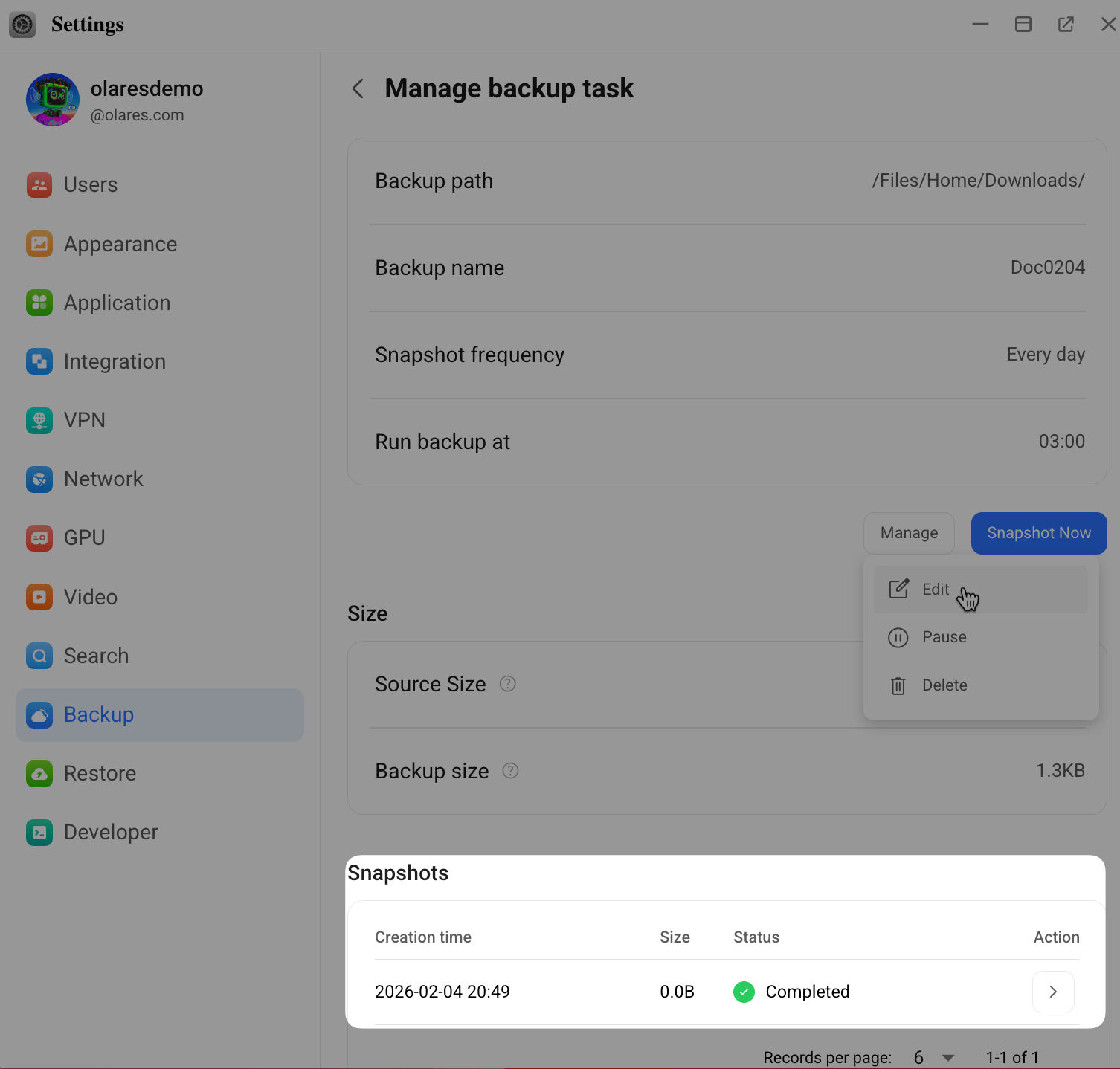
At the bottom of the backup detail page, you can review snapshots for this task:
| Field | Description |
|---|---|
| Creation time | When the snapshot was created. |
| Size | Total size of the snapshot data. |
| Status | The execution status of the snapshot. |
| Backup type | Whether it is a full or incremental backup. |
Restore data
You can restore files to a specific folder or recover application data using any valid snapshot.
Create a restore task
- Go to Settings > Restore.
- Click Add restore task.
- Choose the method below that matches where your backup is stored.
Restore from a local path
Use this method for backups stored on USB drives or SMB shares connected to Olares.
Select the local backup path. The path must point to the specific backup task folder.
If the backup name is
demo, and the backup location is/documents, the path should be:text/documents/olares-backups/demo-xxxxEnter your backup password.
Click Query snapshots to load available snapshots.
Click Restore next to your target snapshot.
Start the restore:
- Files: Select the restore location then click Start restore.
- Wise: Click Start restore directly (no destination path required).
Restore from Olares Space
Use this method if you backed up to Olares Space. You will need the LarePass mobile app.
- Open LarePass and scan to sign in to Olares Space.
- On the Backup page, locate the backup task and click View Details.
- Get a snapshot URL:
- Click Restore (top right) to get the latest snapshot URL, or
- Select a specific snapshot and click Restore next to it.
- Copy the URL and paste it into the Backup URL field in the From Space URL page.
- Enter your backup password.
- Start the restore:
- Files: Select the restore location and destination folder, then click Start restore.
- Wise: Click Start restore directly.
Restore from cloud storage (AWS S3 / Tencent COS)
Use this method for backups stored on AWS S3 or Tencent COS.
- Open your cloud storage console and locate the
olares-backupsdirectory. - Select the target backup folder and generate a pre-signed URL.
- For AWS S3, see the AWS S3 documentation on pre-signed URLs.
- For Tencent COS, follow Tencent Cloud documentation for generating temporary access URLs.
- Copy the generated URL.
- Paste it into the Backup URL field on the From AWS S3 URL or From Tencent COS URL page.
- Enter your backup password.
- Click Query snapshots to load available snapshots.
- Click Restore next to your target snapshot.
- Start the restore:
- Files: Select the restore location and destination folder, then click Start restore.
- Wise: Click Start restore directly.
Monitor restore tasks
Once created, the restore task appears in the task list on the Restore page. Click the arrow chevron_right next to a task to view details and manage restore tasks.
- Cancel: Stop the process while it is running.
- View data: Once the status shows
Completed, click Open folder or Open app to access the restored data.