Expand storage via external SSD 30 min
You can manually mount high-capacity external SSDs to specific system paths on Olares One.
This approach is recommended for long-term storage expansion, such as downloading more or larger local AI models.
HDD support
This guide is intended for SSDs. Mechanical Hard Disk Drives (HDDs) have not been tested with Olares One.
Mount path
Currently, only mounts under the /olares/share directory are supported.
Mounting flexibility will be improved in future versions.
Prerequisites
Hardware
- Your Olares One is set up and running.
- The external SSD is connected to Olares One.
SSH access
Experience
- Basic familiarity with terminal commands and the command-line interface (CLI).
Step 1: Identify the drive
Connect to your Olares One terminal via SSH or from the Control Hub.
Run the following command to view detected drives:
bashsudo fdisk -lIdentify your target drive from the output. Each drive lists its partitions under the Device column, such as
/dev/nvme1n1p1,/dev/nvme1n1p2, or/dev/sdb1.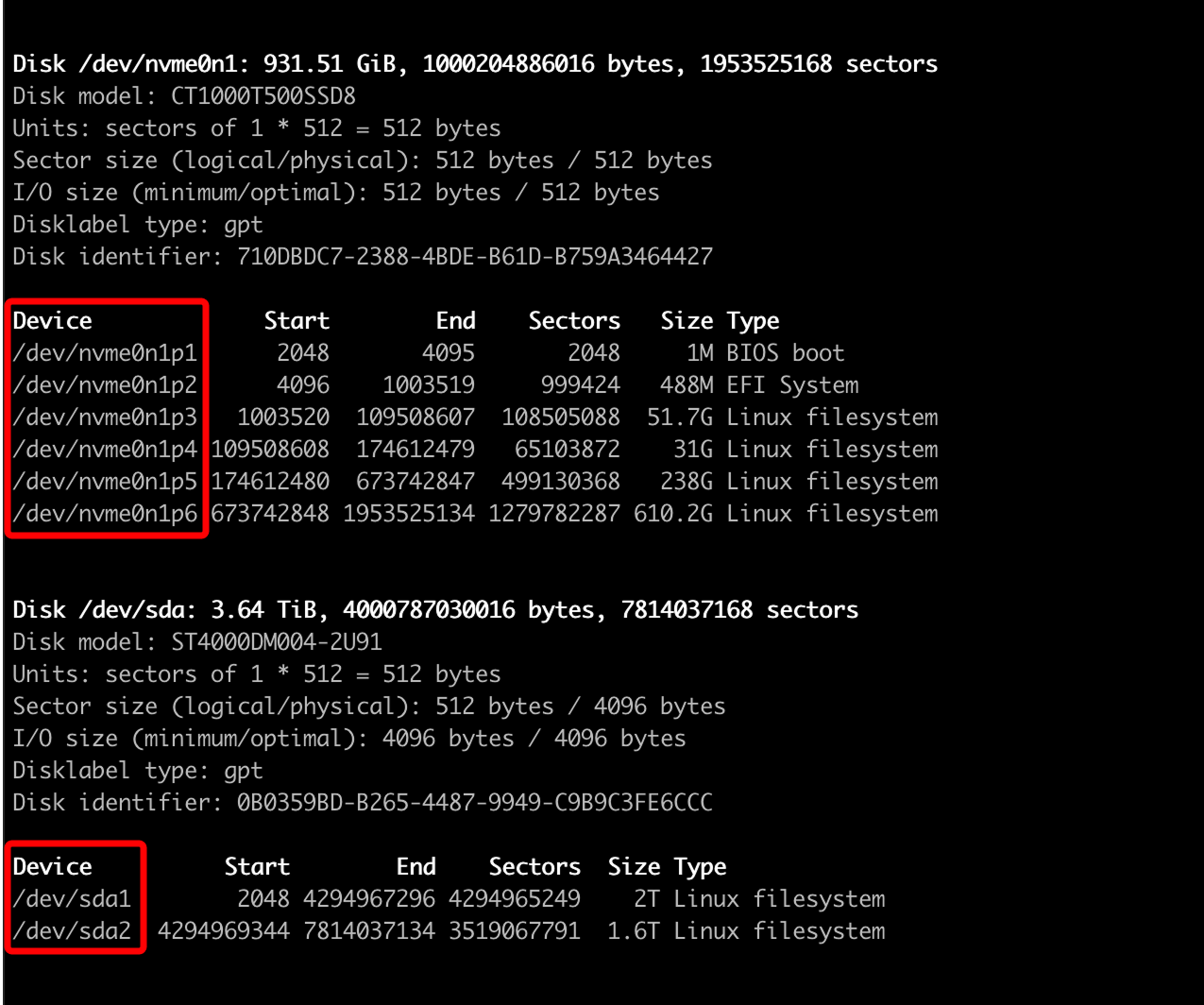
Note the target partition you intend to mount. For example:
/dev/nvme1n1p1.
Step 2: Mount the partition
Option A: Temporarily mount a partition
Temporary mounting is suitable for one-time tasks such as data migration. The configuration will be lost if the device reboots.
Create a directory for the mount point:
bashsudo mkdir -p /olares/share/<directory_name>Replace
<directory_name>with a custom name.Mount the partition to this directory:
bashsudo mount /dev/<partition> /olares/share/<directory_name>For example:
bashsudo mount /dev/nvme1n1p1 /olares/share/hdd0Navigate to the External directory in Files to verify the mount. You should see the new folder content.
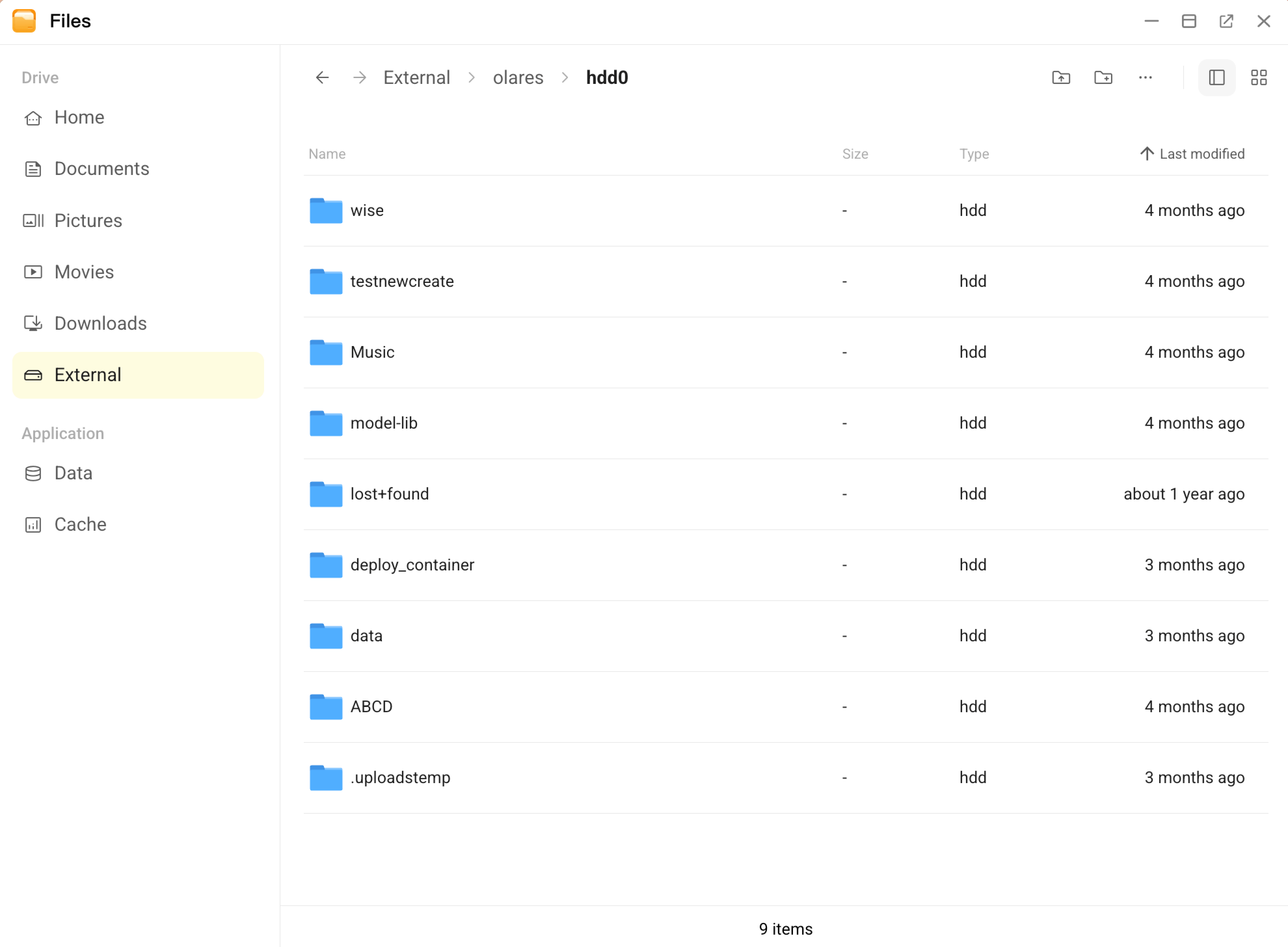
Option B: Permanently mount a partition
For long-term usage, you must configure the system to mount the drive automatically at boot using the /etc/fstab file.
Get the UUID.
Use UUID to identify device
Using the UUID is safer than using device names (like
/dev/sdb1), which can change if you plug drives into different ports.a. Run the following command:
bashlsblk -fb. Note down following information:
- FSTYPE: File system type (e.g.,
ext4,xfs). - UUID: Unique identifier of the partition.
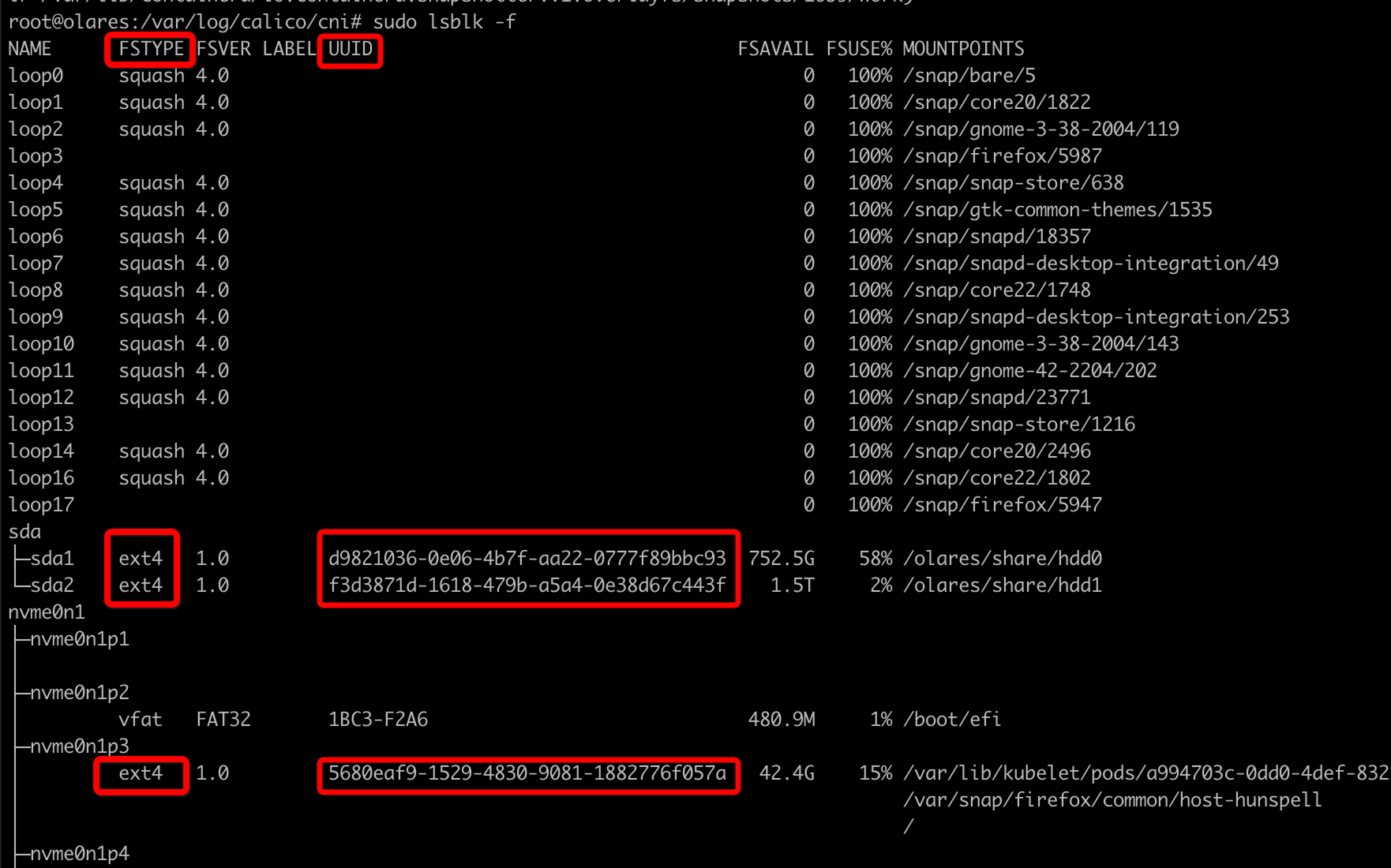
- FSTYPE: File system type (e.g.,
Create the mount directory:
bashsudo mkdir -p /olares/share/<directory_name>Replace
<directory_name>with a custom name.Open the configuration file.
bashsudo vi /etc/fstabAdd the mount entry. Add a new line at the end of the file using the following format:
bashUUID=<UUID> /olares/share/<directory_name> <FSTYPE> defaults,nofail 0 0For example:
bashUUID=1234-ABCD /olares/share/my_disk ext4 defaults,nofail 0 0Press
Esc, type:wq, and hit Enter to save your changes and exit the editor.Run the following command to verify the configuration.
bashmount -aPrevent boot failure
An incorrect
/etc/fstabconfiguration might prevent your system from booting.It is strongly recommended to run
mount -afirst to validate the configuration before rebooting.If no errors appear, the setup is successful.
After reboot, confirm the drive is automatically mounted in the External directory.
Step 3: Unmount a partition
Irreversible operation
Ensure no programs or terminals are accessing the directory before unmounting.
To safely remove the drive or delete the mount point configuration:
Unmount the partition:
bashsudo umount /olares/share/<directory_name>(Optional) Remove the directory If you no longer need the folder:
bashrm -rf /olares/share/<directory_name>