Install & update applications 10 min
Olares Market is an open and permissionless application platform. Use it to find official Olares apps, third-party tools, and AI services.
This guide walks you through the most common tasks for managing your applications, including finding and installing apps, applying updates, and removing unused apps.
Learning objectives
- Find applications from the Olares Market.
- Install applications. This guide uses "Jellyfin" as the example.
- Update applications to their latest versions.
- Uninstall applications to free up system resources.
Install applications
Browse the Market catalog and install new software on your device.
Open Market from Dock or Launchpad.
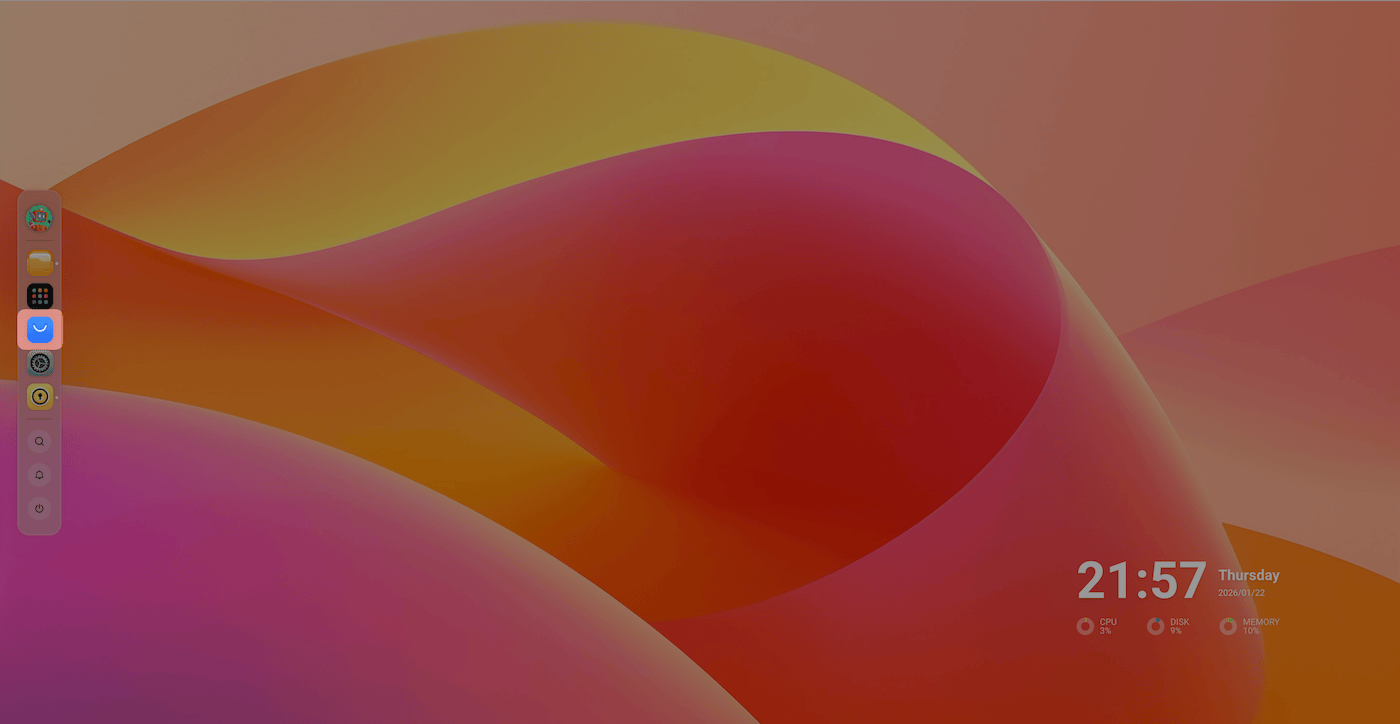
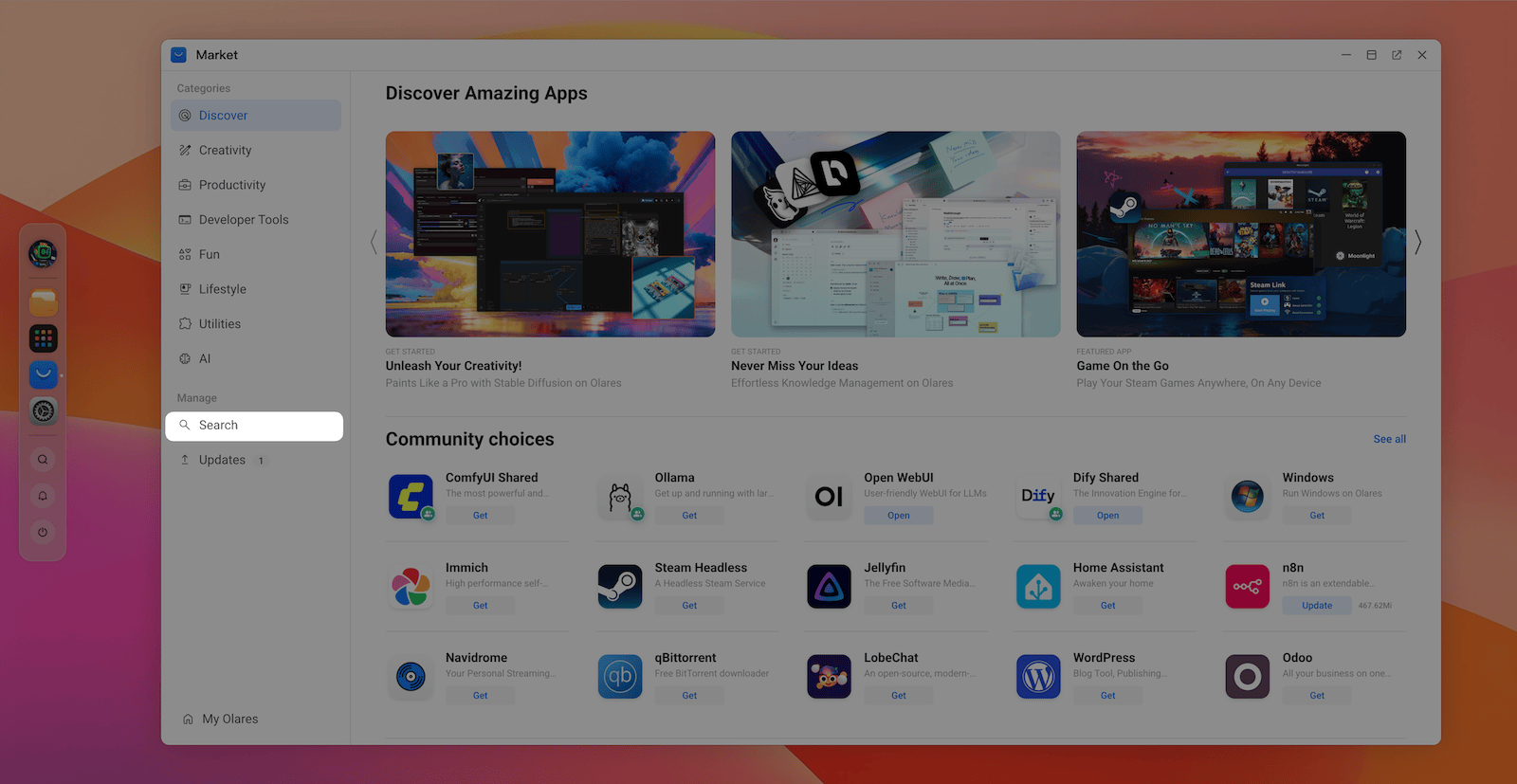
Find the target app "Jellyfin" by browsing by category or using Search from the left sidebar.
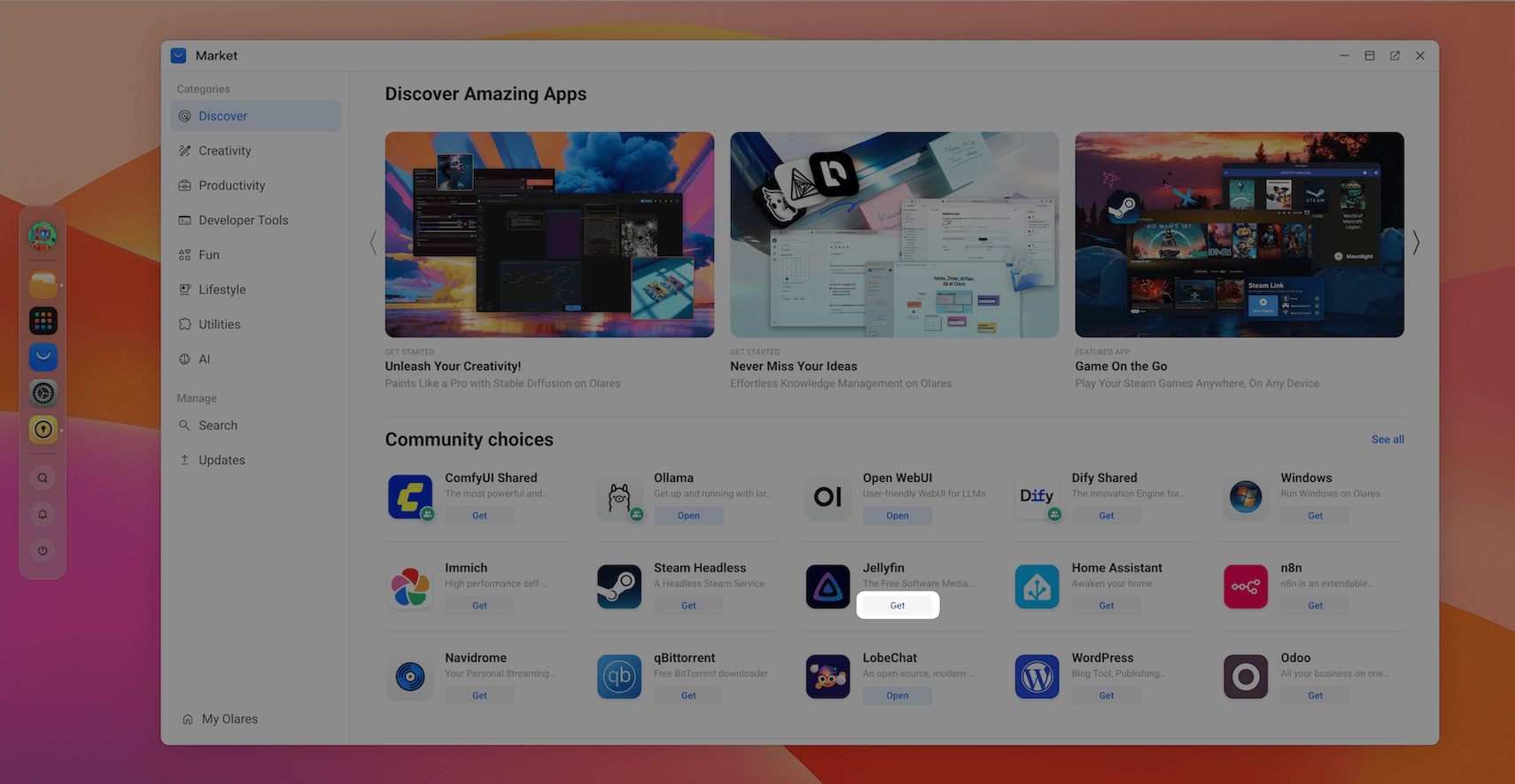
Click Get, and then click Install.
Progress indicator
Installation time depends on the app size and your internet speed. The Install button changes to a progress bar, indicating the download and installation status. You can navigate away and continue using Olares when it downloads in the background.
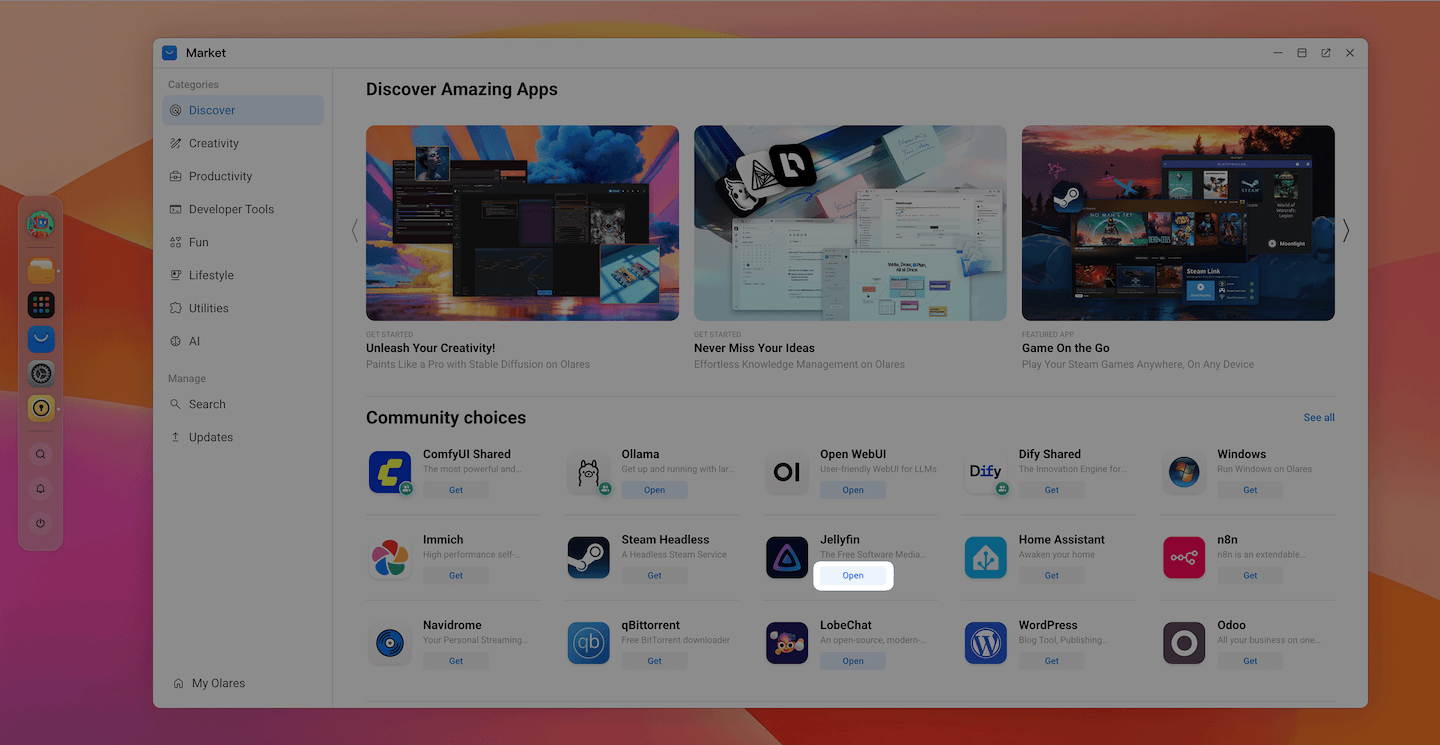
When the installation finishes, the button changes to Open. Click it to launch the app immediately.
Update applications
Regular updates provide new features, bug fixes, and security patches. Keep your applications secure and feature-rich by installing the updates.
Open Market from the Dock or Launchpad.
In the left sidebar, click Updates. A badge indicates the number of available updates.
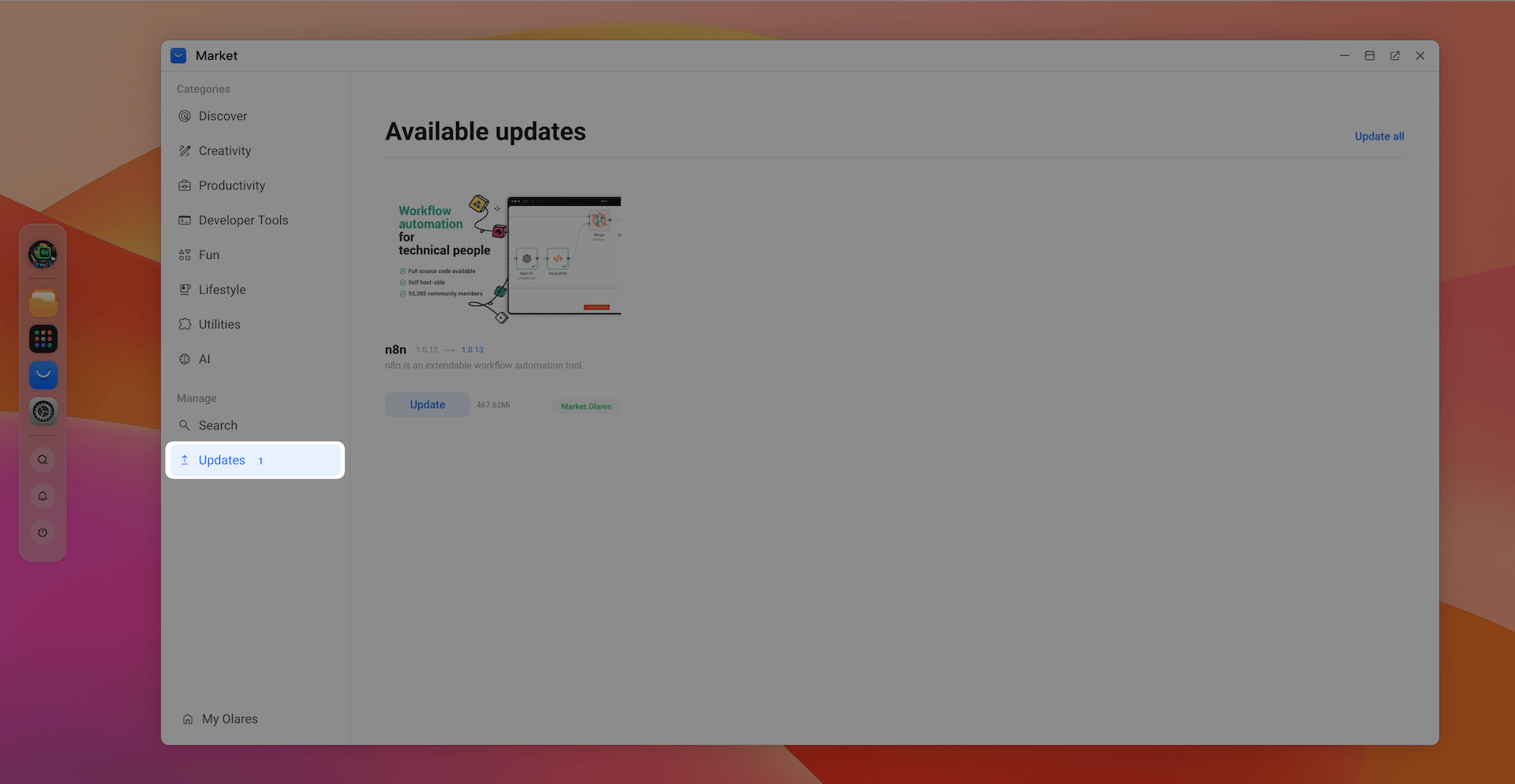
Select your update method:
- Click Update under a specific app to update it individually.
- Click Update all to update every app in the list simultaneously.
Uninstall applications
Remove applications that you no longer need to save storage space.
Open Market from Dock or Launchpad.
Click My Olares to view all your installed applications.
Find the target app "Jellyfin", click keyboard_arrow_down next to the Open button, and then click Uninstall.
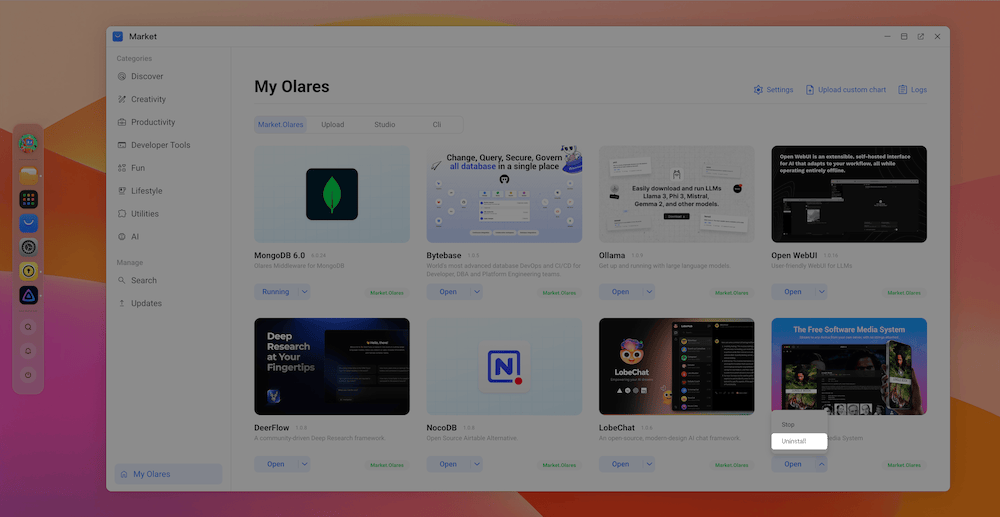
In the Uninstall window, click Confirm.