Install drivers on Windows 15 min
To ensure optimal performance and system stability when running Windows on your Olares One, Olares provides a tested all-in-one driver package. This package contains all the necessary drivers for your device, such as audio, network, and NVIDIA graphics drivers.
This guide walks you through downloading and installing the all-in-one driver package.
Learning objectives
- Download and install all system drivers using the driver package.
Before you begin
About NVIDIA graphics driver update
This all-in-one package includes a stable, fully tested NVIDIA graphics driver specifically optimized for Olares One. To ensure system stability, avoid downloading and installing standalone graphics drivers directly from the official NVIDIA website, because that might introduce compatibility issues.
- Administrator access: You need admin rights to install system drivers.
- Internet connection: The driver file is large (about 3.5 GB), so a stable connection is required.
- Close applications: Save your work and close any graphic-intensive programs like games or photo editors before starting the installation. The screen might temporarily turn black or blink during the update, which can cause open applications to crash or lose unsaved data.
- Windows version: For the best stability and driver compatibility, Windows 11 version 24H2 is recommended.
Step 1: Download and extract the driver package
Download the driver package.
Browser security warning
Because the download links use a standard HTTP connection rather than HTTPS, your web browser might flag or block it as an insecure download. If this happens, select Keep or Allow in your browser's download manager to continue the download.
Download time
The driver package is large. Depending on your internet connection speed, the download might take a while to complete.
Locate the downloaded
.zipfile on your computer.Right-click the file and select Extract All.
Open the extracted folder and verify that the files, including the
driver_installapplication, are present.textExtracted_Folder/ ├── driver/ ├── uwp/ ├── driver_install └── uwp_install
Step 2: Install the drivers
In the extracted folder, locate the file
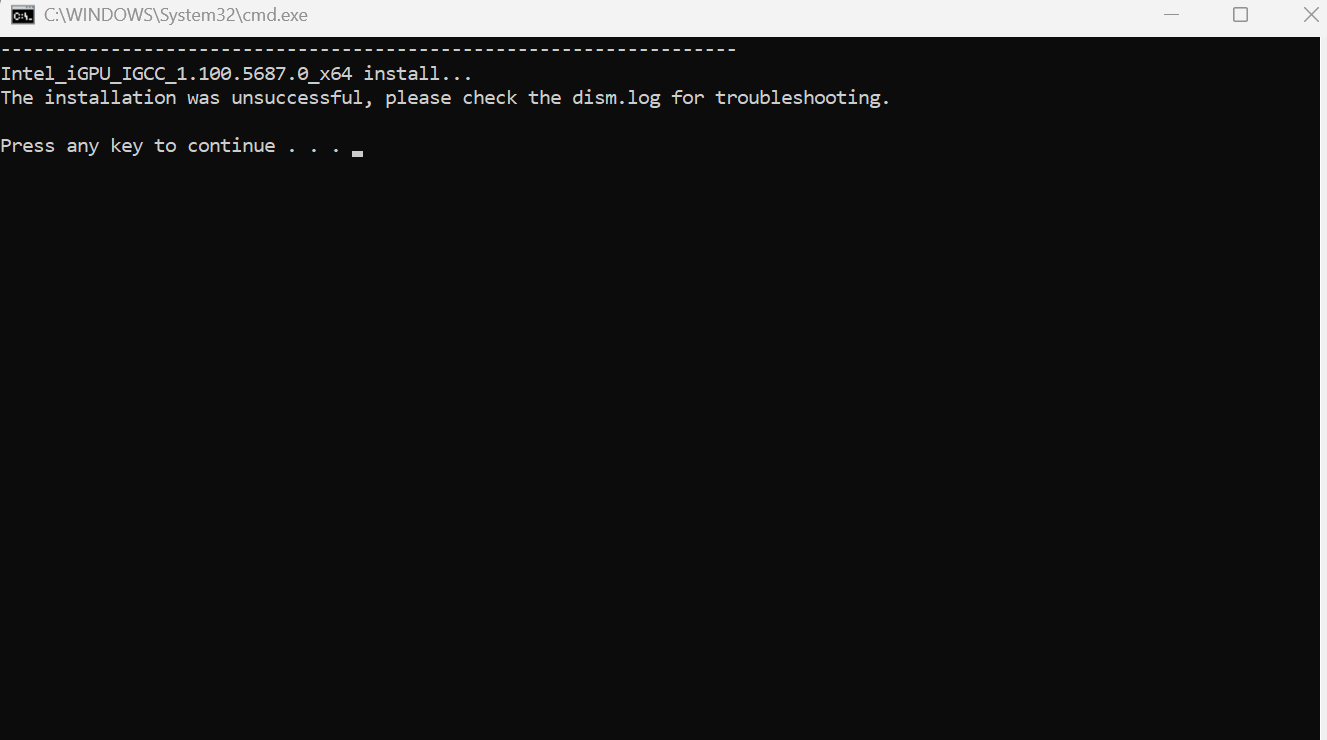
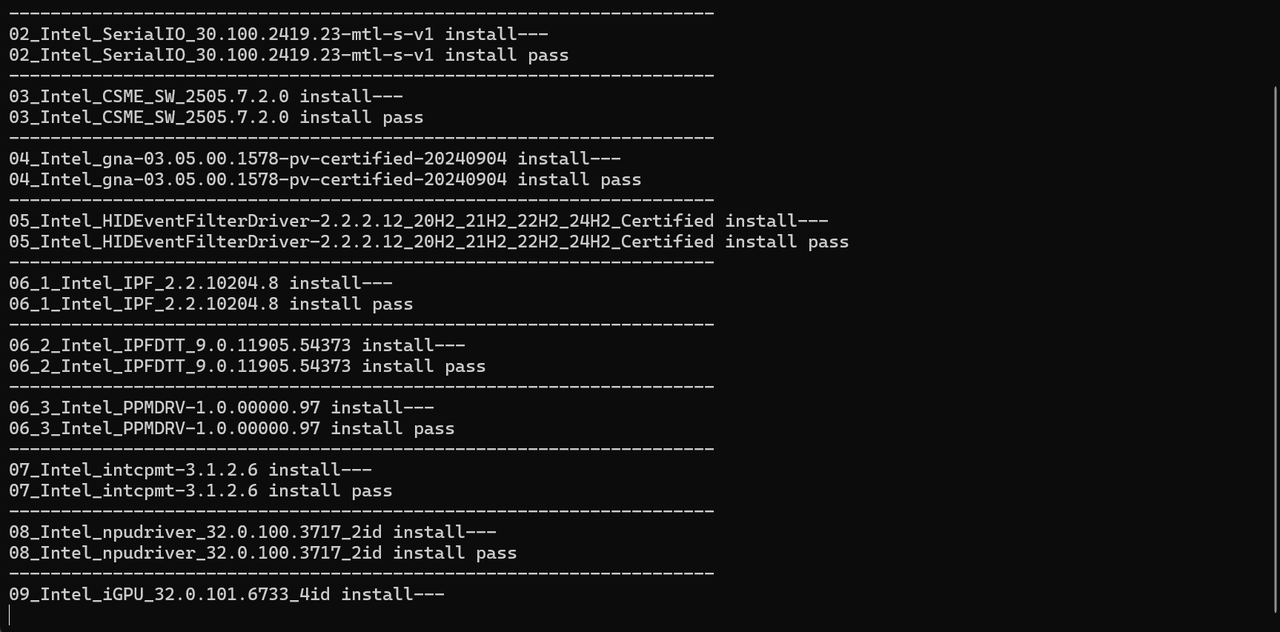
driver_install, and then double-click it.The system will automatically open a command prompt window and begin installing the driver. This process is fully automated.
Screen flickering
Your screen might turn black or blink for a few seconds during installation. This is normal behavior as the system switches to the new driver.
When the driver is successfully installed, your device restarts automatically.
After the system reboots and you log back in to Windows, a command prompt window appears. Follow the on-screen instructions and press any key until the window closes. This indicates that the installation is completely finished.