Monitor system and application status 10 min
The Dashboard app provides a centralized, real-time view of your system's status. Use it to check available storage, monitor hardware temperatures, and identify which applications are using the most resources.
This guide walks you through the most common tasks for maintaining a healthy system.
Learning objectives
- View the system status overview.
- Check detailed usage for specific hardware. This guide uses "Disk" as the example.
- Monitor fan speed and temperature.
- Identify and manage resource-intensive applications.
Before you begin
Familiarize yourself with the key metrics used to measure system performance.
| Metric | Description | why it matters |
|---|---|---|
| CPU usage | Percentage of processor power used | Prolonged high usage makes the system slow and unresponsive. |
| Memory usage | Percentage of RAM in use | If RAM is full, apps might crash or freeze. |
| Average CPU load | Average number of active processes | High load indicates system overload. |
| Disk usage | Percentage of storage space filled | Running out of space prevents saving new files or installing apps. |
| Inode usage | Percentage of index nodes (inodes) used | Exhaustion prevents new file creation. |
| Disk throughput | Data transfer rate (MB/s) | Important for large file transfers. |
| IOPS | Input/Output Operations Per Second | Critical for small file or random data access. |
| Network traffic | Internet usage (Mbps) | High traffic can slow down remote access and downloads. |
| Pod status | Number of active app containers | Indicates if your applications are running, pending, or failed. |
| Fan speed | Cooling fan speed (RPM) | Higher speeds indicate the system is working hard to cool down. |
Check system health
The Overview page shows you the health of your device at a glance.
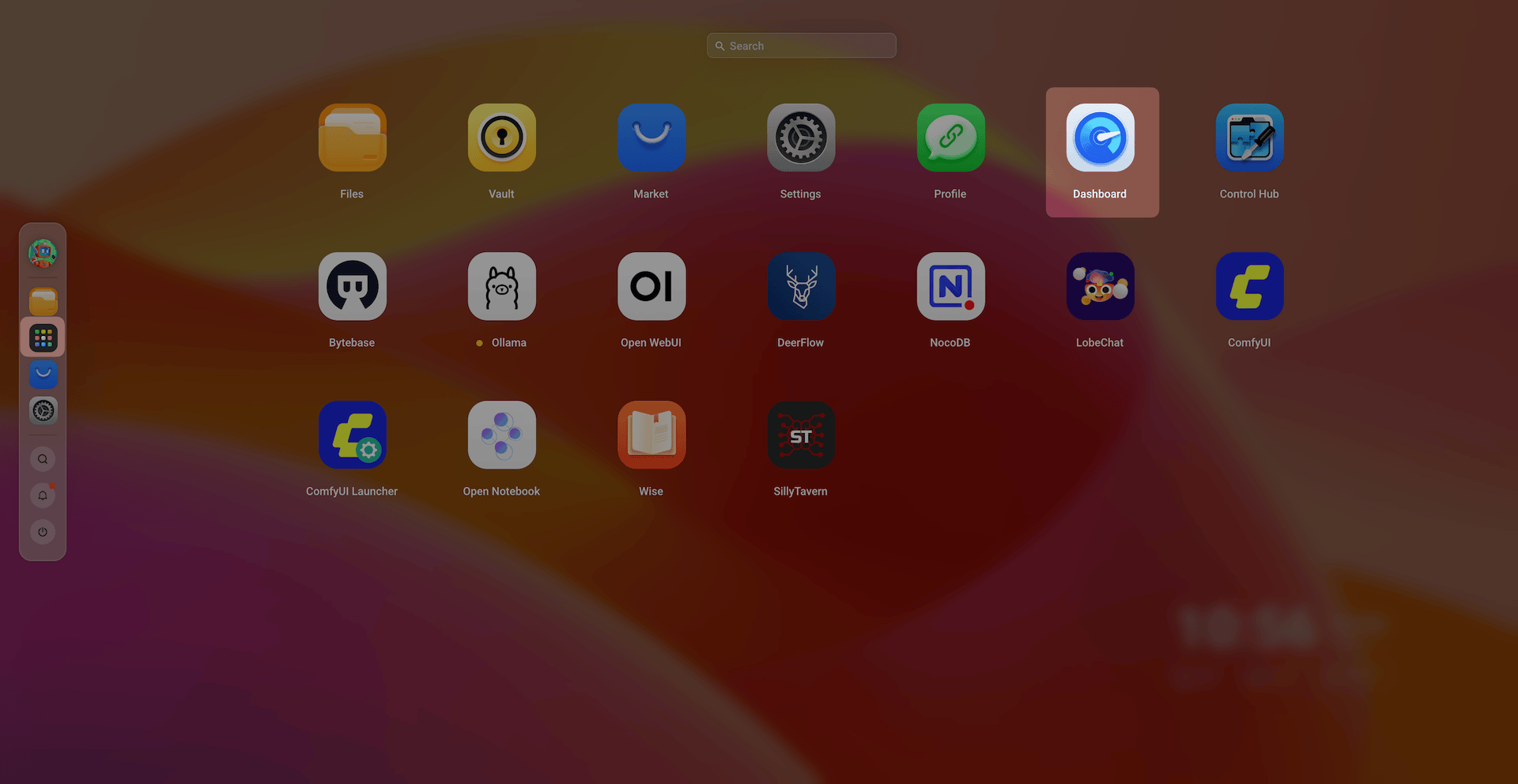
Open the Dashboard app from the Launchpad.
You are on the Overview page by default.
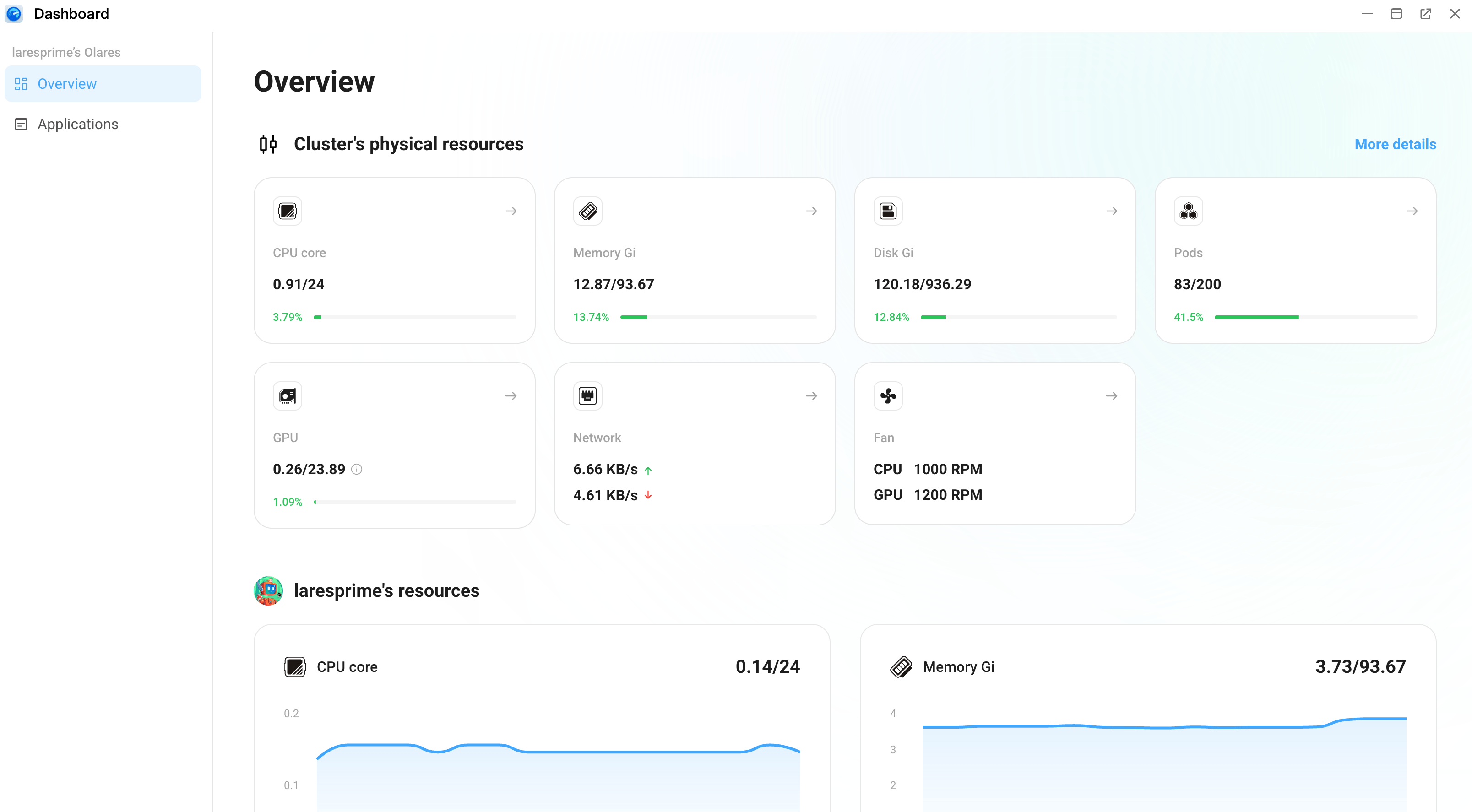
Check the Cluster's physical resources section. Cards in this section provide an instant snapshot of your hardware status:
- CPU core: The "brain" of your system. High percentages indicate heavy processing.
- Memory Gi: The "workspace" for running apps. If this is full, the system might become slow or unresponsive.
- Disk: Your local storage space usage.
- Pods: The total number of active application units running on your system.
- GPU: Graphics processing power, used for AI tasks or media rendering.
- Network: Real-time upload and download speeds.
- Fan: Current cooling status.
View resource details
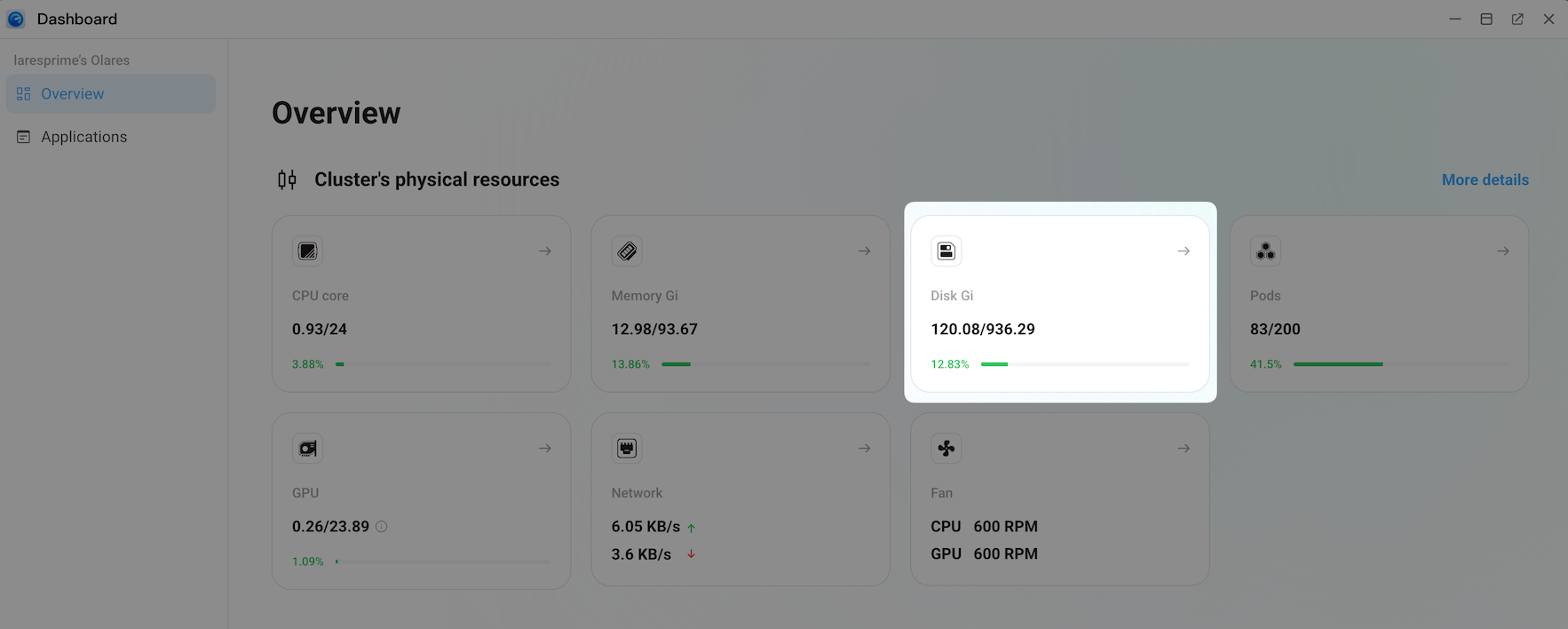
Click on any resource card to see detailed metrics. Take the common task "managing storage (Disk)" for example.
On the Overview page, in the Cluster's physical resources section, click the Disk Gi card.
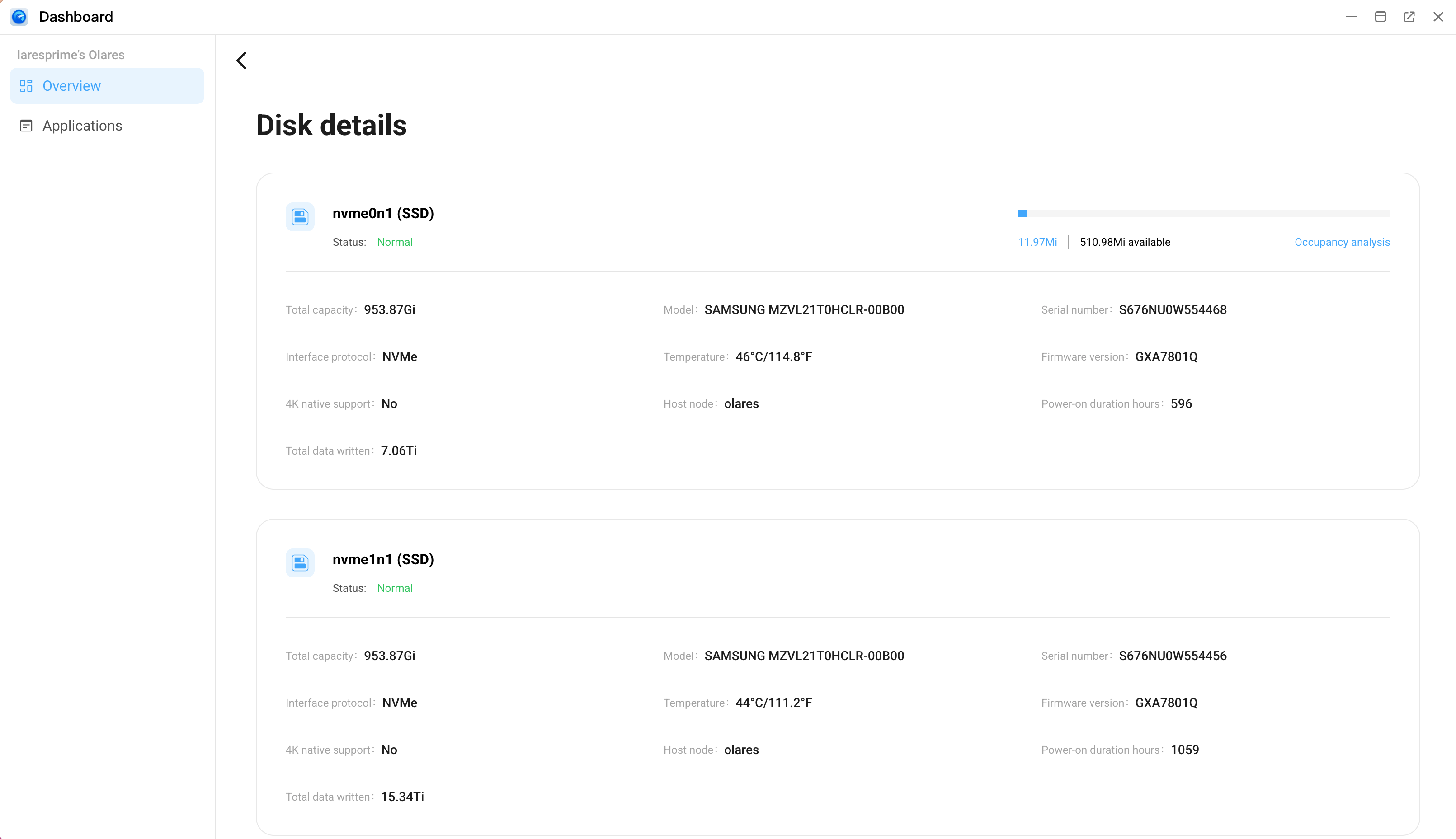
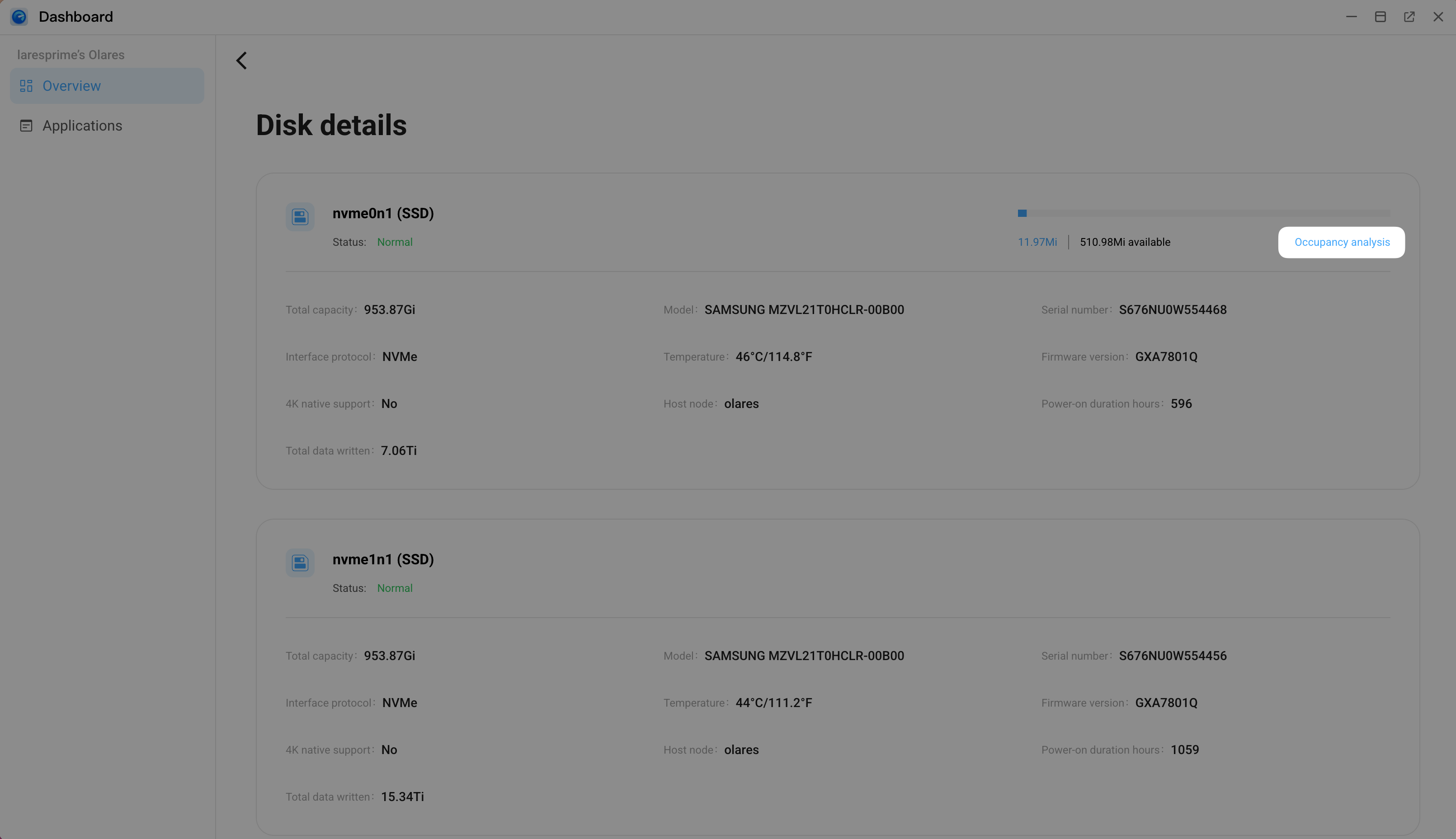
On the Disk details panel, you can view the following information:
- Identity and status: The disk name (e.g., nvme0n1), type (SSD), and overall health status (e.g., Normal).
- Storage usage: A visual bar chart displaying the exact amount of used space versus available space.
- Hardware specifications: Technical details including the model name, serial number, interface protocol (e.g., NVMe), and total capacity.
- Health metrics: Statistics such as the current temperature, total power-on duration, and total data written.
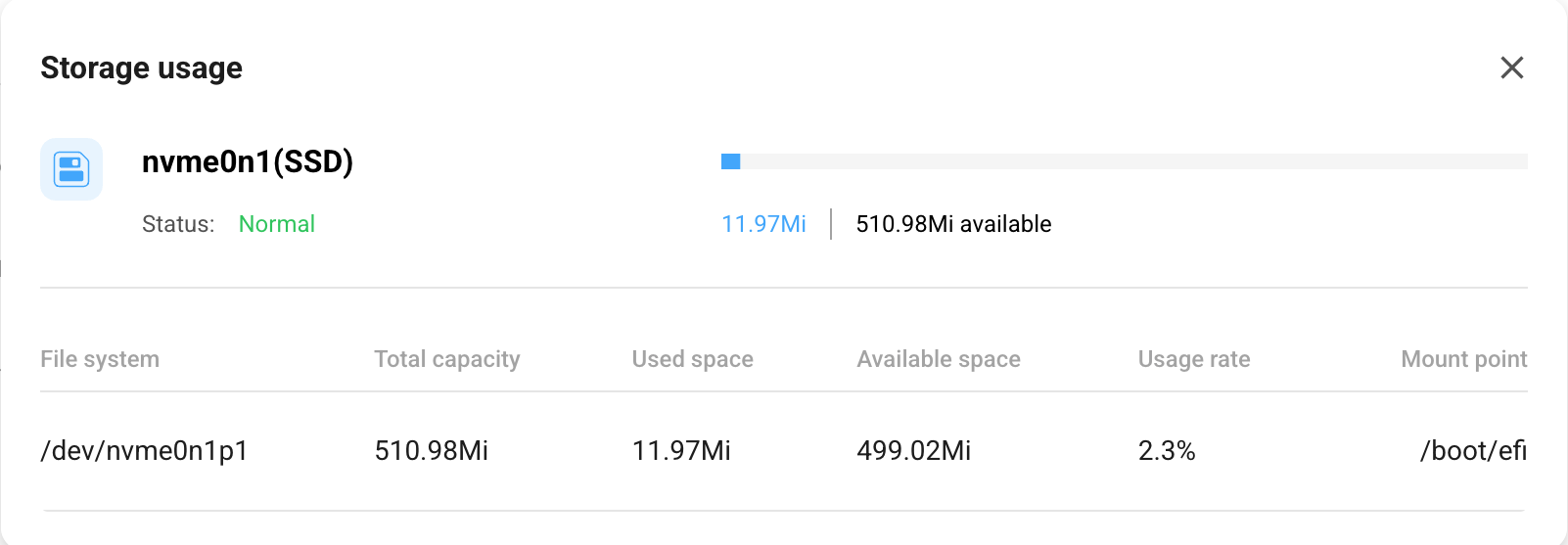
To view exactly which folders are taking up space, click Occupancy analysis in the top right corner.
This view lists every file system, helping you see exactly where your storage is being allocated.
You can follow this same pattern to check other resources.
Monitor hardware status
The dedicated Fan panel helps you ensure your Olares One is not overheating.
On the Overview page, find the Fan card.
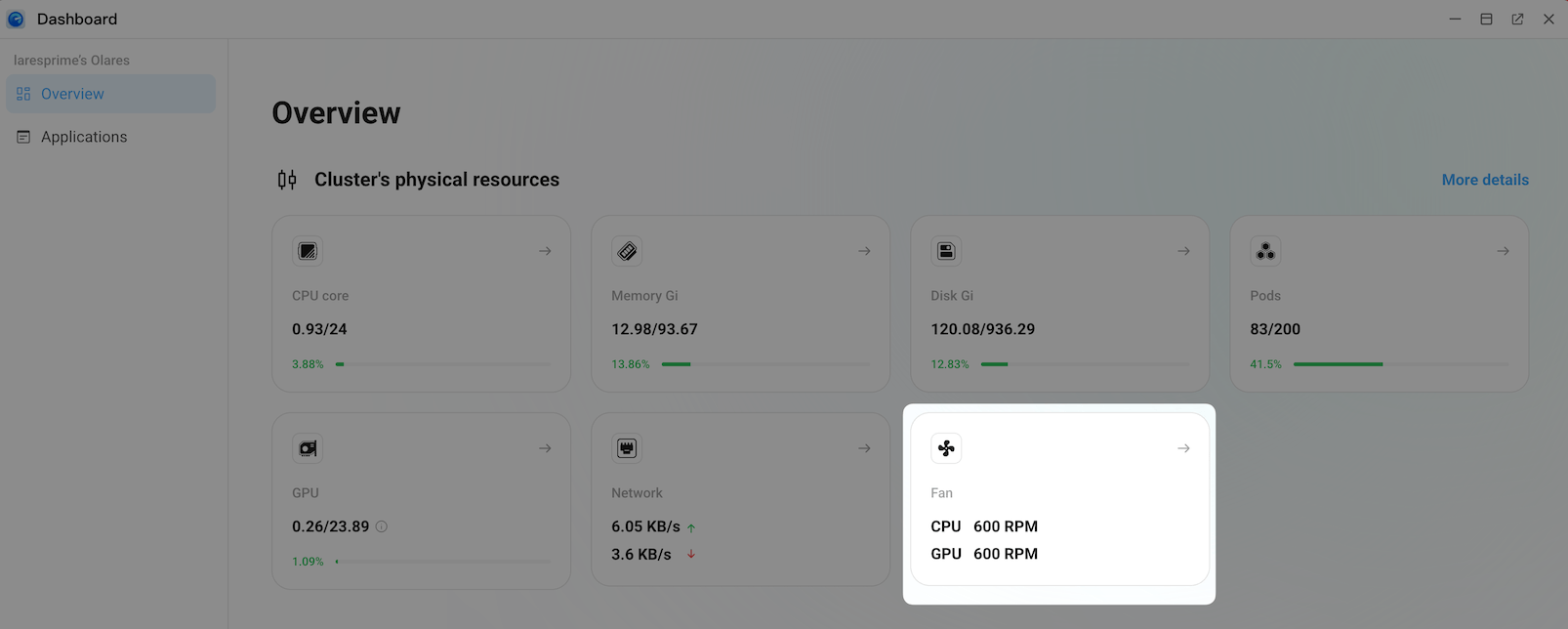
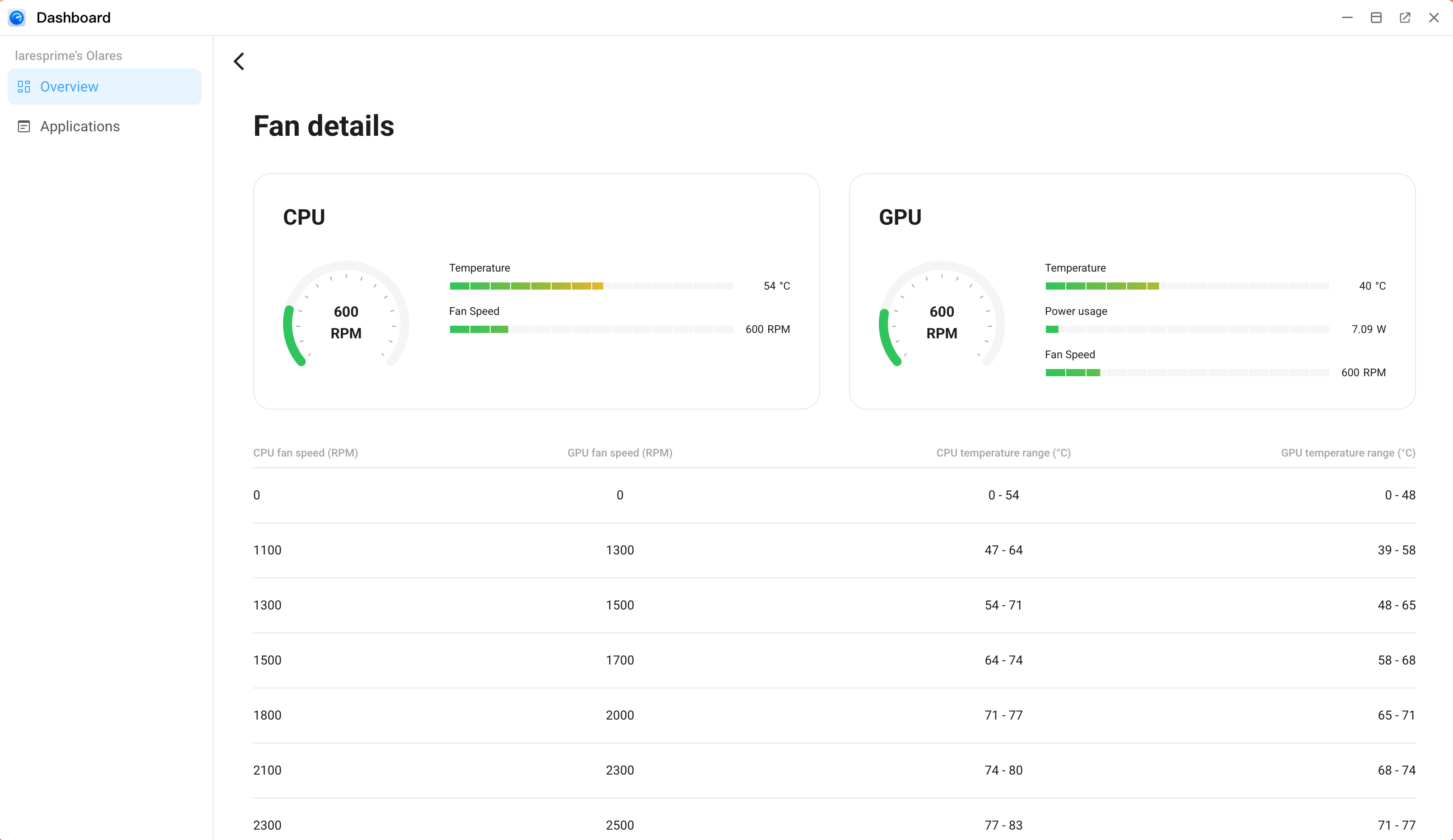
Click it to view real-time statistics:
- Fan speed: Current RPM (Revolutions Per Minute).
- Temperature: Current temperature of the main hardware components.
- Power: Current power consumption of the GPU.
Adjust cooling mode
To change the fan profile (e.g., from Silent mode to Performance mode), go to Settings > My hardware > Power mode.
Track application performance
If your system feels slow, a specific application might be consuming too many resources.
Quick ranking
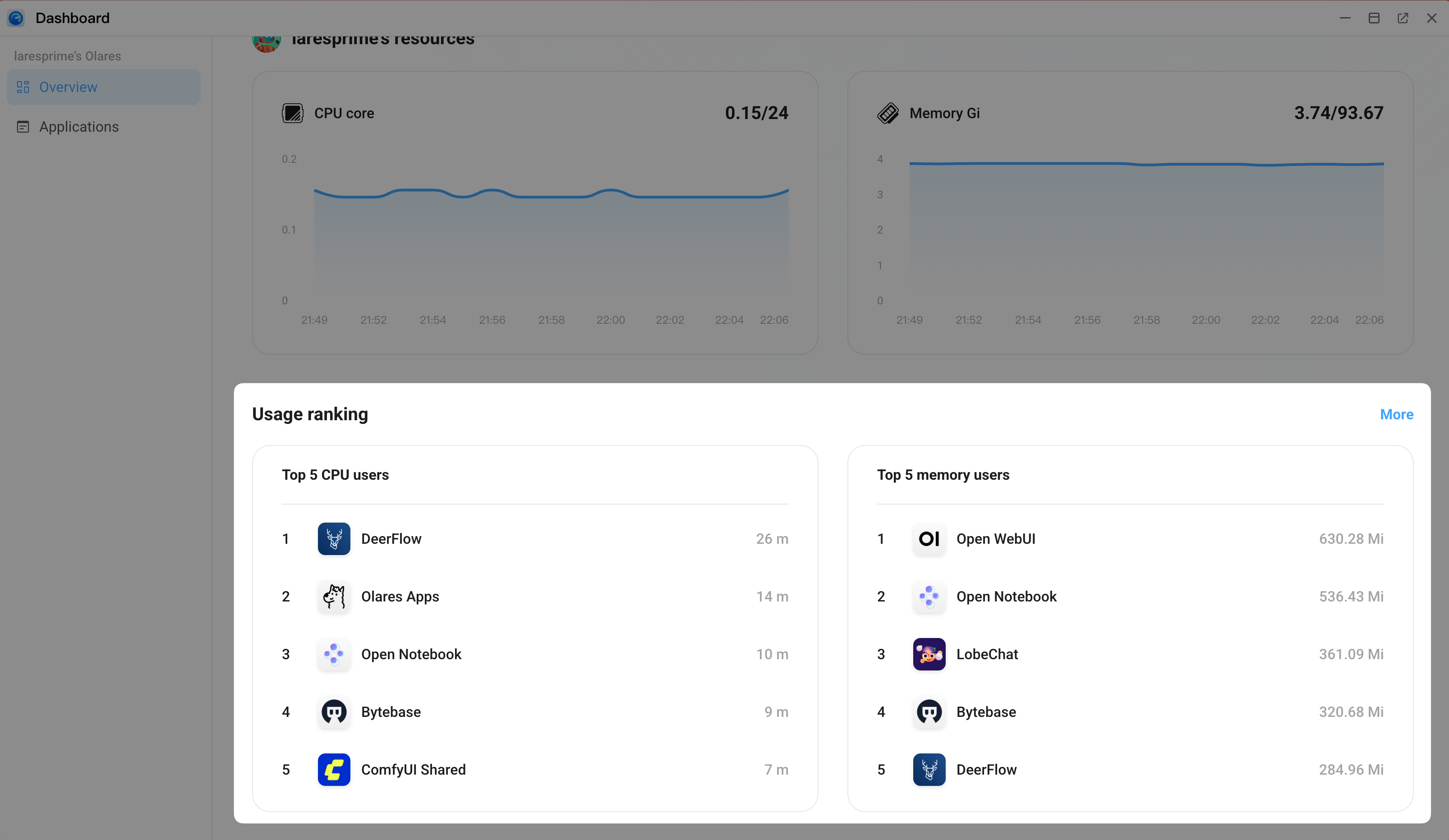
On the Overview page, scroll down to the Usage ranking section. This lists the top 5 applications currently using the most CPU or memory.
Detailed application list
For a complete view of all running services:
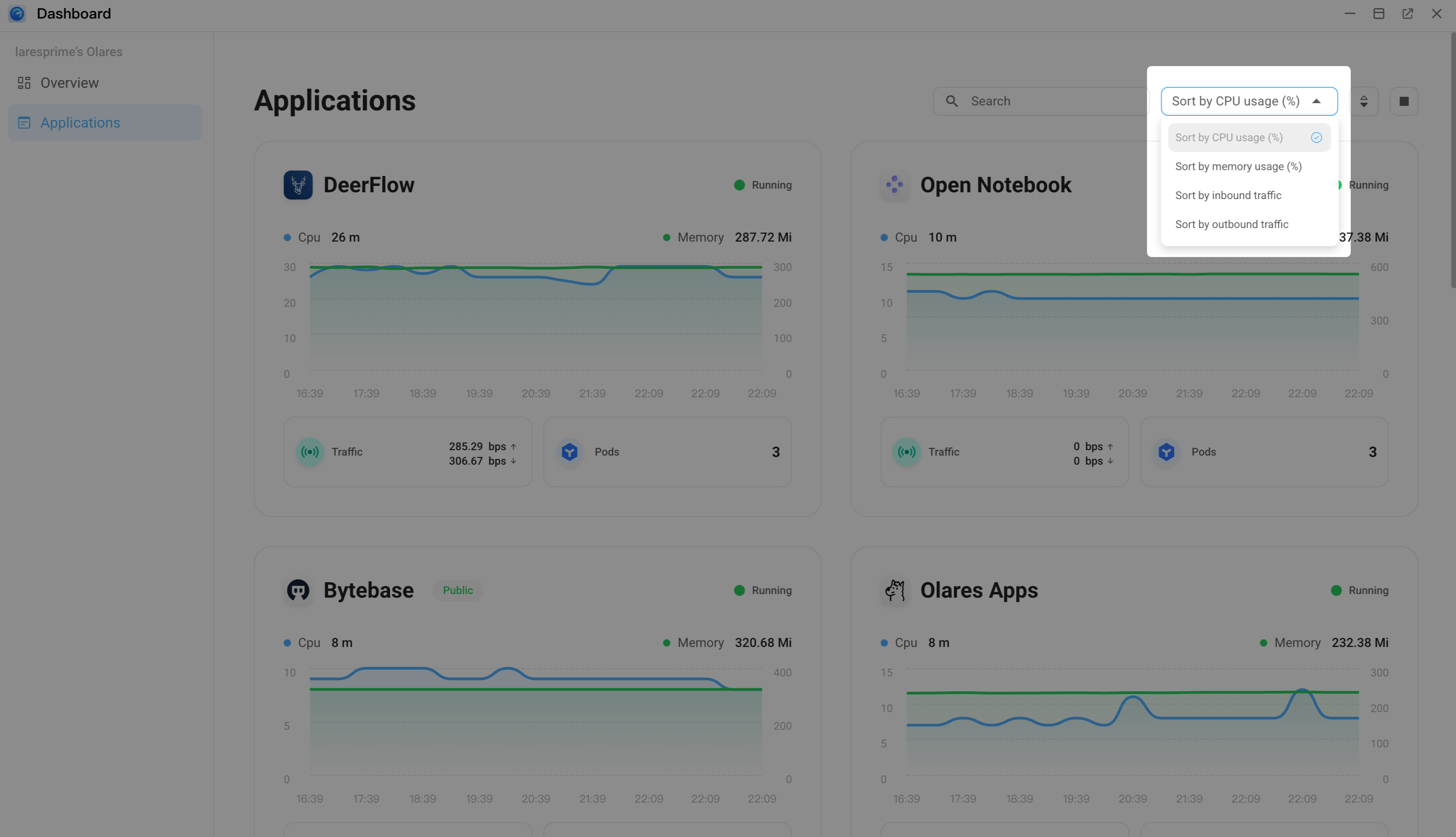
From the left navigation pane, click Applications.
Sort the list using the dropdown menu in the top right:
- Sort by CPU usage: Find processor-heavy apps.
- Sort by memory usage: Find memory-hungry apps.
- Sort by inbound traffic: Find apps downloading the most data.
- Sort by outbound traffic: Find apps uploading the most data.
Next steps
If you identify an application consuming excessive resources, you can take actions to restore system speed. For example,
- Restart the app: Often, apps consume excess resources due to a temporary error. Restarting it usually fixes the problem.
- Stop or uninstall the app: If an app consistently slows down your system and you don't need it, you can stop it or uninstall it completely to free up resources for other tasks.