Generate images and videos with ComfyUI 1 h
ComfyUI is a powerful, node-based interface for Stable Diffusion that transforms AI media generation into a visual programming experience.
Olares provides ComfyUI Shared to allow multiple users to share models, plugins, and workflow resources within the cluster. It also features ComfyUI Launcher, providing administrator users with a simple way to manage ComfyUI resources and runtime environments.
Learning objectives
- Install and configure the ComfyUI service.
- Use ComfyUI Launcher to download optimized model packages.
- Generate images using the Z-Image Turbo workflow.
- Generate videos using the Wan 2.2 model.
Prerequisites
Hardware
- Olares One connected to a stable network.
- Sufficient disk space to download models.
User permissions
- Admin privileges to install ComfyUI from the Market, and to start or stop the ComfyUI service for the cluster.
Step 1: Install ComfyUI
Open Market, and search for "ComfyUI".
Click Get, then Install, and wait for installation to complete.
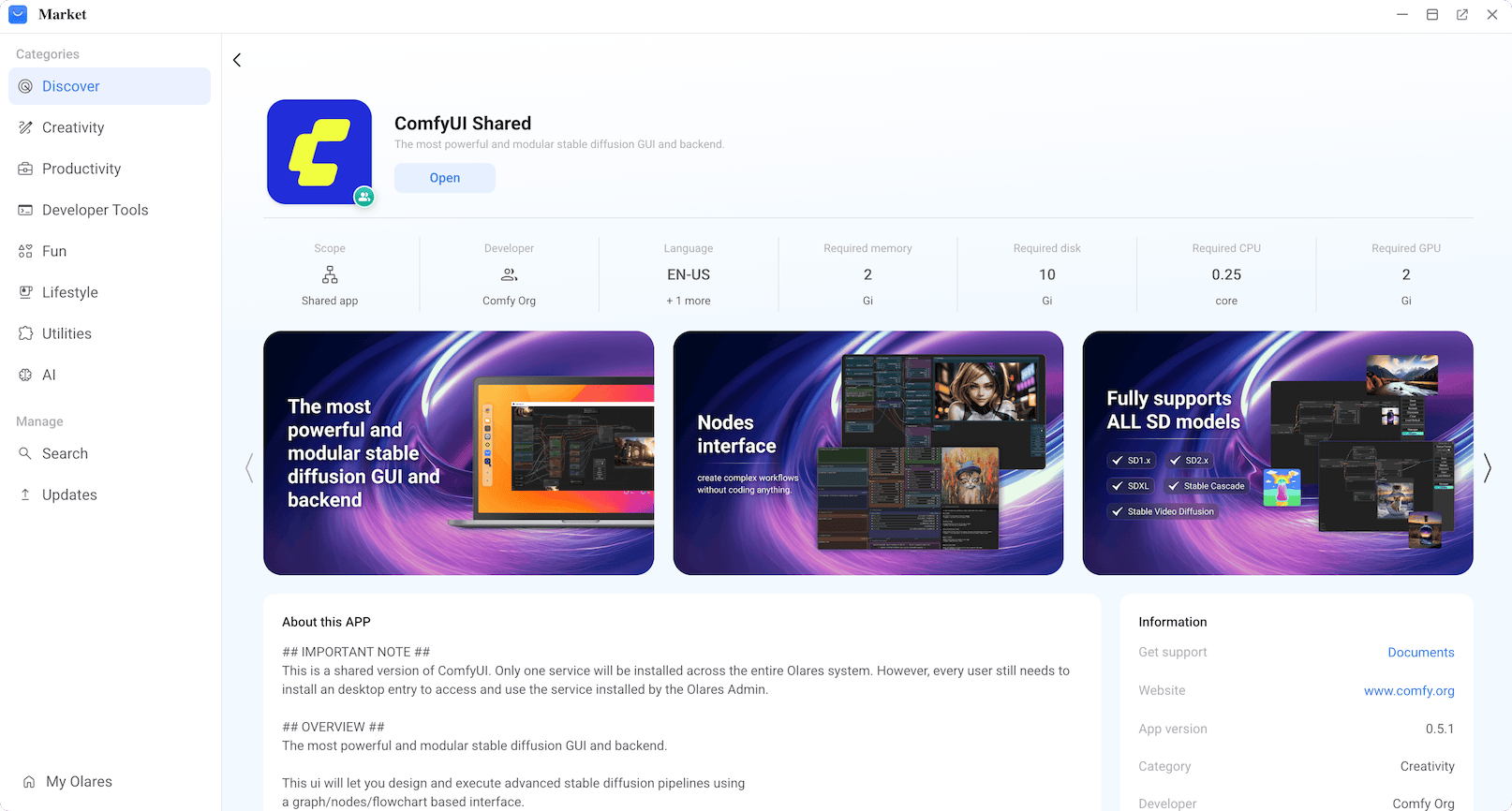
After it finished, you can see two icons for ComfyUI on Launchpad:
- ComfyUI: The client interface for ComfyUI.
- ComfyUI Launcher: The core management dashboard. You must use this tool to start the ComfyUI service before you can use the client.
Step 2: Download model package
To generate content, you must first download the specific model package.
Open ComfyUI Launcher, and scroll down to Resource Package.
For image generation, find Z-Image Turbo Package and click GET ALL to download necessary models.
For video generation, select Wan 2.2 Text to Video 14B Package and click GET ALL to download necessary models.
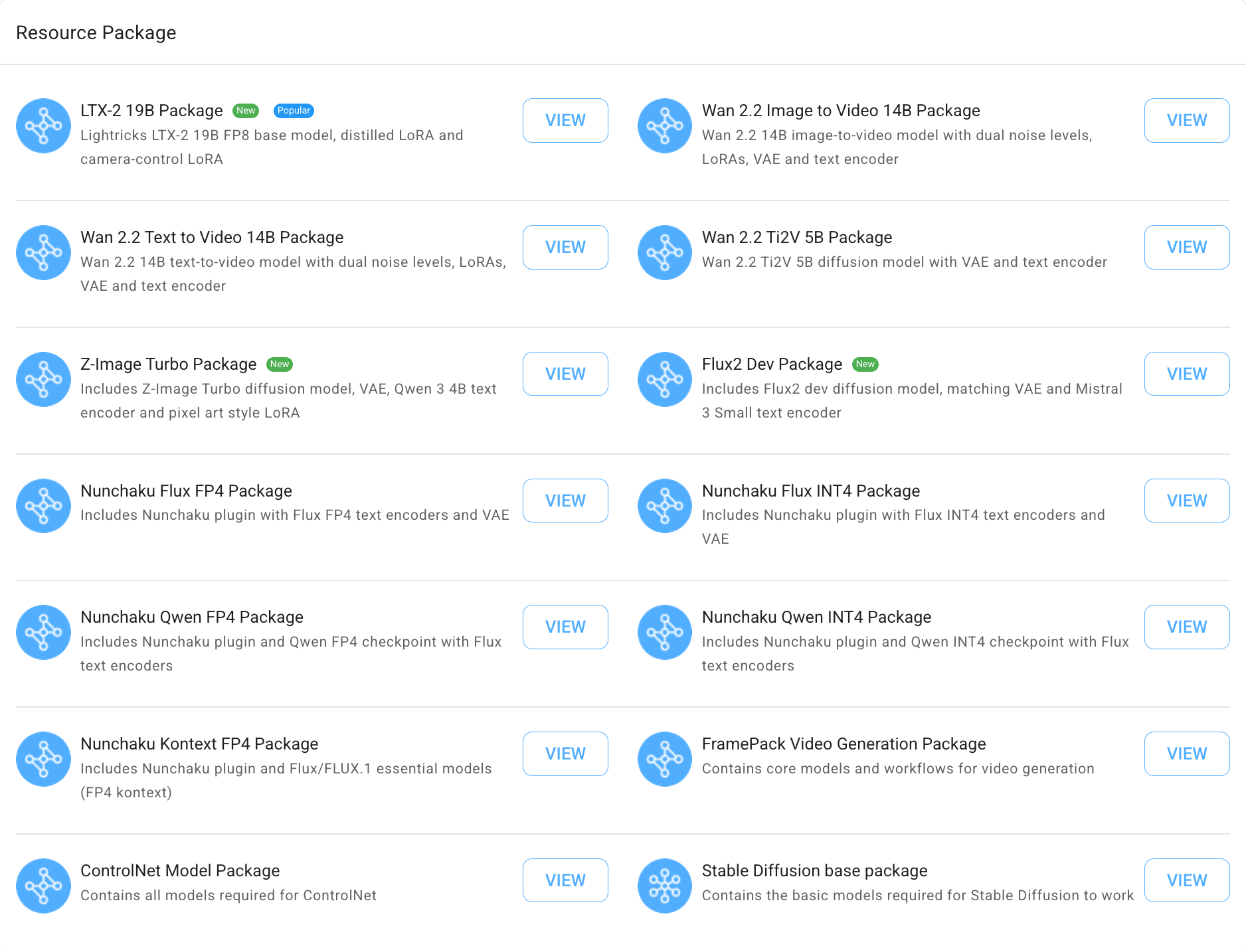
When the download completes, click RESTART on the Home page for the changes to take effect.
Step 3: Start the ComfyUI service
- In ComfyUI Launcher, click START in the upper-right corner.

Initialization time
The initial startup typically takes 10–20 seconds as the environment initializes.
- Once the status changes to "Running," click OPEN. This will launch the ComfyUI client in a new browser tab.
Step 4: Generate images
This section uses the Z-Image Turbo workflow to help you get started.
In the ComfyUI client, click Templates in the left navigation bar, then select Image under GENERATION TYPE.
Search for "Z-Image", then select Z-Image-Turbo Text to Image from the results to open the workflow.
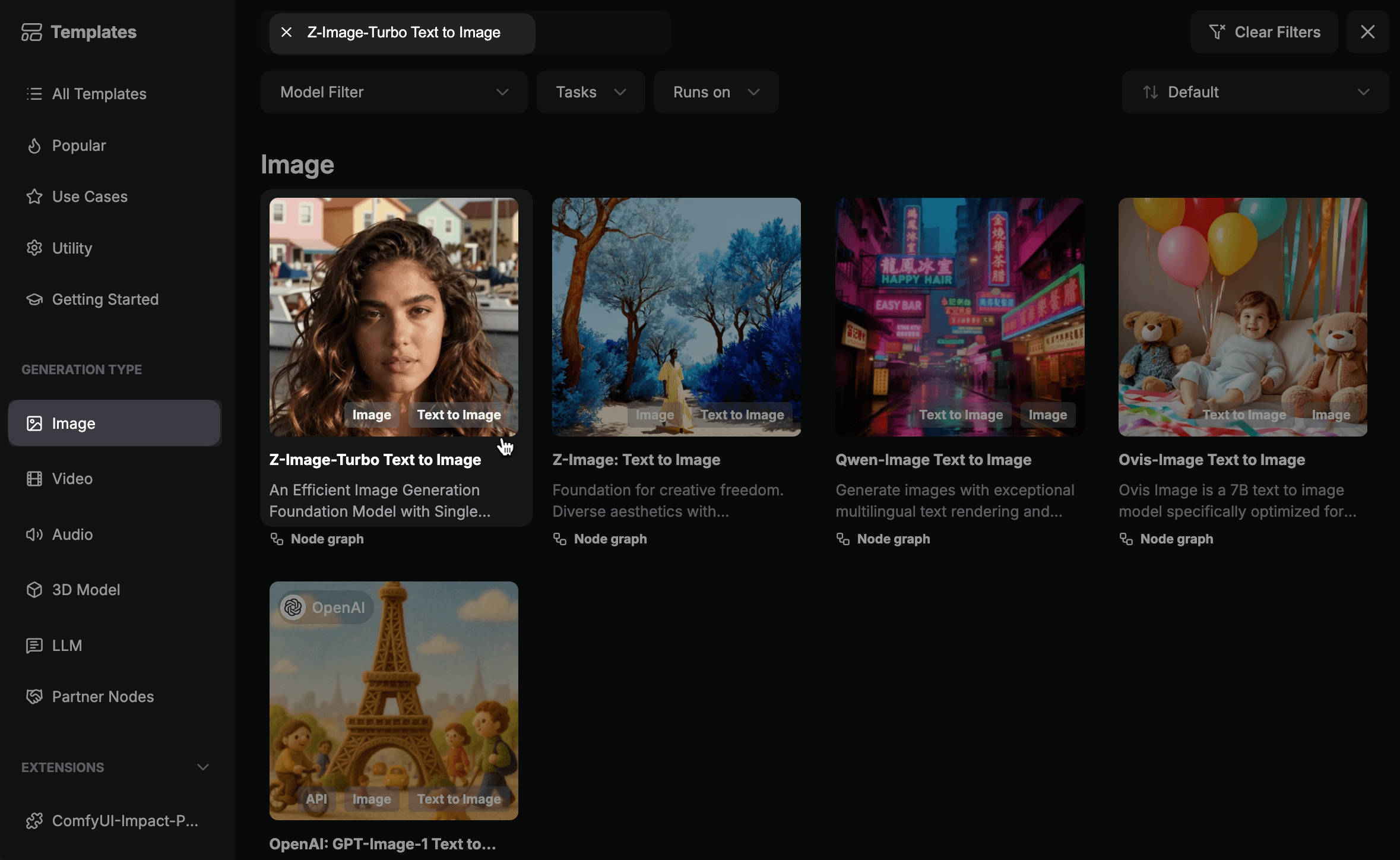
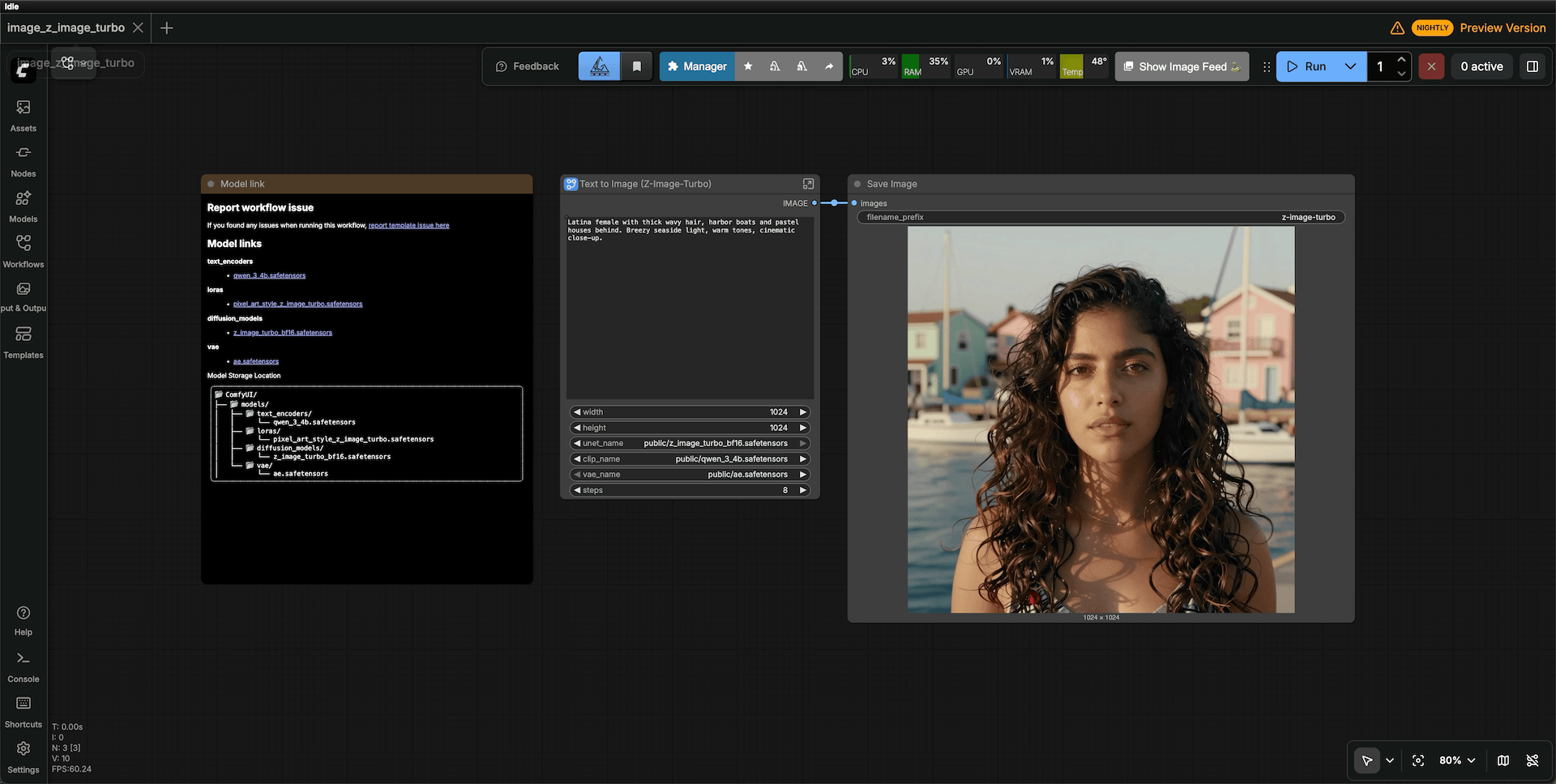
Update the text prompt in the same node to describe the image you want to generate.
Click Run in the toolbar to start generation.
Step 5: Generate videos
This section uses the Wan 2.2 workflow.
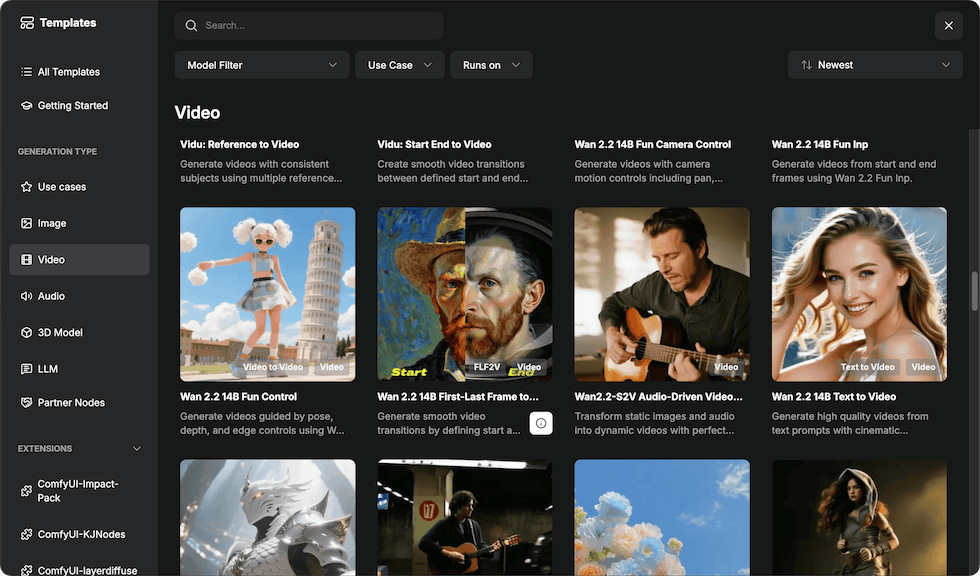
In the ComfyUI client, click Templates in the left navigation bar, then select Video under GENERATION TYPE.
Search for "Wan 2.2", then select Wan 2.2 14B Text to Video from the results to open the workflow.
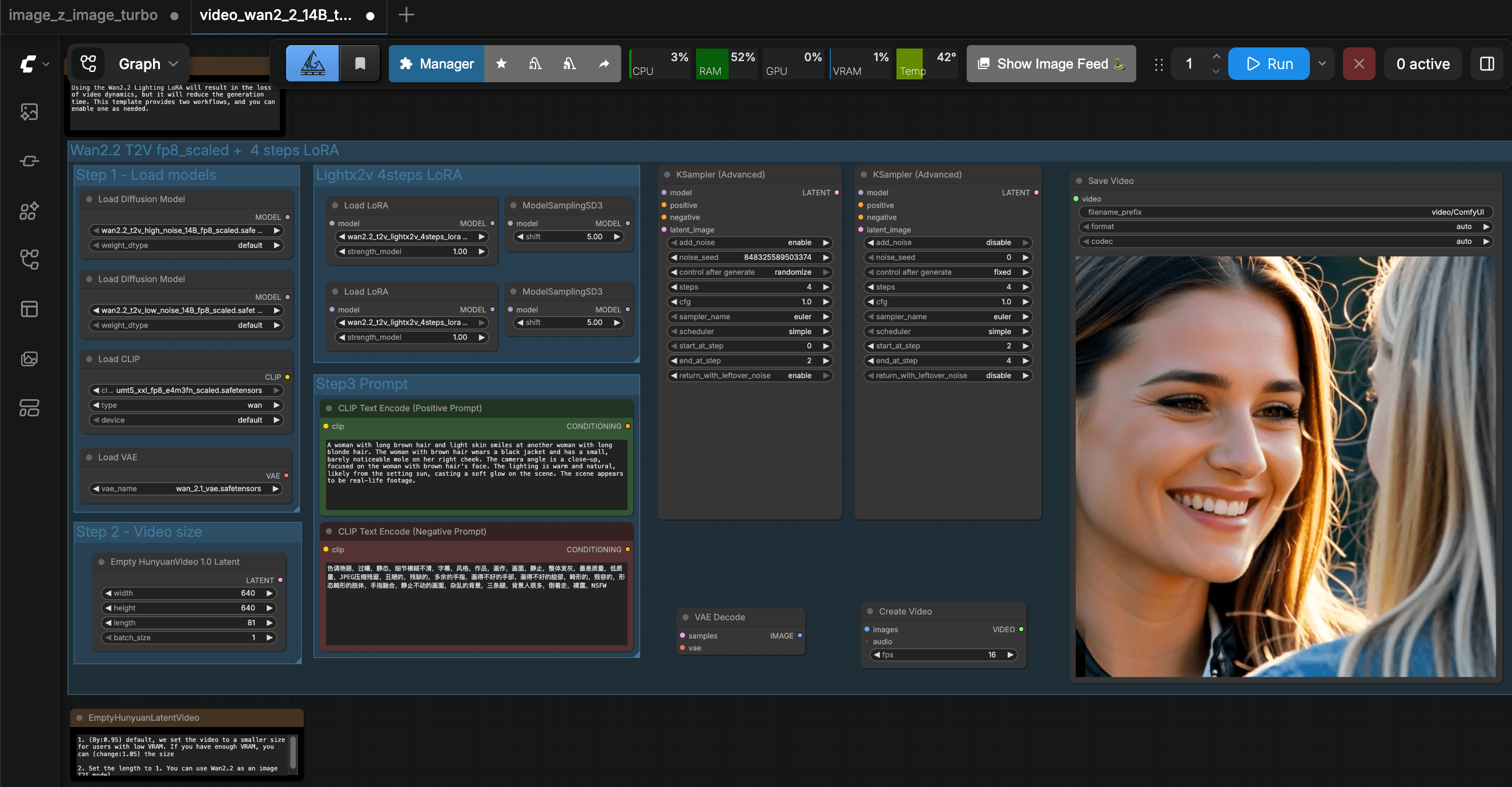
In the workflow, locate the CLIP Text Encode (Positive Prompt) node and edit the prompt as needed. You can revise the full prompt or only the parts you want to change. If needed, you can also adjust the CLIP Text Encode (Negative Prompt) node.
For example:
plainA woman with long brown hair and light skin smiles at another woman with long blonde hair. The woman with brown hair wears a black jacket and has a small, barely noticeable mole on her right cheek. The camera angle is a close-up, focused on the woman with brown hair's face. The lighting is warm and natural, likely from the setting sun, casting a soft glow on the scene. The scene appears to be real-life footage.Click Run in the toolbar to start generation. Video generation takes significantly longer than image generation.
Step 6: Download output files
You can download all output images and videos from Olares One to your local computer.
Open the Files app.
Navigate to the following directory:
plainExternal/olares/ai/output/comfyui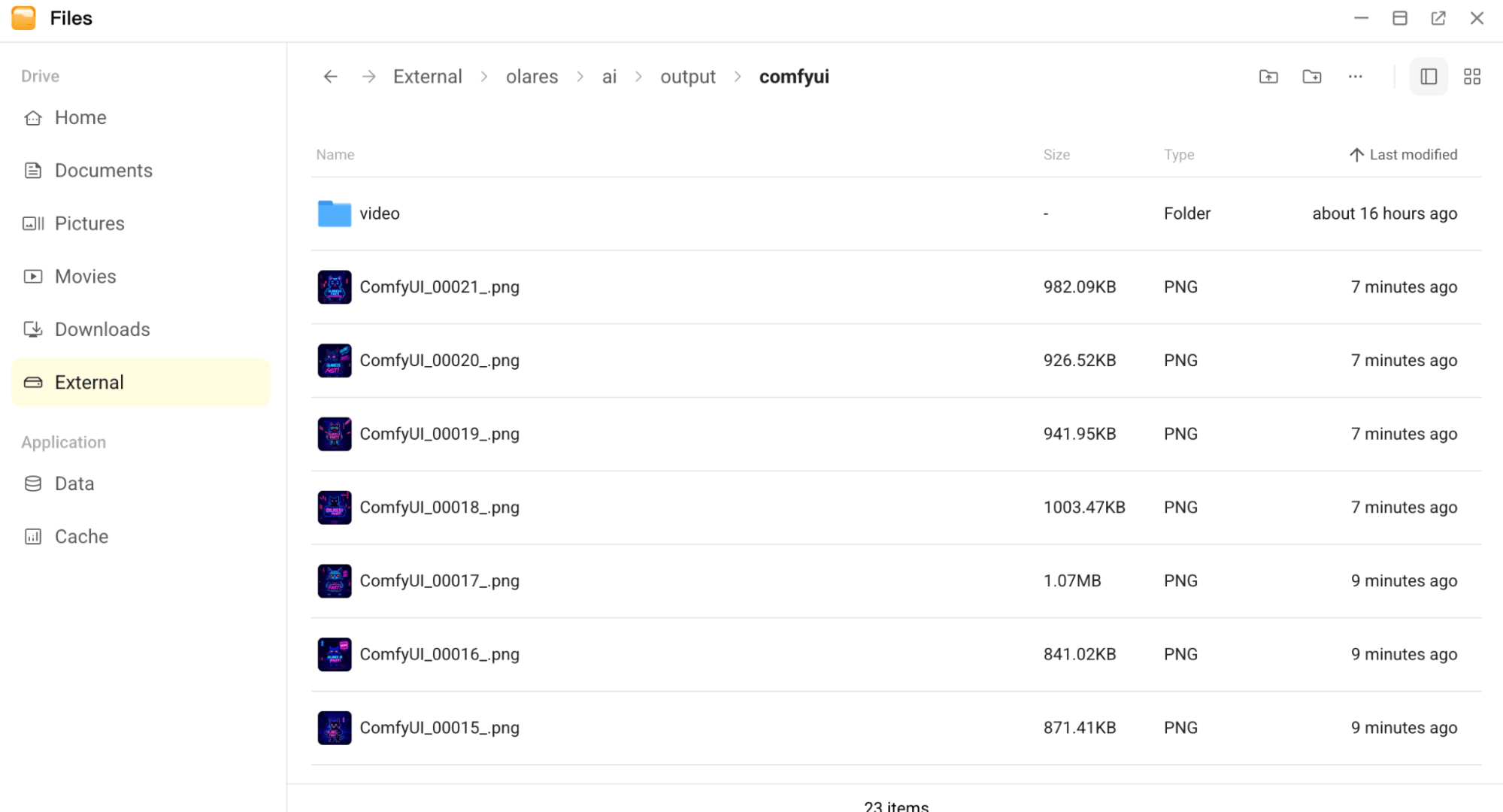
Select the files you wish to save.
Right-click and select Download to save them to your local computer.
Troubleshooting
CPU temperature rises unusually high
Running large workflows may cause the CPU temperature on Olares One to rise unusually high. See CPU temperature rises unusually high on Olares One for the workaround.