Connect to an external graphics card (eGPU) 5 min
Olares One supports connecting external graphics cards (eGPU) to boost performance for gaming, AI model training, etc.
Power off before connecting
Do not hot-swap the external GPU.
Olares One does not support connecting or disconnecting the external GPU while the system is running. Doing so might cause system crashes, data loss, or hardware damage.
Always shut down Olares One completely before connecting or disconnecting the device.
Prerequisites
Hardware
- The external GPU must be NVIDIA Turing architecture or newer (GTX 16xx, RTX 20xx, 30xx, 40xx, 50xx series, and later), support the Thunderbolt 5 protocol, and be compatible with Ubuntu/Linux.
- Ensure the external GPU has its own independent power source connected.
Compatibility
The external GPU must be an NVIDIA GPU with Turing or newer architecture, and compatible with Linux (Ubuntu). An unsupported GPU will not be recognized by Olares, and AI applications that require GPU access will not run.
Step 1: Connect the eGPU
Open Settings, and select My hardware > Shutdown.
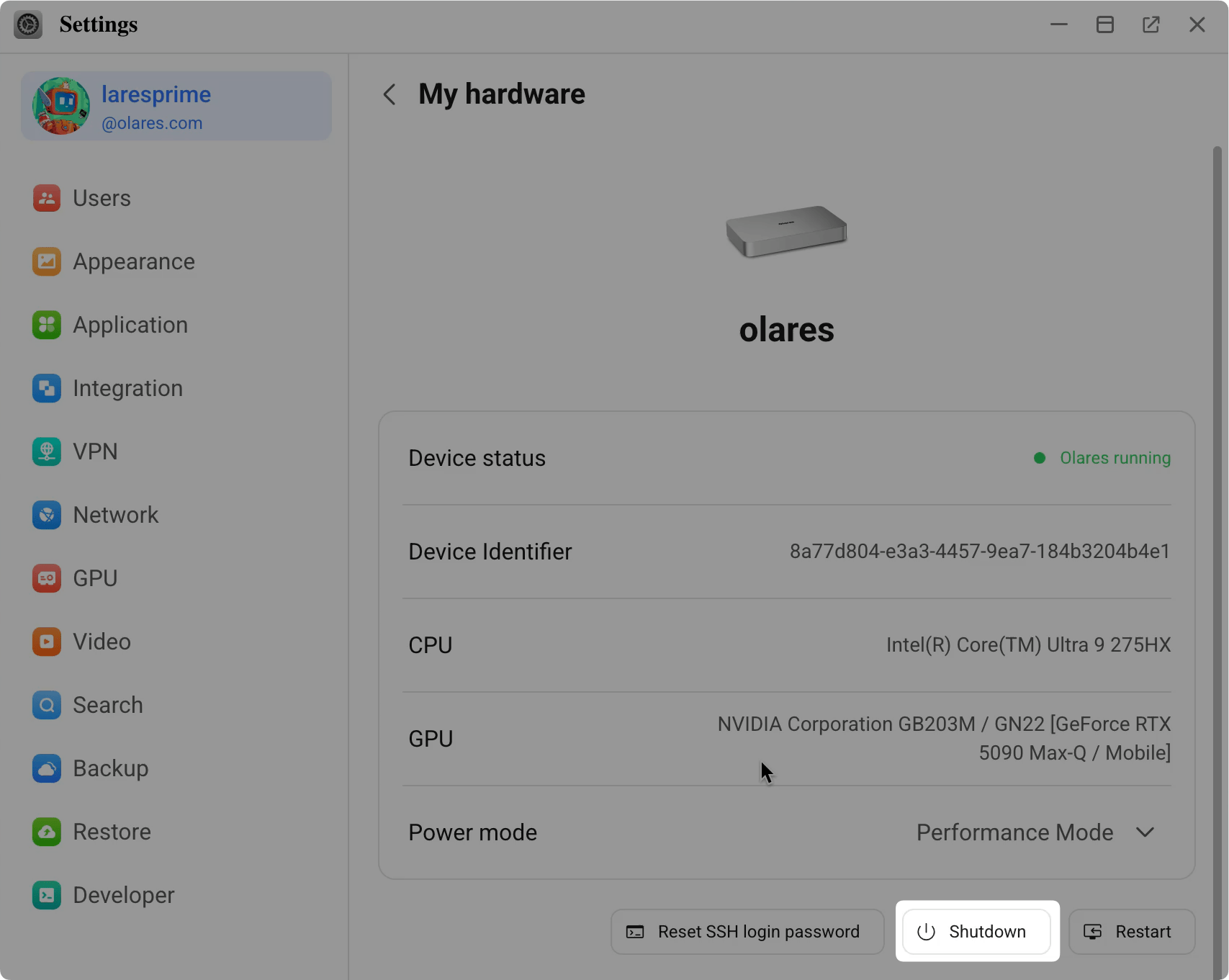
Scan the displayed QR code using the LarePass app. When the prompt appears in the app, tap Confirm to shut down Olares One.
Once Olares One is fully powered off, plug the cable from your external GPU into the USB-C port on Olares One.
Press the power button to turn on Olares One.
Step 2: Verify connection
To verify that the external graphics card is recognized:
- Log in to Olares, and open Dashboard.
- Select the GPU card. You should see your external card listed alongside the internal GPU.
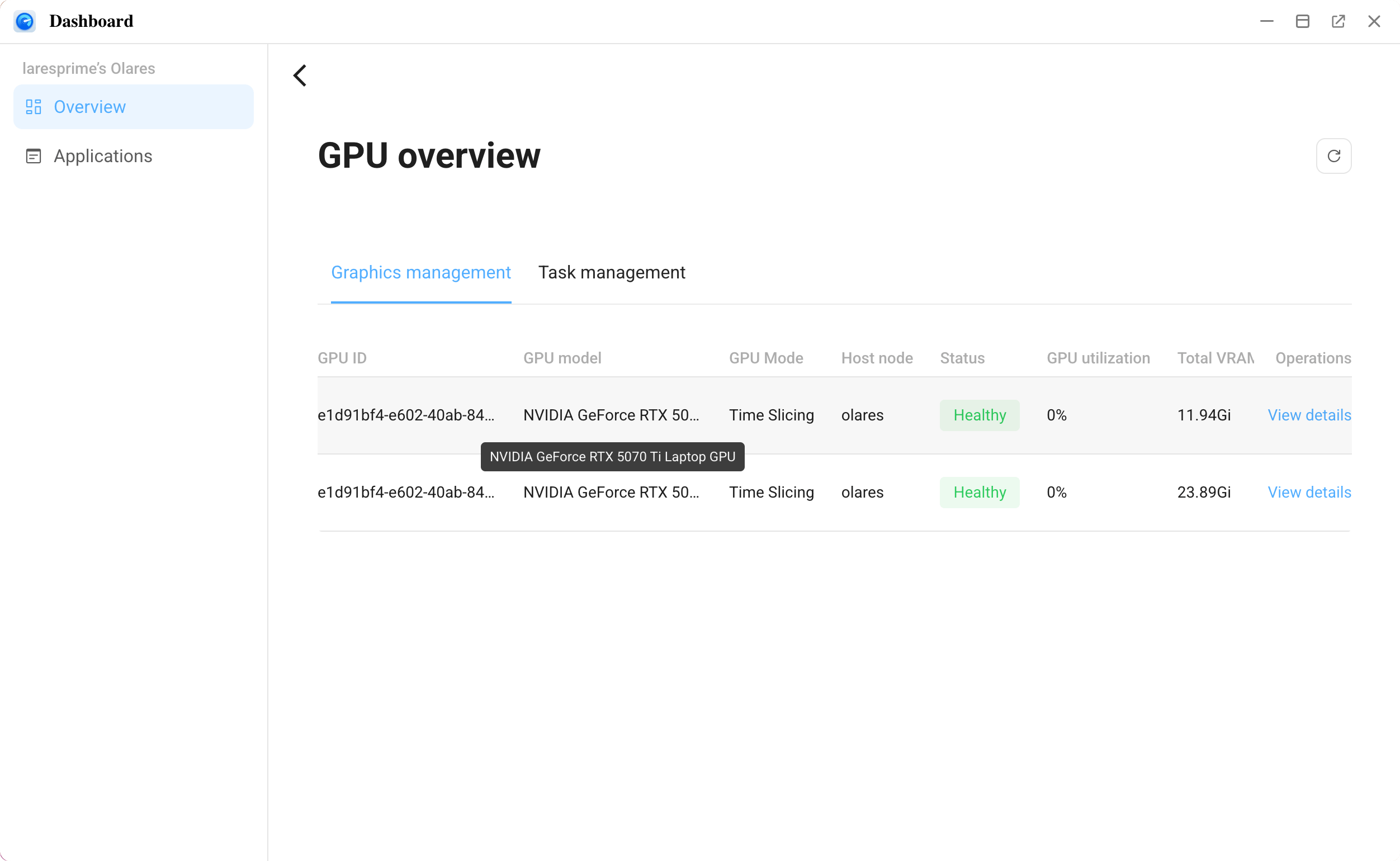
Disconnect the eGPU
To safely remove the eGPU:
- Shut down Olares One completely using the steps above.
- Turn off the power to the external GPU.
- Unplug the USB-C cable from Olares One.
- Press the power button to turn on Olares One.