Secure passwords with Vault 15 min
Vault is the dedicated password and sensitive data manager in Olares. Use it to securely store passwords, keys, digital identities, and sensitive documents.
This guide covers the fundamentals of using Vault, including setting up your first vault, importing credentials, and managing your sensitive data efficiently.
Learning objectives
- Initialize your personal Vault for the first time.
- Create and save a secure item. This guide uses Wi-Fi password as the example.
- Edit and organize your credentials.
- Locate items using search and filters.
Before you begin
Familiarize yourself with related Vault concepts and how Vault organizes your data.
Vault types
Olares Vault offers two main types of vaults:
- My vault: This is your private vault that is created automatically upon account activation. The vault is encrypted with your mnemonic and is visible only to you.
- Team vaults: These are collaborative vaults that are used to share credentials securely with team members or family.
Vault items
A vault item is a secure container for a specific piece of information. While commonly used for login credentials, vault items can also store credit cards, secure notes, passports, and network details.
Set up Vault
When you open Vault on your device for the first time, you must initialize it for security.
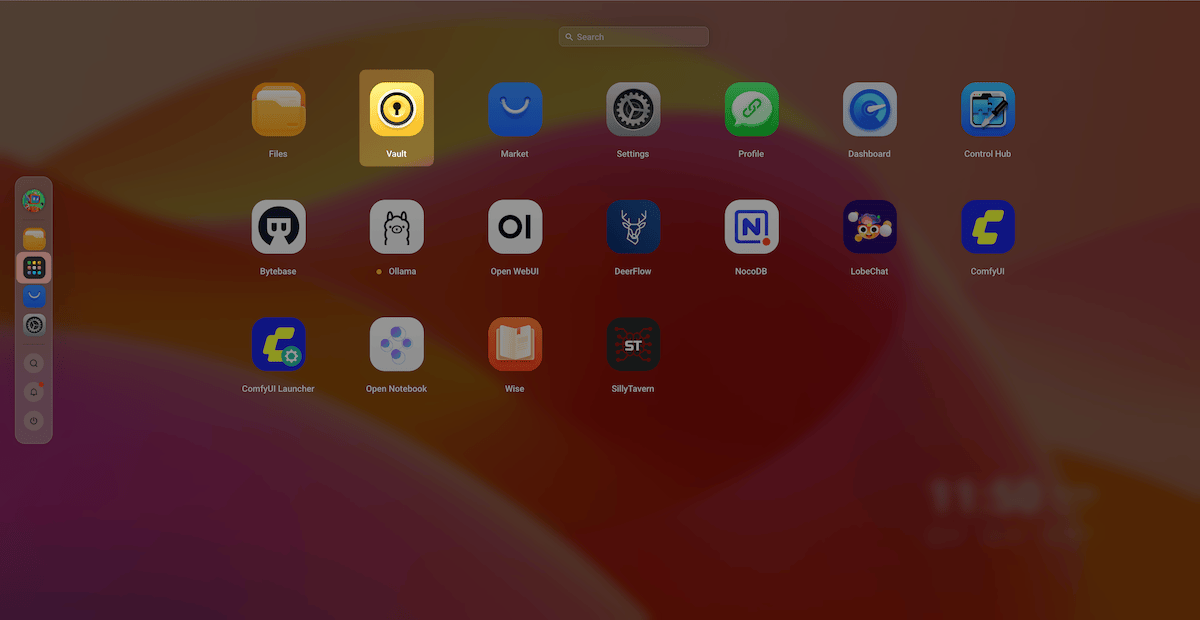
Open the Vault app from the Launchpad.
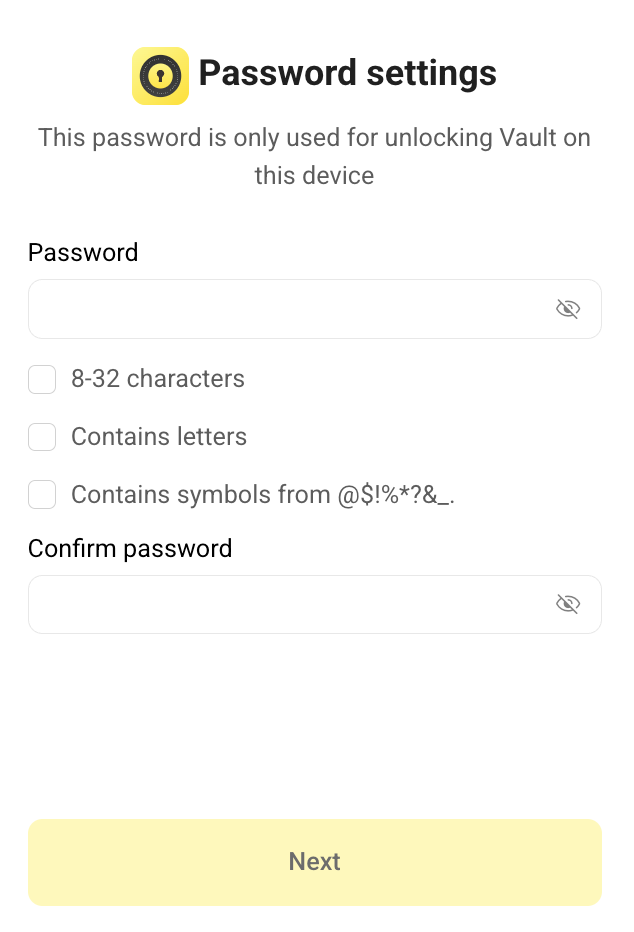
Set a local password for Vault, which is used to unlock Vault on the current device only. This local Vault password acts as a second layer of defense.
Security best practice
Do not use the same password as your Olares login. If someone guesses your login password, this secondary password ensures your sensitive data remains locked.
Click Confirm.
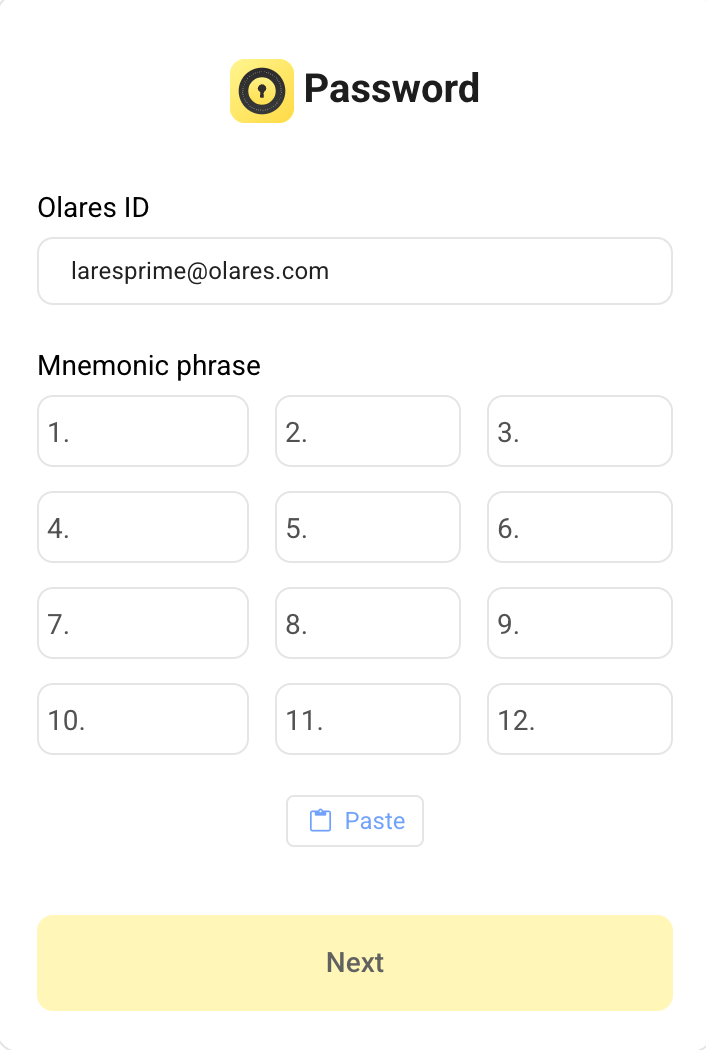
Import your Olares ID that is already linked to your server using your mnemonic phrase.
TIP
For information about how to get your mnemonic phrase in case you do not have it handy, see Reveal and back up your mnemonic phrase.
Click Next.
Add vault items
Create a new vault item to store "my company Wi-Fi password".
Open the Vault app from the Dock or Launchpad.
Click add in the All vaults panel.
From the Select Vault list, choose My Vault for private use.
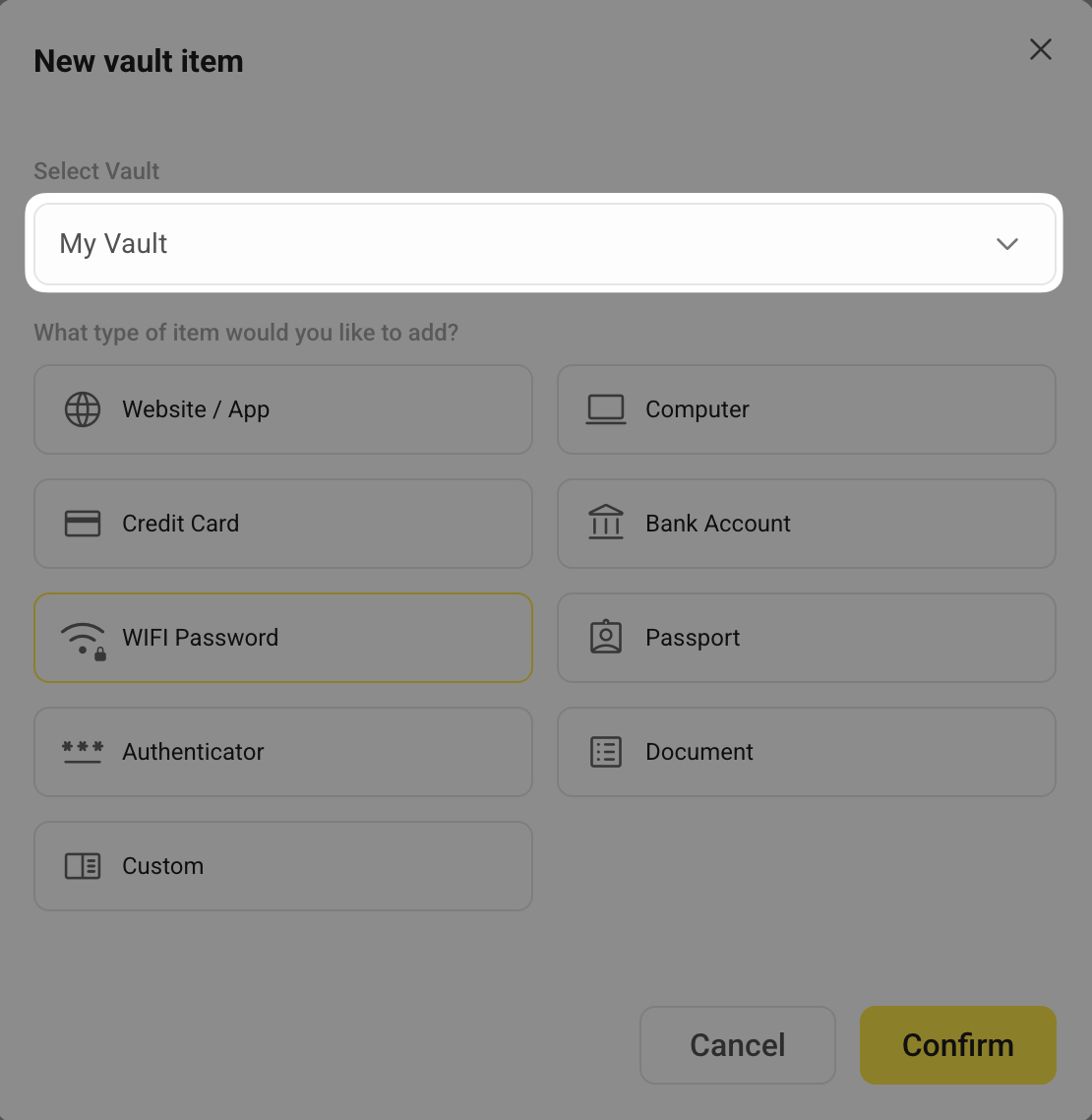
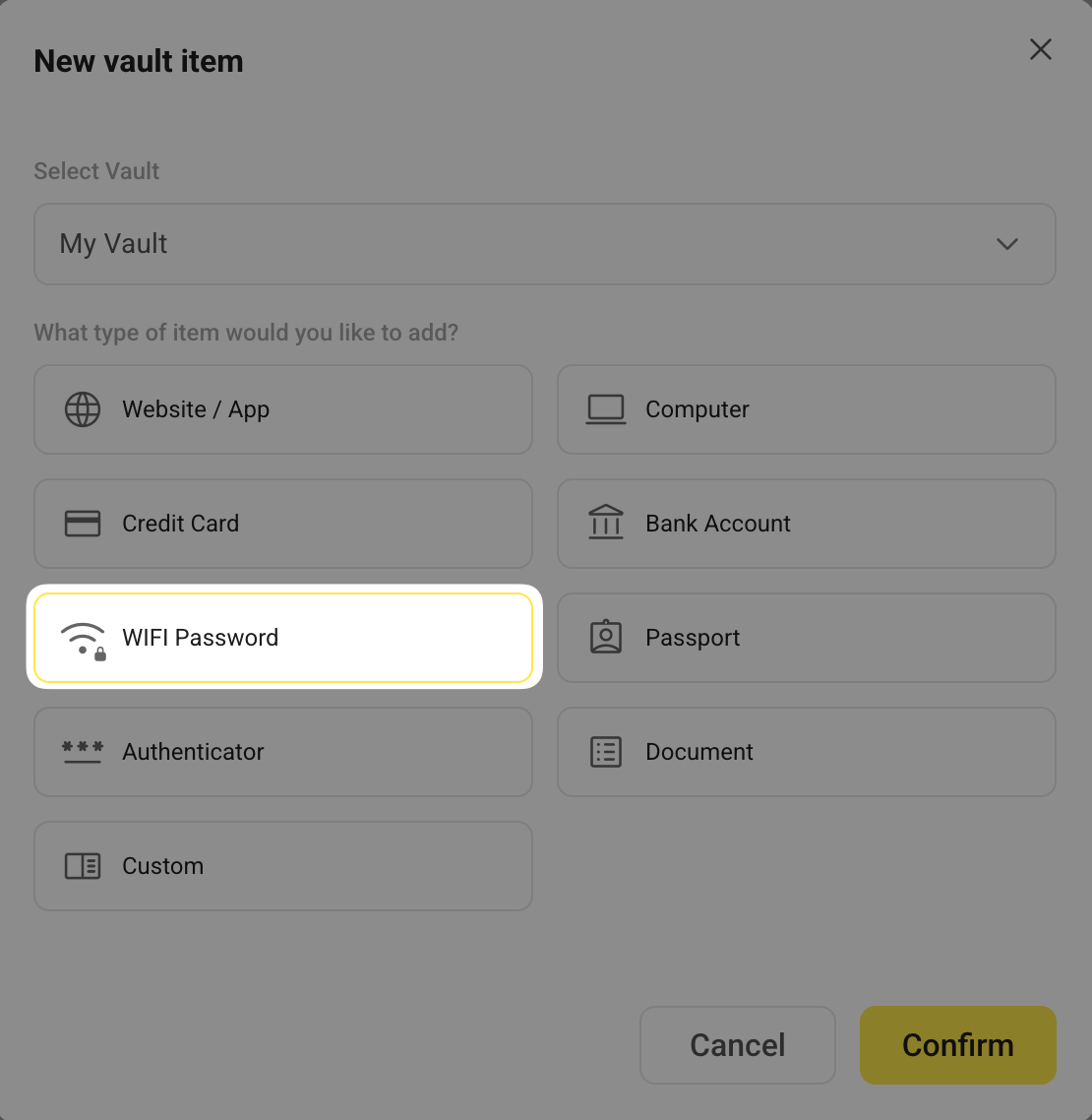
Select WIFI Password from the category, and then click Confirm.
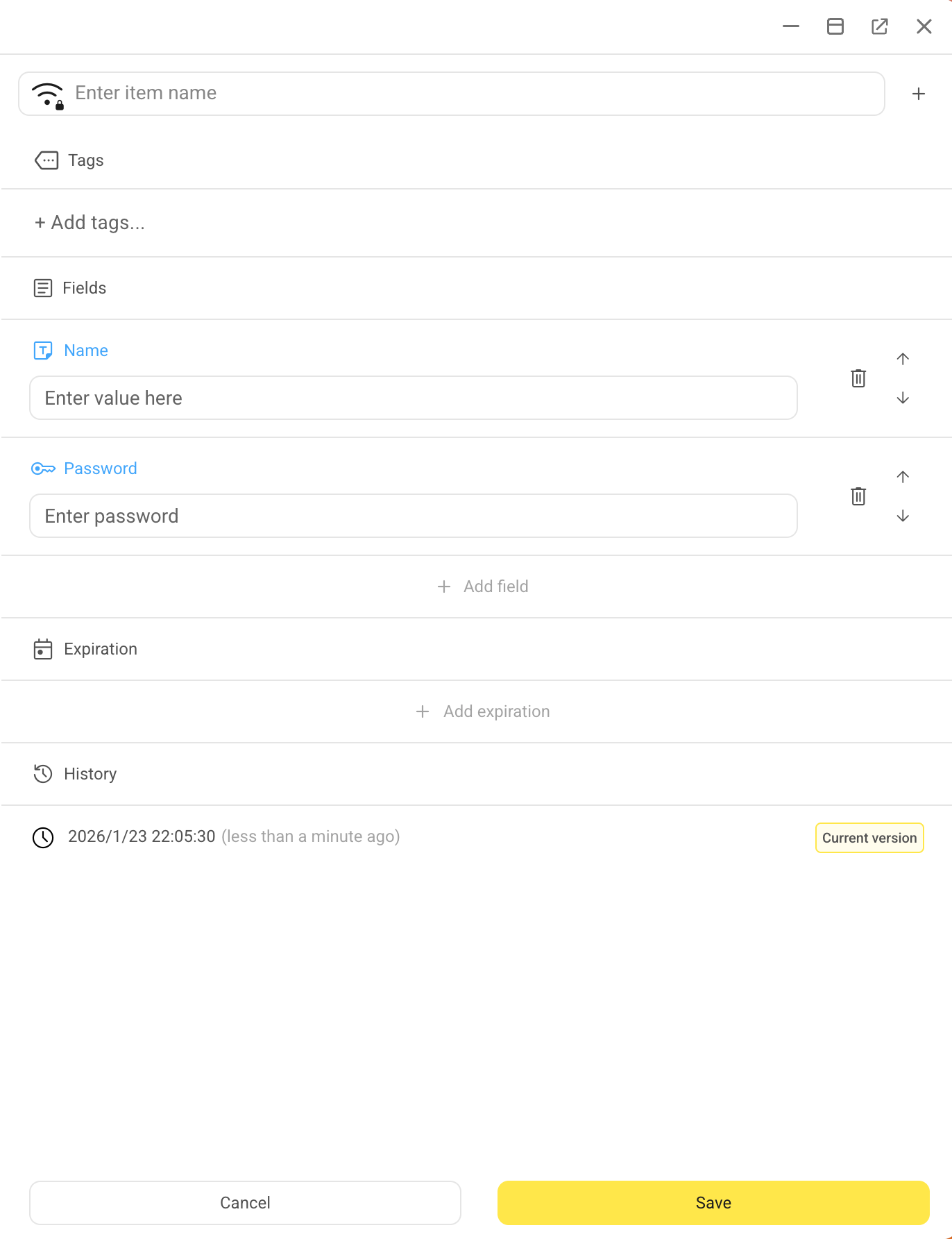
The details panel opens on the right. It displays the default fields relevant to the category you selected.
Fill in details in the fields.
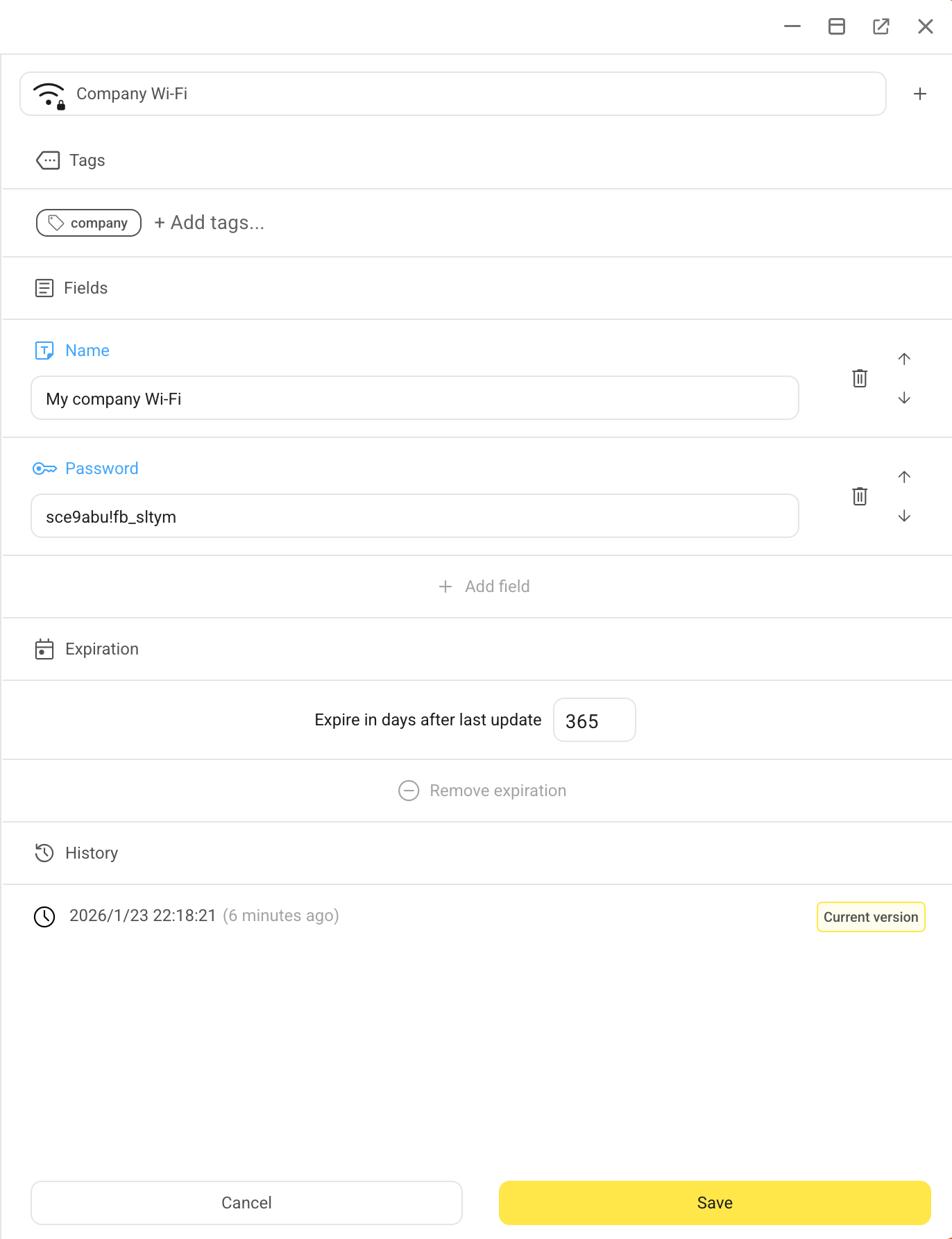
Click Save. The vault item is encrypted and added to the All vaults list.
Manage vault items
Keep your vault items organized and up to date.
Edit vault items
Modify an existing vault item to update details.
Open the Vault app.
In the All vaults panel, click the target vault item.
In the details panel on the right, click edit_note.
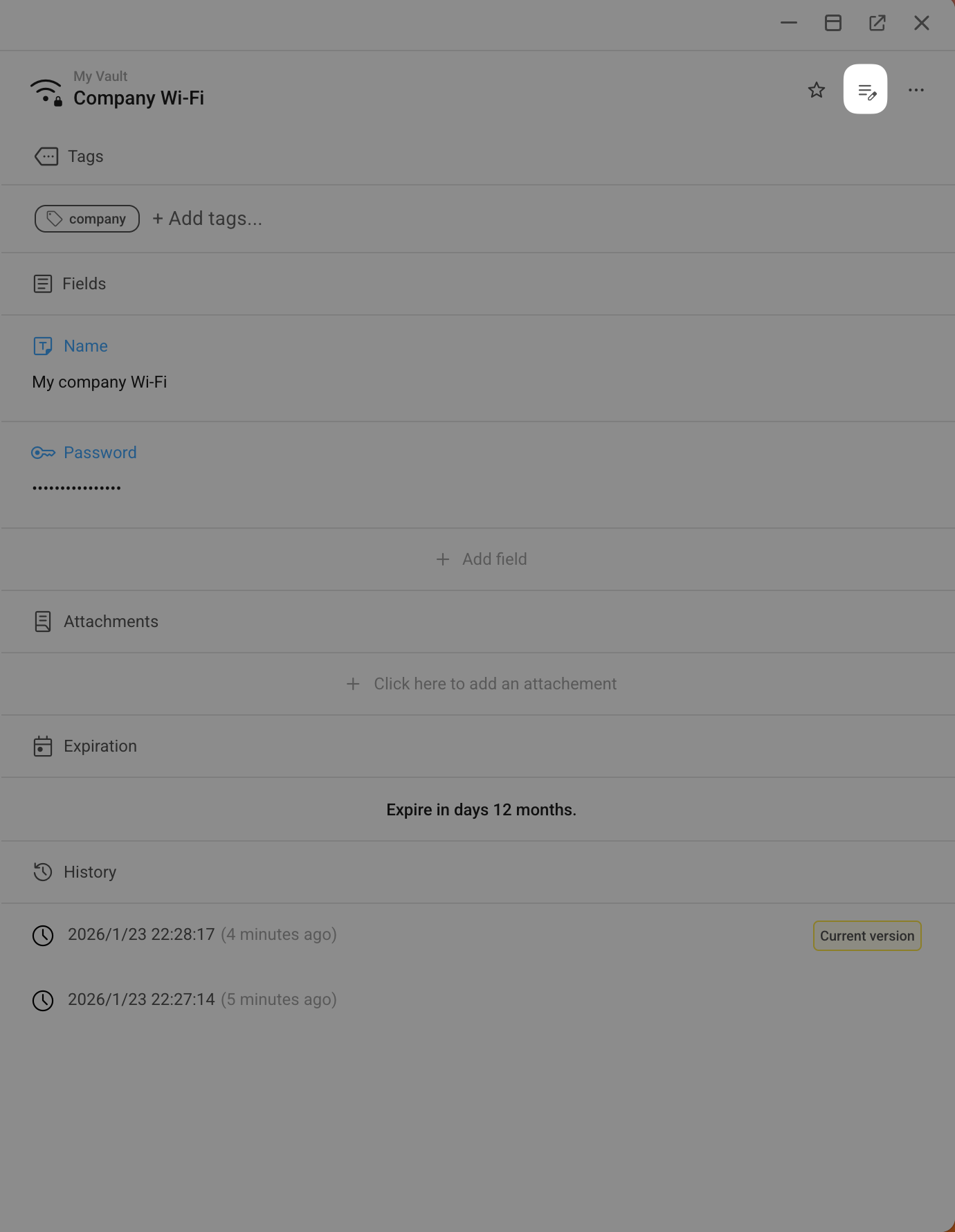
Make changes as needed. For example, remove the expiration date.
Click Save.
Mark favorite vault items
Mark frequently used vault items for quick access.
Open the Vault app.
In the All vaults panel, click the target vault item.
Click star_border in the top right corner.
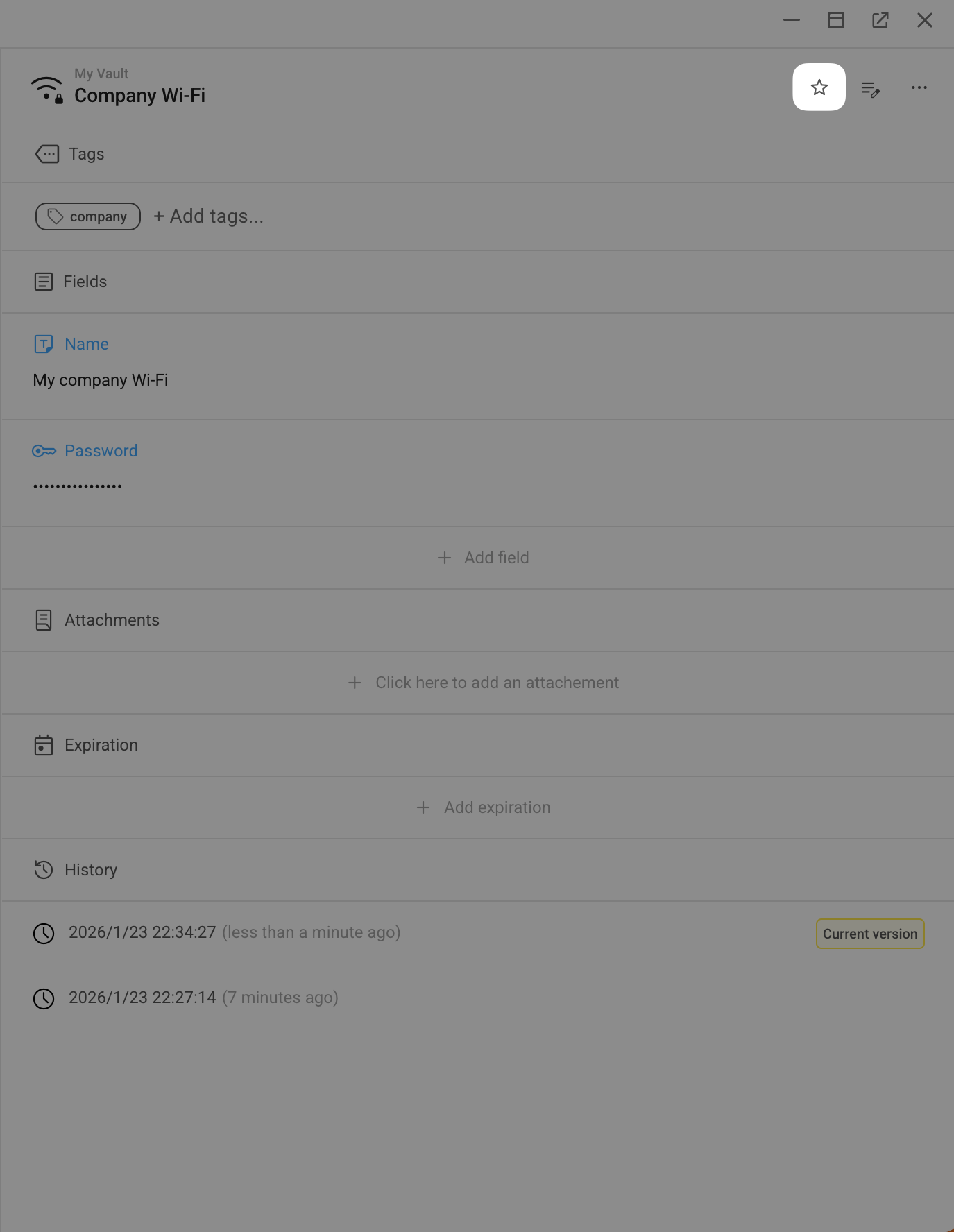
The item is marked with a star in the All vaults panel.

Find vault items
Locate vault items quickly using keyword search or filters.
Search
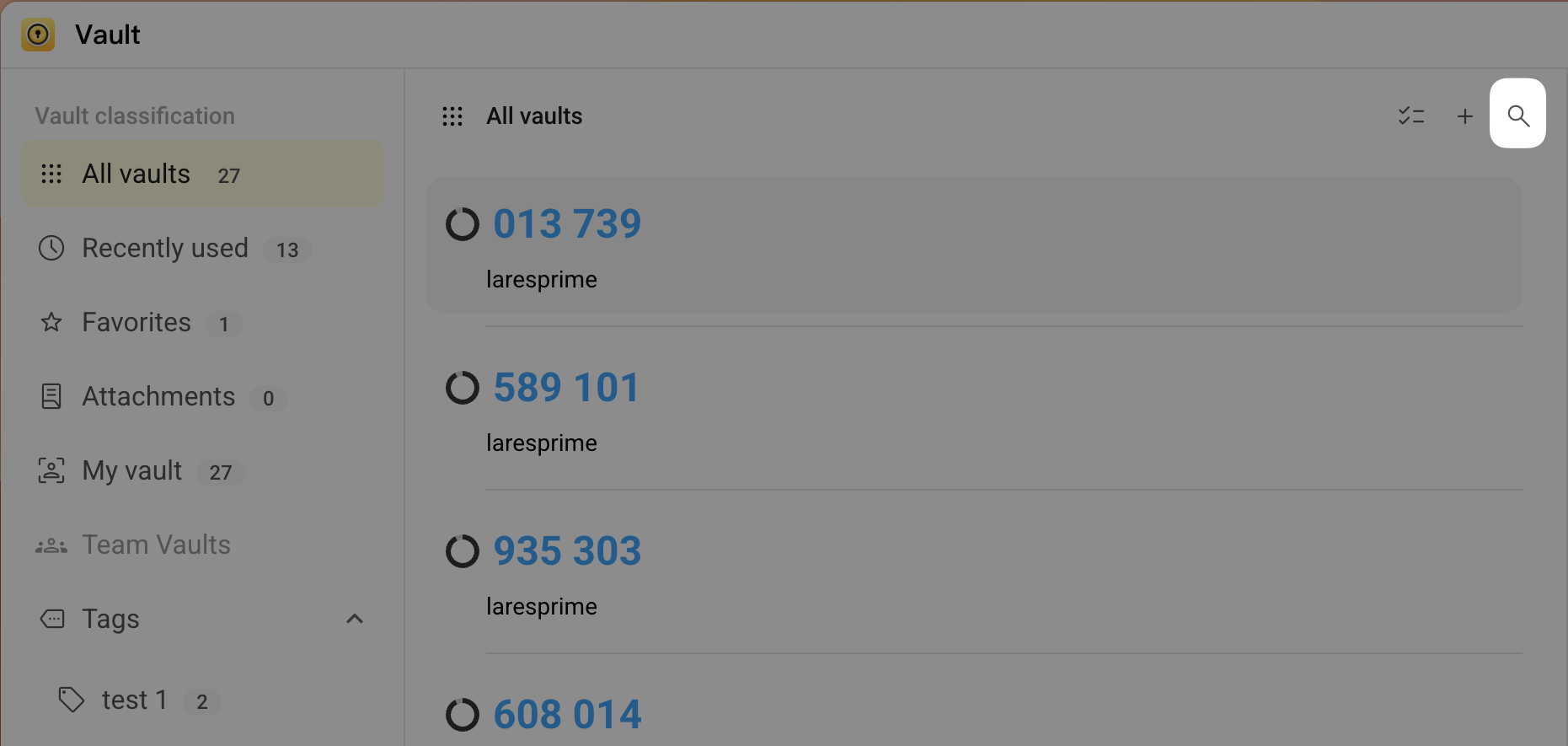
In the All vaults panel, click search and enter keywords (such as Wi-Fi or company) to find specific vault items.
Filter
Use the left sidebar to narrow down the list:
- Vault category: Switch between My Vault and Team Vaults to change the scope.
- Tags: Click a tag name to view all related vault items.
- Favorites: Click Favorites to view all starred items.
- Recently used: Click Recently used to view your access history.
- Attachments: Click Attachments to view items containing files.