Dual-boot Windows on a single SSD 45 min
Run both Windows and Olares OS on Olares One without adding a second drive.
This configuration installs Windows first, then sets up Ubuntu Linux alongside it, and finally deploys Olares OS.
Prerequisites
Hardware
- Olares One connected to Power.
- Wired keyboard and mouse connected to Olares One.
- (Recommended) An Ethernet cable connecting Olares One to your router.
- A USB flash drive contains Windows installation media.
- A USB flash drive contains Ubuntu Server or Desktop (24.04 LTS or newer) installation media.
Network
- A reliable internet connection.
- Your mobile phone connected to the same network.
Software
Backup required
Partitioning a drive carries a risk of data loss. If you have important data on your current drive, backup everything to an external source before proceeding.
Step 1: Install Windows
Insert the Windows USB boot drive into a USB port on Olares One.
Power on Olares One or restart it if it is already running.
When the Olares logo appears, immediately press the Delete key repeatedly to enter BIOS setup.
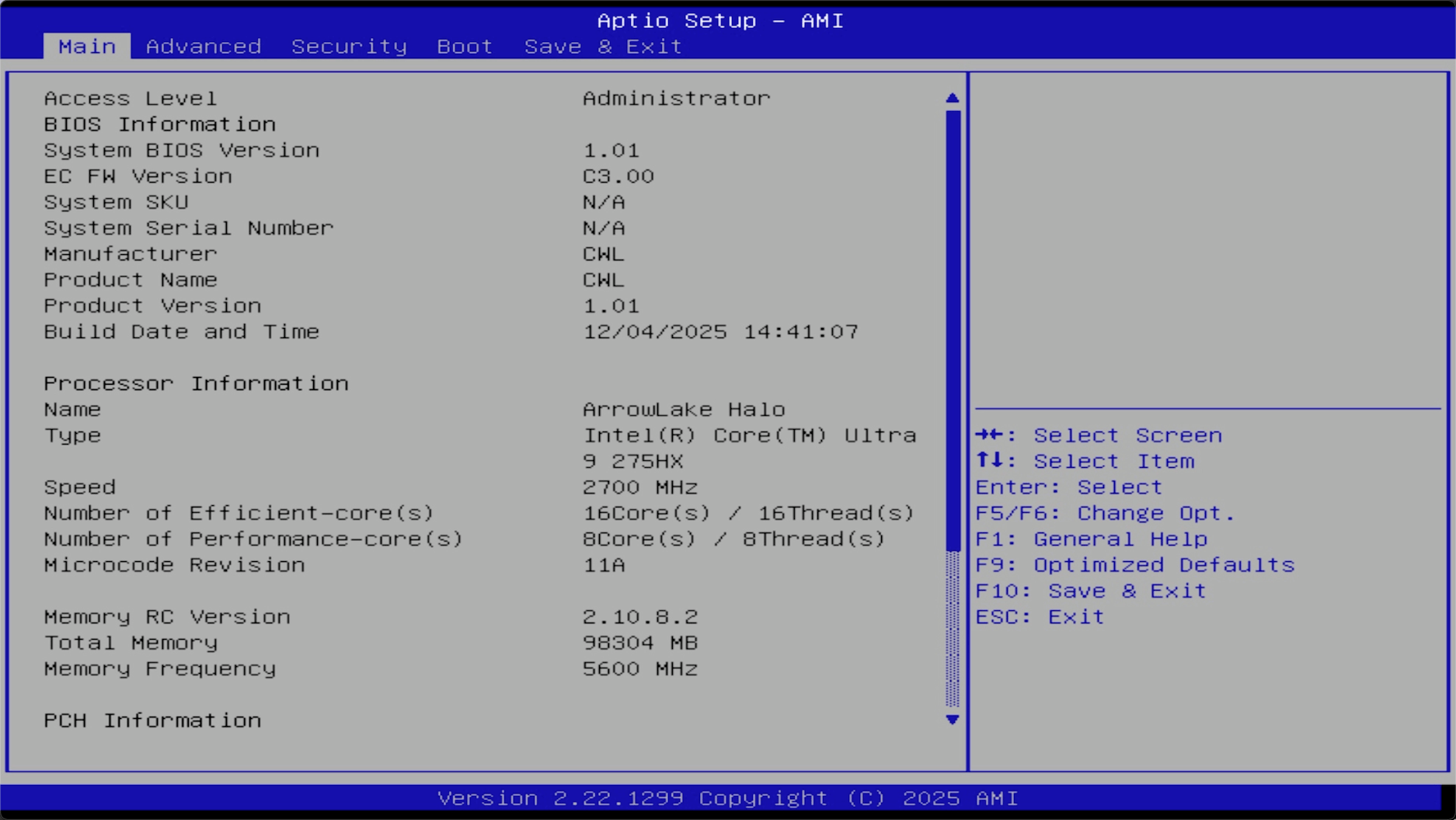
Navigate to the Boot tab using the arrow keys on your keyboard.
Set Boot Option #1 to your Windows USB flash drive, and press Enter.
Press F10, then select Yes to save and exit BIOS. The system restarts and boots from the USB drive into the Windows installation interface.
Follow the on-screen prompts to begin the Windows installation.
When the installation finishes and the system restarts, unplug the Windows USB drive.
The system will boot into Windows automatically.
Step 2: Create a partition for Ubuntu
- Once Windows is running, right-click the Start button and select Disk Management.
- Right-click your main
C:partition and select Shrink Volume. - Enter the amount of space to free up for Olares. Minimum 150 GB is required.
TIP
Avoid splitting the drive into two equal sizes. Using distinct sizes makes it easier to identify the correct partition later during the Ubuntu installation.
- Click Shrink to create a block of unallocated space.
Step 3: Install Ubuntu
Olares OS runs on top of a Linux kernel. You will install Ubuntu to serve as the host system.
- Insert the Ubuntu USB drive and restart Olares One.
- When the Olares logo appears, press the Delete key repeatedly to enter BIOS setup.
- Navigate to the Boot tab, set Boot Option #1 to your Ubuntu USB flash drive, and then press Enter.
- Press F10, then select Yes to save and exit BIOS. The system restarts and boots from the USB drive into the Ubuntu installer.
- Follow the installer prompts until you reach the Installation type screen.
TIP
If this option does not appear, select the manual installation option to manually assign the unallocated space to Ubuntu.
- When the installation finishes and the system restarts, unplug the Ubuntu USB drive.
The system will boot into Ubuntu automatically.
Step 4: Install Olares OS
Log in to Ubuntu using your username and password.
Open a terminal window if using Ubuntu Desktop or use the command line directly.
Run the official installation script:
bashcurl -fsSL https://olares.sh | bashAt the end of the installation process, you will be prompted to enter your domain name and Olares ID.
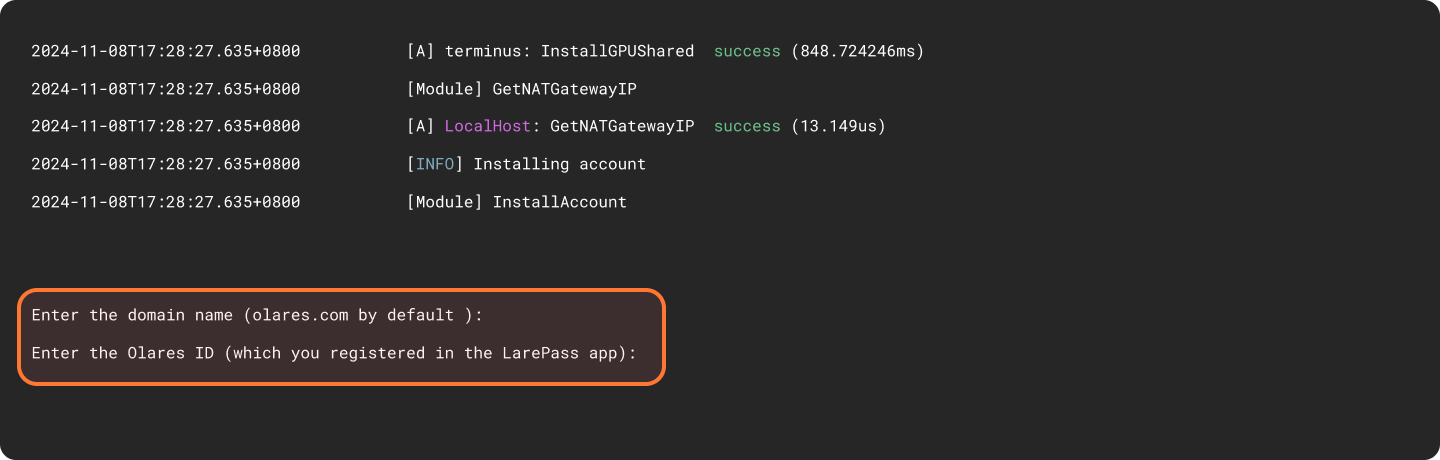
For example, if your full Olares ID is
[email protected]:- Domain name: Press
Enterto use the default domain name or typeolares.com. - Olares ID: Enter the prefix of your Olares ID. In this example, enter
alice123.
- Domain name: Press
Upon completion of the installation, the initial system information, including the Wizard URL and the initial login password, will appear on the screen. You will need them later in the activation stage. 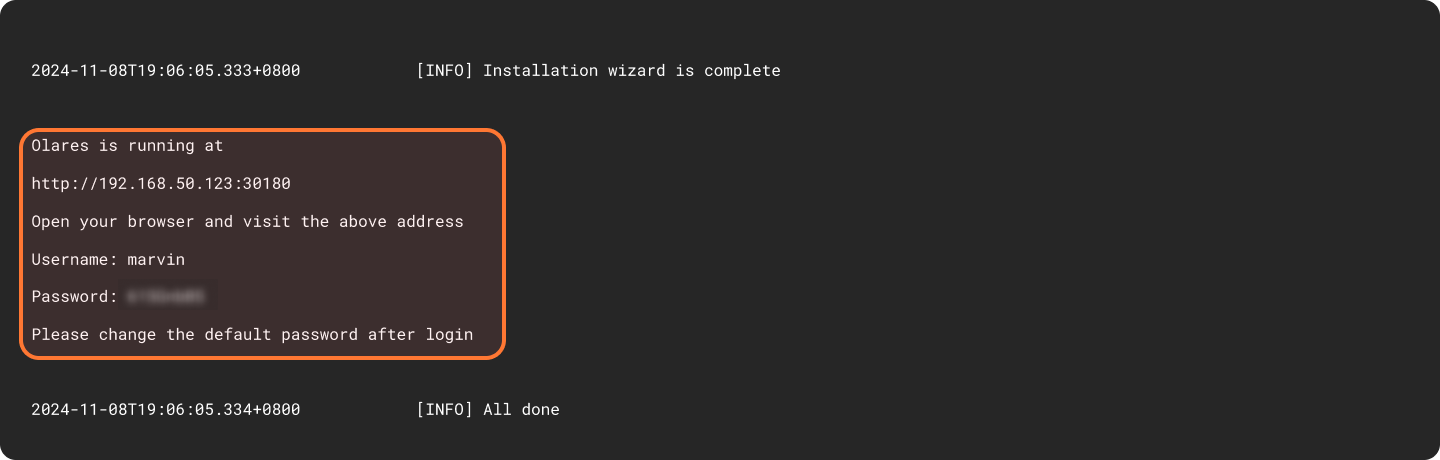
Step 5: Activate Olares OS
Enter the Wizard URL in the browser on Ubuntu, or use a browser on another computer connected to the same network.

Enter the one-time password and click Continue.
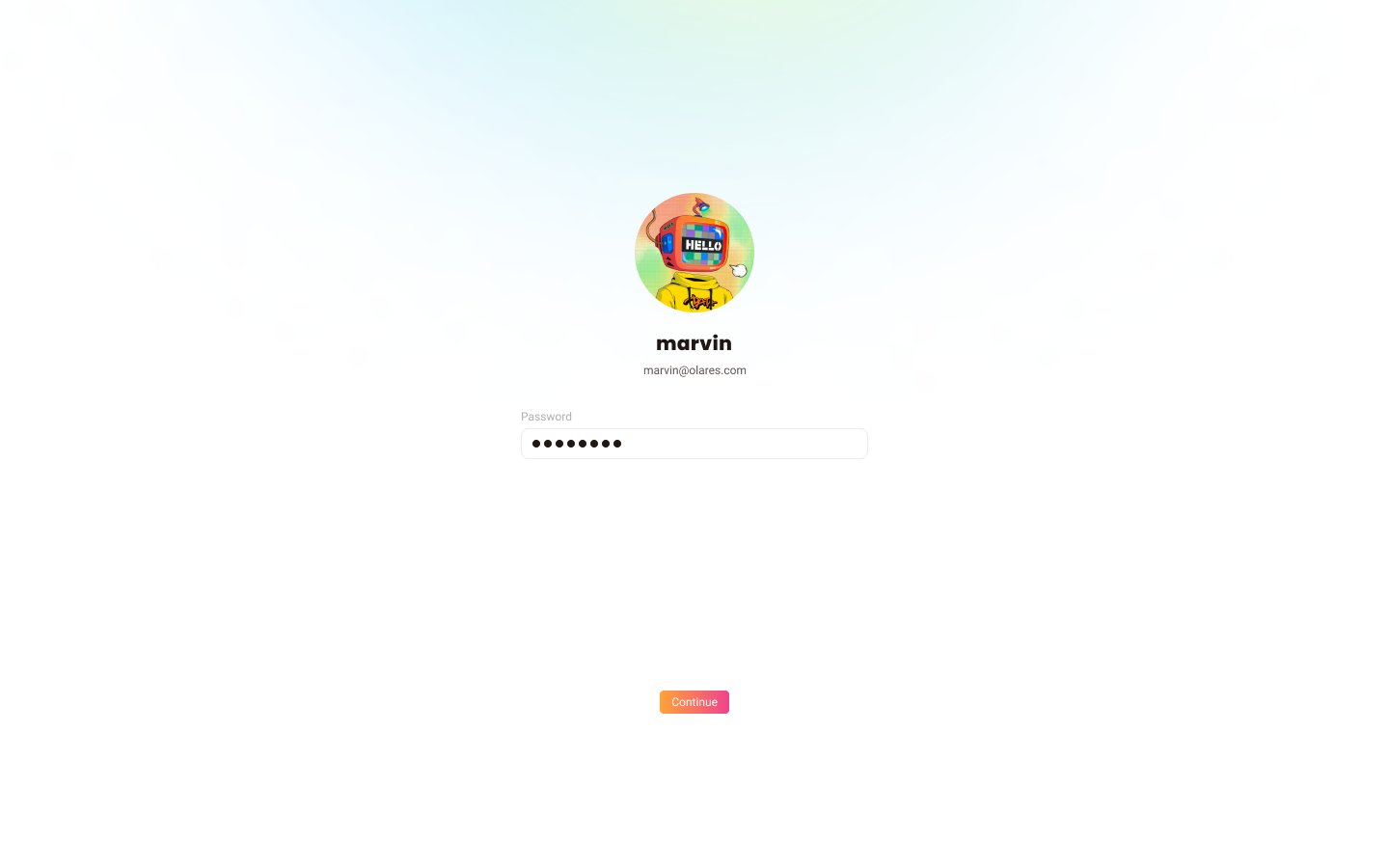
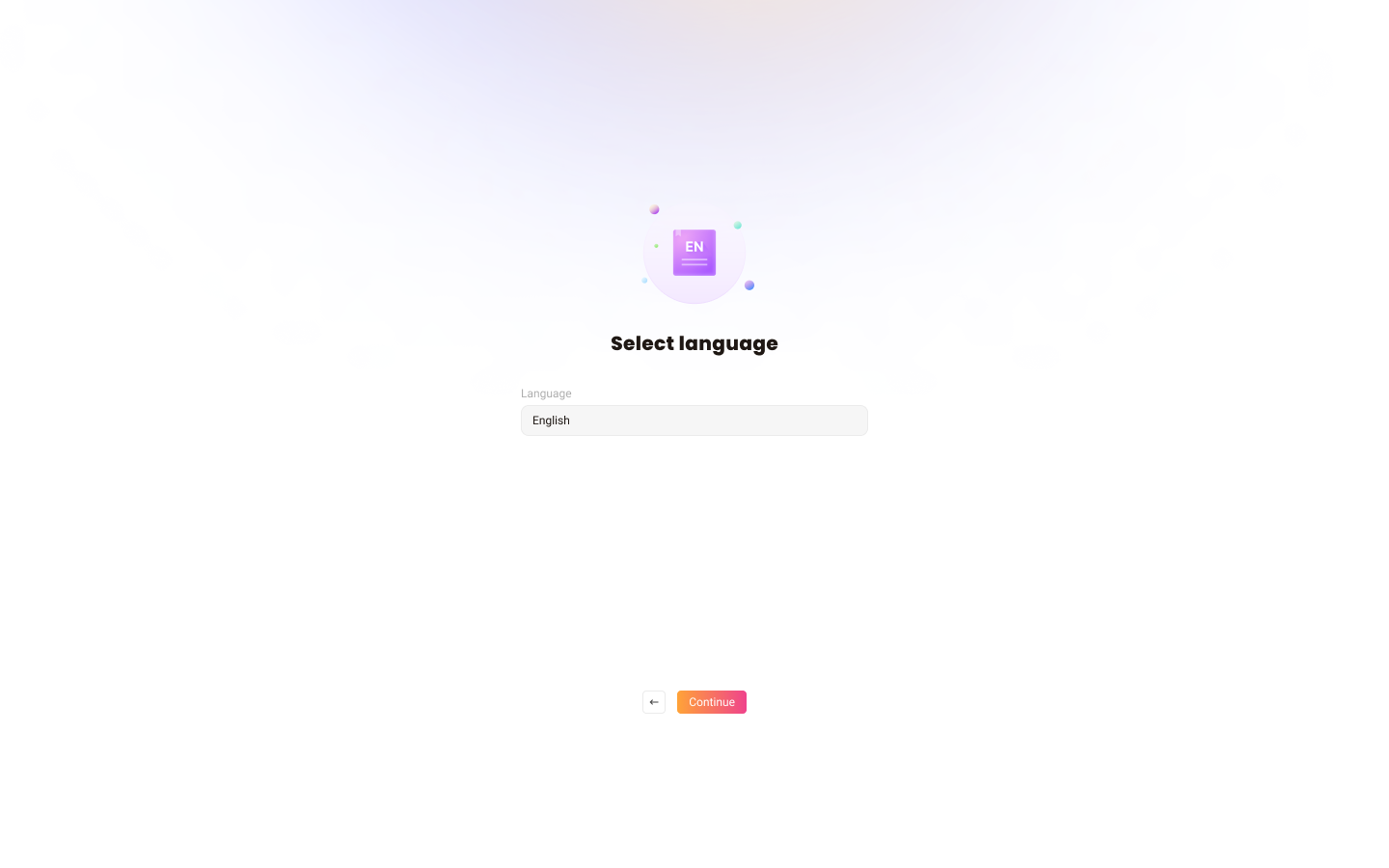
Select the system language.
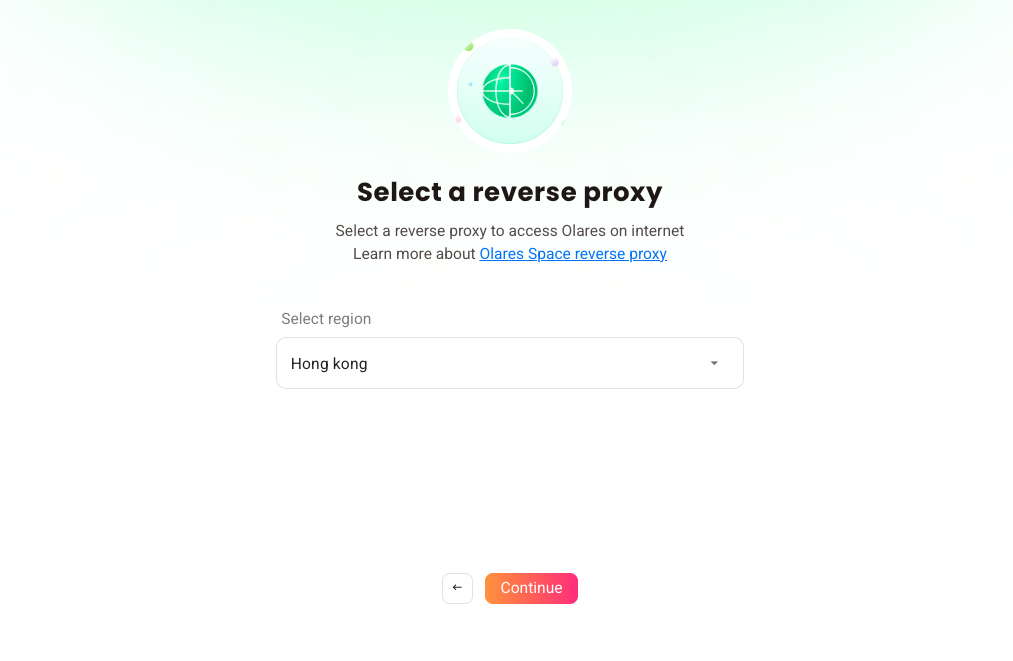
Select a reverse proxy node that is geographically closest to your location.
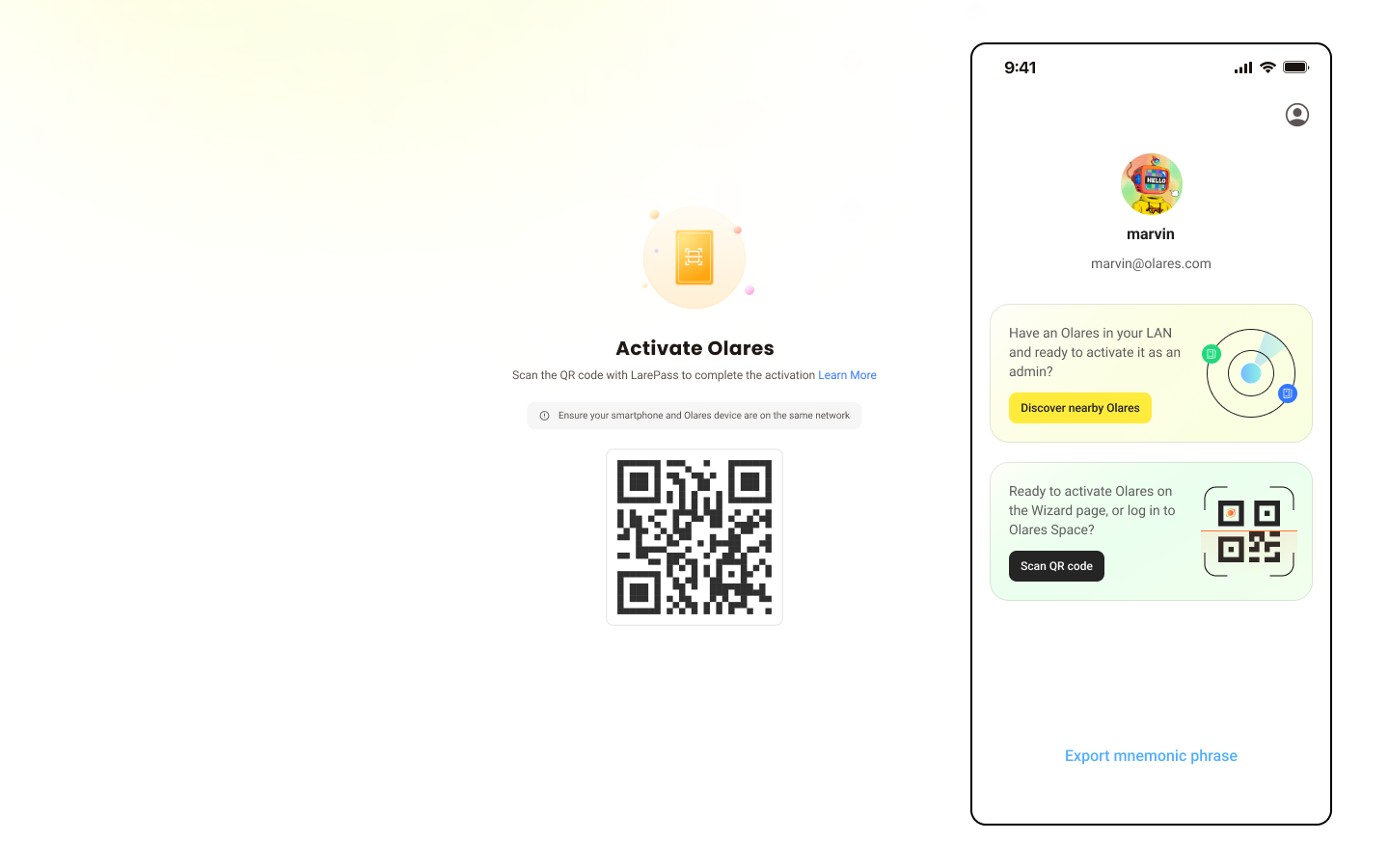
Activate Olares using LarePass app.
a. Open LarePass app, and tap Scan QR code to scan the QR code on the Wizard page and complete the activation.
b. Reset the login password.
After setup is complete, the LarePass app returns to the home screen, and the browser redirects you to the Olares login page.
Switch between operating systems
You switch between Windows and Olares using the BIOS boot priority.
Switch to Olares OS
- Restart Olares One.
- Press the Delete key repeatedly to enter BIOS setup.
- Go to the Boot tab.
- Set Boot Override to Ubuntu.
- Press F10 to save and exit BIOS.
Switch to Windows
- Restart Olares One.
- Press the Delete key repeatedly to enter BIOS setup.
- Go to the Boot tab.
- Set Boot Override to Windows.
- Press F10 to save and exit BIOS.
Troubleshooting
An error occurs during installation
If an error occurs during installation, use the following command to uninstall first:
olares-cli uninstall --allAfter uninstalling, retry the installation by running the original installation command.
The Ubuntu interface is lagging
When you first boot into the Ubuntu desktop, the interface might feel laggy. This is because the GPU drivers for Ubuntu are not yet installed.
Proceed with the Olares OS installation. The installation script automatically installs the necessary GPU drivers, which will resolve the lag.