Deploy an app 20 min
Studio is the easiest way to run a single-container Docker app on Olares. You do not need to write code.
In this tutorial, you will deploy Wallos (a personal subscription tracker) and learn how to translate a standard Docker configuration into Studio settings.
Recommended for testing
Studio-created deployments are best suited for development, testing, or temporary use.
Learning objectives
By the end of this tutorial, you will learn how to:
- Translate a standard
docker runcommand ordocker-compose.yamlinto Olares Studio settings. - Configure CPU and memory, and add environment variables.
- Map storage volumes so data persists, or is intentionally temporary.
- Customize the application's name and icon after deployment.
Prerequisites
Before you begin, ensure you have:
- Olares version 1.12.2 or later.
- A container image for the app that exists and is accessible from the Olares host.
- The app's
docker runcommand ordocker-compose.yamlfor reference.
Install Studio
- Open Market and search for "Studio".
- Click Get, then Install.
Reference: Docker configuration
Use either format below as a reference. You will copy the same values into Studio fields.
docker run -d \
  --name wallos \
  -v /path/to/config/wallos/db:/var/www/html/db \
  -v /path/to/config/wallos/logos:/var/www/html/images/uploads/logos \
  -e TZ=America/Toronto \
  -p 8282:80 \
  --restart unless-stopped \
bellamy/wallos:latestversion: '3.0'
services:
wallos:
container_name: wallos
image: bellamy/wallos:latest
ports:
- "8282:80/tcp"
environment:
TZ: 'America/Toronto'
# Volumes store your data between container upgrades
volumes:
- './db:/var/www/html/db'
- './logos:/var/www/html/images/uploads/logos'
restart: unless-stoppedCreate and configure the app
Create the project
- Open Studio and select Create a new application.
- Enter an app name, for example:
wallos, and click Confirm. - Select Port your own container to Olares.
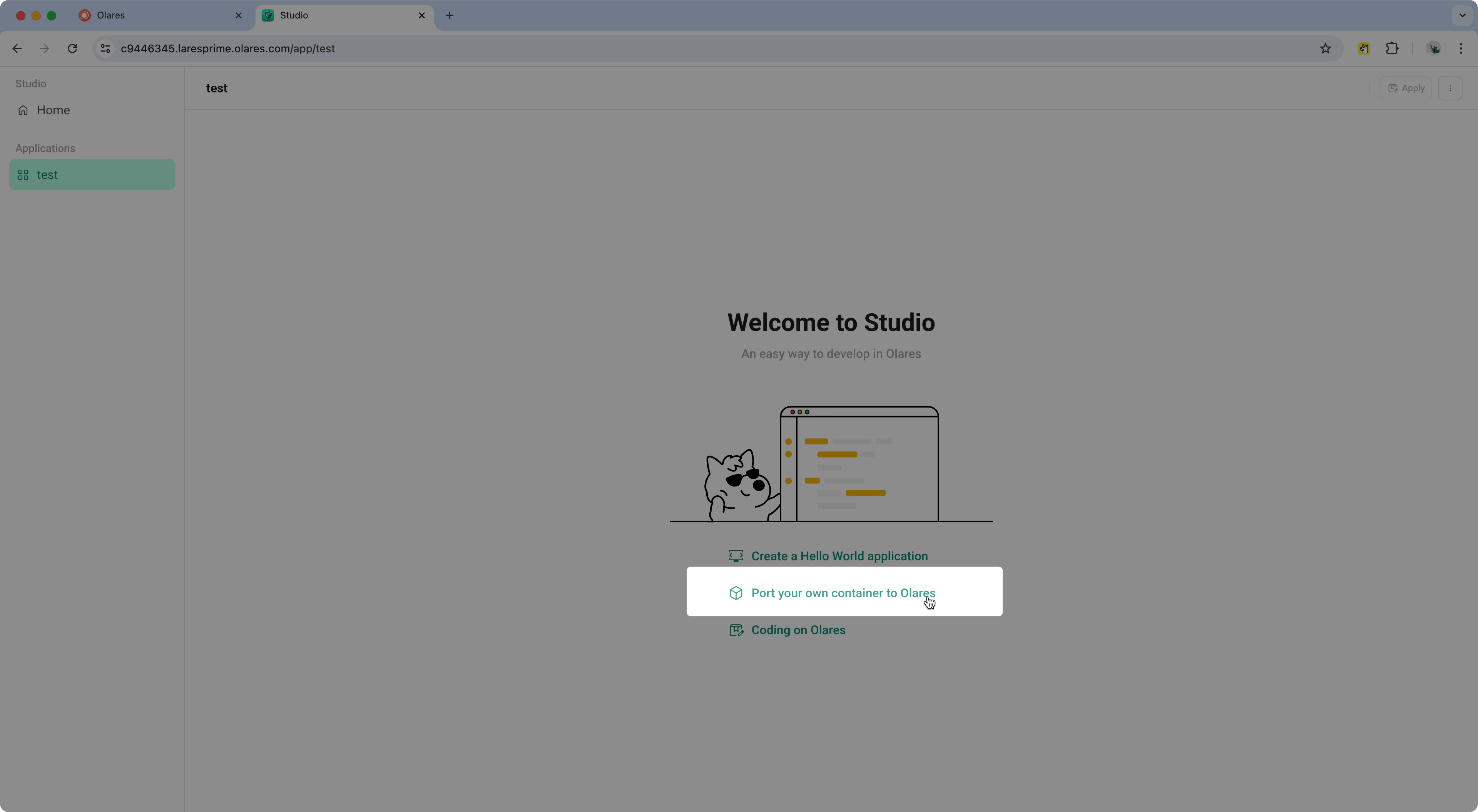
Configure image and port
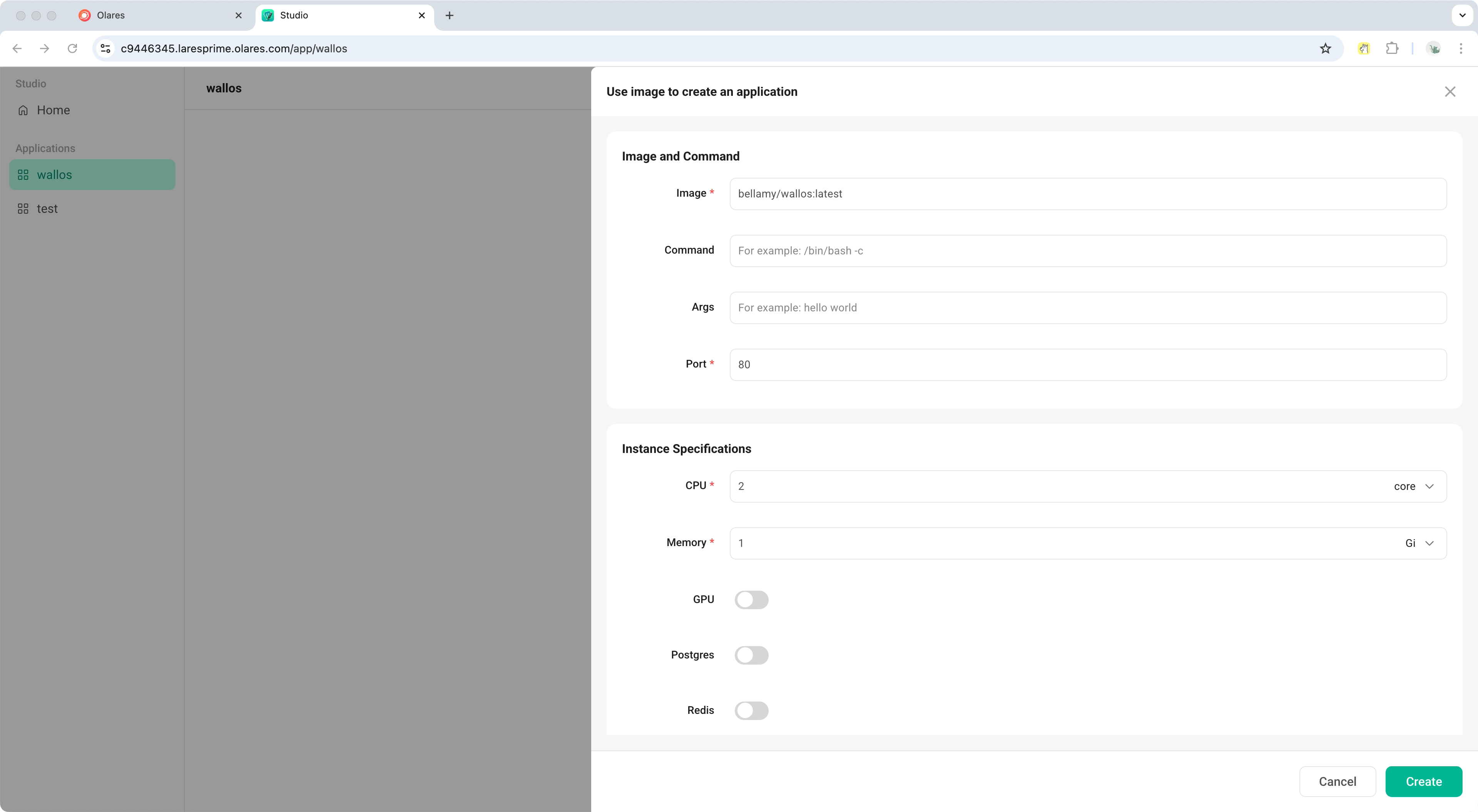
These fields define the app's core runtime settings. You can find the values in the Docker configuration above.
| Studio field | Value to enter | Source: docker run | Source: docker-compose.yaml |
|---|---|---|---|
| Image | bellamy/wallos:latest | Last token in the command | Value of image: |
| Port | 80 | Container port in -p HOST:CONTAINER, which is the value after : | Container port in ports:, which is the value after : and before / if present |
Why only the container port
A port mapping is HOST:CONTAINER. The container port is the internal port the app listens on. The host port is the external port you access. Studio manages external access automatically, so you only need to enter the container port.
- For the Image field, paste
bellamy/wallos:latest. - For the Port field, enter
80.
Configure instance specifications
Instance specifications define the CPU and memory allocated to this app.
In the Instance Specifications section, enter the minimum CPU and memory requirements. For example:
- CPU: 2 core
- Memory: 1 G
Add environment variables
Environment variables pass configuration values into the container.
| Studio field | Value to enter | Source: docker run | Source: docker-compose.yaml |
|---|---|---|---|
| key | TZ | Find -e KEY=VALUE, use the text before = | Under environment:, use the left side of KEY: VALUE |
| value | America/Toronto | Find -e KEY=VALUE, use the text after = | Under environment:, use the right side of KEY: VALUE |
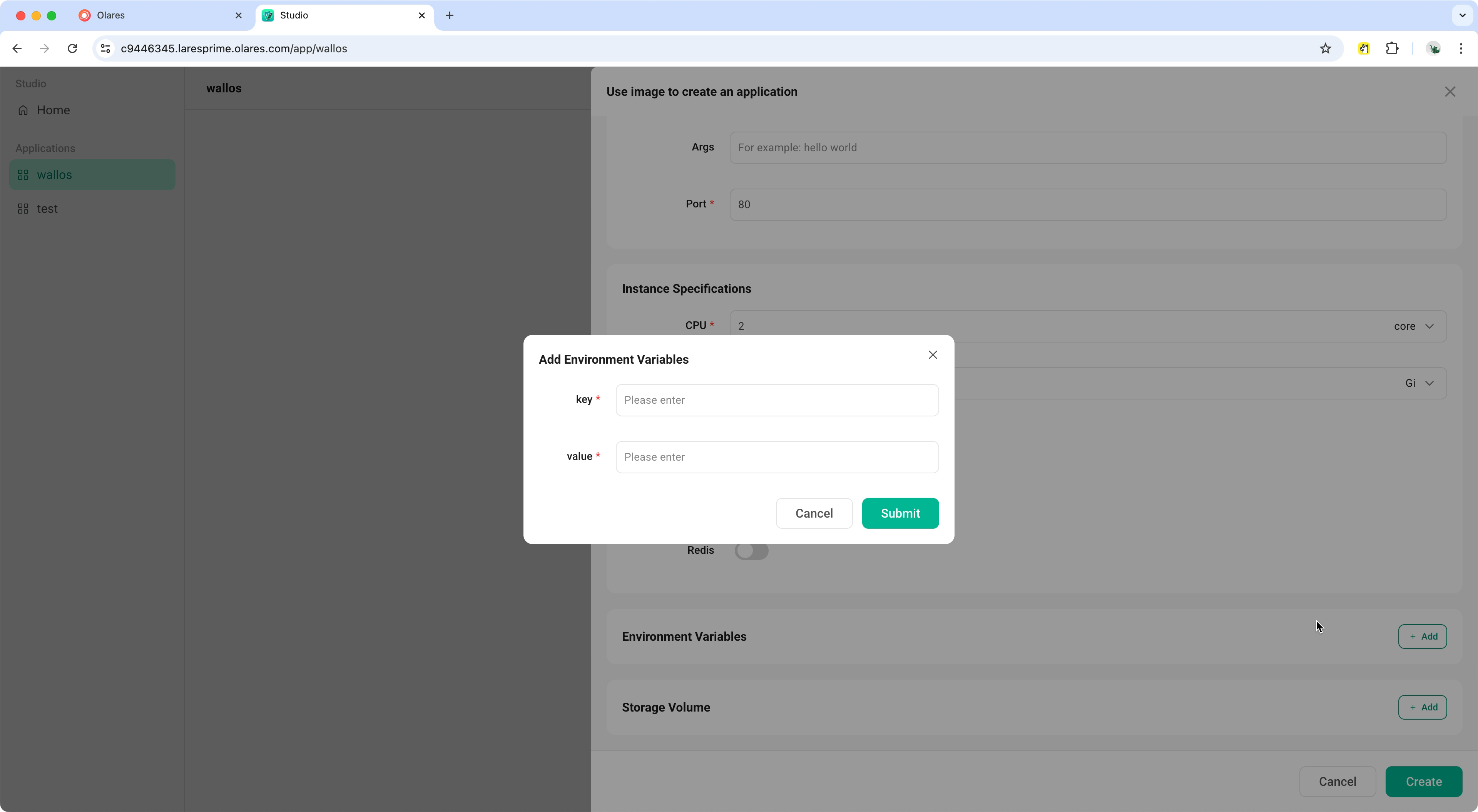
- Scroll down to Environment Variables, and click + Add.
- In this example, enter the key-value pair:
- key:
TZ - value:
America/Toronto
- key:
- Click Submit. Repeat this process for any other variables.
Add storage volumes
Volumes keep data after restarts and reinstalls.
Before you begin
In Studio, you need to fill in two fields for each volume:
Mount path: In Docker, a volume looks like
HOST:CONTAINER. Use the part after:as the mount path.Host path: In Studio, host path has two inputs:
- Prefix:
/app/data,/app/cache, or/app/Home.Host path prefix Description /app/dataPersistent app data. Data can be accessed across nodes and is not deleted
when the app is uninstalled. Appears under/Data/studioin Files./app/cacheTemporary app data. Data is stored in the node's local disk and is deleted
when the app is uninstalled. Appears under/Cache/<device-name>/studio
in Files./app/HomeUser data directory. Mainly used for reading external user files. Data is
not deleted. - Host path: Enter the target folder, starting with
/, for example/dbor/logos.Host path rules
Studio automatically prefixes the full path with the app name. If the app name is
testand you set host path/app/data/folder1, the actual path becomes/Data/studio/test/folder1in Files.
- Prefix:
Configure volumes for Wallos
Wallos requires two volumes. Add them one by one.
Volume A: Database
Source mapping:
- In
docker run:/path/to/config/wallos/db:/var/www/html/db - In
docker-compose.yaml:./db:/var/www/html/db.
This data is for high-frequency I/O and does not need to be saved permanently. Map it to /app/cache so it will be deleted when the app is uninstalled.
- Click + Add next to Storage Volume.
- For Host path, select
/app/cache, then enter/db. - For Mount path, enter
/var/www/html/db. - Click Submit.
Volume B: Logos
Source mapping:
- In
docker run:/path/to/config/wallos/logos:/var/www/html/images/uploads/logos - In
docker-compose.yaml:./logos:/var/www/html/images/uploads/logos.
This is user-uploaded data that should be persistent and reusable, even if the app is reinstalled. Map it to /app/data.
- Click + Add next to Storage Volume.
- For Host path, select
/app/data, then enter/logos. - For Mount path, enter
/var/www/html/images/uploads/logos. - Click Submit.
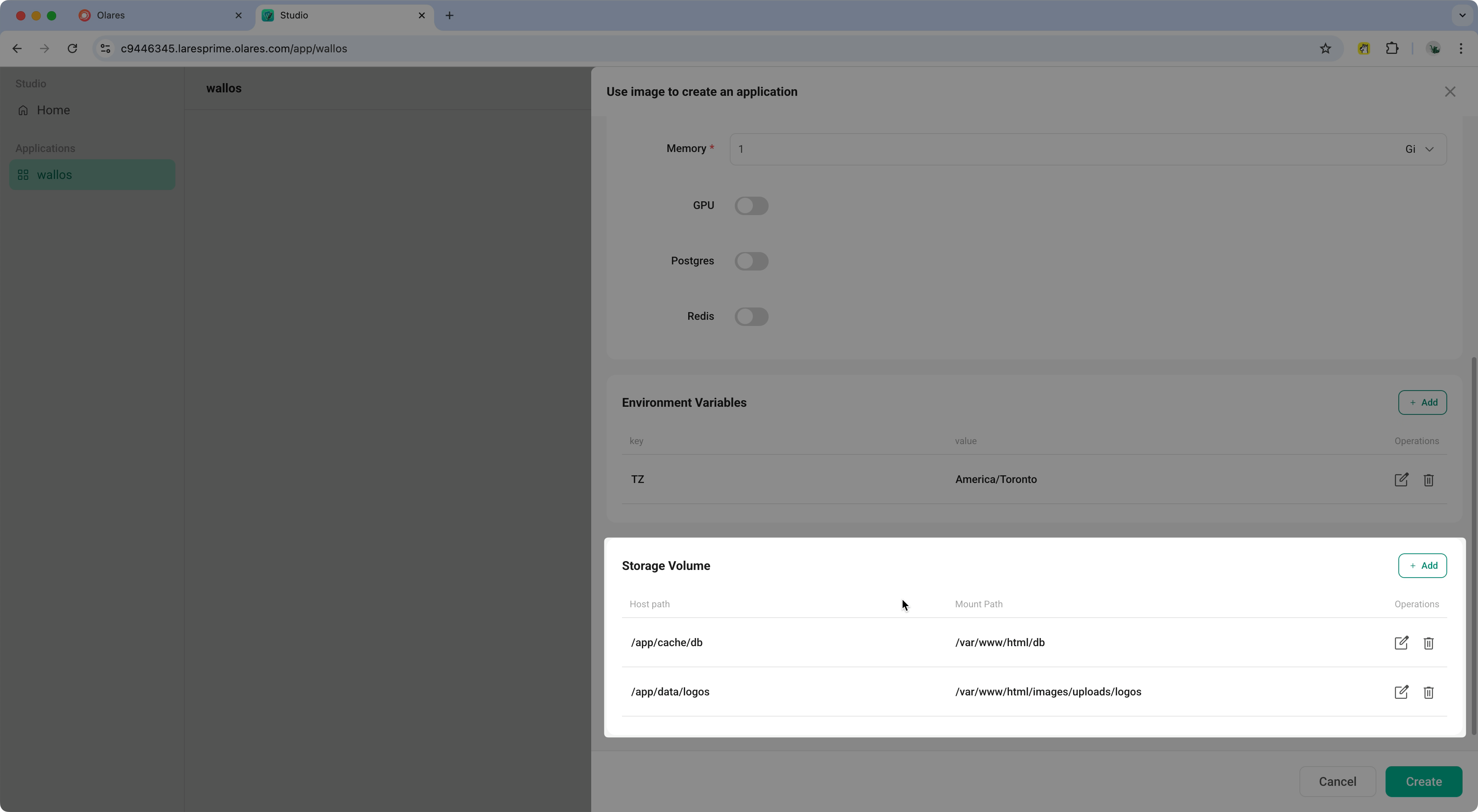
You can check Files later to verify the mounted paths. 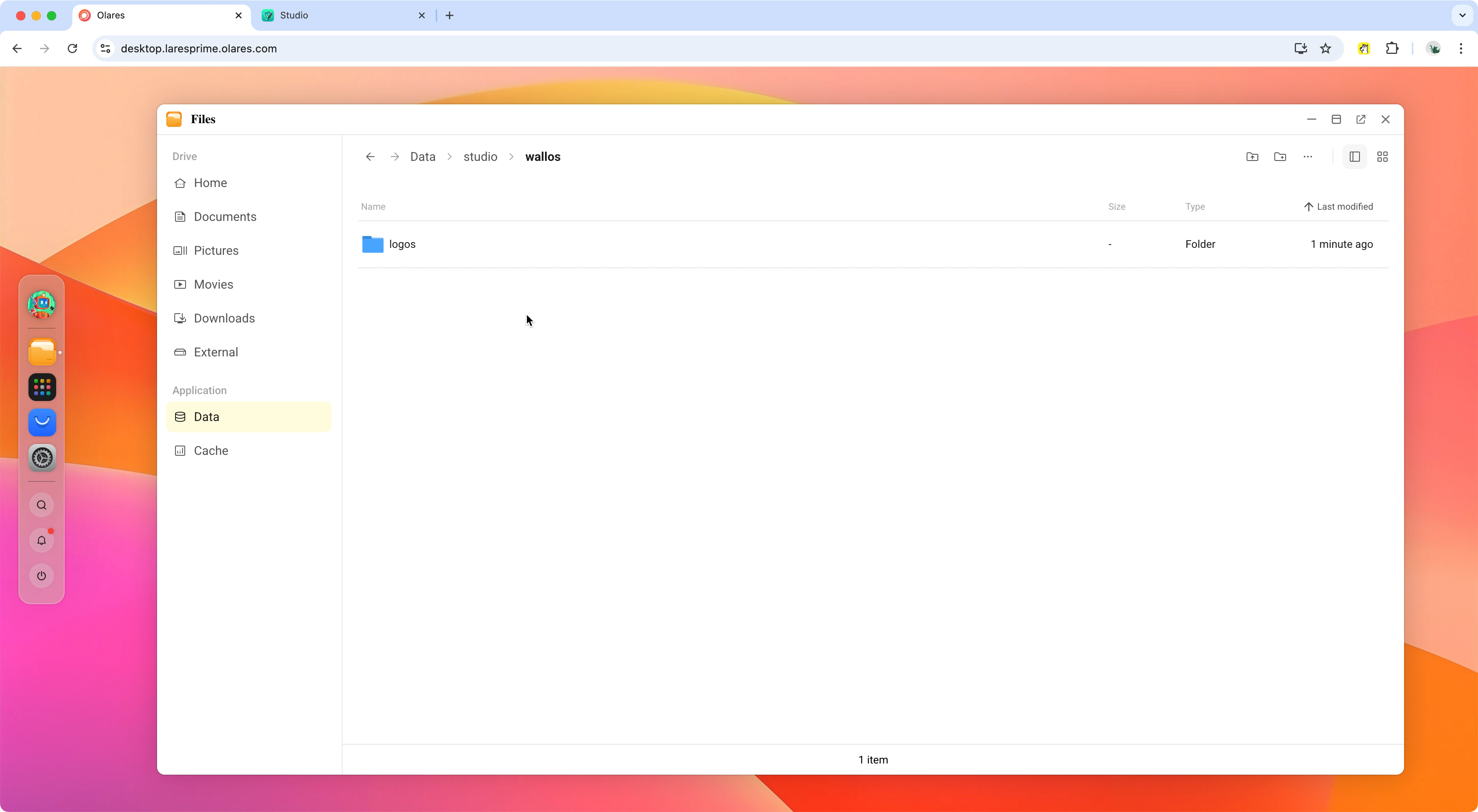
Optional: Configure GPU or database middleware
If your app needs GPU, enable the GPU option under Instance Specifications and select the GPU vendor. 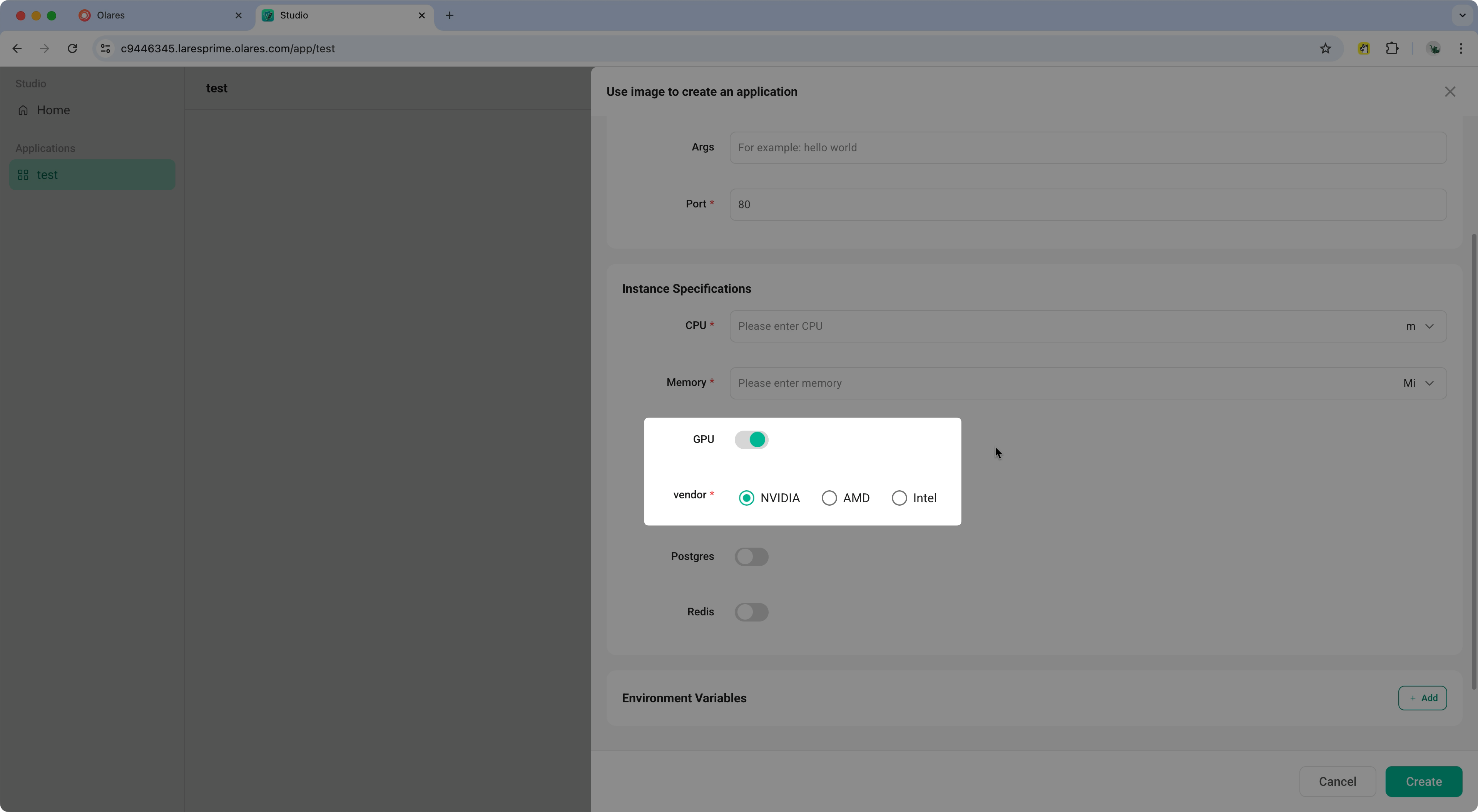
If your app needs Postgres or Redis, enable it under Instance Specifications. 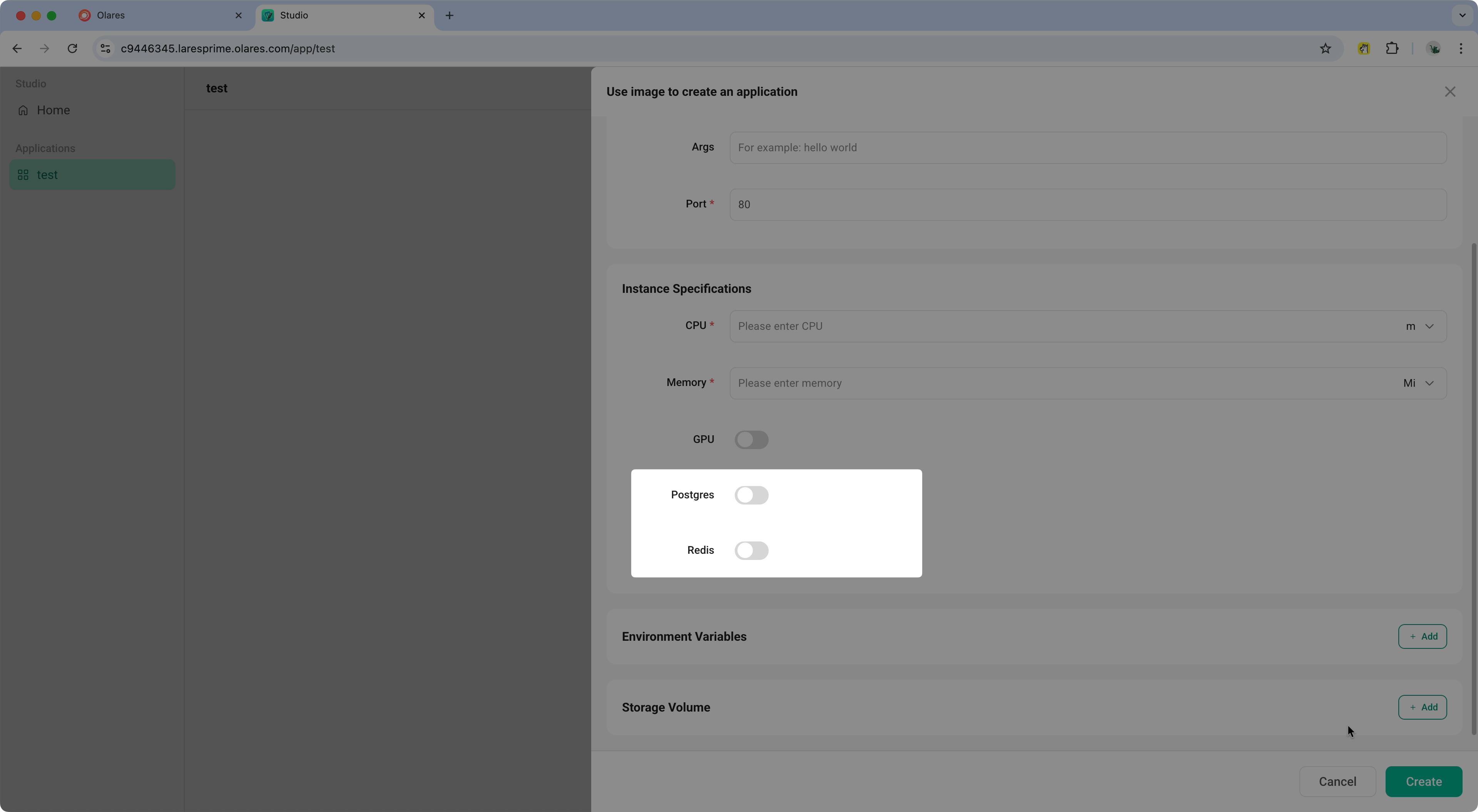
When enabled, Studio provides dynamic variables. You must use these variables in the Environment Variables section for your app to connect to the database.
- Postgres variables:
| Variables | Description |
|---|---|
| $(PG_USER) | PostgreSQL username |
| $(PG_DBNAME) | Database name |
| $(PG_PASS) | Postgres Password |
| $(PG_HOST) | Postgres service host |
| $(PG_PORT) | Postgres service port |
- Redis variables:
| Variables | Description |
|---|---|
| $(REDIS_HOST) | Redis service host |
| $(REDIS_PORT) | Redis service port |
| $(REDIS_USER) | Redis username |
| $(REDIS_PASS) | Redis password |
Deploy and test the app
- Click Create at the bottom of the page. Studio will generate the project files and deploy the app automatically.
- Wait for Studio to generate the package files for your app. You can check the status in the bottom bar.
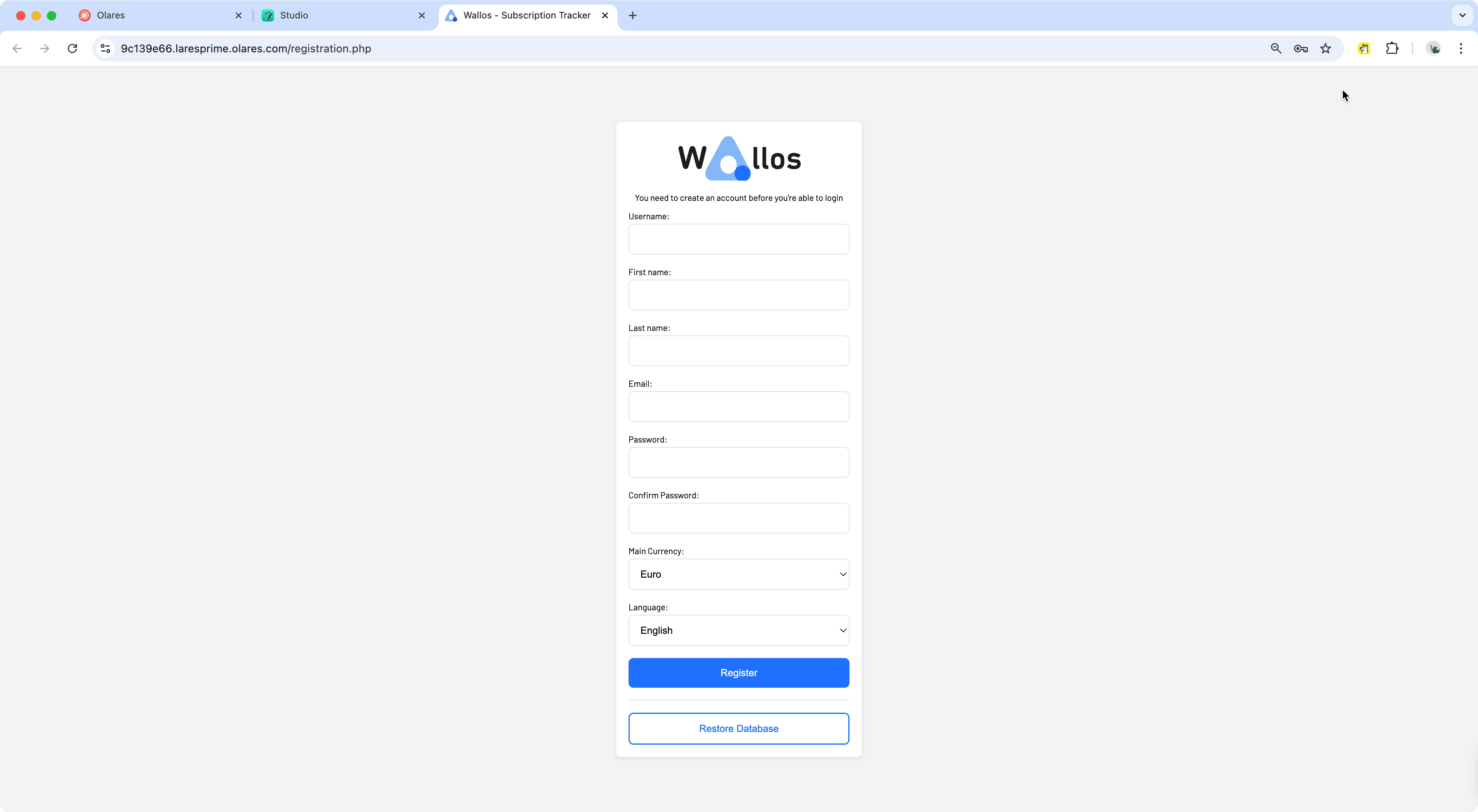
- When the app is successfully deployed, click Preview in the top-right corner to launch it. If Preview does not appear, refresh the page.
Manage the app
Update name and icon
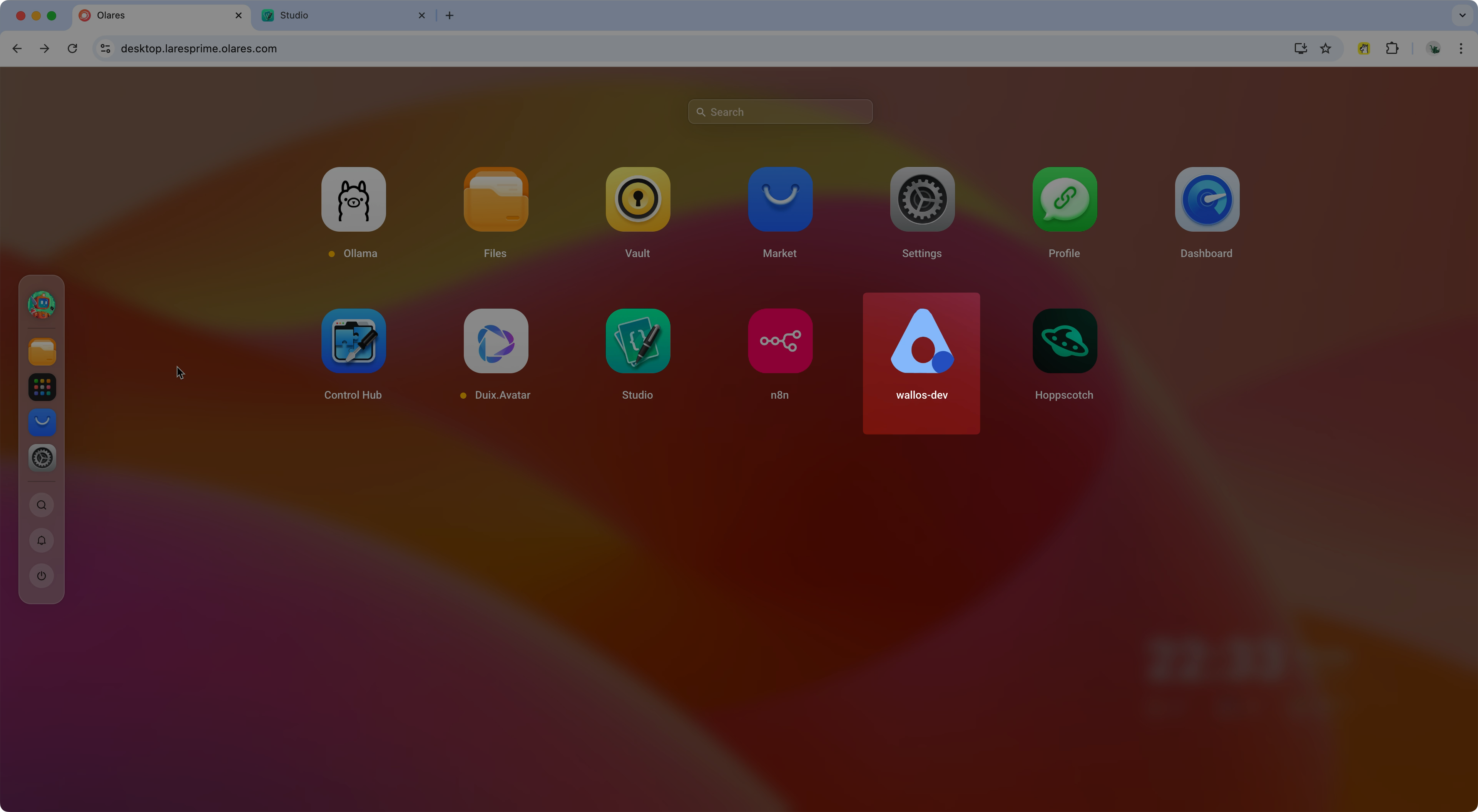
Apps deployed from Studio include a -dev suffix and a default icon. You can polish this by editing the manifest file. 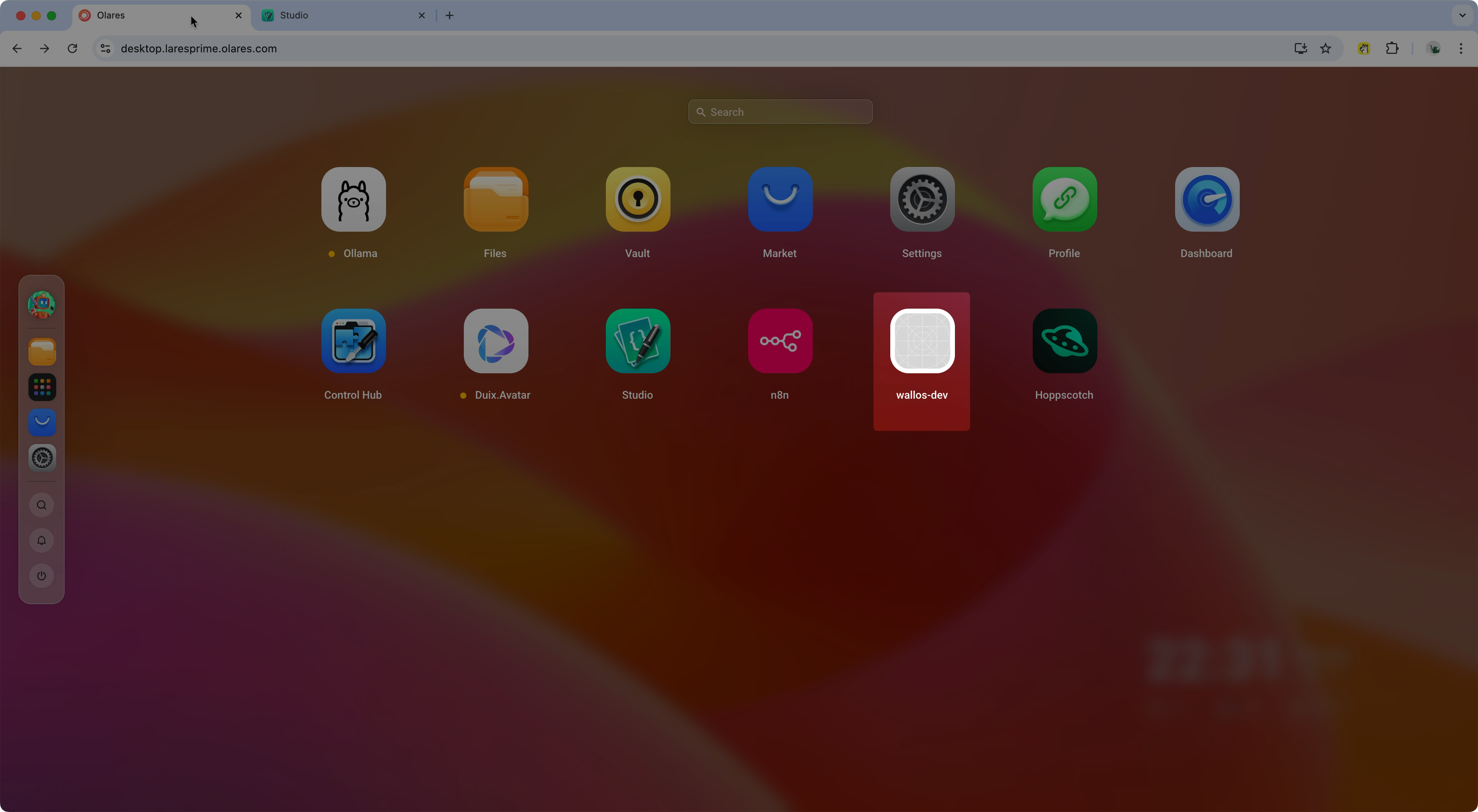
In Studio, click box_editEdit in the top-right to open the editor.
Click
OlaresManifest.yamlto view the content.Change the
titlefield underentranceandmetadata. For example, changewallostoWallos.Replace the default icon image address of field
iconunderentranceandmetadata.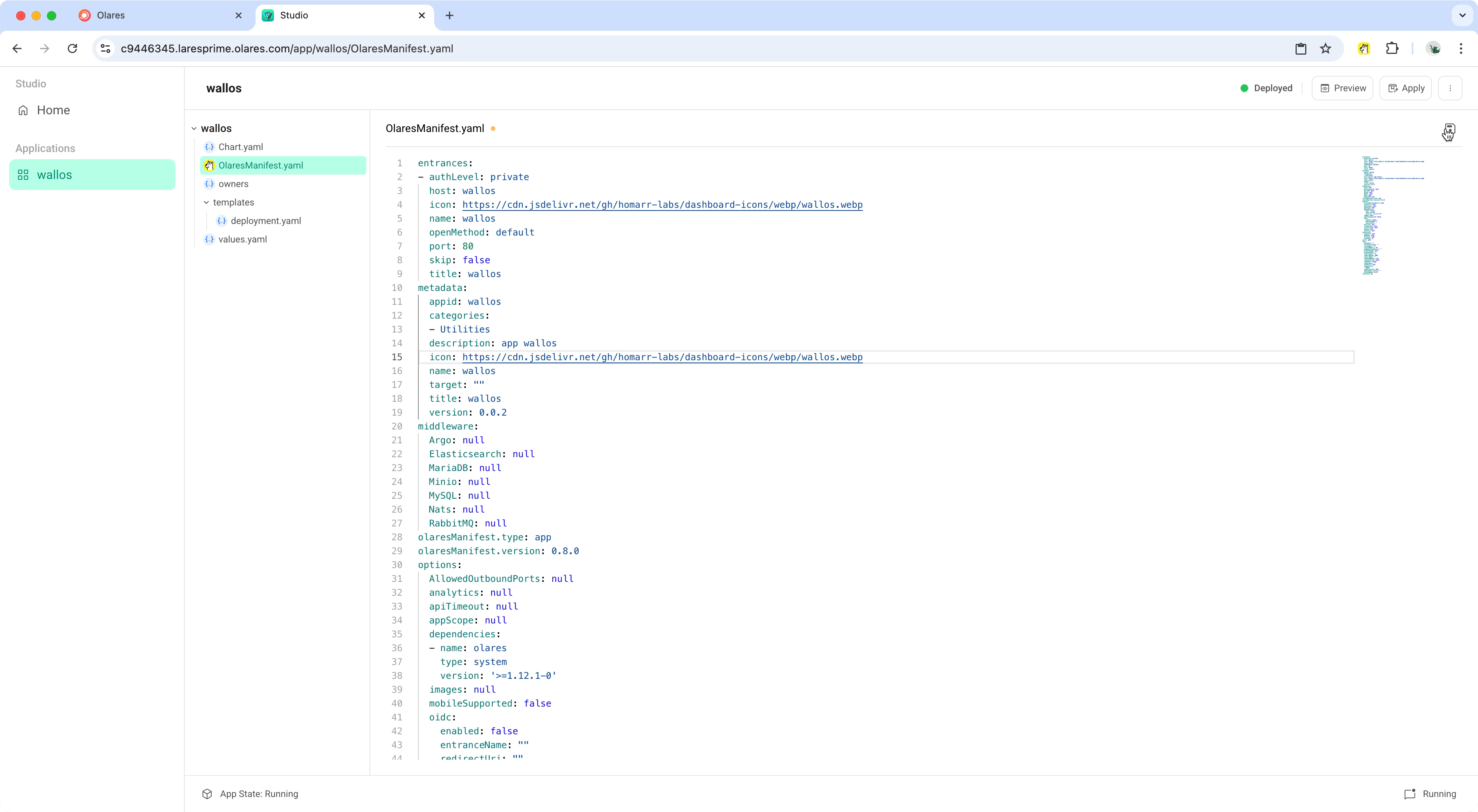
Click save in the top-right to save changes.
Click Apply to reinstall with the updated package.
INFO
If no changes are detected since the last deployment, clicking Apply will simply return to the app status page without reinstalling.
Remove the app
If you no longer need the app, you can remove it.
- In Studio, click more_vert in the top-right corner.
- You can choose to:
- Uninstall: Removes the running app from Olares, but keeps the project in Studio so you can continue editing the package.
- Delete: Uninstalls the app and removes the project from Studio. This action is irreversible.
Troubleshoot problems
Cannot install the app
If installation fails, review the error at the bottom right of the page and click View to expand details. 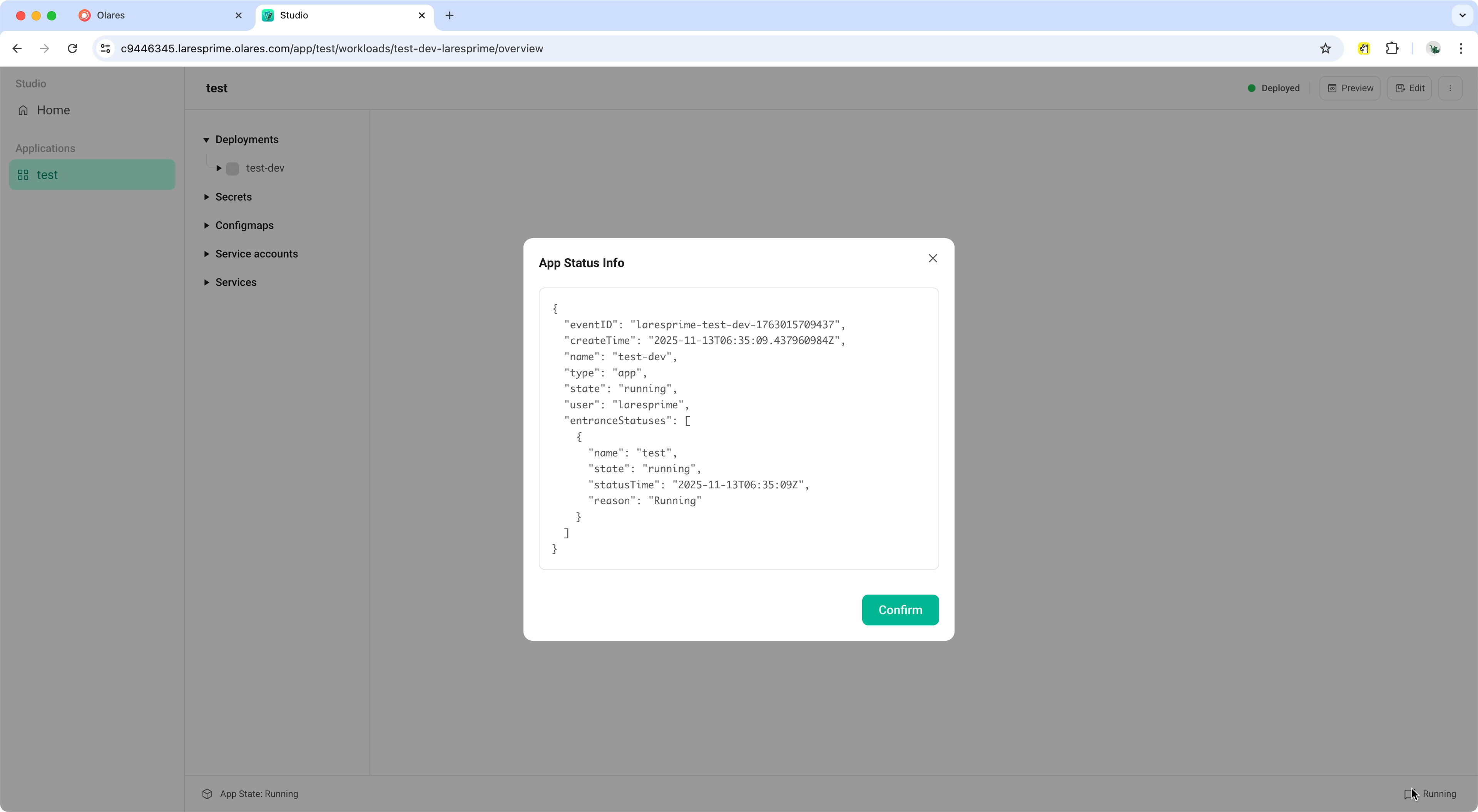
App runs but does not work
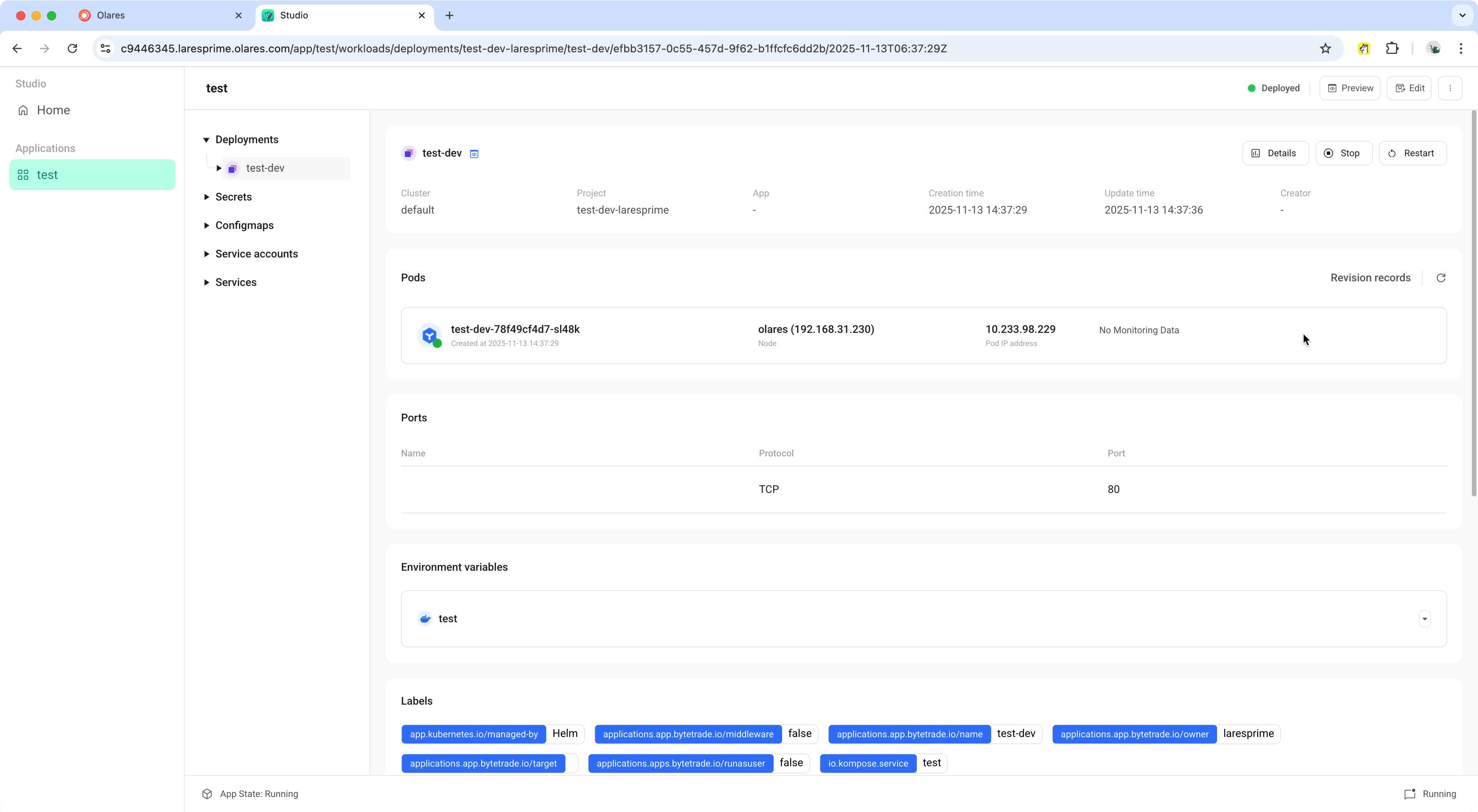
Once running, you can manage the app from its deployment details page in Studio. The interface of this page is similar to Control Hub. If details don't appear, refresh the page. You can:
Use Stop and Restart controls to reset the process. This action can often resolve runtime issues like a frozen process.
Check events or logs to investigate runtime errors. See Export container logs for troubleshooting for details.
Resources
- Package and upload your app to Market: Learn how to package and upload an app for Market.
- Develop in a dev container: Develop in an isolated environment identical to the production runtime.
- Add icons, feature image, and promotional images: Prepare and upload icons, feature image, and promotional images for your Olares apps.