Update OS 15 min
Use the LarePass app to keep your Olares One up to date with the latest features and security patches.
Admin access required
Only an Olares administrator can perform system updates. Please note that updates apply to the entire Olares cluster and affect all members.
Learning objectives
By the end of this tutorial, you will learn how to:
- Check whether a new Olares OS version is available in LarePass.
- Choose between Download only and Download and upgrade.
- Install an update and confirm the system restarts successfully.
Prerequisites
Make sure that:
- Your Olares One is powered on and connected to a network.
- Your phone can access Olares One through LarePass.
- You are signed in with an account that has administrator permissions.
Check for updates
- Open LarePass on your phone and go to Settings.
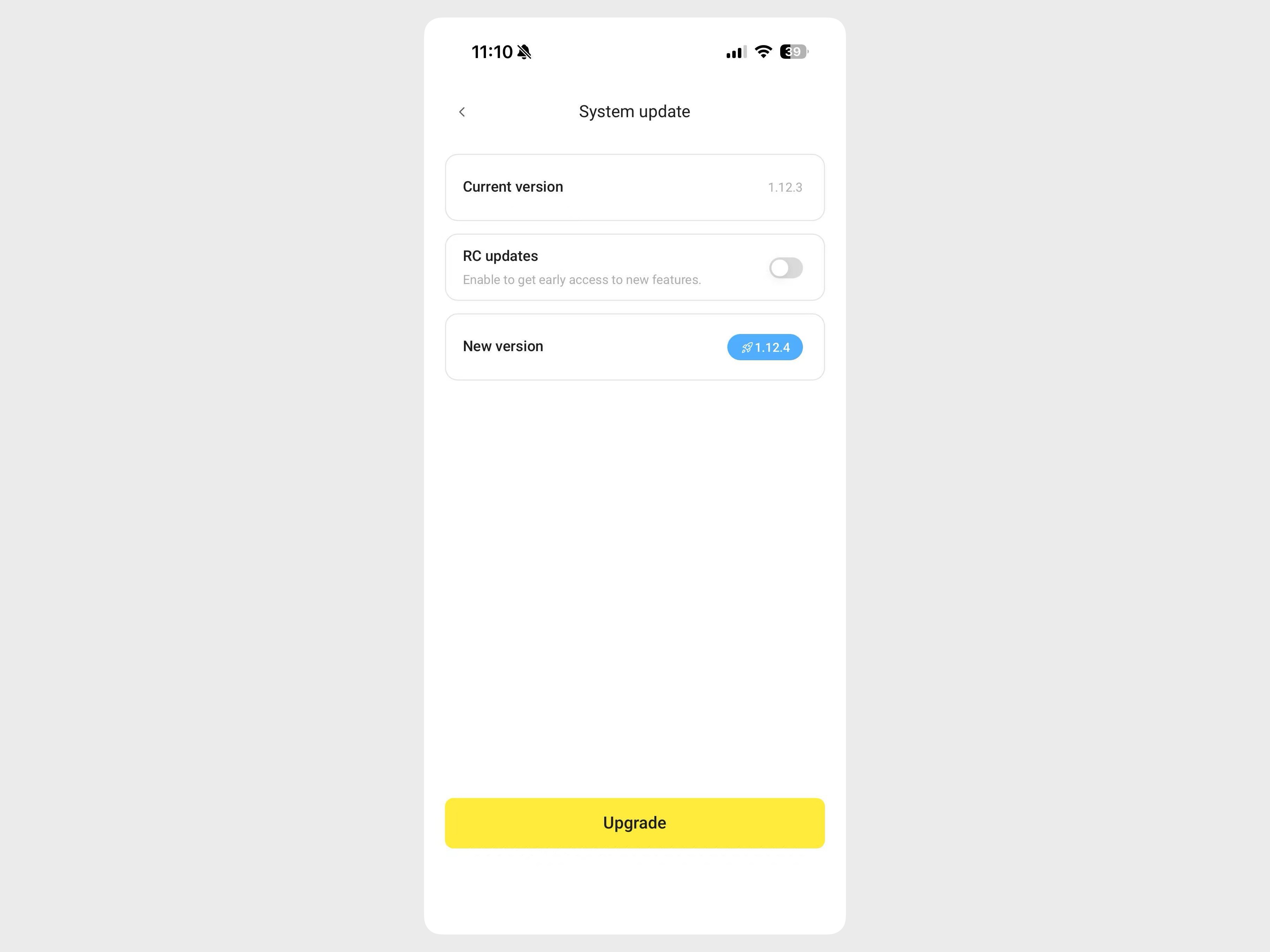
- In the My Olares card, tap System to enter the Olares management page.
- Tap System update.
- If a new version appears in the New version field, tap Upgrade.
Select upgrade method
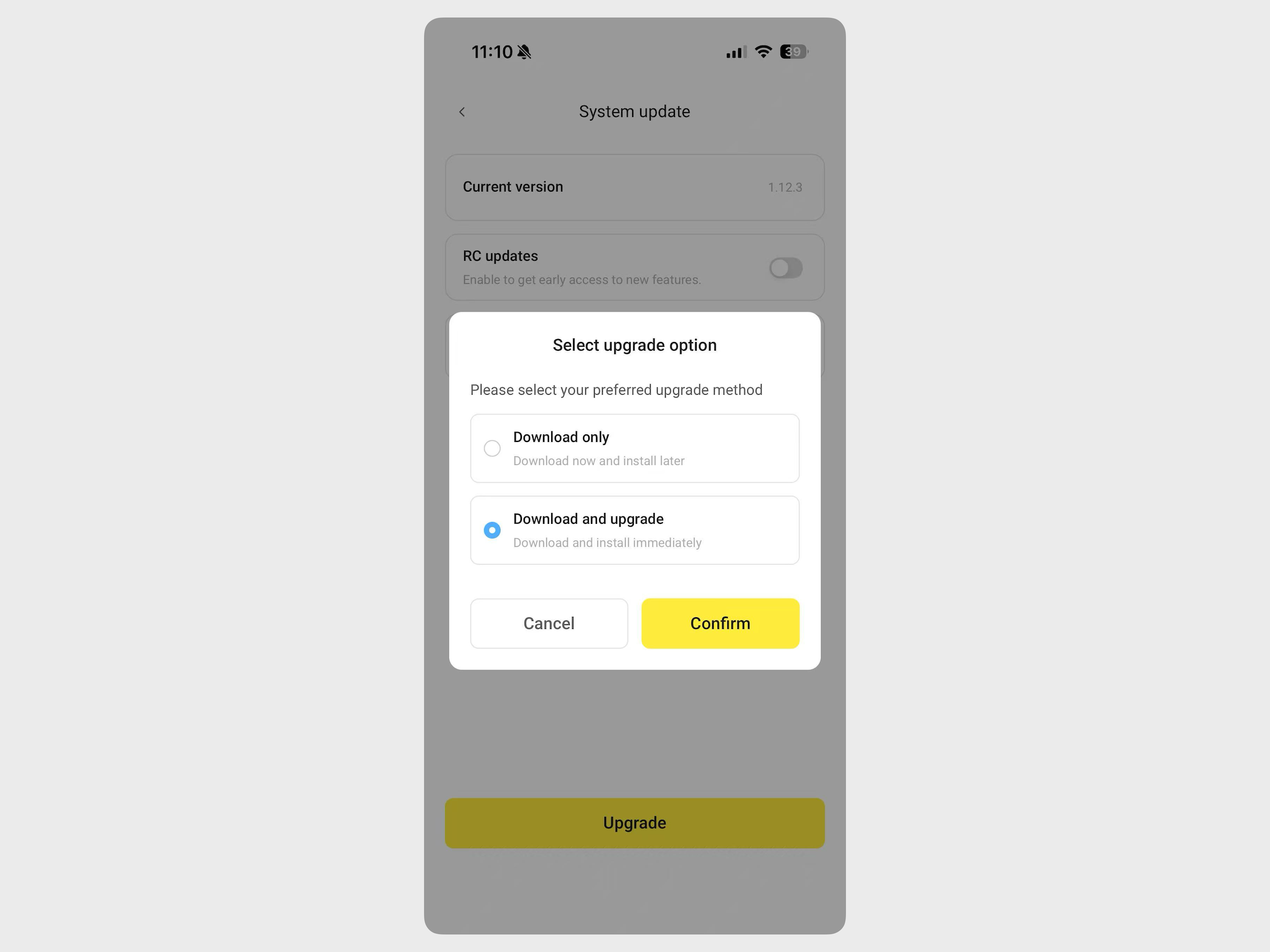
A dialog will appear asking how you want to handle the update package. Choose the method that fits your schedule:
- Download only: Olares downloads the package in the background. You can continue using the system and install the update manually later.
- Download and upgrade: Olares downloads the package and prompts you to restart and install it when the download finishes.
Install and restart
- Start installation based on your selection:
- Download only: After the download completes, return to System update and tap Upgrade now. Confirm the restart prompt to begin installation.
- Download and upgrade: After the download completes, confirm the restart prompt to begin installation.
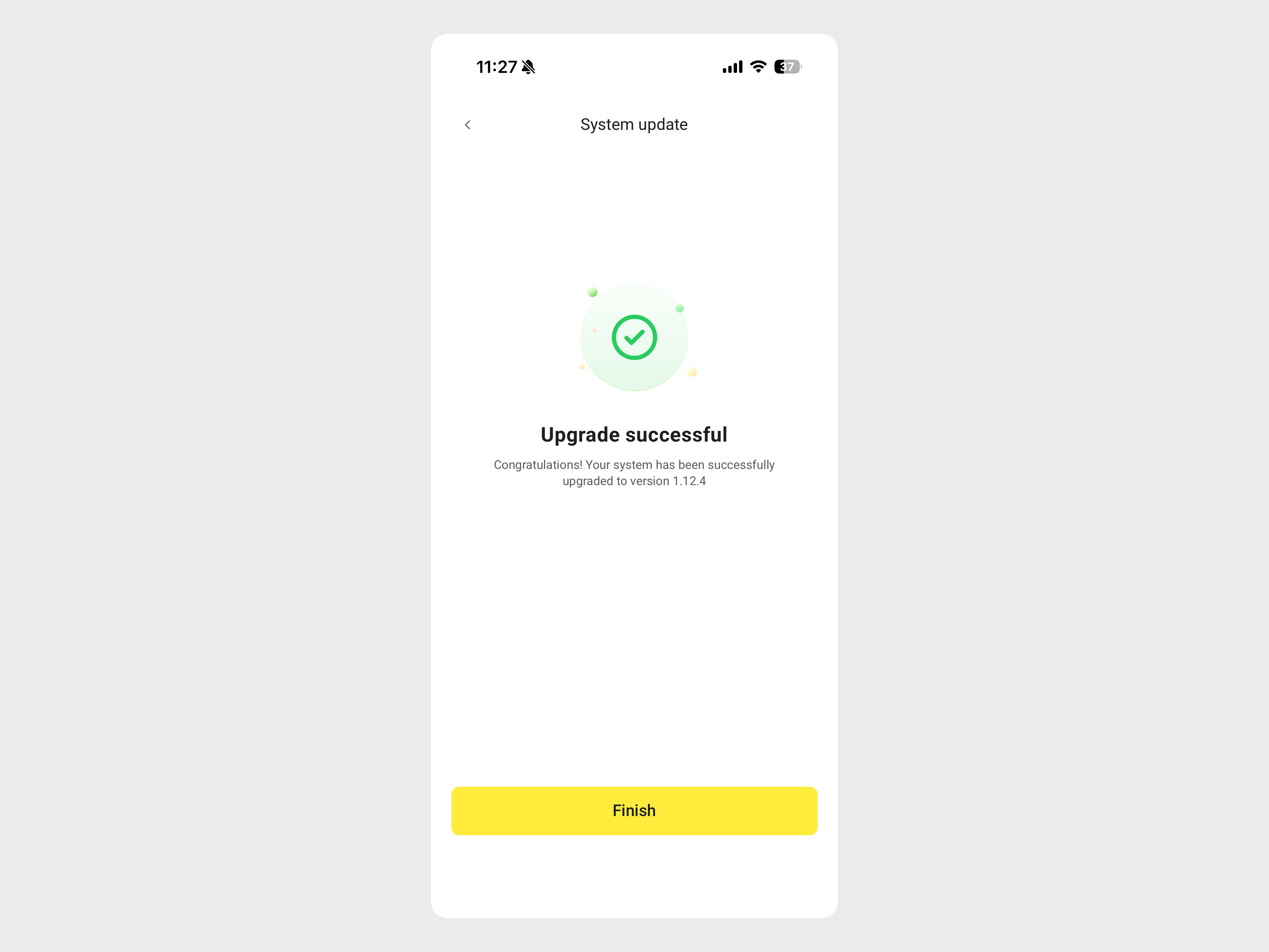
- Wait for the update and restart to finish. A success message indicates the upgrade is completed.
- Refresh your Olares desktop to sync the latest system changes.