Manage files 15 min
Olares's built-in Files app provides a secure and efficient solution for file storage and synchronization. It allows you to access your personal files anywhere, keep data synchronized across devices, and manage third-party cloud storage in one place.
Operations in Files are essentially the same as in other file managers. This guide introduces some common tasks in Files to get you started.
Learning objectives
- Know the Files interface.
- Upload files from your local computer. This guide uploads a
.pdfdocument and a.txtfile as the example. - Preview and edit supported file types.
- Locate files using the system search.
Before you begin
Interface overview
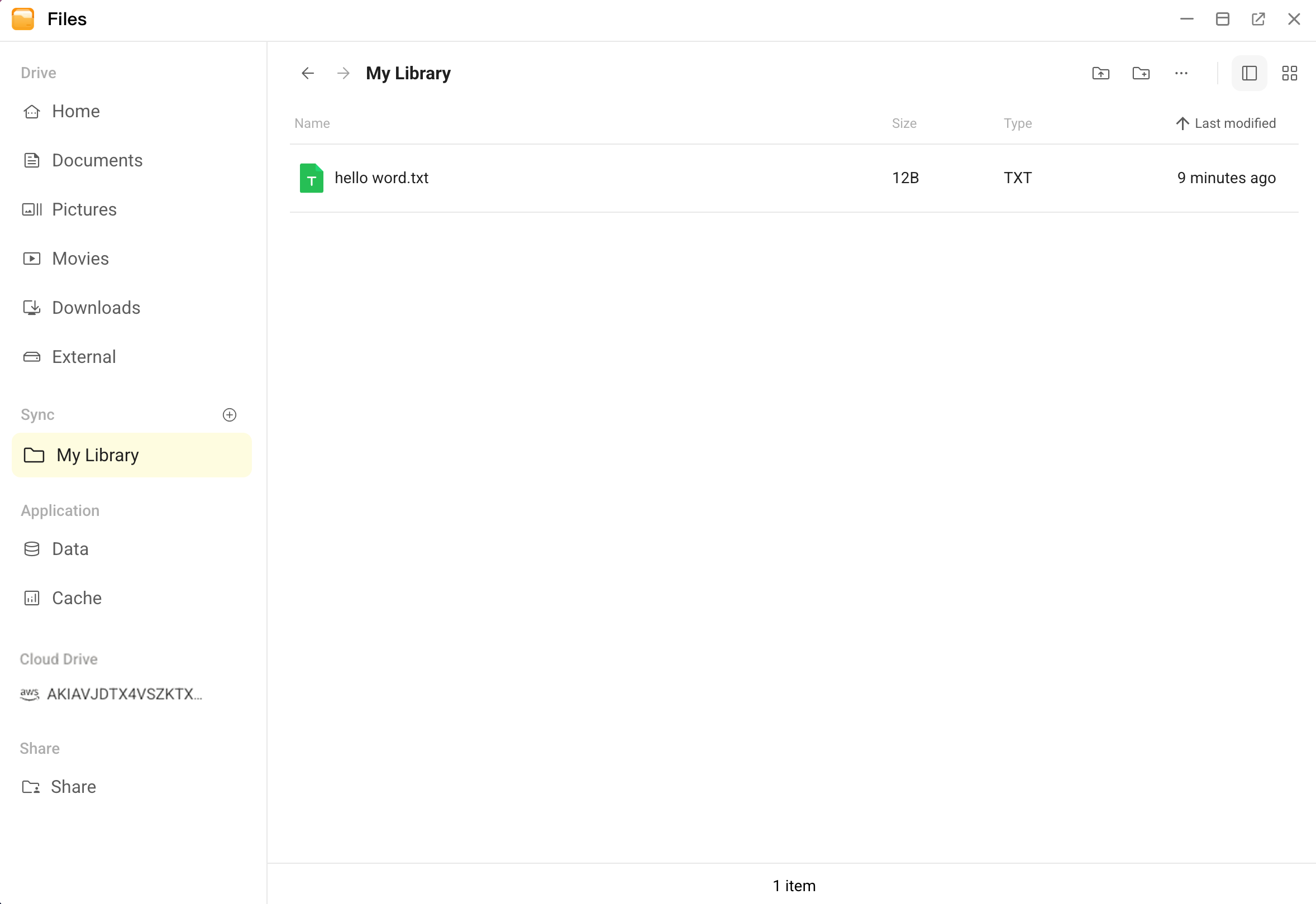
Familiarize yourself with the workspace. The Files interface mainly consists of the following areas:
- Drive: Stores your personal files such as documents and pictures.
- Sync: A library-based storage area for files requiring frequent modifications or real-time synchronization.
- Application: Reserved for application-specific data. Primarily for development and debugging, not general file storage.
- Cloud storage: Access files from integrated services such as Google Drive and AWS S3.
- Share: A centralized hub for managing shared folders.
File formats support
The Files app supports the following file formats for previewing and editing:
- Preview:
- Images: JPG, JPEG, PNG, BMP, WEBP, SVG
- Videos: MP4, MKV, MOV, MPEG, MTS, WMV, WEBM, RM, 3GP
- Audio: MP3, WMA, WAV, OGG, AAC, M4A, APE, FLAC
- Text: PDF, TXT, JS, CSS, XML, YAML, HTML
- Edit:
- TXT, JS, CSS, XML, YAML, HTML
Upload files
Populate your server with content by uploading documents via the Files app.
Open the Files app from the Dock or Launchpad.
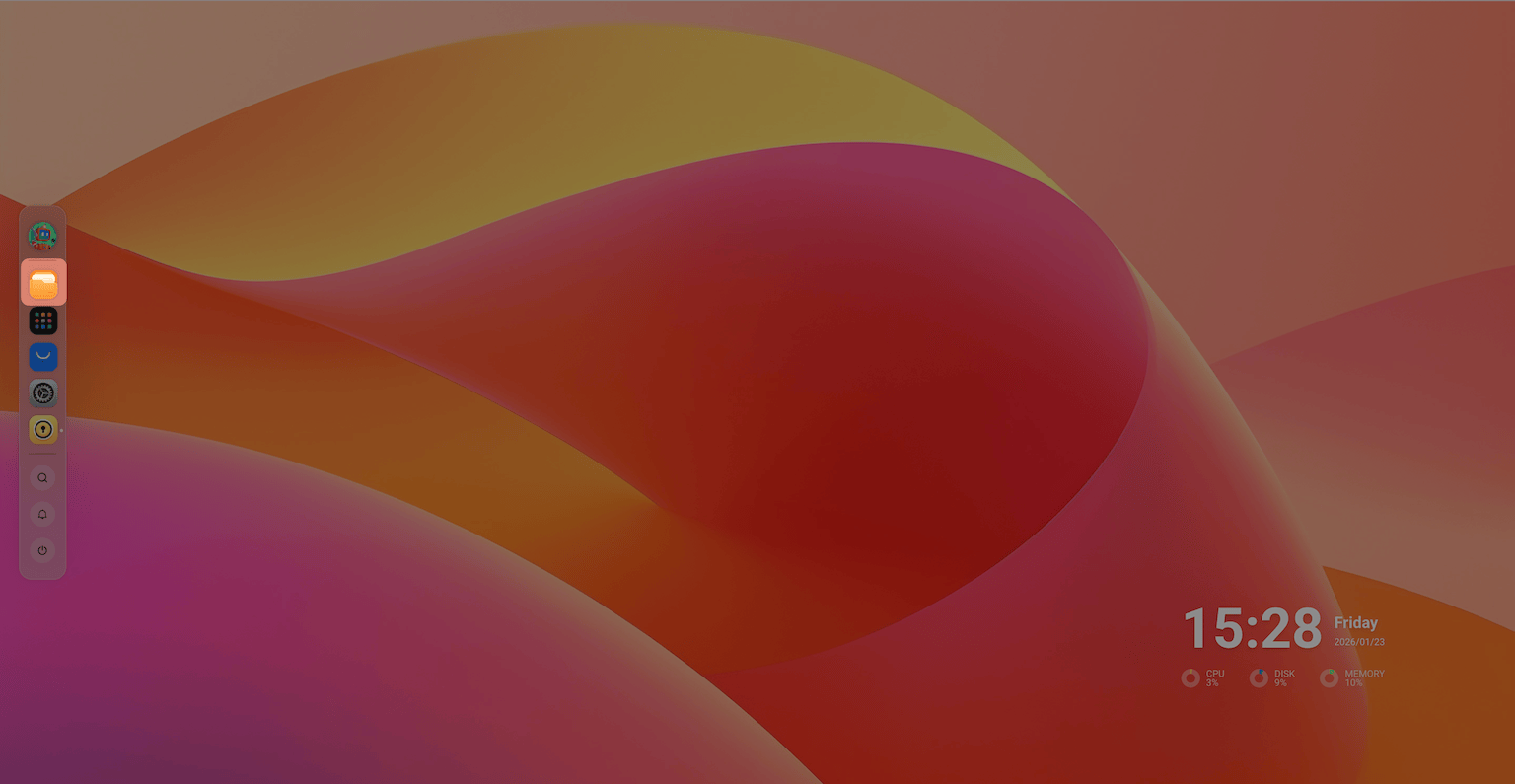
In the left sidebar, select the directory where you want to upload files. For example, Documents.
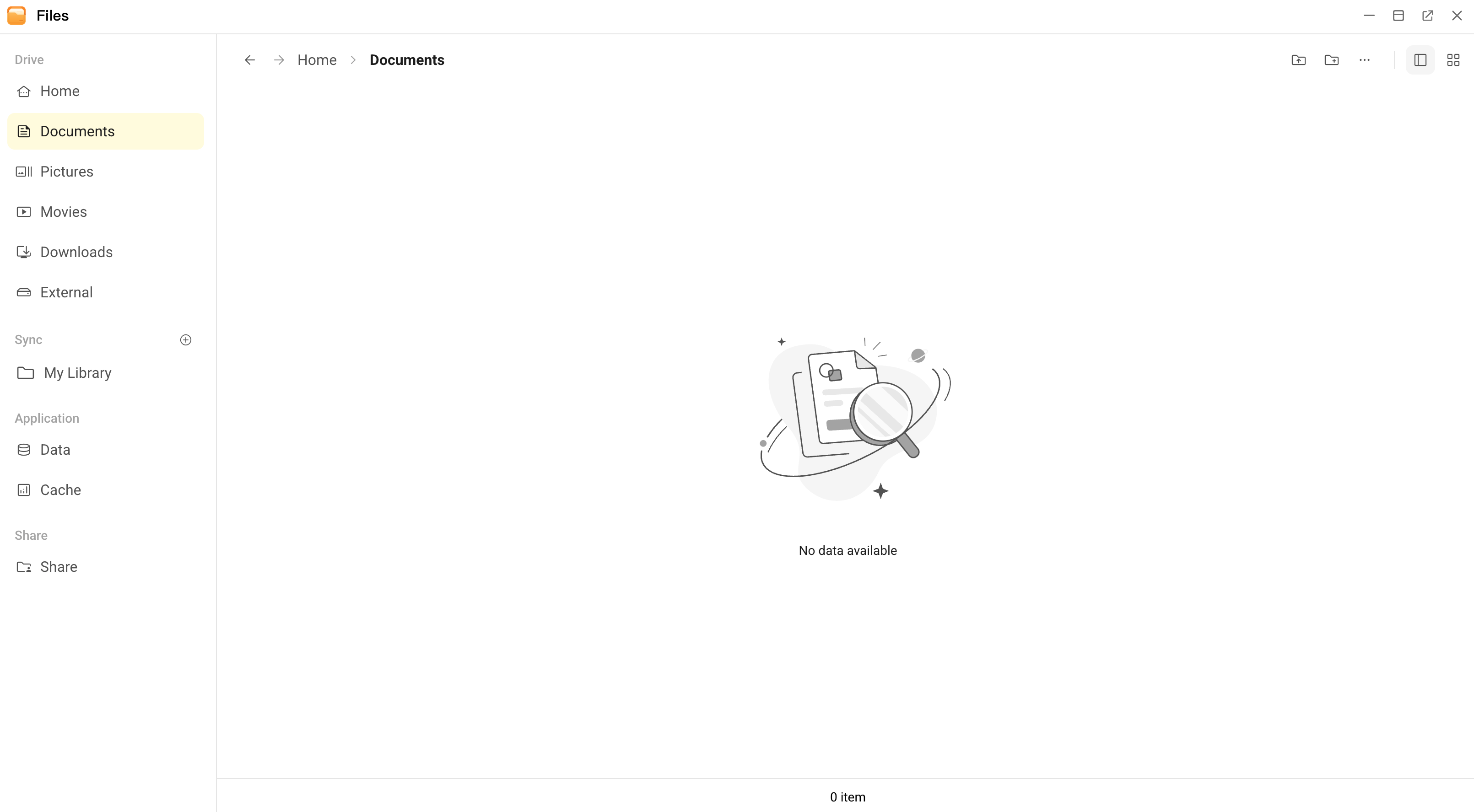
Upload the PDF document and text file using one of these methods:
- Drag and drop files from your local file manager into the Files window.
- Click drive_folder_upload in the top right corner.
- Right-click in an empty space and select from the context menu.
Upload progress indicator
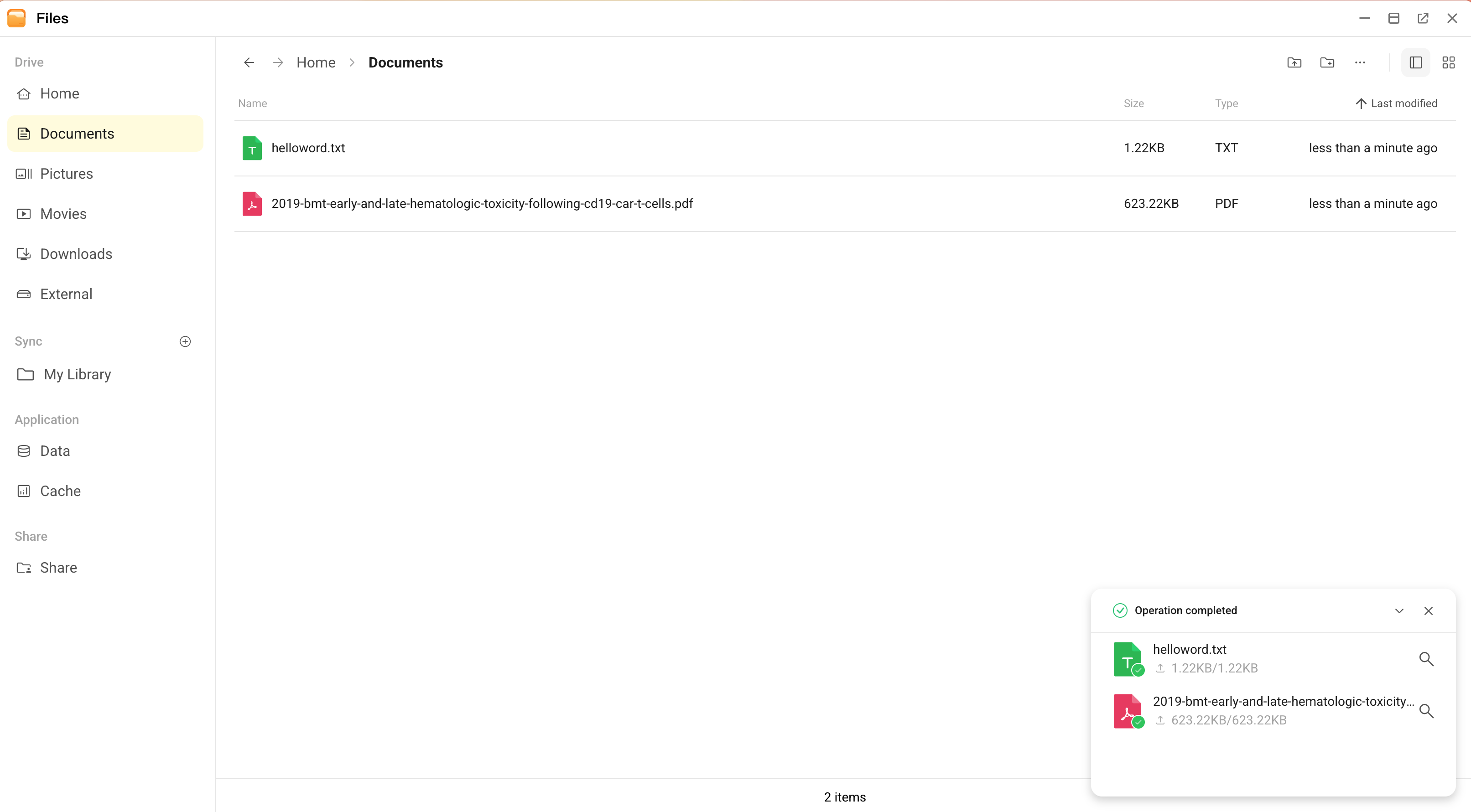
During upload, a notification in the lower right corner displays the upload status.
When the upload is completed, the files are listed in the directory you selected.
Resumable uploads
If your internet connection drops, the upload stops automatically. When the connection is back, Olares resumes the upload from exactly where it left off, so you don't have to start over.
Preview & edit files
You can view and modify many common file types directly in the Files app without downloading them.
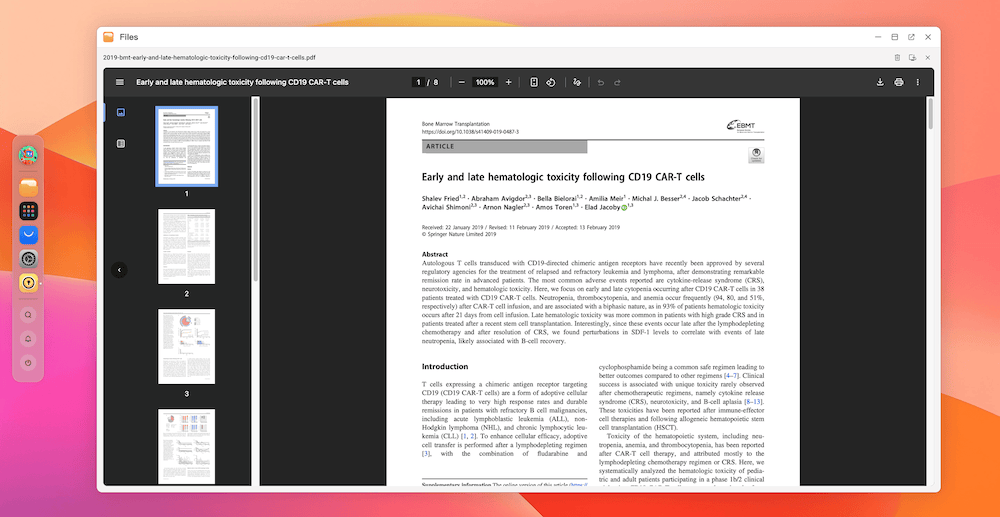
To preview the PDf document, double-click it.
To edit the text file:
- Double-click it.
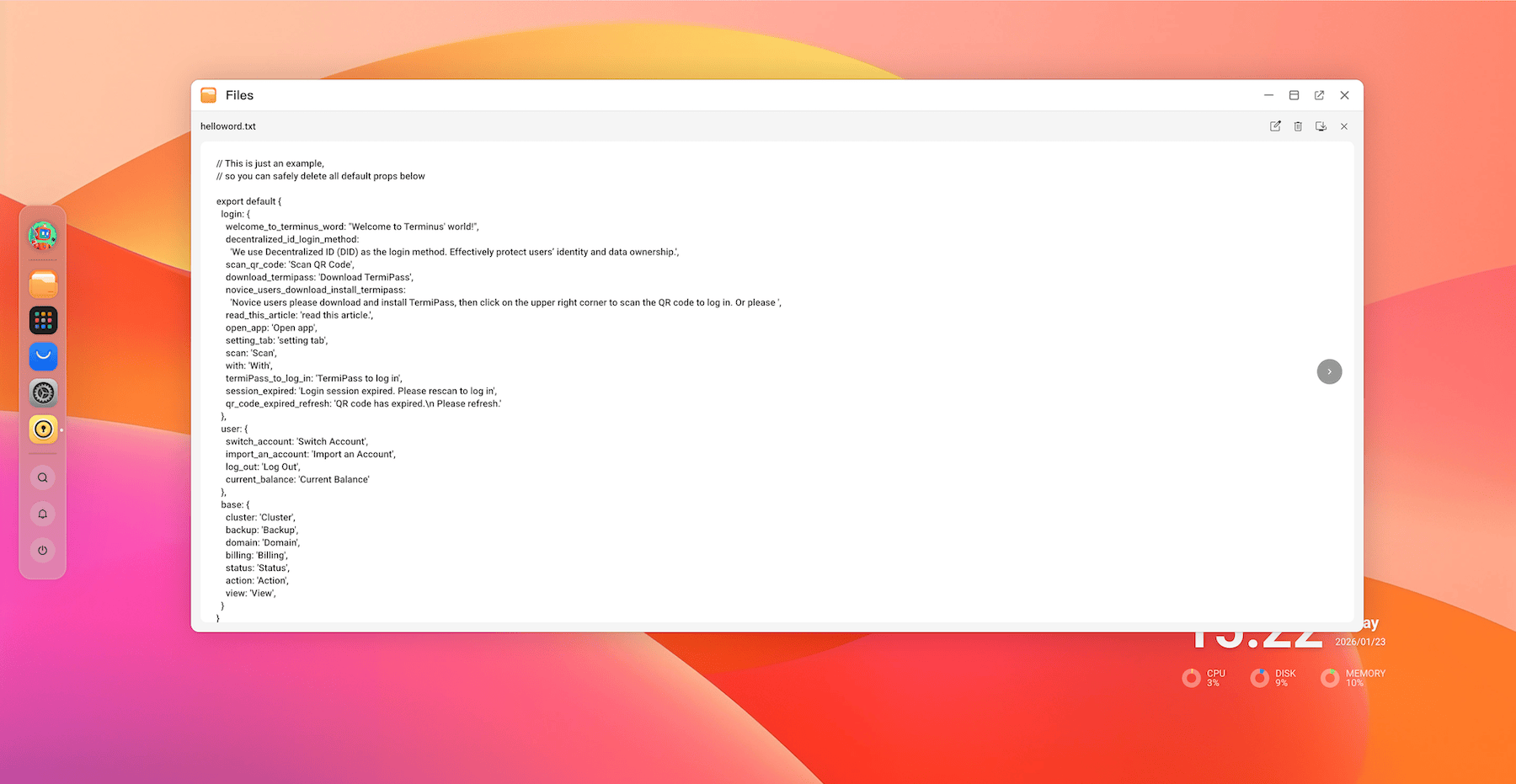
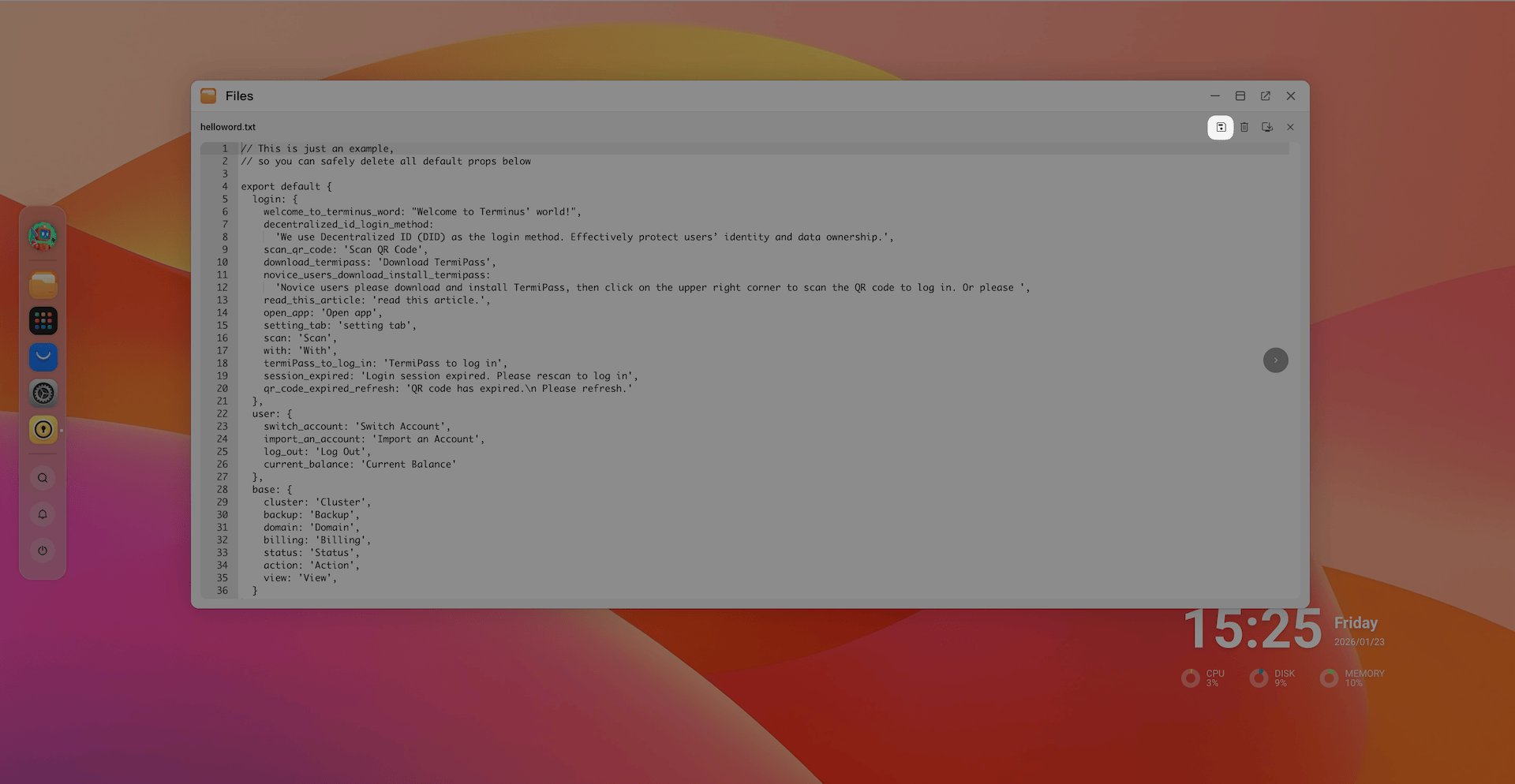
- Click edit_square in the top-right corner.
- Modify the content, and then save your changes by clicking save.
Search files
Locate files quickly using the global desktop search.
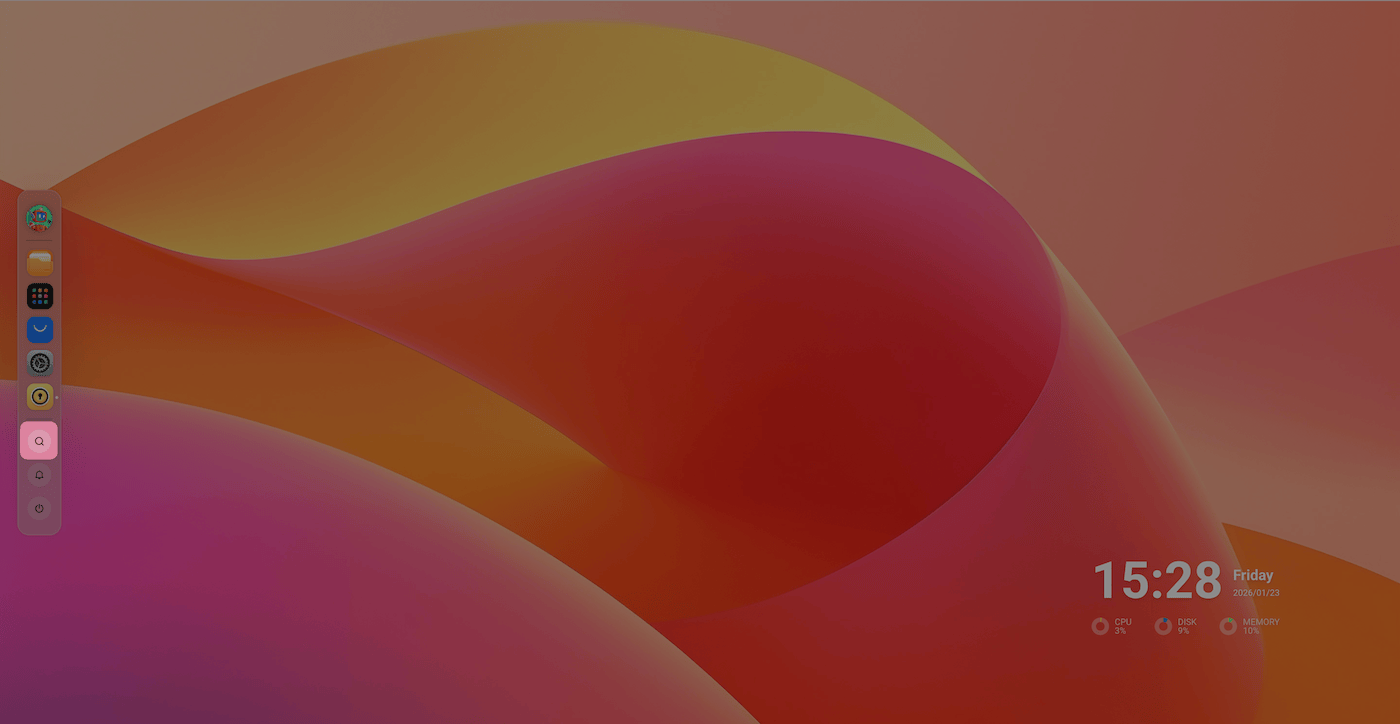
Click searchin the Dock to open the search window.
Select Drive as the search scope.
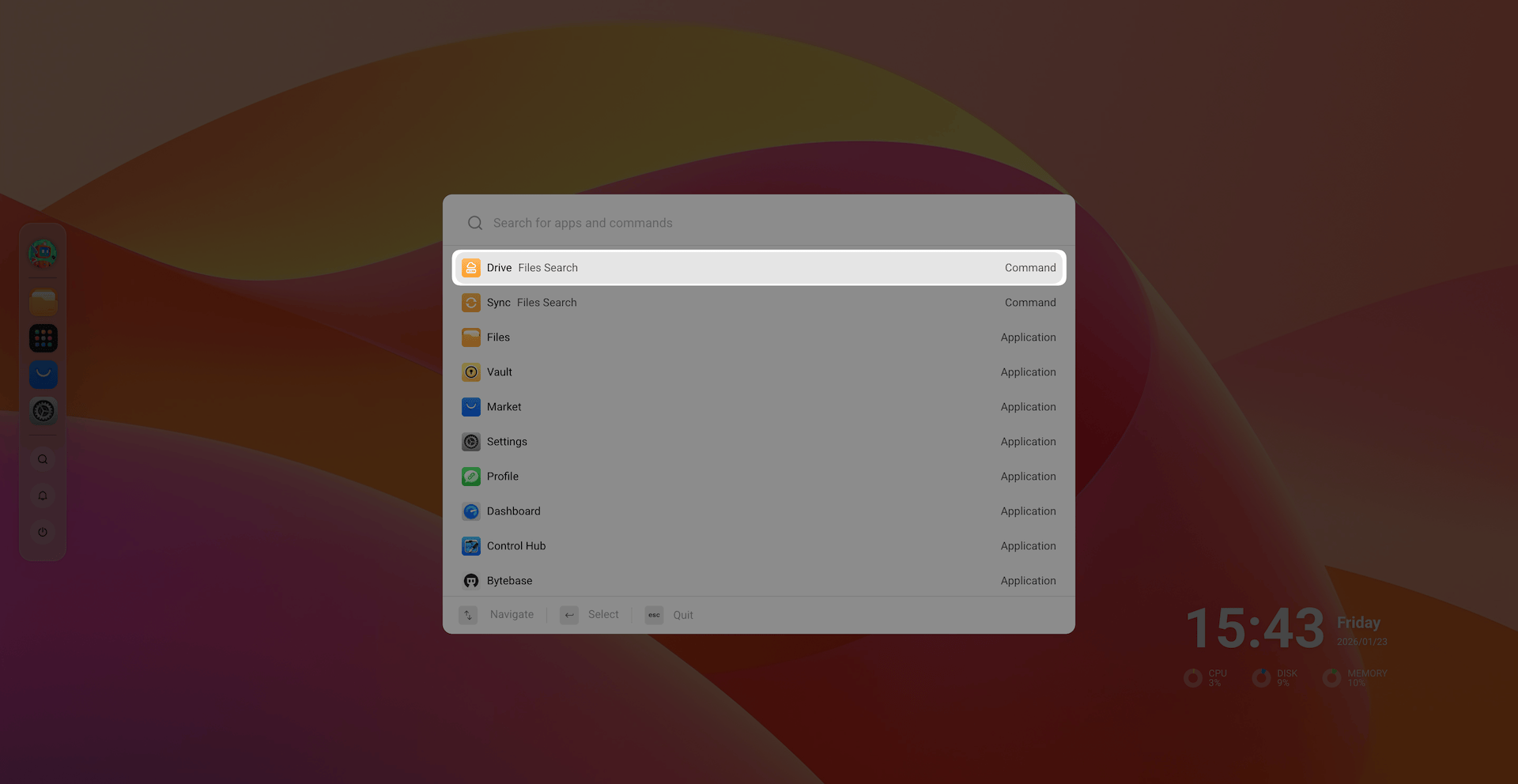
In the Search files field, enter the keywords related to the file you're looking for. For example,
txt. The results are listed.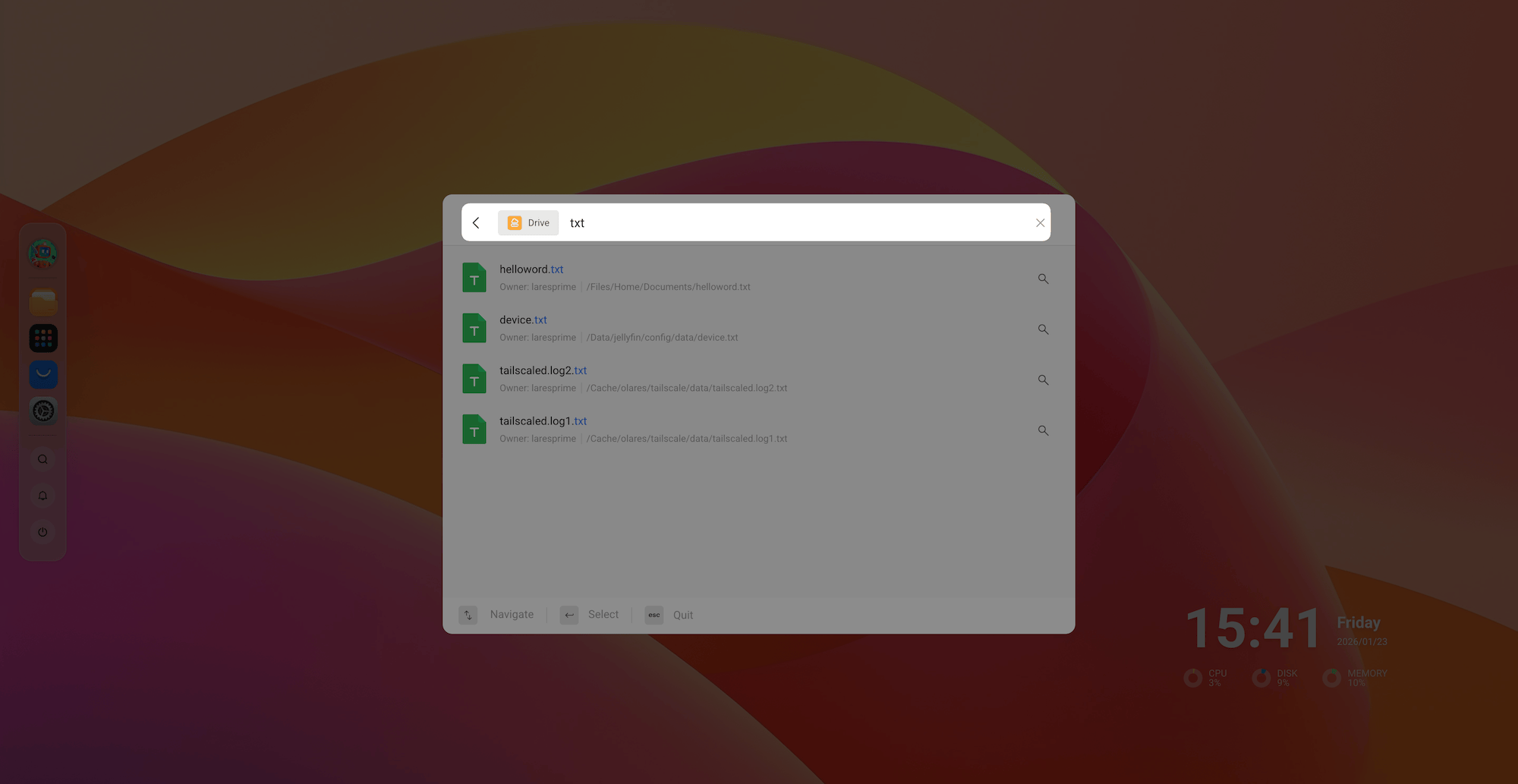
Double-click to open it in the Files app directly.
Download files
Download files to your local computer.
Open the Files app from the Dock or Launchpad.
Right-click the target file, and then select Download.
The file is downloaded via your web browser's standard download manager.
INFO
Web browsers cannot download entire folders or extremely large files reliably. For these tasks, install the LarePass Desktop application to unlock folder downloads and resume capabilities.
Delete files
WARNING
Deleted files cannot be recovered.
- Open the Files app from the Dock or Launchpad.
- Right-click the target file, and then click Delete.
- In the Delete window, click Confirm.