Monitor traffic in Olares Space 10 min
Olares Space is the cloud-based management platform for your device. While your Olares device runs locally, Olares Space allows you to monitor cloud traffic usage and manage billing from any web browser.
This guide explains how to link your Olares device to Olares Space and track your traffic usage.
Usage and billing
If you use cloud services such as remote access (accessing your device from outside your home) or cloud backups, monitoring your usage is important. These services might incur charges if you exceed the limits of your subscription plan.
Learning objectives
- Link your Olares device to your Olares Space account.
- Log in to the Olares Space.
- Monitor cloud traffic consumption.
Before you begin
Ensure you have the LarePass app installed on your mobile device and logged in with your Olares ID.
Step 1. Link Olares Space
Before you can view statistics in Olares Space, you must authorize Olares Space to access your device's status. You do this through the LarePass mobile app.
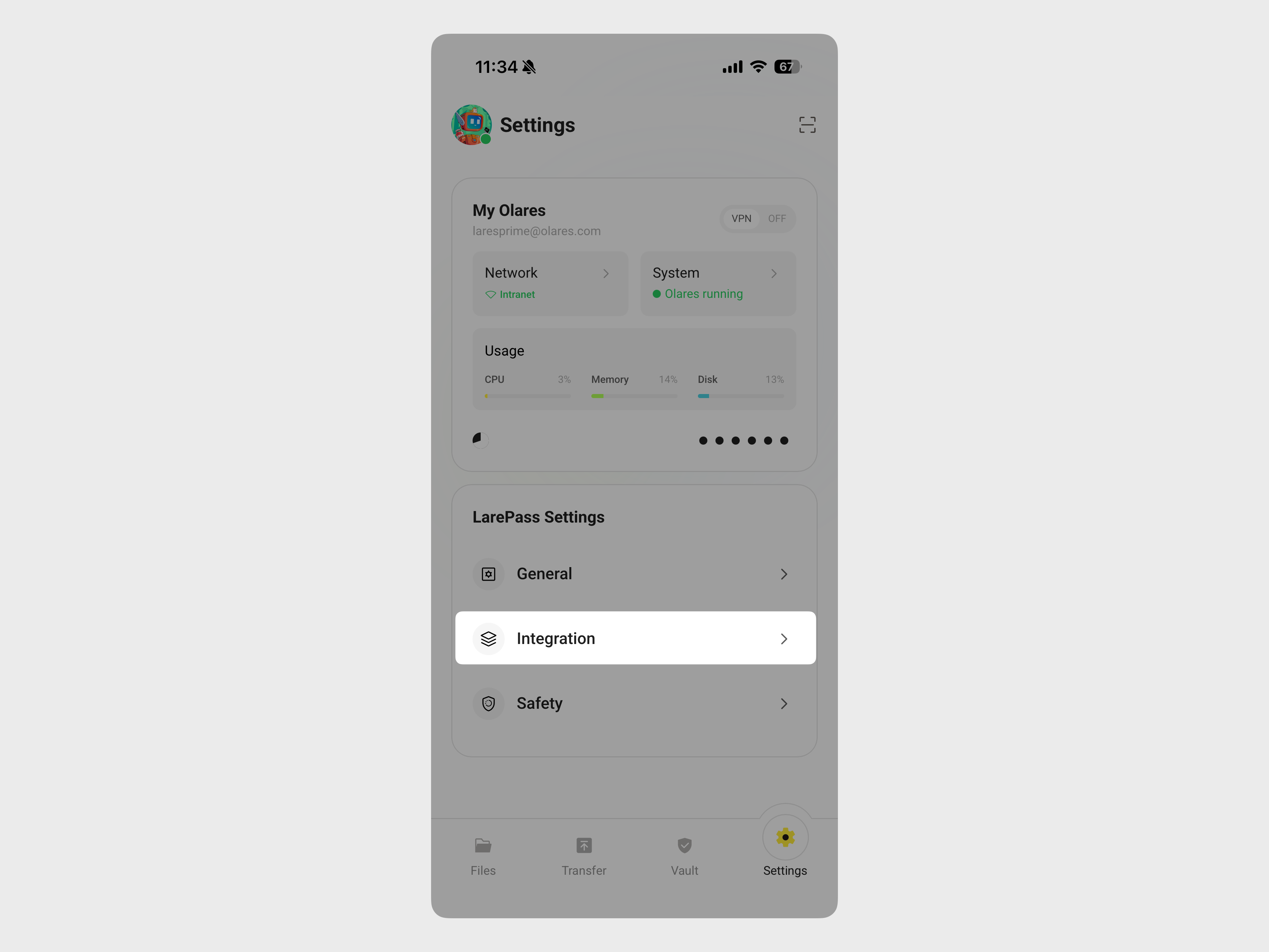
Open the LarePass app on your mobile and go to Settings > Integration.
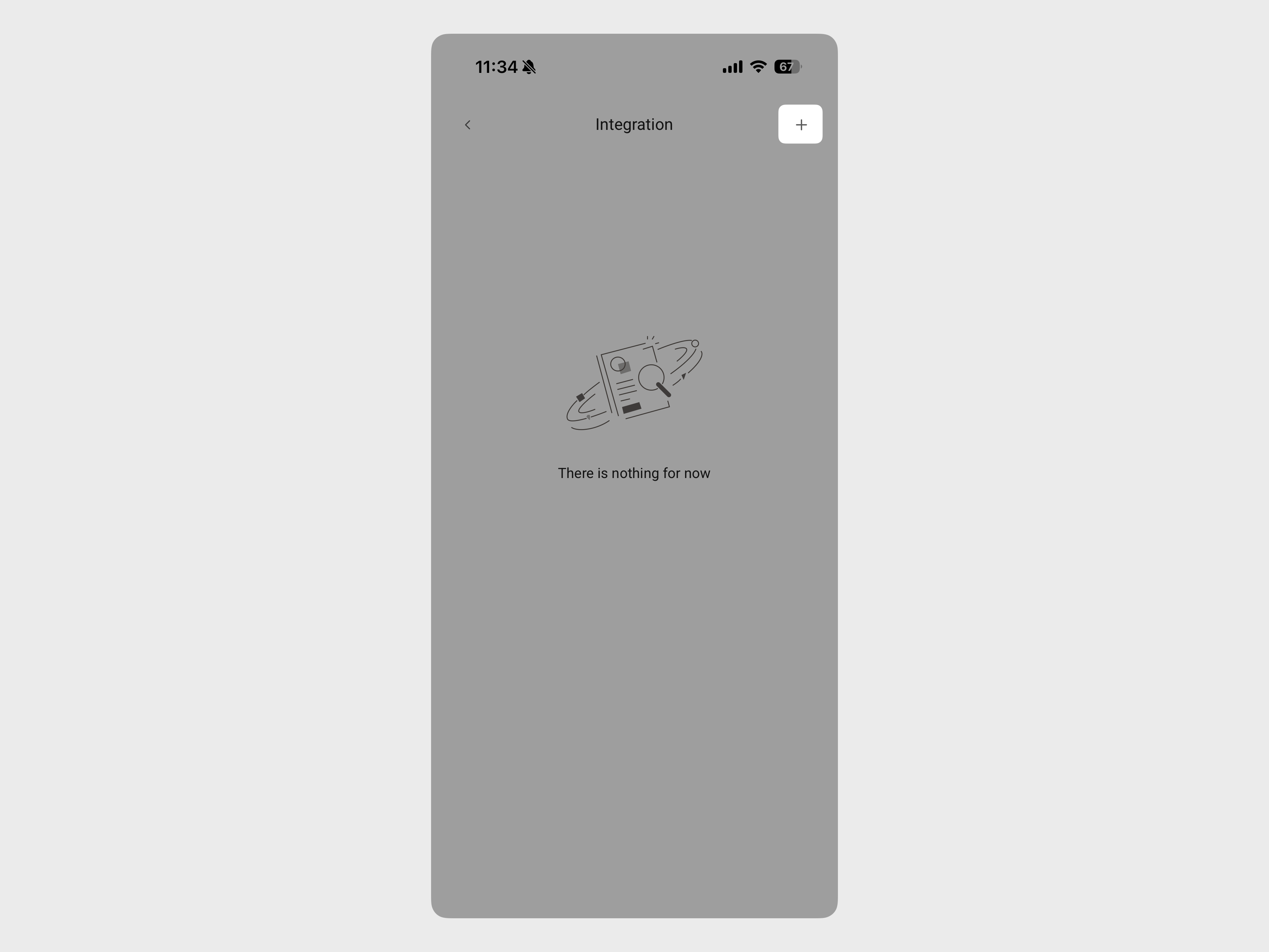
Tap add in the top right corner.
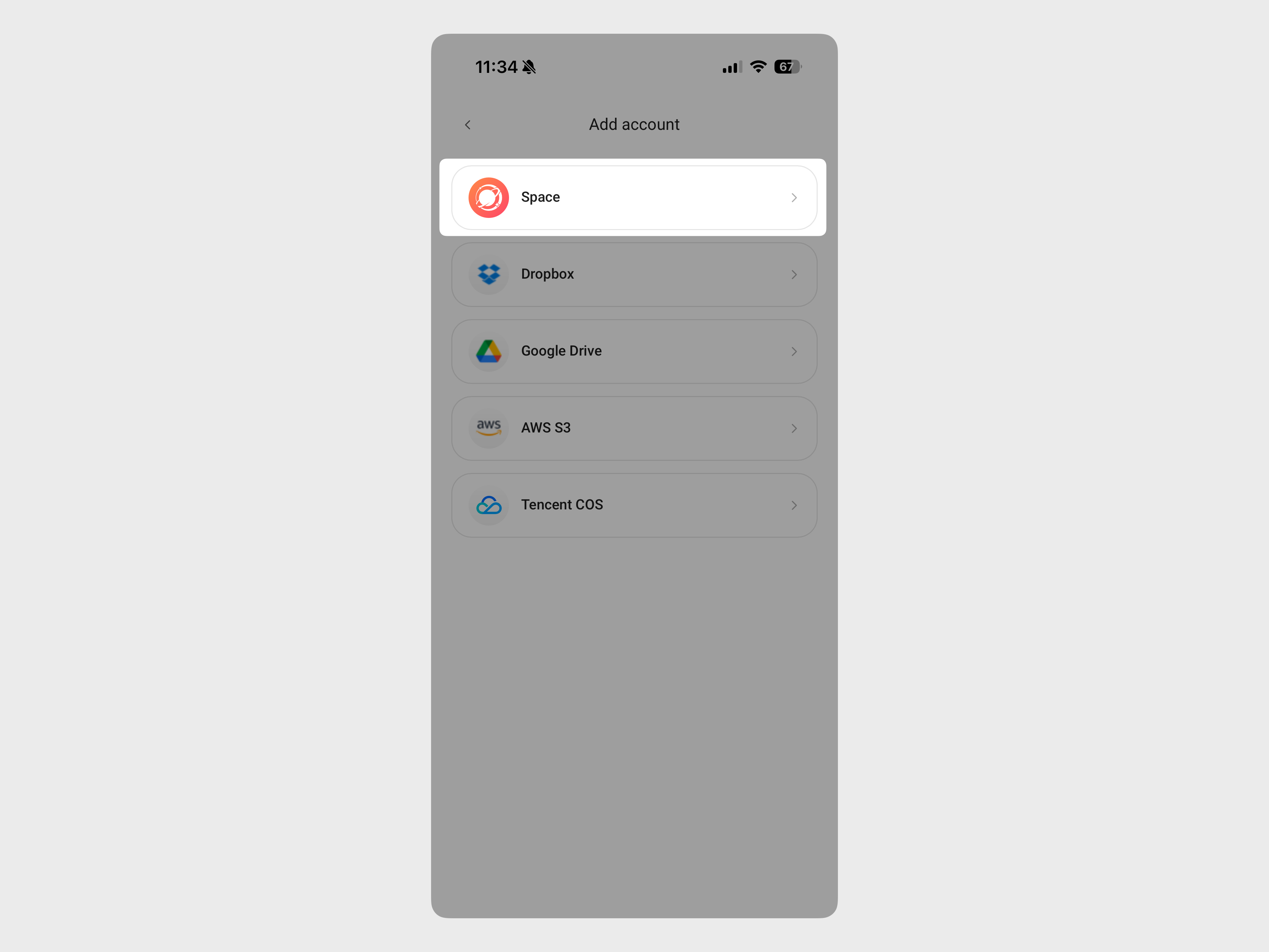
Tap Space from the list.
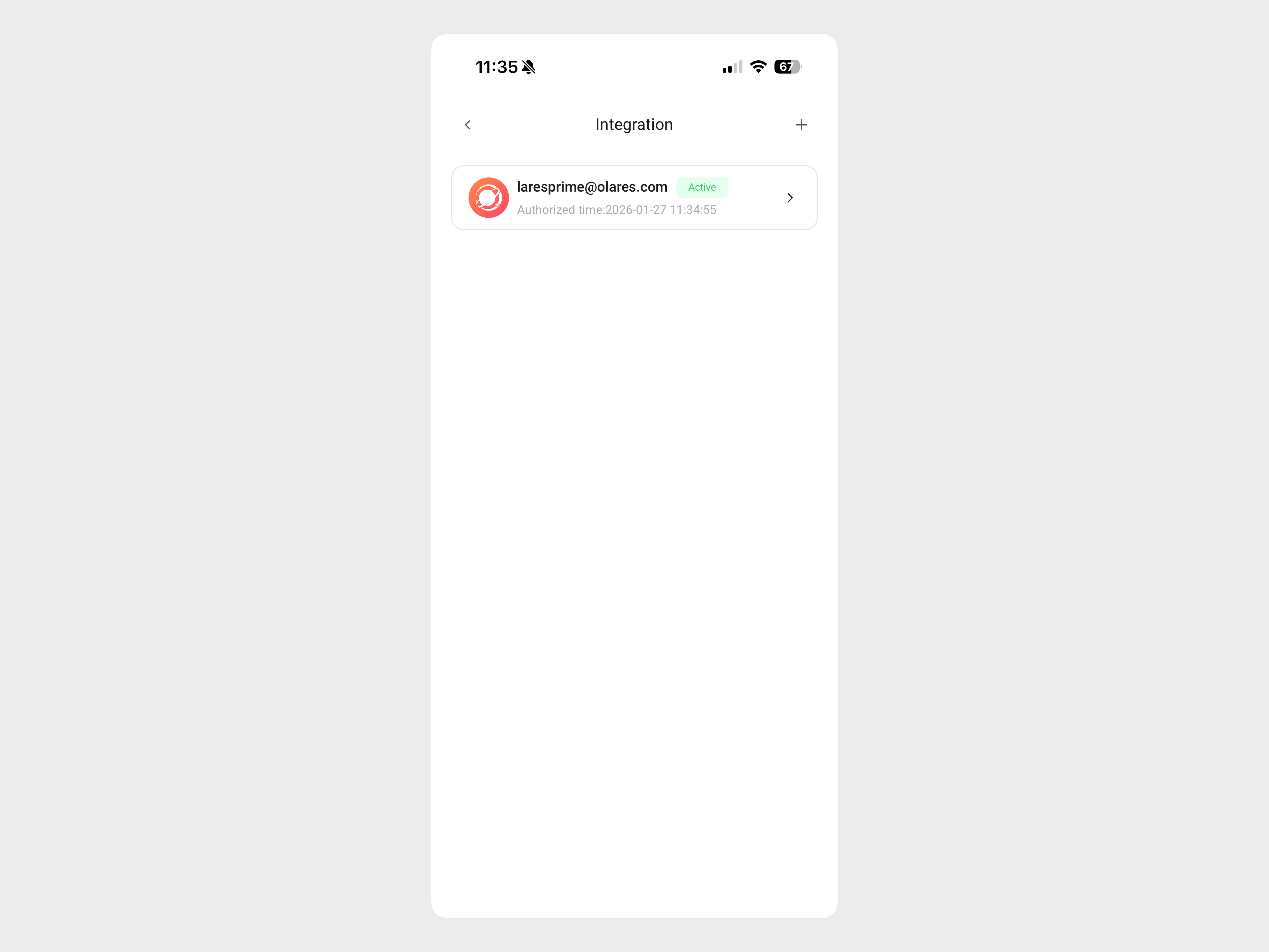
When completed, your Olares Space account is linked to your physical device, and the Olares Space account is displayed in the Integration list.
Step 2. Log in to Olares Space
Access the Olares Space dashboard via a web browser.
Go to https://space.olares.com/.
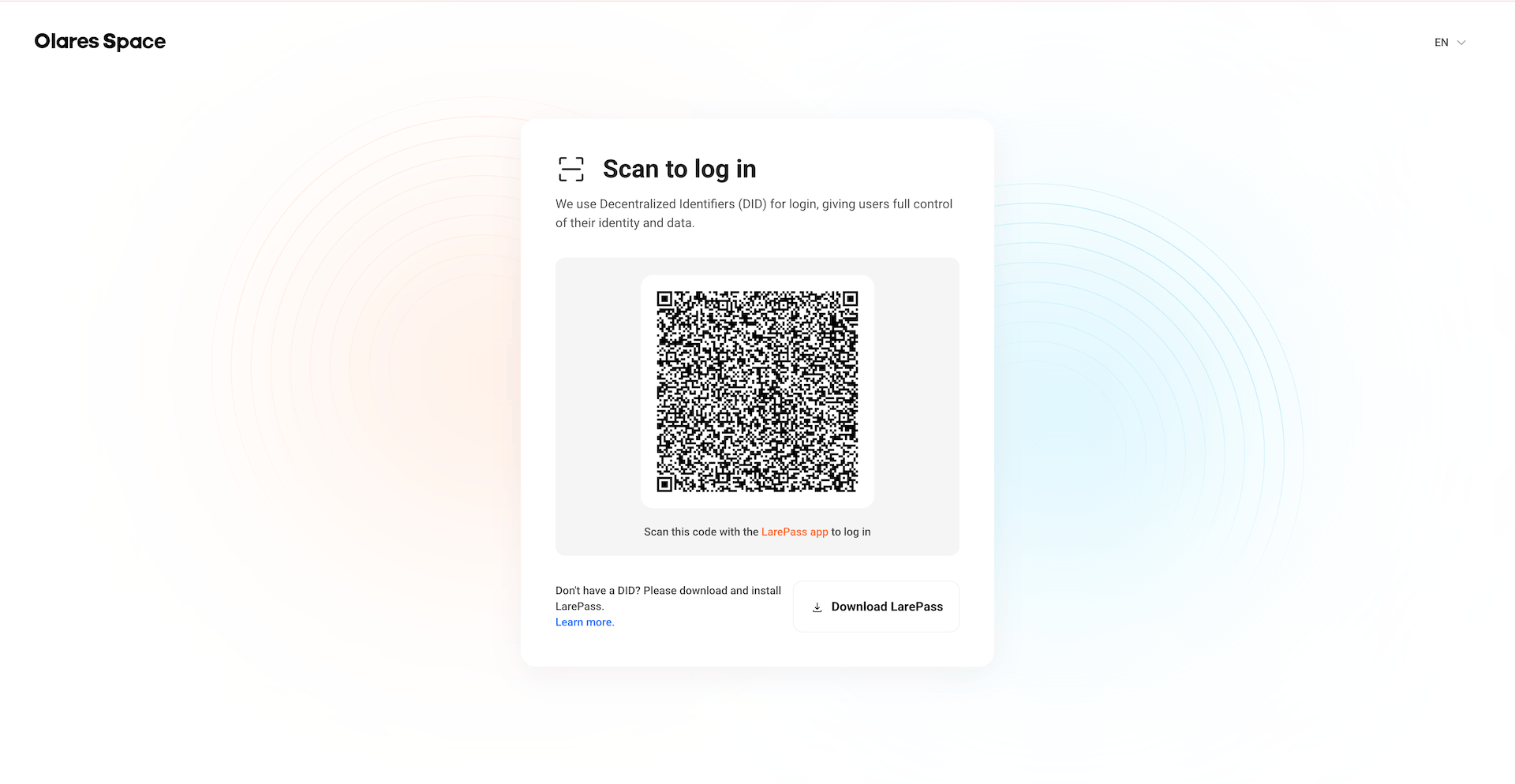
Log in to Olares Space:
a. In the LarePass app, go to Settings, and then tap the scan icon.
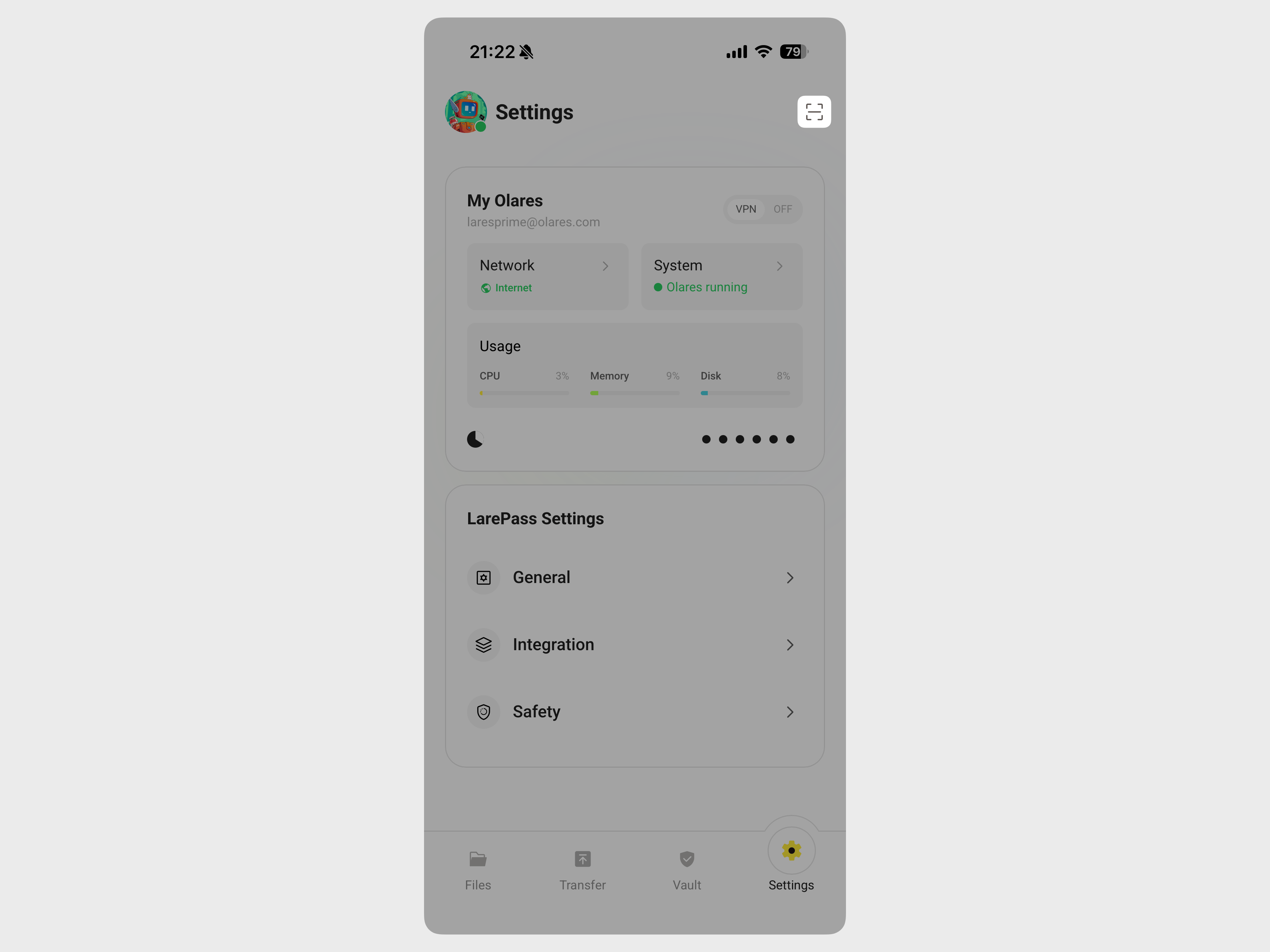
b. Scan the QR code on the computer screen and tap Confirm. Now you have logged in to Olares Space.
Step 3. Check traffic usage
Monitor how much data you have used for remote access to avoid exceeding the monthly limit of your subscription.
From the left navigation pane, click Usage & billing.
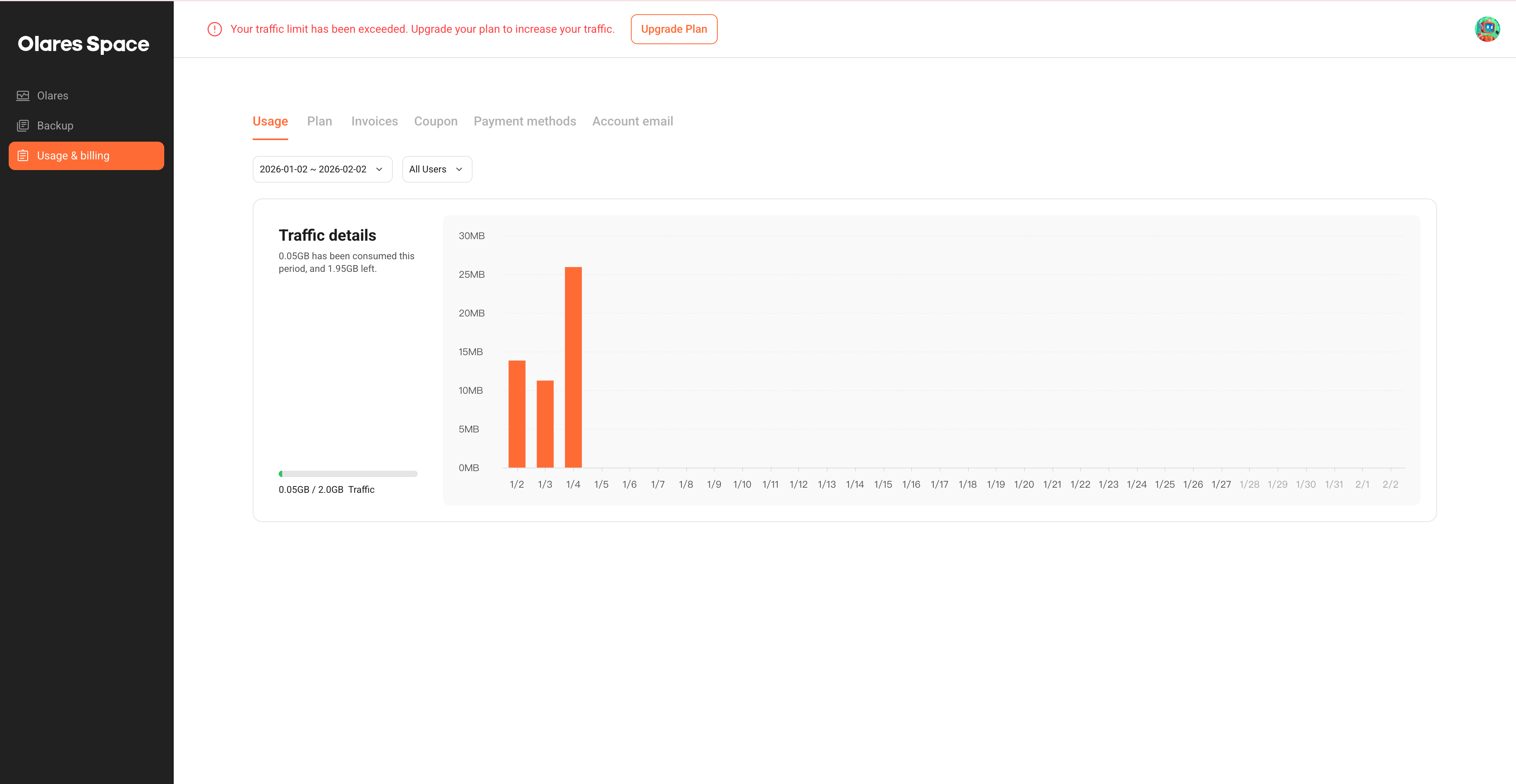
On the Usage tab, check the Traffic details section. By default, traffic details of the latest billing cycle is displayed.
- Progress bar: Shows exactly how much data you have consumed against your plan's limit. For example, 0.05 GB/2.0 GB.
- Daily chart: A bar chart displaying your data usage day by day, helping you spot sudden increases in activity.
If you need to check usage from a previous billing cycle:
a. Click the date range dropdown list.
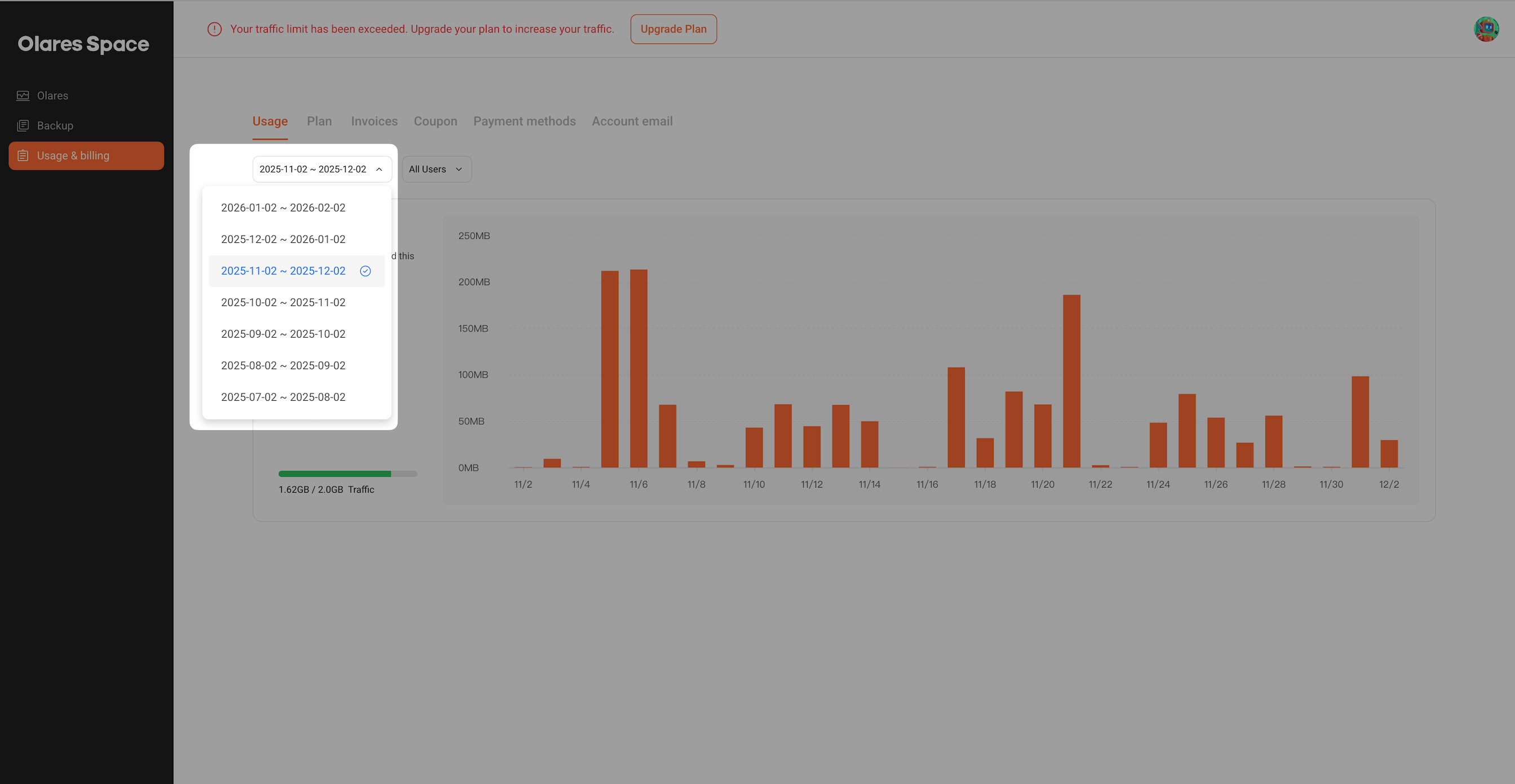
b. Select a specific billing period to view the traffic history for that month. For example, 2025-12-02 ~ 2026-01-02.