Customize Olares 15 min
Olares allows you to customize both your private workspace and your public identity. This guide shows you how to set up your desktop appearance and design a profile page to share with others.
Learning objectives
By the end of this tutorial, you will learn how to:
- Switch between light and dark system themes.
- Customize your desktop and login screen wallpapers.
- Design your public profile with social links and content blocks.
- Style your page and share it.
Customize Olares desktop
You can adjust the look and feel of your local Olares environment through the system settings.
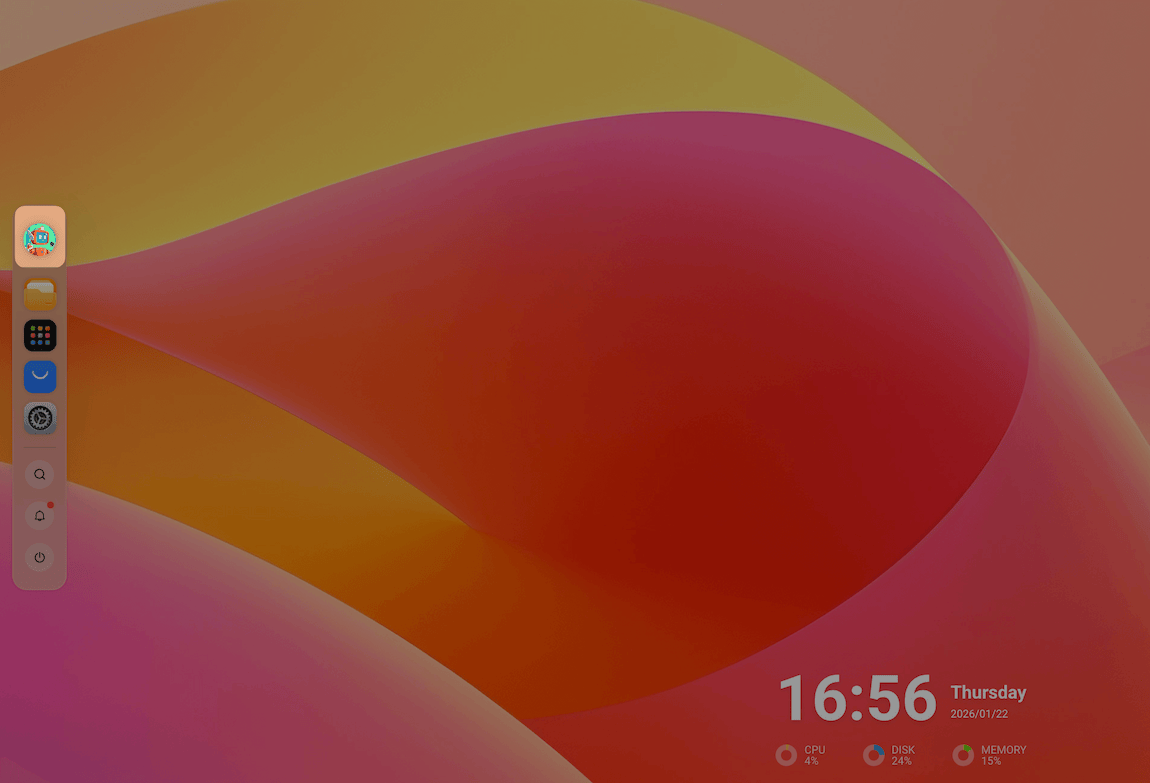
- Open Settings from the Dock.
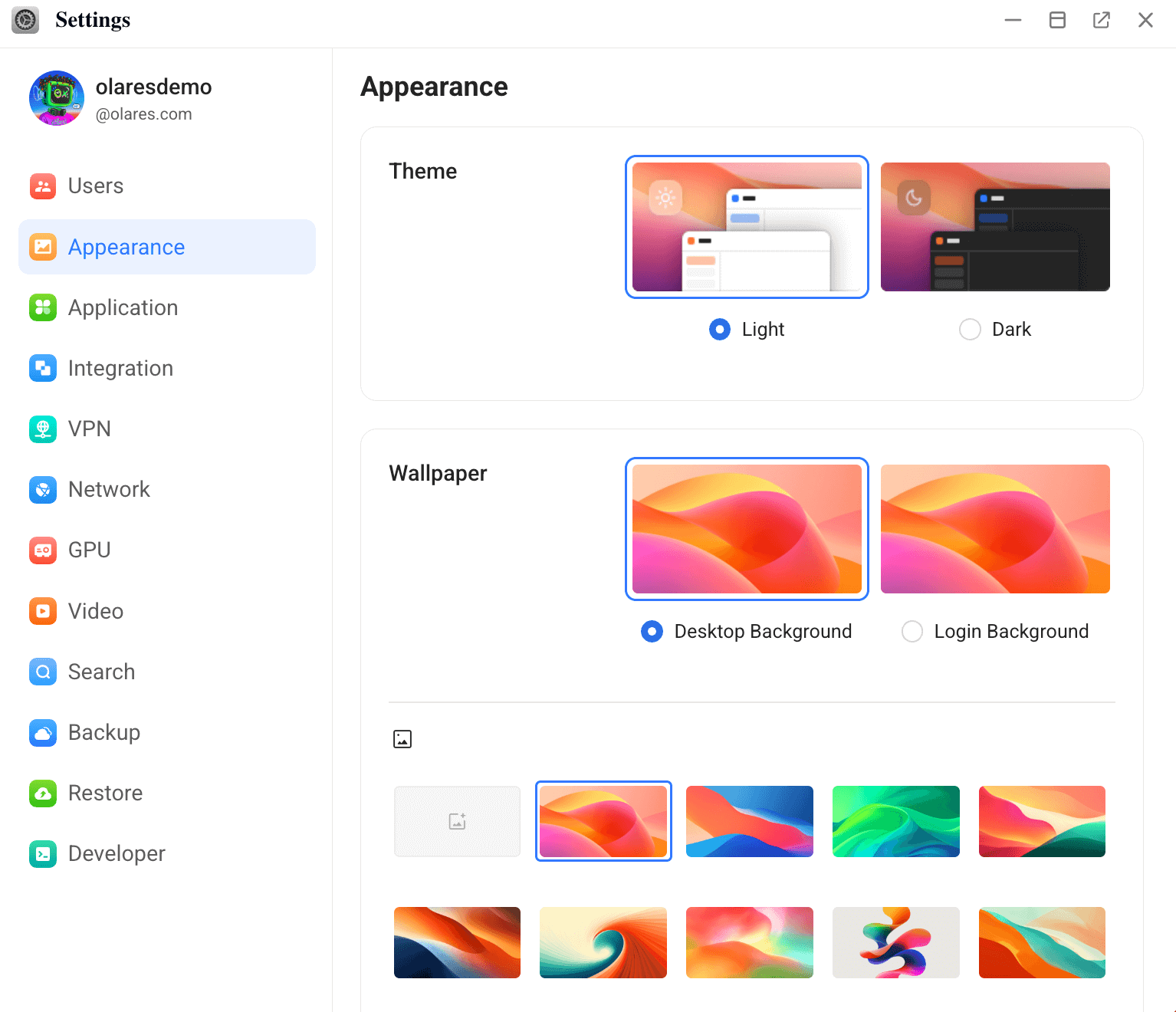
- Select Appearance in the sidebar.
Set system theme
In Theme, choose between Light or Dark mode.
The change takes effect immediately.
Change wallpaper
You can set a distinct look for your desktop and login screen.
In Wallpaper, select the target: Desktop background or Login background.
To use a built-in wallpaper, browse and select from the provided image gallery.
To use a custom wallpaper:
a. Click Upload image, select an image file from your computer, then click Open.
b. (Optional) Adjust how the wallpaper is displayed using the drop-down list next to Upload image:- Stretch
- Fill
- Tile
Remove uploaded images
Uploaded wallpapers appear in a separate Uploaded images section.
To delete an uploaded image, hover over it and click the close icon in the top-right corner.
Design your public profile
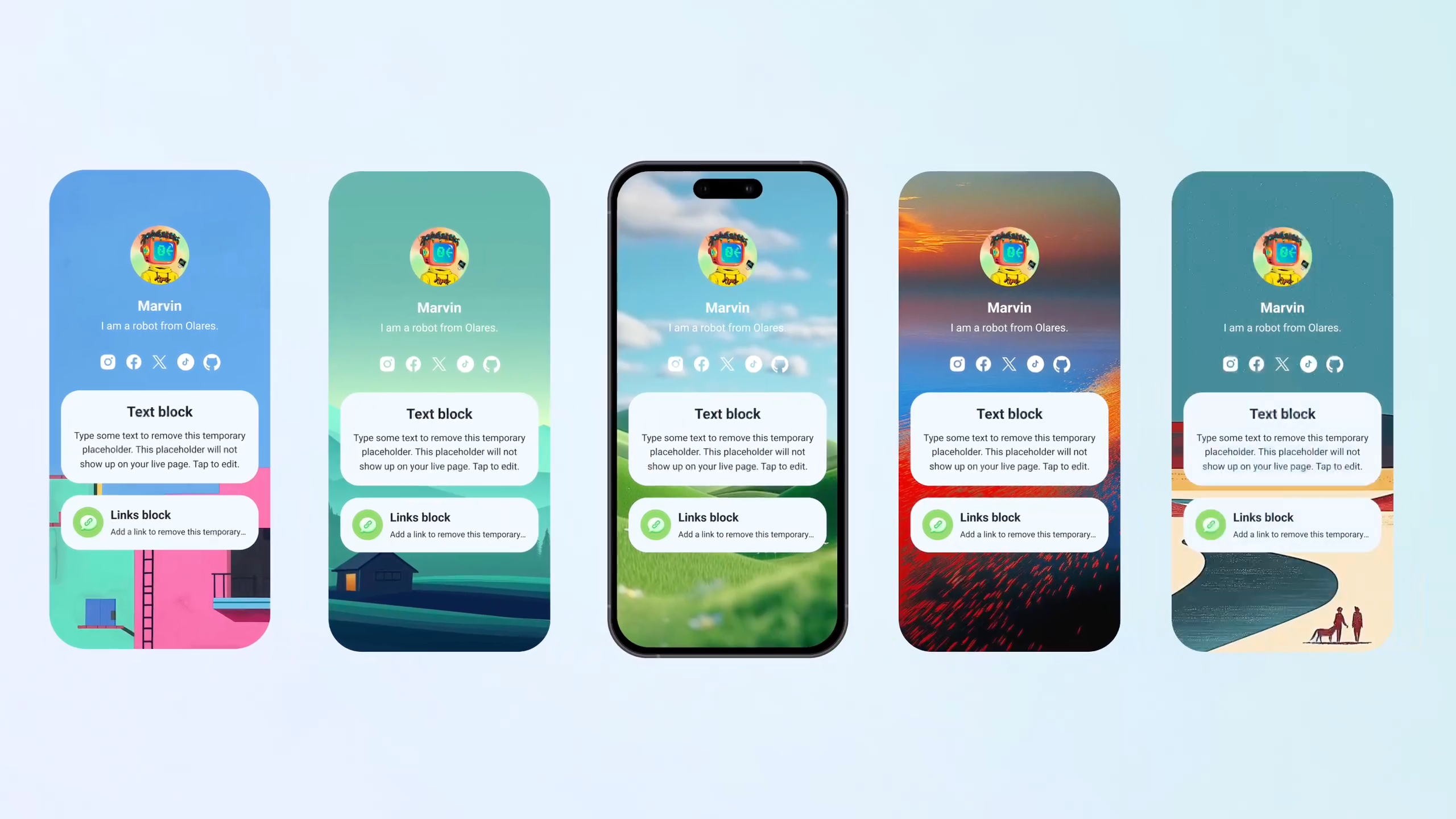
Your Olares profile is a public homepage available at https://{your-olares-id}.olares.com. You can use it as a landing page, portfolio, or digital business card.
Open Profile from the Dock to start editing. The editor has four tabs: Header, Social, Blocks, and Appearance.
Automatic save
All changes are saved automatically as you make them.
Set up header
Use the Header tab to define your identity at the top of the page. You can choose a layout style, upload your avatar, and set your display name.
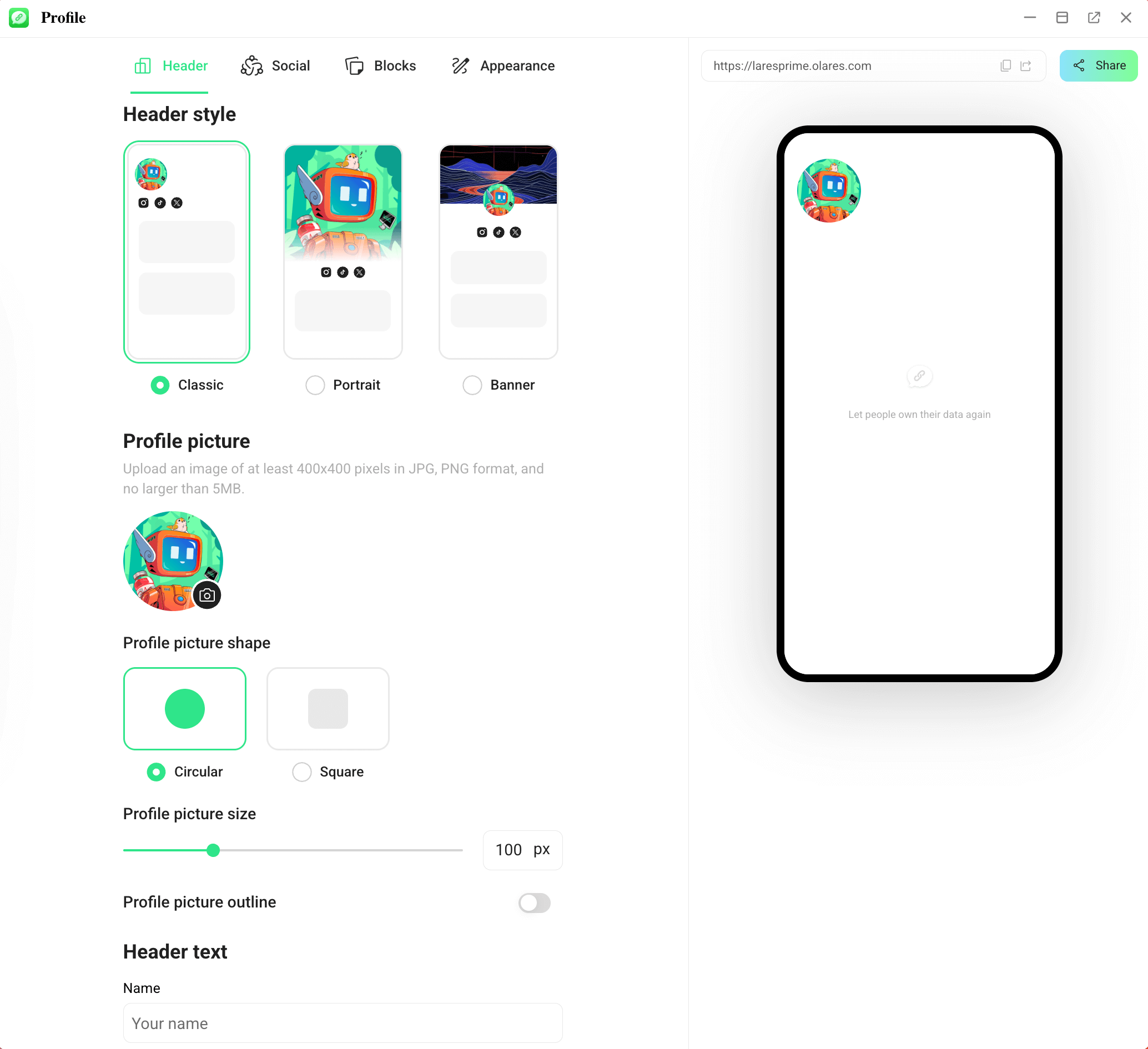
Keep it simple
A clear name plus a one-line description is usually enough to make a good first impression.
Add social links
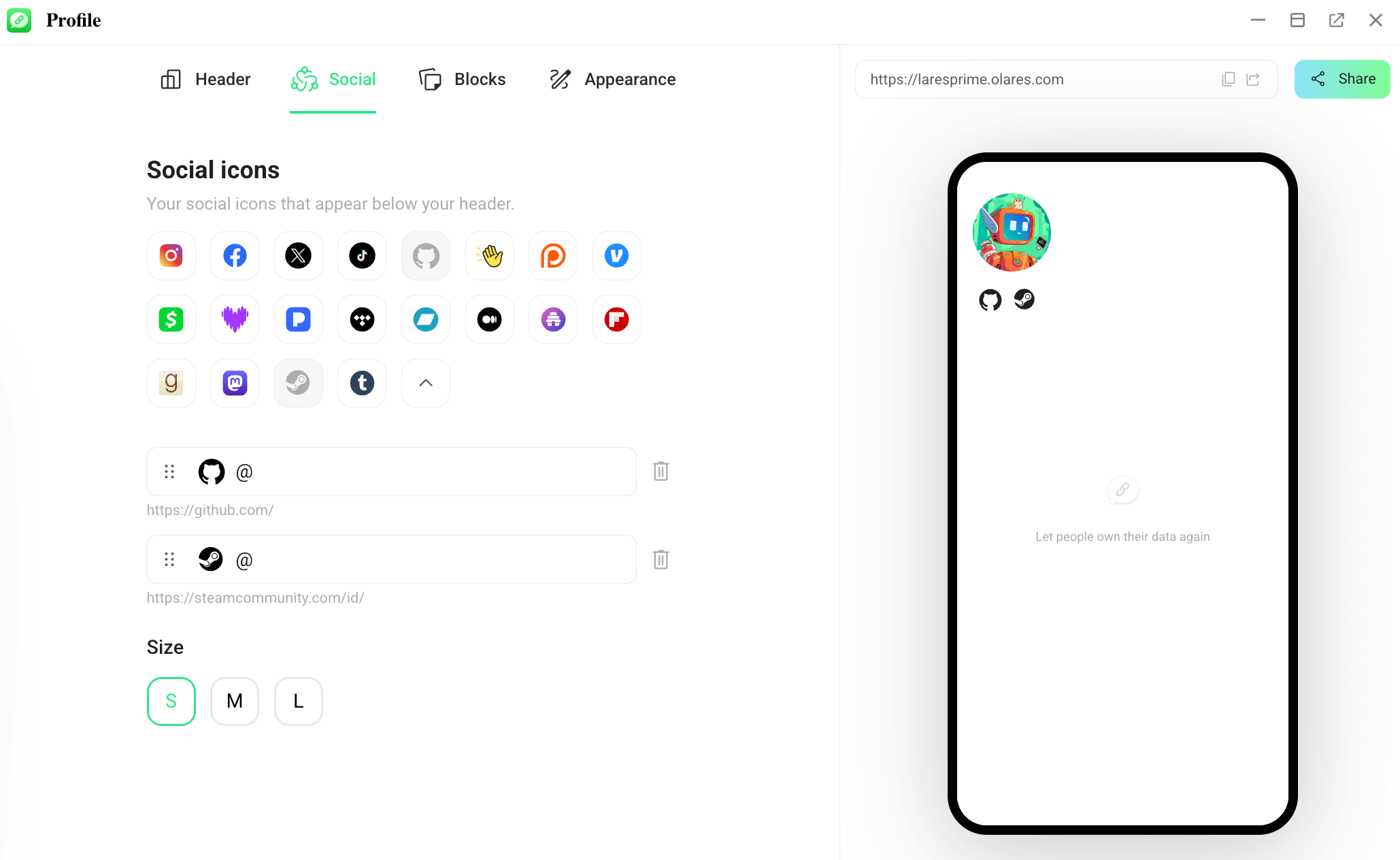
Use the Social tab to display icons under your header. This connects visitors to your presence on other platforms such as X, GitHub, or LinkedIn.
You can add links for multiple platforms and choose which ones to display. To hide a link temporarily, toggle it off without deleting the saved value.
Build with blocks
Use the Blocks tab to construct the main body of your page. Click + Add Block and select a type to enter the editing screen.
Each block type helps you share different content:
- Text: Add a title or paragraph. You can adjust text alignment and background transparency.
- Link: Enter a website URL or email address. You can customize the button title, subtitle, and shadow style.
- Image: Upload a photo. You can add a description and choose the aspect ratio that fits your image best.
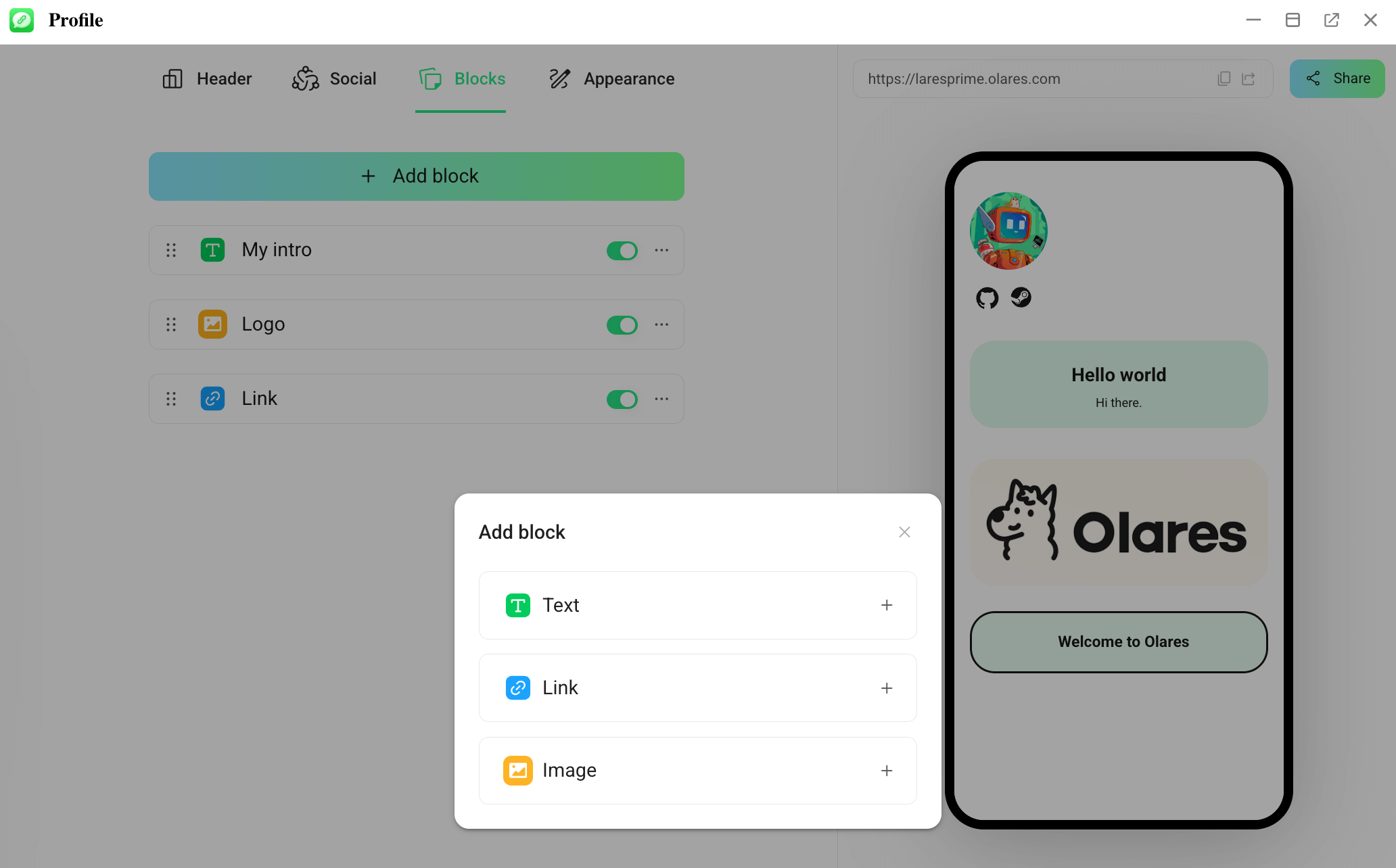
Once you have added your blocks, you can manage the layout directly in the list:
- Drag items to reorder them.
- Toggle a block off to hide it temporarily.
- Copy a block to reuse its style.
Configure appearance
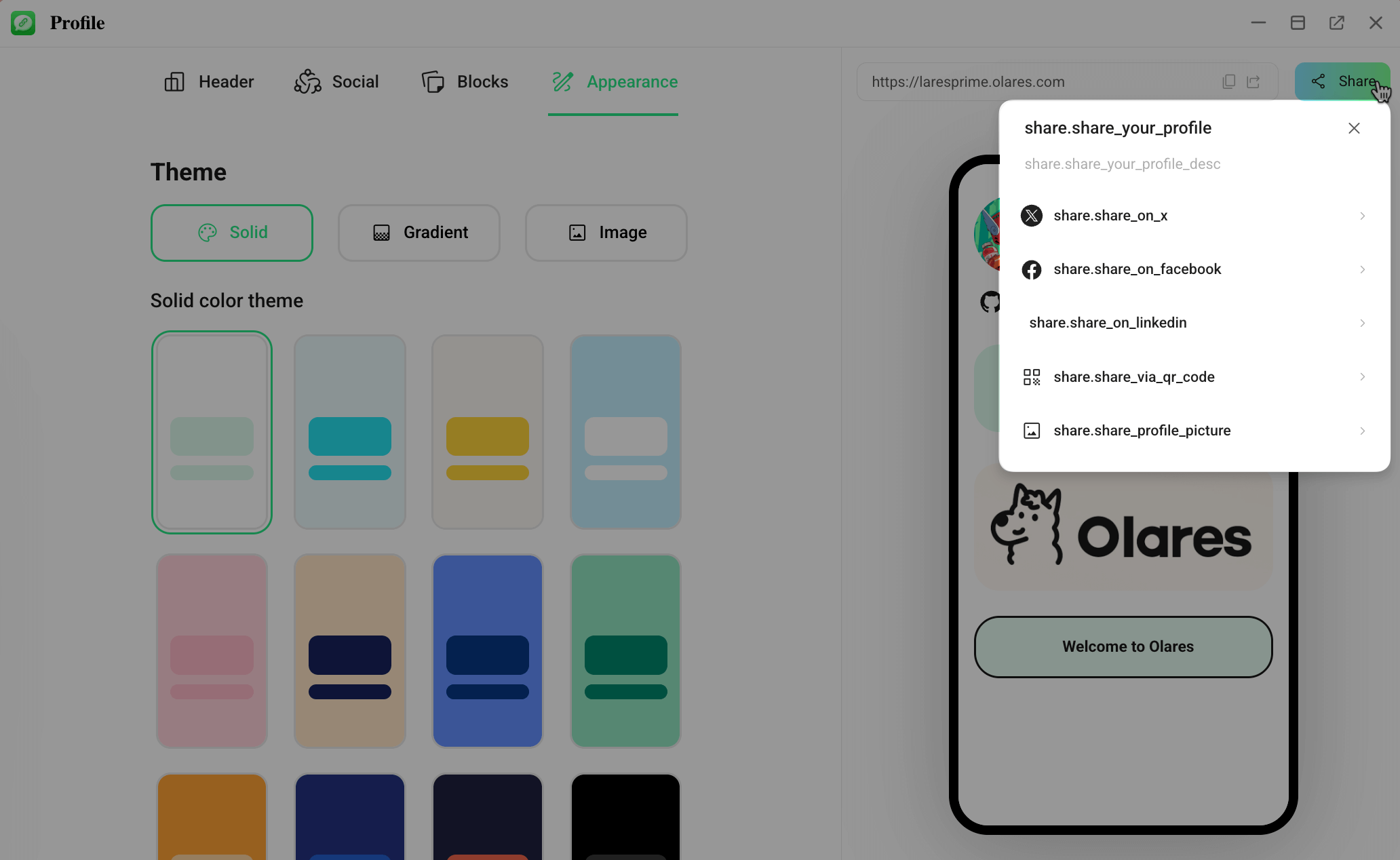
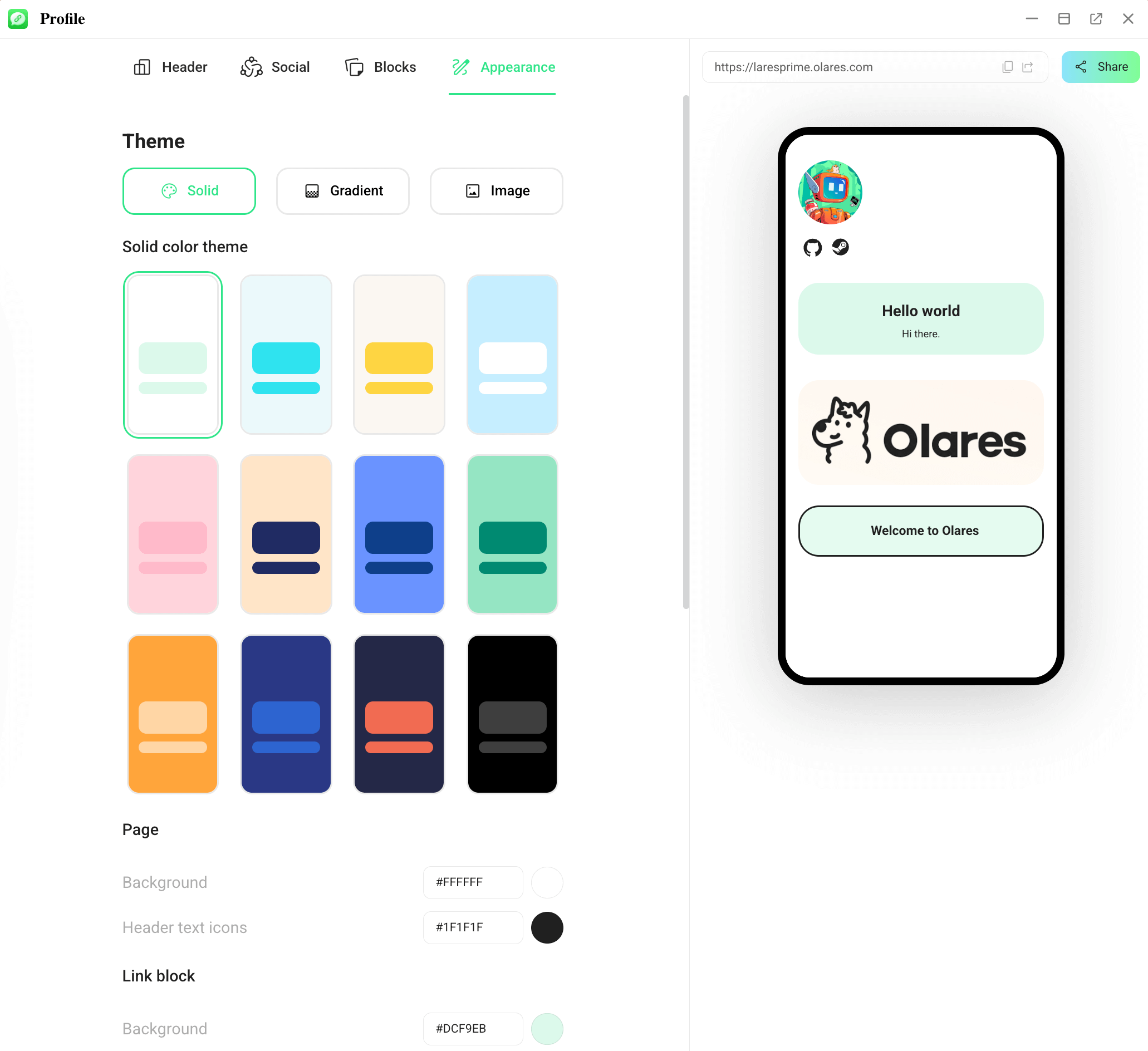
Use the Appearance tab to define the visual style. You can select a preset theme, and manually fine-tune the fonts and block shapes to match your style.
Share your profile
Your profile is available at https://{your-olares-id}.olares.com.
When you are ready, click the share Share button. You can:
- Share directly to social platforms.
- Generate a QR code.
- Export a shareable image card that works as a digital business card.