Create AI-generated music with ACE-Step 15 min
ACE-Step is an open-source music generation model developed by ACE Studio and StepFun. It generates music from lyrics and style tags, and supports editing tools such as retake, repainting, and Audio2Audio.
This guide walks you through installation, first-time generation, and basic editing workflows on Olares One.
Learning objectives
By the end of this tutorial, you will learn how to:
- Generate songs with lyrics, tags, and stylistic controls.
- Locate and download your generated audio files.
- Refine tracks by adjusting the style, editing sections, extending the song, or using a reference clip to reshape it.
Prerequisites
Before you begin, make sure you have:
- Olares One connected to a stable network.
- Sufficient disk space to download models.
Install and set up ACE-Step
With your Olares device ready, follow these steps to install ACE-Step and begin generating music.
Install ACE-Step
Follow these steps to install ACE-Step.
Open Market, and search for "ACE-Step".
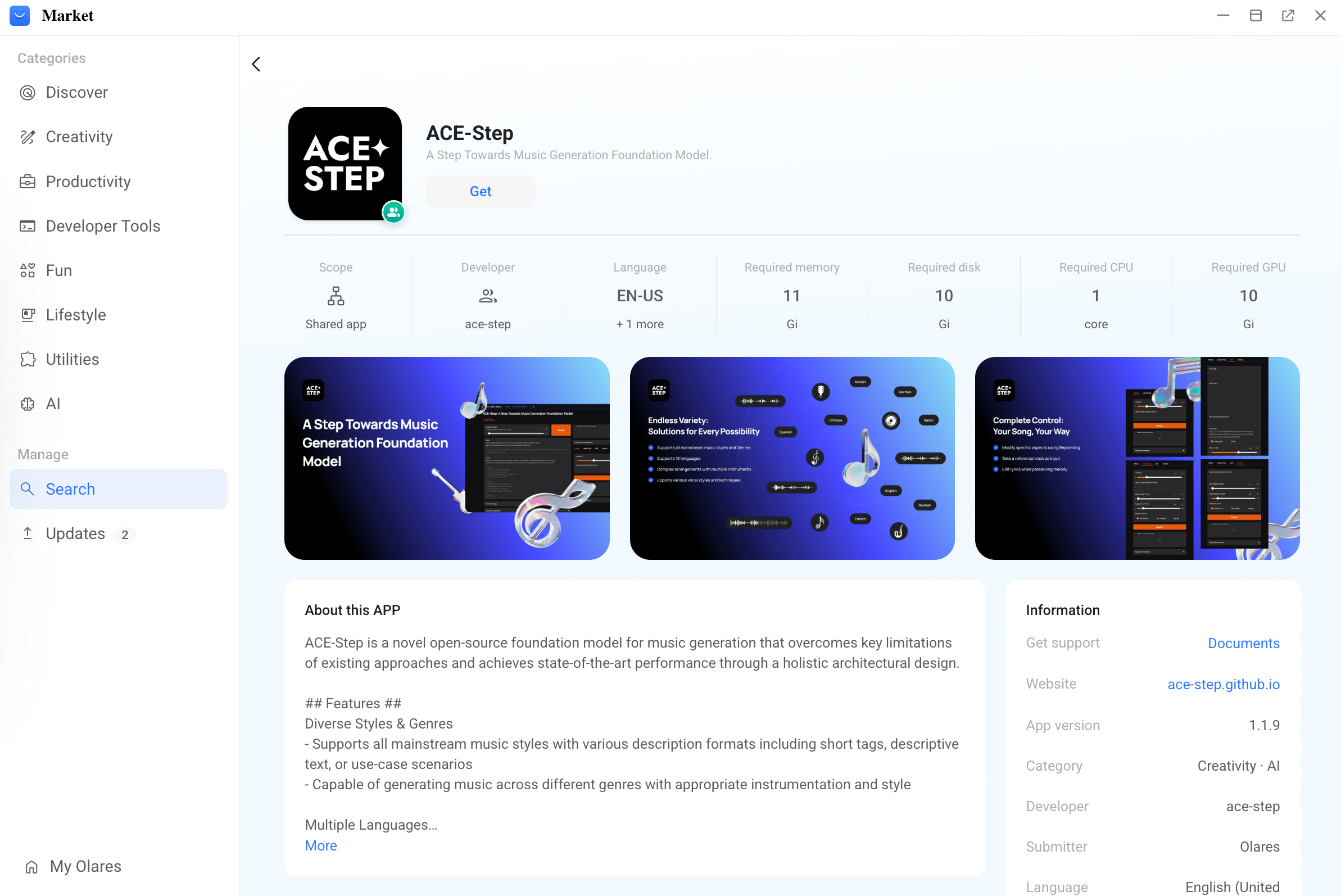
Click Get, then Install.
Wait a few minutes for the installation to complete.
Download required models on first-time launch
Once installation finishes, open ACE-Step from Launchpad.
Olares will automatically download and install required models. A Download Manager window will appear, showing model size and download progress.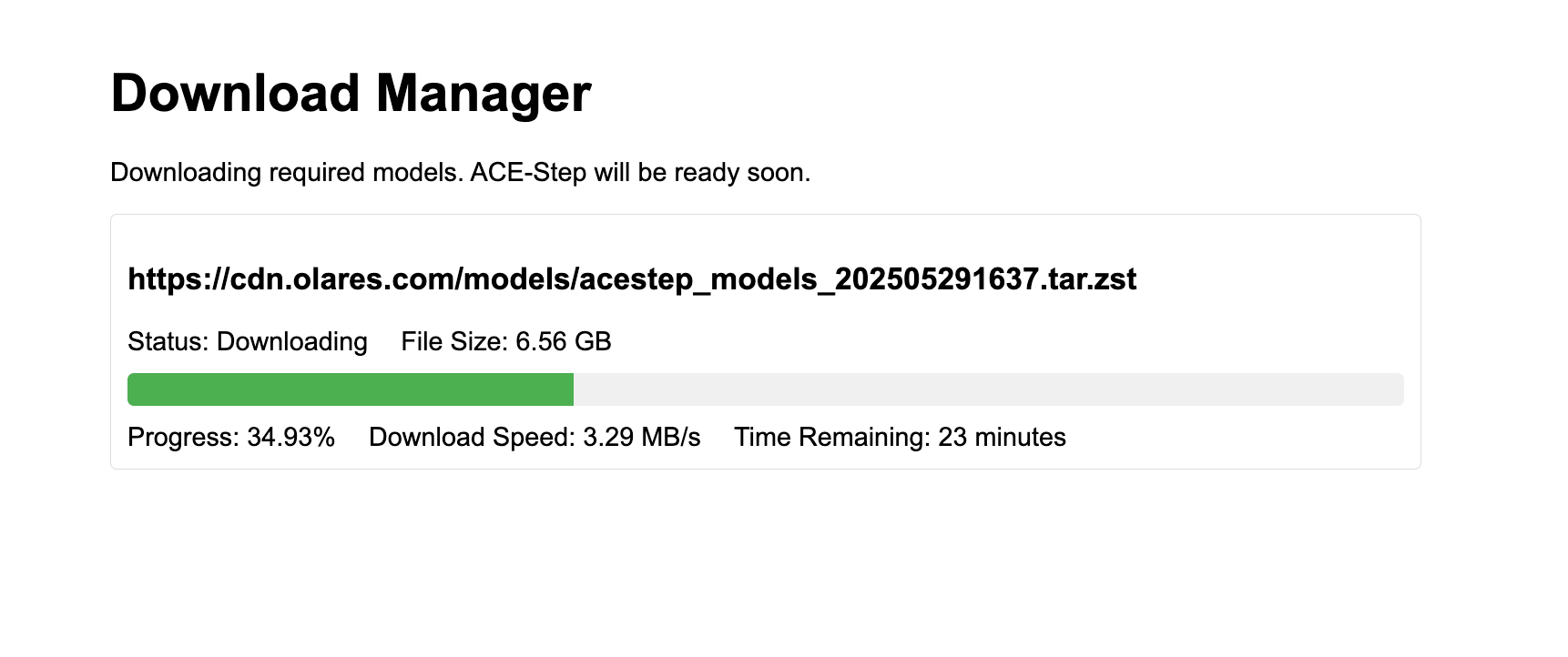
After the download completes, the ACE-Step generation interface will open automatically.
Generate your first track
Follow these steps to set your parameters and begin music generation.
Set basic parameters
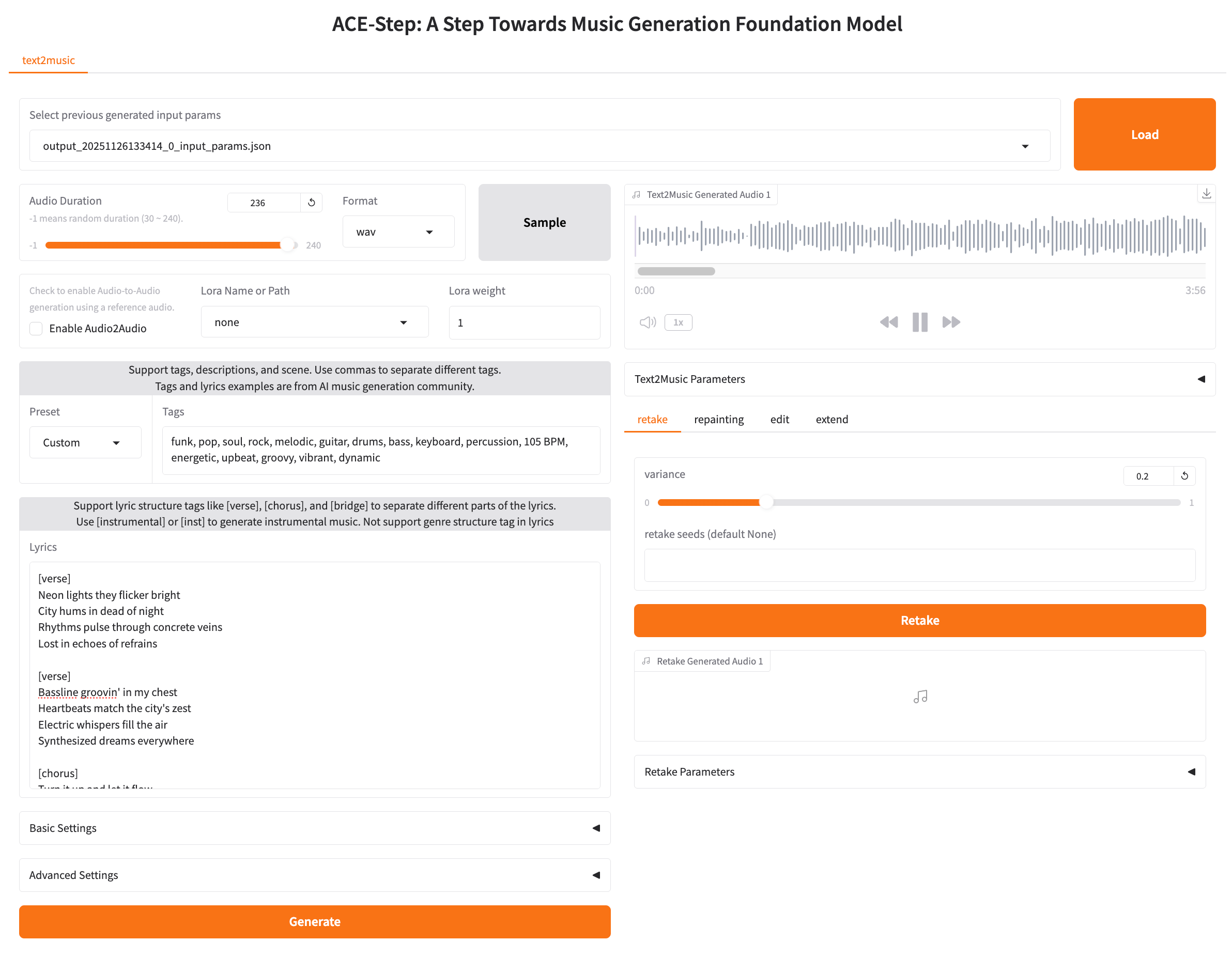
Audio Duration: Drag the slider to choose the track length (up to 240 seconds). If left at the default (
-1), the audio length will be random.Format: Select the audio format from
MP3,ogg,wav, andflac.MP3 recommended
It's recommended to change the default output format to MP3. This results in much smaller file sizes, faster loading, and a better overall experience.
Lora Name or Path: Select a LoRA model if available. Currently, only a Chinese rap LoRA is available by default.
Tags: Enter descriptors for style, mood, rhythm, or instruments, separated by commas. For example:
plainChinese Rap, J-Pop, Anime, kawaii future bass, Female vocals, EDM, Super FastLyrics: Enter your lyrics. Use structural tags to organize the song flow:
[verse]for the main verse.[chorus]for the chorus.[bridge]for the bridge.
Generate an instrumental-only track
Enter the tag
[instrumental]or[inst]in the Lyrics area to generate music without vocals.
Start generation
- Click Generate when all parameters are set.
- Once generation is complete, click the Play button to preview your track.
Save the generated music
You can save your generated music via two methods.
Optimize your audio
ACE-Step offers powerful tools to refine and modify specific parts of your generated track.
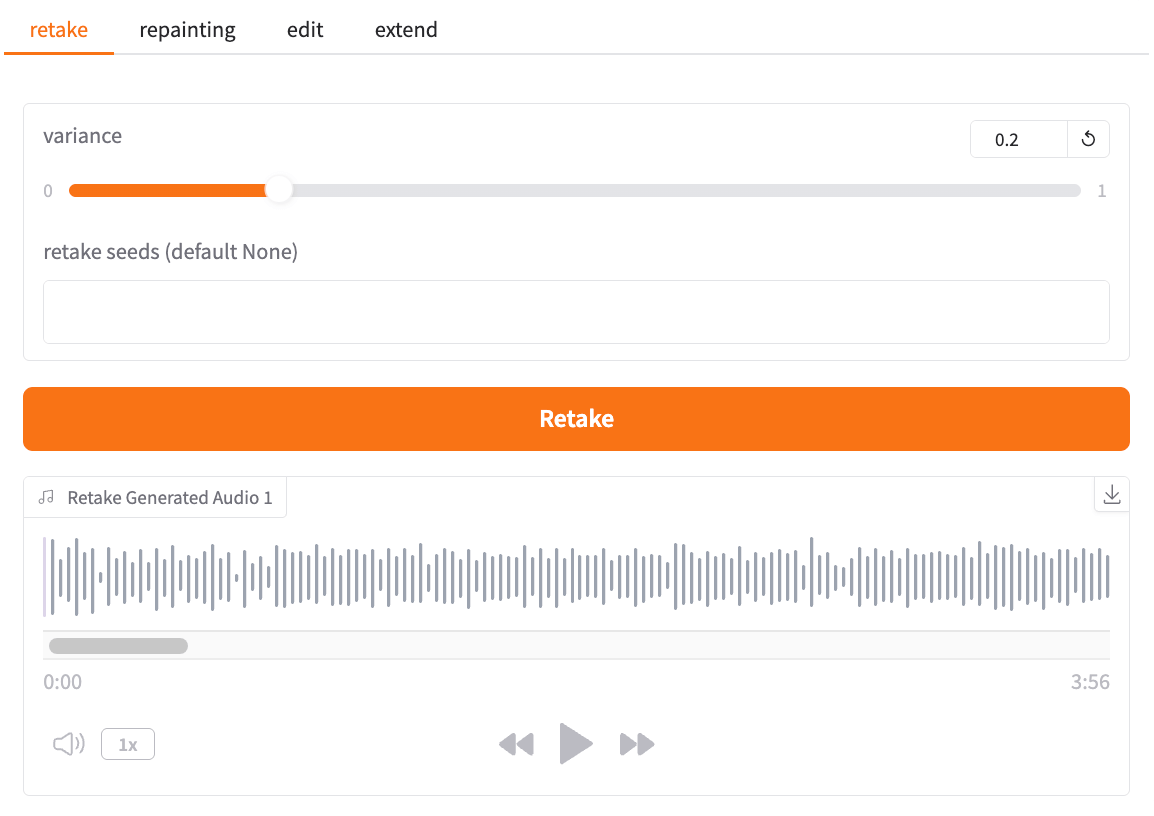
Regenerate the entire segment
You can generate a new version of the entire track.
Click the retake tab.
Adjust the variance slider:
- Higher values: Create a significantly different version.
- Lower values: Keep the new version closer to the original.
Click Retake and wait for the generation.
Regenerate a specific section
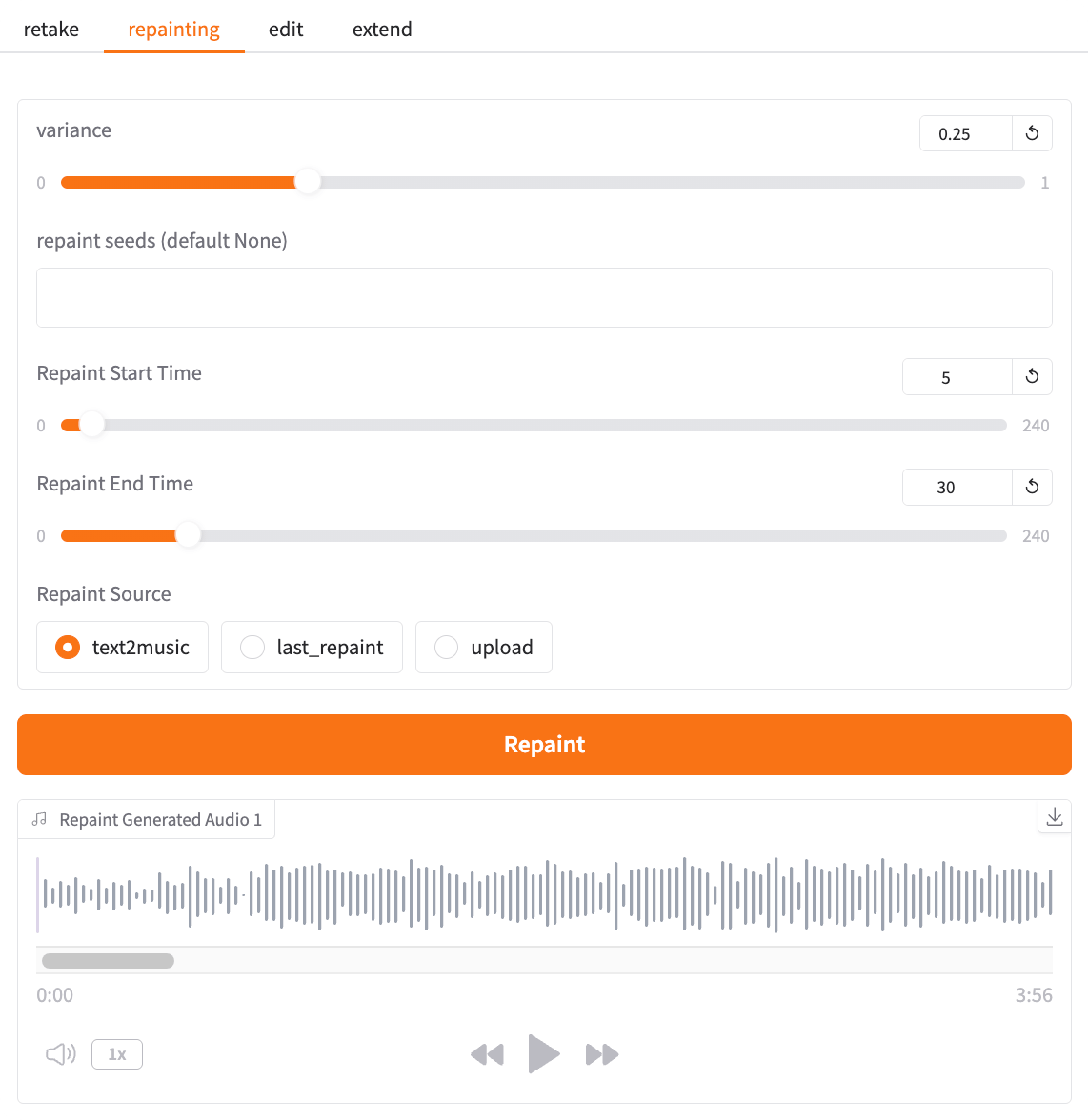
You can update only a selected time range while keeping the rest of the track unchanged.
Click the repainting tab.
Adjust the variance slider:
- Higher values: Create a significantly different version of the selected section.
- Lower values: Keep the new section closer to the original.
Adjust the Repaint Start Time and Repaint End Time sliders to select the section you want to regenerate.
Select the source for repainting:
text2music: The original song generated via Text2Music.last_repaint: The previous repainted version.upload: The audio you uploaded.
Click Repaint and wait for the generation.
Edit lyrics
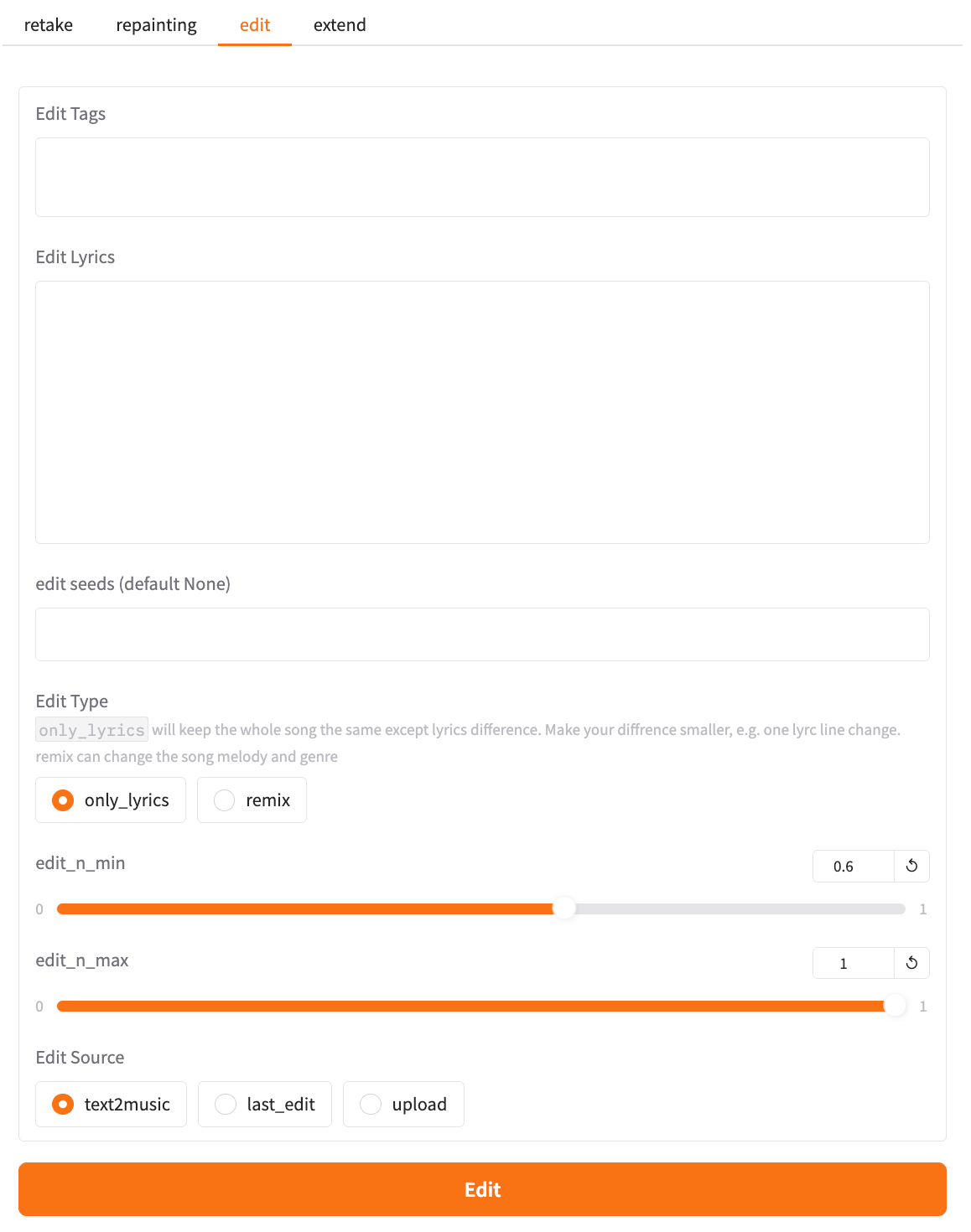
You can edit lyrics to modify specific lines without affecting the rest of the track.
Click the edit tab.
Copy the original lyrics and paste them into the Edit Lyrics area.
Modify only the specific lines you wish to change.
Under Edit Type, select
only_lyrics.Click Edit and wait for the generation.
Edit tags
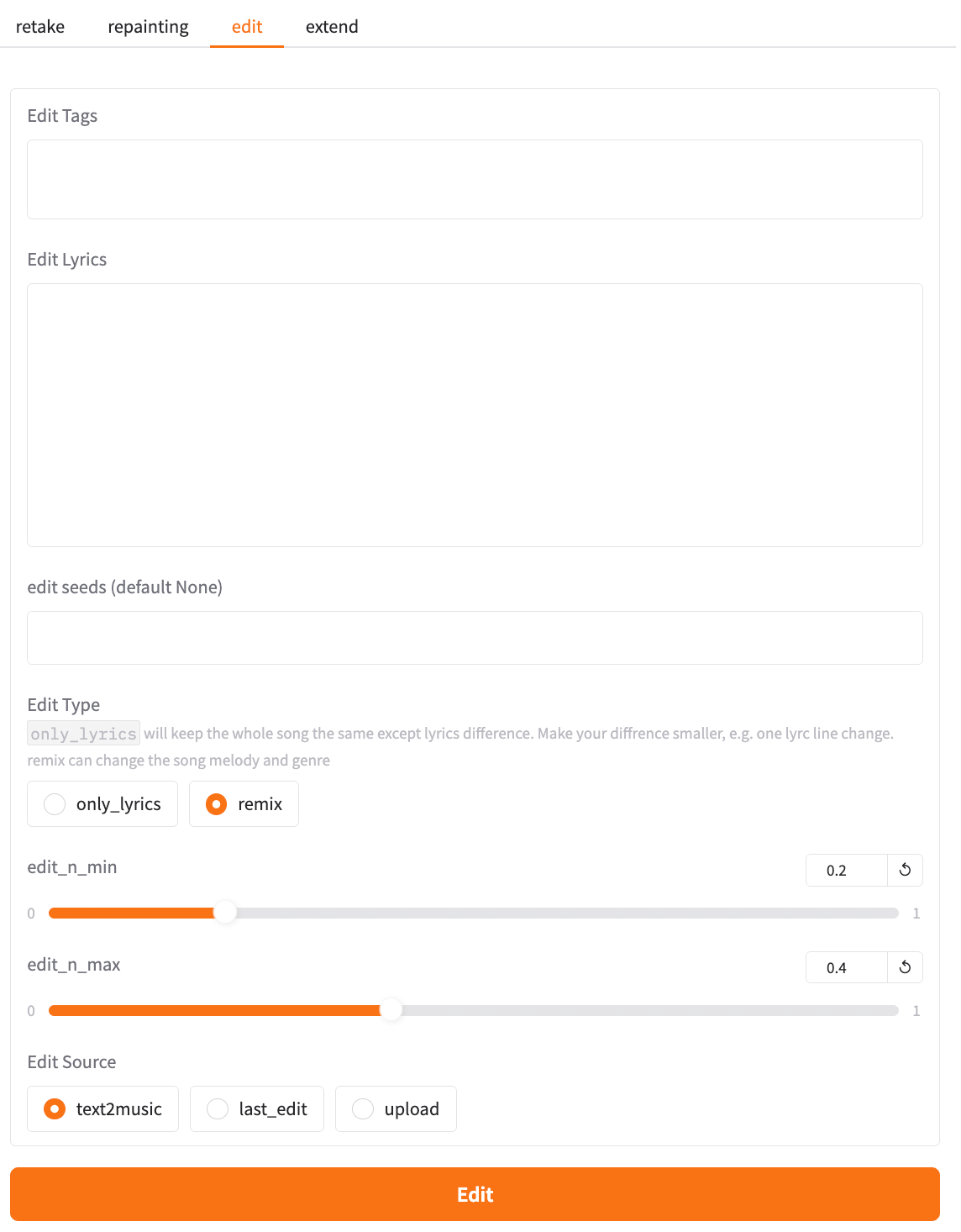
You can edit tags to reset the style or timbre of the track.
Click the edit tab.
Enter the new style or timbre tags (e.g.,
hard rockormale tenor vocals) in the Edit Tags area.In Edit Type, select
remix.Click Edit and wait for the generation.
Extend the audio
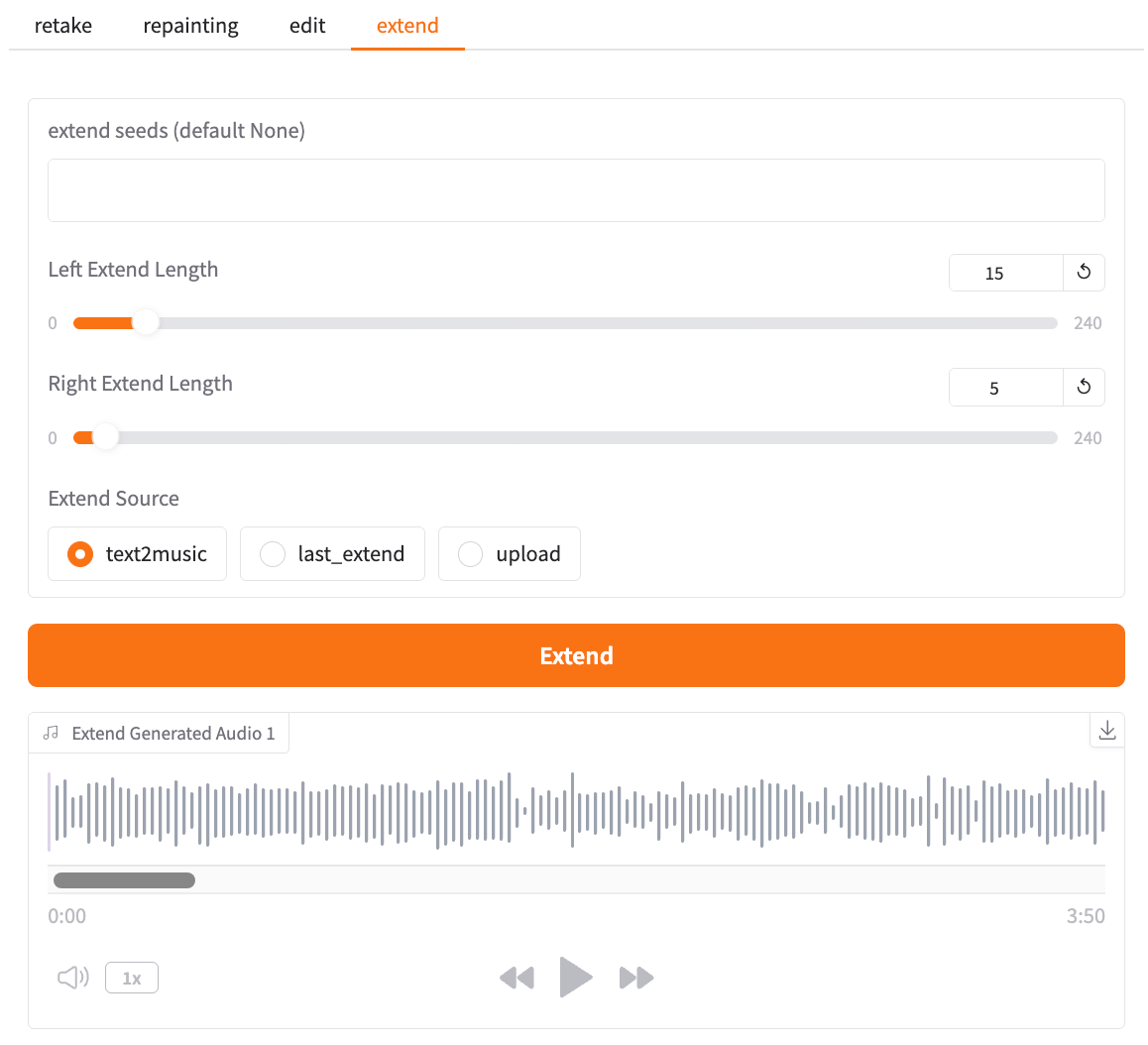
You can extend the length of the original track by adding new audio before or after it.
Click the extend tab.
Adjust the sliders:
- Left Extend Length: Add new audio before the original audio.
- Right Extend Length: Add new audio after the original audio.
Select the source to extend:
text2music: The original song generated via Text2Music.last_extend: The previous extended version.upload: The audio you uploaded.
Click Extend and wait for the generation.
Audio2Audio
You can create a new track based on a reference audio clip you upload. The AI analyzes characteristics such as timbre, rhythm, and style to produce a track with a similar feel.
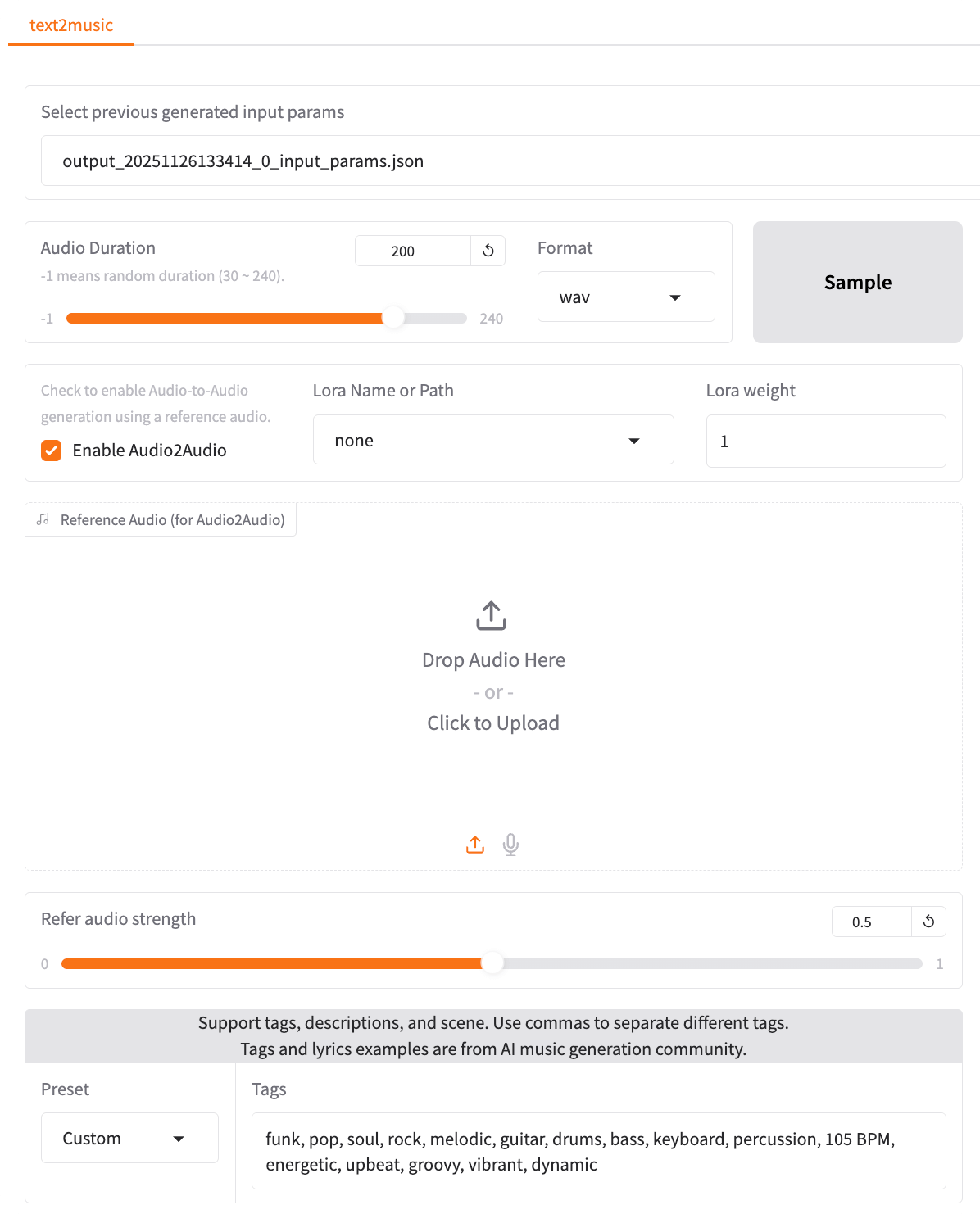
Check the box to Enable Audio2Audio.
Upload an existing music clip to serve as the reference.
Adjust the Refer audio strength slider. A higher value results in music more similar to the reference track.
Select a Preset style, or keep the default.
Set other parameters as needed.
Click Generate to create new music with an atmosphere similar to the reference audio.