Download YouTube videos in Wise 15 min
Wise lets you save YouTube videos directly into your library for offline viewing. Unlike a standard file download, saving to the library ensures the video appears within the Wise application, allowing you to manage, play, and organize it alongside your other content.
Learning objectives
By the end of this tutorial, you will learn how to:
- Save a YouTube video to your Wise library by pasting a link in Wise (recommended).
- Save a video from your browser using the LarePass extension.
- Check download progress and watch the video offline.
Install Wise and YT-DLP
Before downloading YouTube videos, make sure the following apps are installed from Olares Market:
- Wise: The interface.
- YT-DLP: The background downloader service.
- Open Market from your Launchpad.
- Search for "Wise", click Get, then Install.
- Search for "YT-DLP", click Get, then Install.
Save video to library
You can save videos by pasting the URL directly in Wise or by using the LarePass extension while browsing.
Paste URL in Wise recommended
- Copy the URL of the YouTube video.
- Open Wise, click add_circle in the bottom-left menu bar, then select Add link.
- Paste the URL into the input field. Wise analyzes the link immediately.
- In the panel, locate the Save to library section:
Video is ready: Click box_add next to the video item to save it.
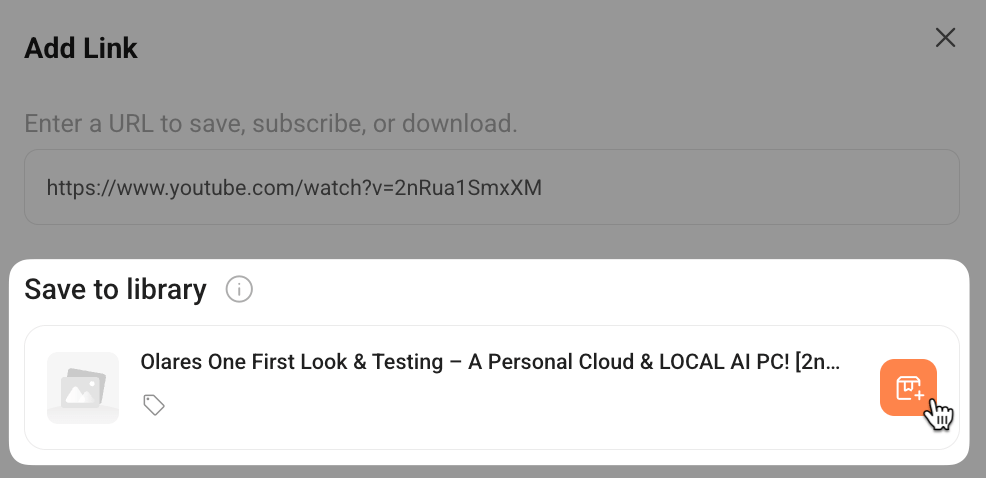
Login is required: If you see a prompt to log in to the site and upload cookies, simply click Upload. Once the status updates, click box_add to save.
Use LarePass extension
If you frequently save videos while browsing, the LarePass extension can be more convenient, but it requires installing the extension first.
- Open the YouTube video in your browser.
- Click the LarePass browser extension icon in your browser toolbar and select the "Collect" icon.
- In the panel, locate the Save to library section:
Video is ready: Click box_add next to the video item to save it.
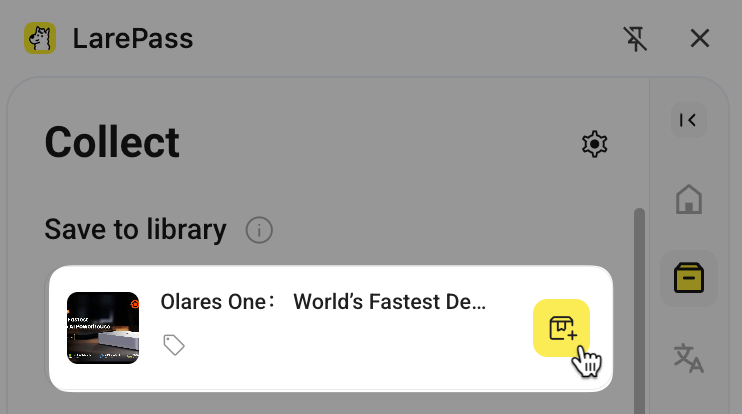
Login is required: If you see a prompt to log in to the site and upload cookies, simply click Upload. Once the status updates, click box_add to save.
Monitor and manage video downloads
When you save a video to the library, Wise creates a record immediately, and the file download runs in the background.
- In Wise, click settings in the bottom-left menu bar, then select Download list.
- Use the tabs to filter tasks: All, Downloading, Completed, Failed.
- Review the task list and status.
- You can:
- Click folder_open to locate the transferred file in Files.
- Click do_not_disturb_on to remove it from the list.
Once the download is complete, you can play the video directly inside Wise even without an internet connection.
Resources
If you want to explore more Wise features beyond offline video saving, see also:
- Wise basics: For general usage of the application.
- Subscribe and manage feeds: If you wish to follow YouTube channels via RSS.
- Manage cookies for Wise: For detailed cookie management configurations.